

How to Update IRAS Employee Details Inside a Tax Filing Year
This guide shows you how to update IRAS employee details inside an existing tax filing year in NeuHR. You must have an HR Executive or Super Admin role to access this feature.
-
Navigate to Tax Filing
Section titled “Navigate to Tax Filing”From the sidebar, scroll down to
Settingsand clickTax filing.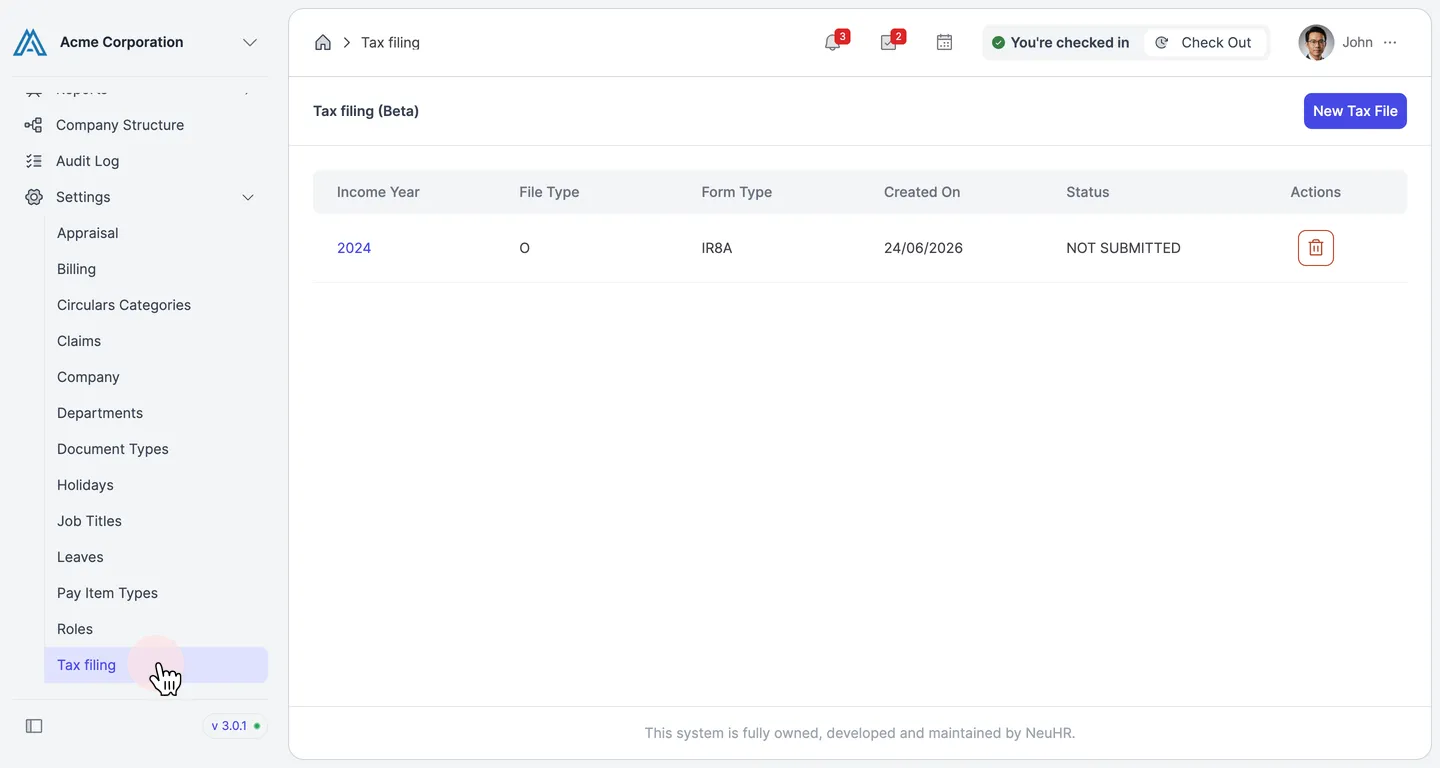
-
Open a Tax Filing Year
Section titled “Open a Tax Filing Year”On the Tax filing (Beta) page, click the income year you want to update (e.g.,
2024).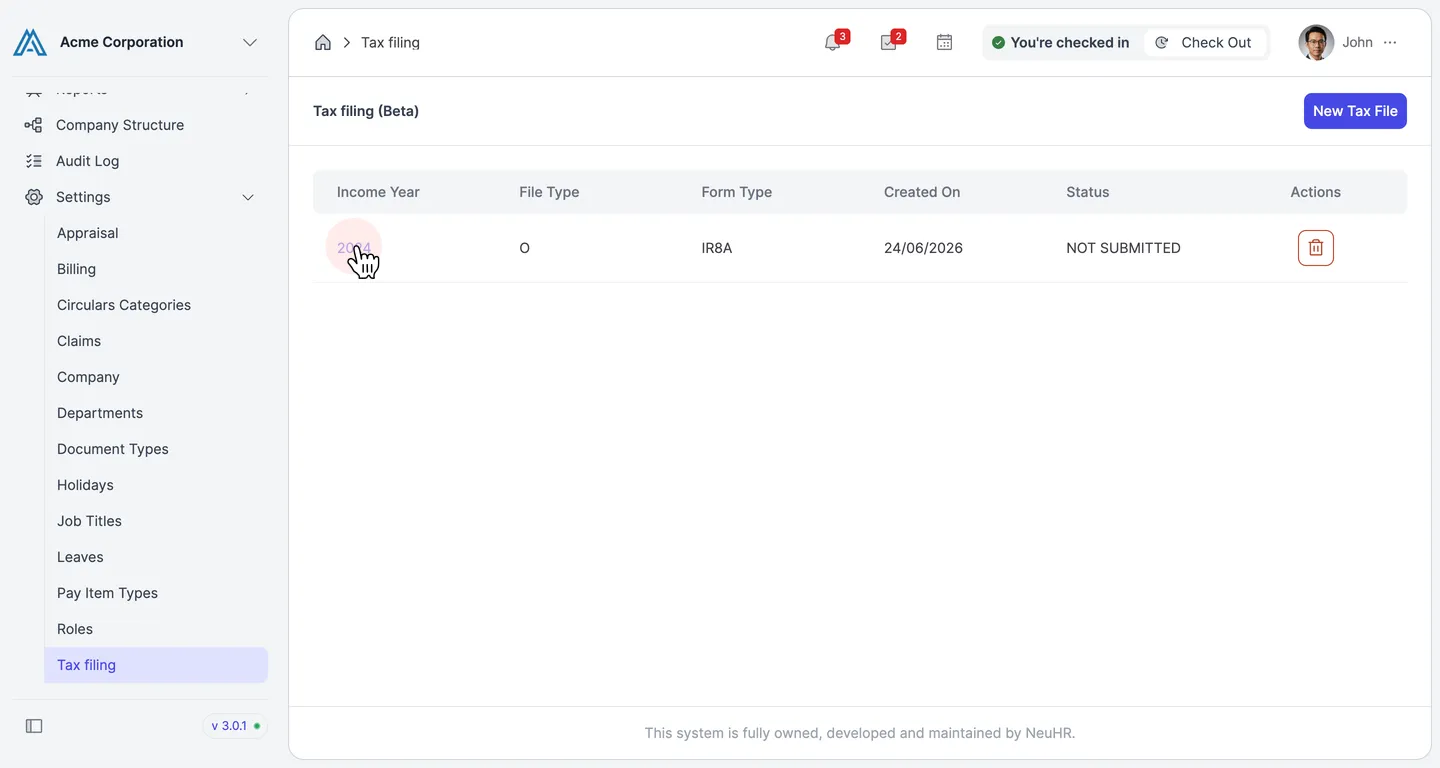
-
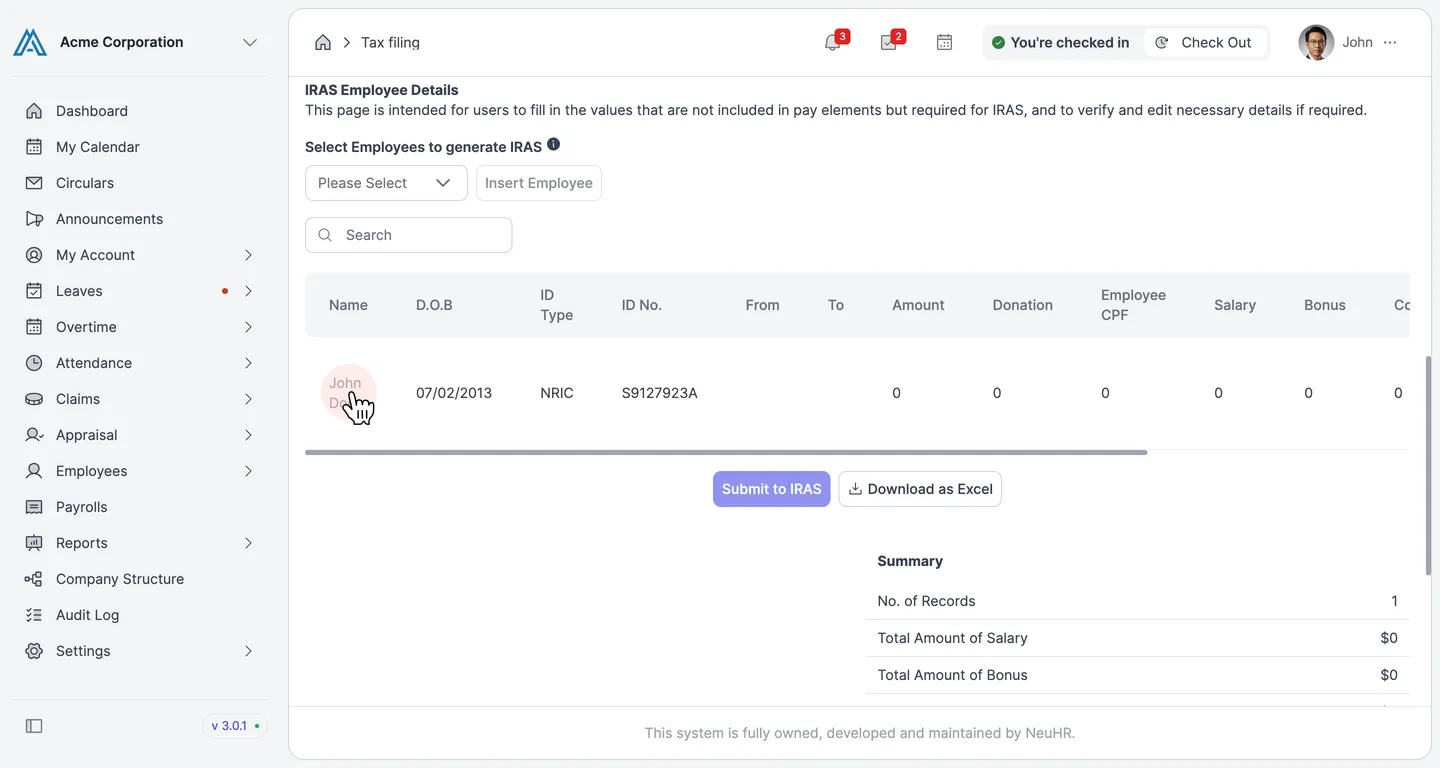
Locate the IRAS Employee Details Section
Section titled “Locate the IRAS Employee Details Section”On the Tax Filing detail page, scroll down to the IRAS Employee Details section. You will see a table listing all employees added to this tax filing year.
-
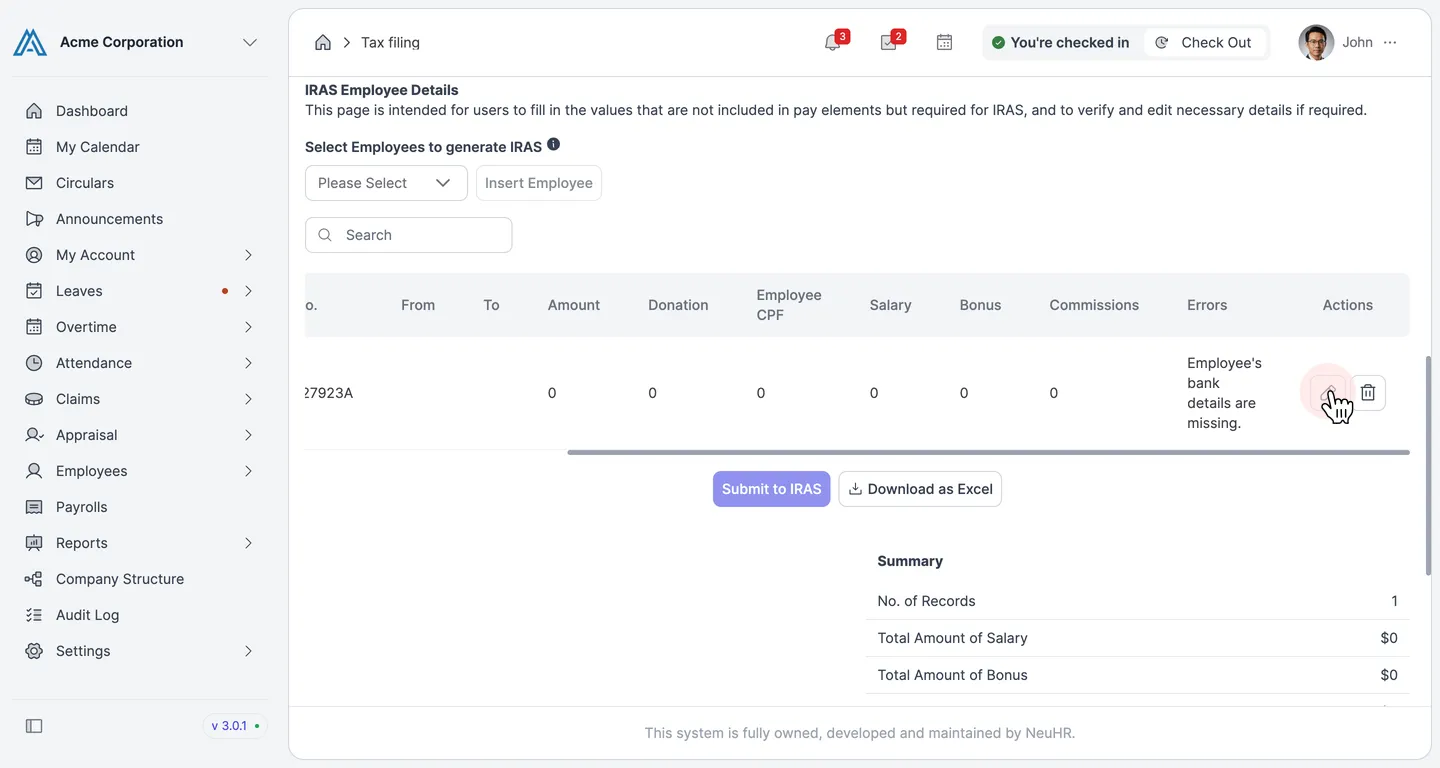
Click the Edit Icon on an Employee Row
Section titled “Click the Edit Icon on an Employee Row”Scroll the employee table to the right to reveal the Actions column. Click the pencil (edit) icon on the employee row you want to update.
-
Update the Employee Details
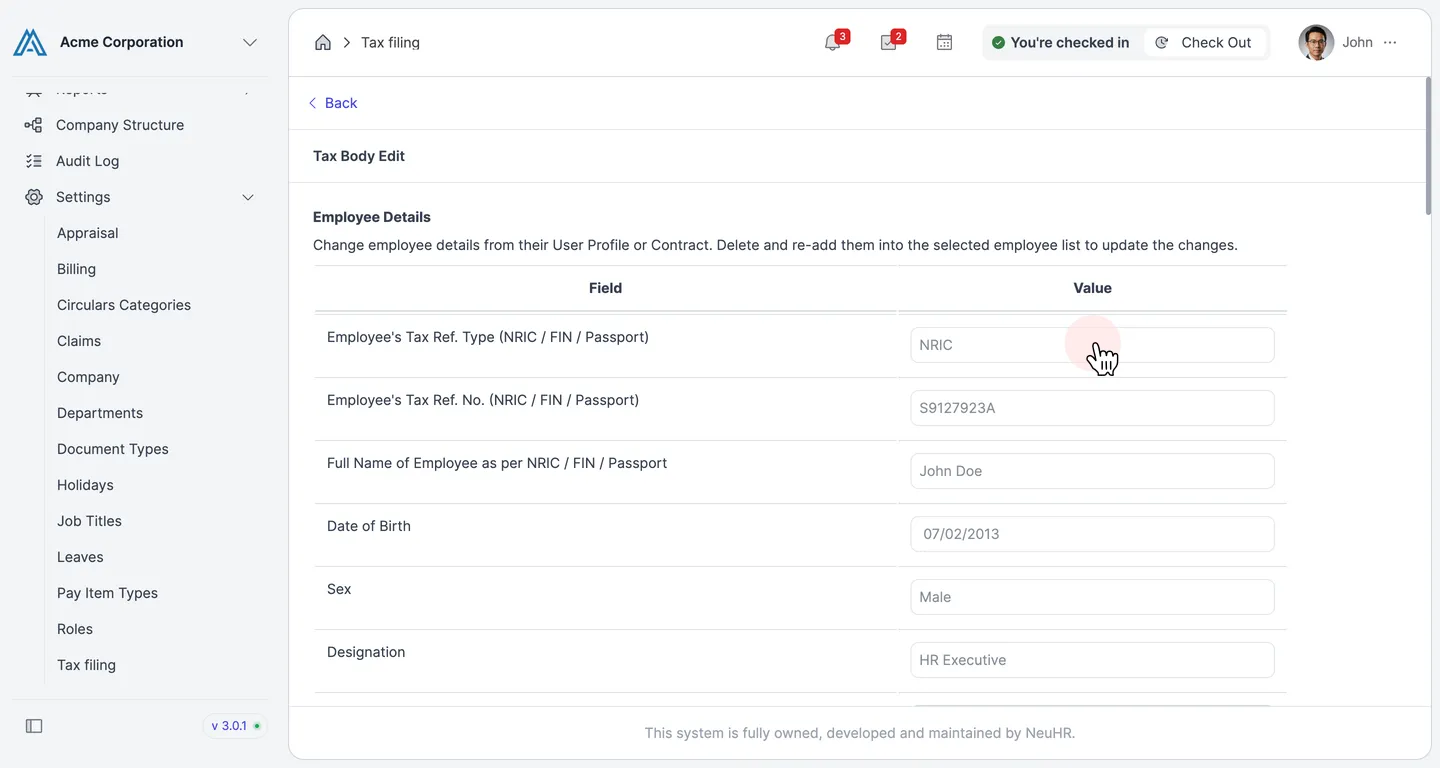
Section titled “Update the Employee Details”The Tax Body Edit page opens with the employee’s current IRAS details. Update the relevant fields in the Employee Details section:
- Employee’s Tax Ref. Type (NRIC / FIN / Passport): The employee’s identification type
- Employee’s Tax Ref. No. (NRIC / FIN / Passport): The employee’s identification number
- Full Name of Employee as per NRIC / FIN / Passport: Employee’s legal full name
- Date of Birth: Employee’s date of birth
- Sex: Employee’s gender
- Designation: Employee’s job title
The form also includes sections for income amounts, deductions, and other IRAS-required fields.
-
Save the Changes
Section titled “Save the Changes”Once you have updated the necessary fields, click
Saveto apply your changes. You can also clickCalculatefirst to preview the recalculated amounts before saving.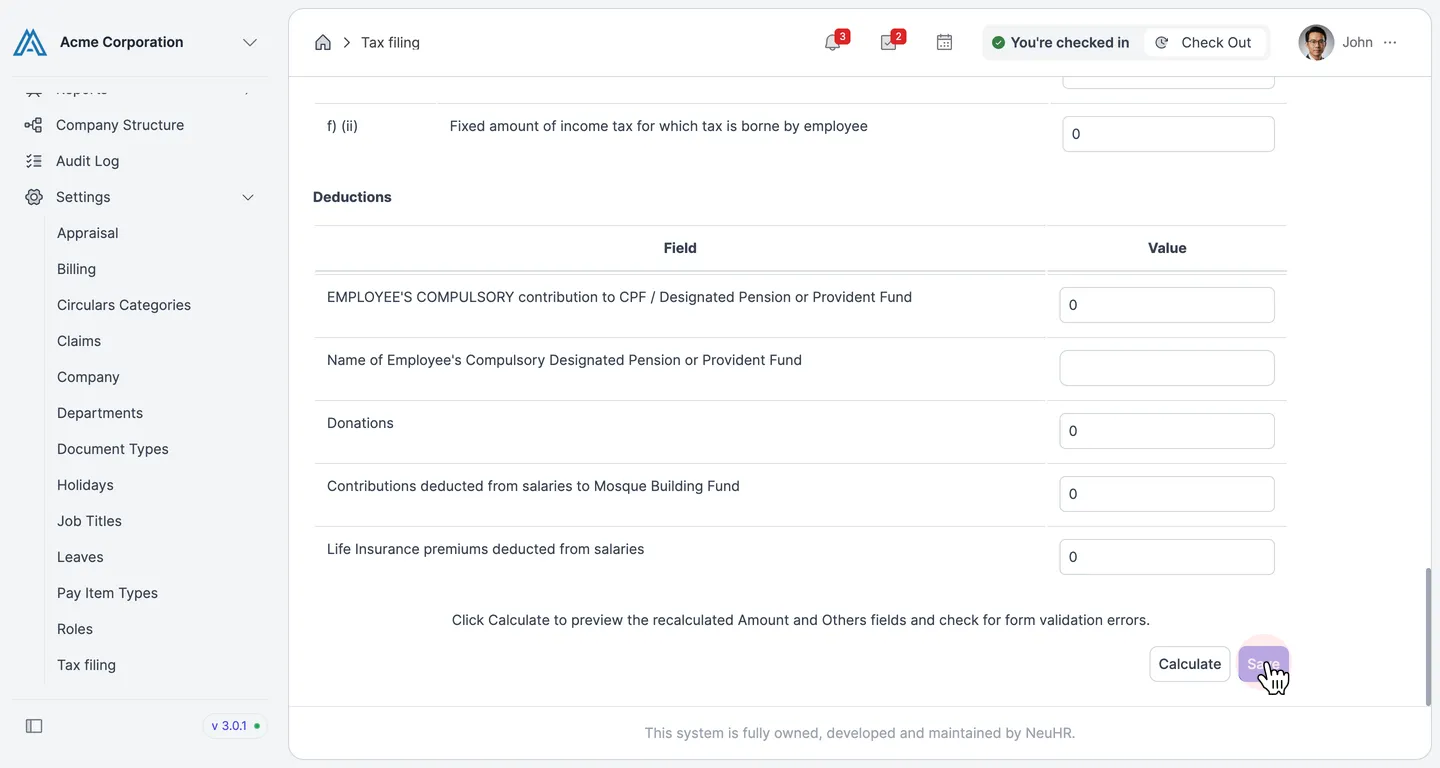
The system saves the updated IRAS employee details and returns you to the tax filing year page.