

How to Update Overridable Leave Balances in Employee Details Page
Leave types in NeuHR have a company-wide default balance (e.g., “Compassionate Leave: 10 days”). In the Benefits section of an employee’s Employment Details, admins can override these defaults for a specific employee — giving them a higher or lower balance than the company default.
-
Go to Employees List
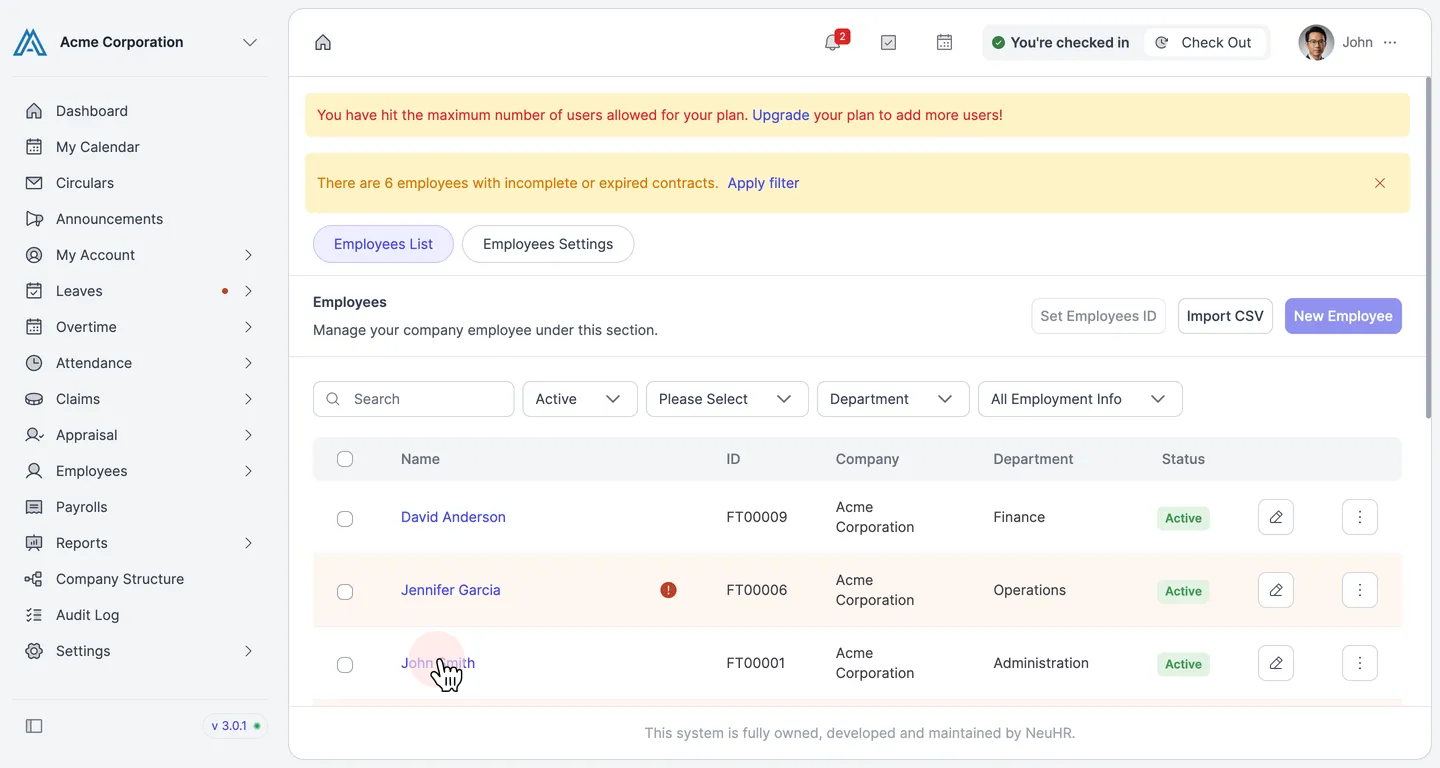
Section titled “Go to Employees List”In the left sidebar, navigate to Employees > Employees List. Click on the name of the employee whose leave balance you want to update.
-
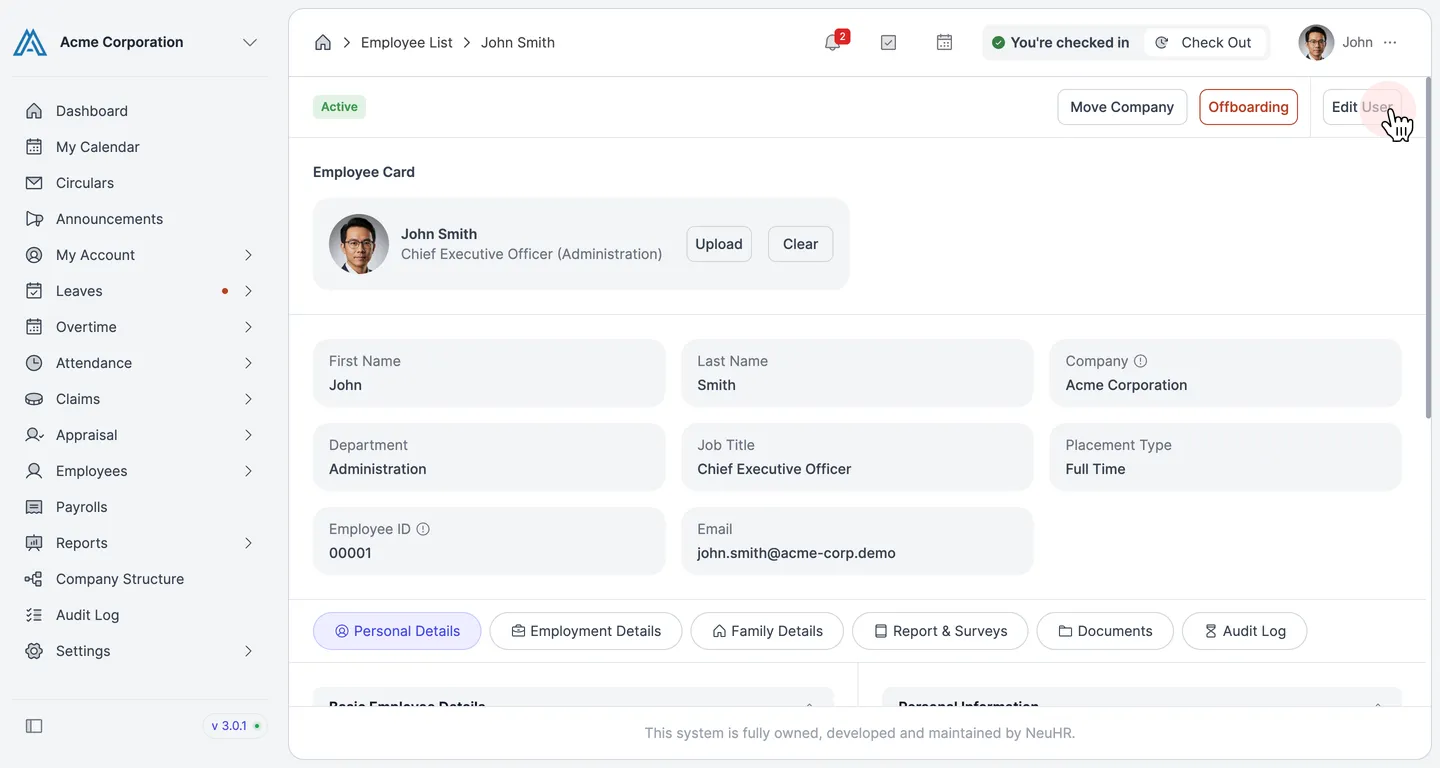
Click Edit User
Section titled “Click Edit User”On the employee’s profile page, click the Edit User button in the top-right corner to enter edit mode.
-
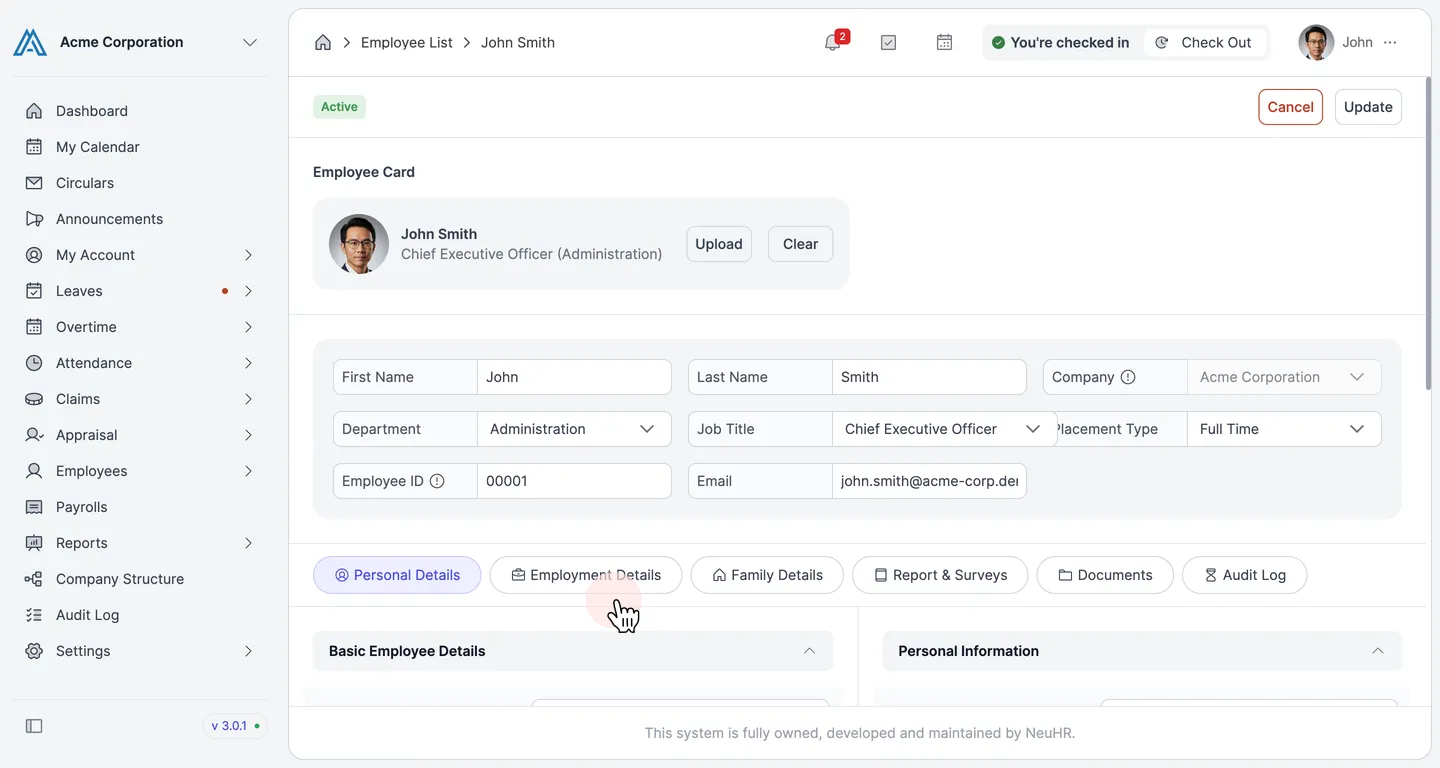
Open the Employment Details tab
Section titled “Open the Employment Details tab”Click the Employment Details tab to switch to the employment form. This tab contains payroll, benefits, and other employment-related settings.
-
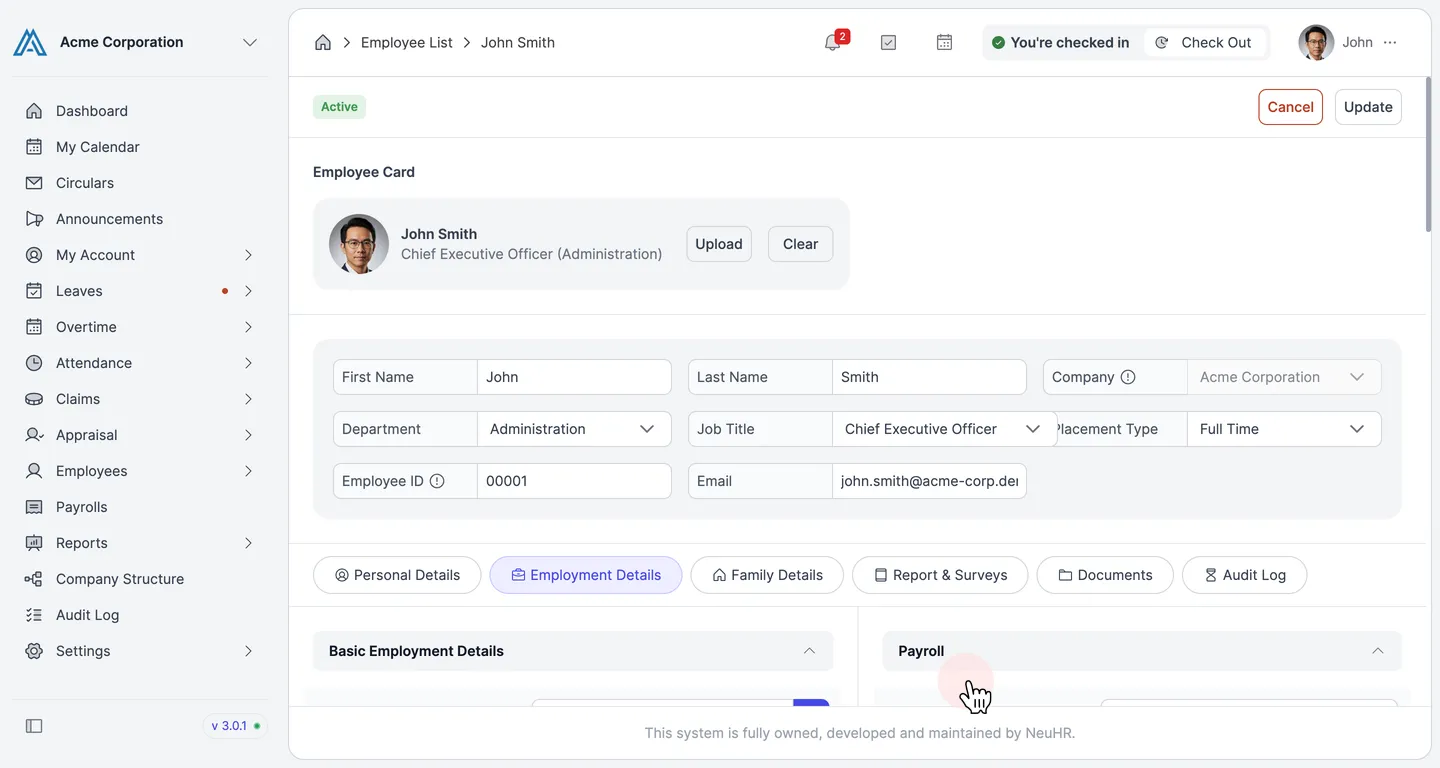
Scroll down to the Benefits section
Section titled “Scroll down to the Benefits section”The Employment Details tab opens with Basic Employment Details and Payroll sections at the top. Scroll down past the Payroll section to find the Benefits section.
-
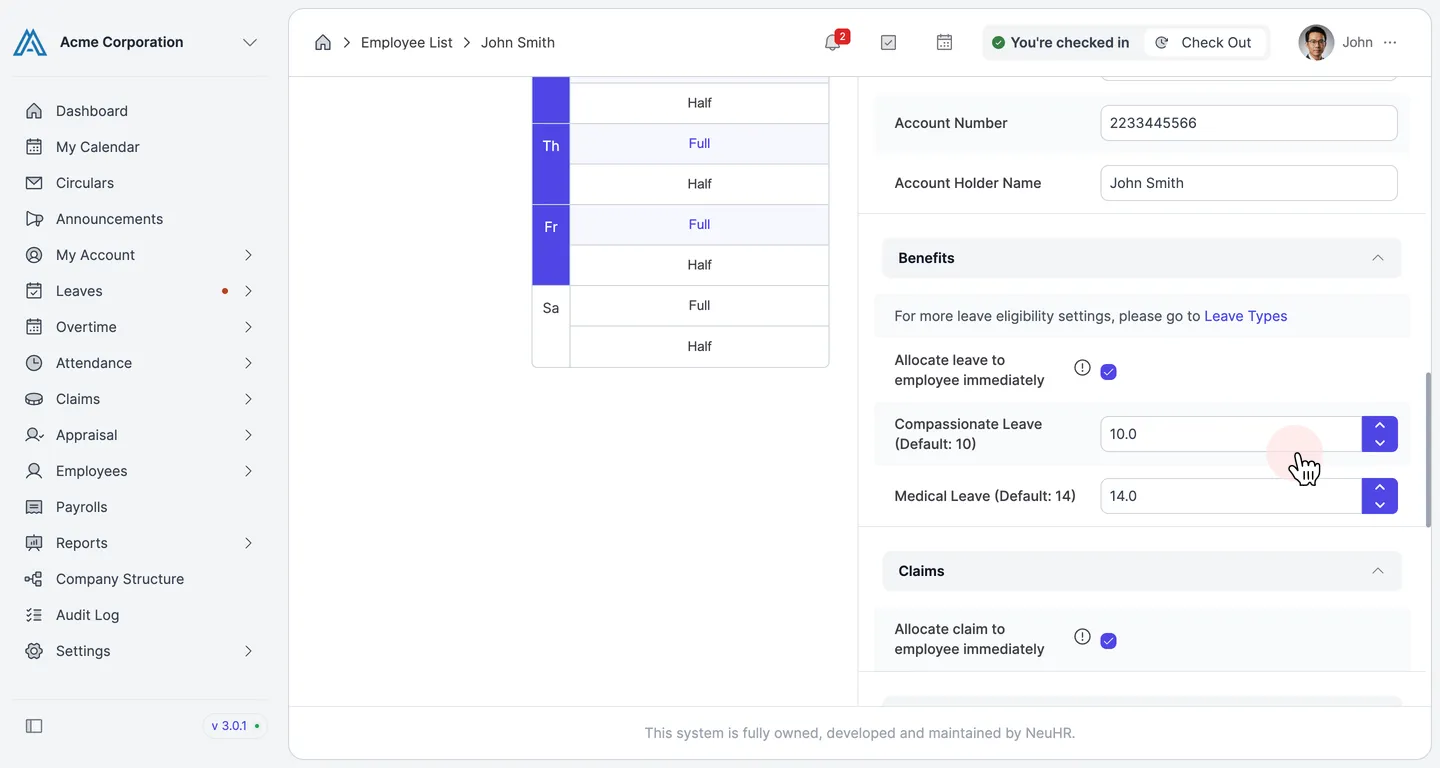
Find the overridable leave balance fields
Section titled “Find the overridable leave balance fields”In the Benefits section, each leave type with an overridable balance is listed with its default value shown in parentheses (e.g., Compassionate Leave (Default: 10)). The input field next to each leave type shows the employee’s current allocation.
-
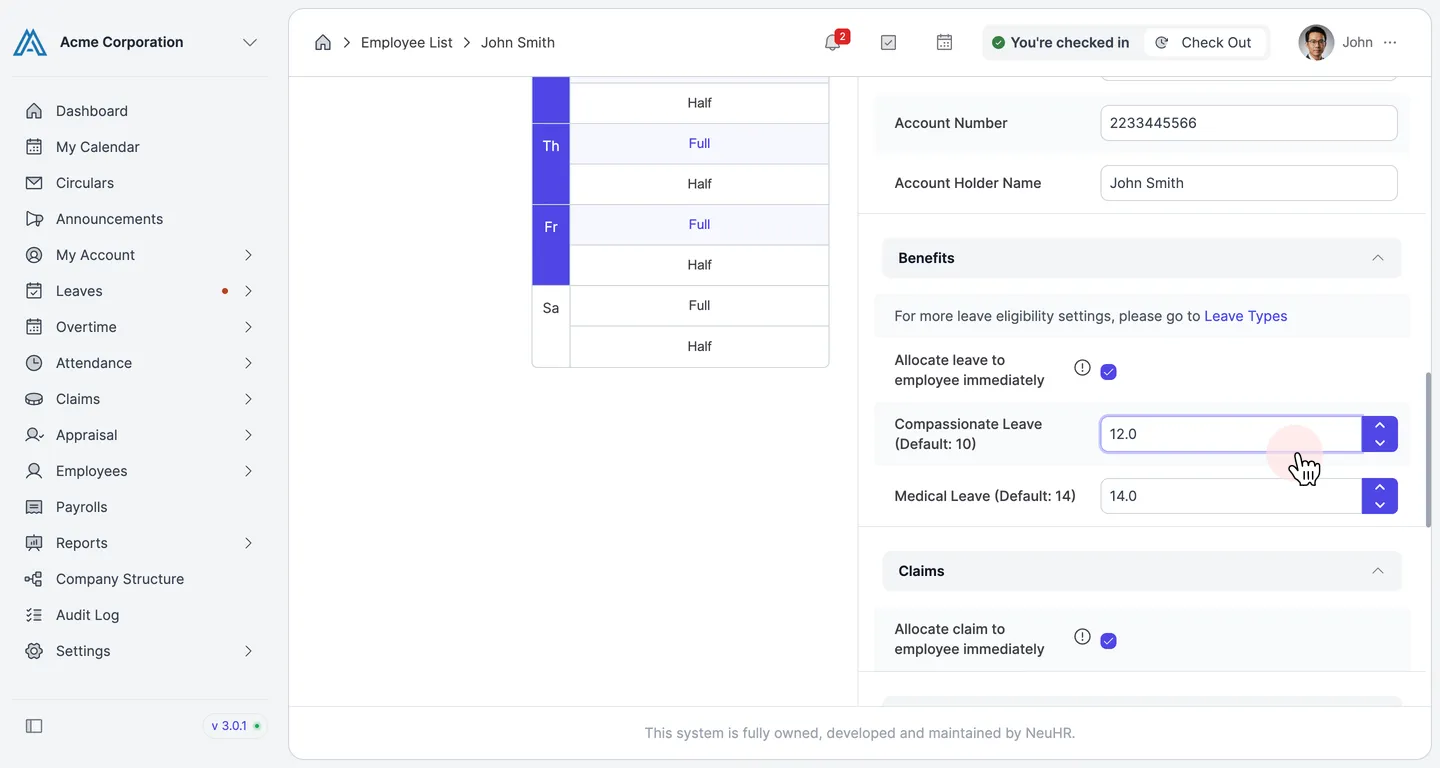
Enter the new leave balance
Section titled “Enter the new leave balance”Click on the input field for the leave type you want to update and enter the new balance value. For example, change Compassionate Leave from 10 to 12 to give this employee 2 extra days.
-
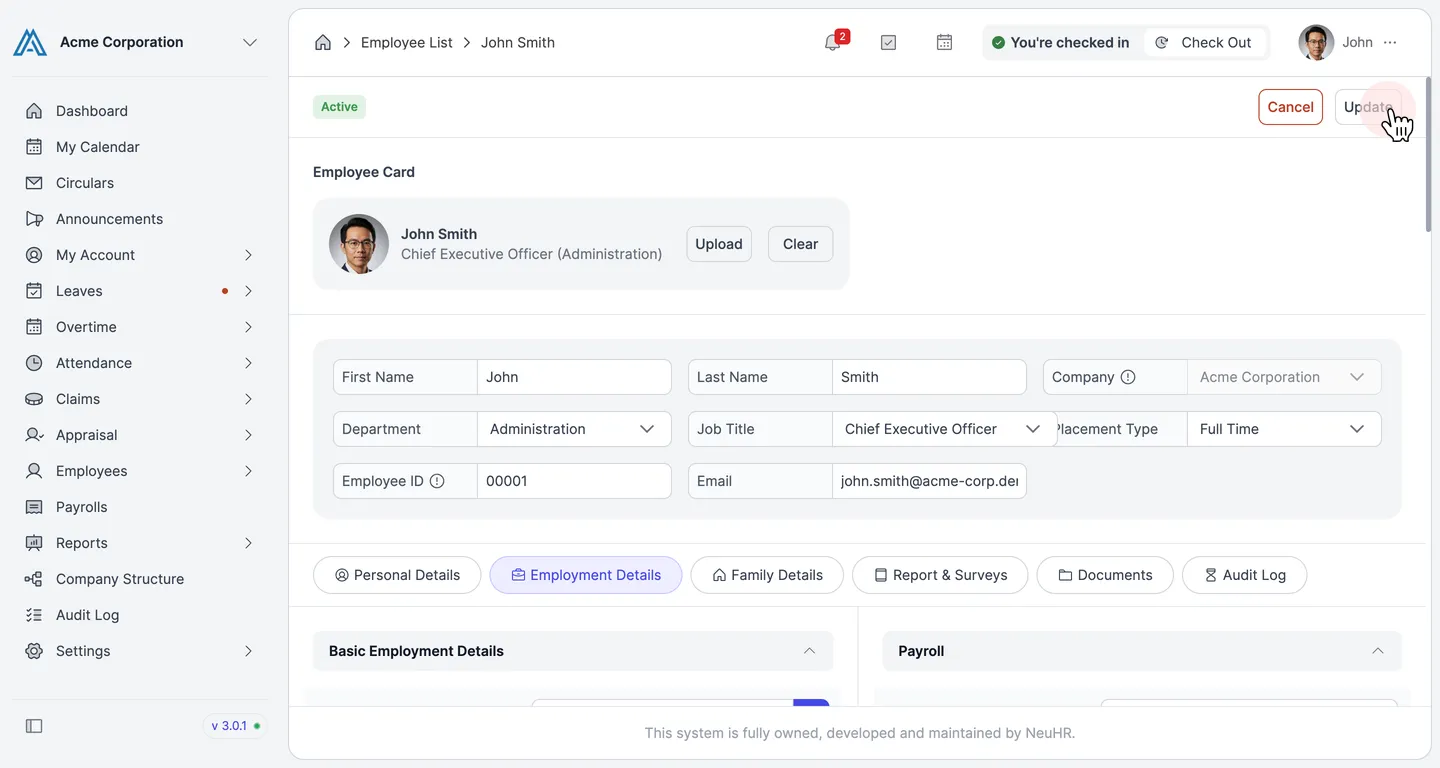
Click Update
Section titled “Click Update”After updating the balance values, scroll back to the top of the page and click the Update button to save all changes.
-
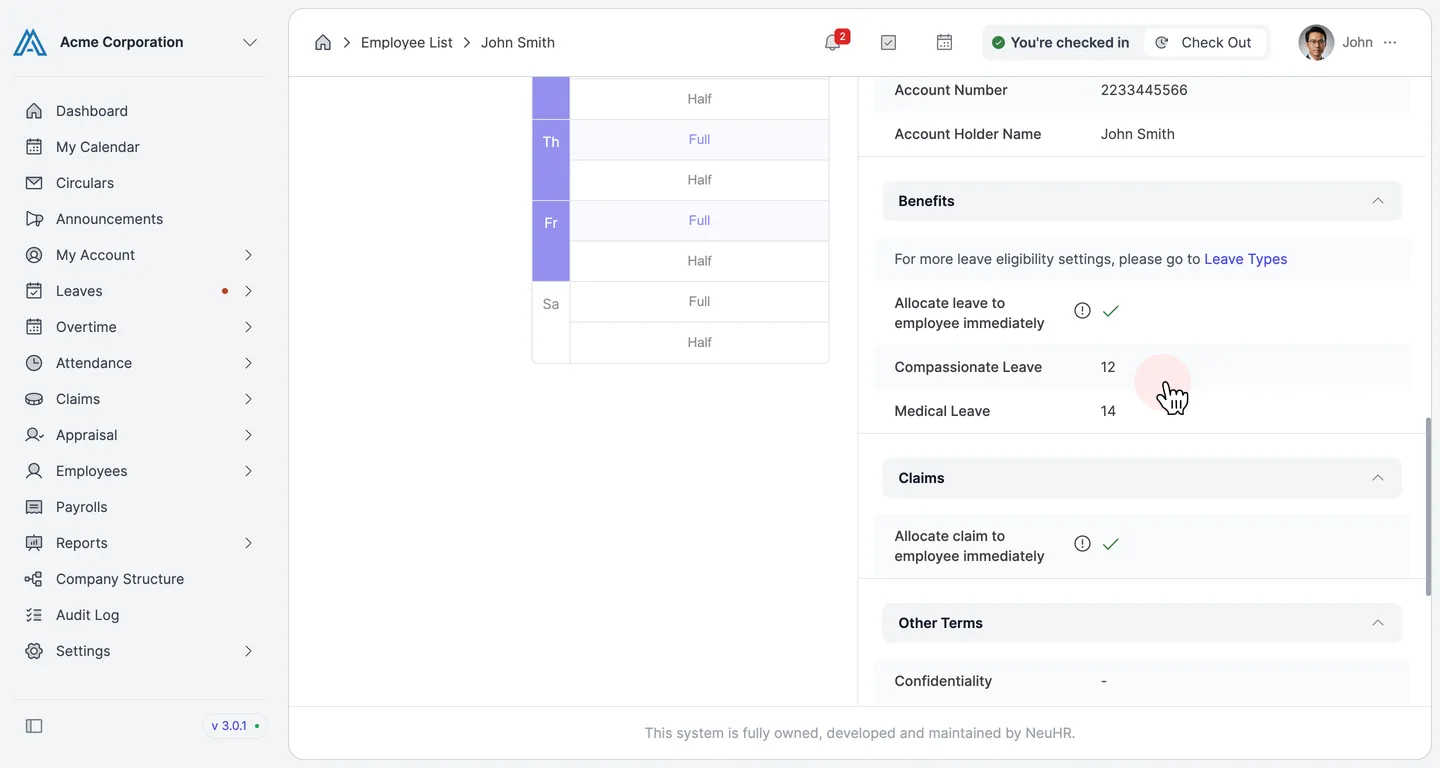
Changes saved
Section titled “Changes saved”The page returns to view mode. In the Benefits section, you can confirm the updated leave balance is now reflected (e.g., Compassionate Leave shows 12 instead of the default 10).
- The values shown in parentheses (e.g., Default: 10) are the company-wide defaults set in Settings > Leaves. Changing them here only affects this individual employee.
- If you want to revert an employee to the company default, set the value back to match the default shown in parentheses.
- The Allocate leave to employee immediately checkbox in the Benefits section controls whether the balance is credited right away upon saving.