Step-by-Step Guide to Create Payroll for the Month
This guide walks you through creating a new payroll for any given month in NeuHR. Payrolls are organised by month, and each payroll automatically includes all active employees with their salary details pre-populated.
-
Navigate to Payrolls
Section titled “Navigate to Payrolls”From the left sidebar, click on
Payrolls.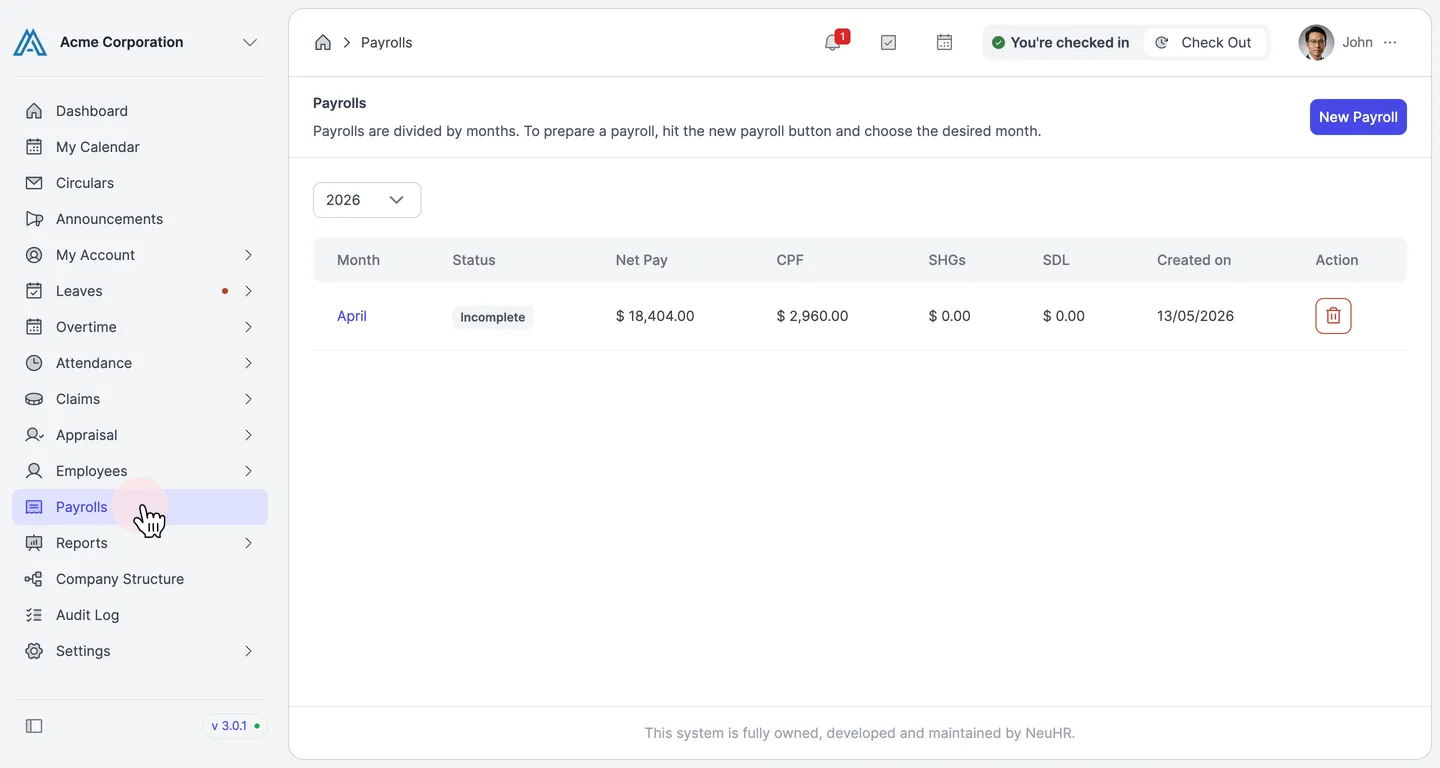
-
Click New Payroll
Section titled “Click New Payroll”On the
Payrollspage, click theNew Payrollbutton in the top right corner.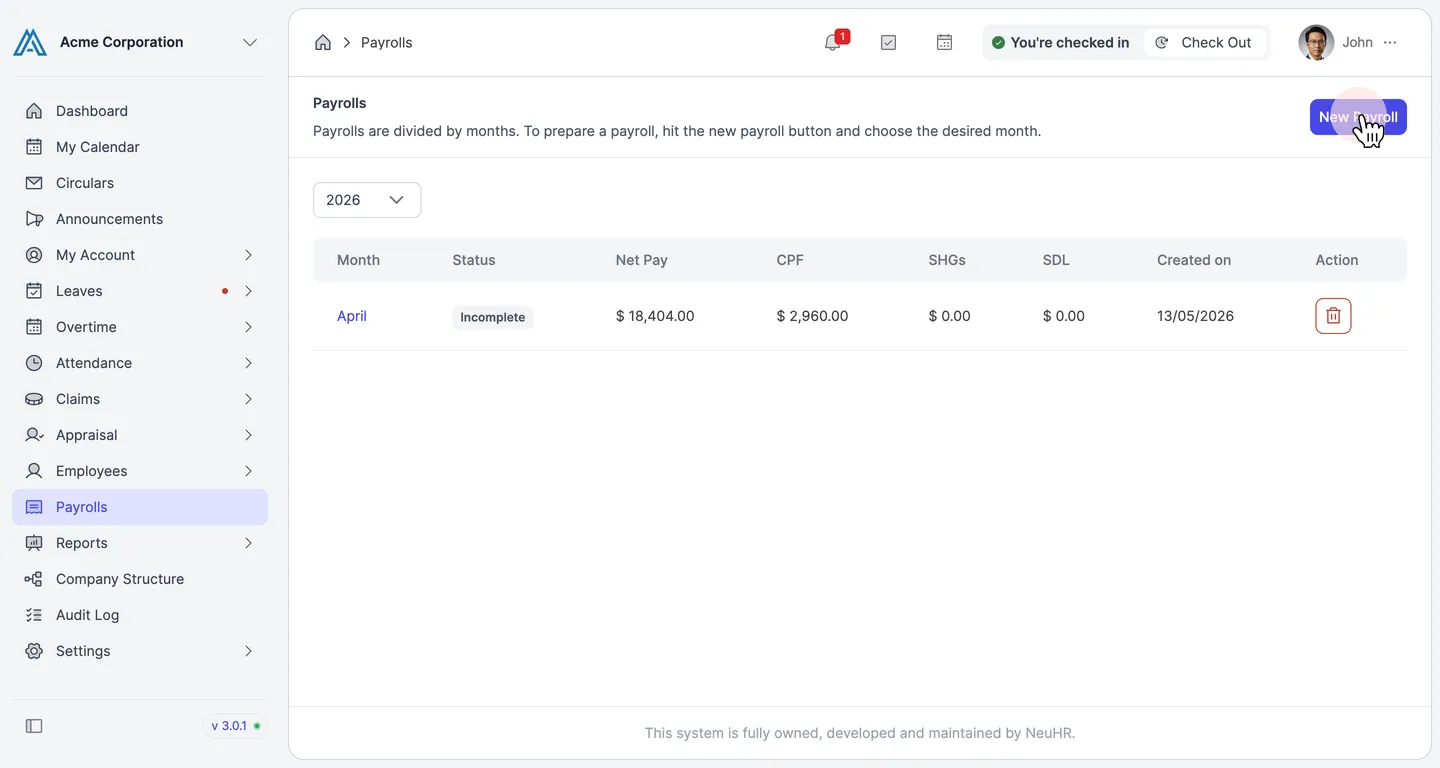
-
The Create New Payroll Dialog
Section titled “The Create New Payroll Dialog”The
Create New Payrolldialog opens. It contains the following options:- Payment Period — the month and year for this payroll (required)
- Use custom work days? — override the default number of working days
- Use custom pay day date? — set a custom pay day instead of the default
- Payroll includes approved claims — enabled by default; includes approved claims in the payroll
- Advanced cut-off dates — override the default cut-off start and end dates
Click the
Payment Periodfield to open the month selector.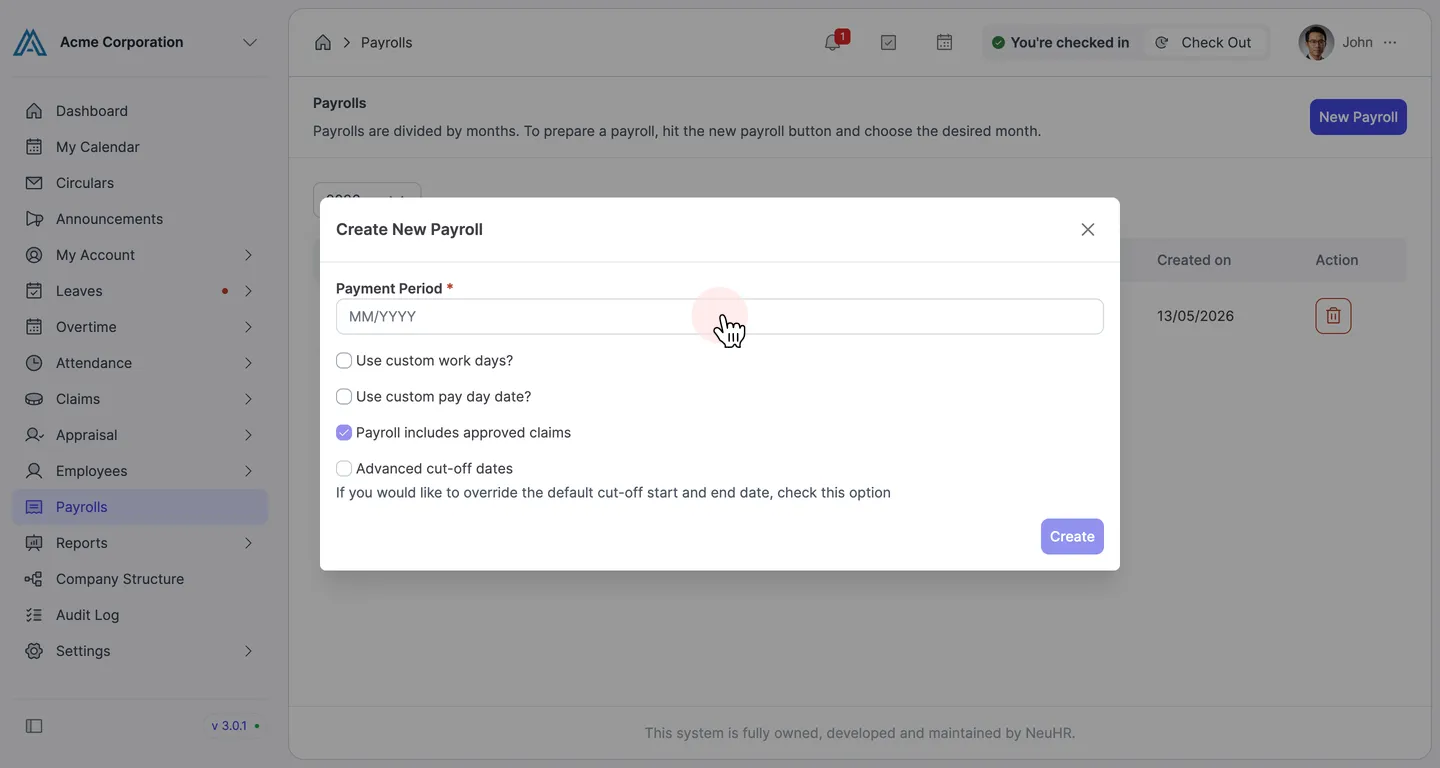
-
Select the Payment Month
Section titled “Select the Payment Month”A month picker appears showing the current year. Use the
<and>arrows to navigate between years, then click the desired month.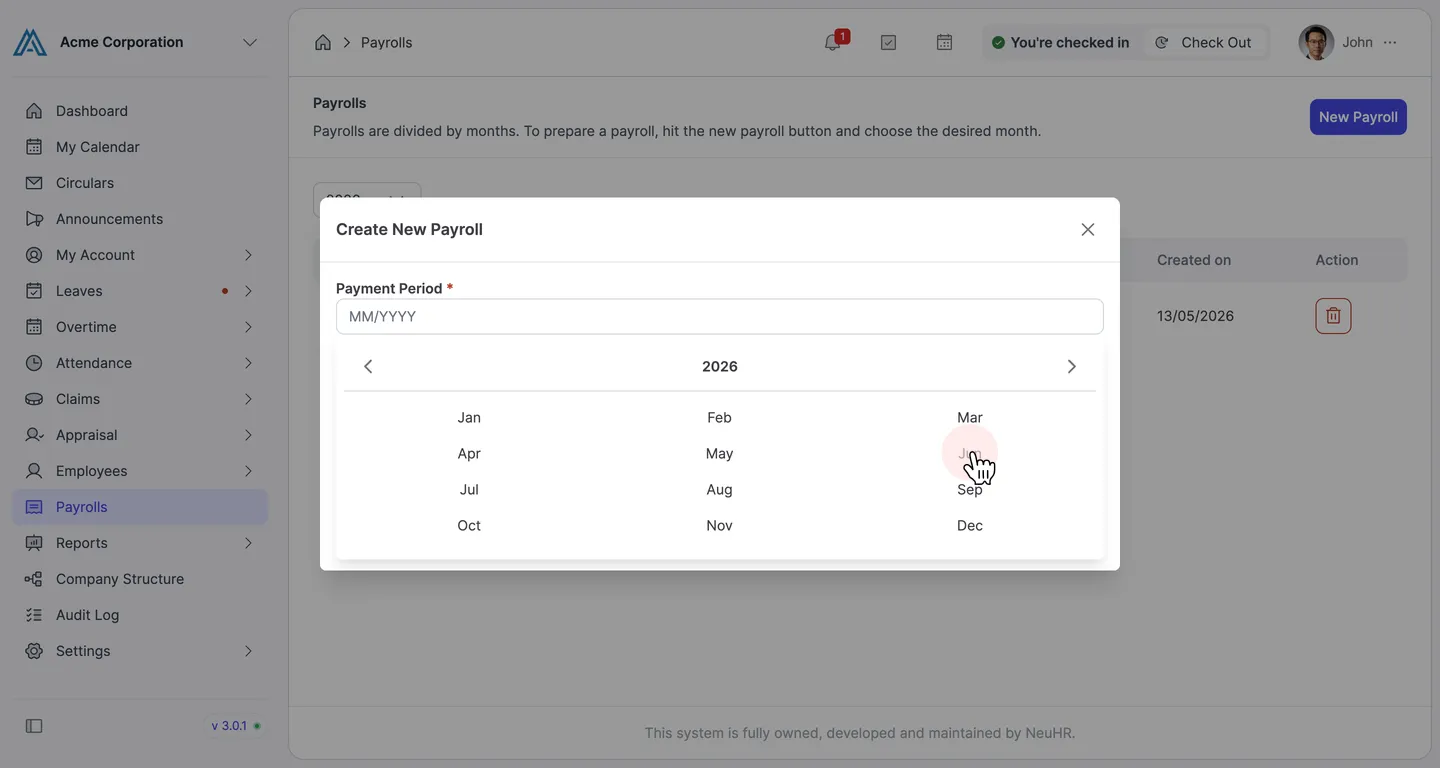
-
Confirm and Create
Section titled “Confirm and Create”Once a month is selected, the
Payment Periodfield is filled (e.g.,06/2026). Review the other options and adjust if needed, then clickCreate.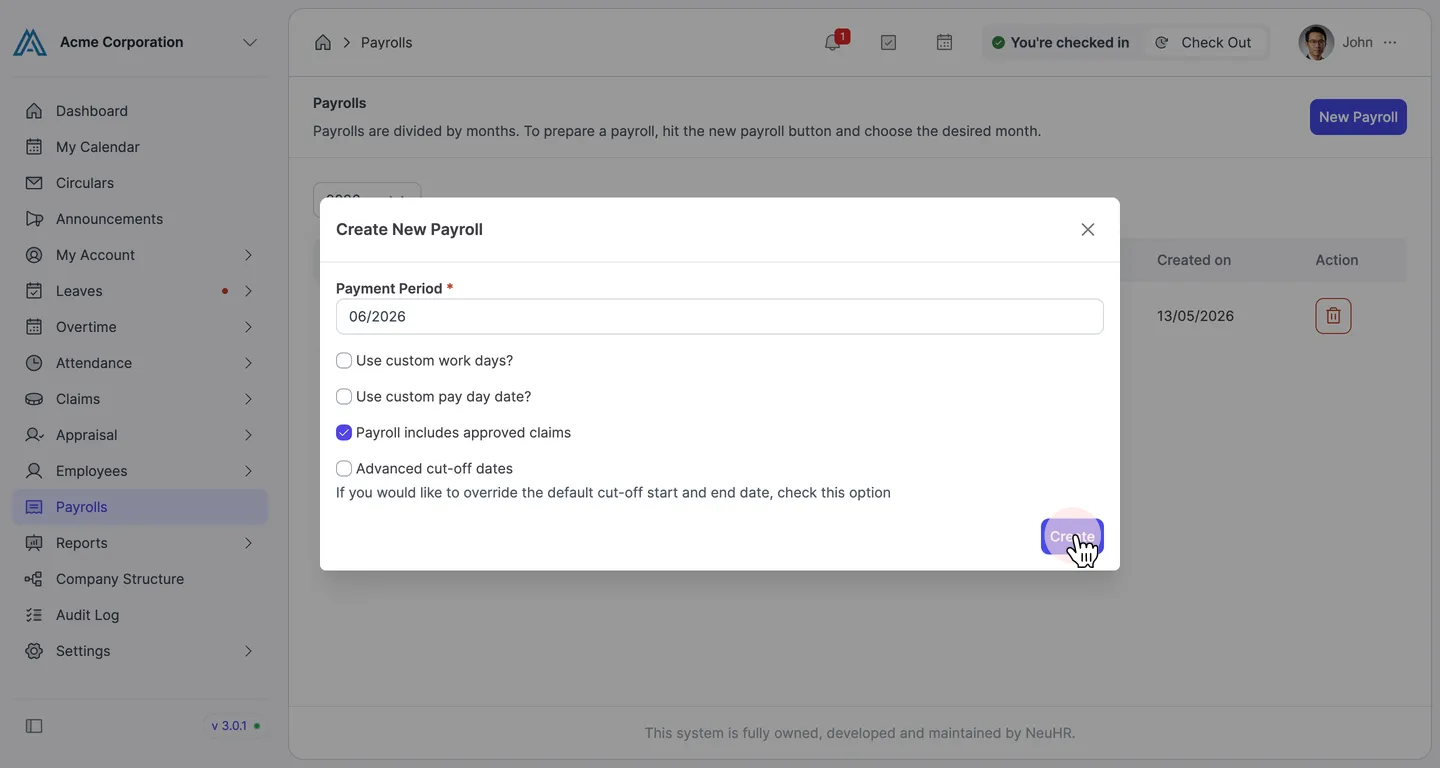
-
View the Created Payroll
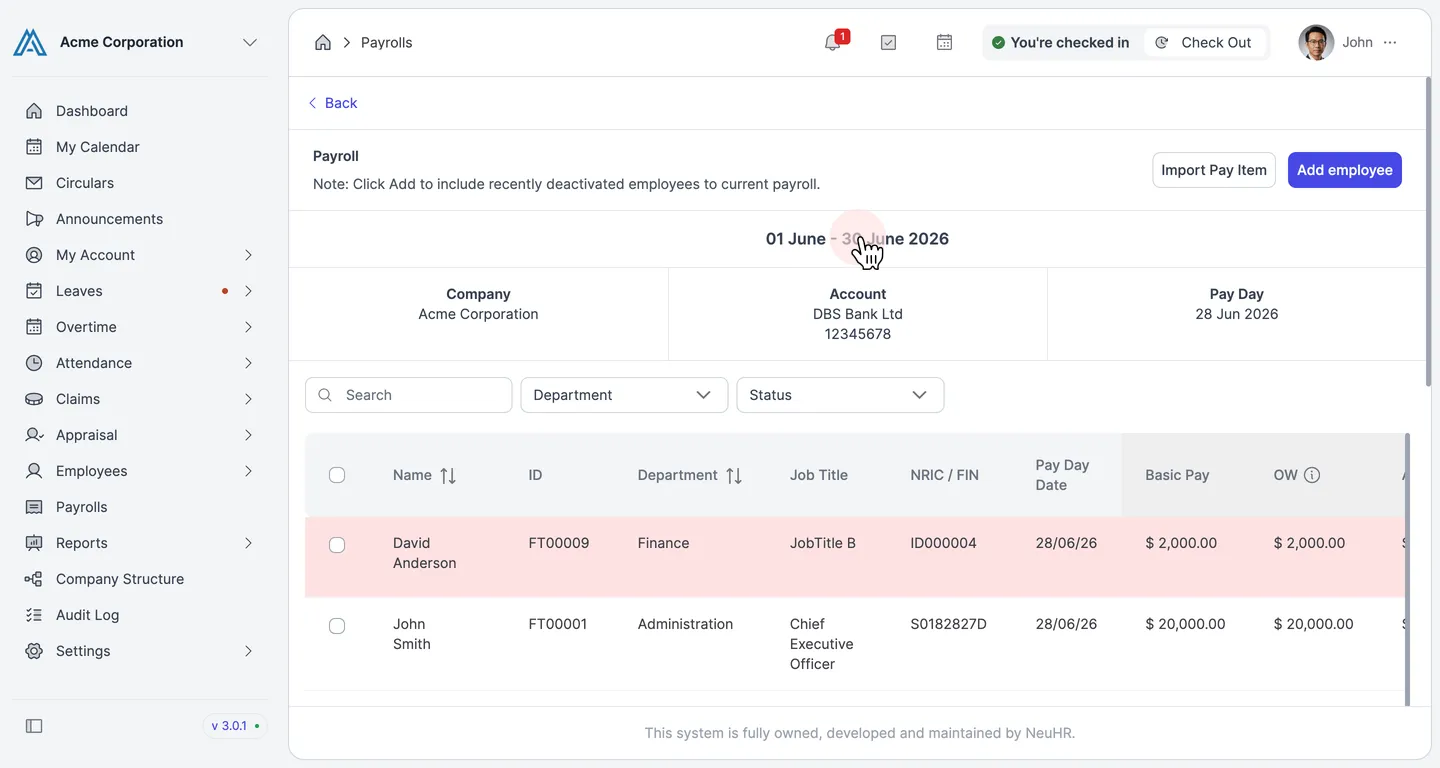
Section titled “View the Created Payroll”You are redirected to the payroll detail page showing the period (e.g.,
01 June - 30 June 2026) along with the company details, bank account, and pay day. All active employees are listed with their basic pay, OW, AW, CPF contributions, and net salary pre-calculated.From here you can review individual payslips, adjust pay items, update each employee’s status, and eventually mark the payroll as complete.