

How to Update Announcements
This guide shows you how to update an existing announcement in NeuHR. You must have HR Executive or Super Admin role.
-
Navigate to Announcements Page
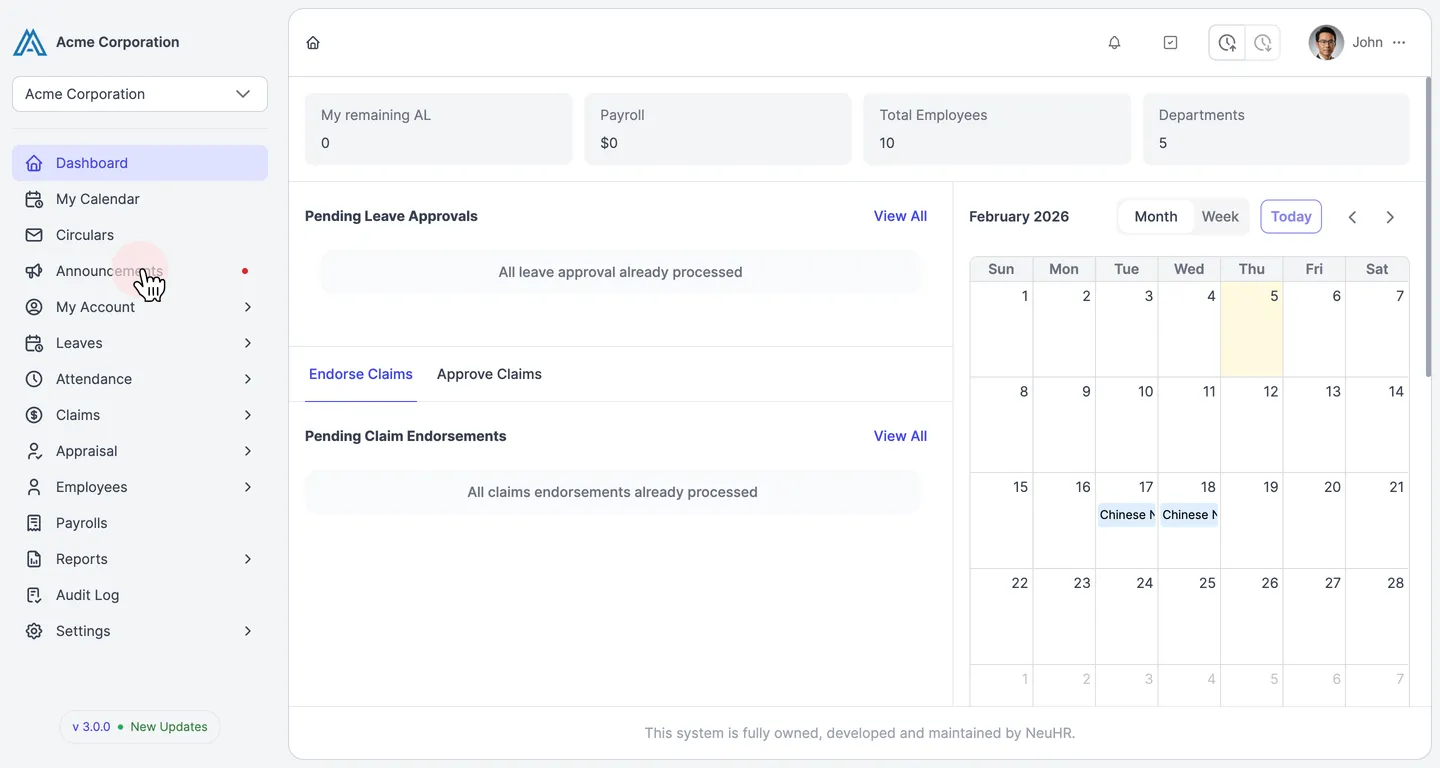
Section titled “Navigate to Announcements Page”From the main dashboard, click on the Announcements menu item in the left sidebar.
-
Click the Edit Icon
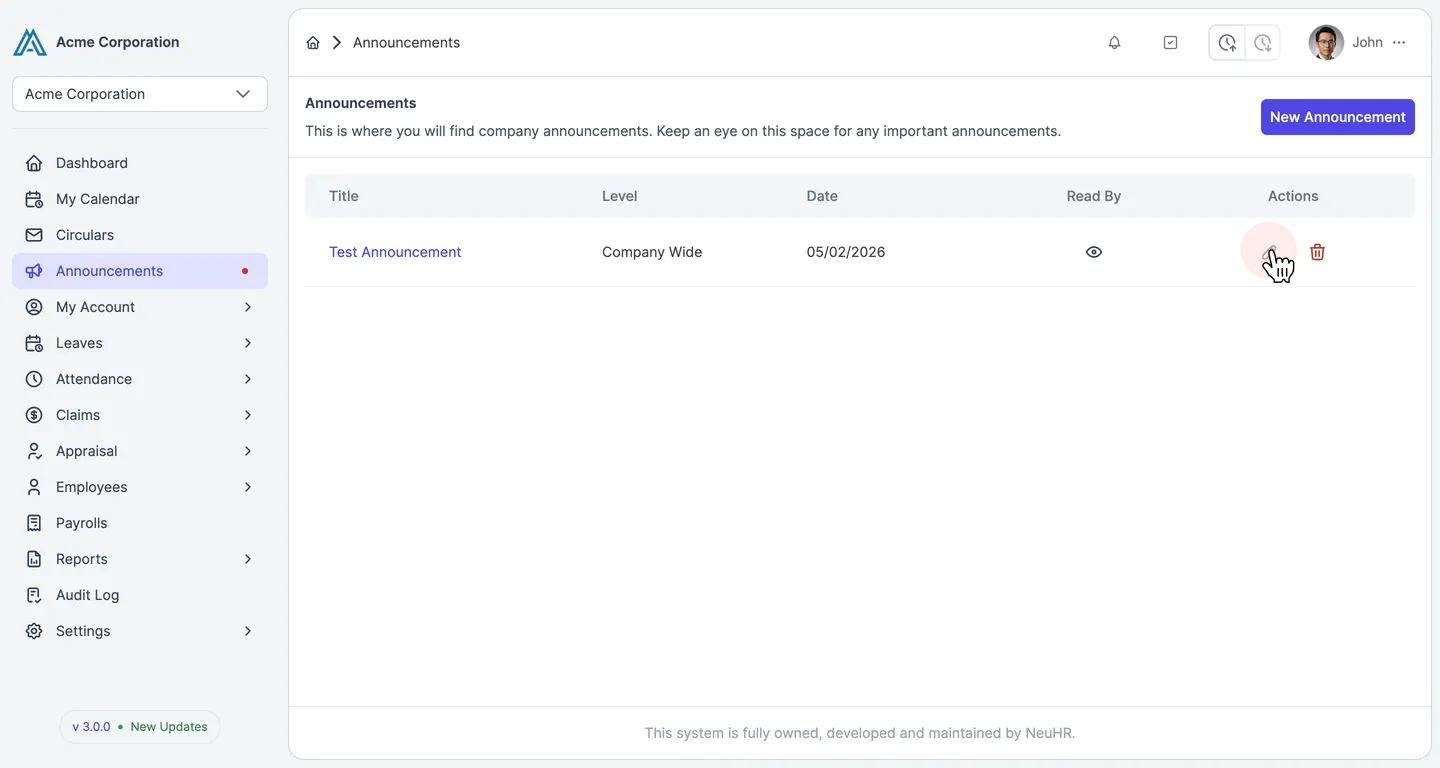
Section titled “Click the Edit Icon”On the Announcements page, locate the announcement you want to update. In the Actions column, click the pencil icon (the middle icon) to edit the announcement.
-
Update Announcement Details
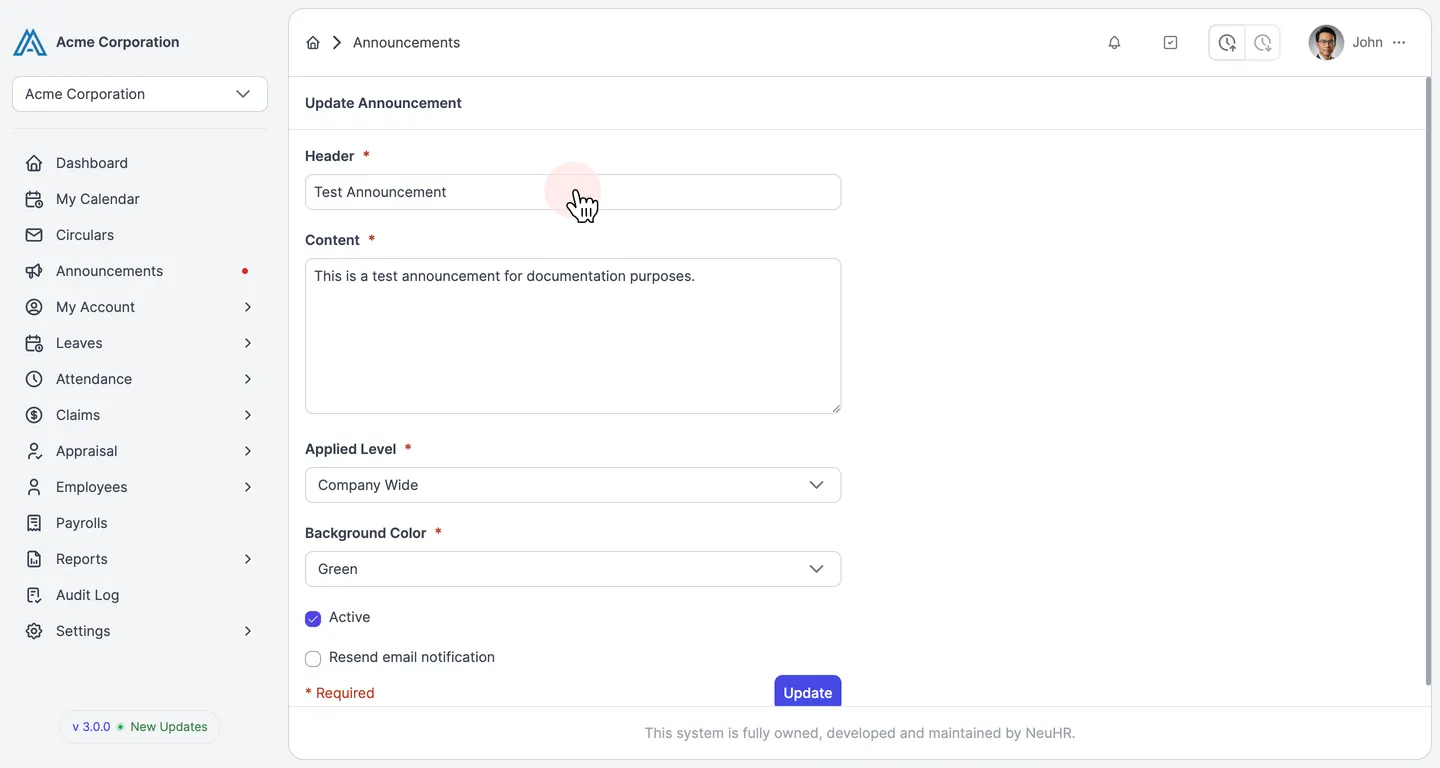
Section titled “Update Announcement Details”The update form will appear with the current announcement details pre-filled. You can modify any of the following fields:
- Header: Update the title of your announcement (required)
- Content: Modify the announcement message content (required)
- Applied Level: Change the scope (required)
- Company Wide: Visible to all employees in the company
- Department Wide: Visible to specific departments
- Background Color: Select a different color (required)
- Green: Standard information
- Blue: General announcements
- Yellow: Important notices
- Red: Urgent or critical announcements
- Active: Toggle to show or hide the announcement
- Resend email notification: Check to send email notifications about the update (optional)
-
Submit Changes
Section titled “Submit Changes”Once you’ve reviewed all your changes, click the Update button to save the updated announcement.
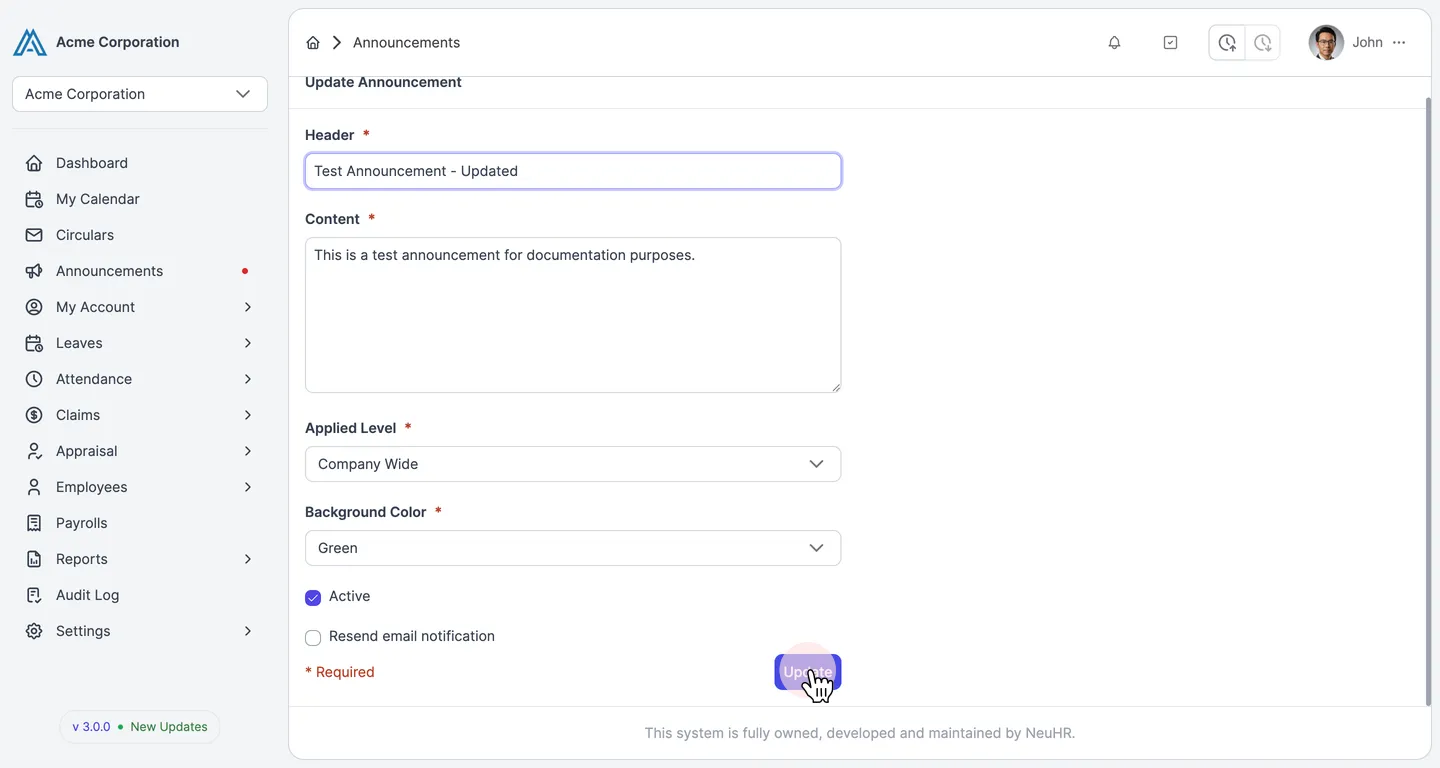
The system will redirect you back to the Announcements page and display a success message confirming that the announcement has been updated. The updated announcement will now be visible to employees with the new information.