How to Create New Accounting Code
This guide shows you how to create a new accounting code to classify claims expenses for accounting purposes.
-
Navigate to Accounting Code Settings
Section titled “Navigate to Accounting Code Settings”From the sidebar, click on
Settingsto expand the menu, then click onClaims. On the Claims settings page, click theAccounting Codetab.You’ll see the Accounting Codes page, which lists all existing accounting codes. Click the
**New Accounting Code**button in the top right corner.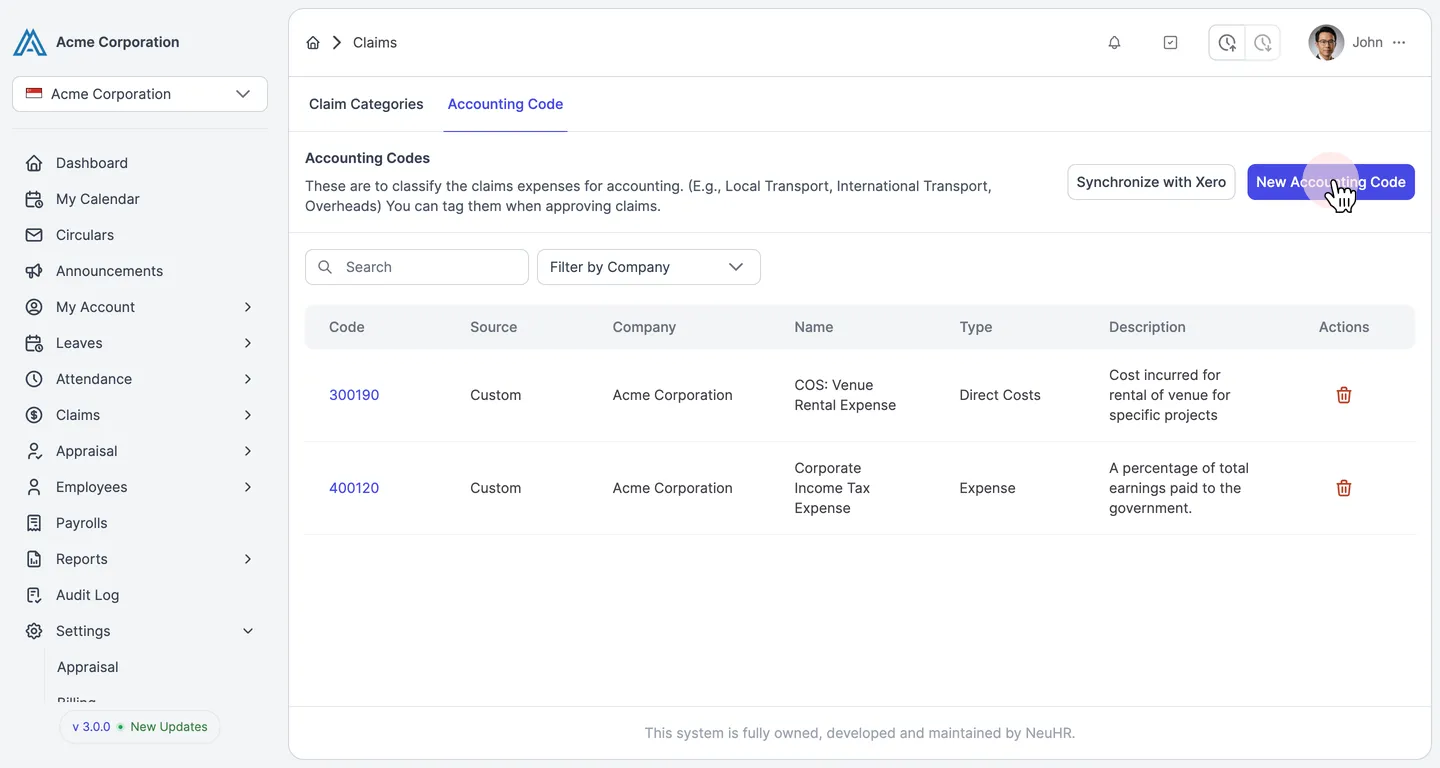
-
View the Create Accounting Code Form
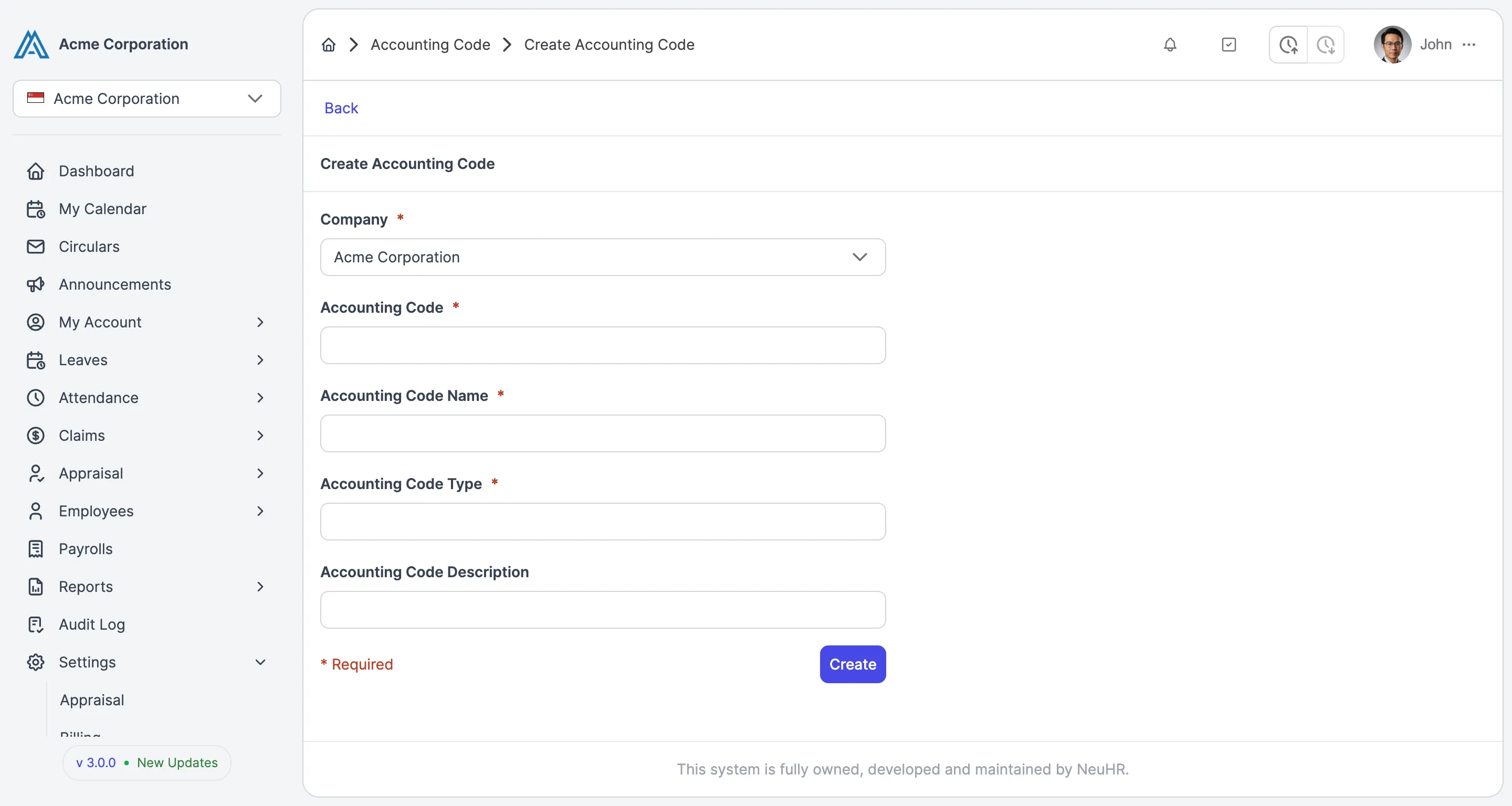
Section titled “View the Create Accounting Code Form”The Create Accounting Code form will appear with the following fields:
- Company (required): Pre-selected if you only have one company
- Accounting Code (required): The numeric code identifier
- Accounting Code Name (required): A descriptive name for the code
- Accounting Code Type (required): The classification type
- Accounting Code Description (optional): Additional details about the code
-
Fill in the Details and Create
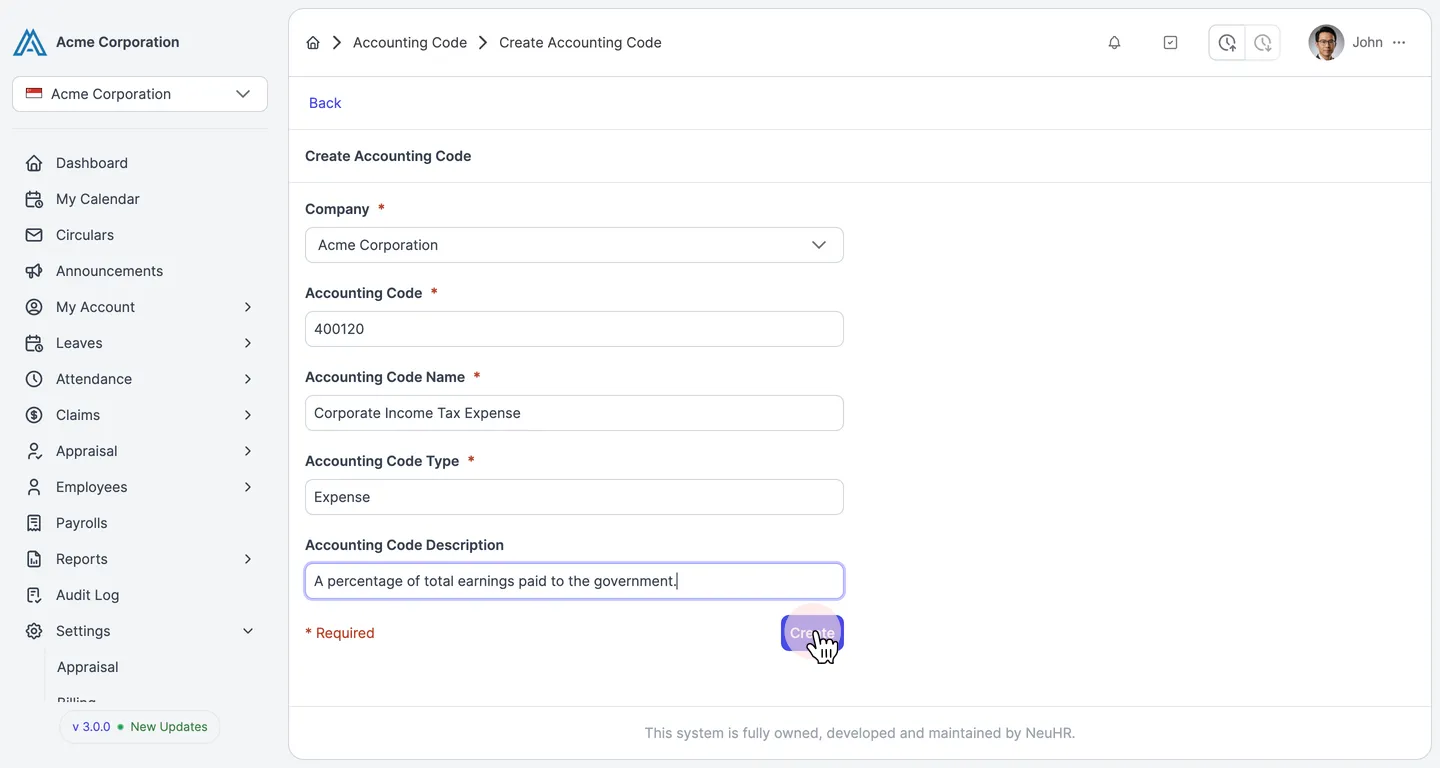
Section titled “Fill in the Details and Create”Fill in all the required fields with your accounting code details. For example:
- Accounting Code: 400120
- Accounting Code Name: Corporate Income Tax Expense
- Accounting Code Type: Expense
- Accounting Code Description: A percentage of total earnings paid to the government.
Once all required fields are filled (marked with *), click the
**Create**button to create the accounting code.