How to Generate Contract Reports
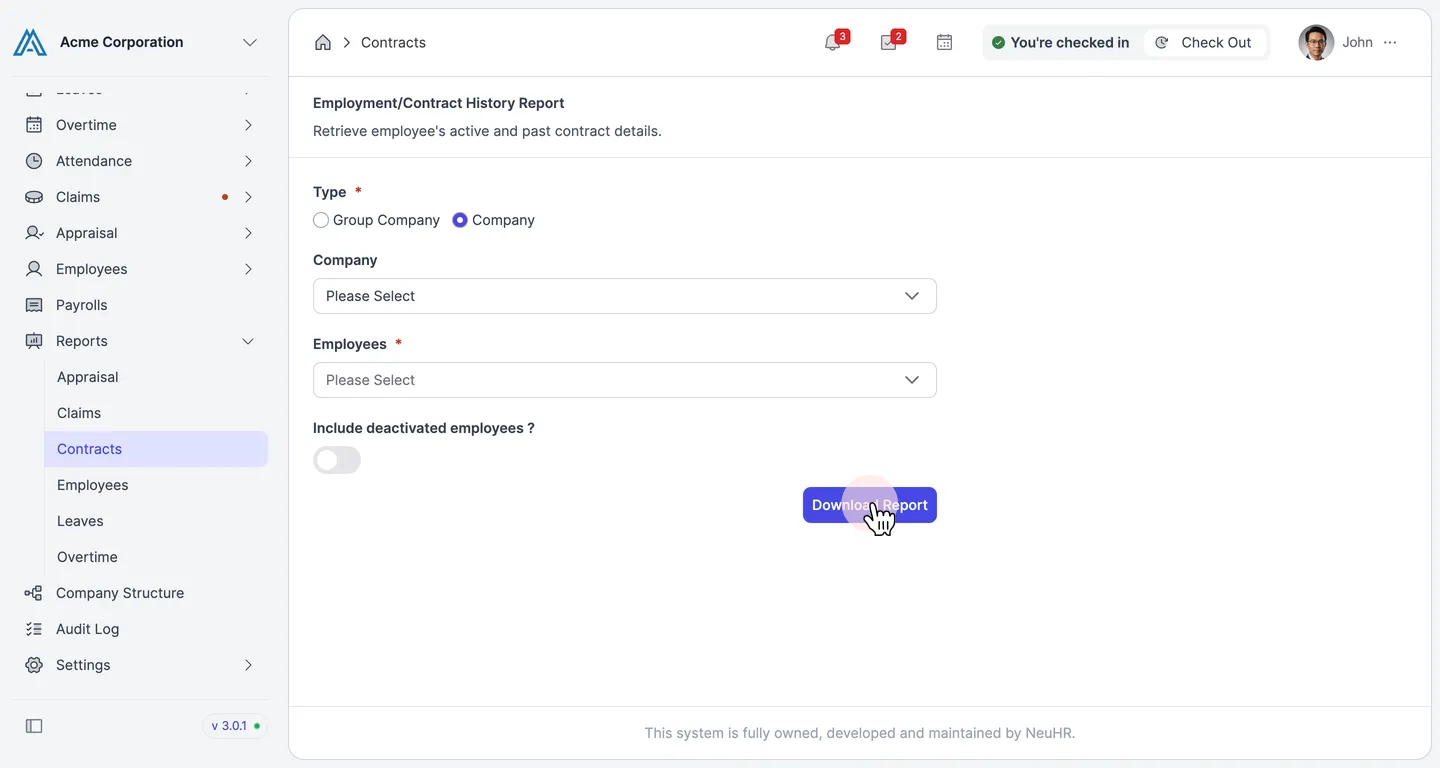
This guide shows you how to generate a contract report in NeuHR. You can filter by report type and employees before downloading.
-
Navigate to Contract Reports
Section titled “Navigate to Contract Reports”From the sidebar, click on
Reportsto expand the menu, then click onContracts.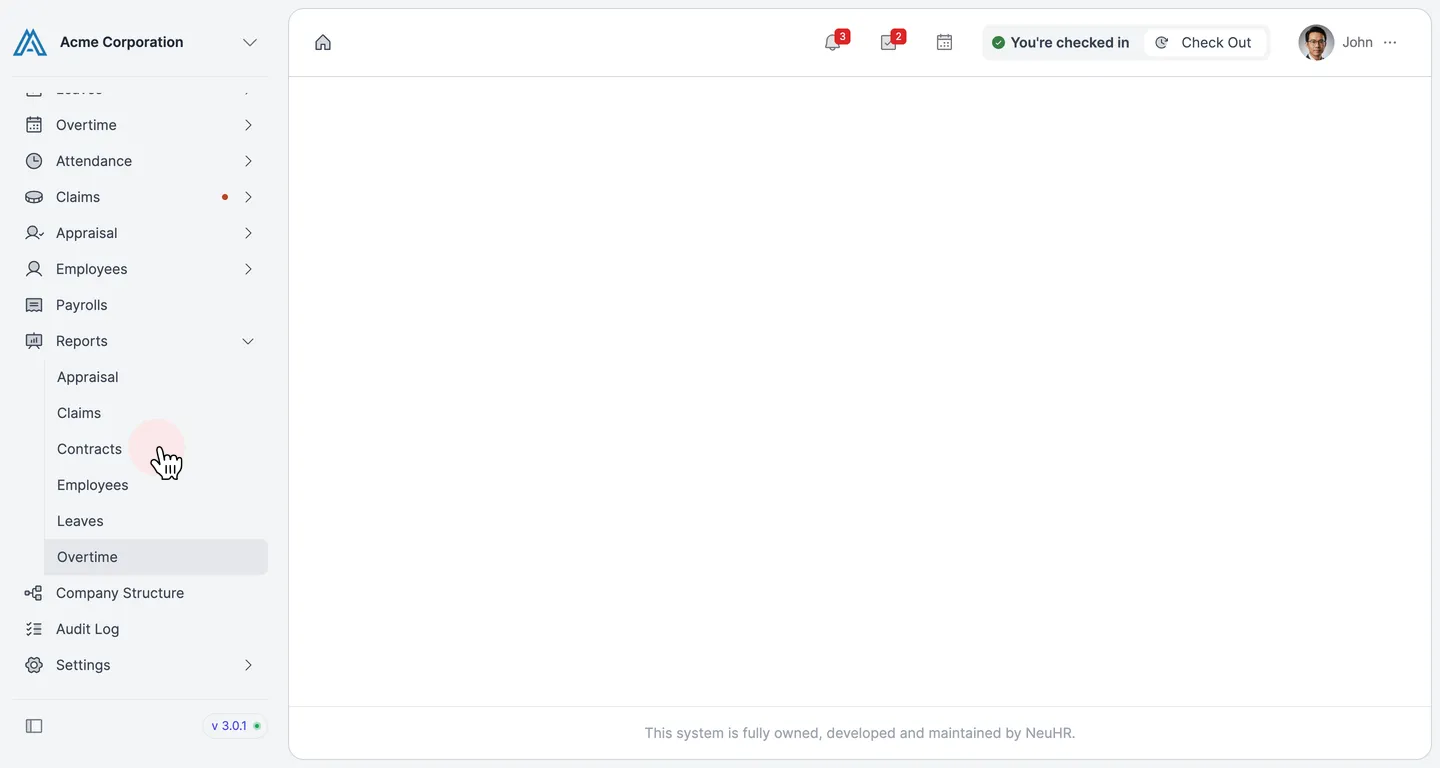
-
Select a Report Type
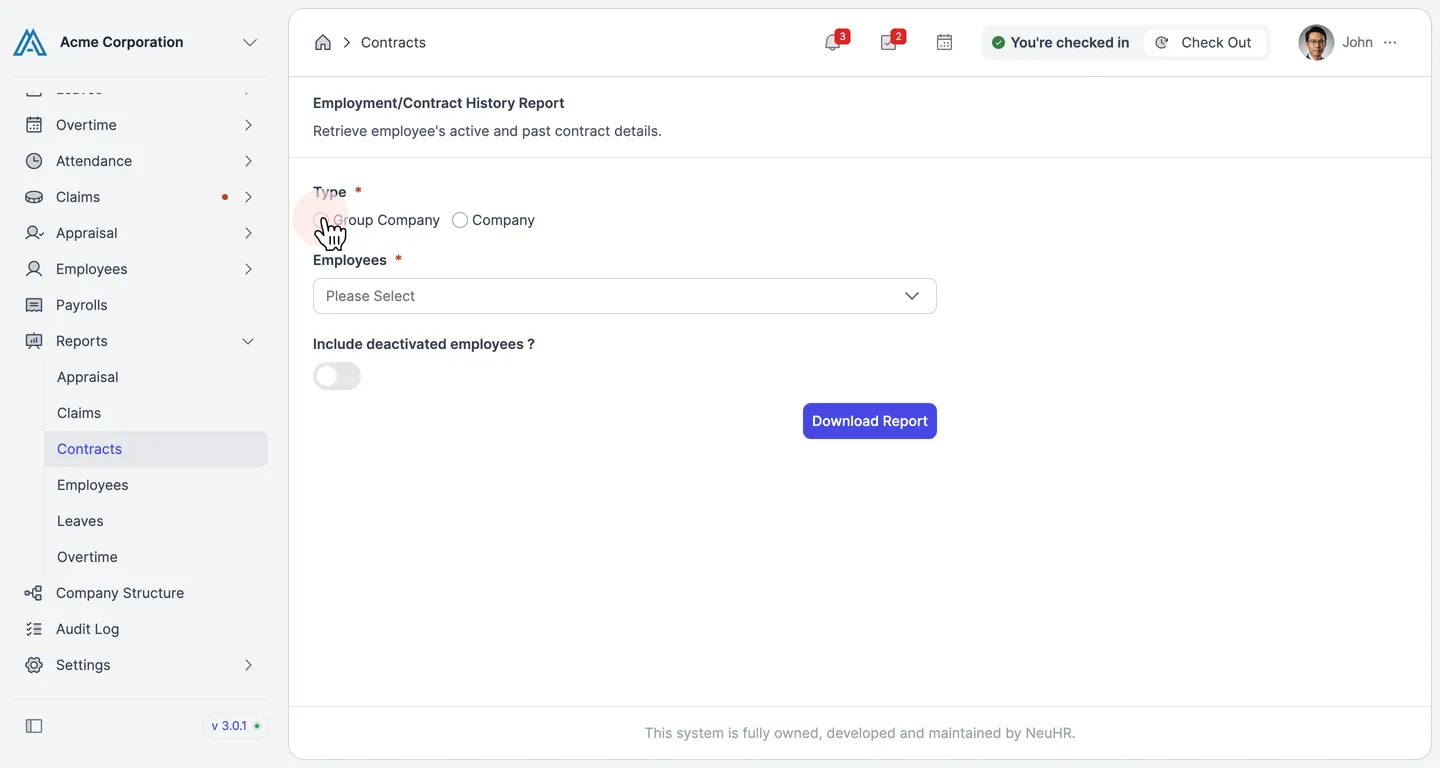
Section titled “Select a Report Type”On the
Employment/Contract History Reportpage, under theTypefield, select the scope of the report:- Group Company — Generates a report across all companies in the group.
- Company — Generates a report for a specific company. An additional
Companydropdown will appear to let you select which company.
-
Configure Filters
Section titled “Configure Filters”If you selected
Company, click theCompanydropdown and select the specific company to report on.Click the
Employeesdropdown and select one or more employees to include in the report. You can search by name.Optionally, enable the
Include deactivated employees ?toggle to include employees who are no longer active.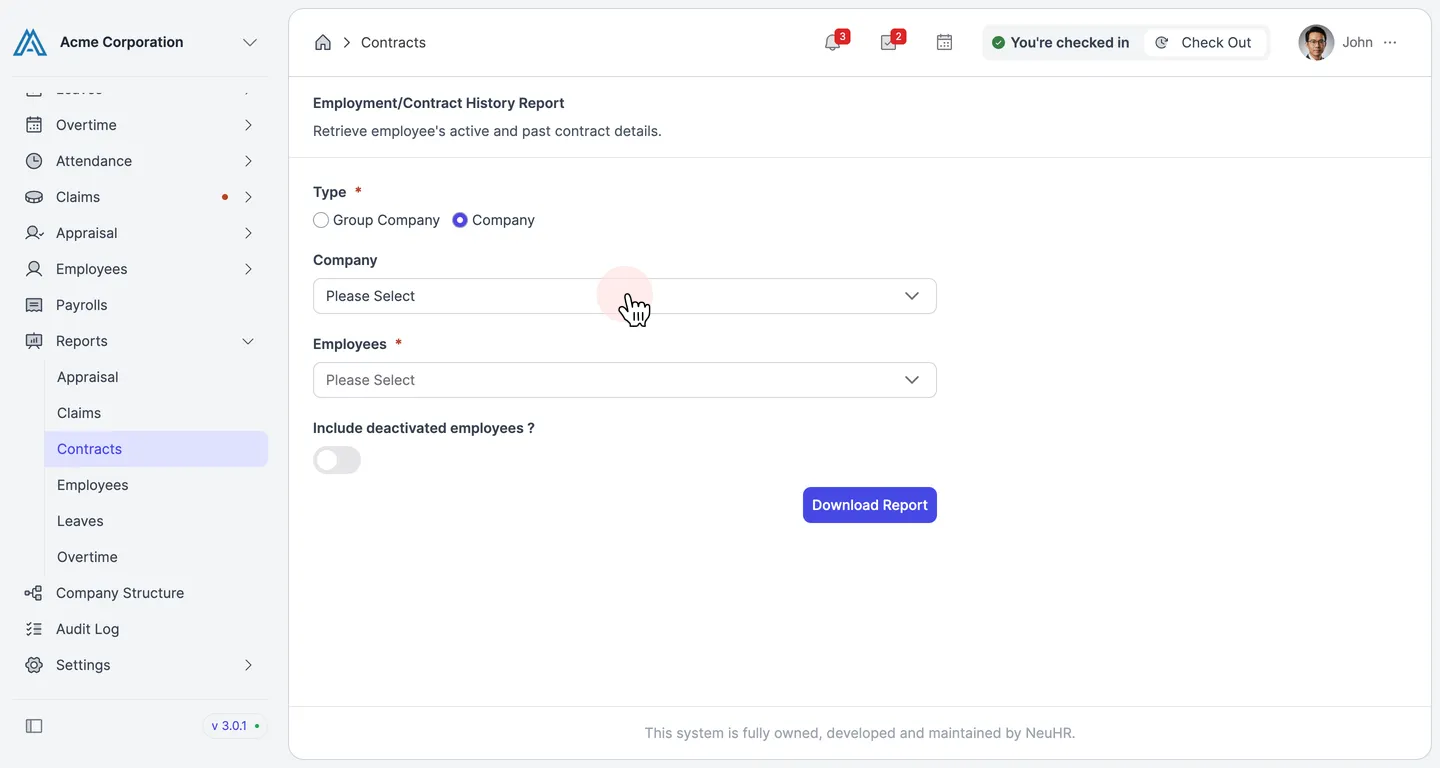
-
Download the Report
Section titled “Download the Report”Click the
Download Reportbutton. The report will be downloaded to your device as a file.