How to Update Holiday
This guide shows you how to update an existing holiday’s details such as the name, description, duration, or date in NeuHR.
-
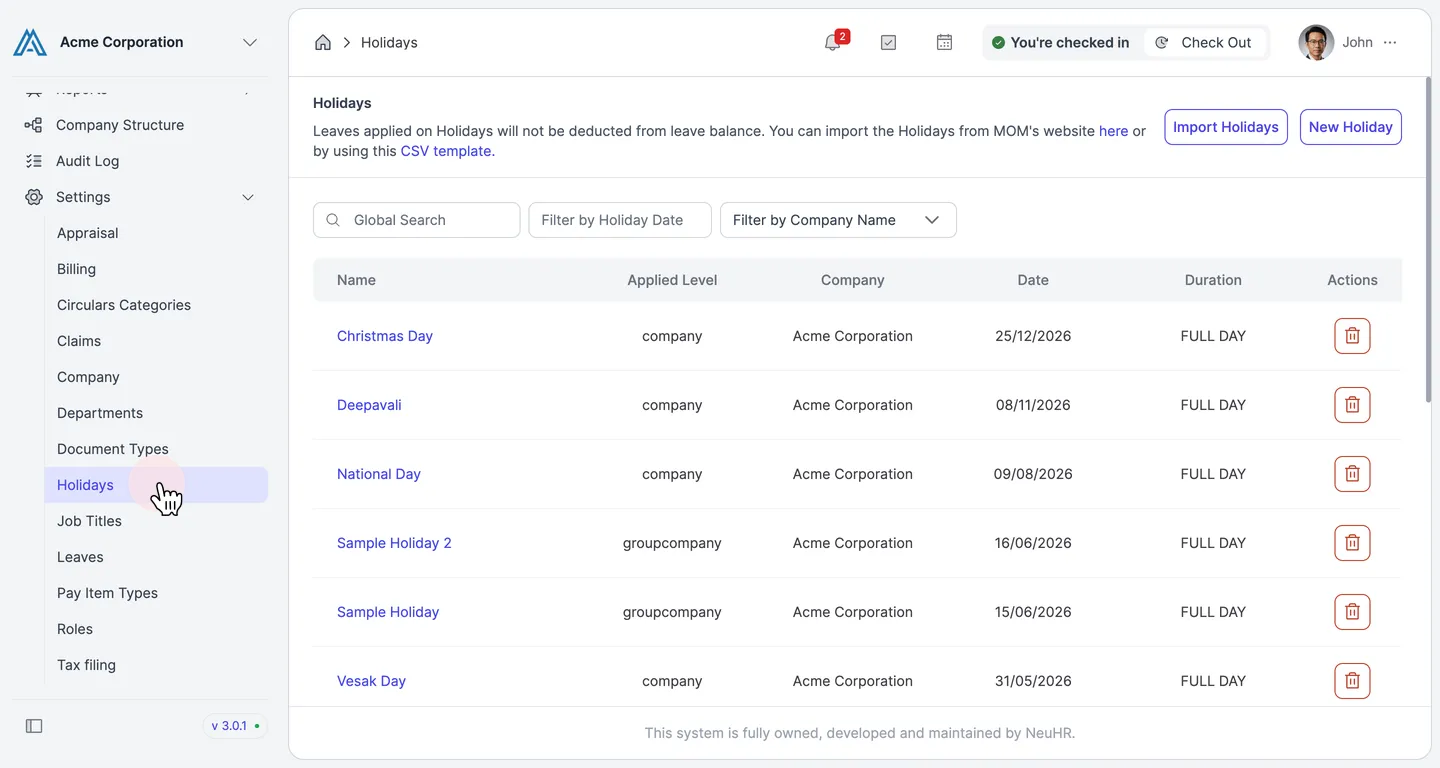
Navigate to Settings > Holidays
Section titled “Navigate to Settings > Holidays”In the left sidebar, go to Settings and click Holidays.
-
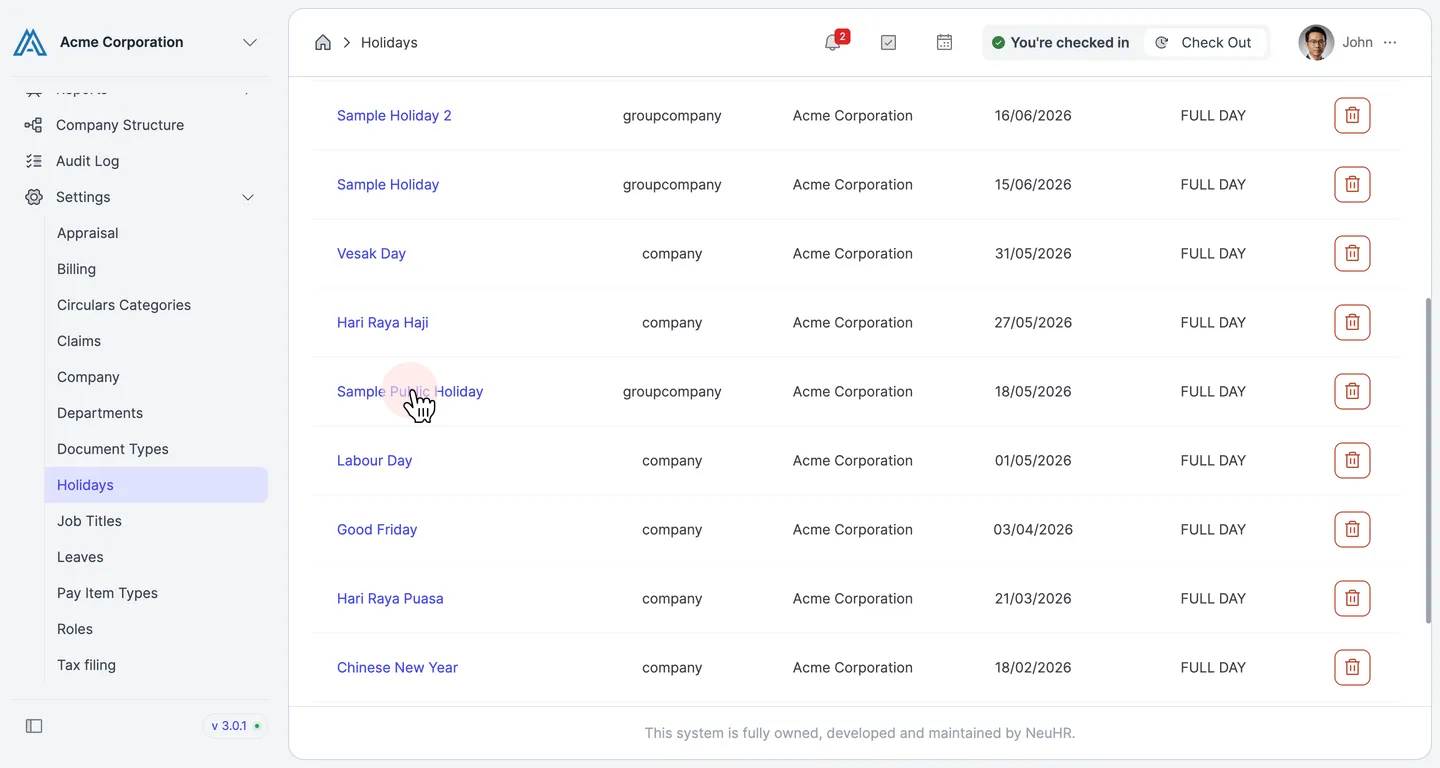
Click on the holiday name
Section titled “Click on the holiday name”On the Holidays list, find the holiday you want to edit and click on its name. In this example, we click on Sample Public Holiday.
-
Review the Update Holiday form
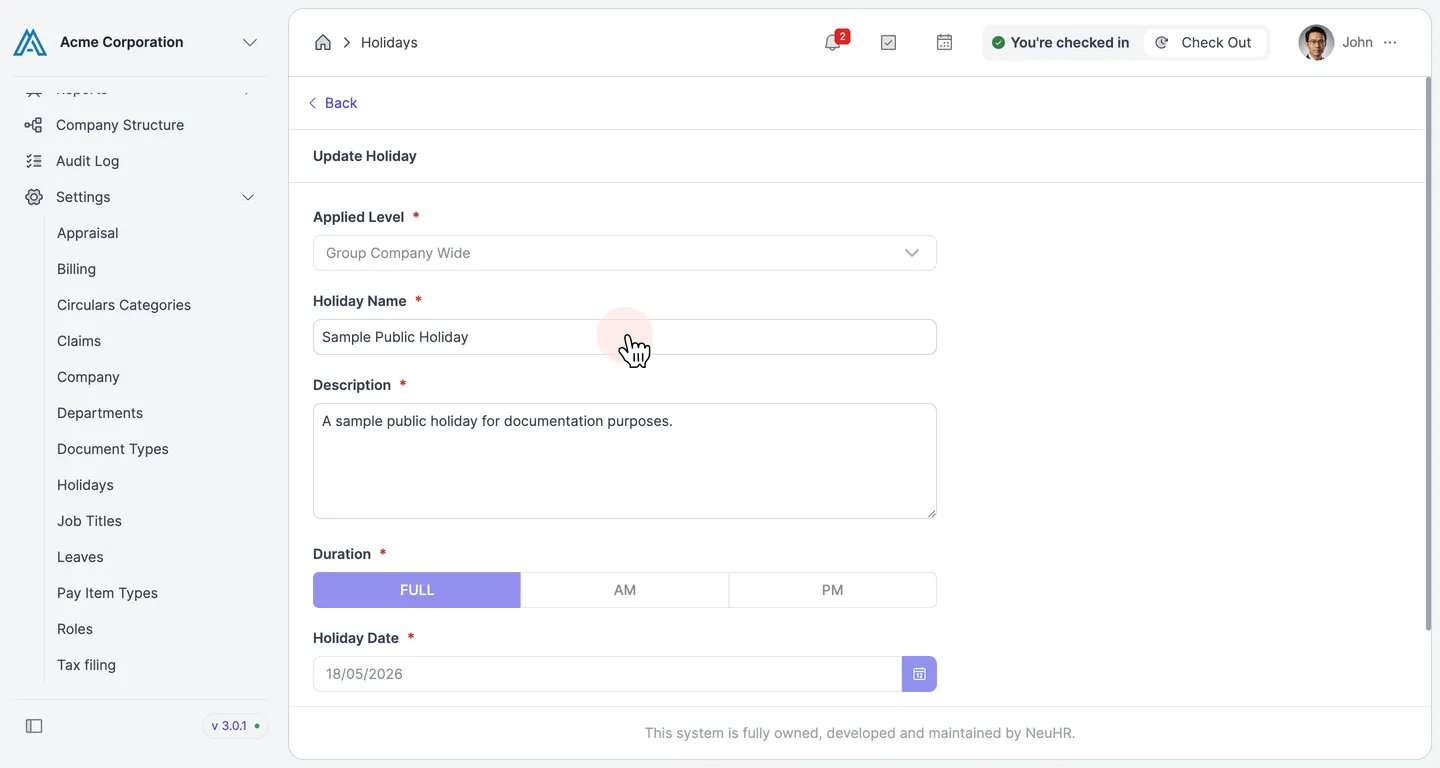
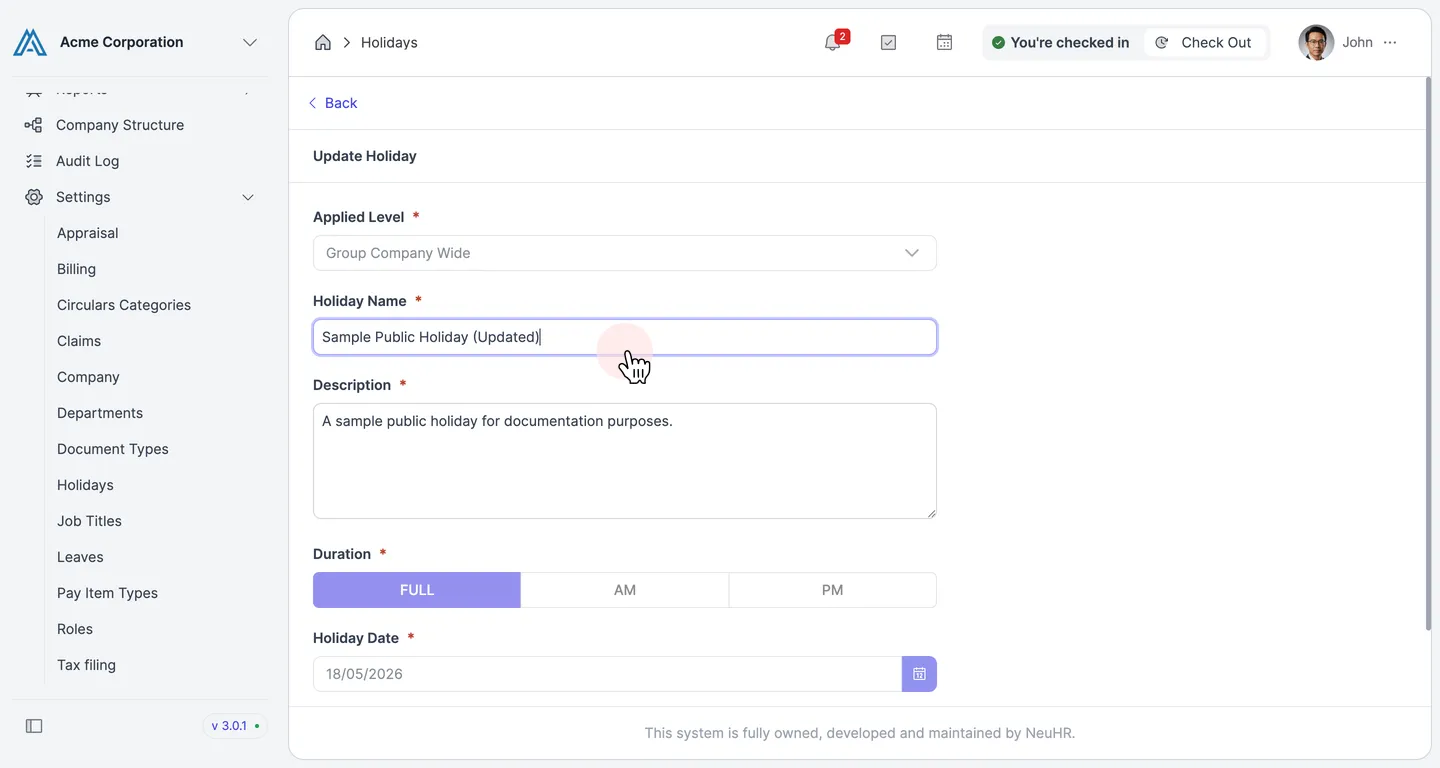
Section titled “Review the Update Holiday form”The Update Holiday form opens, showing the current values for all fields:
- Applied Level — the scope of this holiday (e.g.,
Group Company Wide) - Holiday Name — the display name of the holiday
- Description — a short description
- Duration —
FULL,AM, orPM - Holiday Date — the date of the holiday
- Applied Level — the scope of this holiday (e.g.,
-
Edit the fields
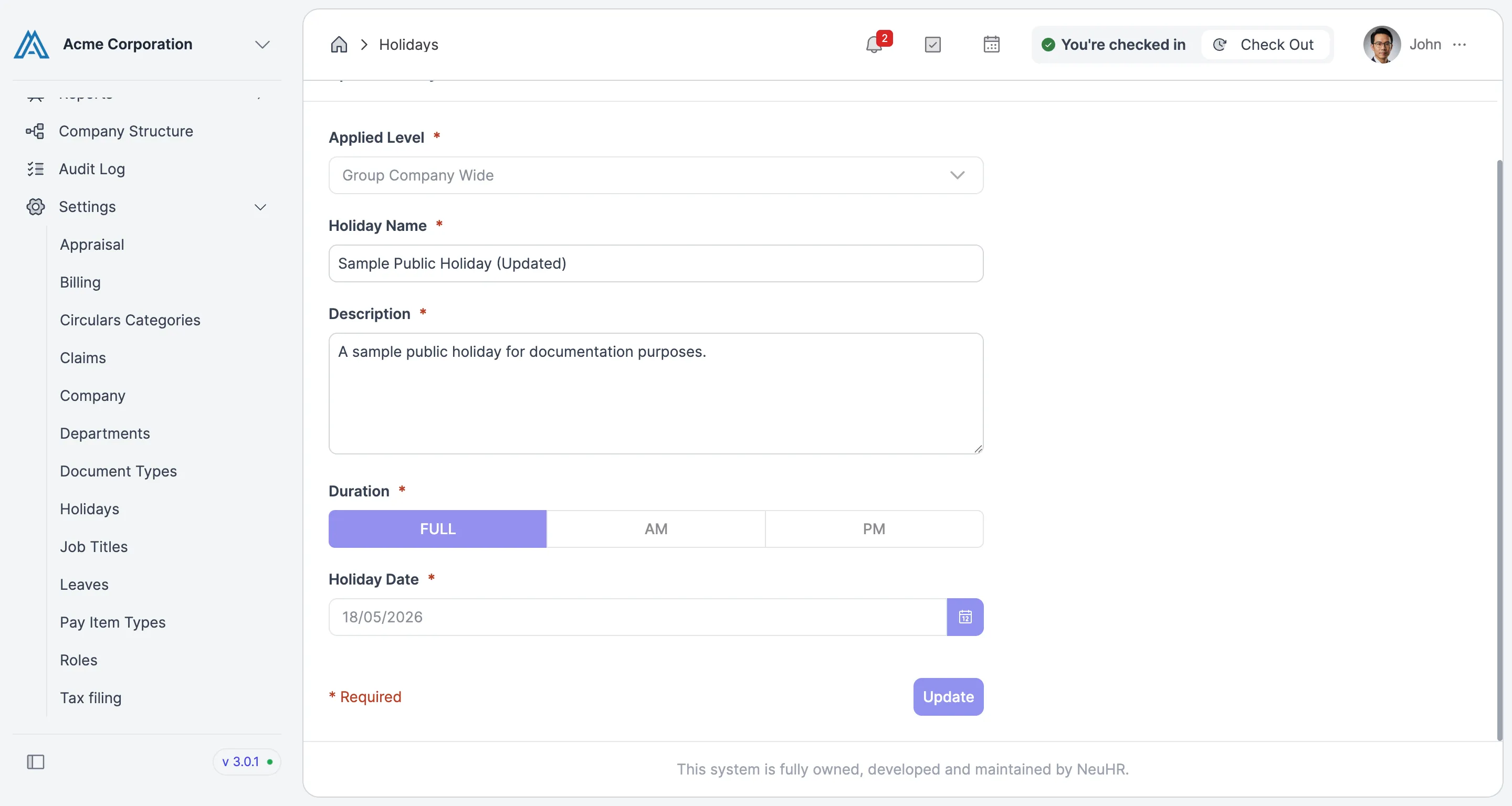
Section titled “Edit the fields”Make your changes to any of the fields. For example, update the Holiday Name field with a new name.
-
Click “Update”
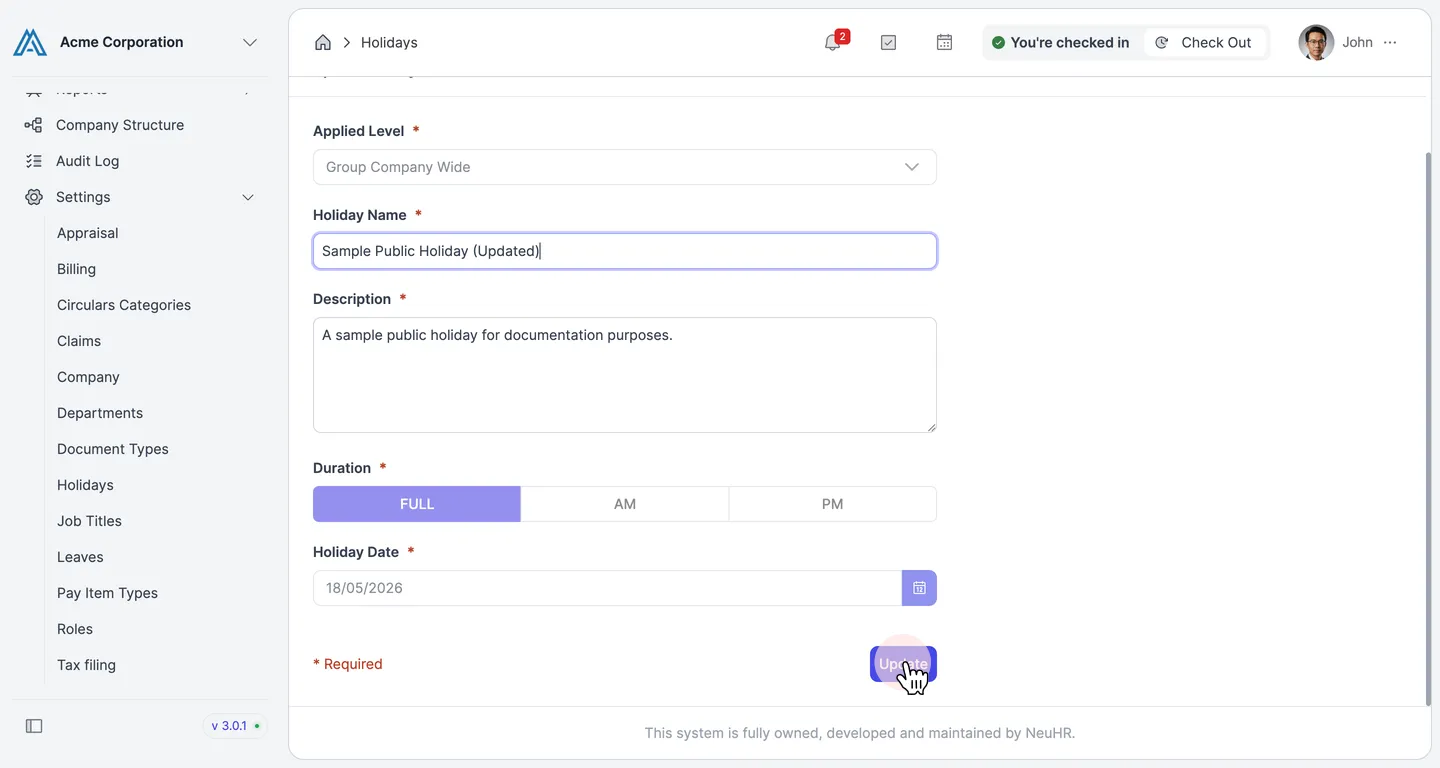
Section titled “Click “Update””Once you’ve made all your changes, scroll down and click the Update button to save.
-
Update confirmed
Section titled “Update confirmed”The holiday details are saved and the form reflects the updated values.