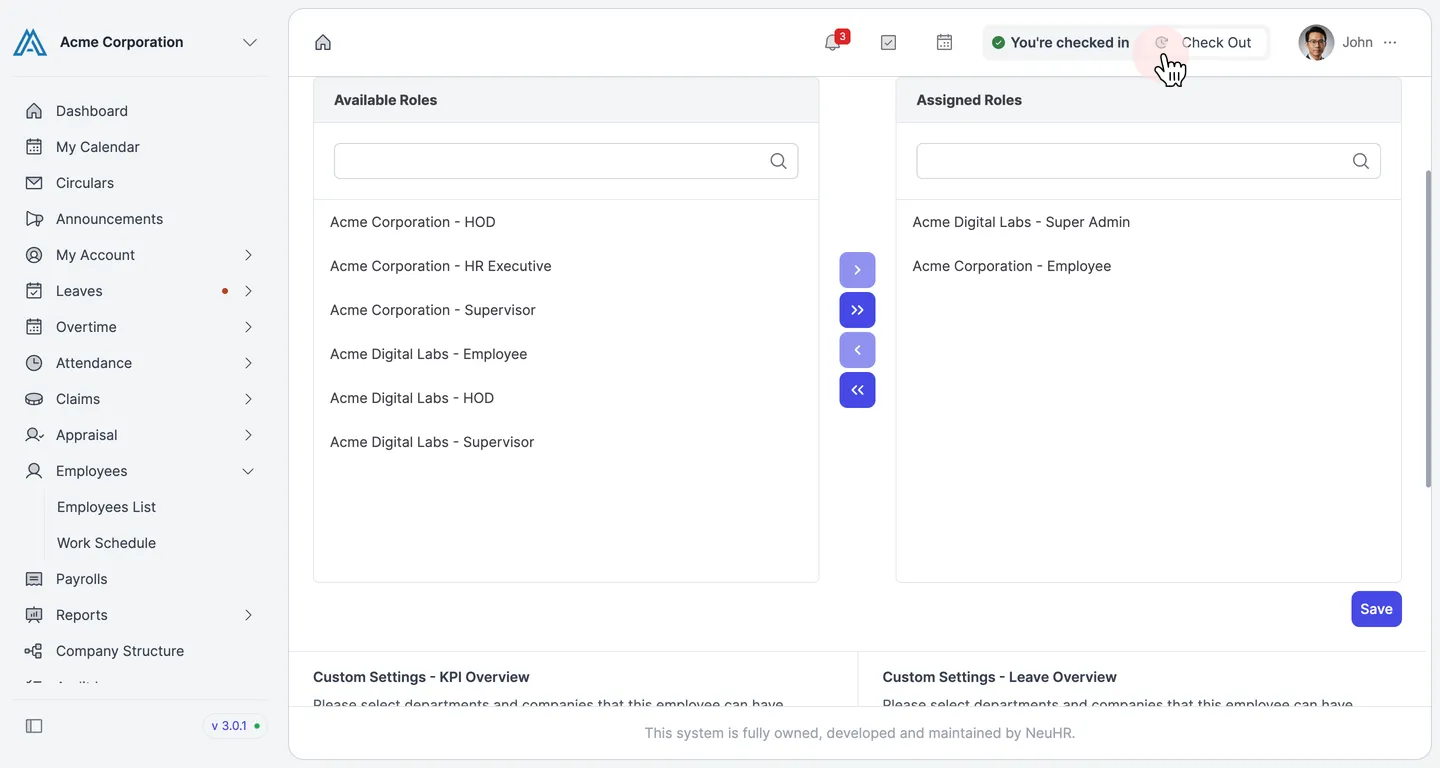
How to Assign/Change Roles to Users
Each employee can be assigned one or more roles that determine what they can access in the system. This guide shows you how to assign or change roles for an employee.
-
Go to the Employees List
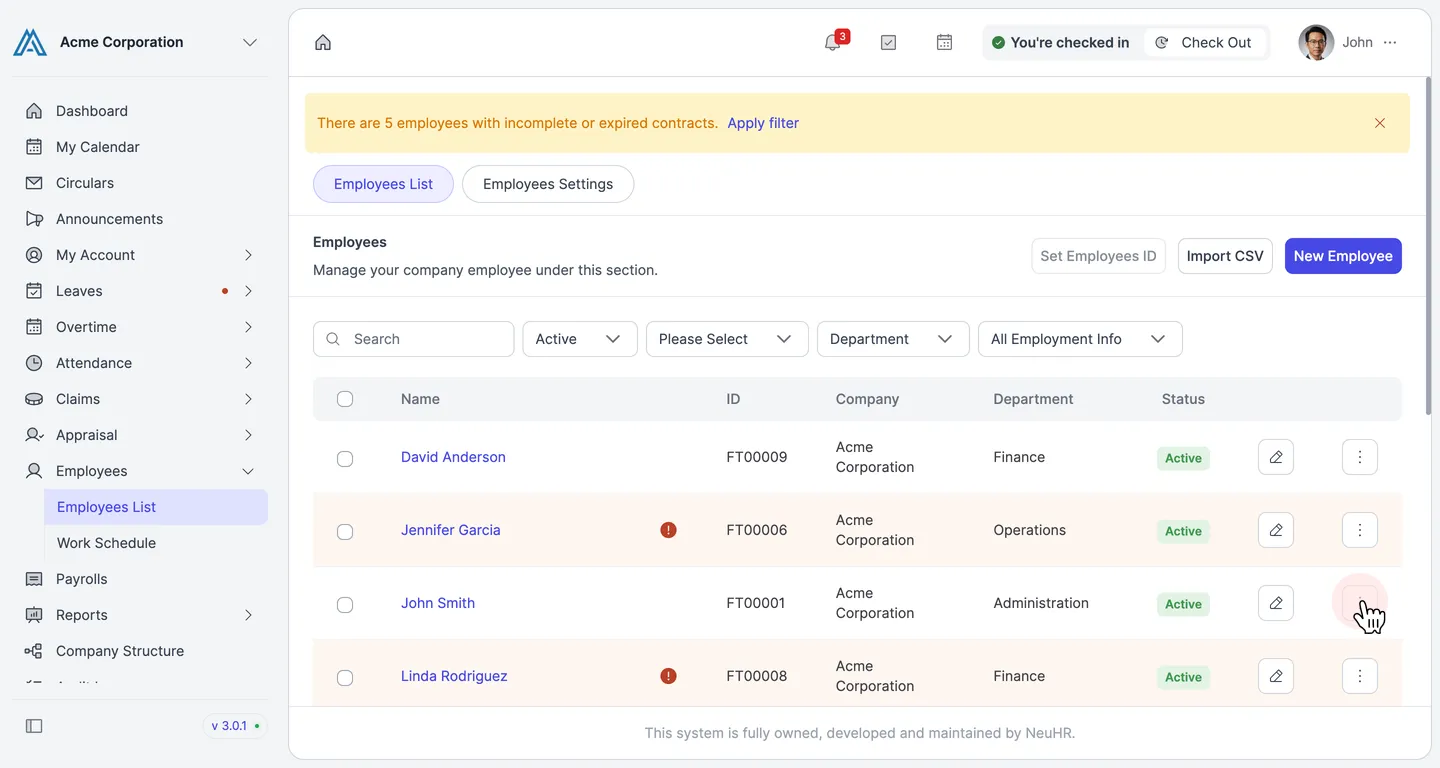
Section titled “Go to the Employees List”From the left sidebar, expand Employees and click Employees List.
-
Open the employee’s actions menu
Section titled “Open the employee’s actions menu”Find the employee you want to update. Click the ⋯ (three-dot) button at the end of their row to open the actions menu.
-
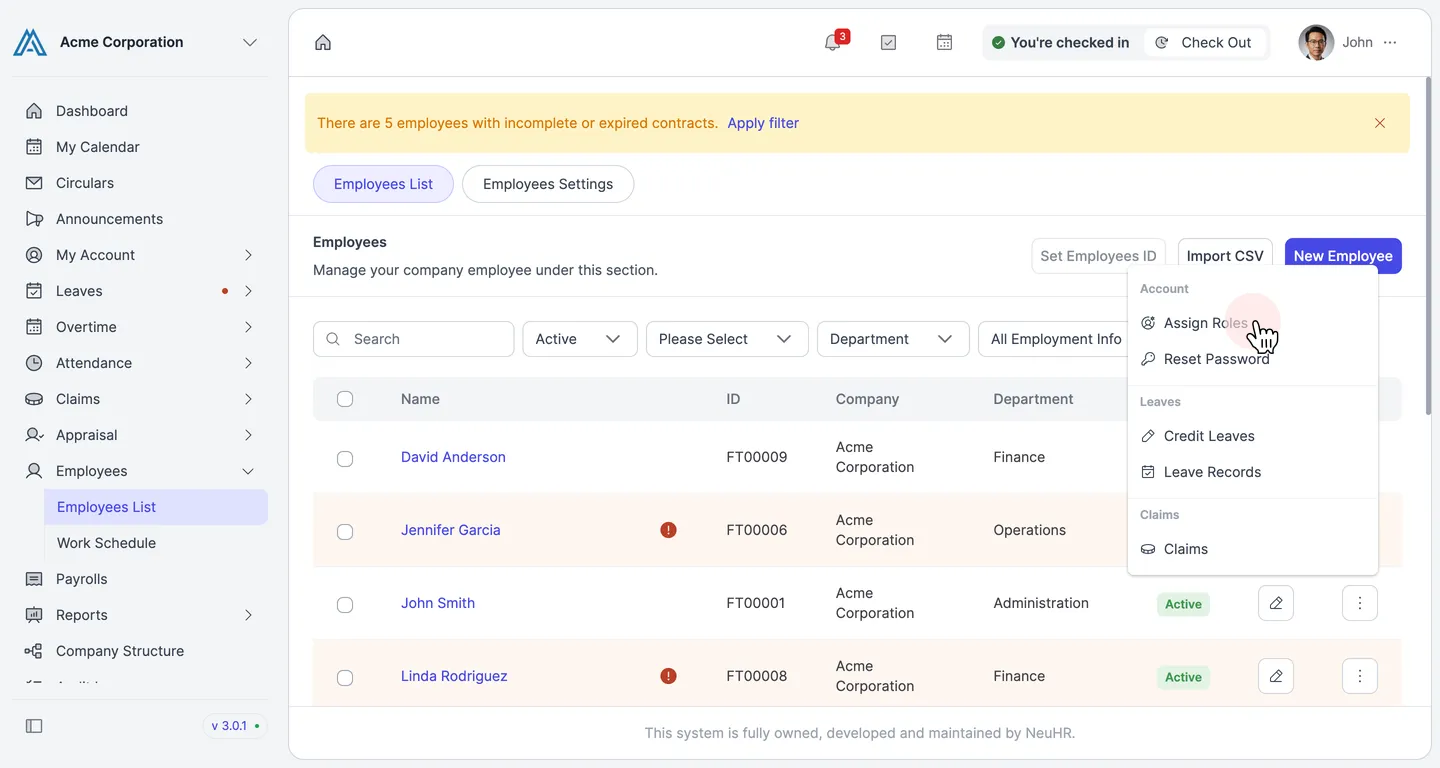
Click Assign Roles
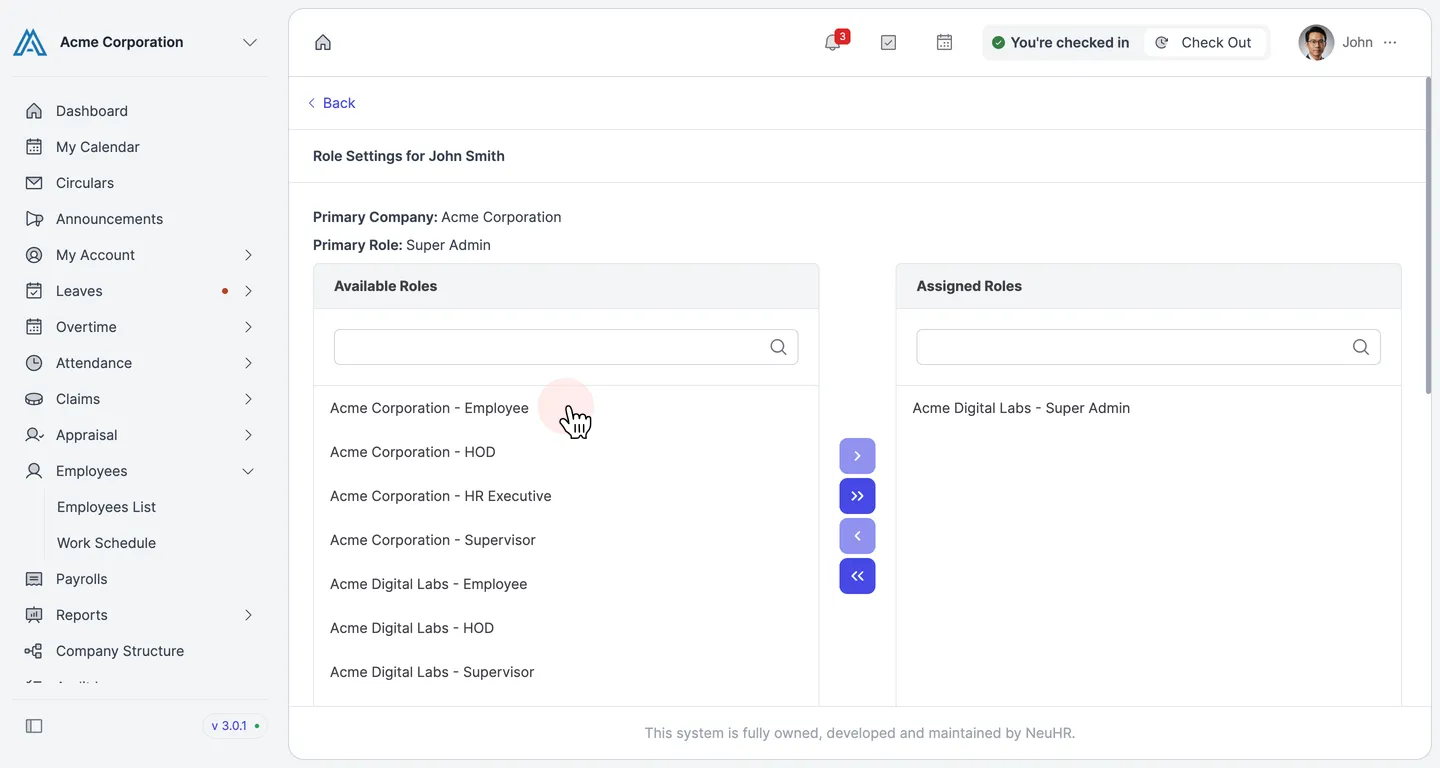
Section titled “Click Assign Roles”Under the Account section of the dropdown, click Assign Roles. You will be taken to the Role Settings page for that employee.
-
Select a role to assign
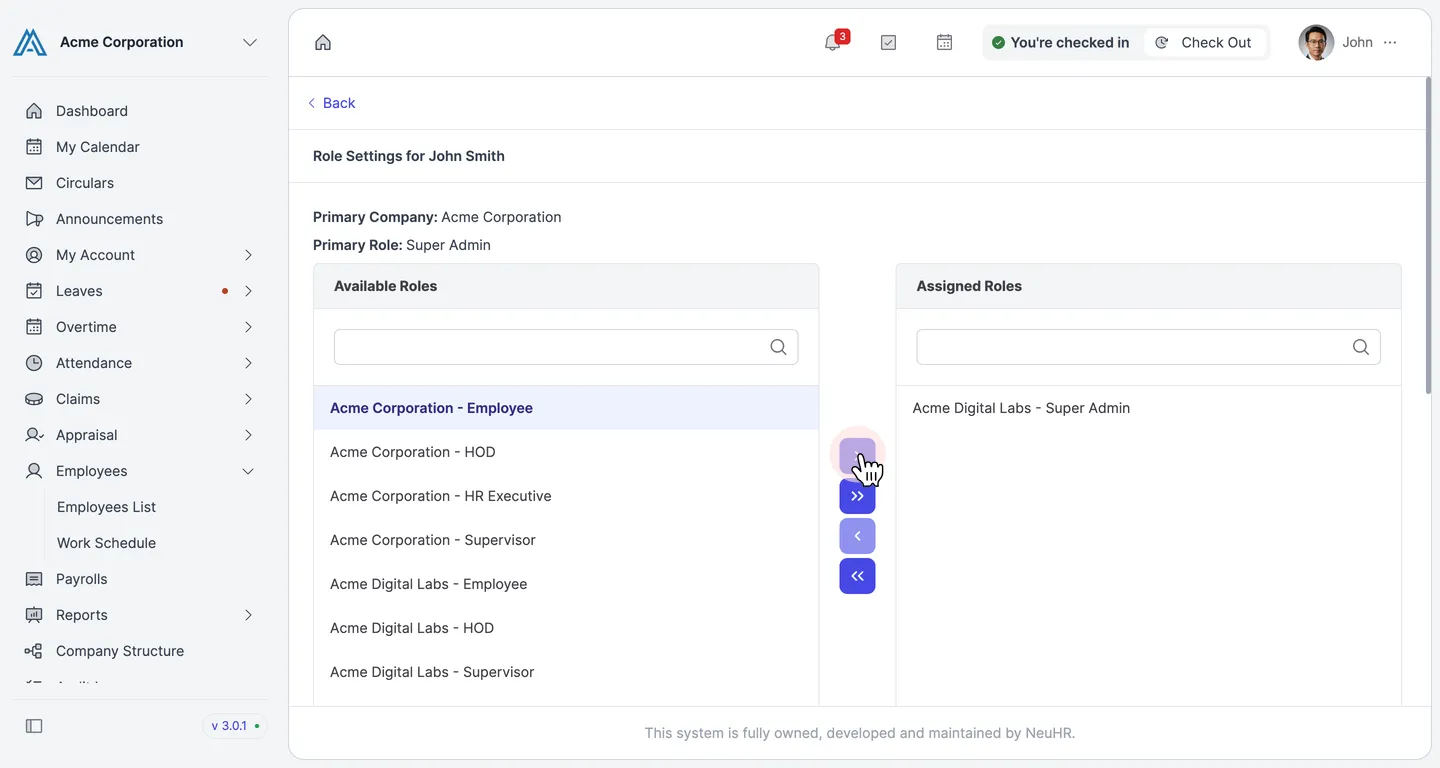
Section titled “Select a role to assign”In the Available Roles panel on the left, click a role to select it (it will be highlighted). Then click the › button to move it to the Assigned Roles panel.
-
Save the changes
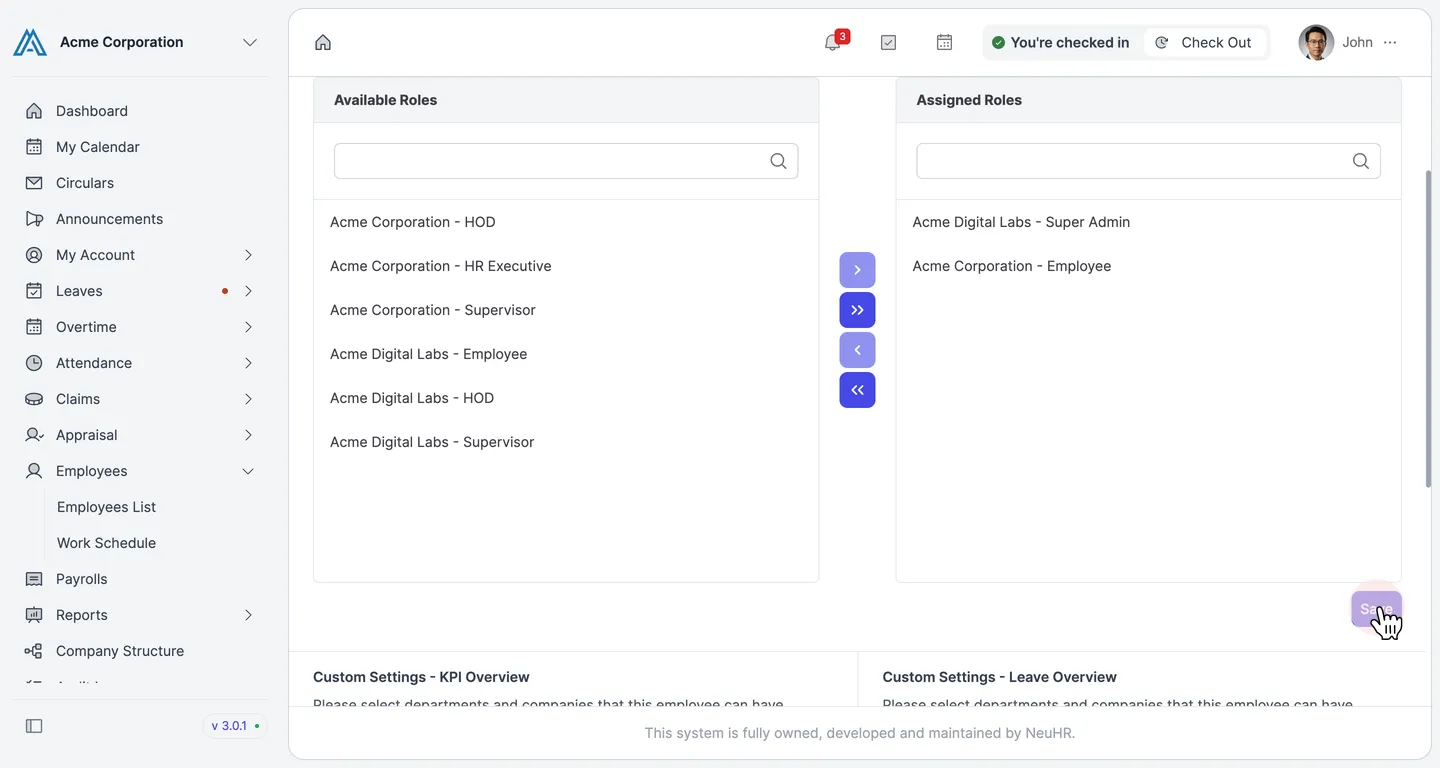
Section titled “Save the changes”The selected role now appears in the Assigned Roles panel on the right. Click Save to apply the changes.
-
Confirm the result
Section titled “Confirm the result”A green “Role has been updated” success notification confirms the role assignment was saved.