How to Update Overridable Claims Limits in Employee Details Page
This guide shows you how to set a custom claims limit for an individual employee, overriding the company default.
-
Navigate to Employees List
Section titled “Navigate to Employees List”From the sidebar, click
Employeesto expand the menu, then clickEmployees List. Find the employee you want to update — in this example, clickJohn Smith.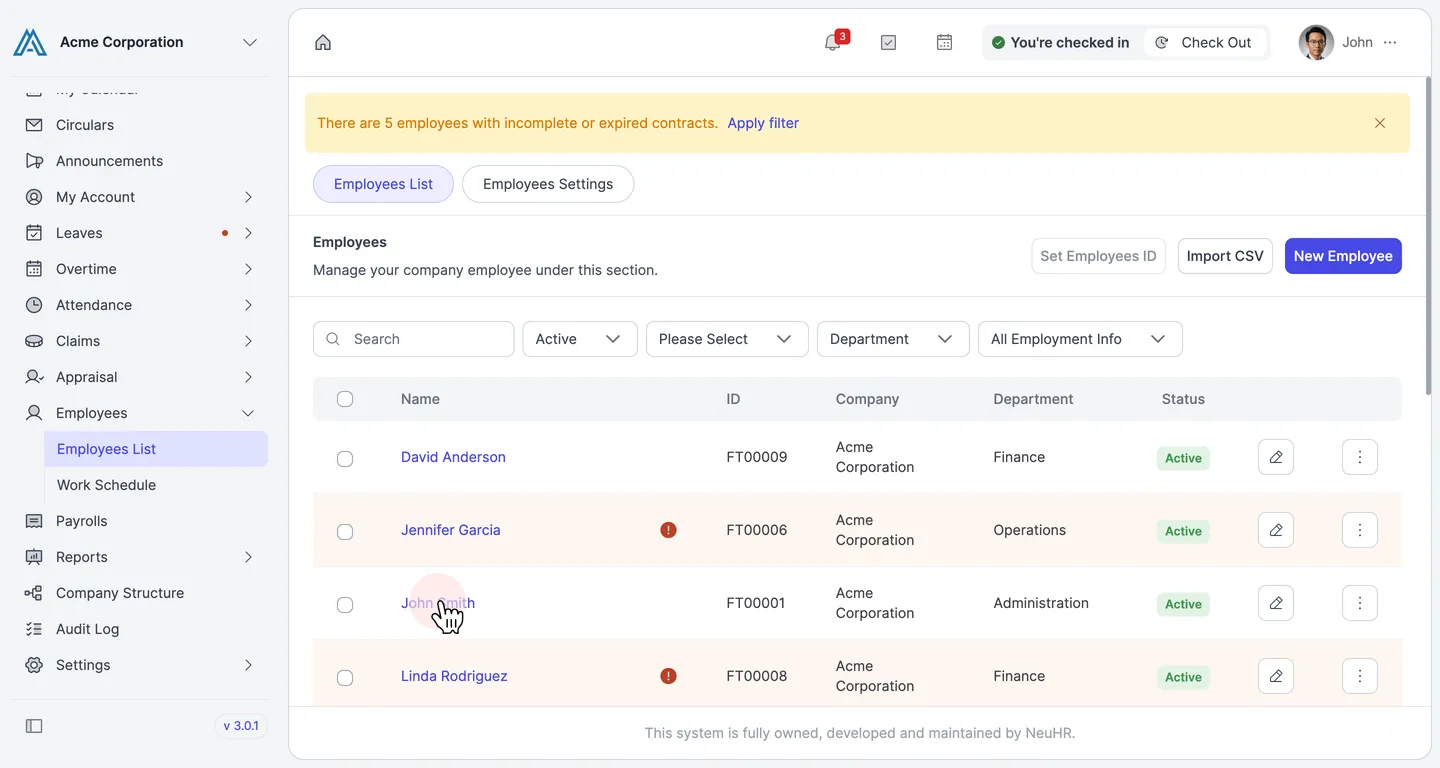
-
Click Edit User
Section titled “Click Edit User”On John Smith’s employee profile, click the
Edit Userbutton in the top-right corner to enter edit mode.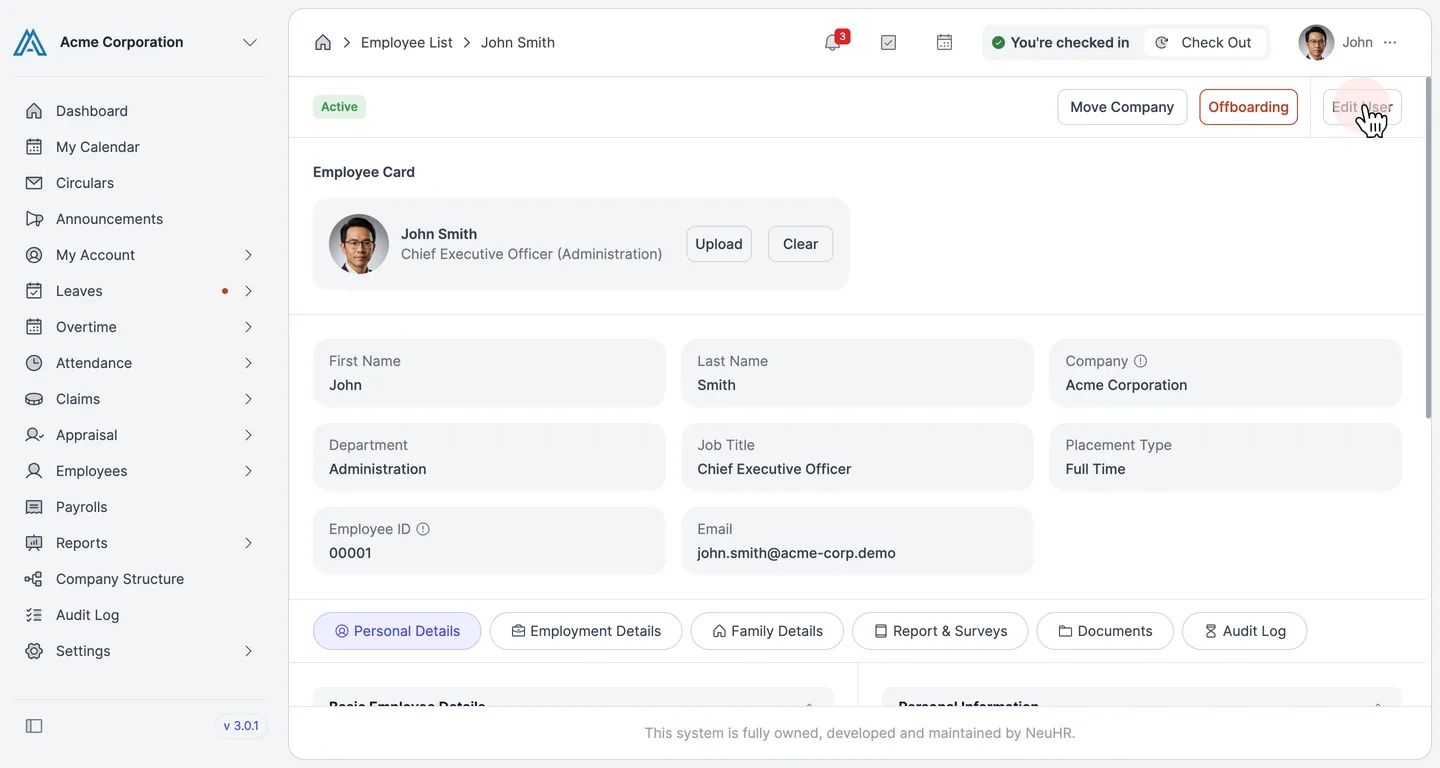
-
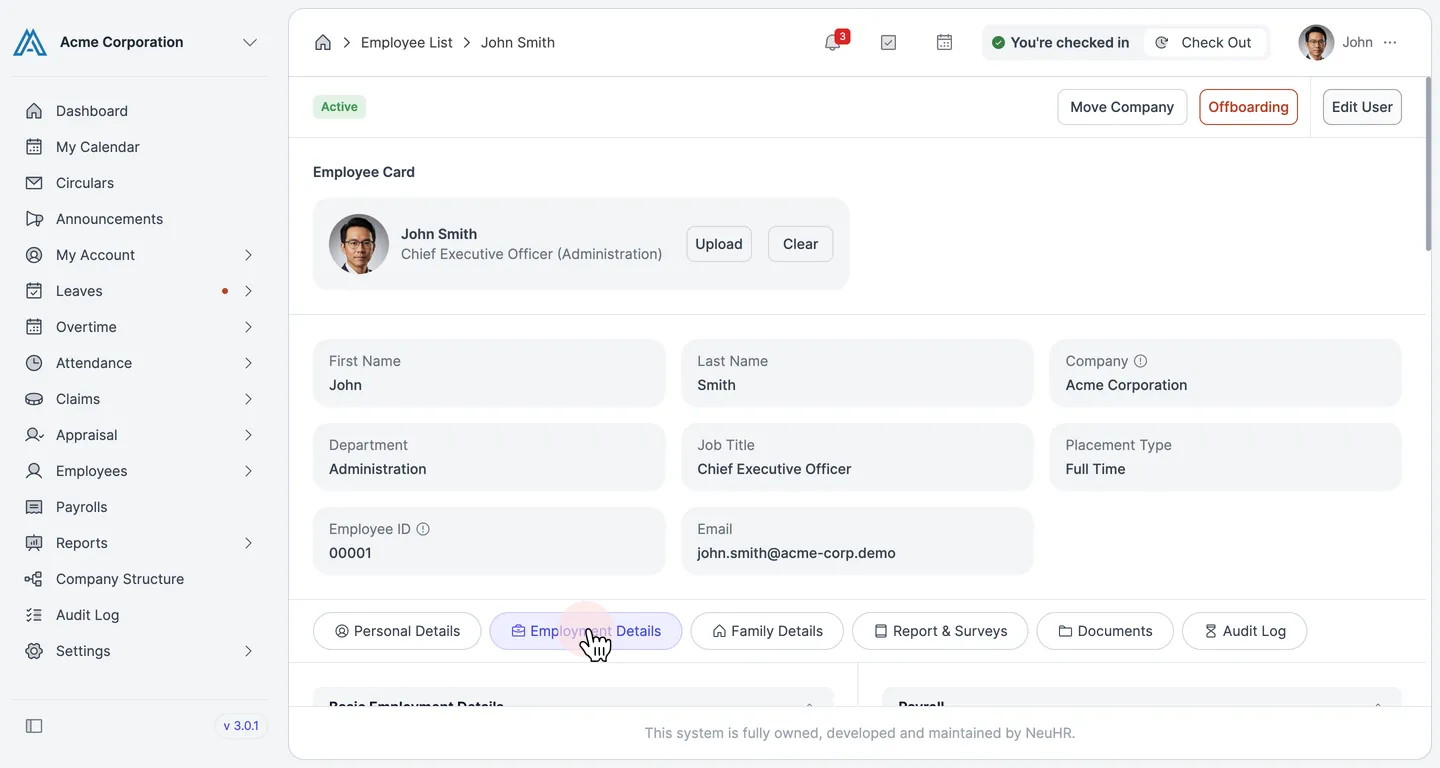
Go to Employment Details
Section titled “Go to Employment Details”Click the
Employment Detailstab to switch to the employment section of the employee’s record.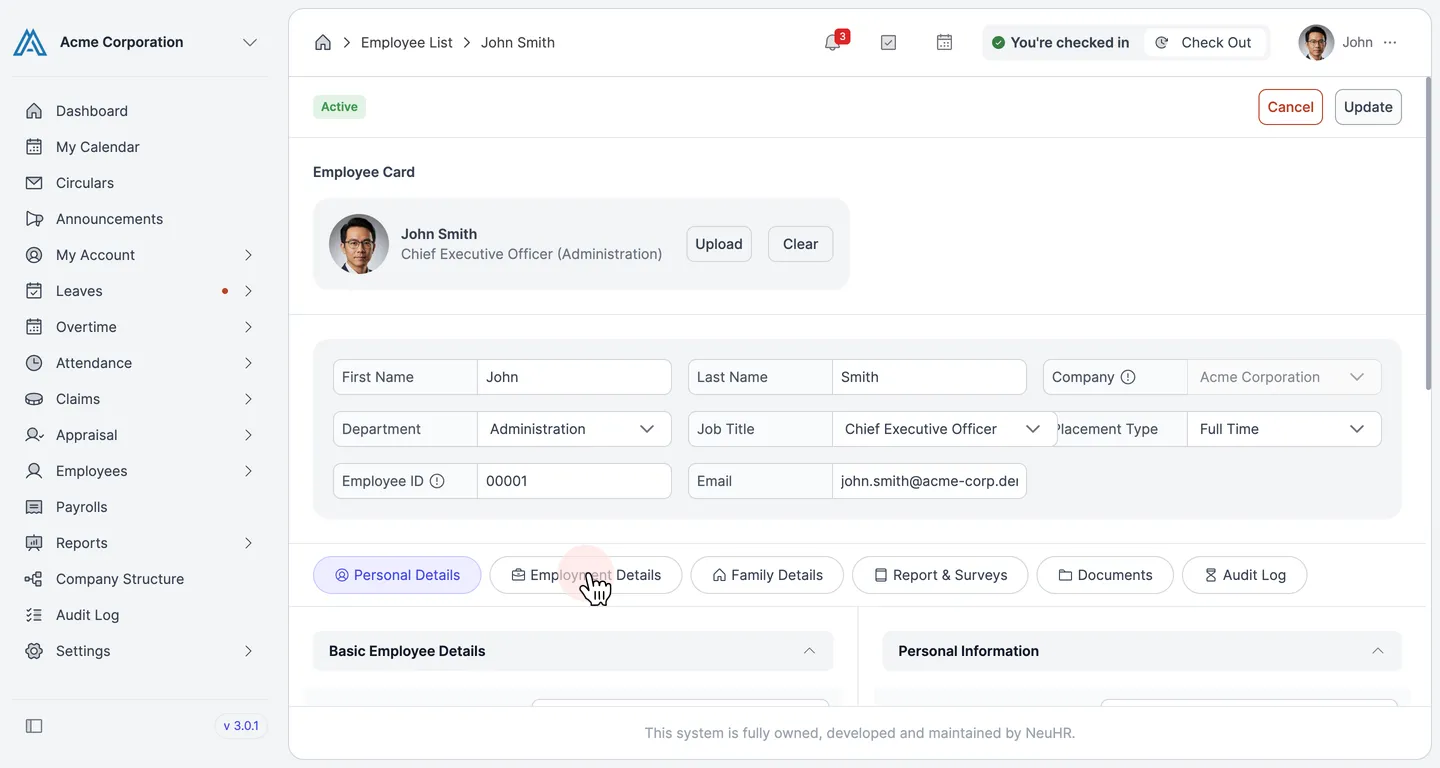
-
Locate the Claims Section
Section titled “Locate the Claims Section”Scroll down until you see the
Claimssection. It contains theCustom claim for employeefield, which shows the current overridable limit (e.g.,Default: 200) and the period (Yearly).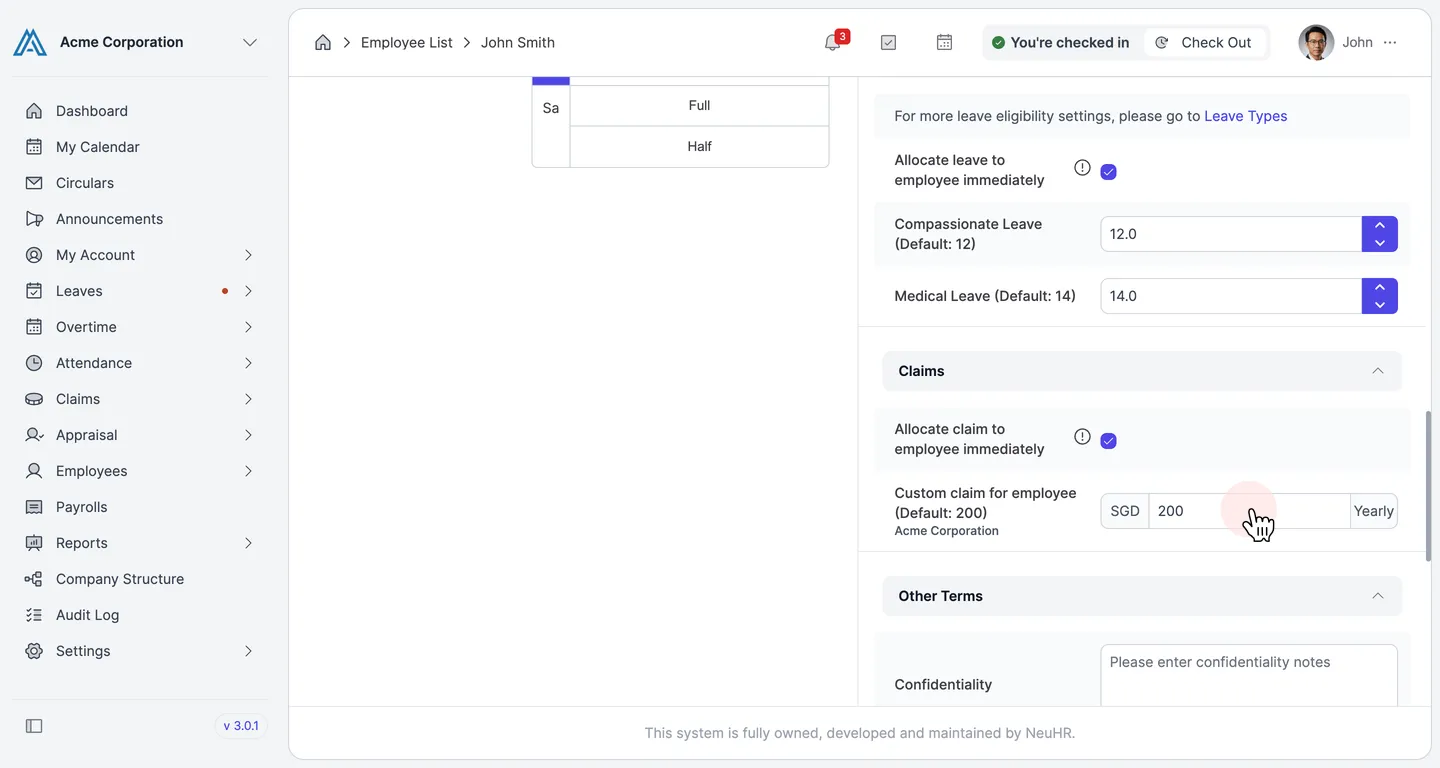
-
Enter the New Claims Limit
Section titled “Enter the New Claims Limit”Click on the value field next to
SGDand enter the new limit amount. For example, enter500to set the employee’s custom claims limit to SGD 500 per year.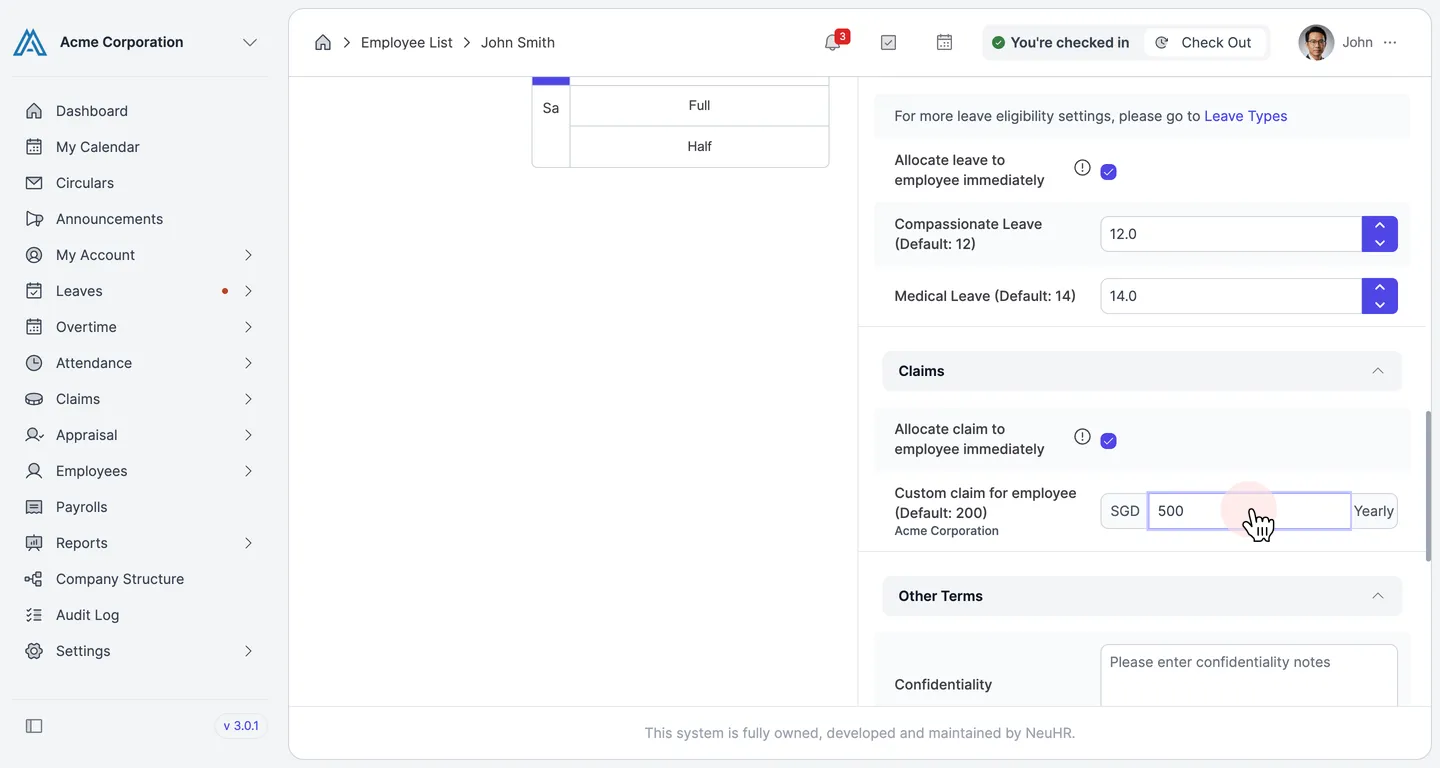
-
Save Changes
Section titled “Save Changes”Scroll back to the top and click the
Updatebutton to save the changes.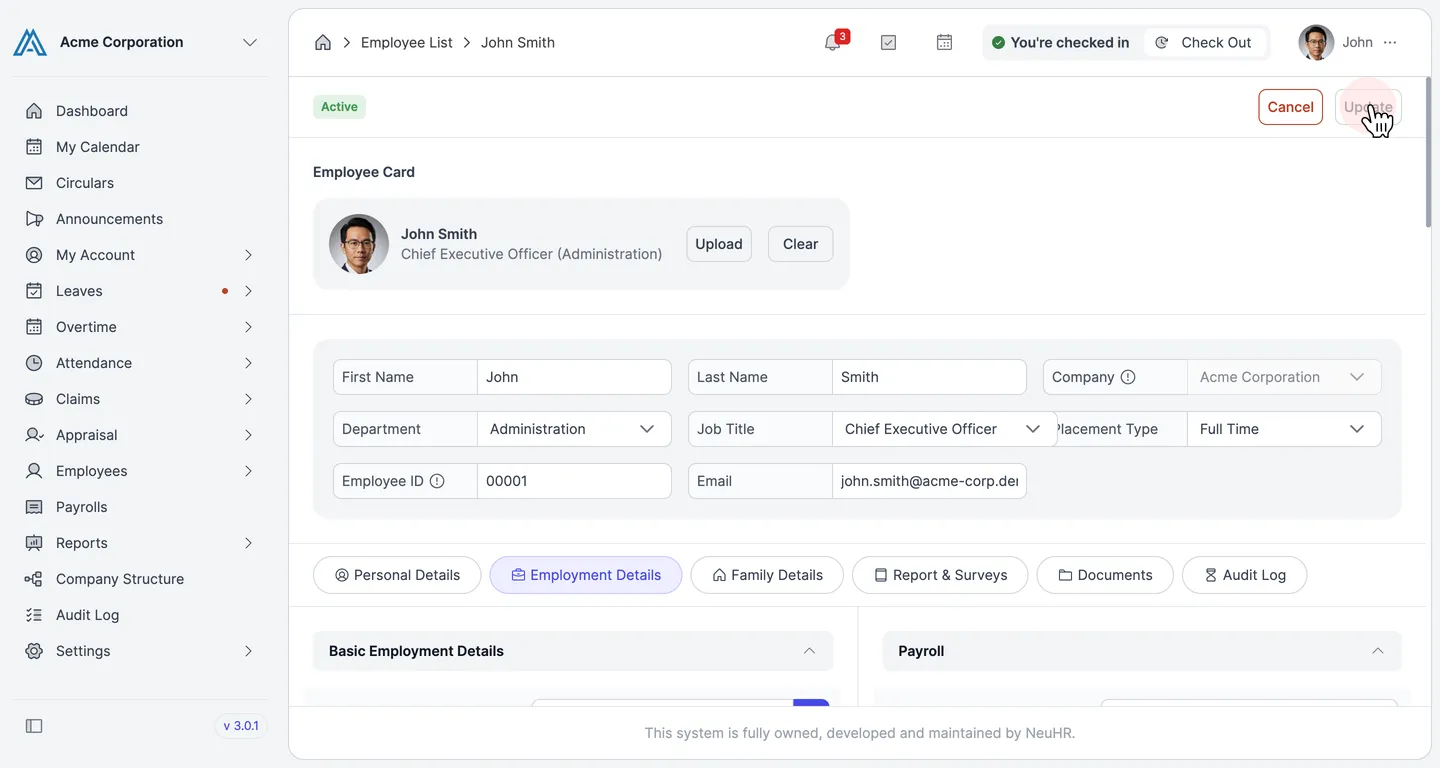
The page returns to view mode confirming the claims limit has been updated successfully for John Smith.