How to Approve Endorsed Claim Requests
This guide shows you how to approve claim requests that have been endorsed by a supervisor.
-
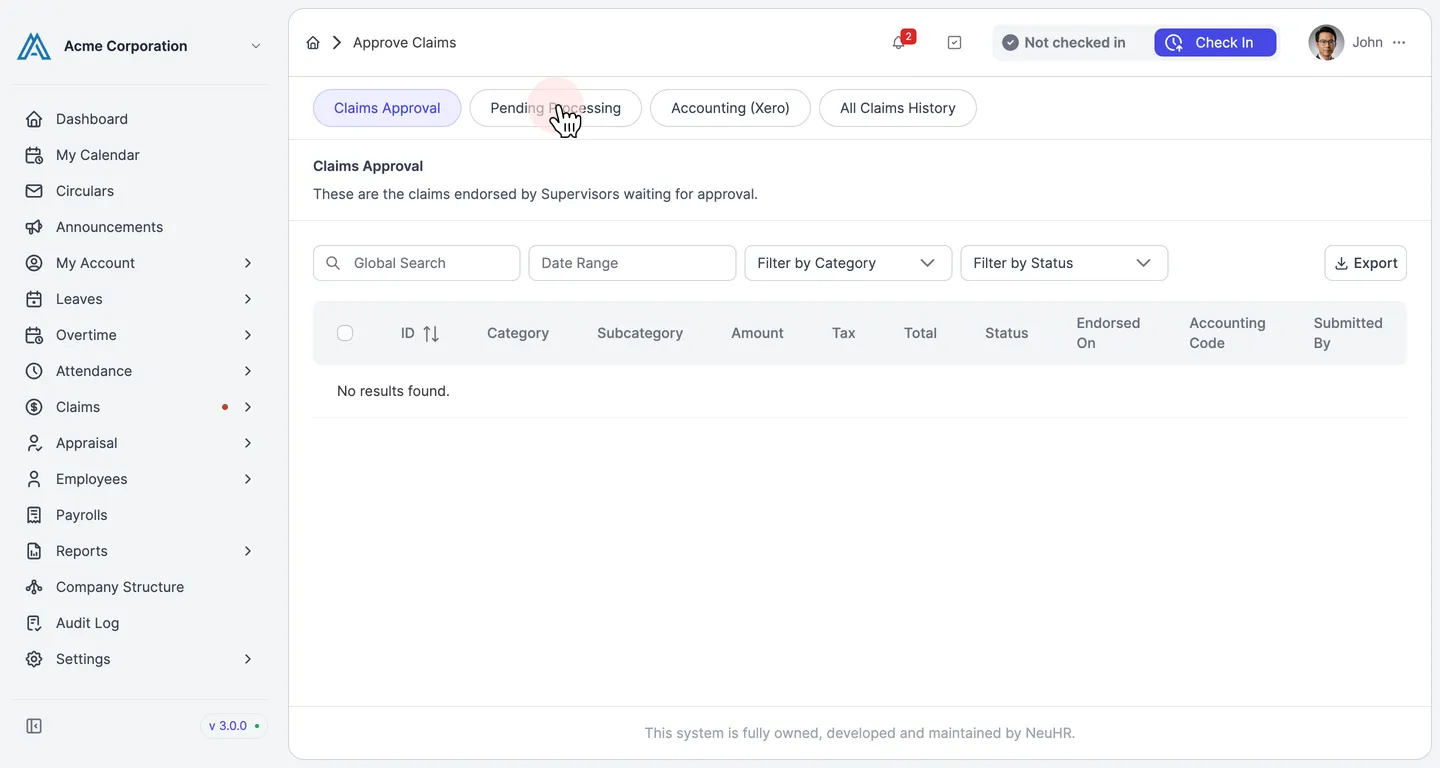
Open the Claims Approval queue
Section titled “Open the Claims Approval queue”From the sidebar, click Claims to expand the menu, then click Approve Claims. The Claims Approval tab lists all claims that have been endorsed by supervisors and are pending Finance approval.
Click on a claim ID (e.g.,
CLM-2) to open the claim details.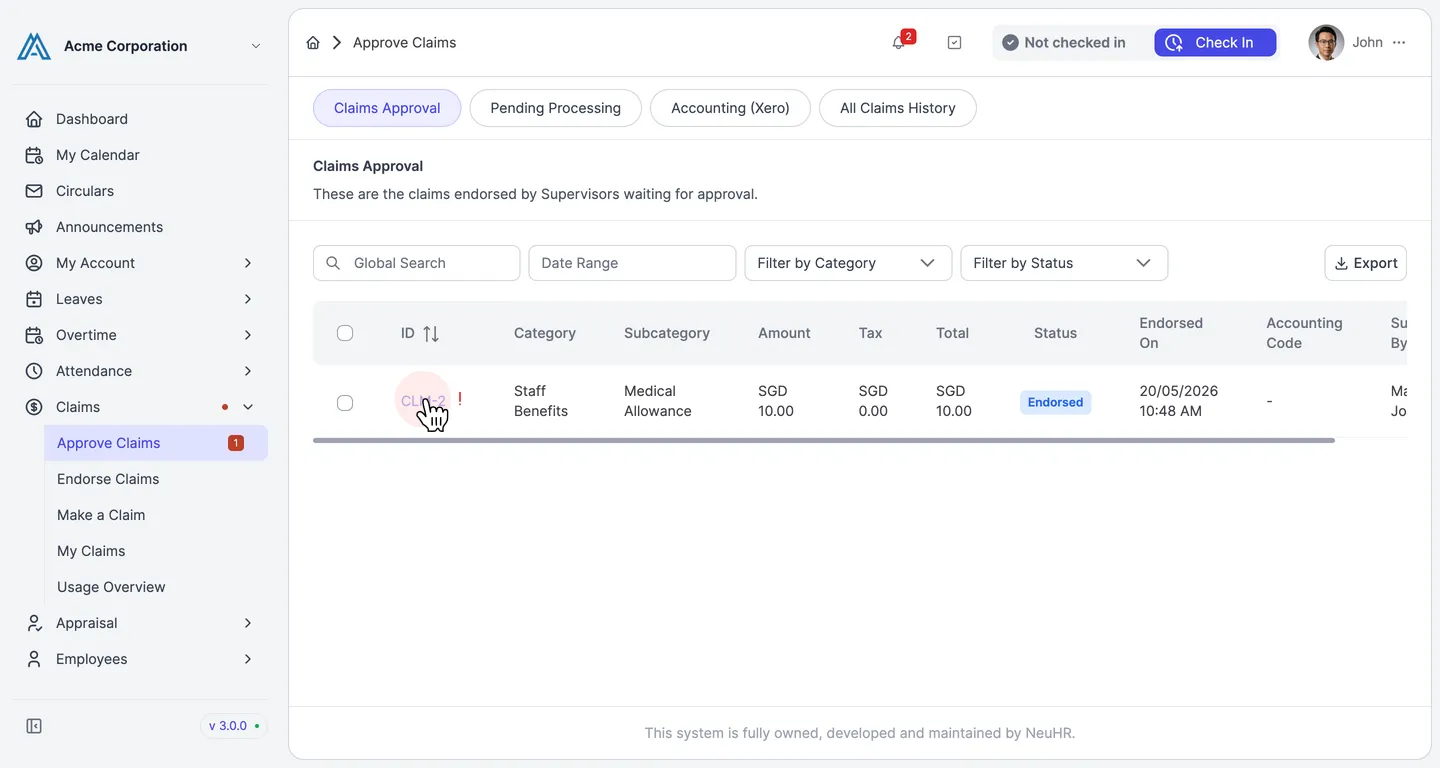
-
Review the claim details
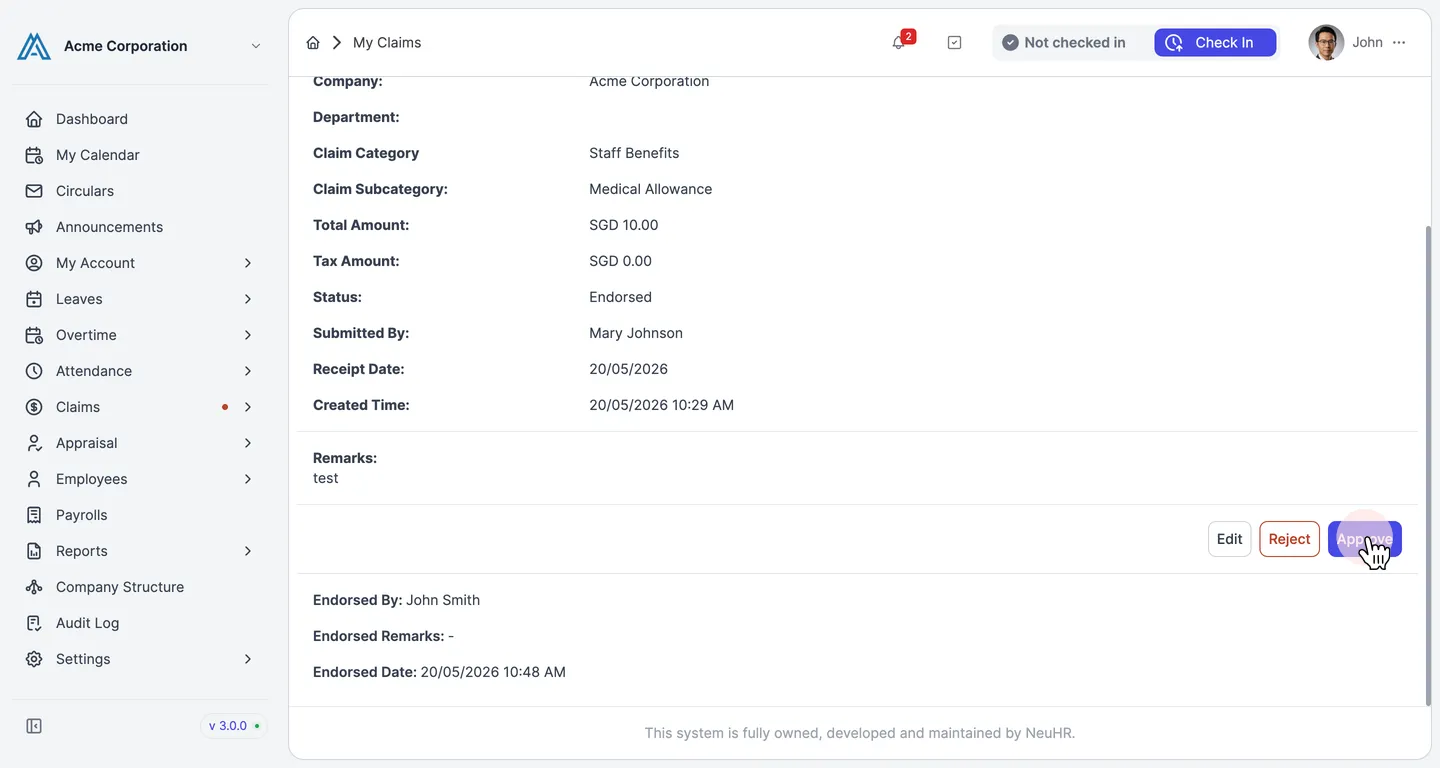
Section titled “Review the claim details”The claim detail page shows the submitted amount, category, subcategory, status, submitter, and endorsement information at the bottom. Verify the claim details before approving.
Click the Approve button to proceed.
-
Confirm the approval
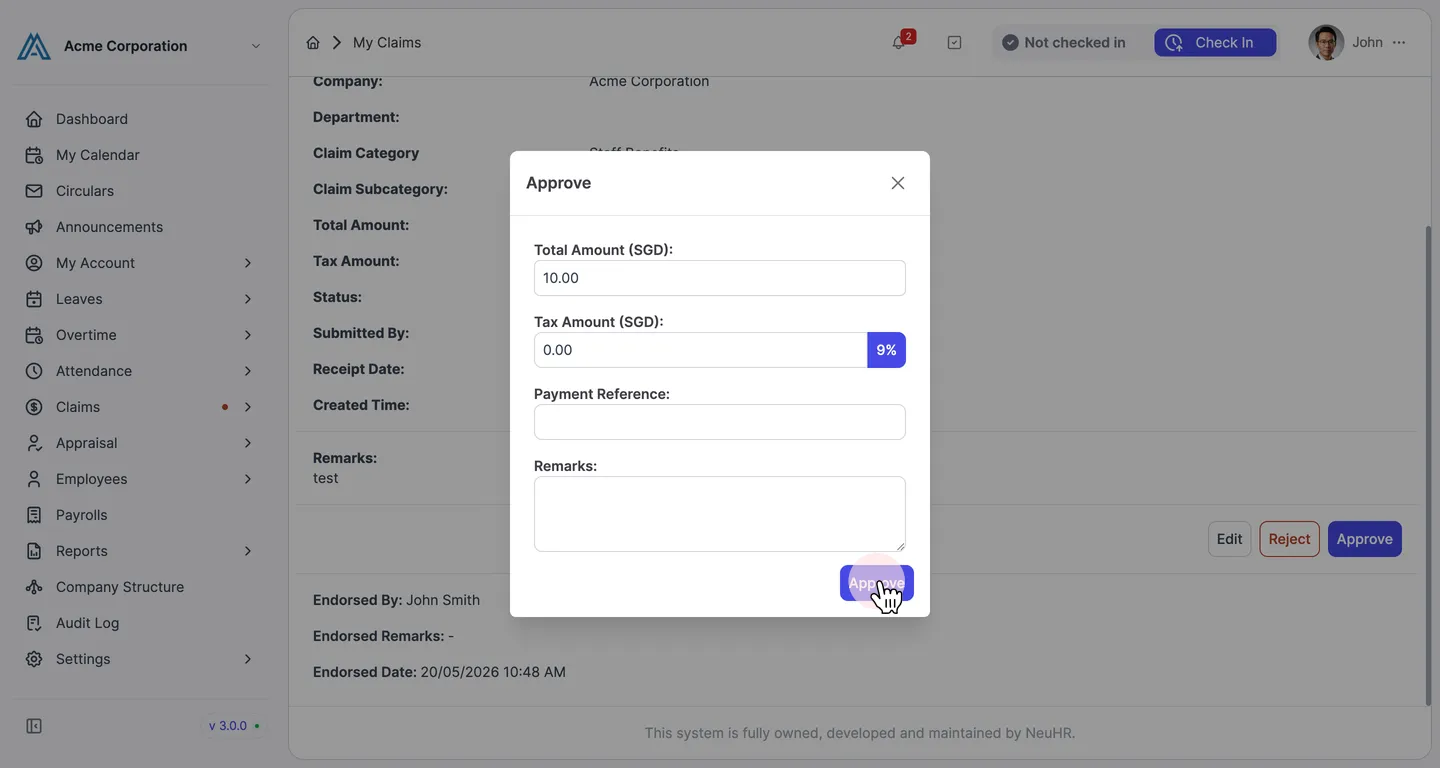
Section titled “Confirm the approval”An Approve dialog appears with the claim’s total and tax amounts pre-filled. You can optionally enter a Payment Reference and Remarks. When ready, click Approve to confirm.
-
Claim approved
Section titled “Claim approved”The claim is removed from the Claims Approval queue and moved to Pending Processing, where it awaits payment processing.