How to Manually Add an Employee Payslip in a Payroll Month
This guide shows you how to manually add a payslip for an employee who is not currently included in a payroll month. This is useful for recently deactivated employees or employees who need to be added manually to the current payroll.
-
Navigate to Payrolls
Section titled “Navigate to Payrolls”From the left sidebar, click on
Payrolls.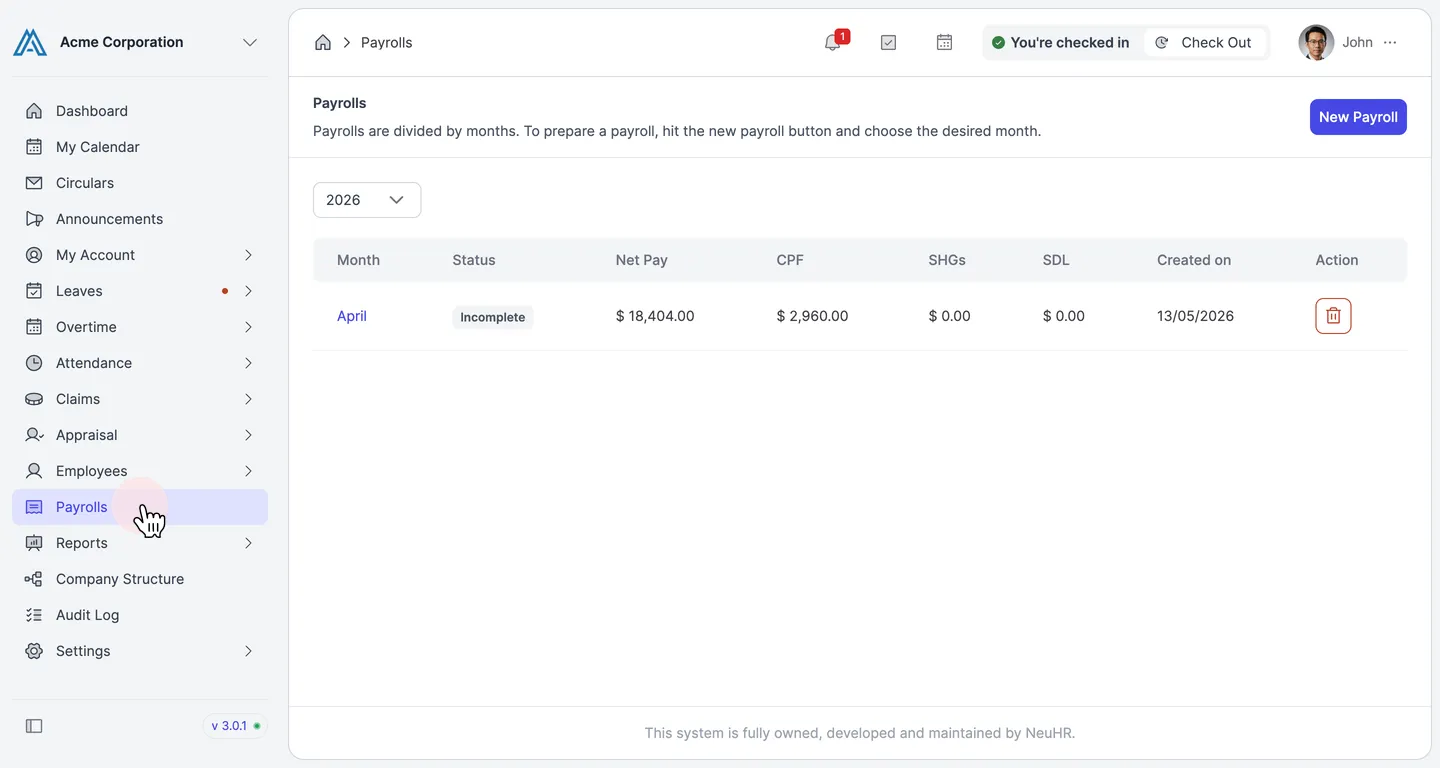
-
Open the Payroll Month
Section titled “Open the Payroll Month”On the
Payrollspage, click on the month name for the payroll you want to add the employee to (e.g.,April).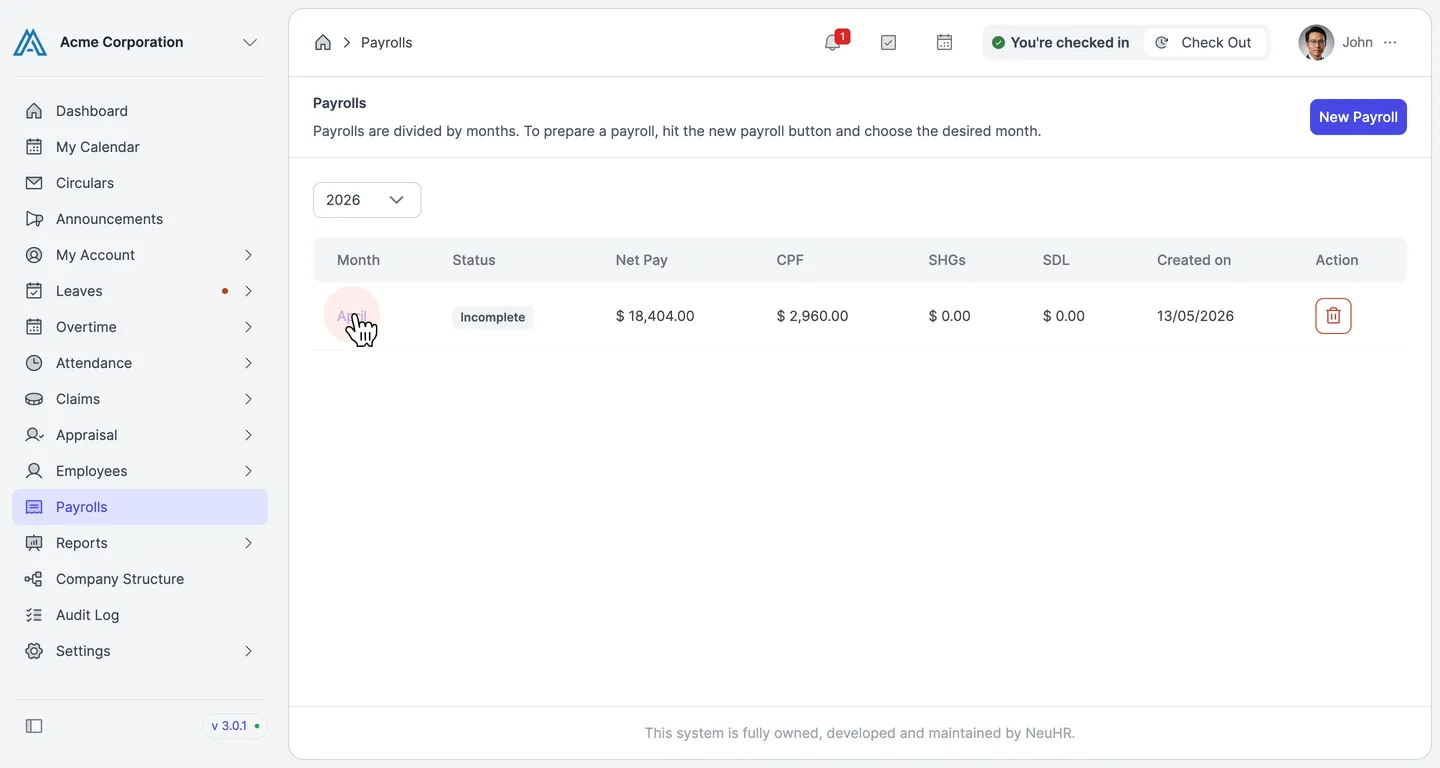
-
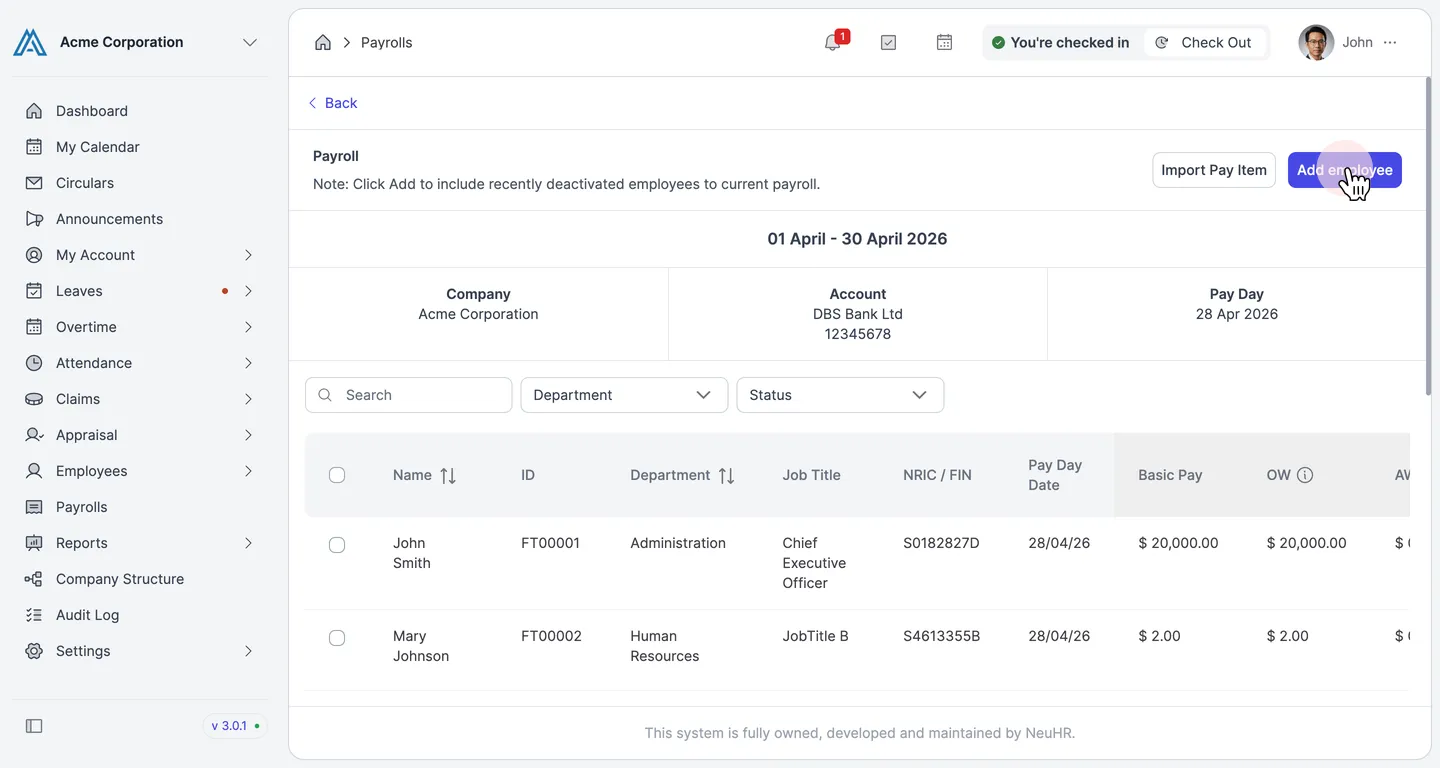
Click Add Employee
Section titled “Click Add Employee”On the payroll detail page, click the
Add employeebutton in the top right corner.Note: The page displays a reminder: “Click Add to include recently deactivated employees to current payroll.”
-
Select the Employee and Fill in Payslip Details
Section titled “Select the Employee and Fill in Payslip Details”The
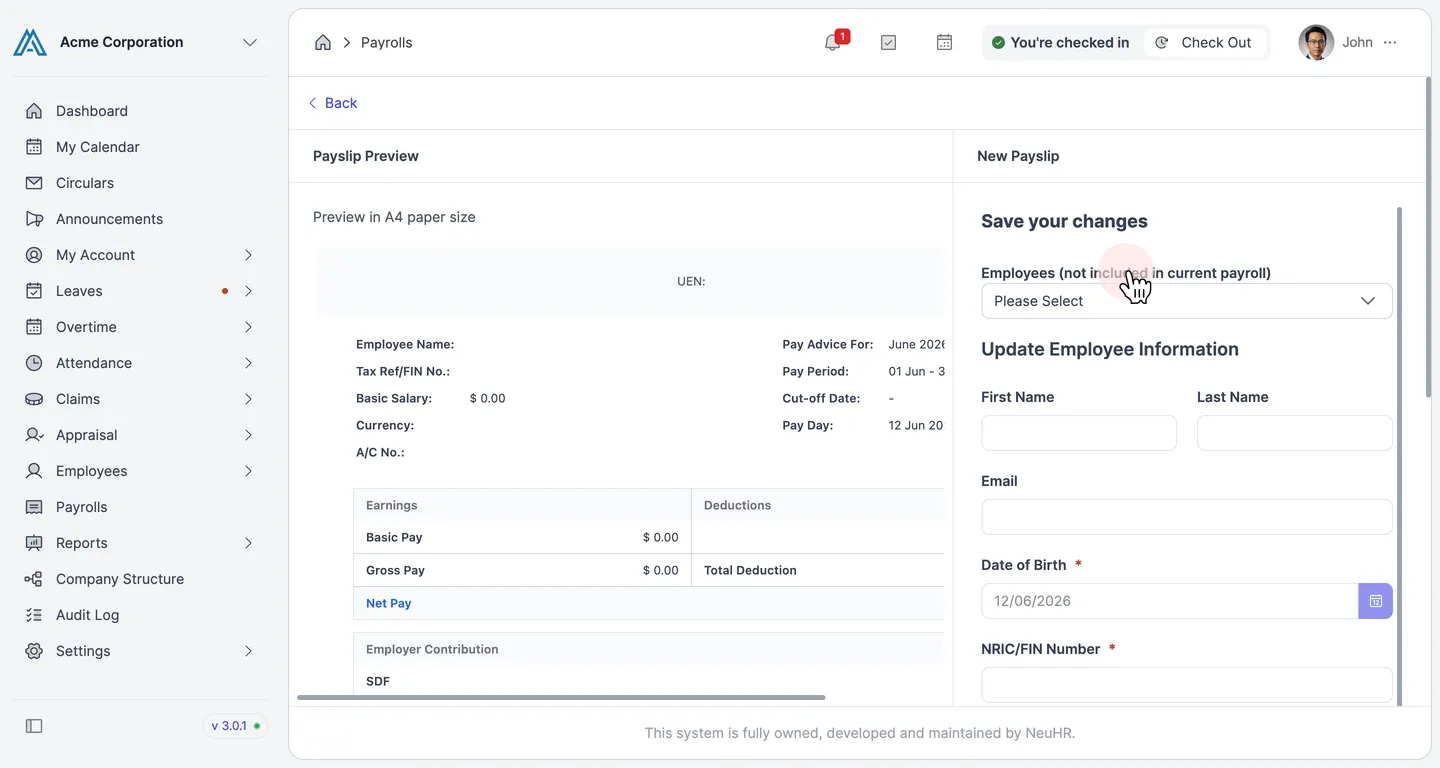
New Payslipform opens alongside a livePayslip Preview. Start by selecting the employee from the Employees (not included in current payroll) dropdown.Once an employee is selected, fill in the following sections:
Update Employee Information
- First Name, Last Name, Email
- Date of Birth, NRIC/FIN Number, Citizenship
Update Bank Details
- Bank Name, Account Type, Account Name, Account Number
Update Payslip Details
- Basic Pay — the employee’s basic salary
- Total Work Days — number of working days (1 day = 8 hours)
- Unpaid Leave — number of unpaid leave days
- Ordinary Wage — ordinary wage amount
- Start Date / End Date — pay period dates
- Custom Pay Day Date — optional custom pay day
-
Save the Payslip
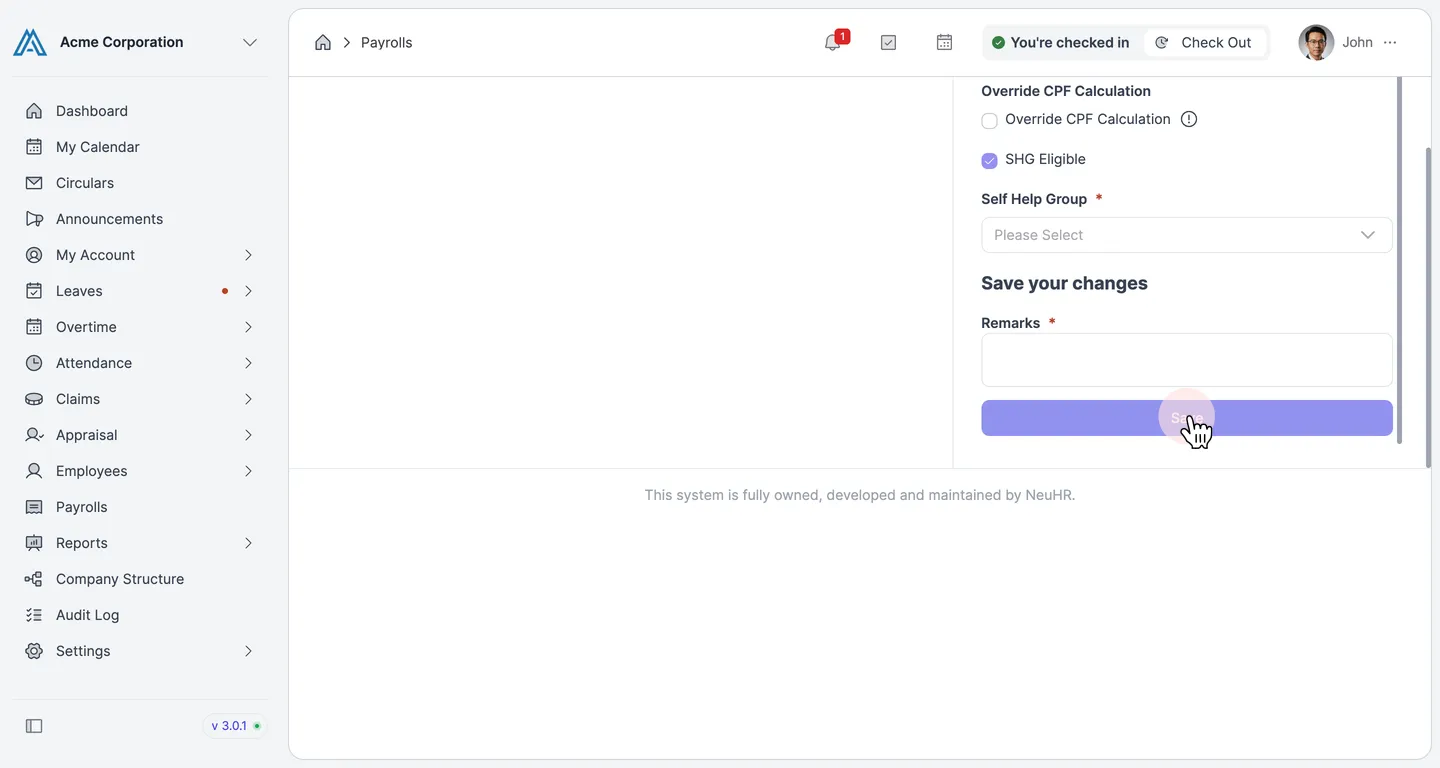
Section titled “Save the Payslip”After filling in all the required fields, scroll to the bottom of the form. Optionally add any Remarks, then click
Saveto add the payslip to the payroll month.The payslip preview on the left updates in real time as you fill in the form.