How to Process Selected Payslips in Payroll Month
This guide shows you how to select specific employees and process their payslips within an active payroll month.
-
Navigate to Payrolls
Section titled “Navigate to Payrolls”From the sidebar, click on
Payrollsto view all payroll periods.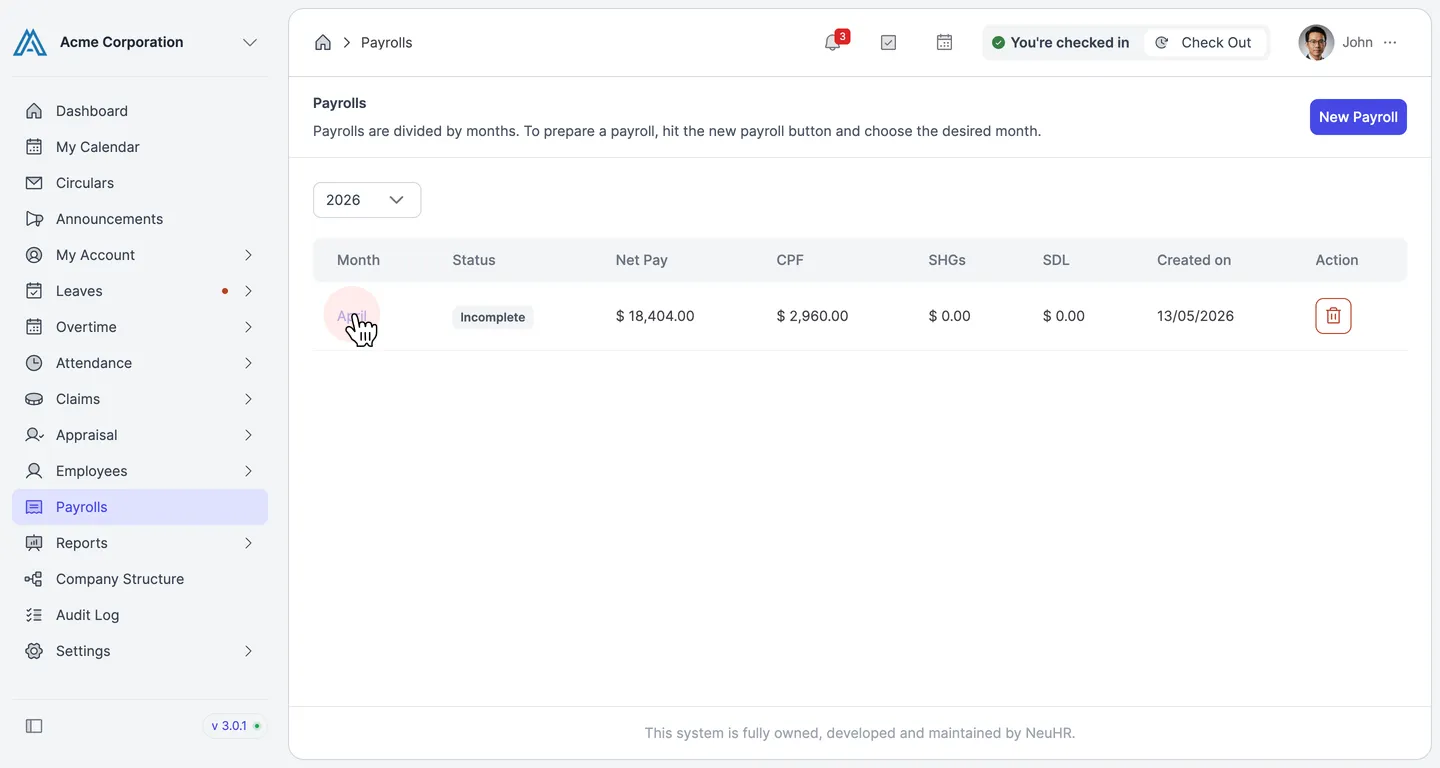
-
Select a Payroll Period
Section titled “Select a Payroll Period”Click on the payroll period you want to process (e.g.,
April) to open the employee list for that payroll. The page shows the payroll period dates, company, account, and pay day at the top.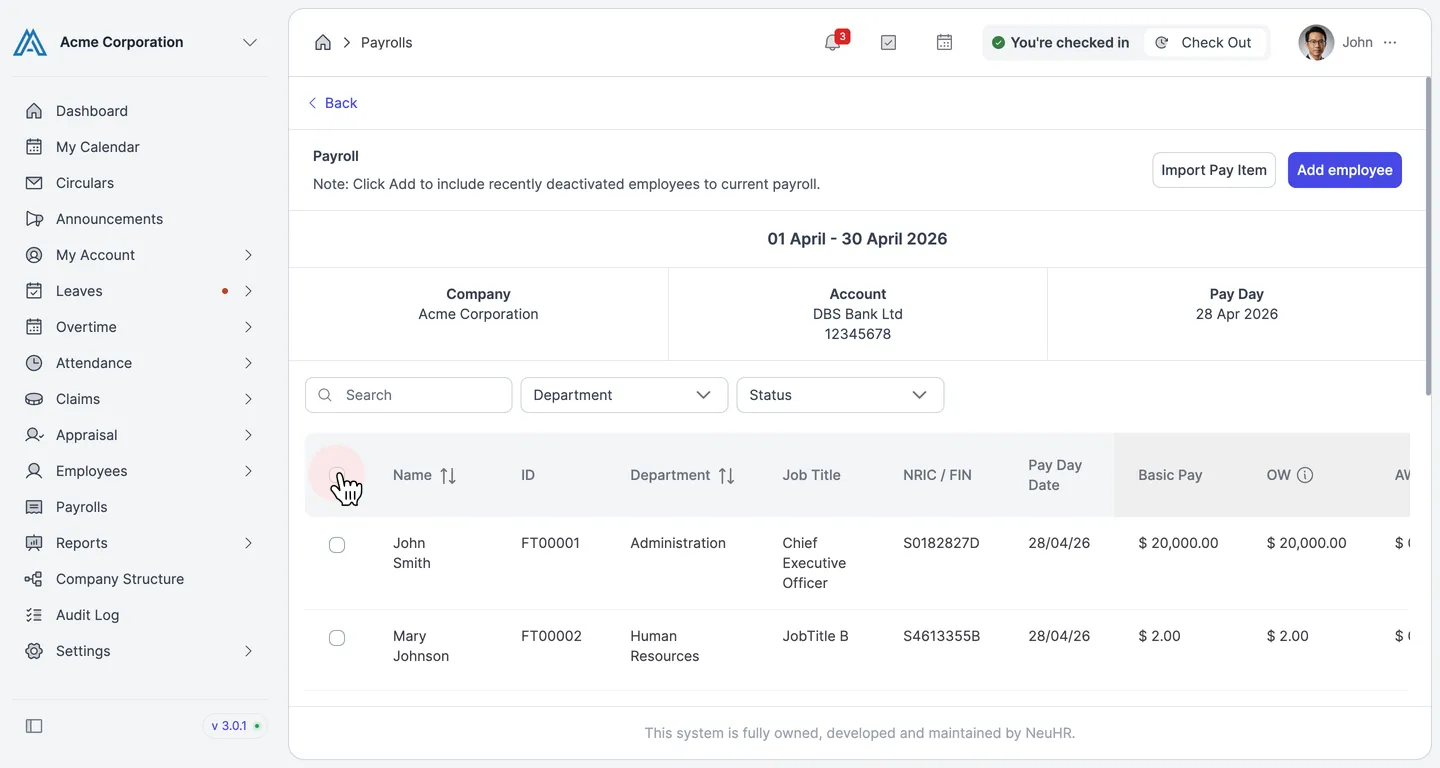
-
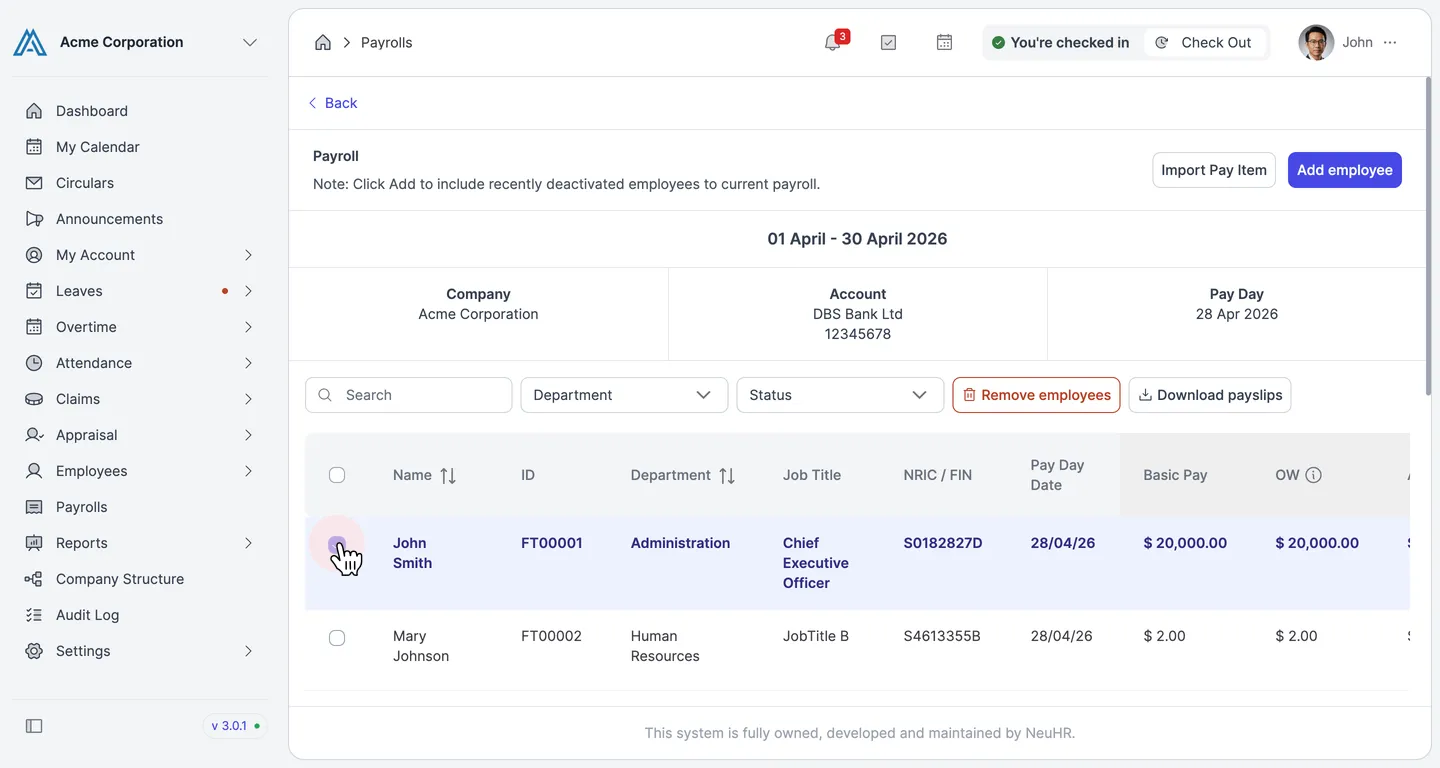
Select Employees to Process
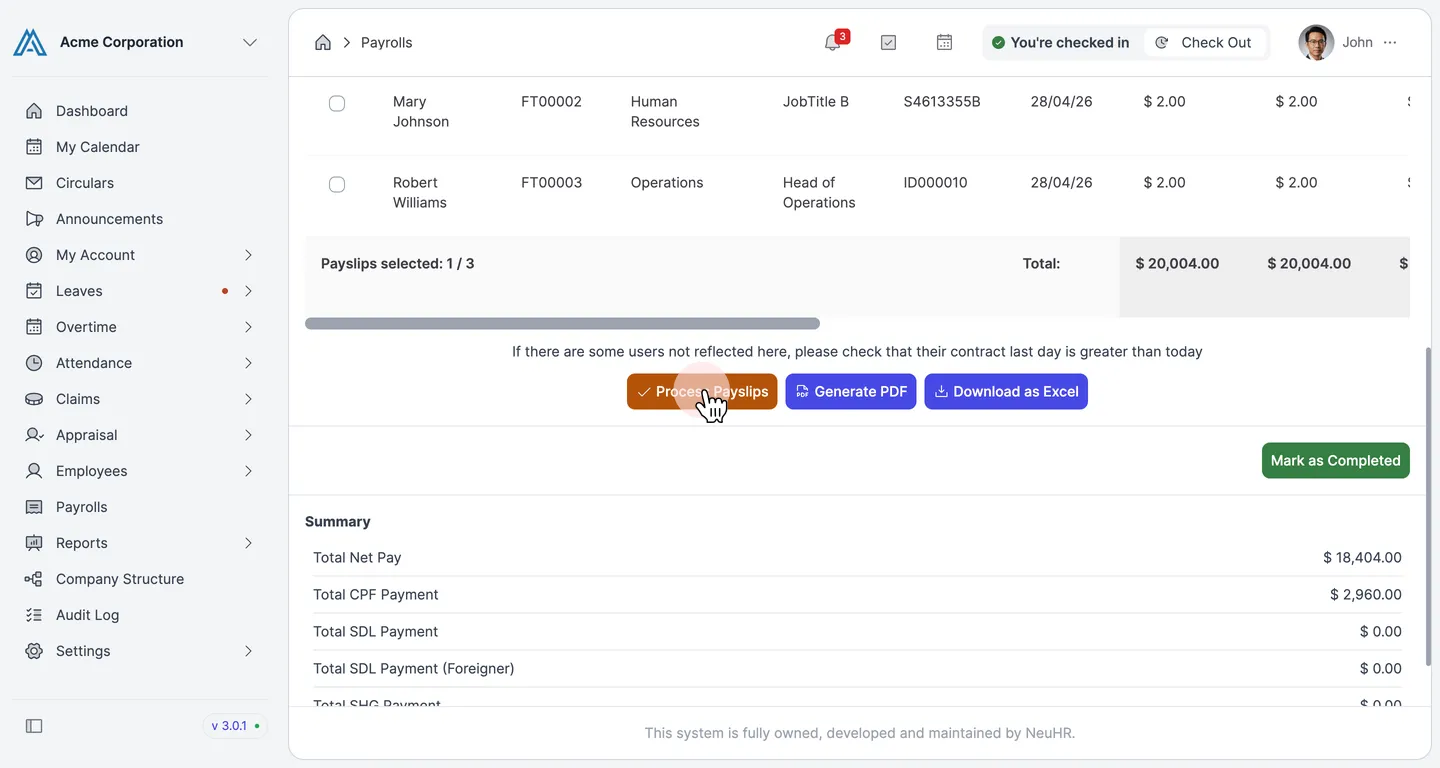
Section titled “Select Employees to Process”Tick the checkbox next to each employee whose payslip you want to process. Selected employees will be highlighted in blue. The footer shows Payslips selected: N / Total with the combined totals for the selection.
To select all employees at once, click the checkbox in the table header row.
-
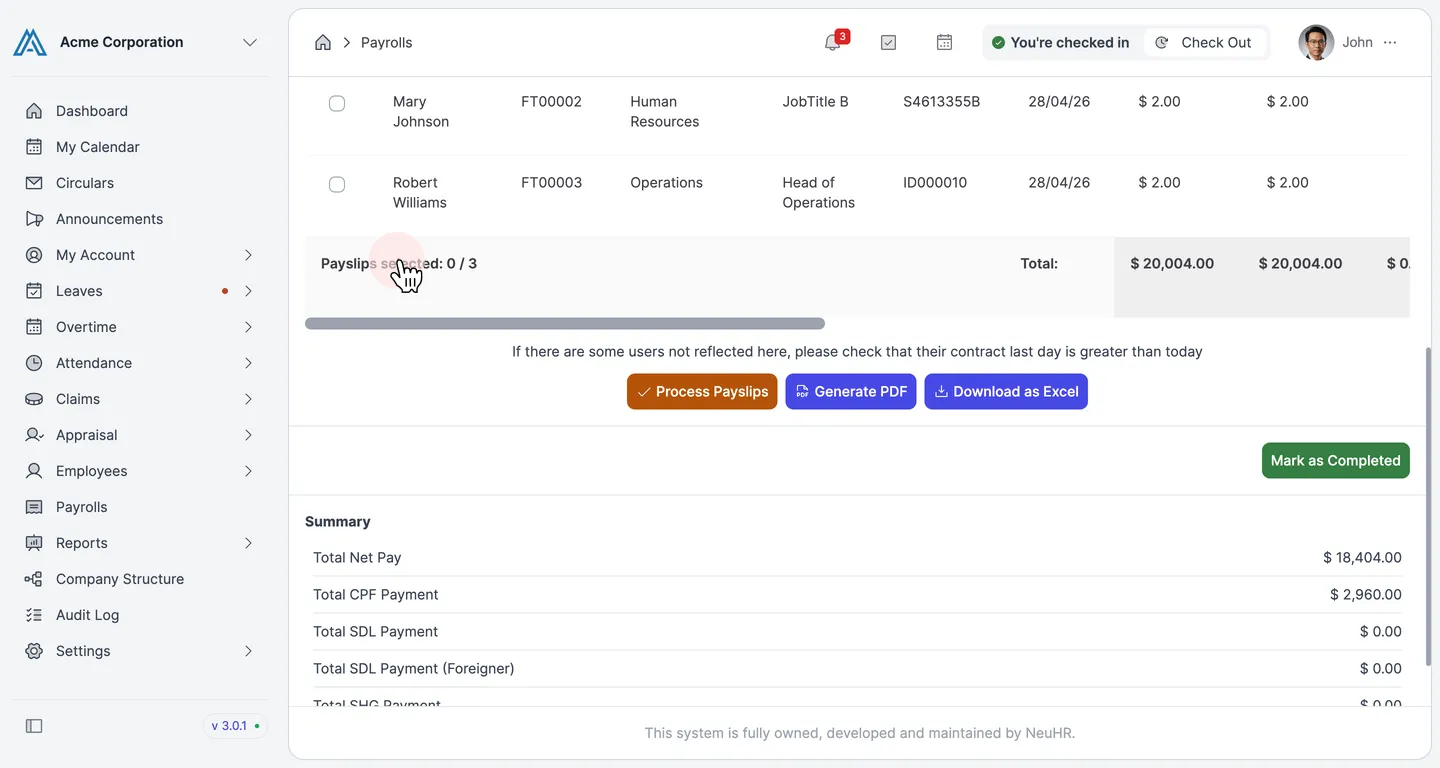
Click Process Payslips
Section titled “Click Process Payslips”Scroll down to the bottom of the employee list. Click the
Process Payslipsbutton to process the selected payslips.The row below the table also shows:
Generate PDF— download payslips as PDF filesDownload as Excel— export payroll data to ExcelMark as Completed— finalize the entire payroll month
-
Payslips Processed
Section titled “Payslips Processed”Once processed, the selected payslips are updated and the selection count resets. The Summary section at the bottom shows the totals for Total Net Pay, Total CPF Payment, Total SDL Payment, and other statutory contributions for the payroll period.