

How to Update Company General Info
This guide shows you how to update company general information in NeuHR, including company name, registration number, address, contact details, and logos.
-
Navigate to Company Settings
Section titled “Navigate to Company Settings”From the sidebar, click on Settings to expand the menu, then click on Company.
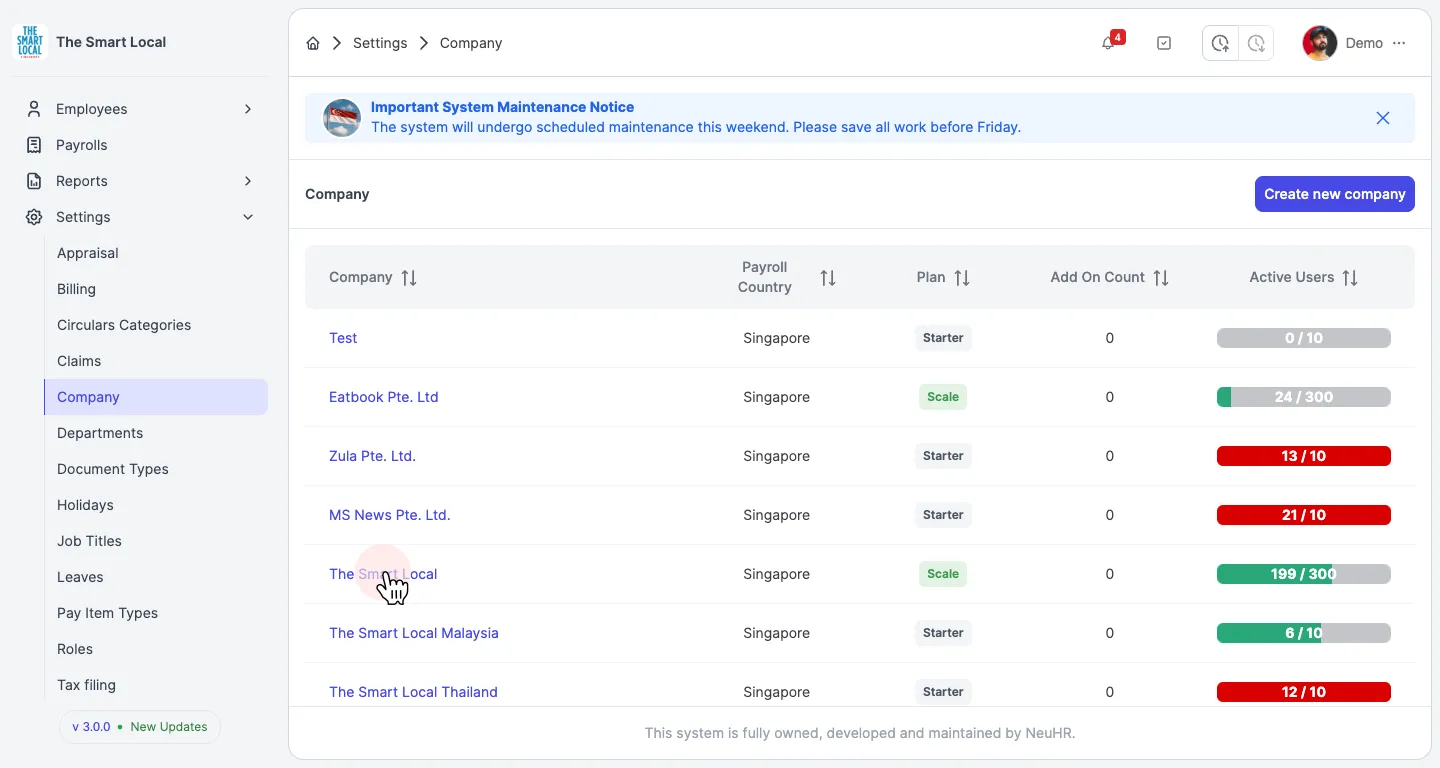
You’ll see a list of companies. Click on your company name to open the update page.
-
Update General Information
Section titled “Update General Information”You’ll see the Update Company page with the General tab displayed. This tab contains all the editable company information.
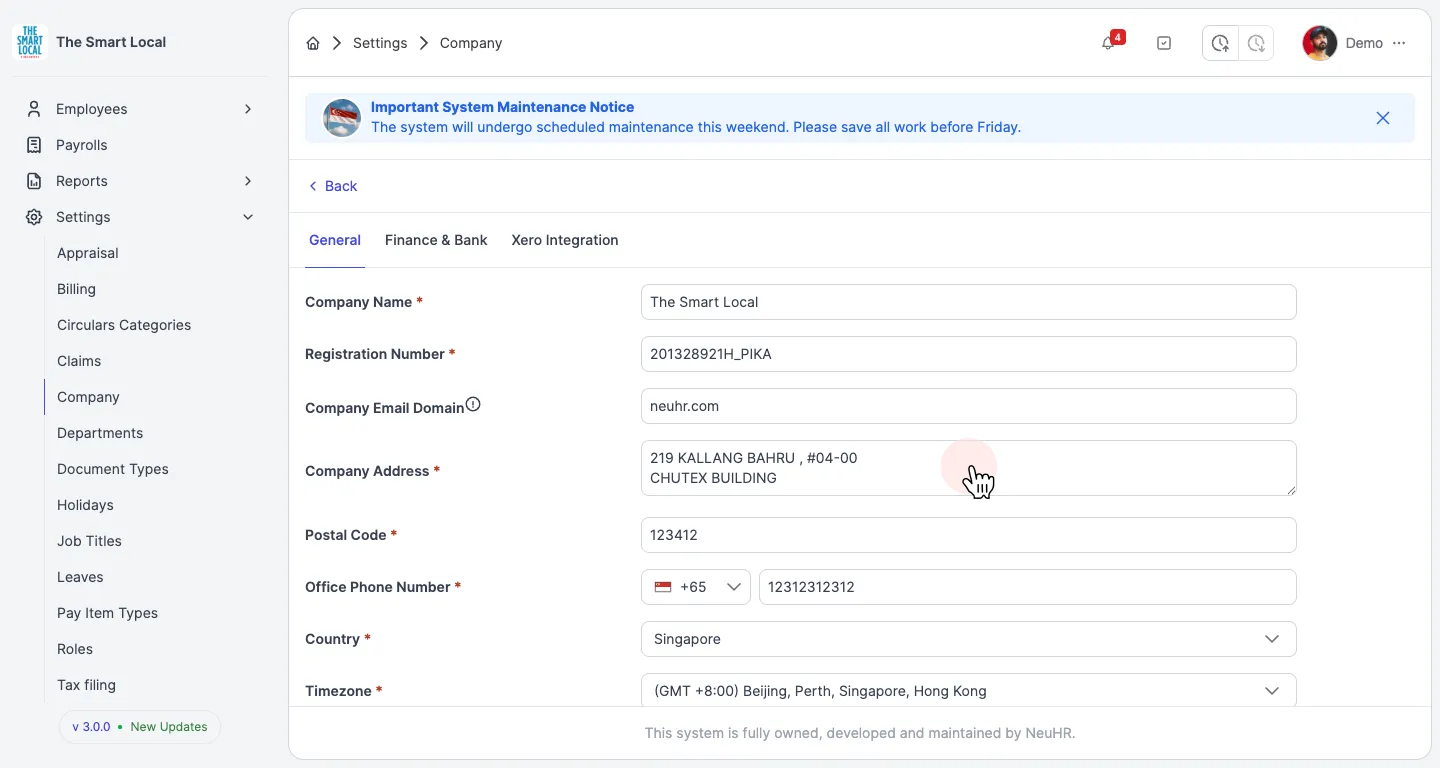
Update the following fields as needed:
- Company Name: The official name of your company
- Registration Number: Company registration or UEN number
- Company Email Domain: Your company’s email domain (e.g., company.com)
- Company Address: The registered business address
- Postal Code: Postal code for the address
- Office Phone Number: Main contact phone number
- Country: Select your country from the dropdown
- Timezone: Select your timezone from the dropdown
You can also update the logos:
- Company Logo: Click Upload Company Logo to update the main company logo
- Payslip Logo: Click Upload Payslip Logo to update the logo shown on payslips
All fields marked with an asterisk (*) are required.
-
Save Changes
Section titled “Save Changes”Scroll to the bottom of the page and click the Save button to save your changes.
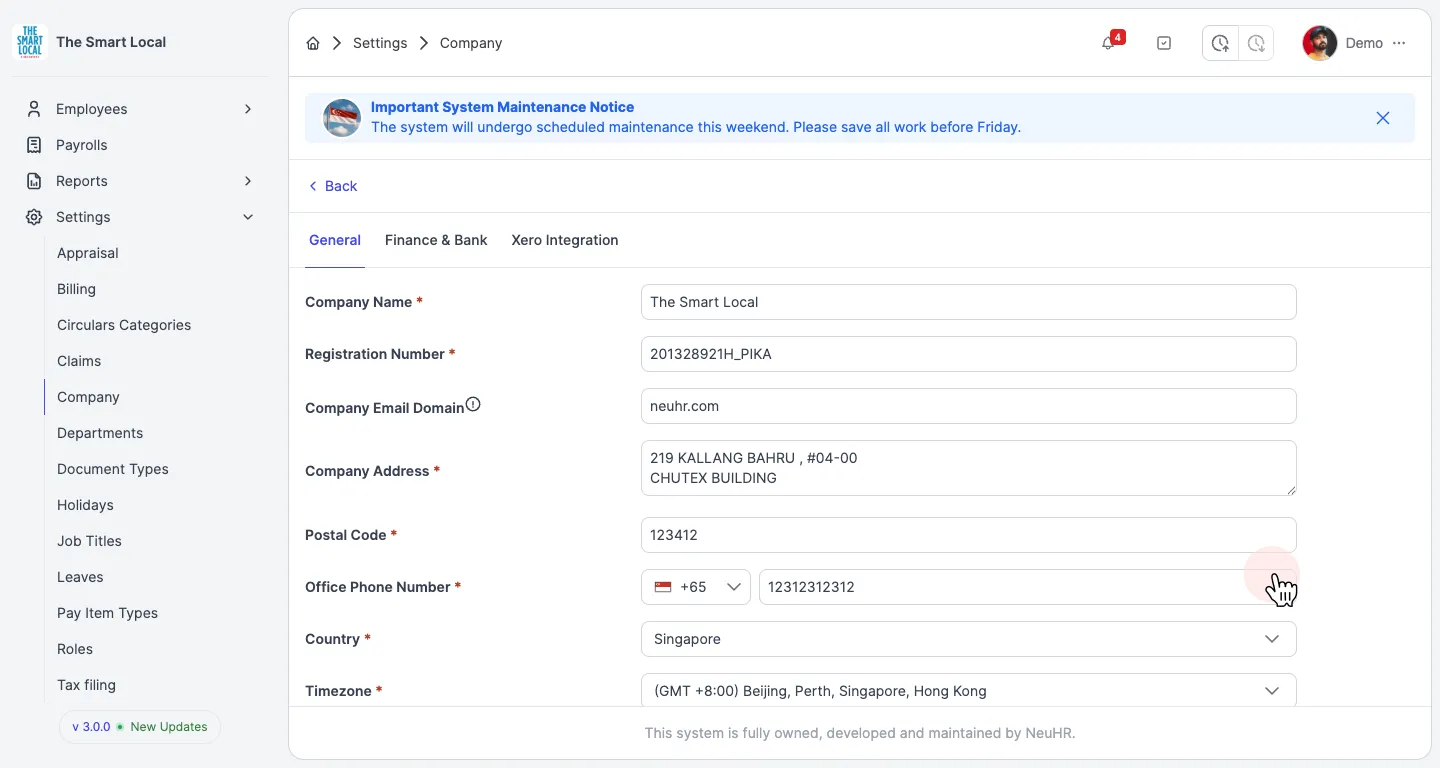
Your company information has been updated successfully. The changes will take effect immediately.