

How to Create a New Appraisal Template
This guide shows you how to create a new appraisal template in NeuHR. Appraisal templates define the structure and criteria used when evaluating employee performance.
-
Navigate to Settings > Appraisal
Section titled “Navigate to Settings > Appraisal”From the sidebar, click
Settingsto expand the menu, then clickAppraisal.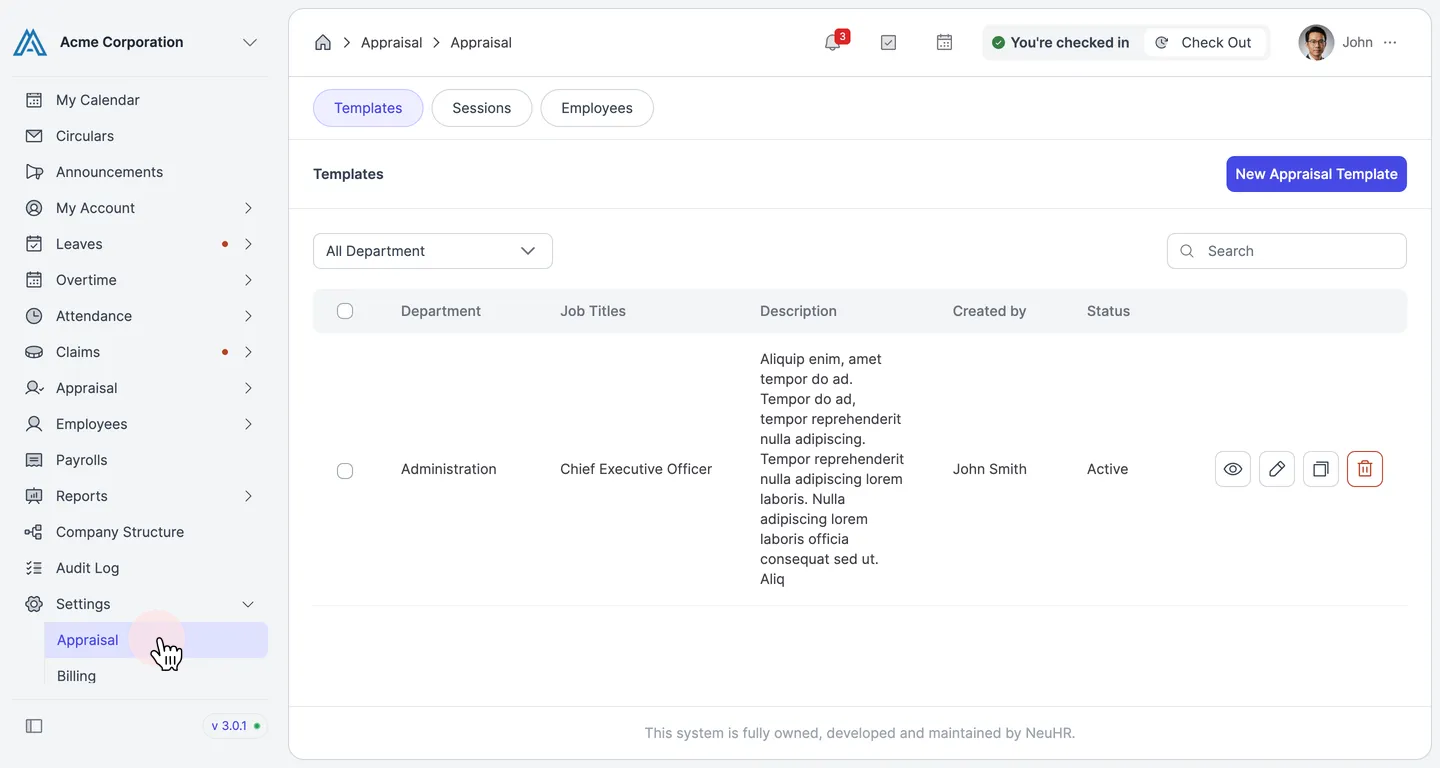
-
Click New Appraisal Template
Section titled “Click New Appraisal Template”On the
Templatestab, click theNew Appraisal Templatebutton in the top right corner.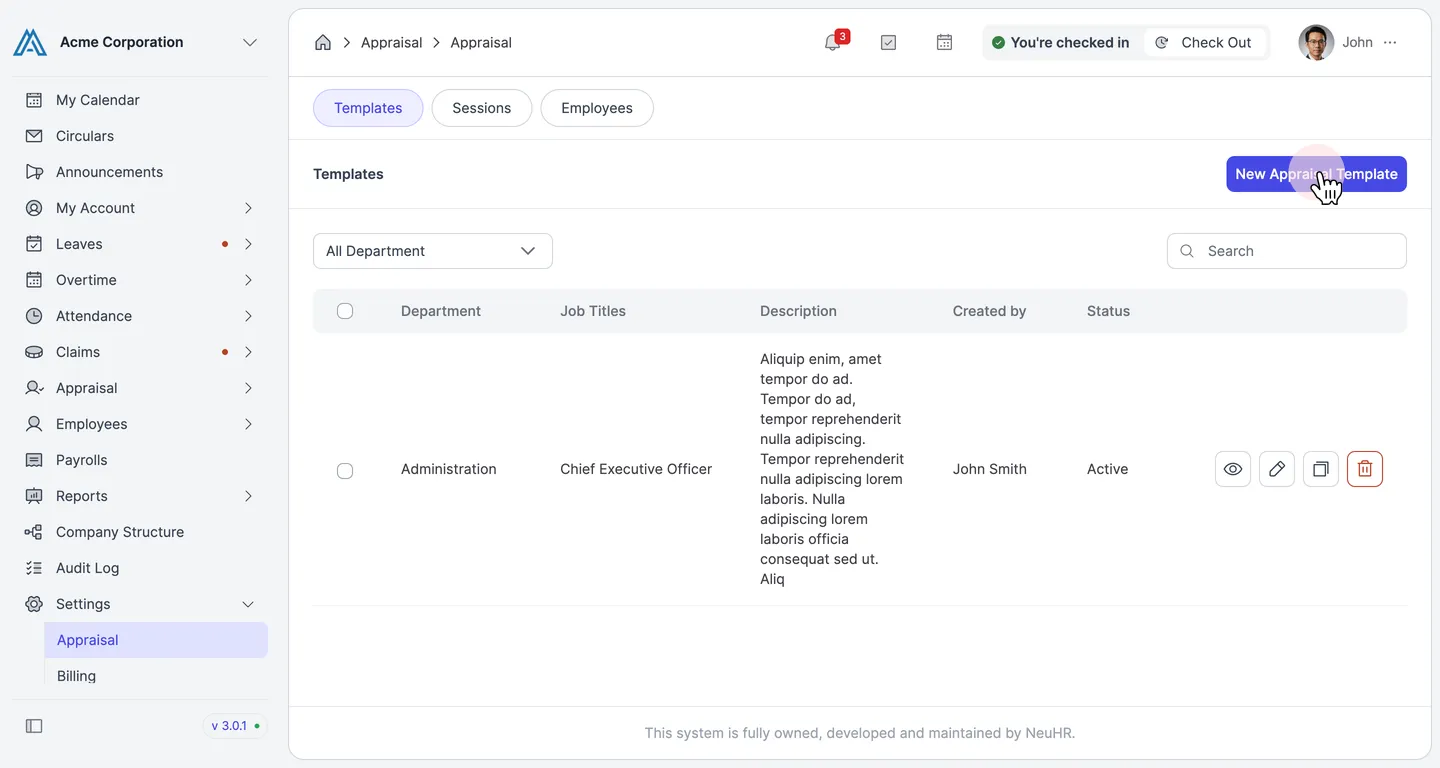
-
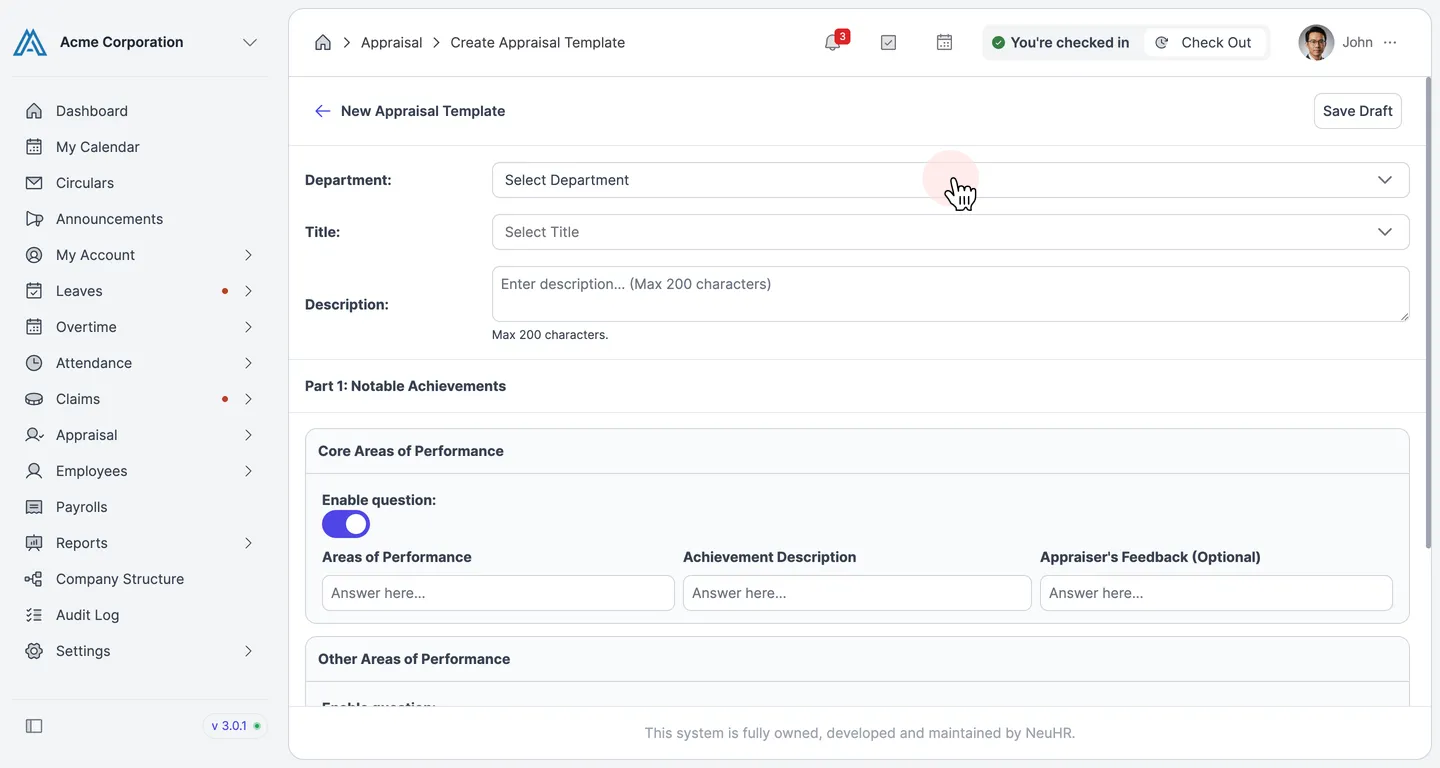
Fill in the Template Details
Section titled “Fill in the Template Details”On the New Appraisal Template form, fill in the following fields:
- Department: Select the department this template applies to.
- Title: Select the job title this template is for.
- Description: Enter a brief description of the template (max 200 characters).
-
Configure Part 1: Notable Achievements
Section titled “Configure Part 1: Notable Achievements”This section captures employee achievements during the appraisal period. Two subsections are available:
- Core Areas of Performance: Toggle
Enable questionon to include questions about core performance areas, achievement descriptions, and appraiser feedback. - Other Areas of Performance: Toggle
Enable questionon to include questions about additional performance areas.
When done, click
Next: Tracks Presetto proceed.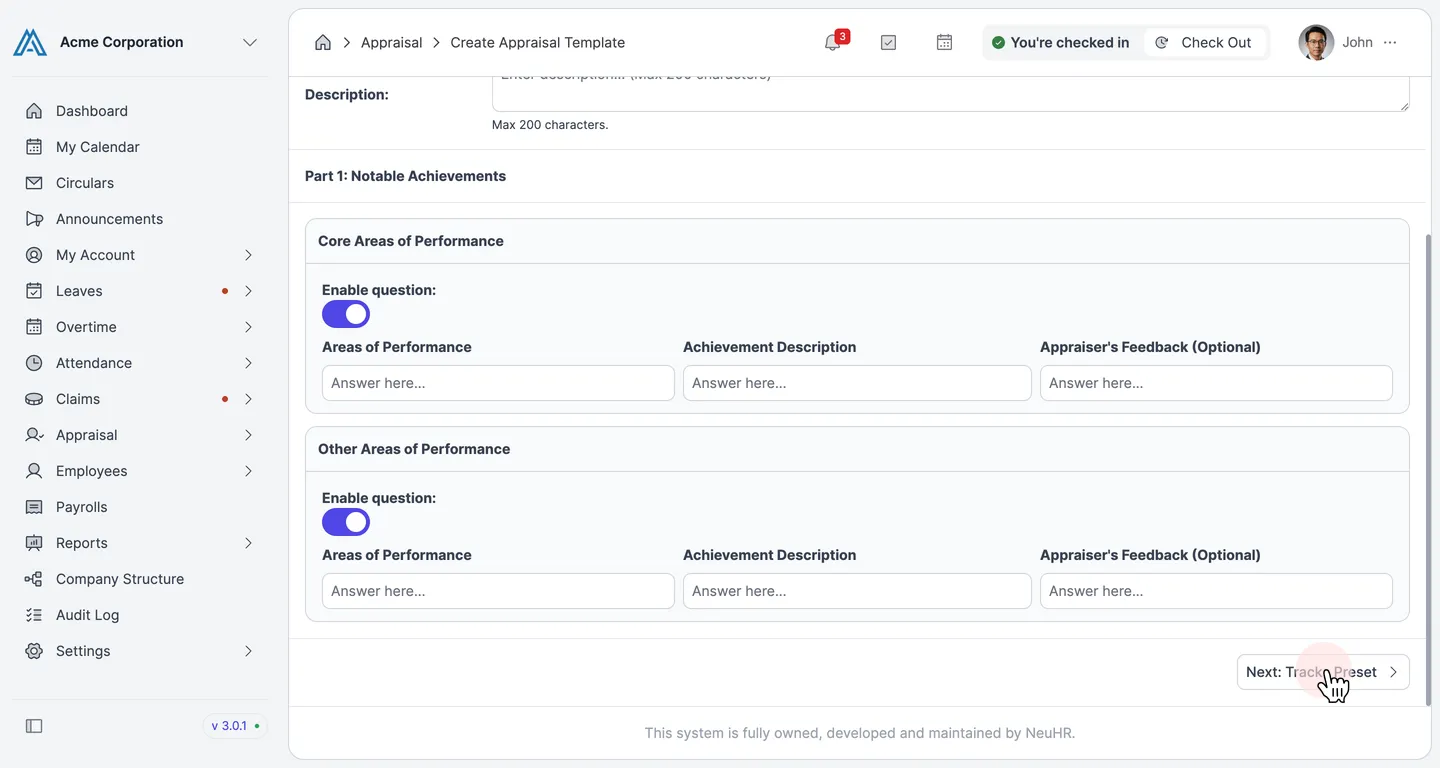
- Core Areas of Performance: Toggle
-
Review Part 2: Tracks Preset
Section titled “Review Part 2: Tracks Preset”The Tracks Preset section defines the career track levels used in Performance Assessments. Default tracks are pre-filled (Associate, Executive, Senior Executive, etc.). You can:
- Edit any track label by clicking on it.
- Remove a track using the
−button. - Add new tracks using
+ Add Tracks.
Click
Next: Performance Assessmentsto continue.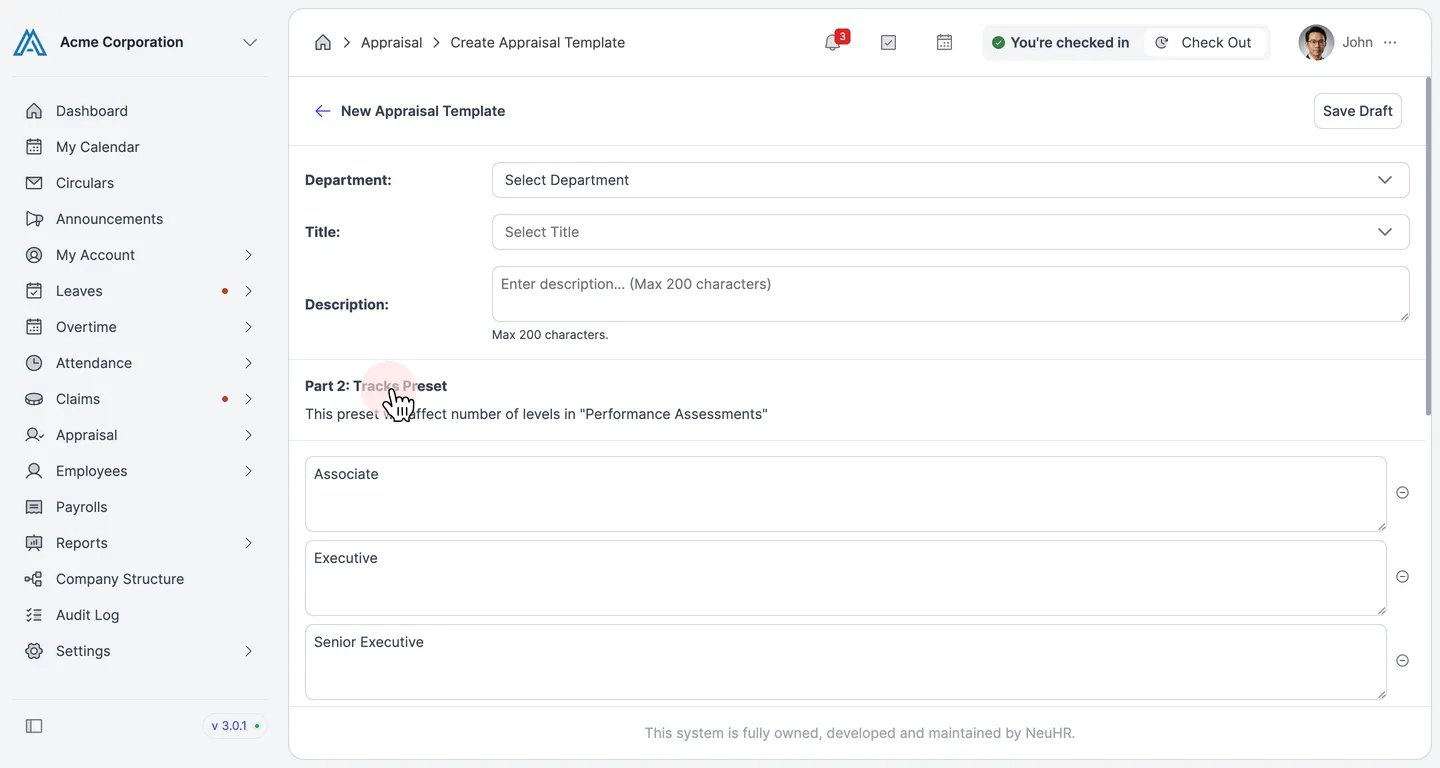
-
Configure Part 3: Performance Assessments
Section titled “Configure Part 3: Performance Assessments”This section defines the performance attributes employees will be assessed on. Default attributes are pre-filled (Professional Knowledge and Skills, Innovation and Creative Thinking, etc.). For each attribute you can:
- Edit the attribute name and description.
- Set performance levels and their descriptions, mapped to each track.
- Toggle the Remarks section to allow or require appraiser comments.
- Add new attributes using
+ Add Attribute.
Click
Next: Goal Settingto continue.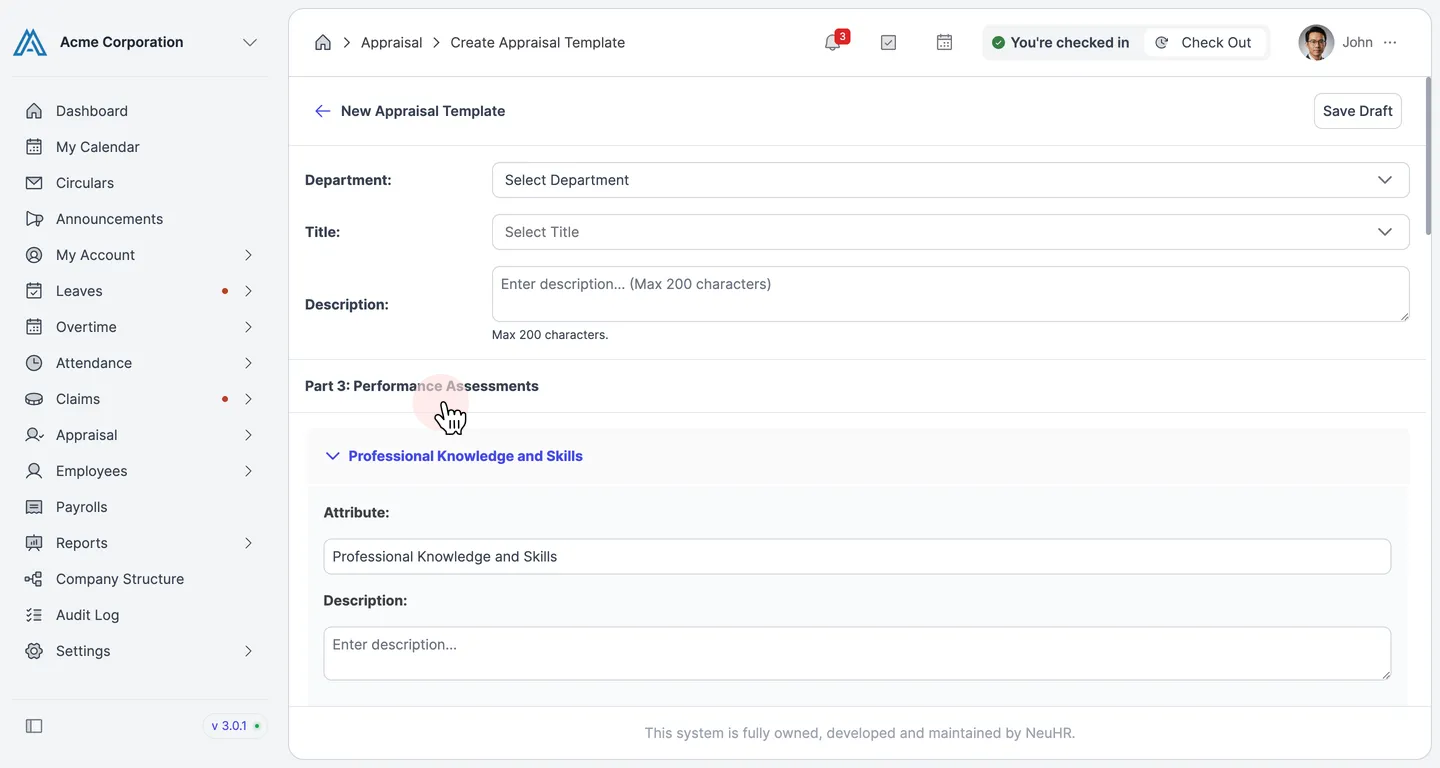
-
Configure Part 4: Goal Setting
Section titled “Configure Part 4: Goal Setting”The Goal Setting section lets employees document their goals for the next review period. Toggle
Enable questionon to include the following questions in the appraisal:- What are the key areas and tangible outcome you would be focusing on in the next 6 months?
- What support will you need to help you achieve this target?
Click
Next: Overall Ratingto proceed to the final step.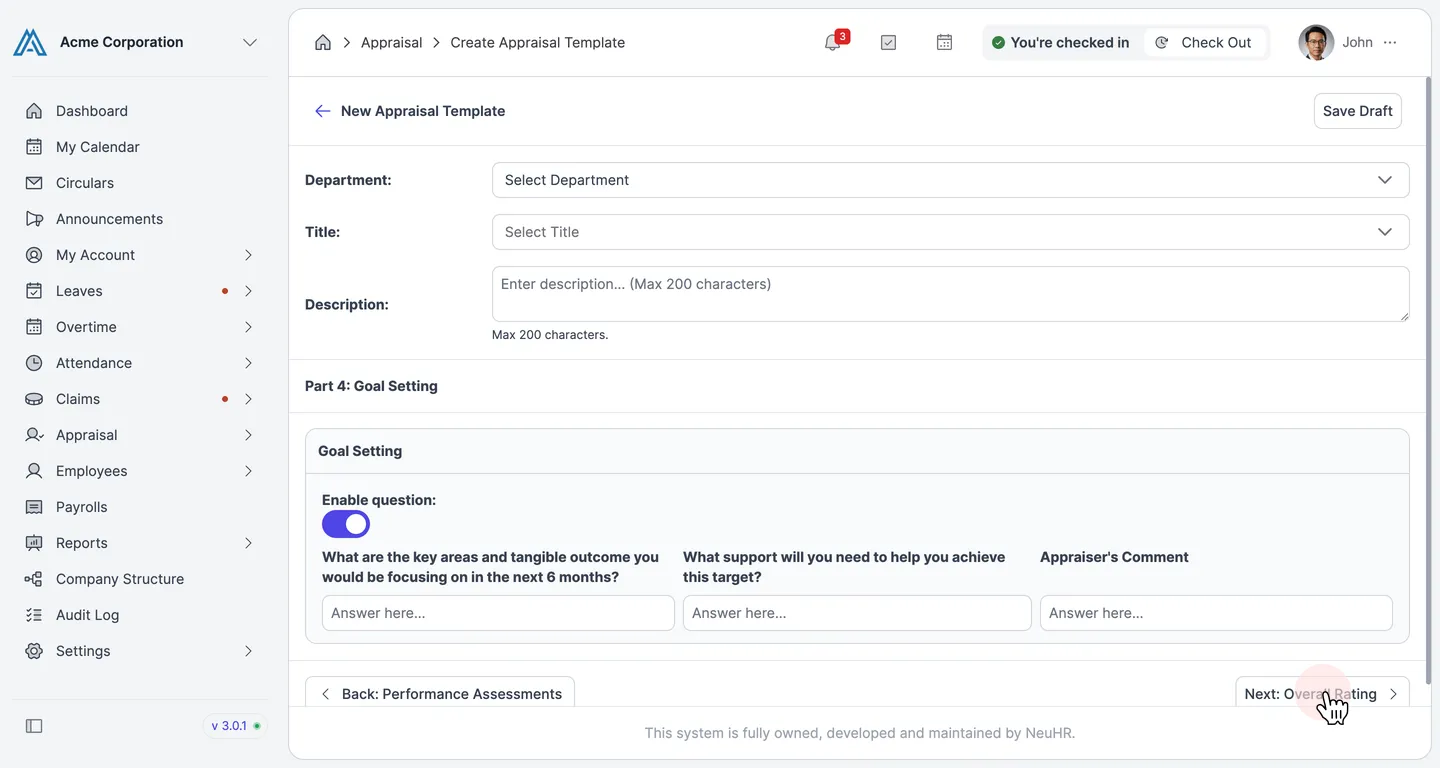
-
Set Overall Rating and Create Template
Section titled “Set Overall Rating and Create Template”The Overall Rating section defines how the appraiser rates the employee overall. Default rating options are pre-filled. You can edit, remove, or add rating options. Toggle
Enable commentandComment Requiredas needed.When you are satisfied with the template, click
Create Templateto save it.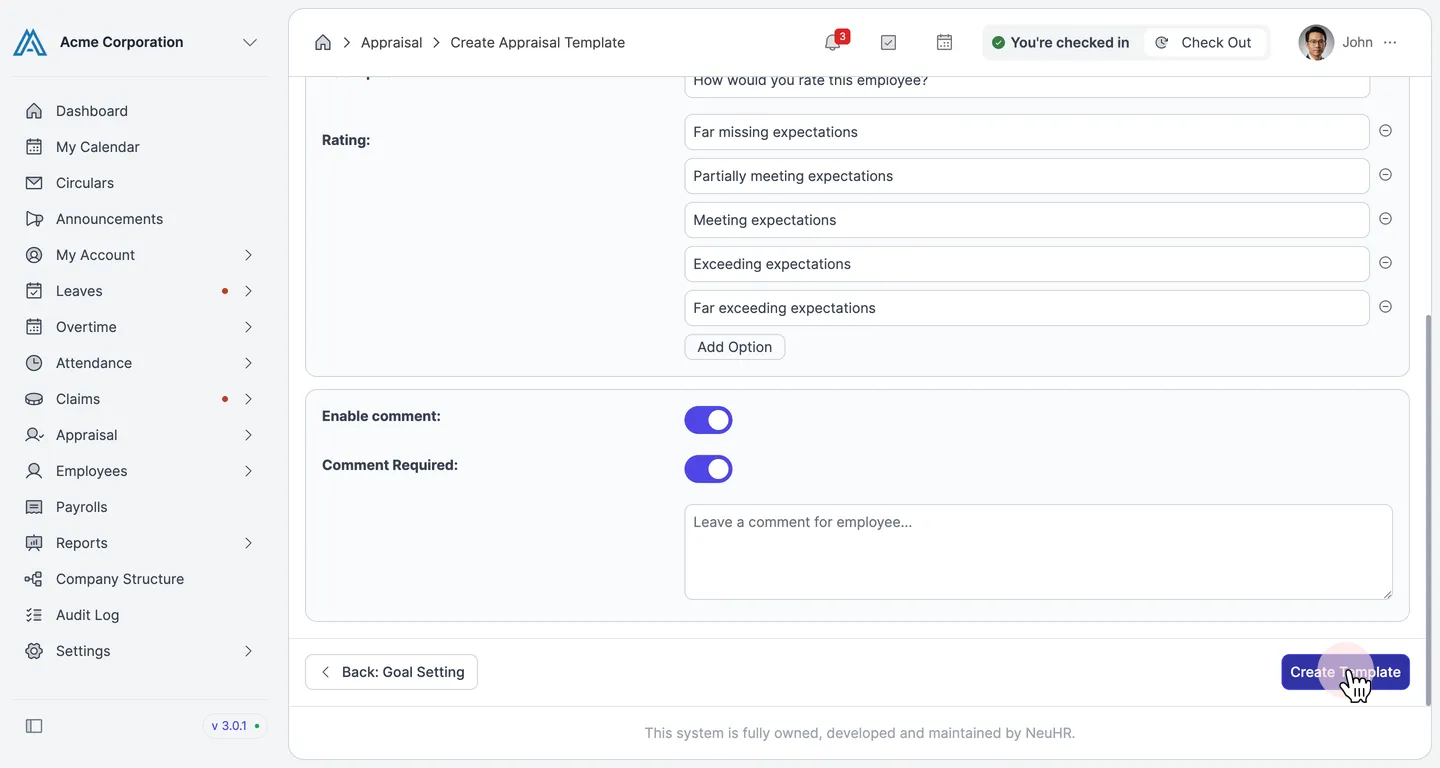
Your new appraisal template has been created successfully and will appear in the Templates list.