

How to Update an Appraisal Template
This guide shows you how to update an existing appraisal template in NeuHR.
-
Navigate to Settings > Appraisal
Section titled “Navigate to Settings > Appraisal”From the sidebar, click
Settingsto expand the menu, then clickAppraisal.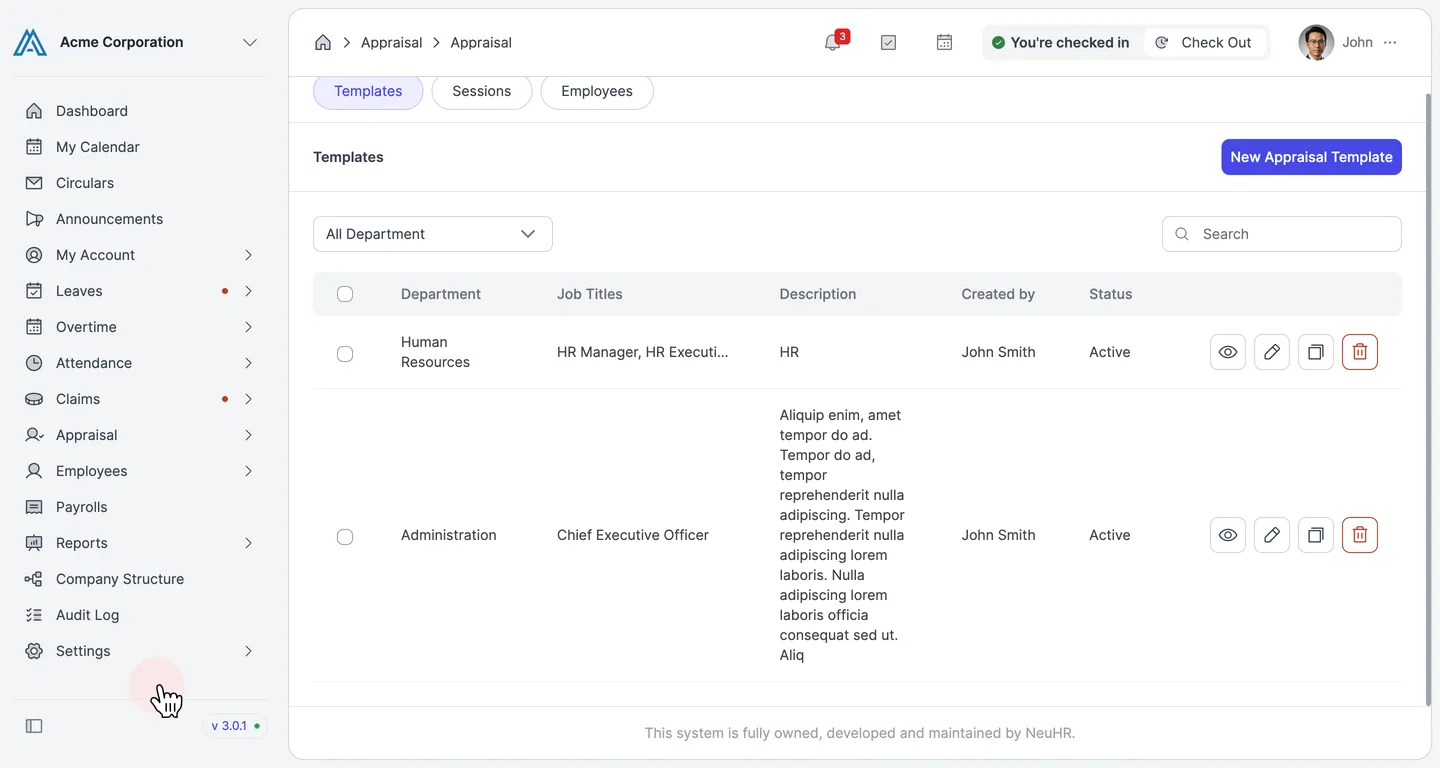
-
Click the Edit Button on a Template
Section titled “Click the Edit Button on a Template”On the
Templatestab, find the template you want to update. Click the edit (pencil) icon button in the template row.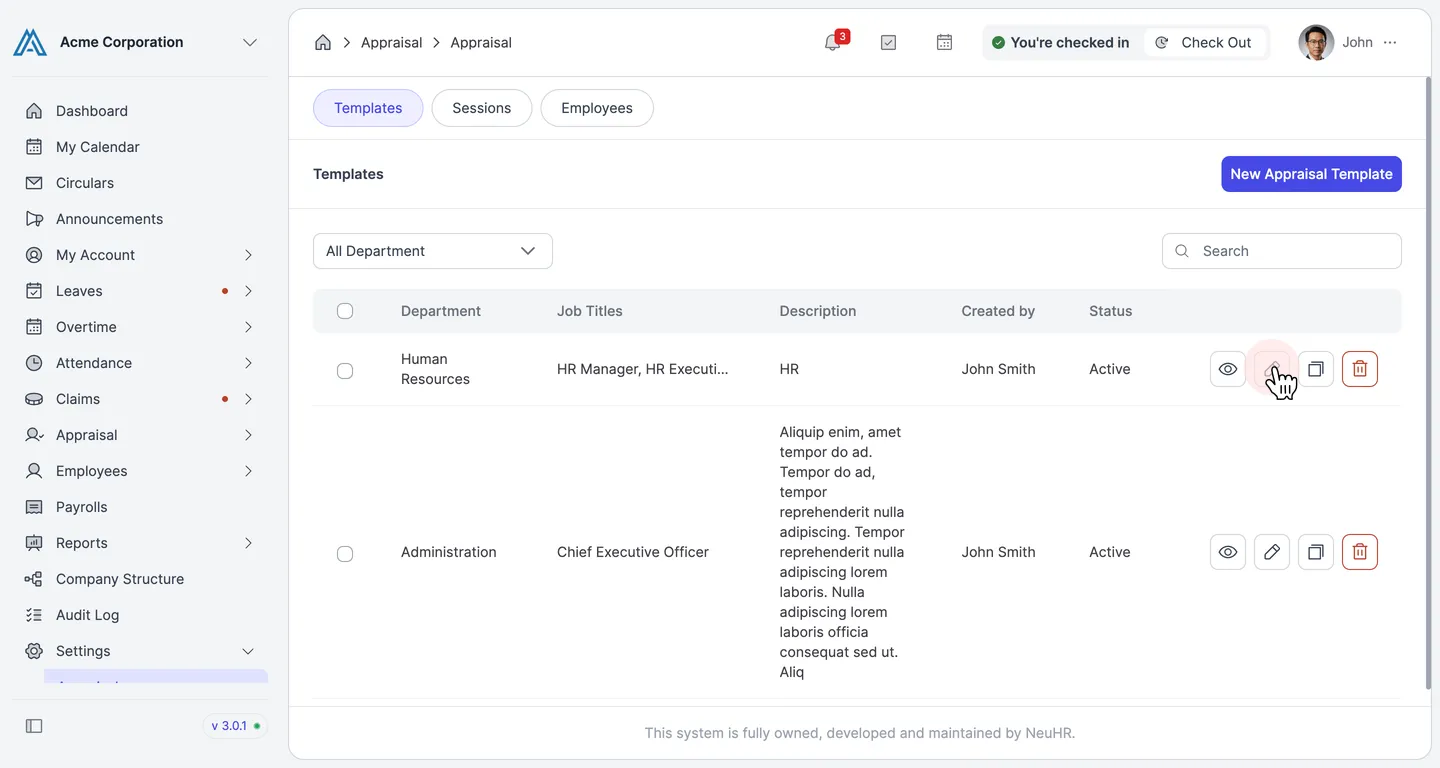
-
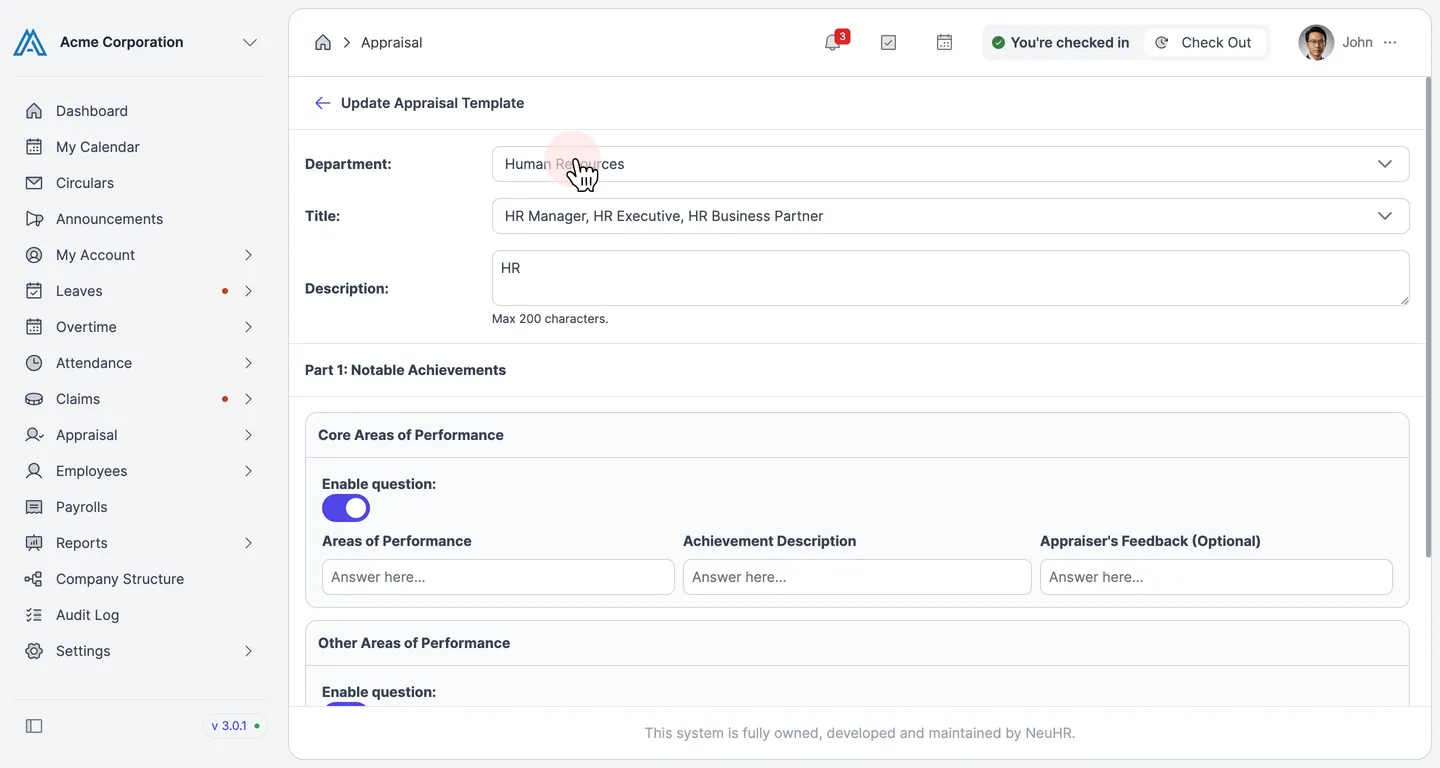
Update Part 1: Template Details
Section titled “Update Part 1: Template Details”On the Update Appraisal Template form, update any of the following fields:
- Department: Select the department this template applies to.
- Title: Select the job title(s) this template is for.
- Description: Edit the template description (max 200 characters).
-
Update Part 1: Notable Achievements
Section titled “Update Part 1: Notable Achievements”Review and update the Notable Achievements section:
- Core Areas of Performance: Toggle
Enable questionon or off to include or exclude questions about core performance areas and achievement descriptions. - Other Areas of Performance: Toggle
Enable questionon or off to include or exclude questions about additional performance areas.
Click
Next: Tracks Presetto proceed to the next section.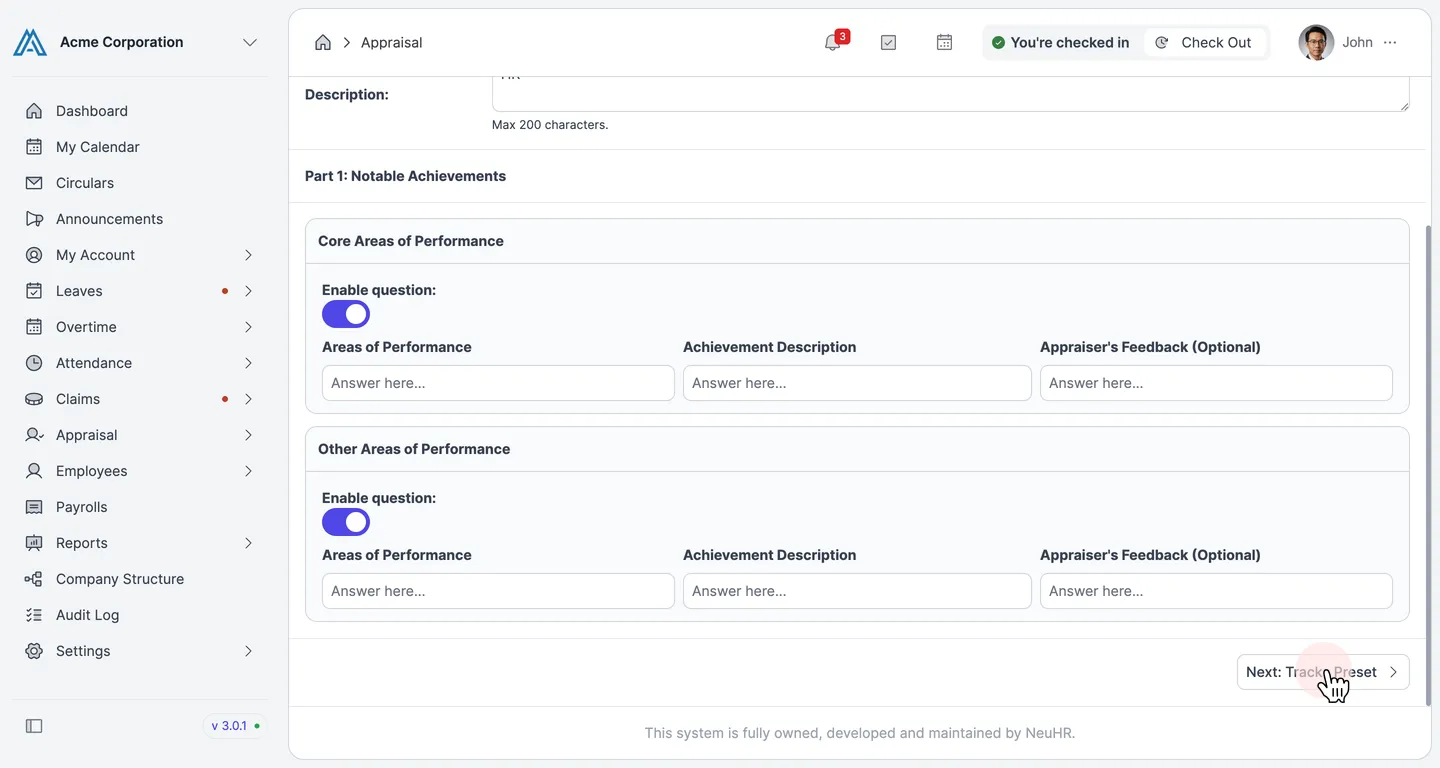
- Core Areas of Performance: Toggle
-
Update Part 2: Tracks Preset
Section titled “Update Part 2: Tracks Preset”The Tracks Preset section defines the career track levels used in Performance Assessments. You can:
- Edit any track label by clicking on it and typing a new name.
- Remove a track using the
−button next to it. - Add new tracks using
+ Add Tracks.
Click
Next: Performance Assessmentsto continue.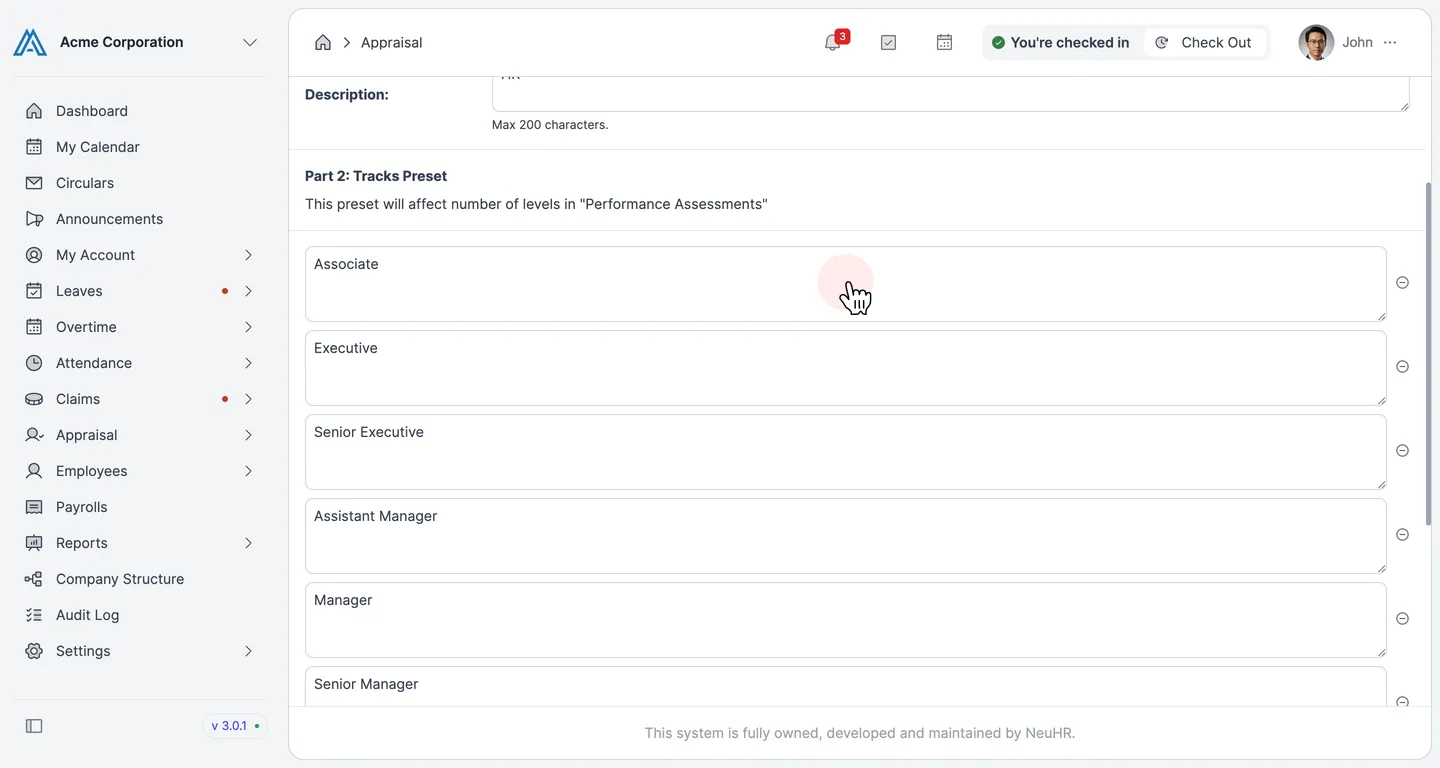
-
Update Part 3: Performance Assessments
Section titled “Update Part 3: Performance Assessments”This section defines the performance attributes employees will be assessed on. For each attribute you can:
- Edit the attribute name and description.
- Update performance level titles and descriptions, mapped to each track.
- Toggle the Remarks section to allow or require appraiser comments.
- Add new attributes using
+ Add Attributeor remove existing ones usingDelete Attribute.
Click
Next: Goal Settingto continue.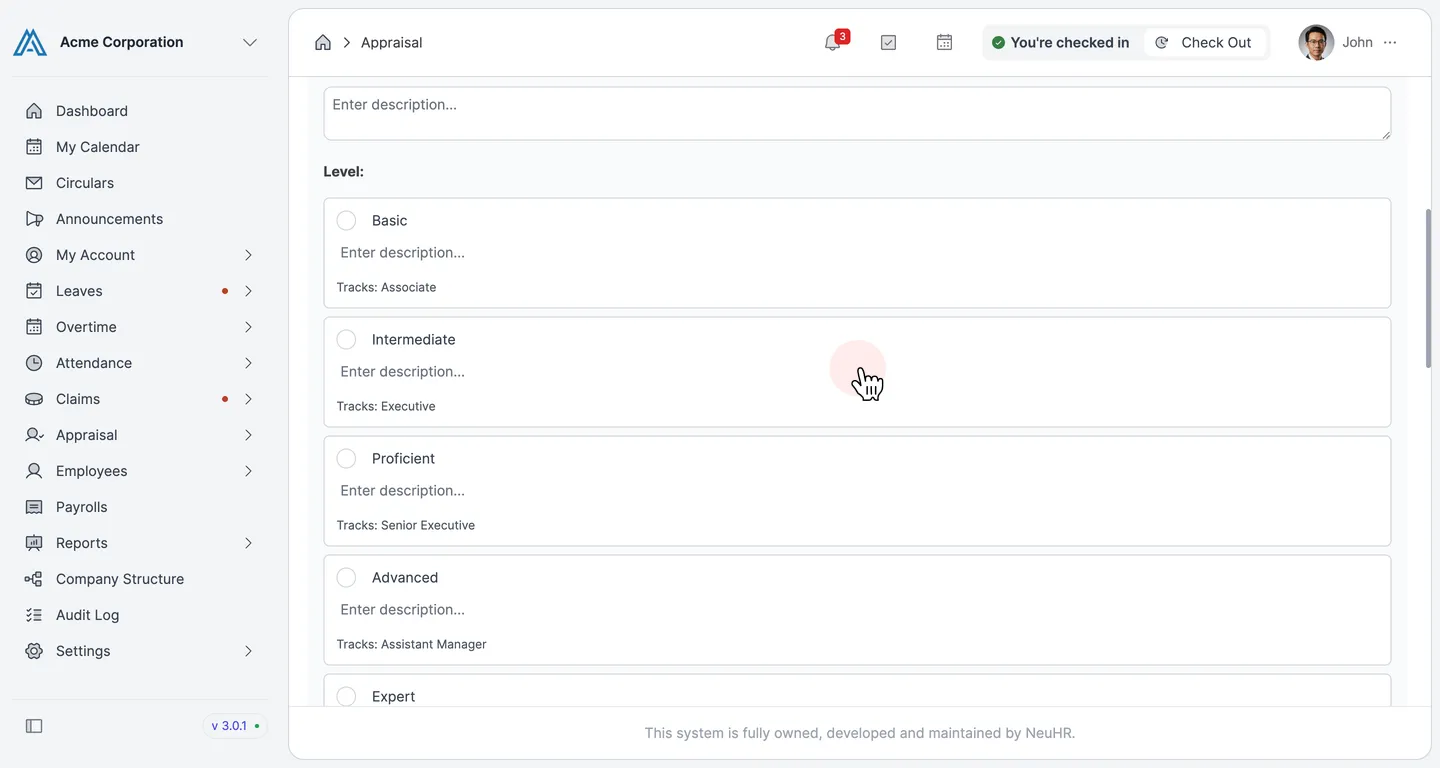
-
Update Part 4: Goal Setting
Section titled “Update Part 4: Goal Setting”Review and update the Goal Setting section. Toggle
Enable questionon or off to include or exclude goal-setting questions in the appraisal.Click
Next: Overall Ratingto proceed to the final step.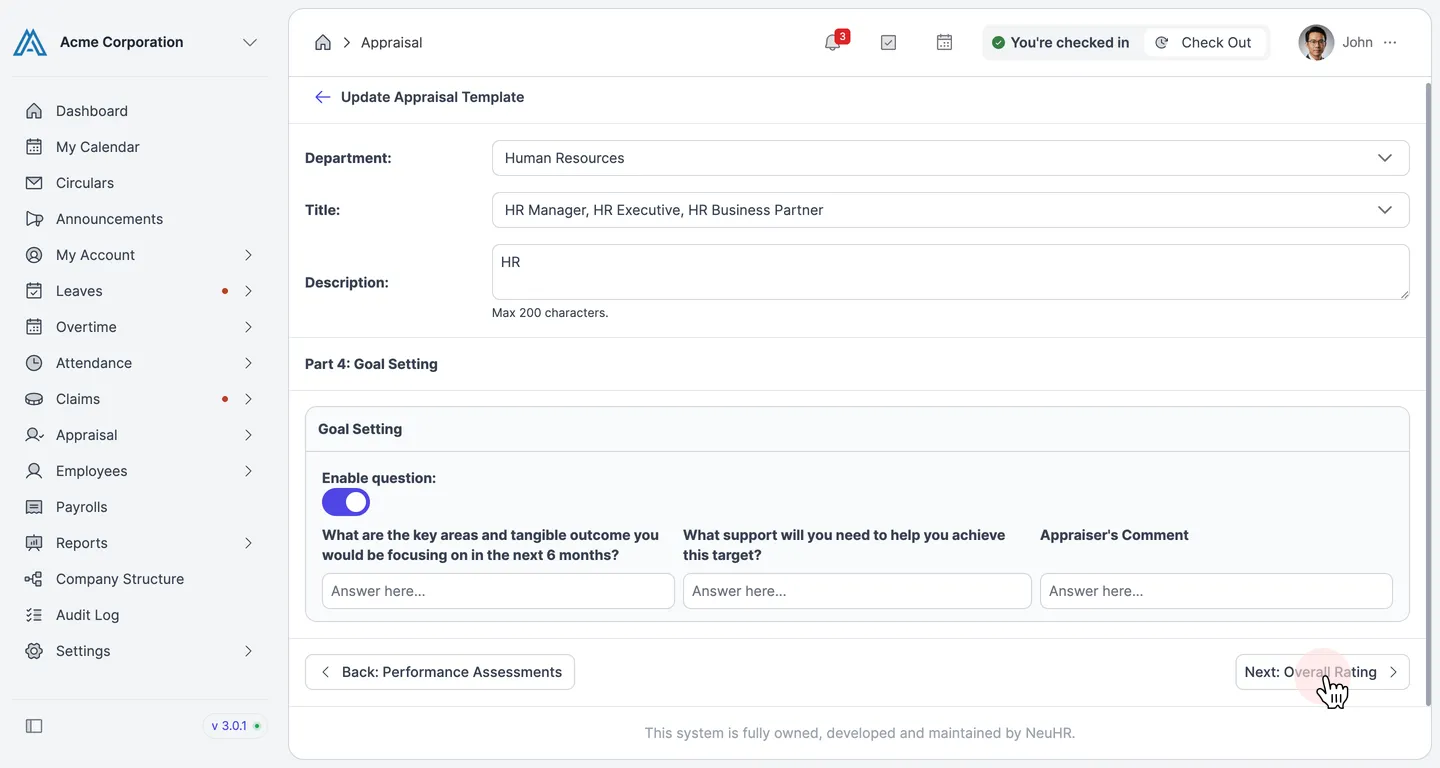
-
Update Part 5: Overall Rating and Save
Section titled “Update Part 5: Overall Rating and Save”The Overall Rating section defines how the appraiser rates the employee overall. You can:
- Edit or remove existing rating options.
- Add new rating options using
+ Add Option. - Toggle
Enable commentandComment Requiredas needed.
When you have finished making changes, click
Update Templateto save.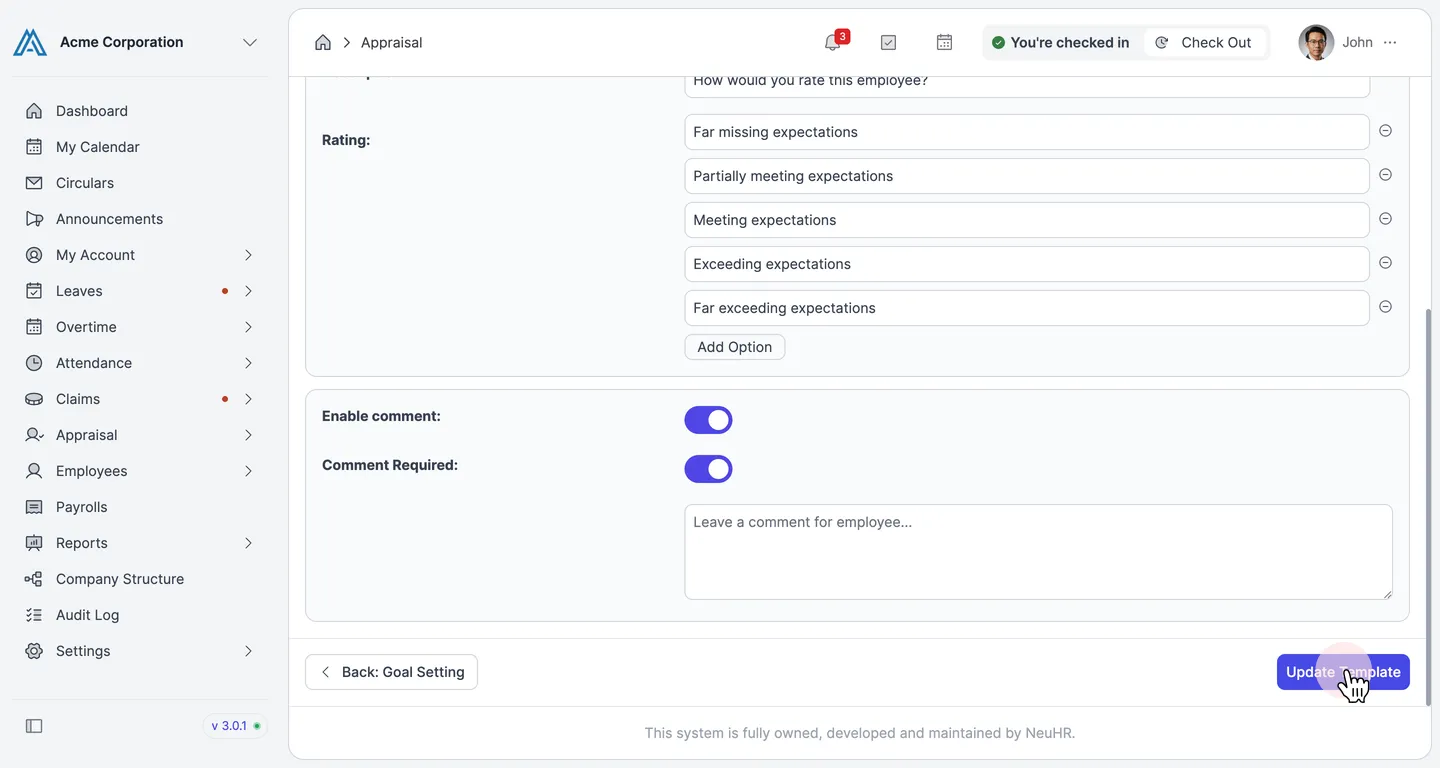
Your appraisal template has been updated successfully. You will be returned to the Templates list.