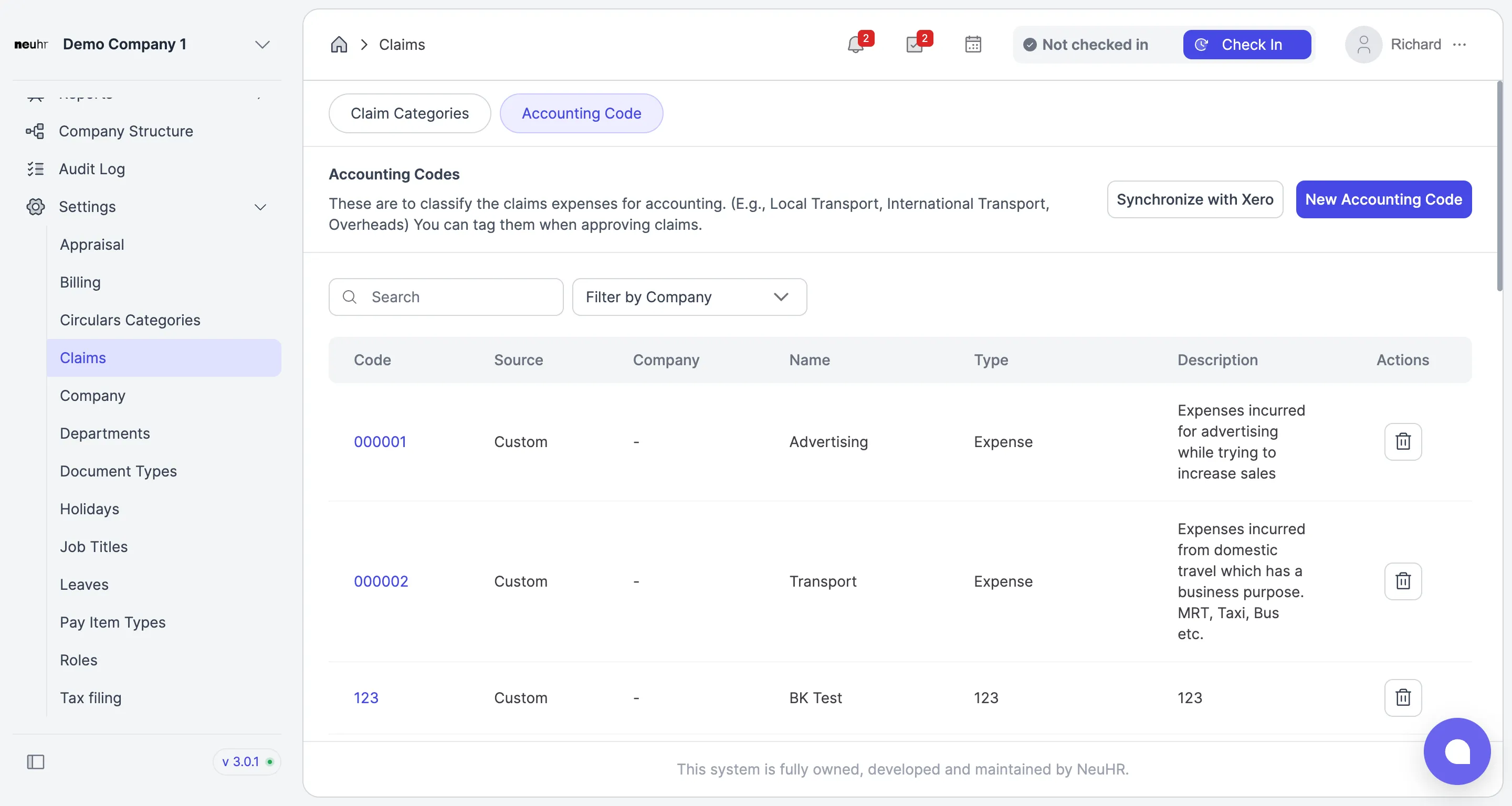
How to Synchronize Accounting Code with Xero
This guide shows you how to synchronize your Xero Chart of Accounts with NeuHR so that Xero accounting codes are available when approving claims.
-
Navigate to Settings → Claims
Section titled “Navigate to Settings → Claims”From the sidebar, click
Settingsto expand the menu, then clickClaims.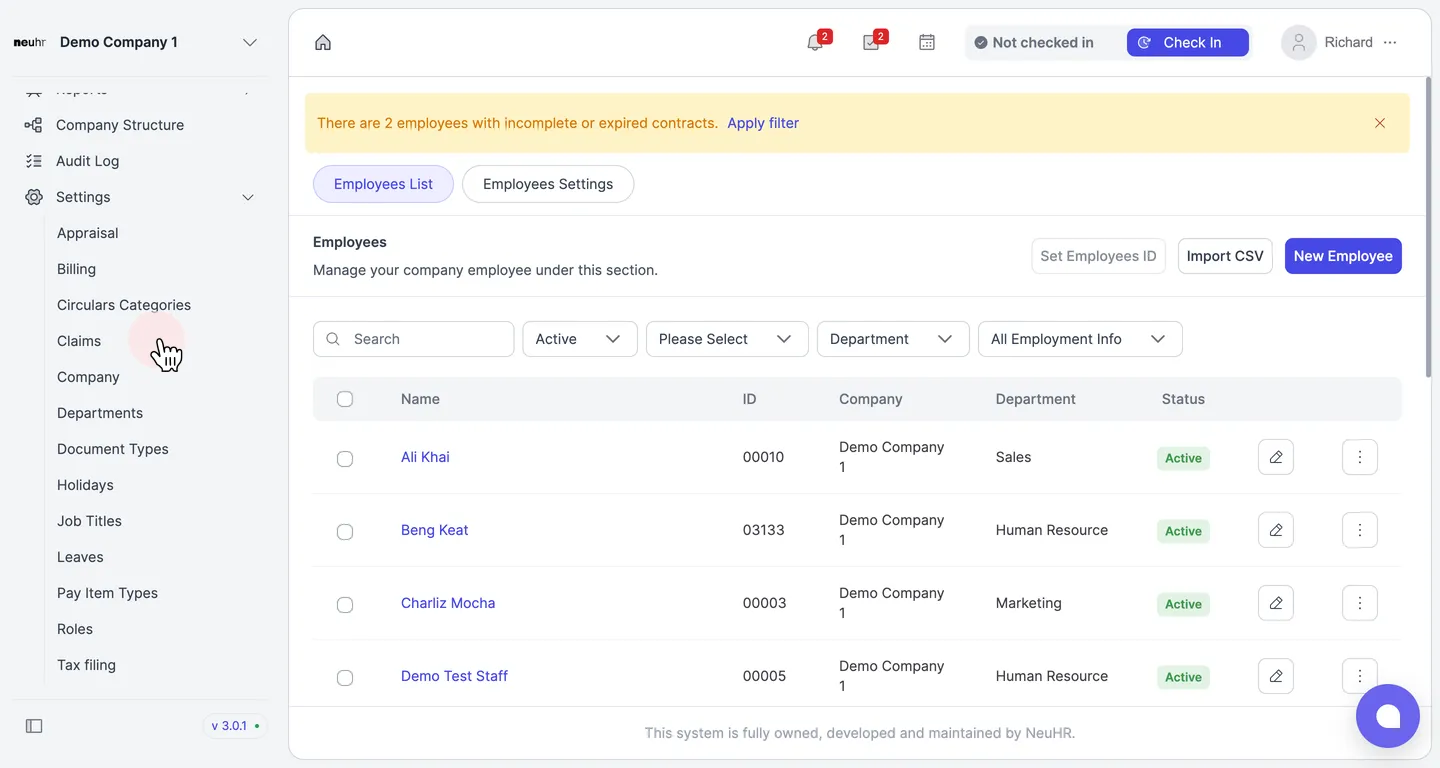
-
Click the Accounting Code tab
Section titled “Click the Accounting Code tab”On the Claims settings page, click the
Accounting Codetab.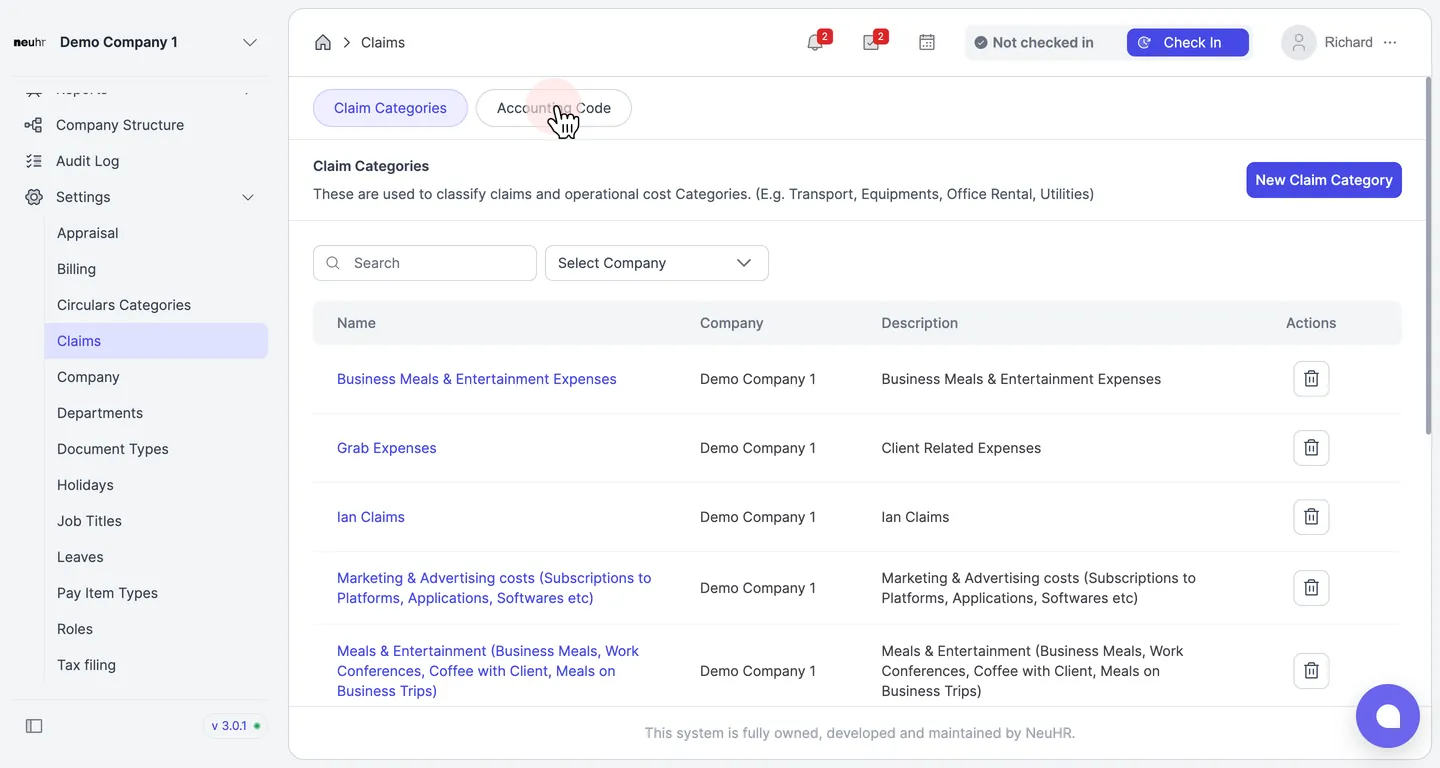
-
Click Synchronize with Xero
Section titled “Click Synchronize with Xero”On the Accounting Codes page, click the
Synchronize with Xerobutton.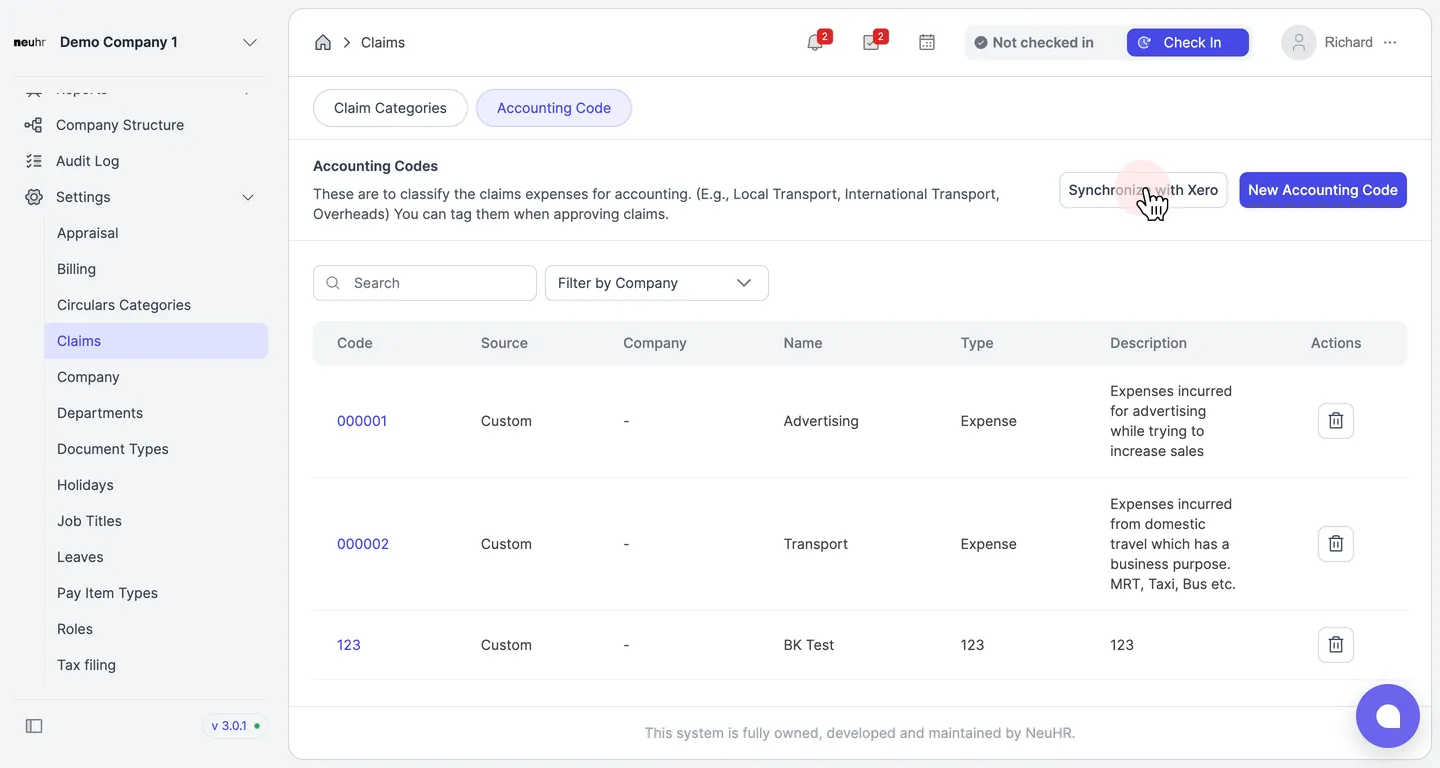
-
Confirm the import
Section titled “Confirm the import”A confirmation dialog will appear. Click
Importto proceed with importing all accounting codes from your Xero Chart of Accounts.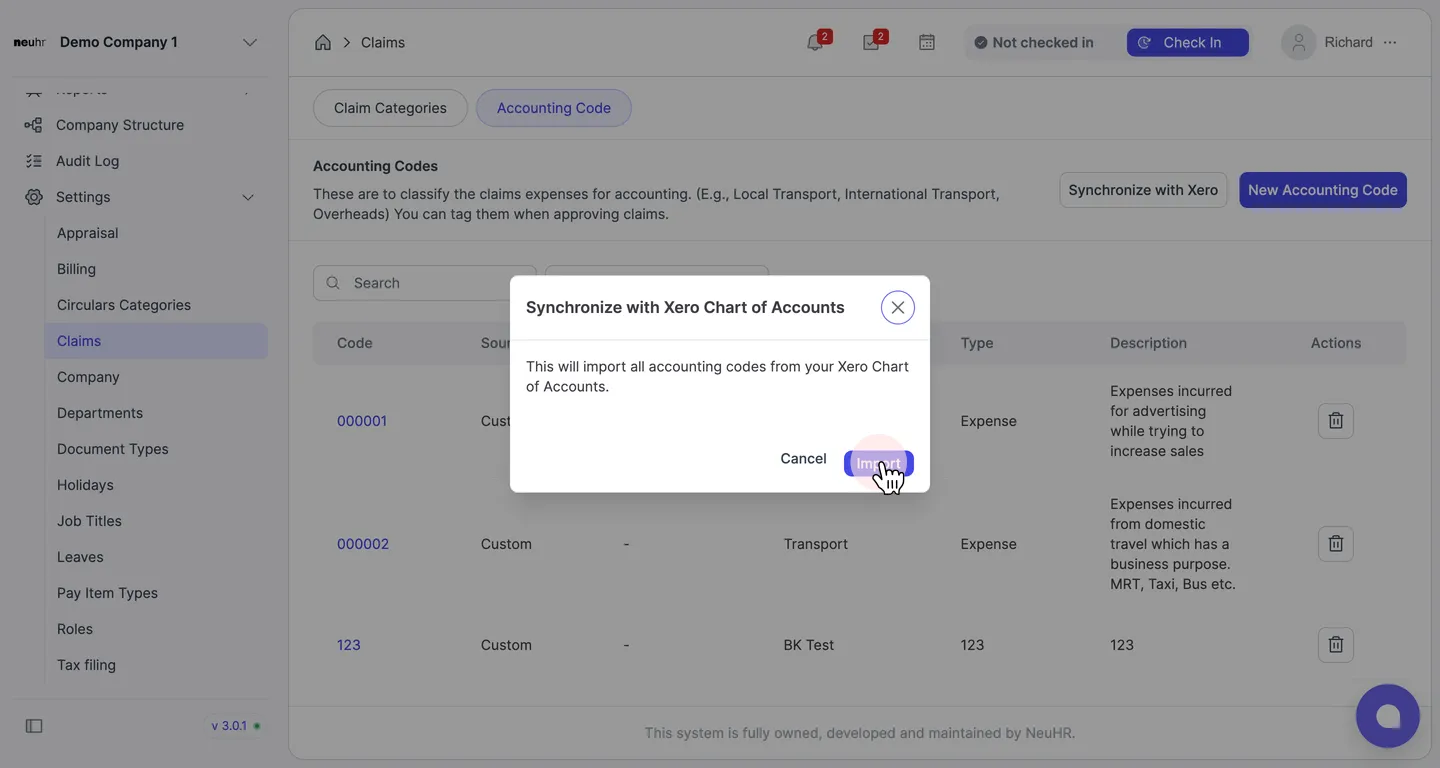
-
Accounting codes synchronized
Section titled “Accounting codes synchronized”NeuHR will import all accounting codes from Xero. A success message will confirm the synchronization, and the Accounting Codes list will update to include all codes from your Xero Chart of Accounts with Source set to
Xero.