How to Endorse Submitted Claim Requests
This guide shows you how to endorse claim requests submitted by employees before they are sent for Finance approval.
-
Open the Endorse Claims queue
Section titled “Open the Endorse Claims queue”From the sidebar, click Claims to expand the menu, then click Endorse Claims. The list shows all pending claims submitted by team members that require your endorsement.
Click on a claim ID (e.g.,
CLM-6) to open the claim details.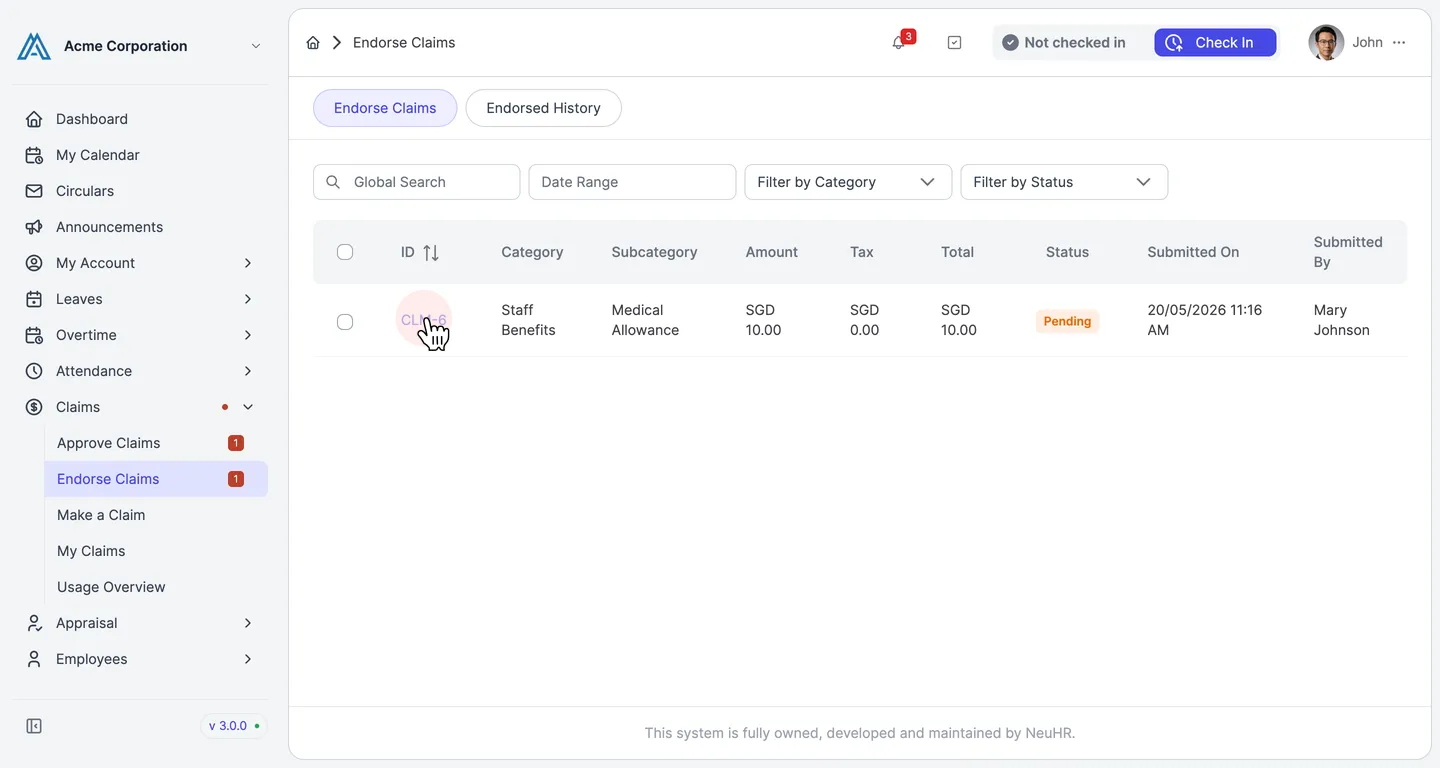
-
Review the claim details
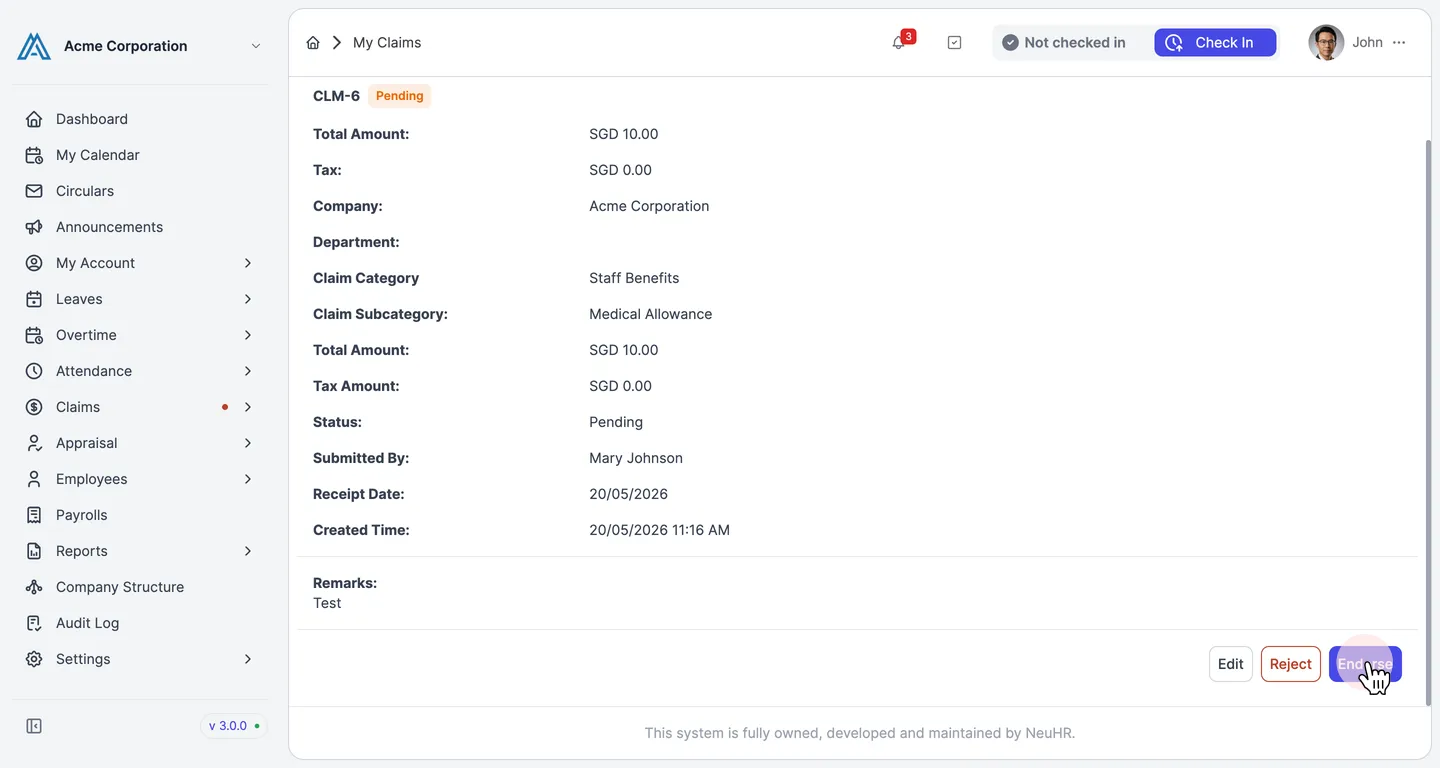
Section titled “Review the claim details”The claim detail page displays the submitted amount, category, subcategory, status, submitter, receipt date, and any remarks provided. Verify the claim before endorsing.
Click the Endorse button to proceed.
-
Add remarks and confirm
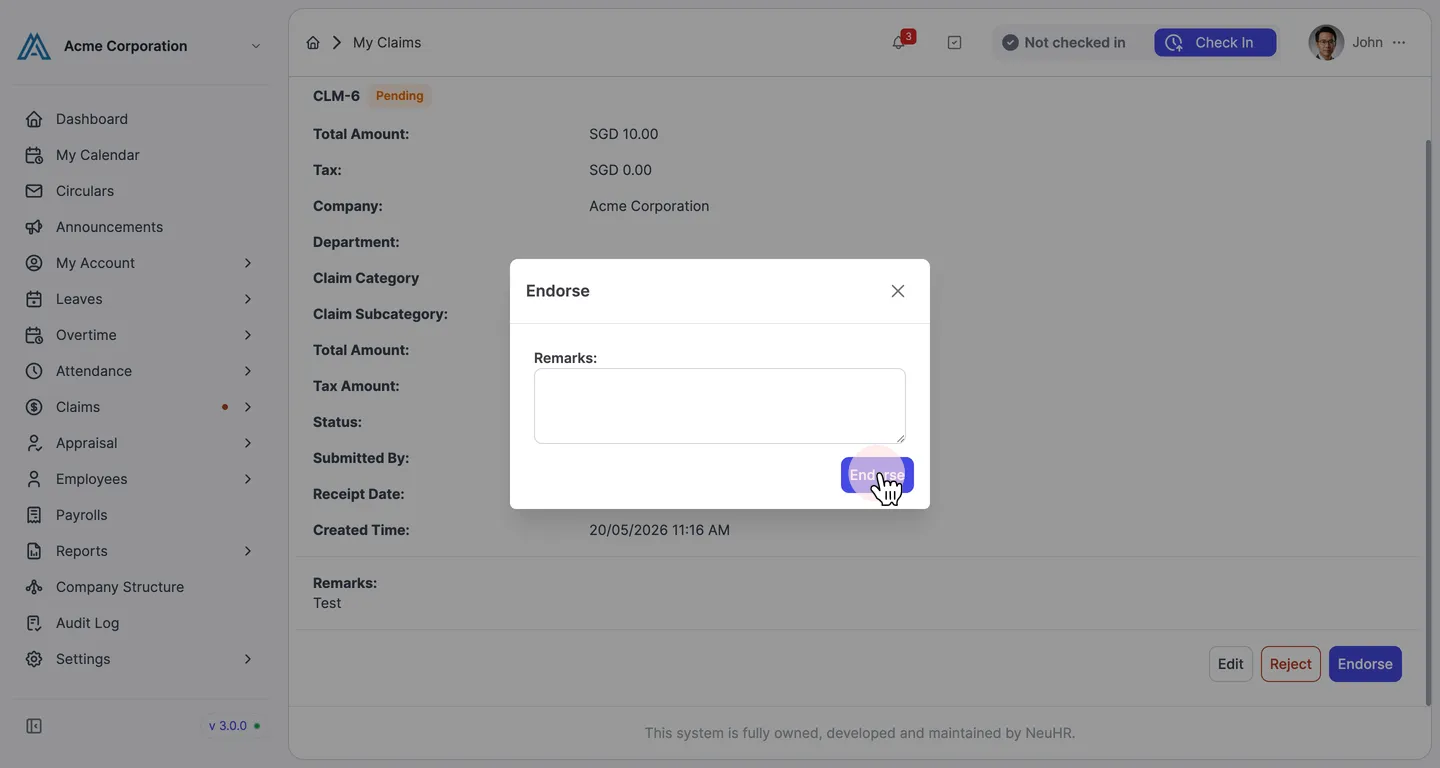
Section titled “Add remarks and confirm”An Endorse dialog appears with an optional Remarks field. Enter any notes for the Finance approver if needed, then click Endorse to confirm.
-
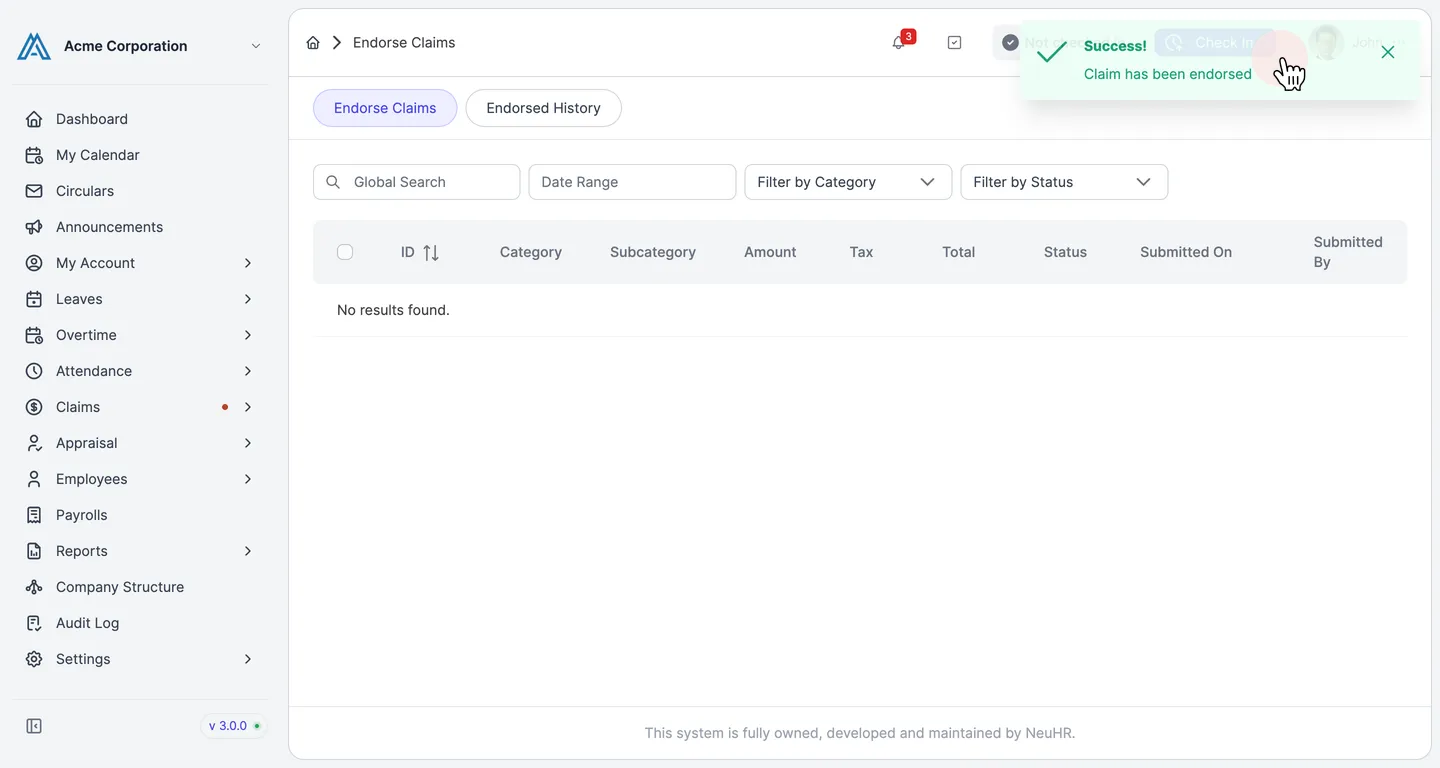
Claim endorsed successfully
Section titled “Claim endorsed successfully”A success notification confirms the claim has been endorsed. The claim is removed from your Endorse Claims queue and forwarded to Finance for final approval.