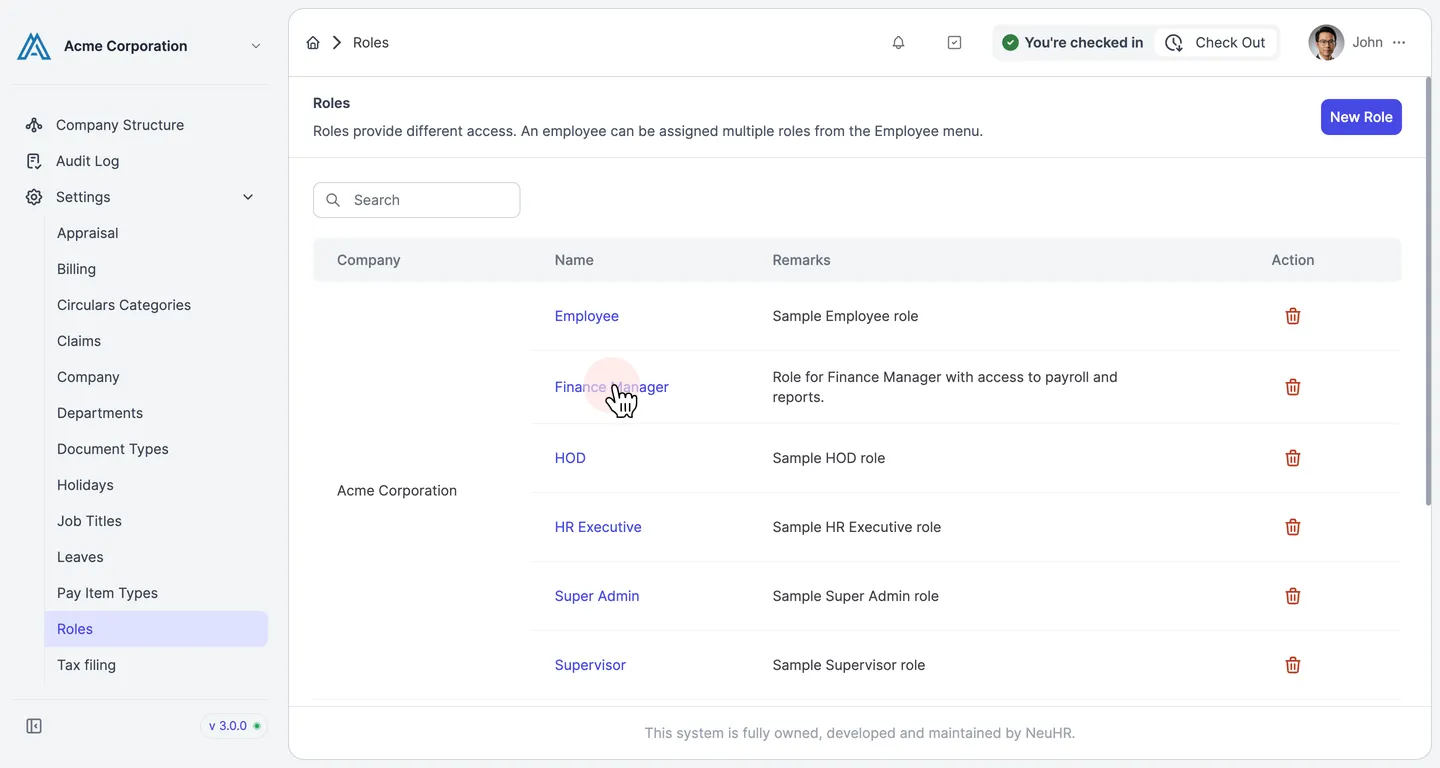
How to Create New Roles
This guide shows you how to create a new role in NeuHR. Roles define access levels for employees and can be assigned to one or more employees from the Employee menu.
-
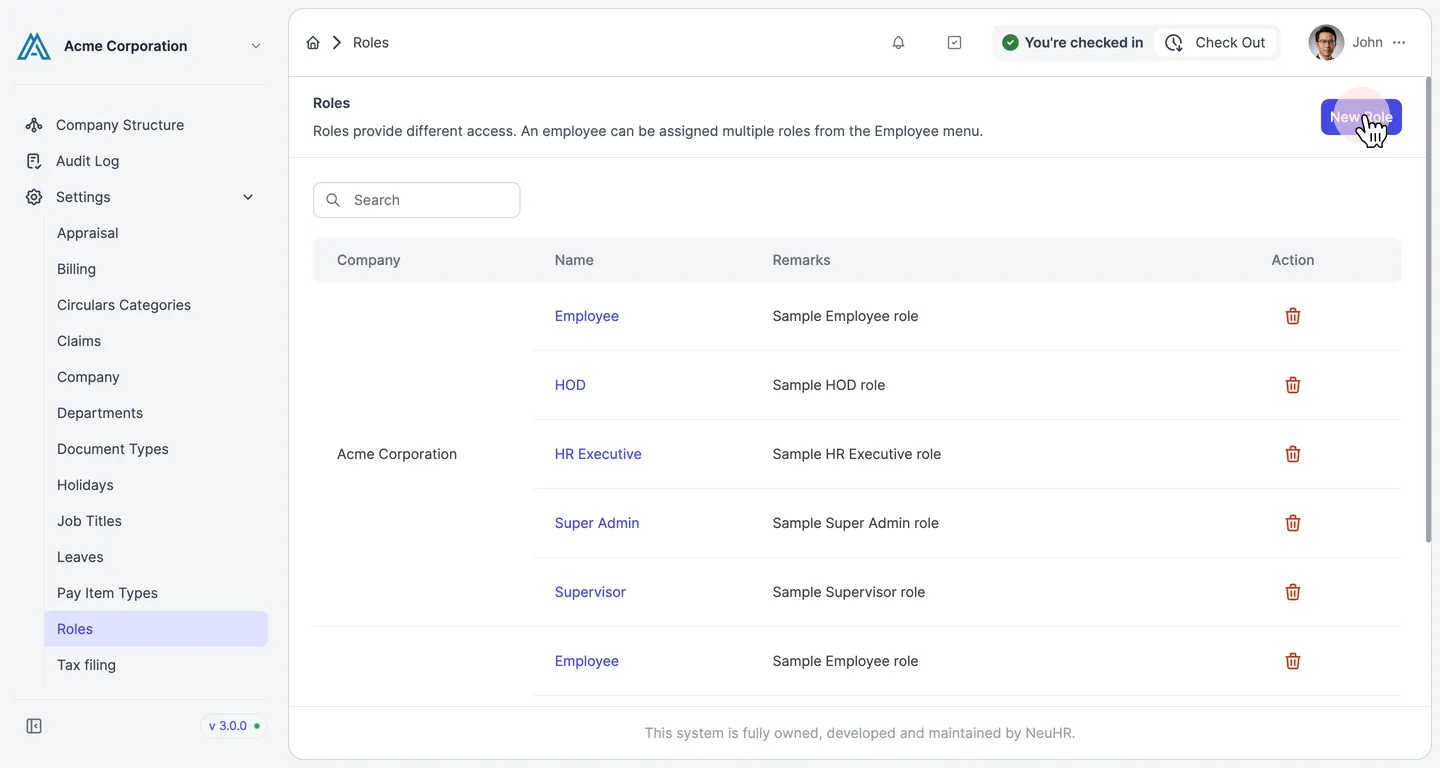
Navigate to Roles and click New Role
Section titled “Navigate to Roles and click New Role”In the left sidebar, go to Settings and click Roles. The Roles list page opens, showing all existing roles grouped by company. Click the New Role button in the top-right corner.
-
Review the Create a new Role form
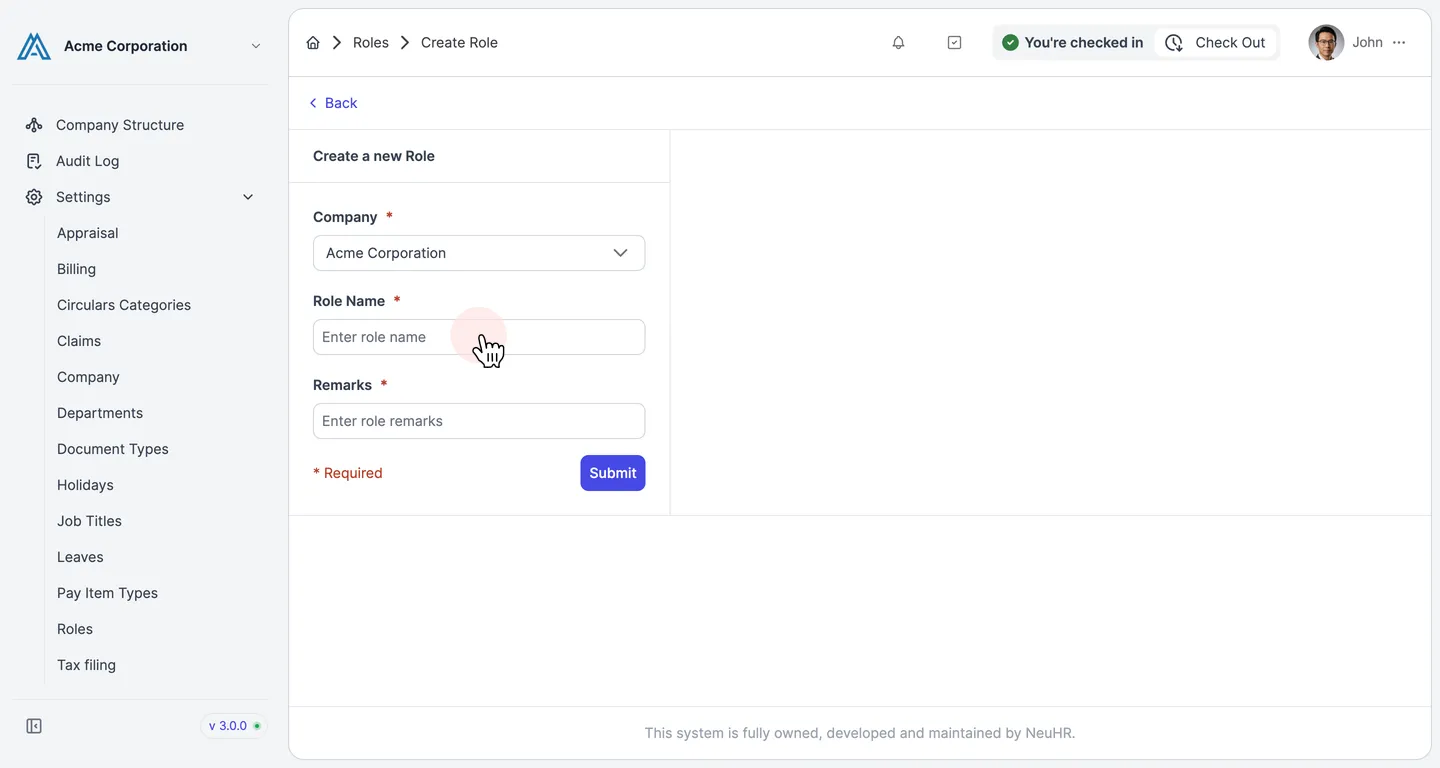
Section titled “Review the Create a new Role form”The Create a new Role form opens with the following required fields:
- Company — select the company this role belongs to (defaults to your current company)
- Role Name — the name of the role (e.g.
Supervisor,HR Executive) - Remarks — a brief description of the role’s purpose
-
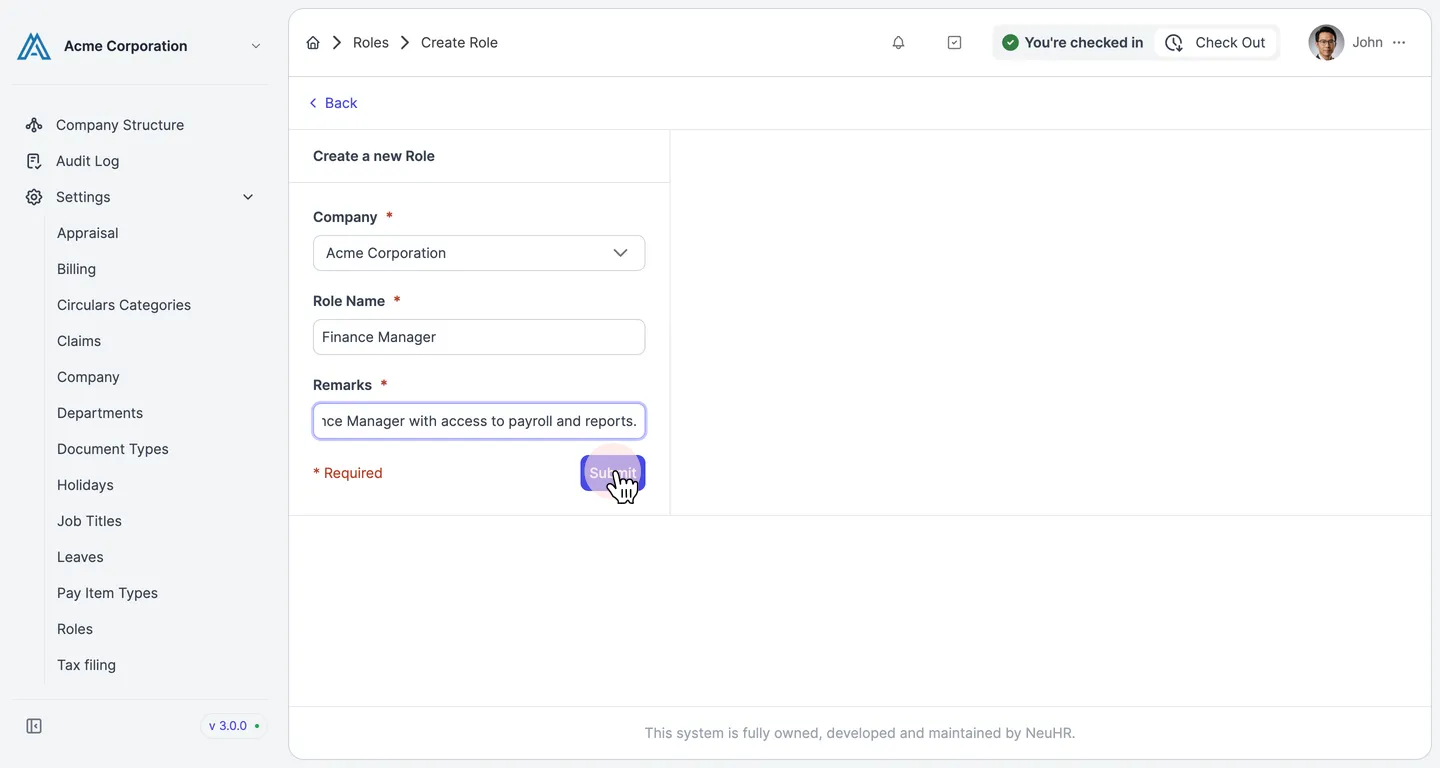
Fill in the role details and click Submit
Section titled “Fill in the role details and click Submit”Enter the Role Name and Remarks. Select the correct Company if needed. When all fields are filled, click the Submit button.
-
Role created successfully
Section titled “Role created successfully”You are redirected to the Roles list page. The new role appears in the list under the selected company, alongside its remarks.