How to Create a New Holiday
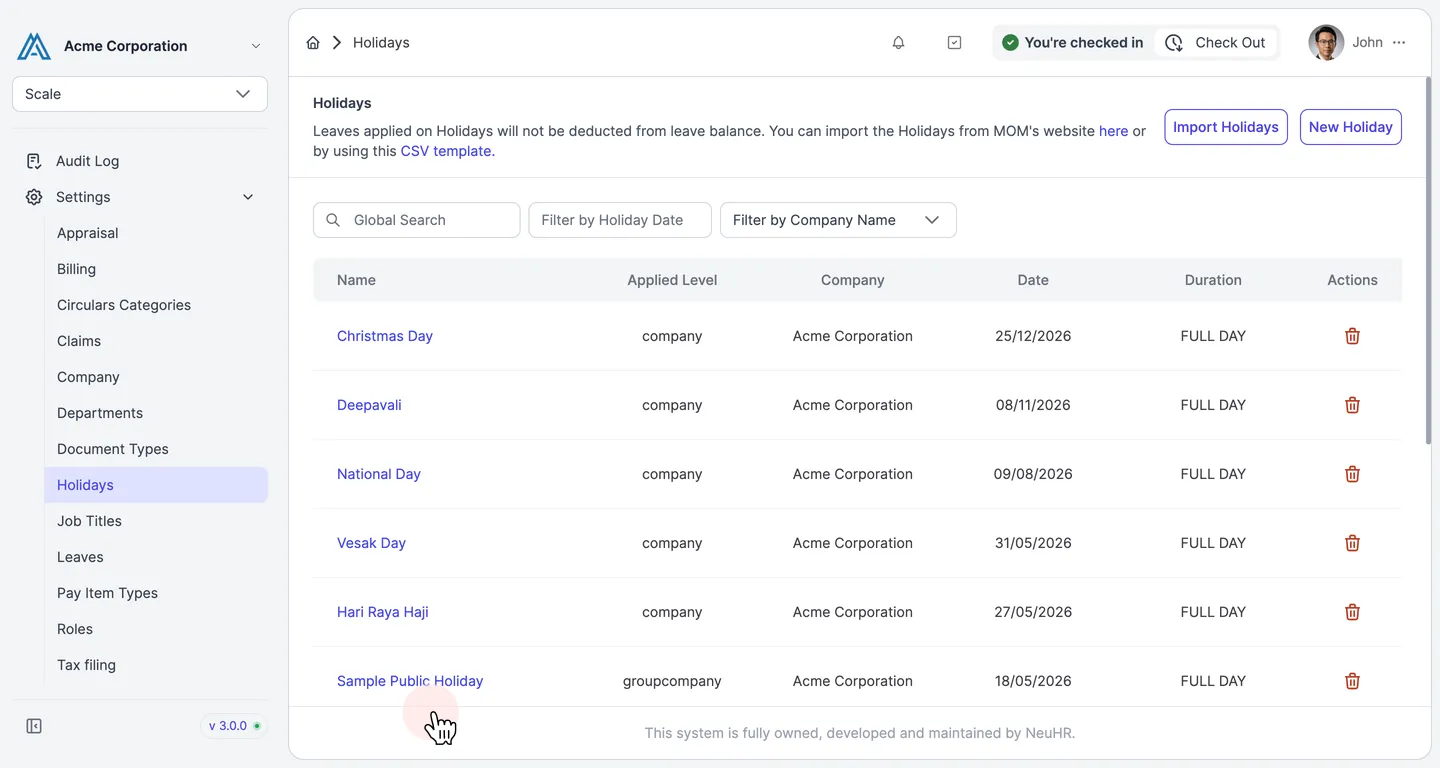
This guide shows you how to create a new holiday in NeuHR. Holidays added here will appear in employee calendars, and any leave applied on a holiday date will not be deducted from the employee’s leave balance.
-
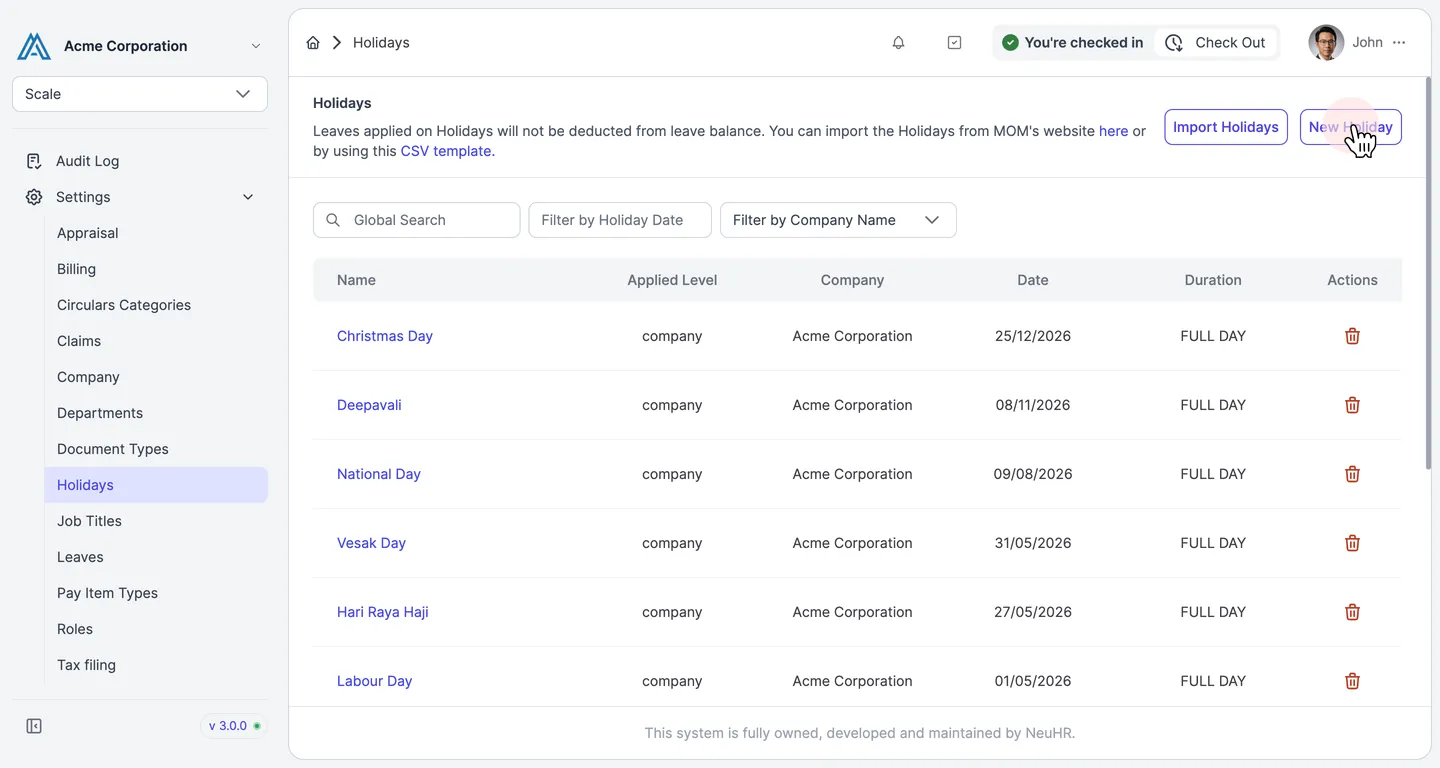
Navigate to Holidays and click New Holiday
Section titled “Navigate to Holidays and click New Holiday”In the left sidebar, go to Settings and click Holidays. The Holidays list page opens, showing all existing holidays. Click the New Holiday button in the top-right corner.
-
Review the Create Holiday form
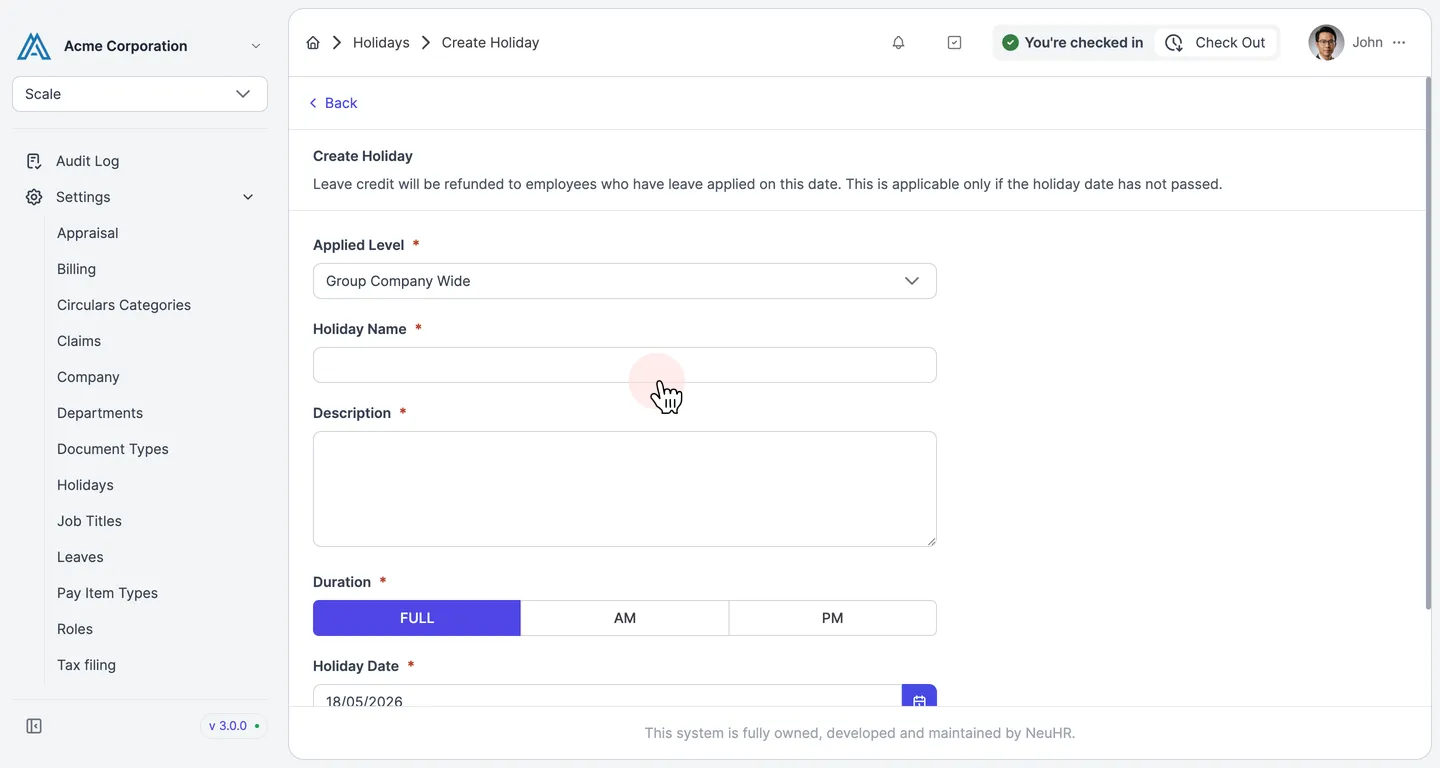
Section titled “Review the Create Holiday form”The Create Holiday form opens. It contains the following required fields:
- Applied Level — defaults to
Group Company Wide - Holiday Name — the name of the holiday
- Description — a brief description of the holiday
- Duration — choose
FULL,AM, orPM - Holiday Date — the date of the holiday
- Applied Level — defaults to
-
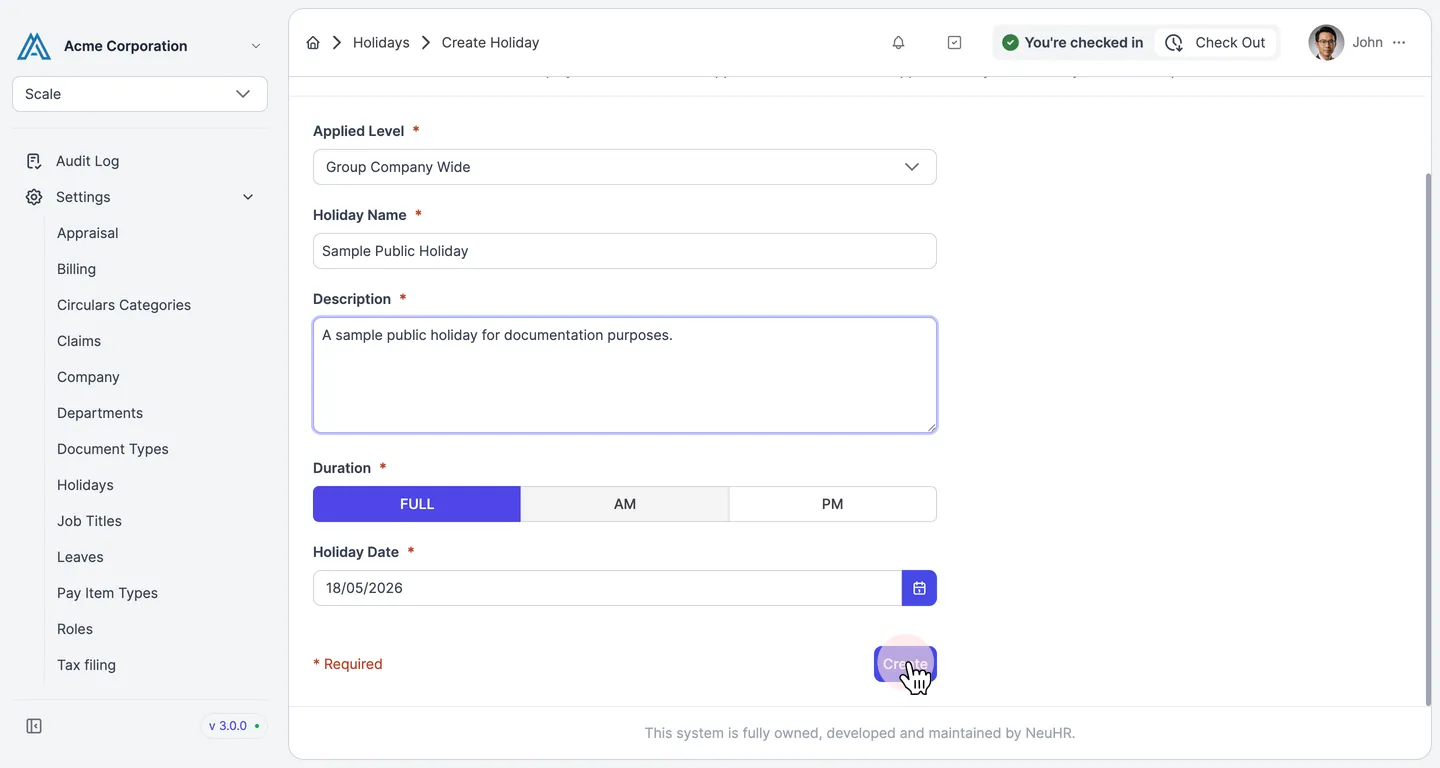
Fill in the holiday details and click Create
Section titled “Fill in the holiday details and click Create”Enter the Holiday Name and Description. Adjust the Applied Level, Duration, and Holiday Date as needed. When all fields are filled, click the Create button.
-
Holiday created successfully
Section titled “Holiday created successfully”You are redirected to the Holidays list page. The new holiday appears in the list with its name, applied level, company, date, and duration.