How to Enable Leave Proration for Staff
Leave Proration automatically calculates a proportional leave balance for employees who join mid-year, rather than granting the full annual entitlement upfront. All proration settings are managed in Leave Settings.
-
Navigate to Leaves → Leave Settings
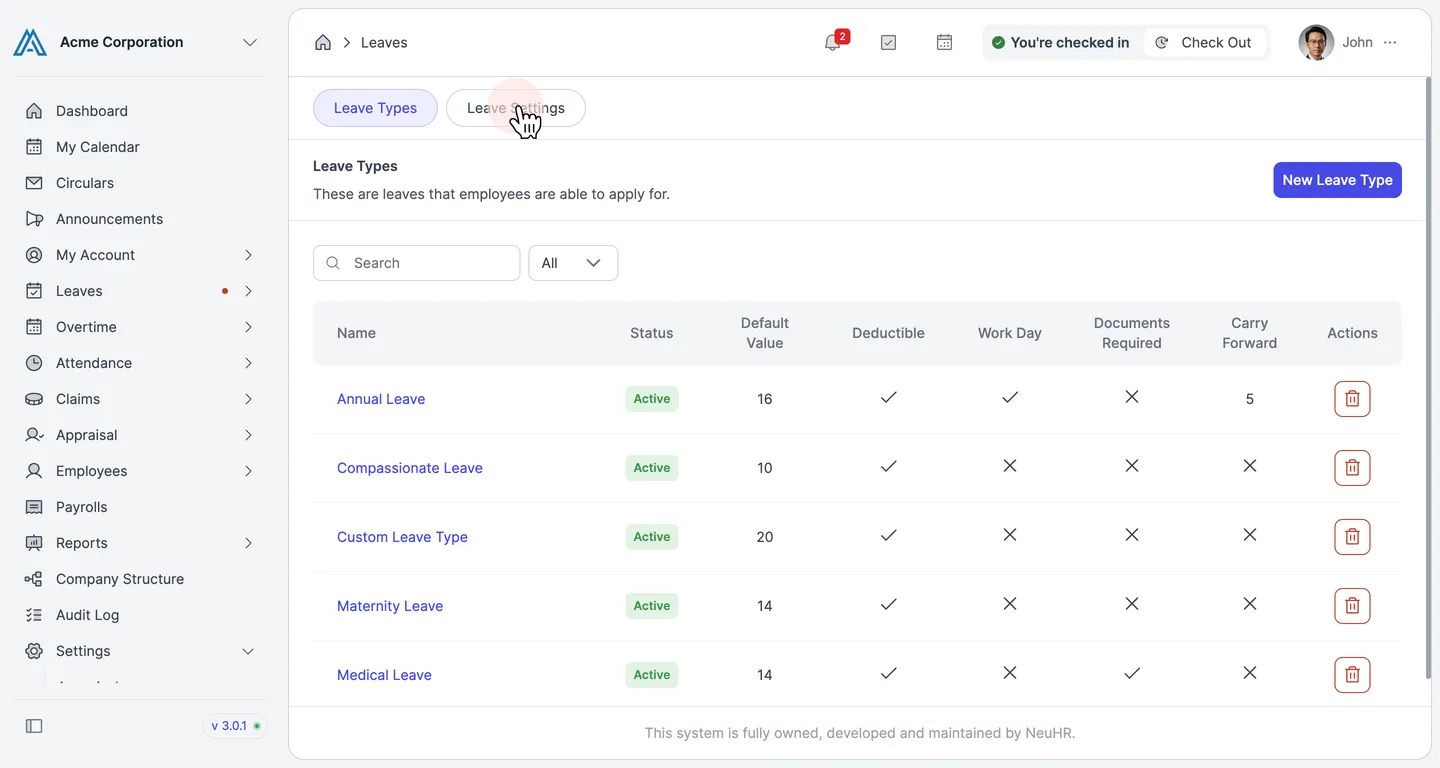
Section titled “Navigate to Leaves → Leave Settings”From the sidebar, click Leaves → Leaves to open the Leaves management page. Then click the Leave Settings tab.
-
Open the Leave Settings tab
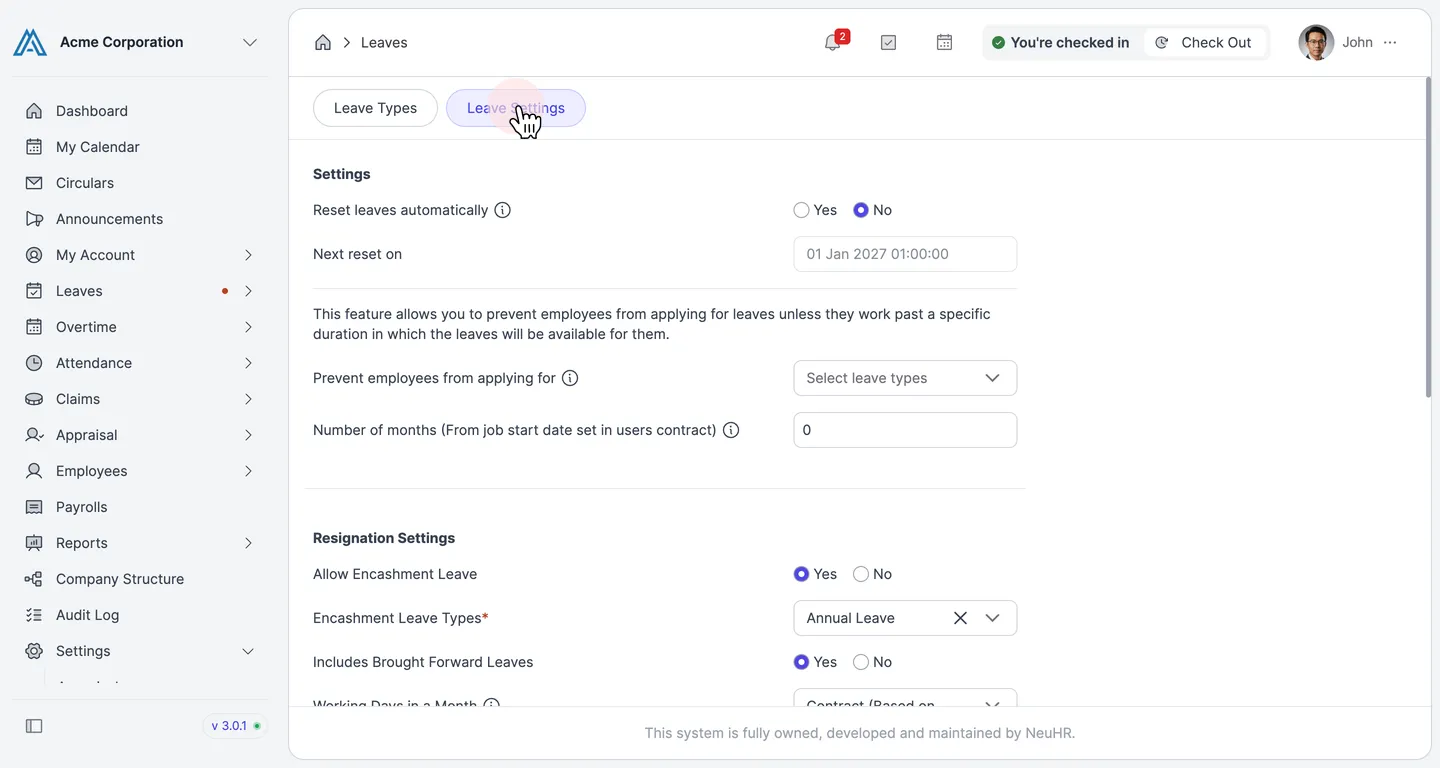
Section titled “Open the Leave Settings tab”The Leave Settings tab opens, showing general settings such as Reset leaves automatically and Resignation Settings. Scroll down to find the proration settings.
-
Configure the Leave Proration settings
Section titled “Configure the Leave Proration settings”In the Leave Proration section, configure the following options:
Setting Description Enable Leave Proration Set to Yes to activate proration for new staff. When enabled, the Proration Leave Types field appears. Proration Leave Types * Select the leave types to apply proration to (e.g. Annual Leave). Enable Sick Leave Proration Set to Yes to also prorate sick leave entitlement. Refer to the MOM sick leave guidelines ↗ for regulations. Enable Leave Proration Auto Deduction Set to Yes to automatically deduct prorated leave when an employee resigns mid-year. 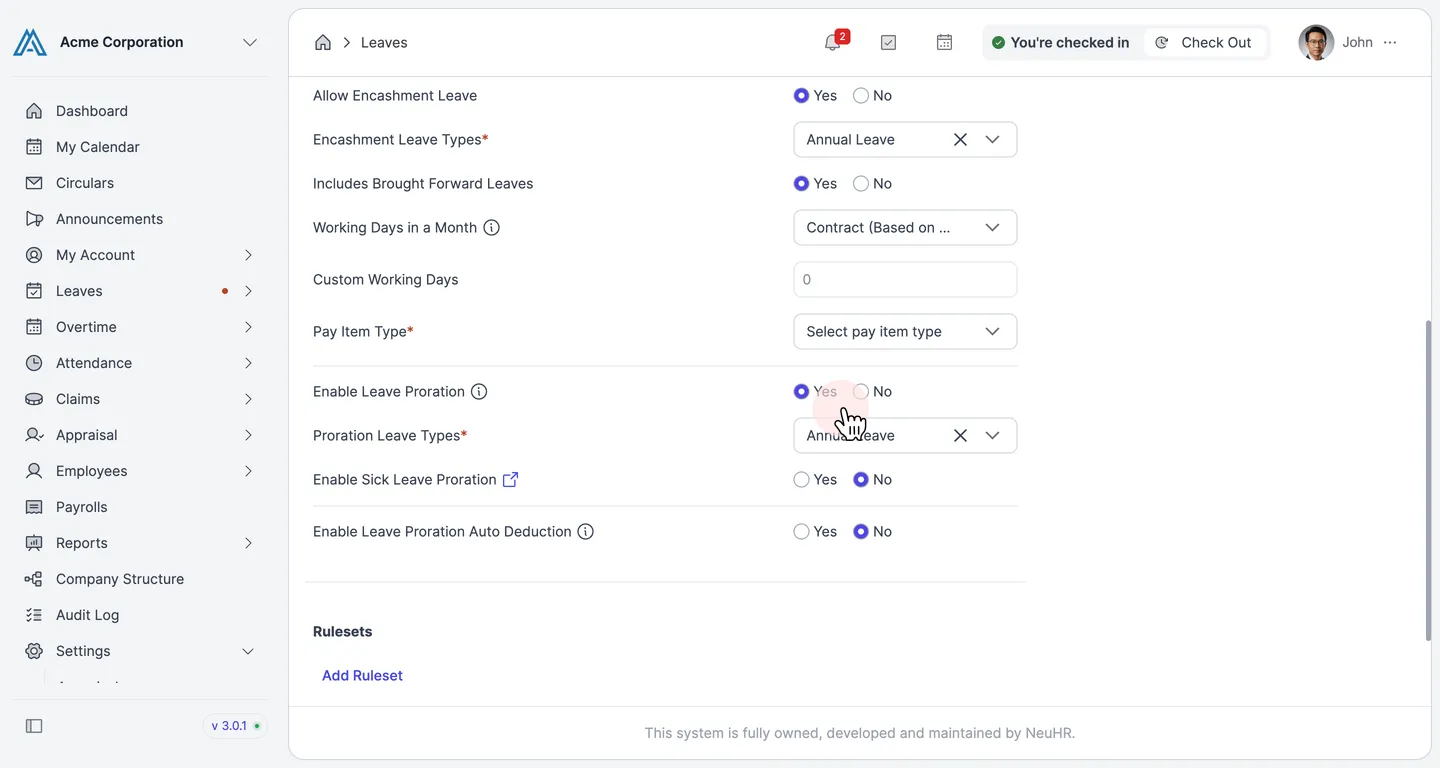
Rulesets
Section titled “Rulesets”Use the Rulesets section to define rules that disallow employees from applying for one leave type when they have taken another. Click Add Ruleset to add a new rule row.
-
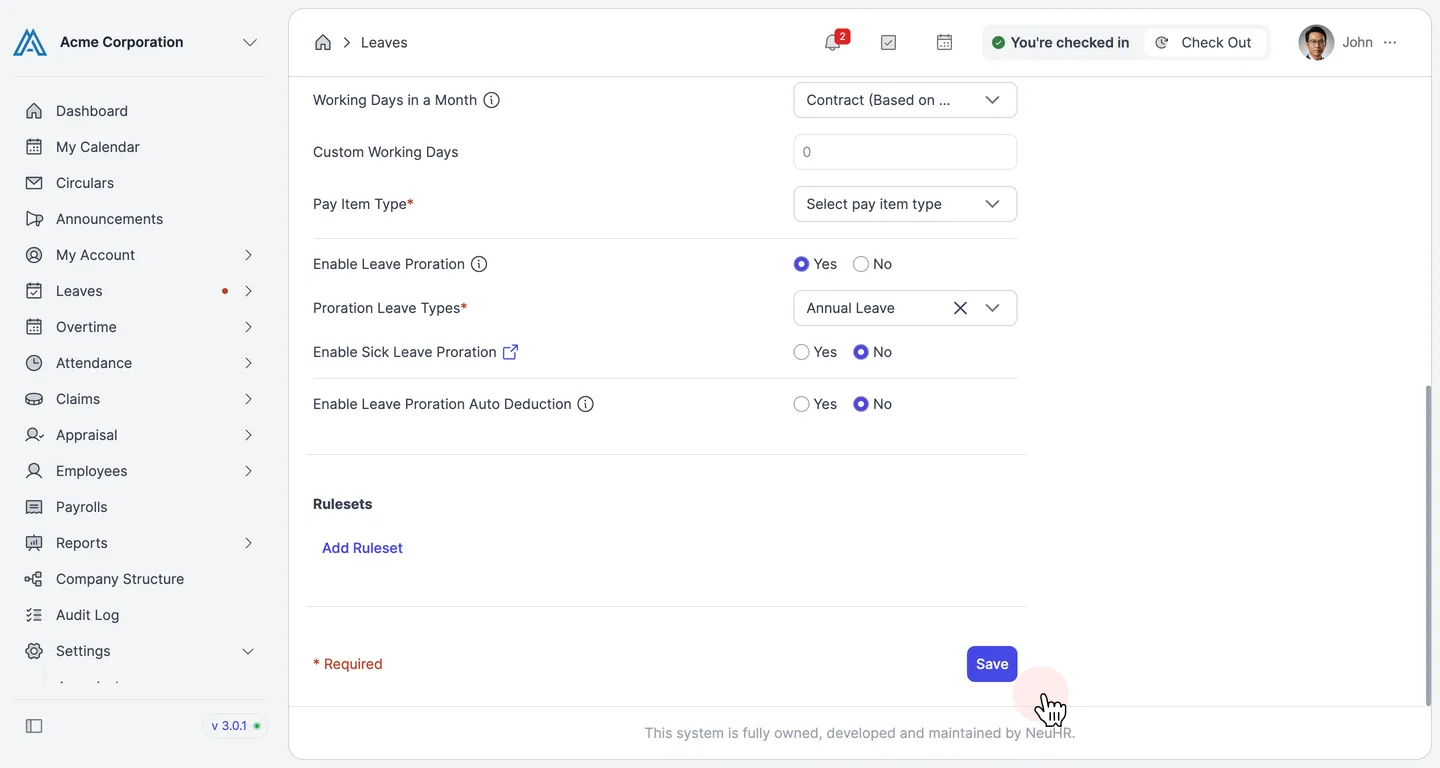
Save your changes
Section titled “Save your changes”Once all proration settings are configured, click the Save button at the bottom of the page.