

Unpaid Leave
This guide walks you through creating an Unpaid Leave pay item type and then applying it to track unpaid leave for employees in your payroll.
Part 1: Create the Unpaid Leave Pay Item Type
Section titled “Part 1: Create the Unpaid Leave Pay Item Type”-
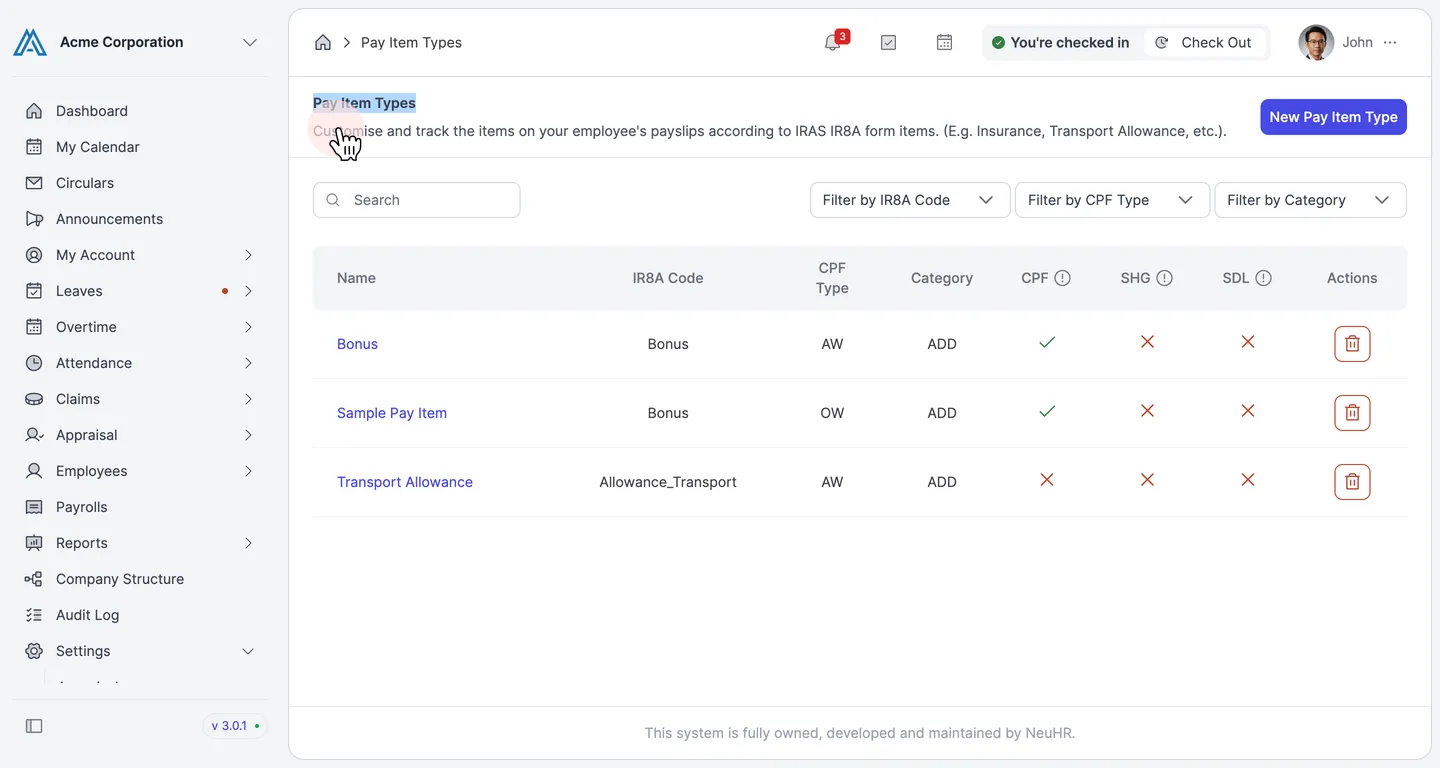
Navigate to Pay Item Types — Go to Settings > Pay Item Types to view the list of all available pay item types in your system.
-
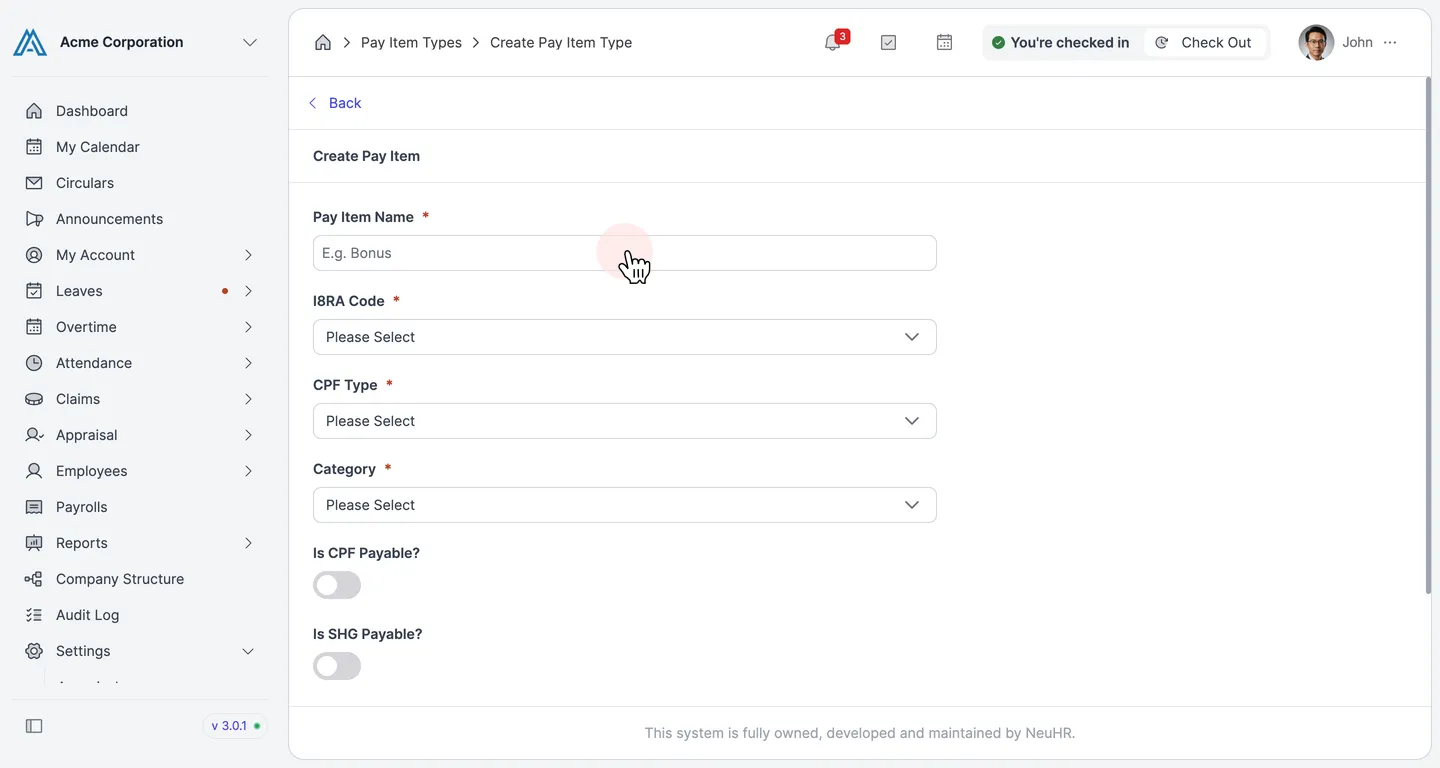
Click New Pay Item Type — Click the blue New Pay Item Type button in the top right corner to start creating a new pay item.
-
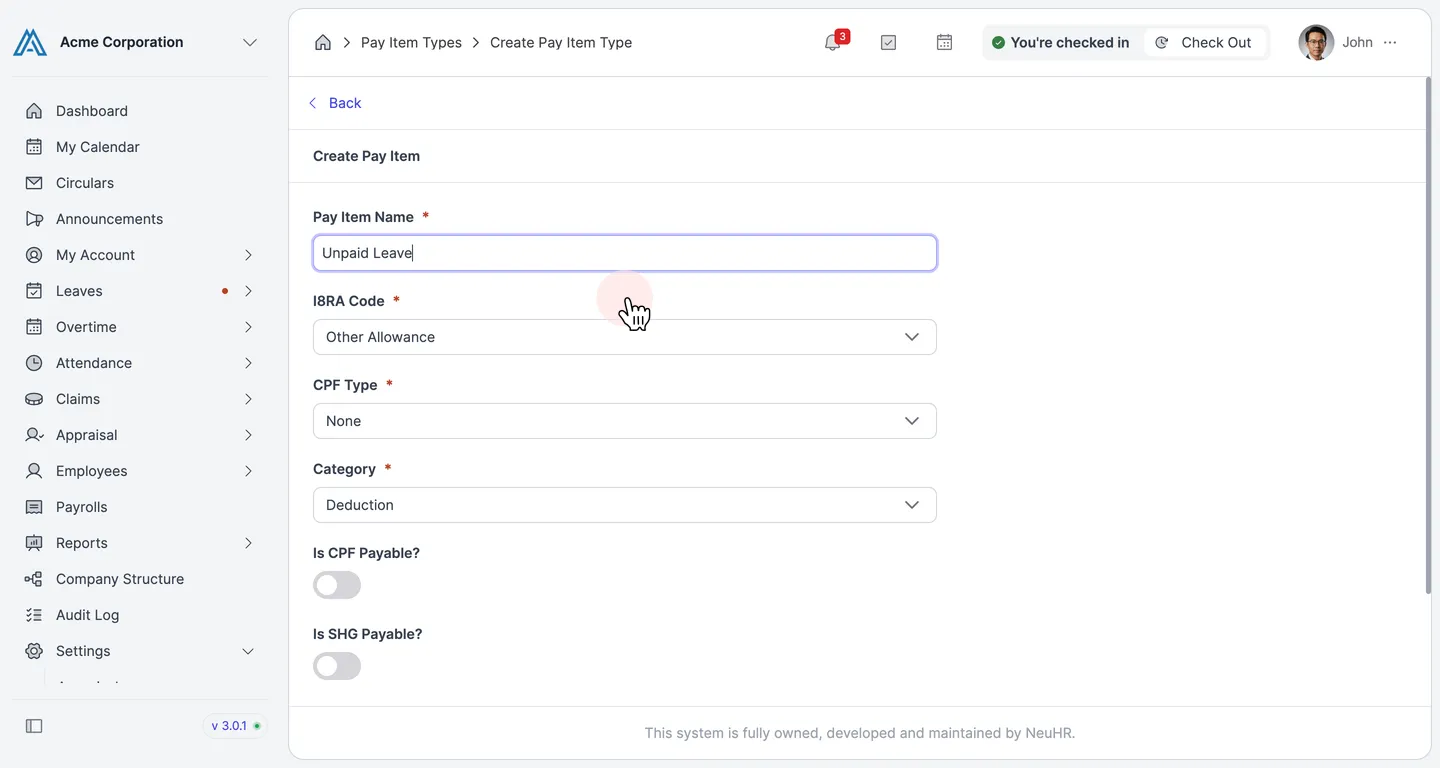
Fill in the Unpaid Leave Details — Complete the form with the following information:
- Pay Item Name — Enter
Unpaid Leave - IR8A Code — Select
Other Allowance - CPF Type — Select
None(unpaid leave is not subject to CPF) - Category — Select
Deduction - Is CPF Payable? — Leave OFF (toggle disabled)
- Is SHG Payable? — Leave OFF (toggle disabled)
- Pay Item Name — Enter
-
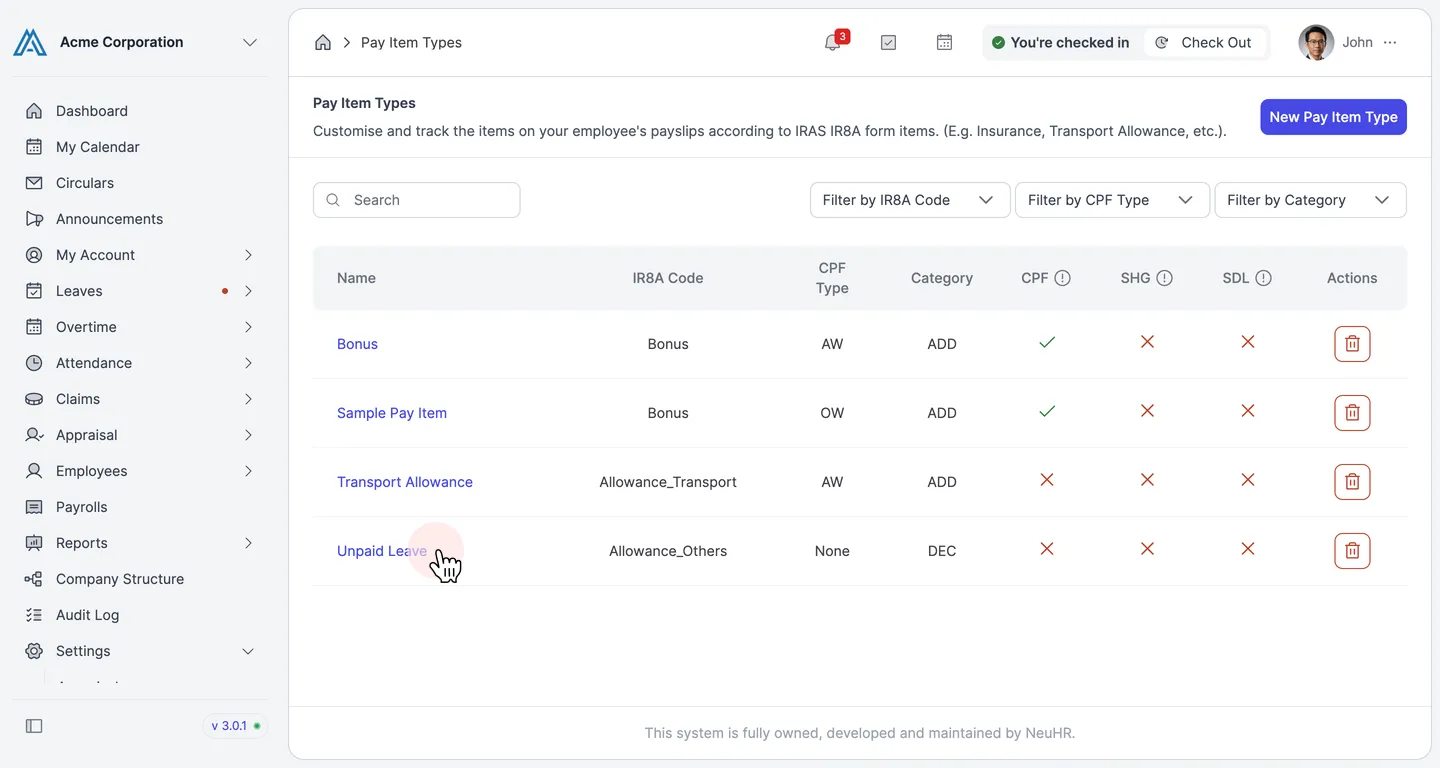
Click Create to Save — Click the Create button at the bottom of the form to save the new unpaid leave pay item type. You will be redirected to the Pay Item Types list, where you can now see Unpaid Leave listed alongside other pay items.
Part 2: Apply Unpaid Leave to Employees
Section titled “Part 2: Apply Unpaid Leave to Employees”-
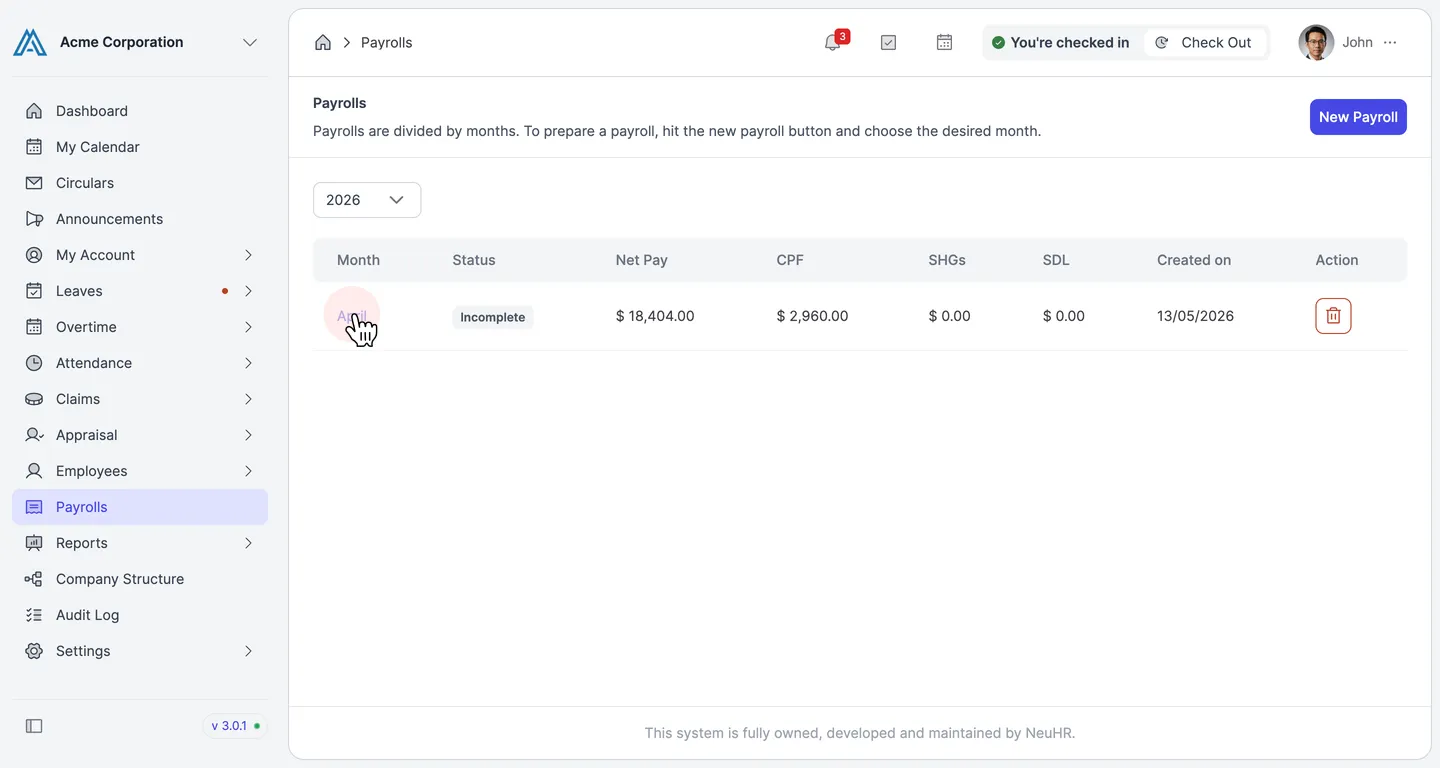
Navigate to Payroll — Go to Payroll to view all payroll periods for your organization.
-
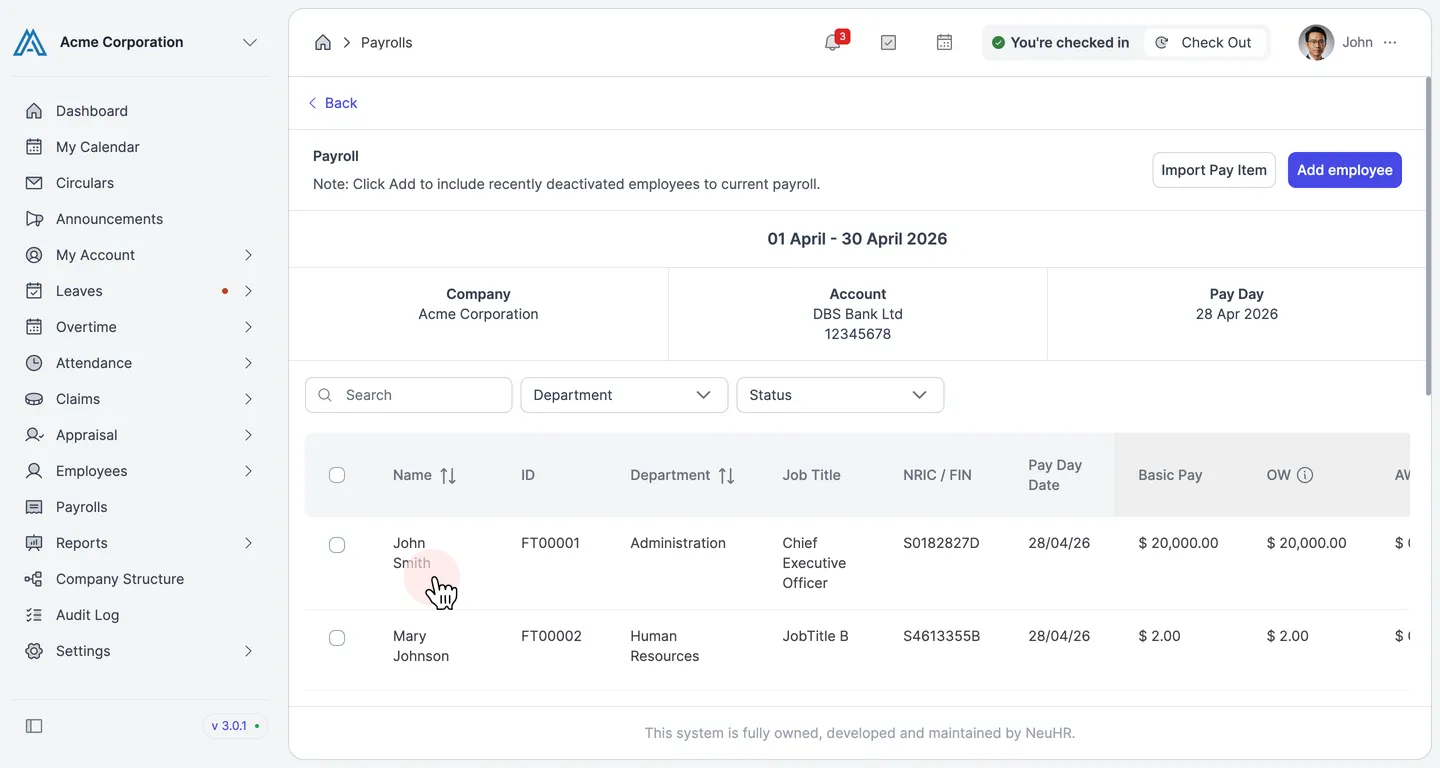
Select a Payroll Period — Click on the payroll period you want to work with (e.g., April 2026) to open the payroll with its employee list.
-
Edit Selected Employee Payroll — Locate the employee you want to apply unpaid leave to (e.g., John Smith) and click the edit button (pencil icon) to open their payroll record for this period.
-
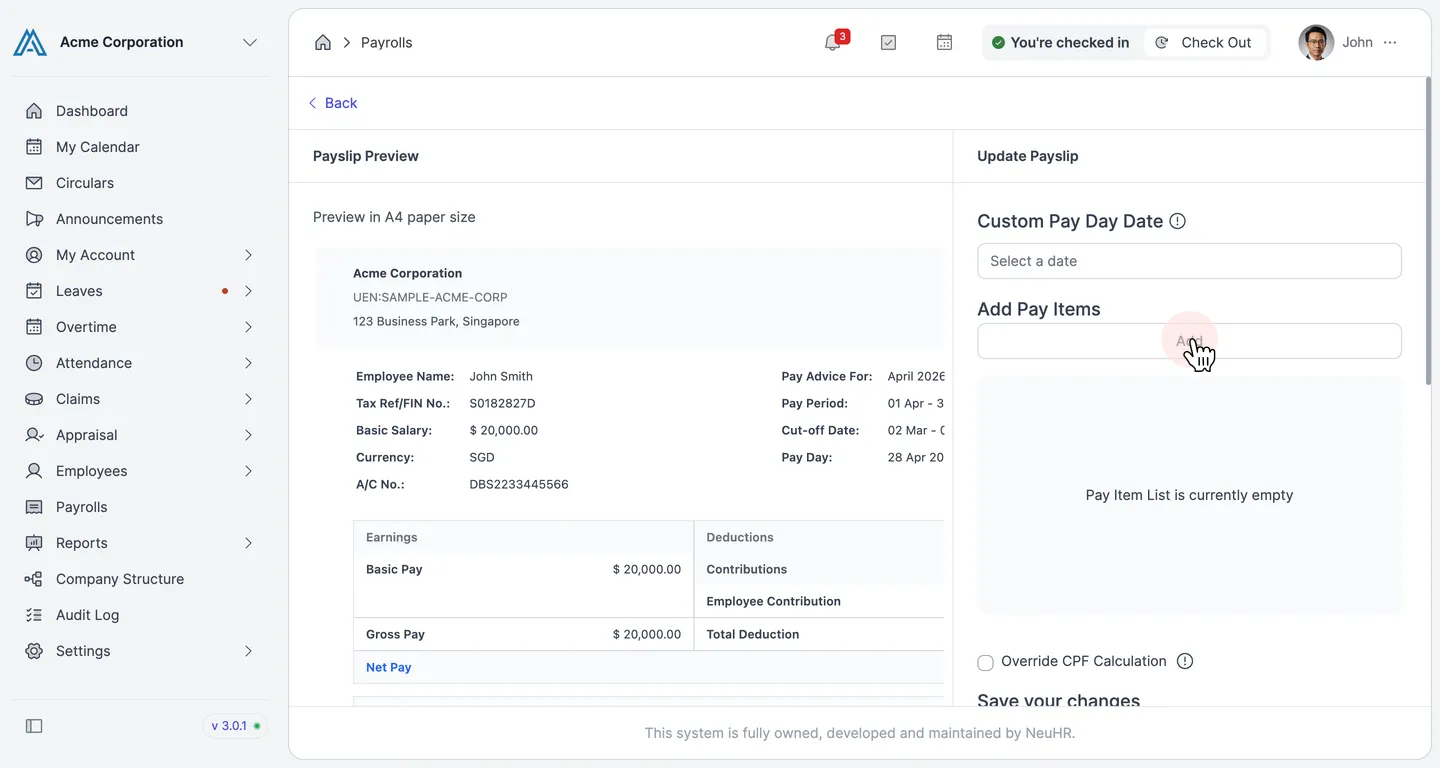
Employee Payroll Edit Page — The employee’s payroll edit page opens, displaying their payroll information for the selected period.
-
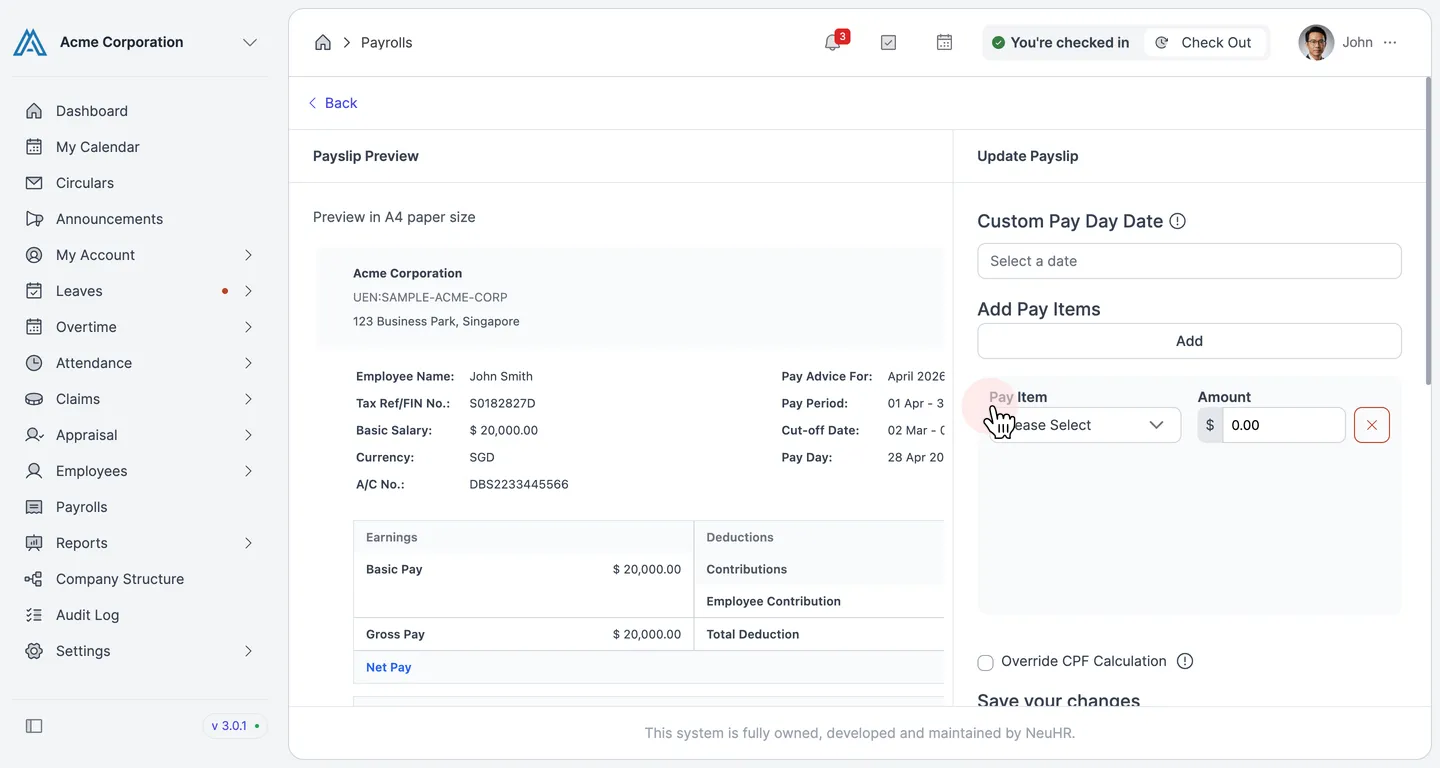
Access Employment Details — Click the Employment Details tab to view employment-specific payroll settings.
-
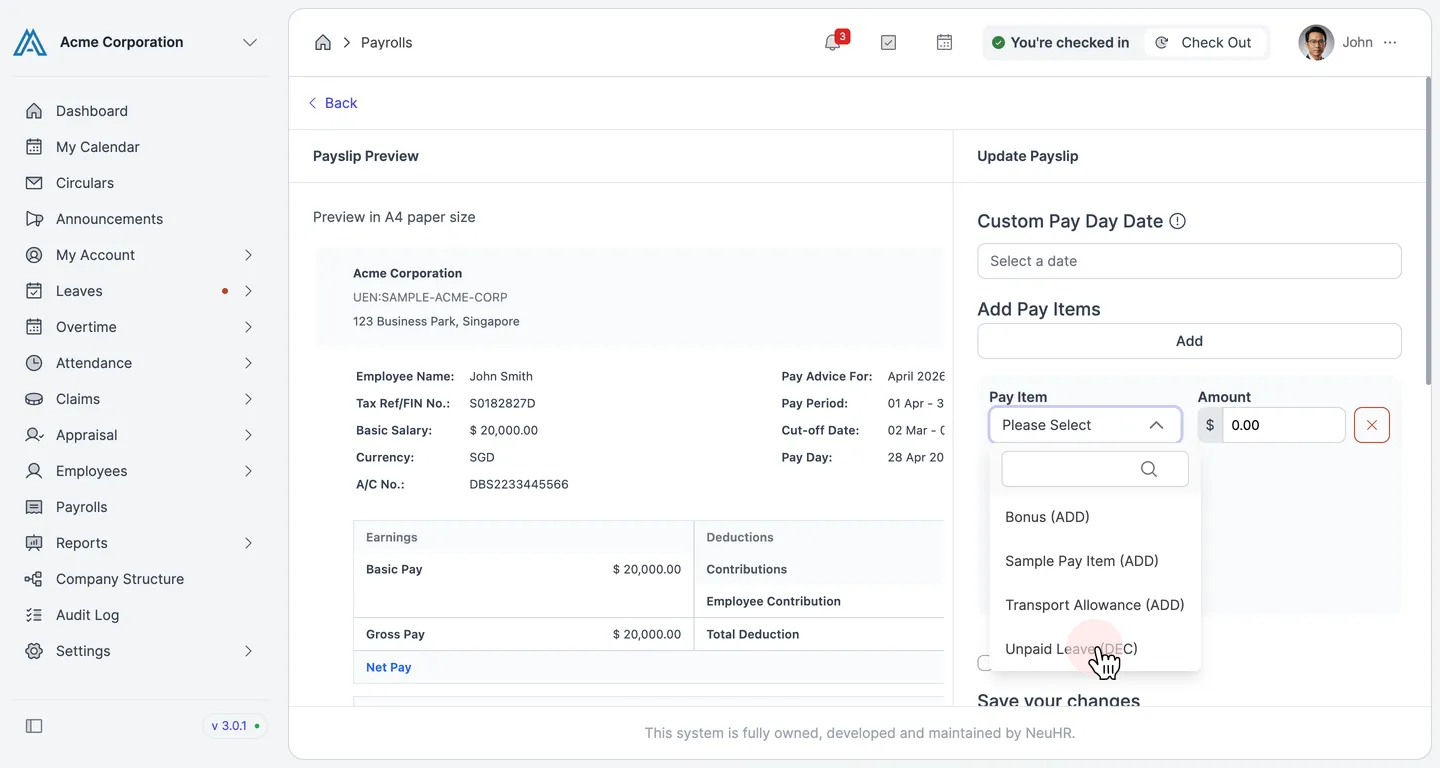
Locate Payroll Section — Expand the Payroll section to view deduction fields including the newly created Unpaid Leave field.
-
Enter Unpaid Leave Days — Enter the number of unpaid leave days for this employee in this payroll period in the Unpaid Leave field. Click Update to save your changes.