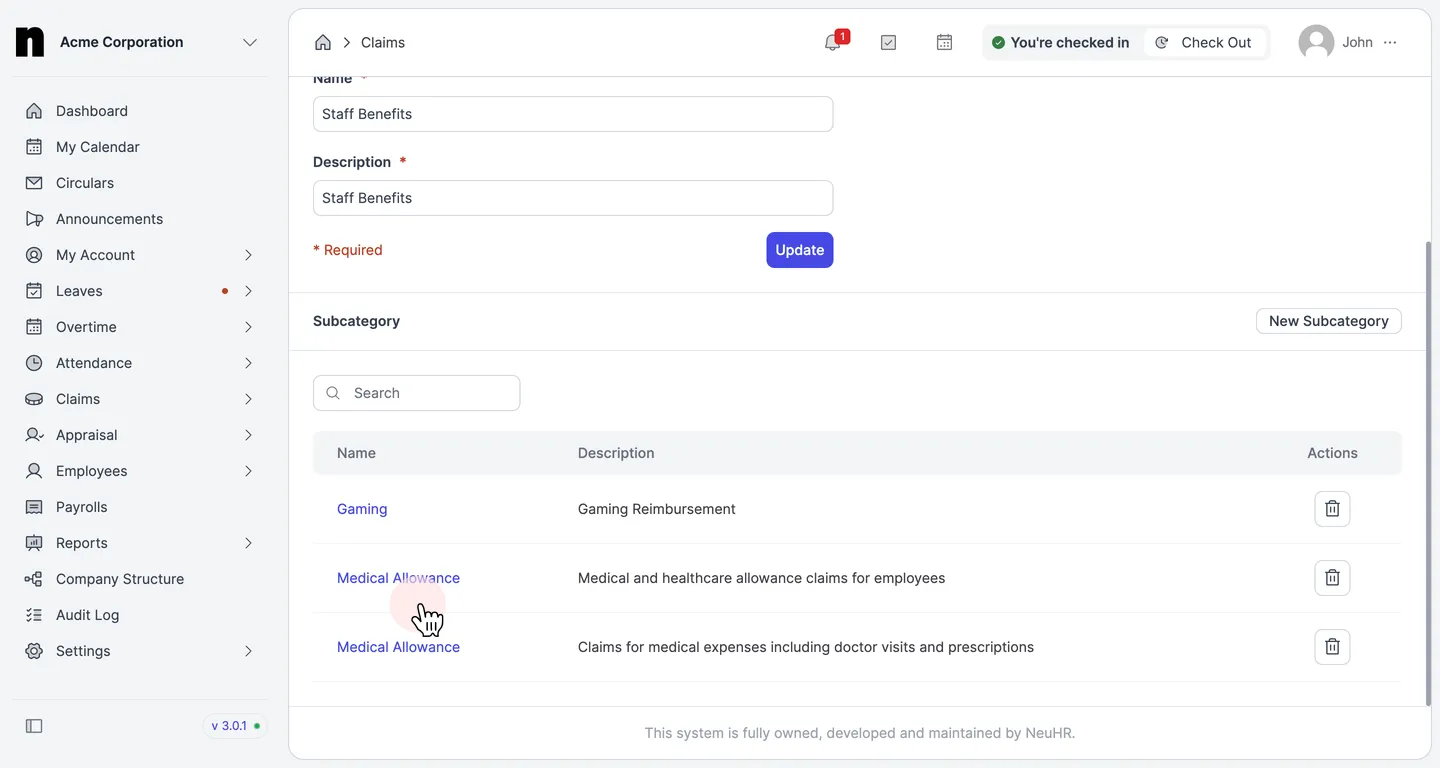
How to Edit Claim Subcategory
This guide shows you how to edit an existing claim subcategory in NeuHR.
-
Navigate to Claims Settings
Section titled “Navigate to Claims Settings”From the left sidebar, click on
Settingsto expand the menu, then click onClaims.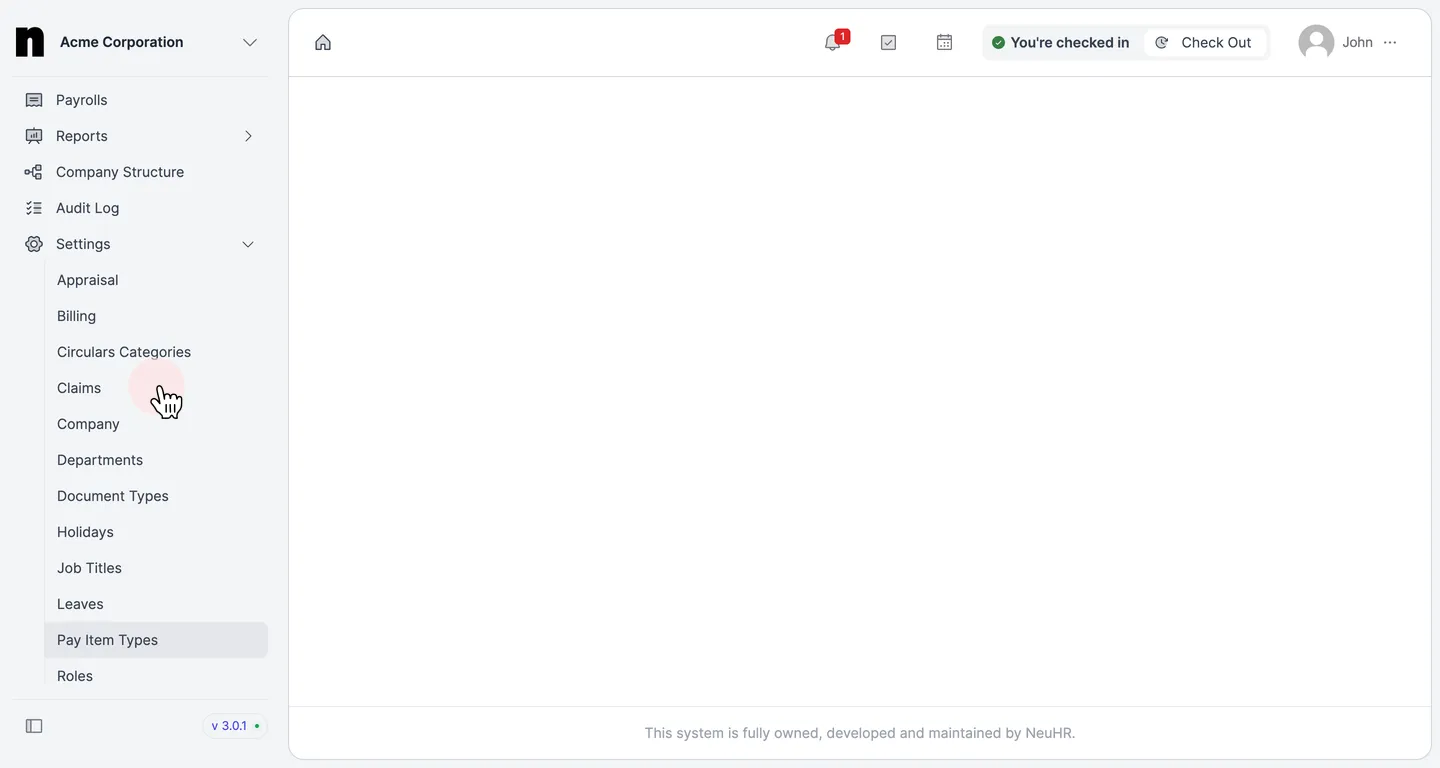
-
Open the Claim Category
Section titled “Open the Claim Category”On the
Claim Categoriespage, click on the name of the category that contains the subcategory you want to edit (e.g.,Staff Benefits).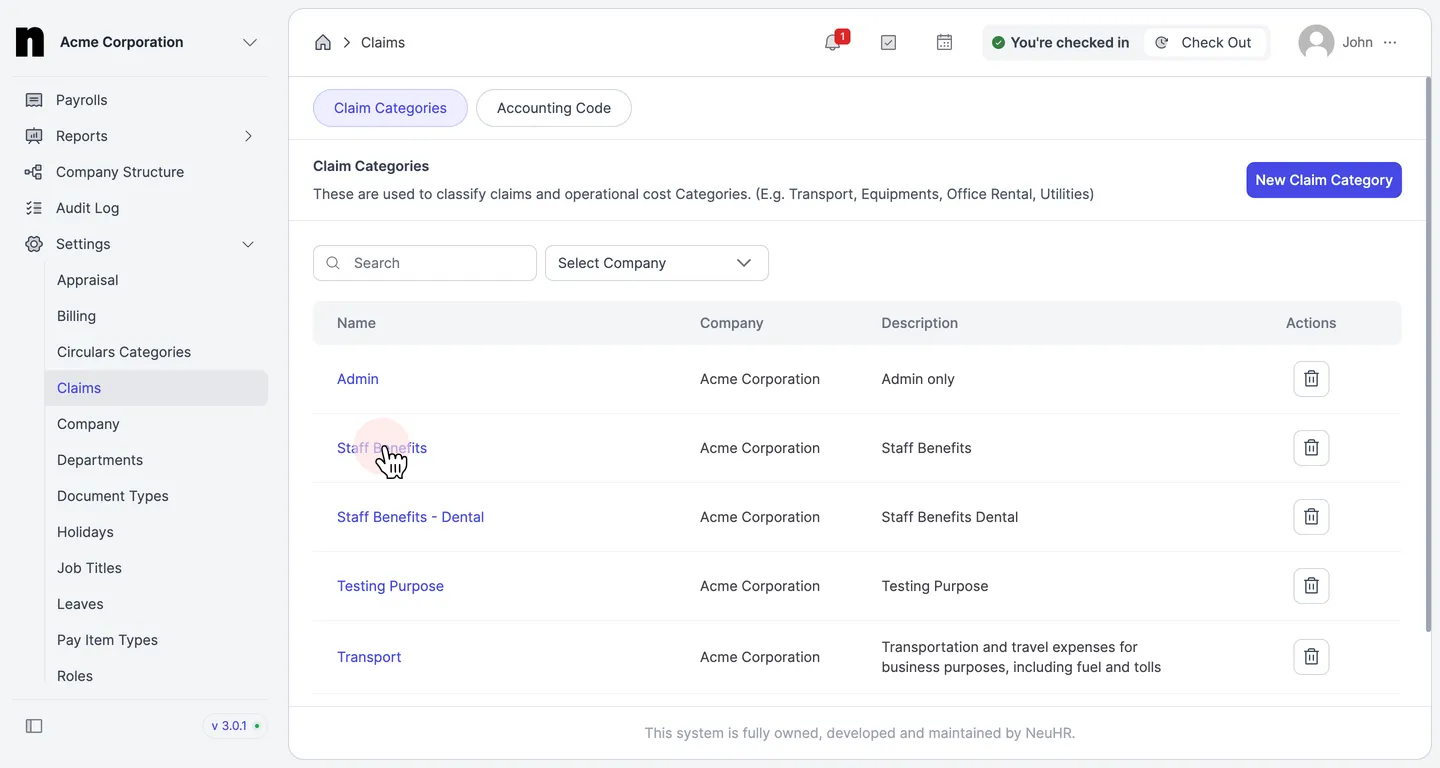
-
Click the Subcategory Name
Section titled “Click the Subcategory Name”Scroll down to the
Subcategorysection on the category details page. Click on the subcategory name you want to edit.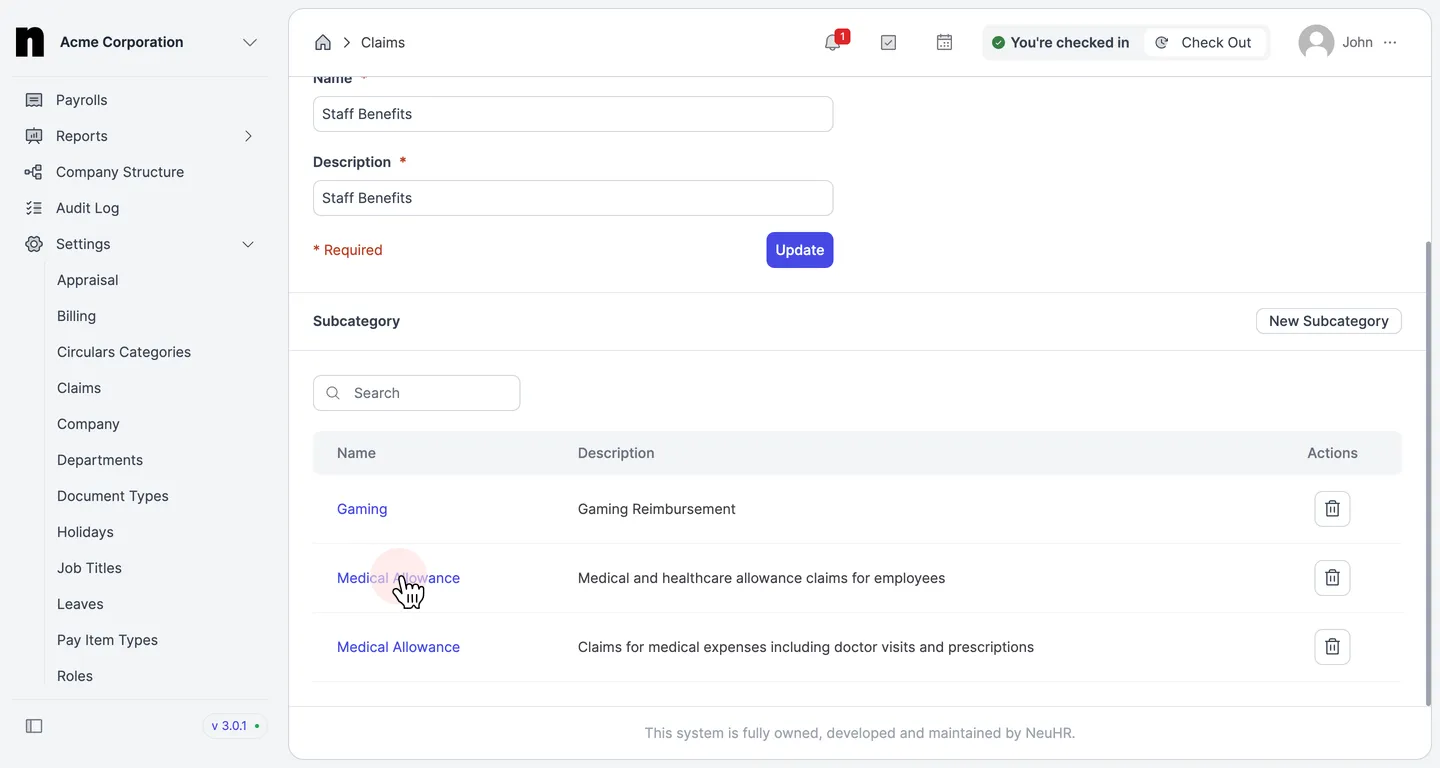
-
Update the Subcategory Details
Section titled “Update the Subcategory Details”The
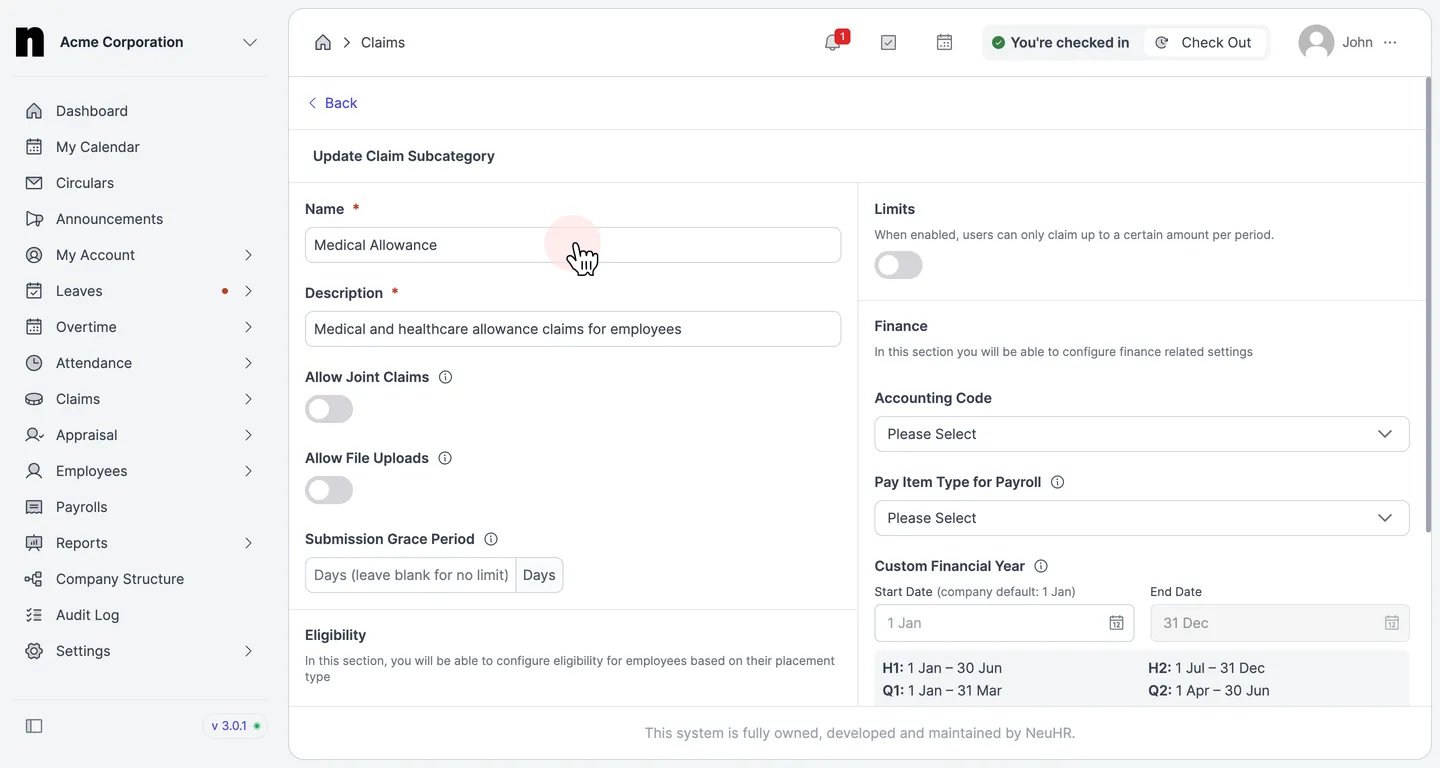
Update Claim Subcategoryform opens with the current details pre-filled. Edit the fields you want to change:- Name — the display name of the subcategory
- Description — a description of what this subcategory covers
- Allow Joint Claims — toggle to allow multiple employees to submit claims together
- Allow File Uploads — toggle to allow employees to attach supporting documents
- Submission Grace Period — number of days after the period ends that employees can still submit claims
- Eligibility — claim limits per employment type (Full Time, Contract, Intern, Part Time, Freelancer)
-
Save the Changes
Section titled “Save the Changes”After making your edits, click the
Updatebutton at the bottom right to save.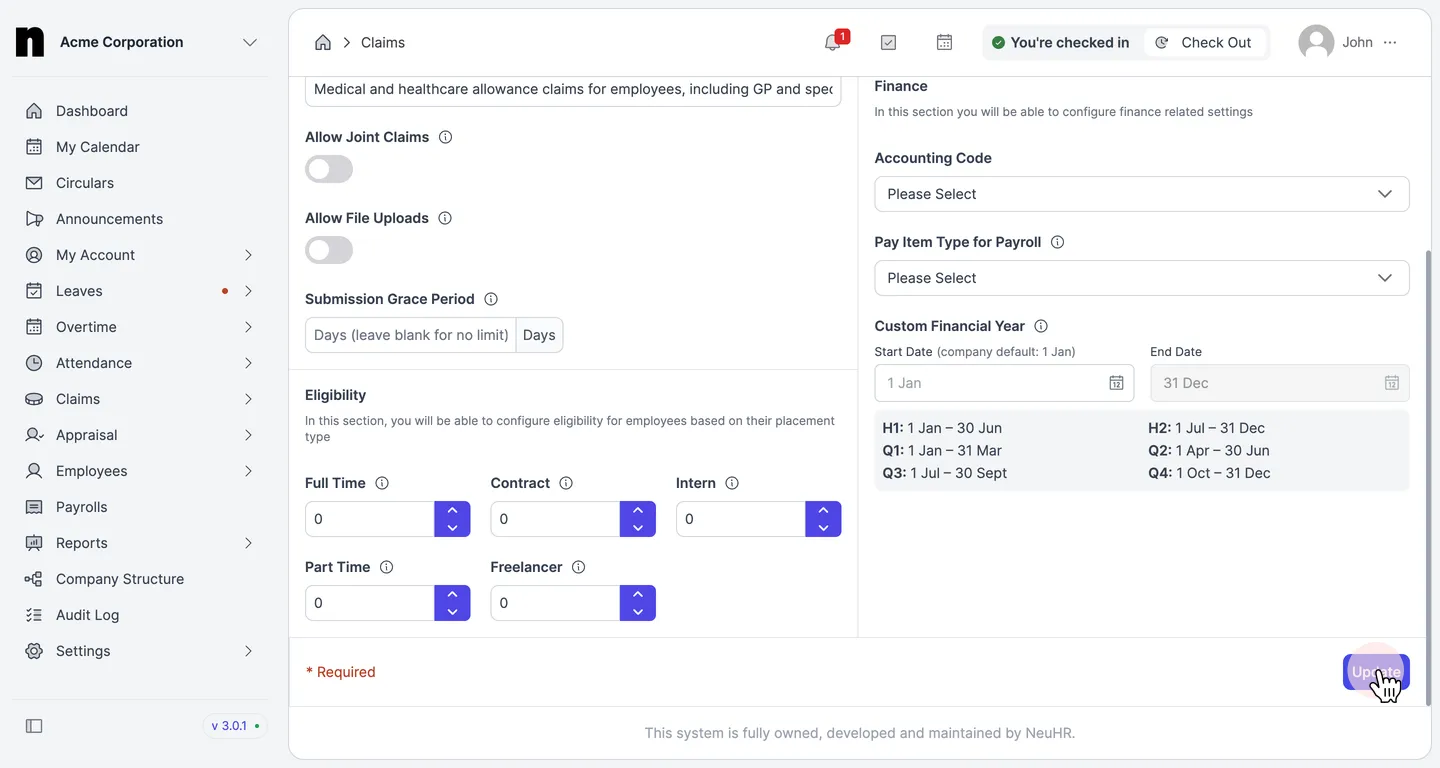
-
Confirm the Update
Section titled “Confirm the Update”You will be redirected back to the claim category page. The updated subcategory will appear in the
Subcategorylist with the new details.