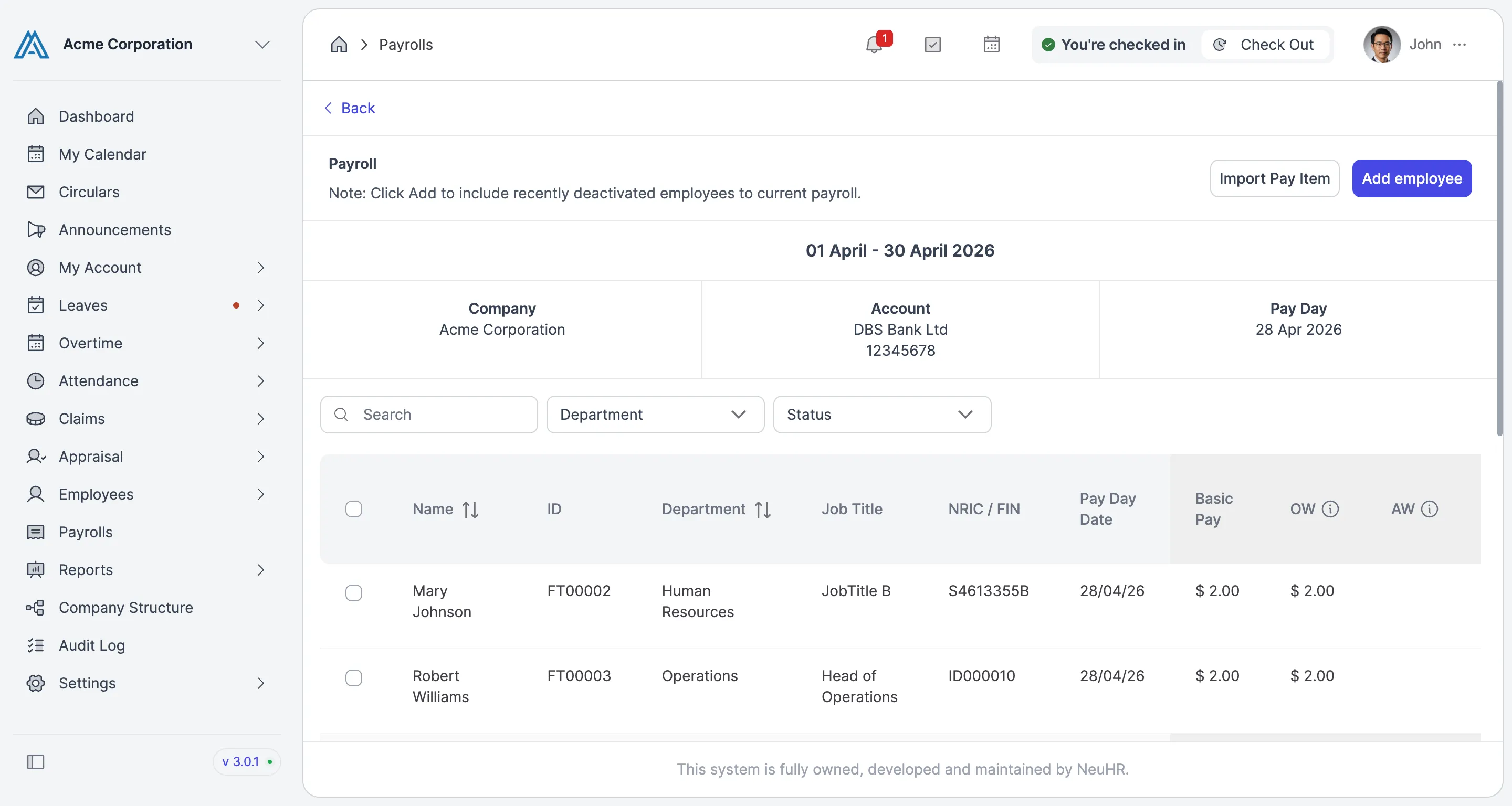
How to Remove Employee Payslips from a Payroll Month
This guide shows you how to remove selected employee payslips from a payroll month in NeuHR. This is useful when an employee should not be included in a particular payroll run.
-
Navigate to Payrolls
Section titled “Navigate to Payrolls”From the left sidebar, click on
Payrolls.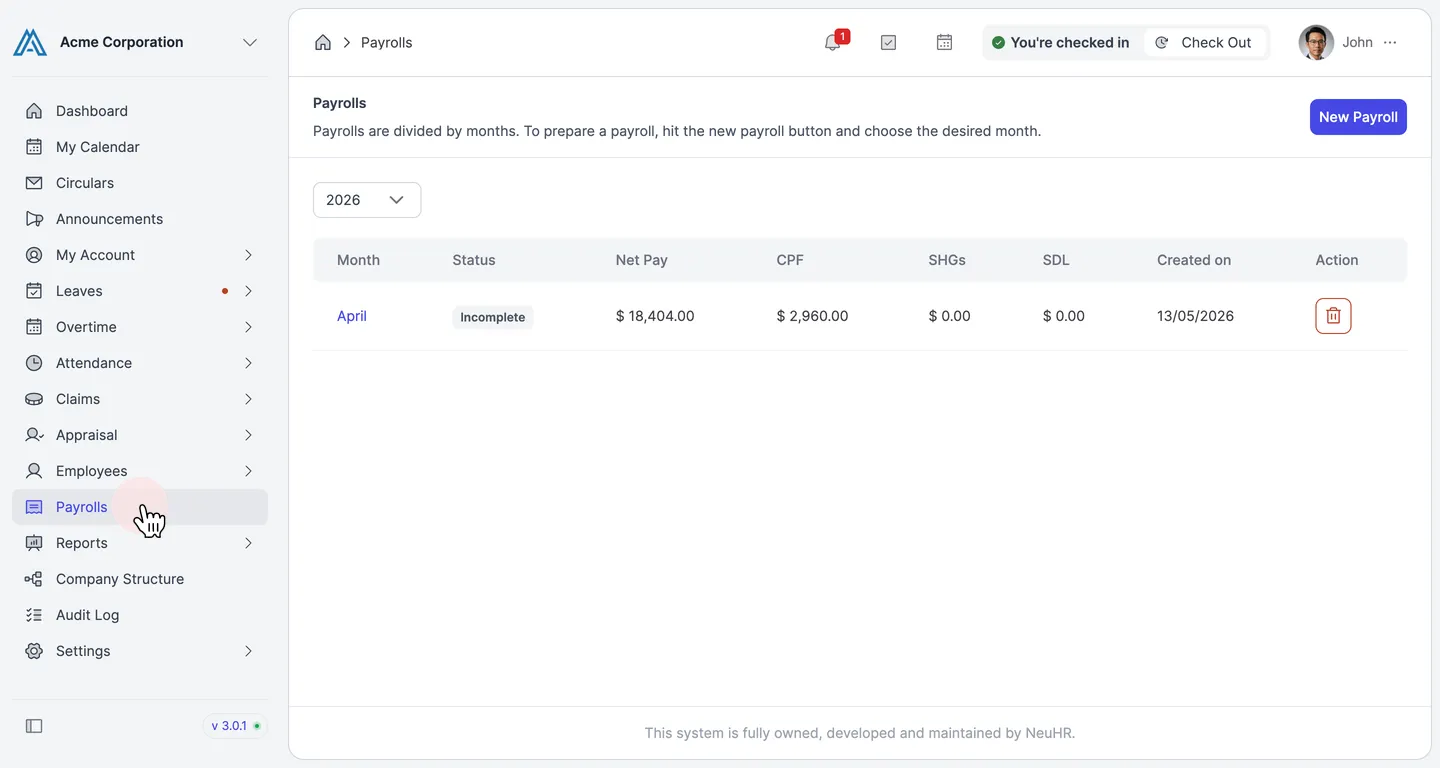
-
Open a Payroll Month
Section titled “Open a Payroll Month”On the
Payrollspage, click on the month you want to manage (e.g.,April).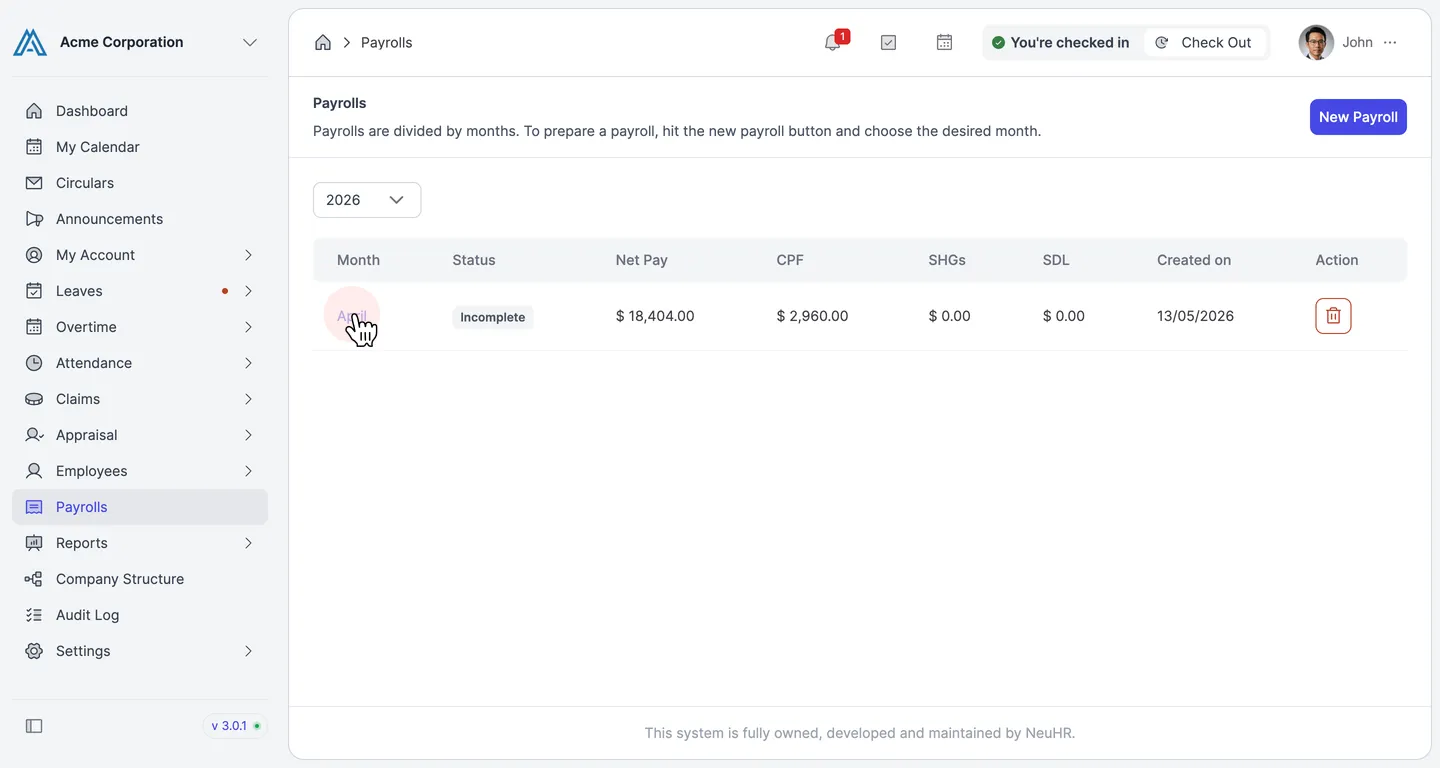
-
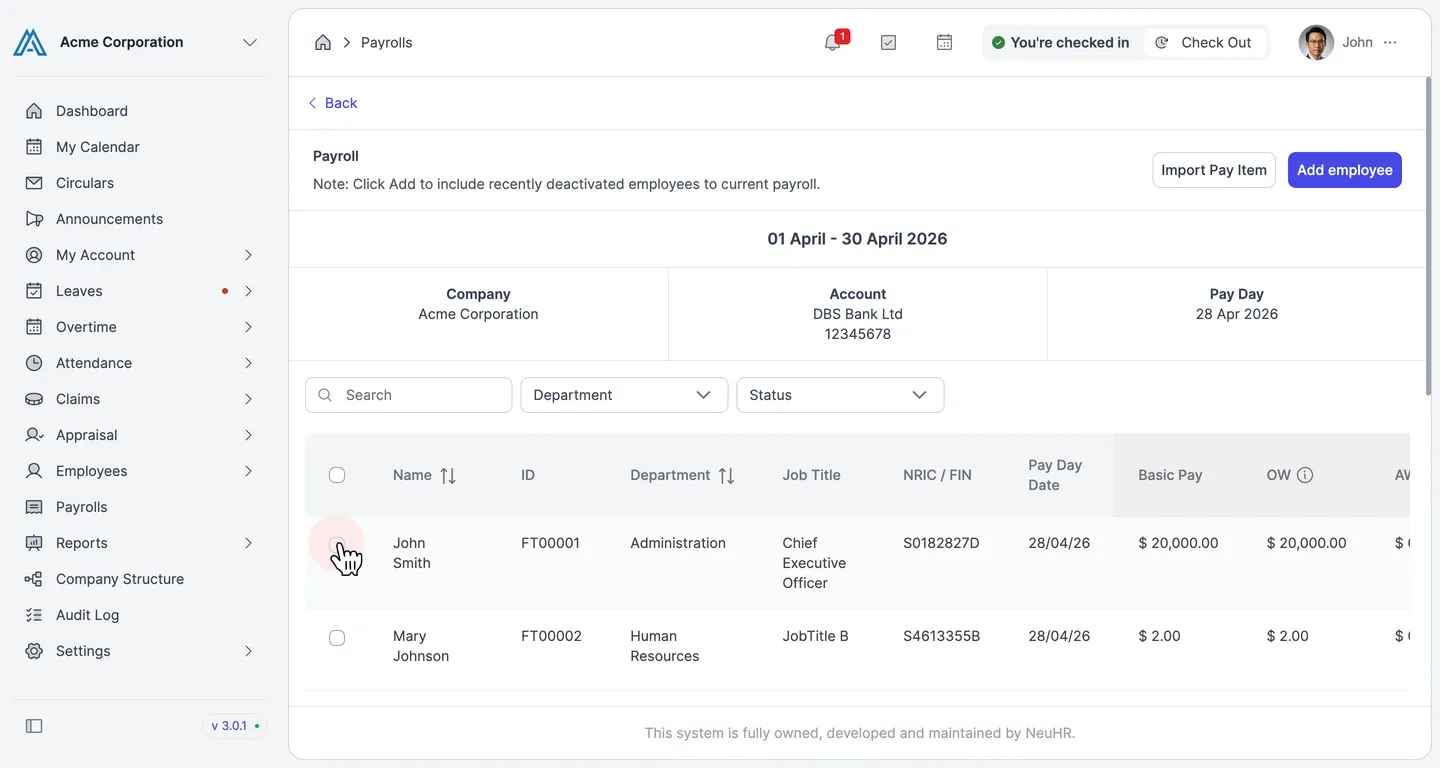
Select Employee Payslips to Remove
Section titled “Select Employee Payslips to Remove”On the payroll detail page, tick the checkbox next to each employee whose payslip you want to remove. You can select multiple employees at once.
-
Click Remove Employees
Section titled “Click Remove Employees”Once at least one payslip is selected, the
Remove employeesbutton appears above the employee list. Click it to remove the selected payslips.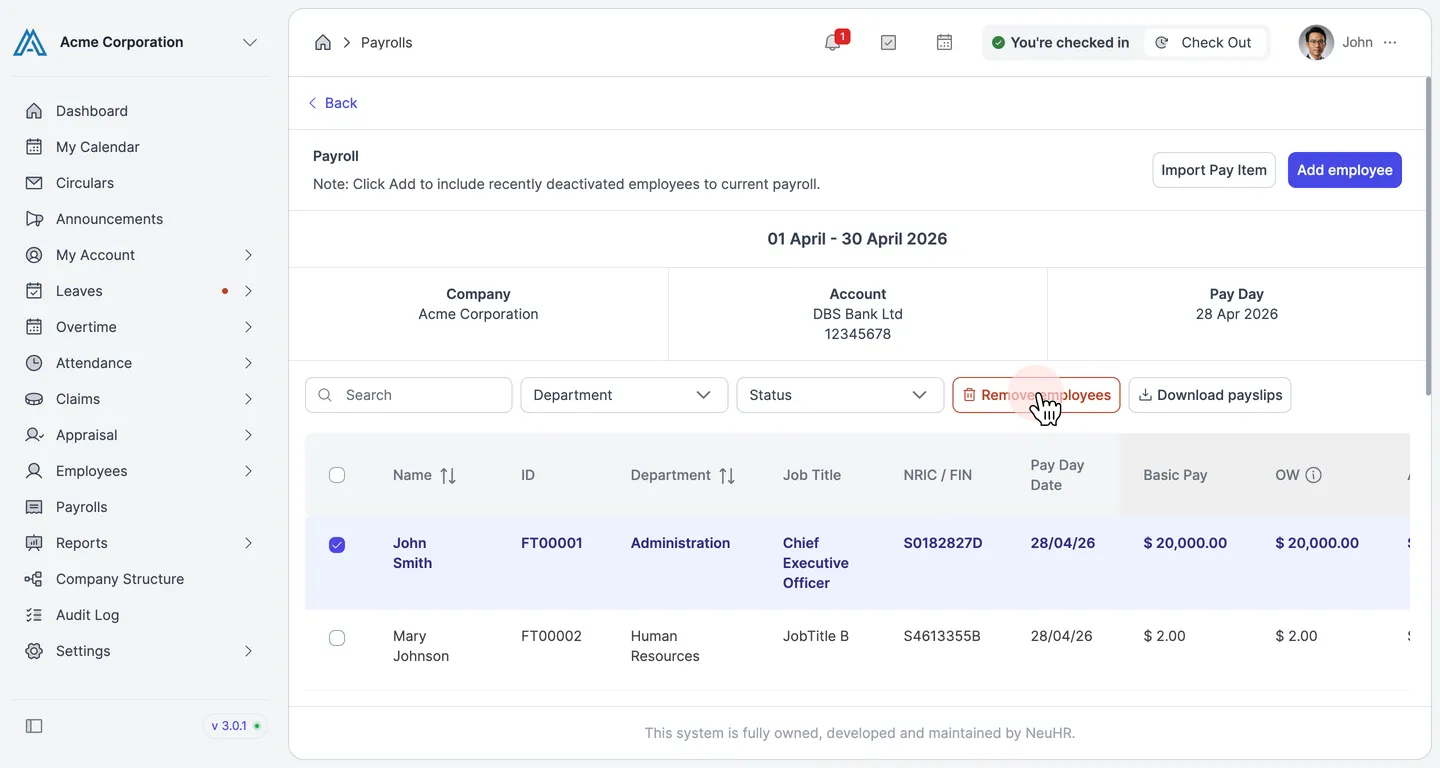
-
Removal Confirmed
Section titled “Removal Confirmed”The selected employee payslips are immediately removed from the payroll month. A “Payslips removed!” success message appears, and the employee list updates to reflect the change.