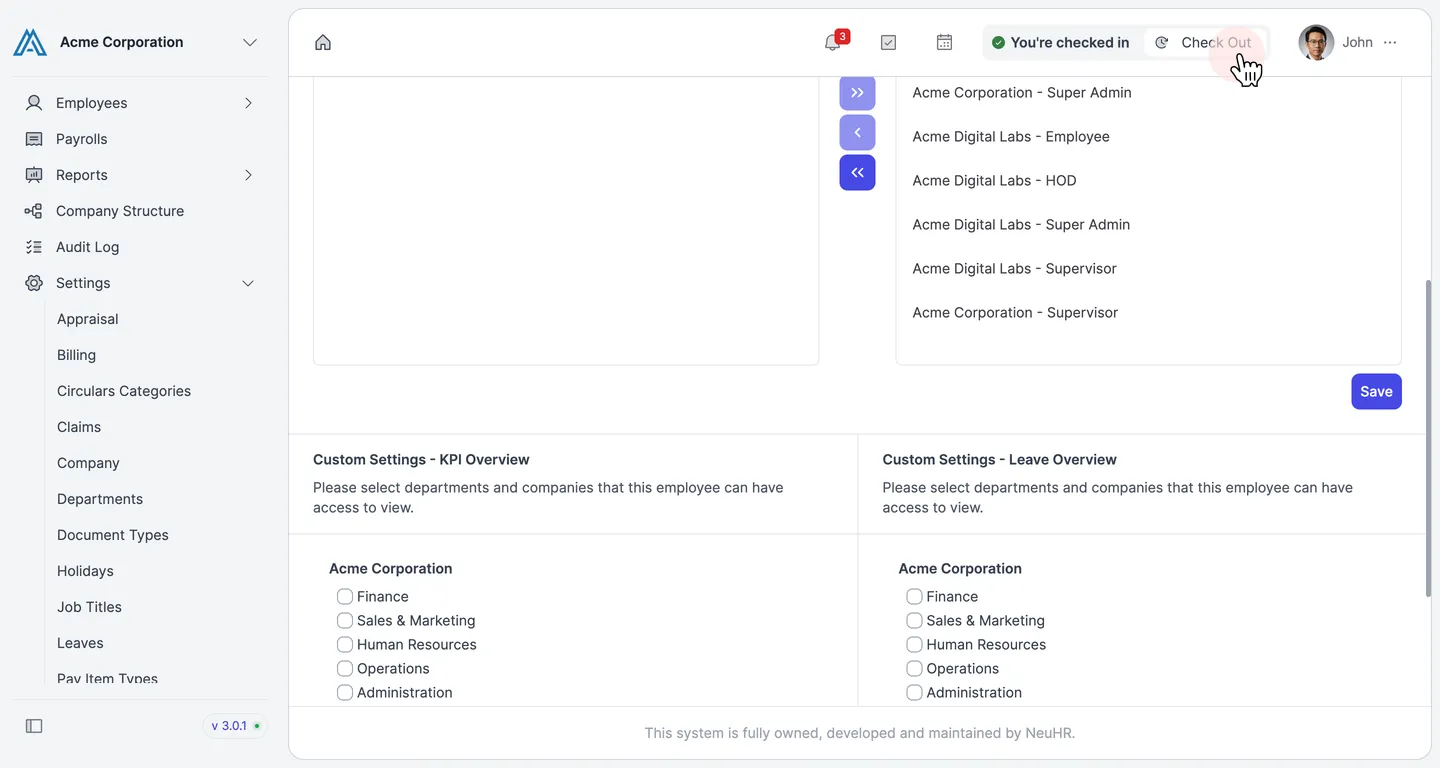
How to Assign/Change Roles to Users with the Role Assignment Page
You can manage which roles are assigned to an employee by navigating to the role’s detail page and using the Assign Roles option from the employee list within that page.
-
Go to Roles
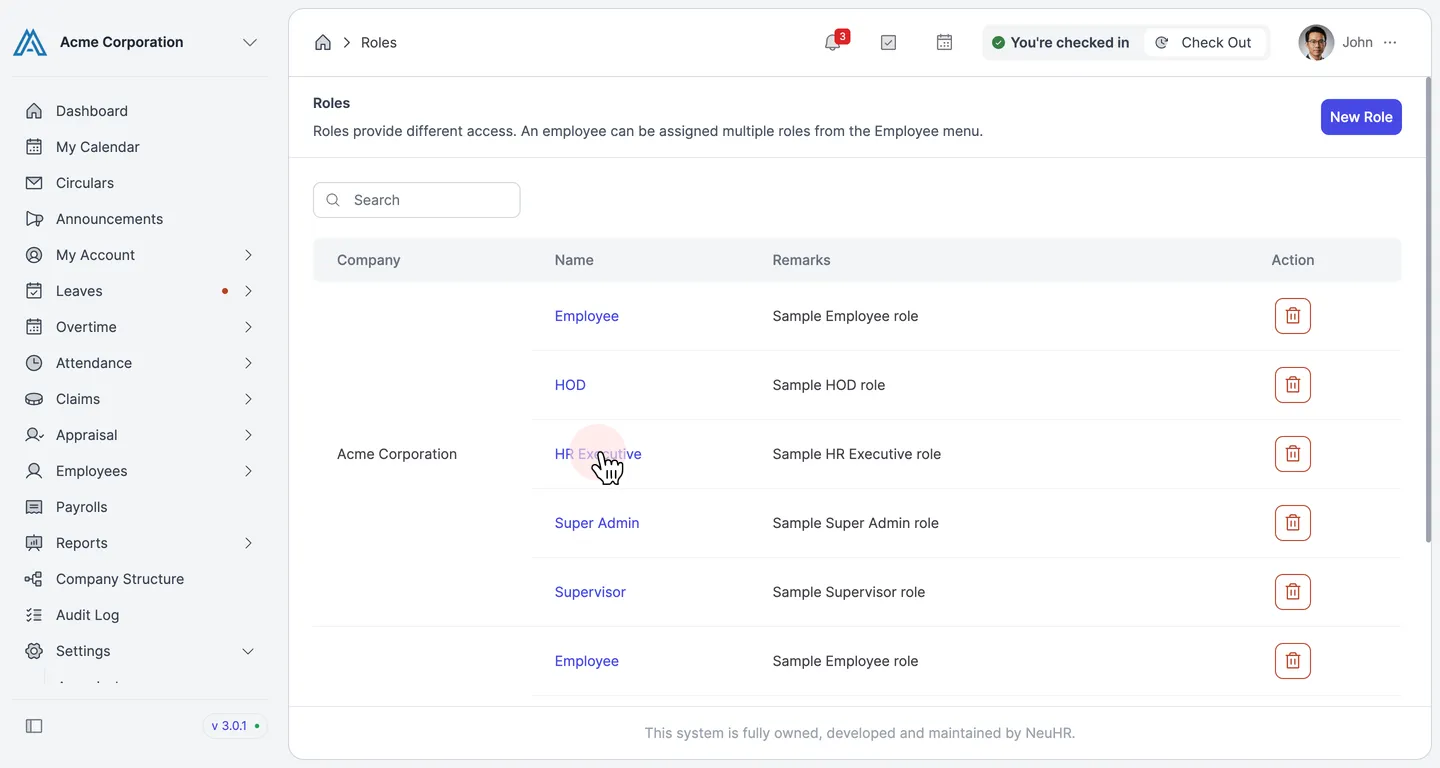
Section titled “Go to Roles”From the left sidebar, scroll down and click Roles to open the roles list.
-
Open a role
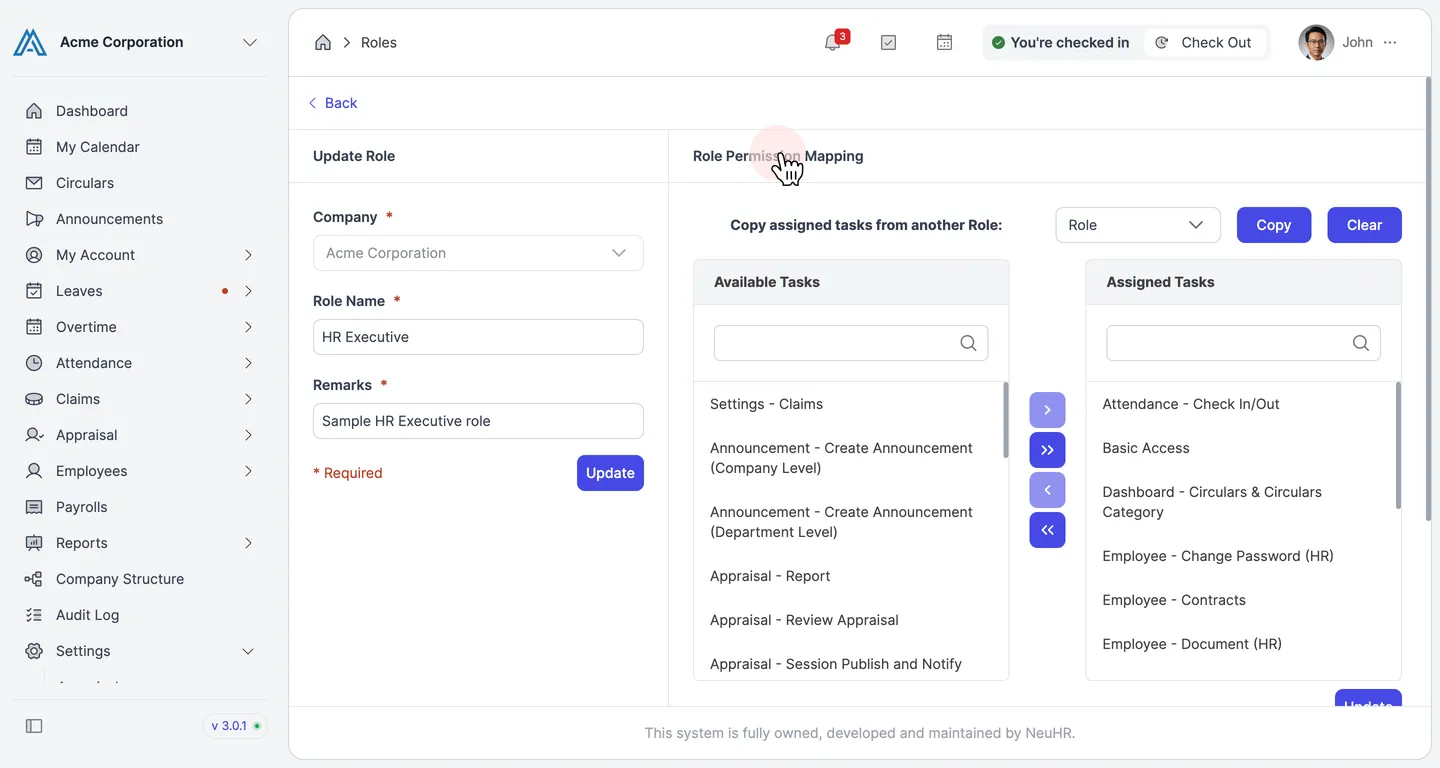
Section titled “Open a role”Click the name of the role whose user assignments you want to manage (e.g., HR Executive). The role’s detail page opens, showing its permission mapping.
-
Find the employee in the Employees section
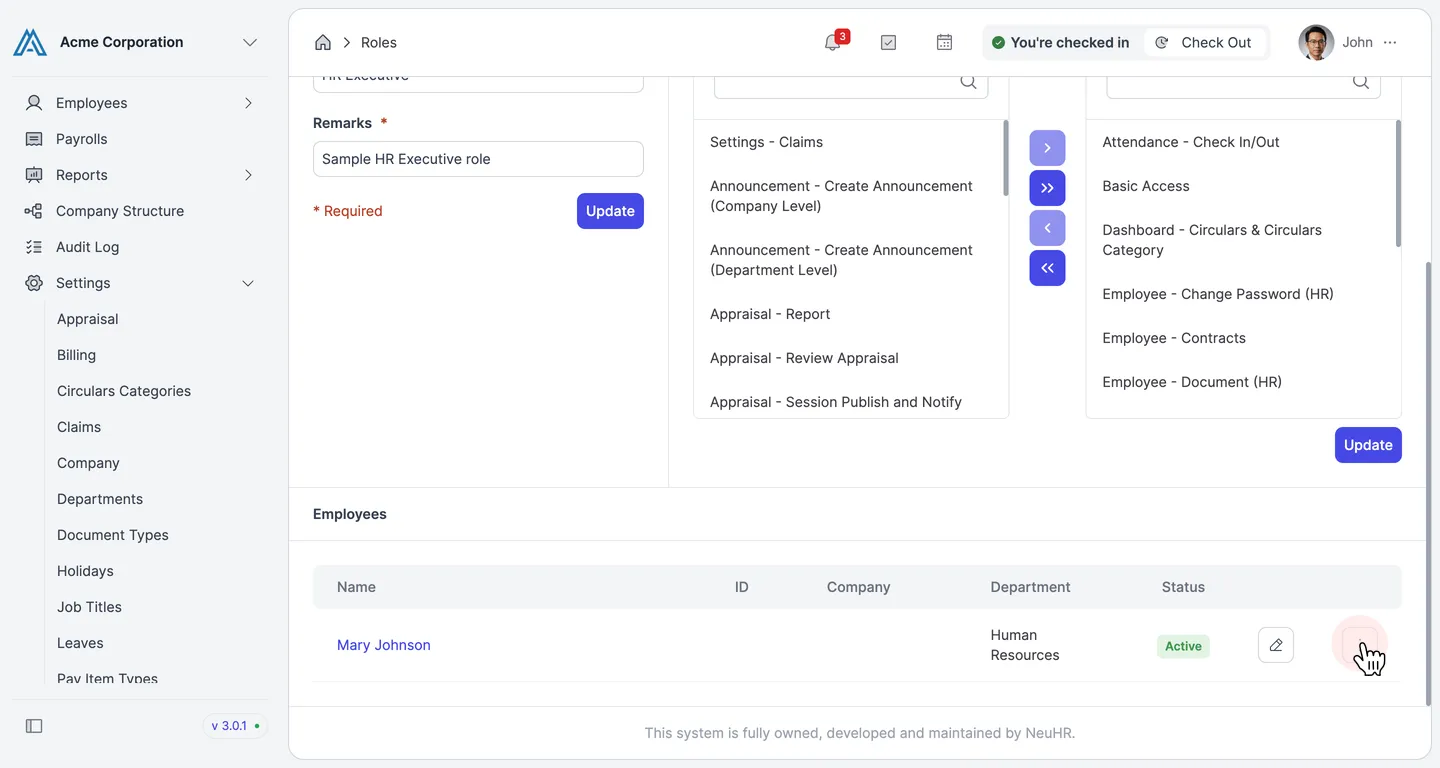
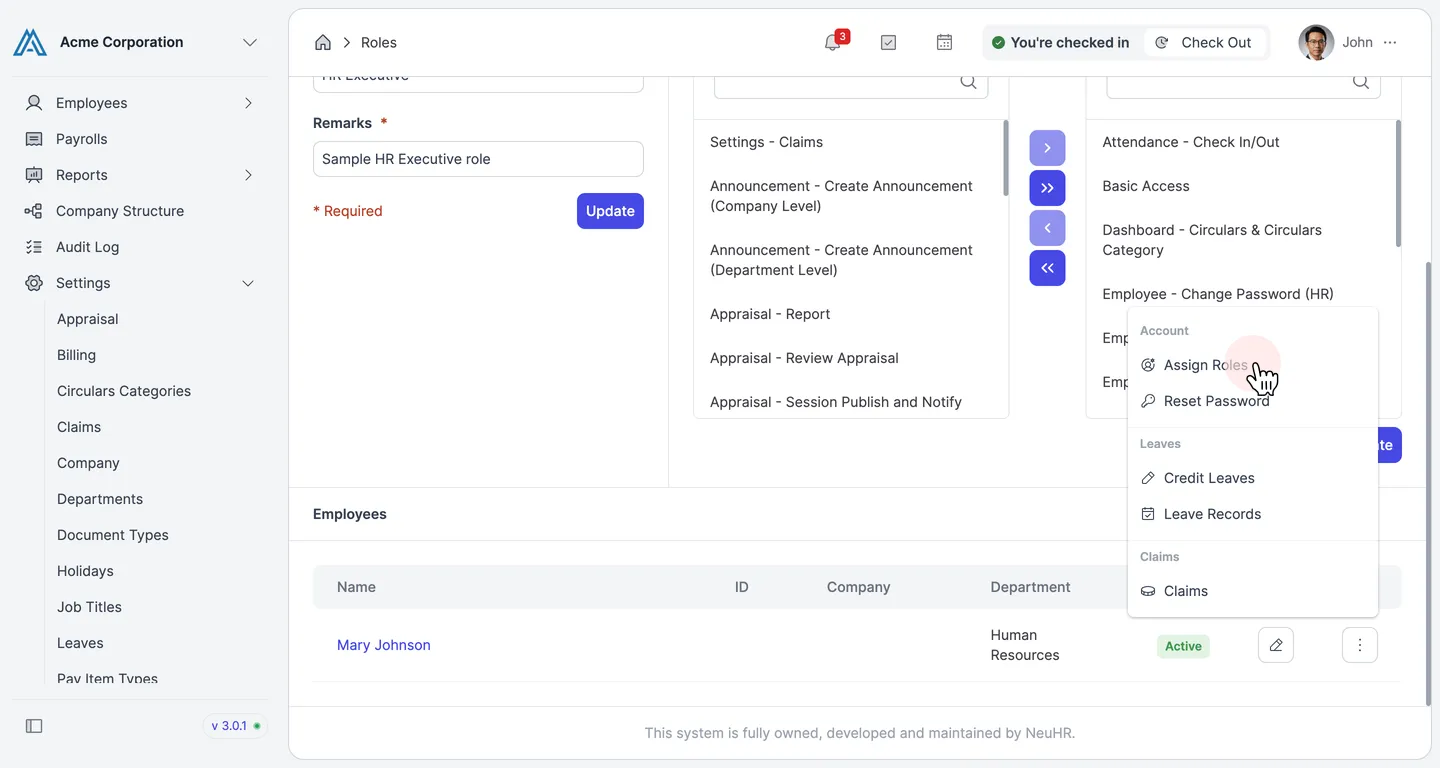
Section titled “Find the employee in the Employees section”Scroll down below the Role Permission Mapping to find the Employees section. This lists all employees currently assigned this role. Click the ⋯ button on the employee whose roles you want to modify.
-
Click Assign Roles
Section titled “Click Assign Roles”In the dropdown menu, click Assign Roles under the Account section.
-
Review the Role Settings page
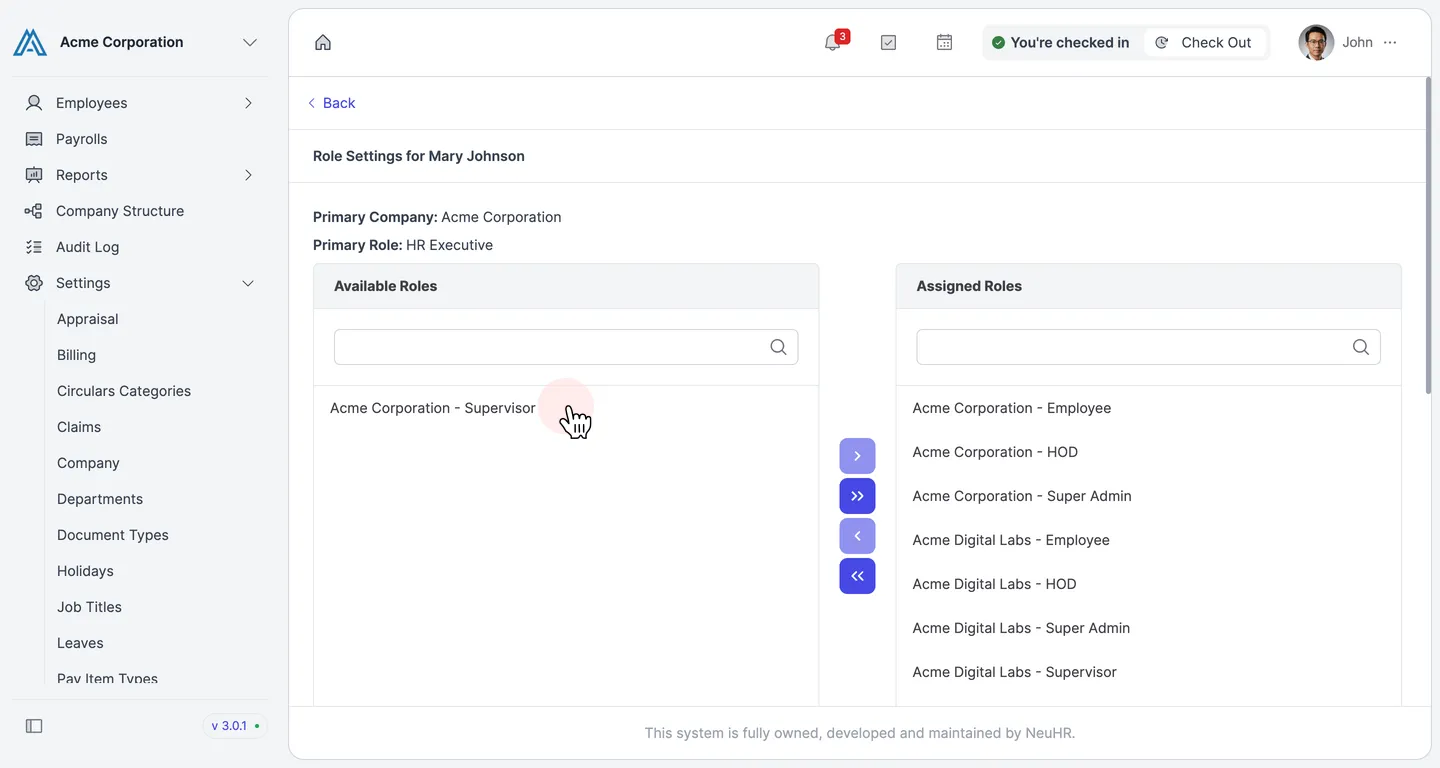
Section titled “Review the Role Settings page”The Role Settings page for the employee opens. The Available Roles panel on the left shows roles not yet assigned. The Assigned Roles panel on the right shows roles currently active for this employee.
-
Add or remove roles
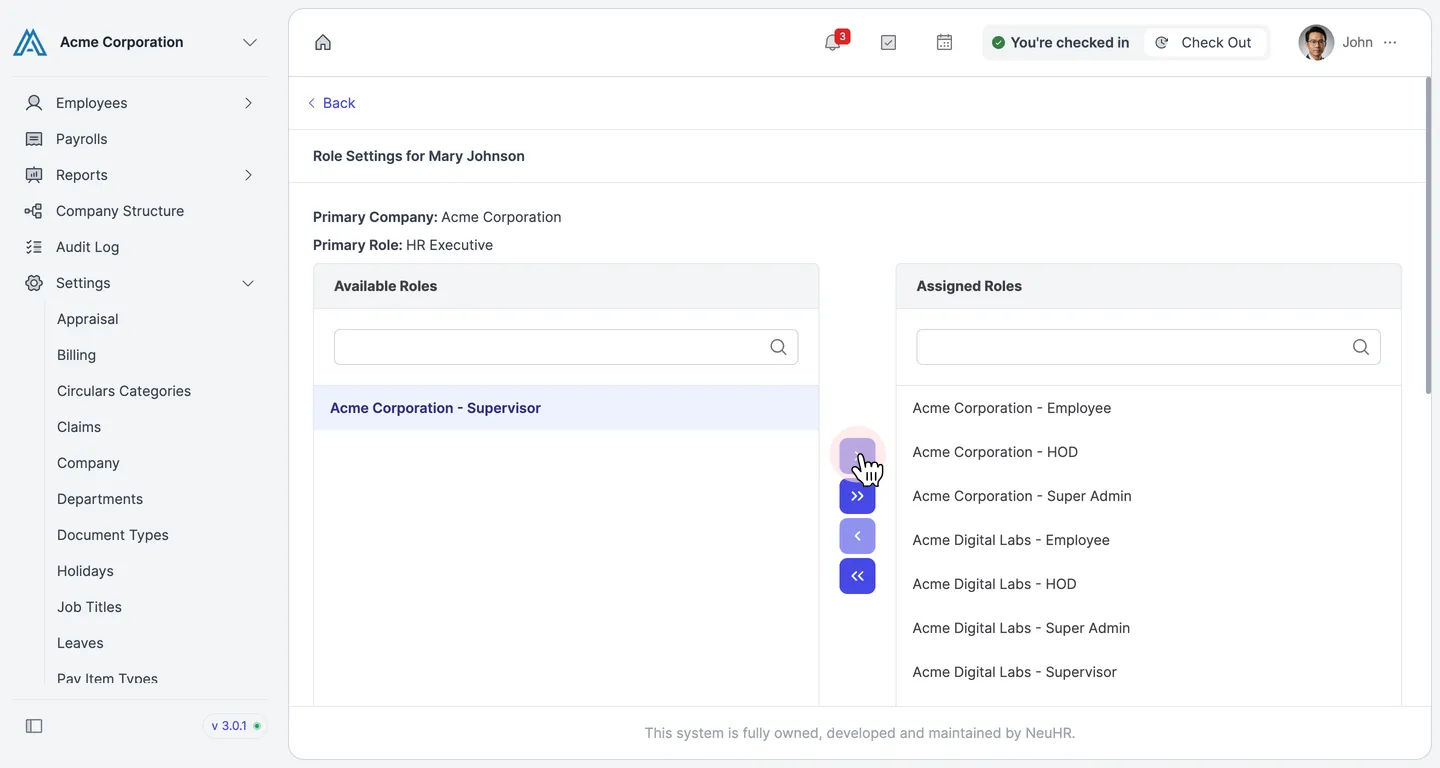
Section titled “Add or remove roles”- To assign a role: Click a role in the Available Roles panel to select it, then click the › button to move it to Assigned Roles.
- To remove a role: Click a role in the Assigned Roles panel to select it, then click the ‹ button to move it back to Available Roles.
-
Save the changes
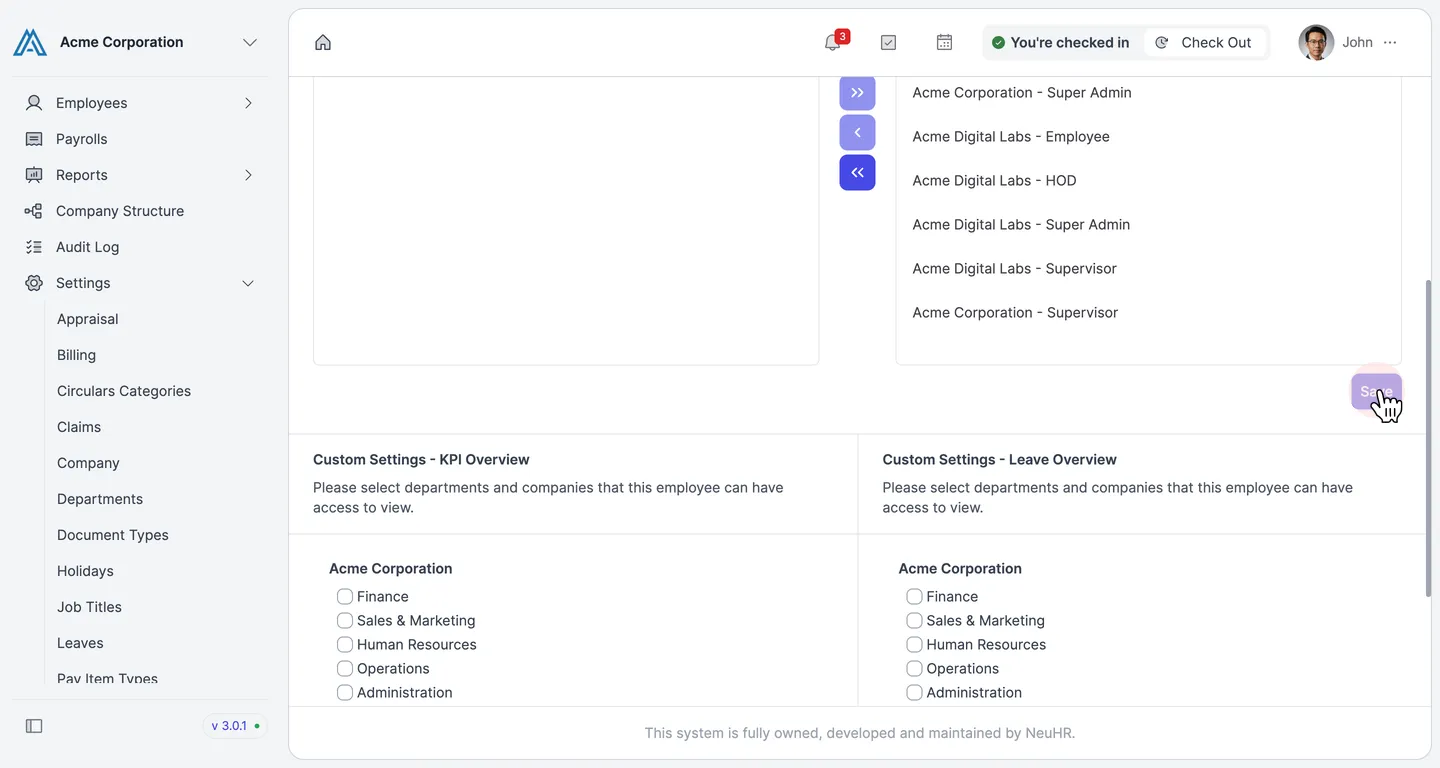
Section titled “Save the changes”Once the Assigned Roles panel reflects the desired roles, click Save.
-
Confirm the result
Section titled “Confirm the result”A green “Role has been updated” success notification confirms the changes were saved.