How to Update Role
This guide shows you how to update an existing role in NeuHR. You can change the role’s name, remarks, and manage its permission assignments using the Role Permission Mapping section.
-
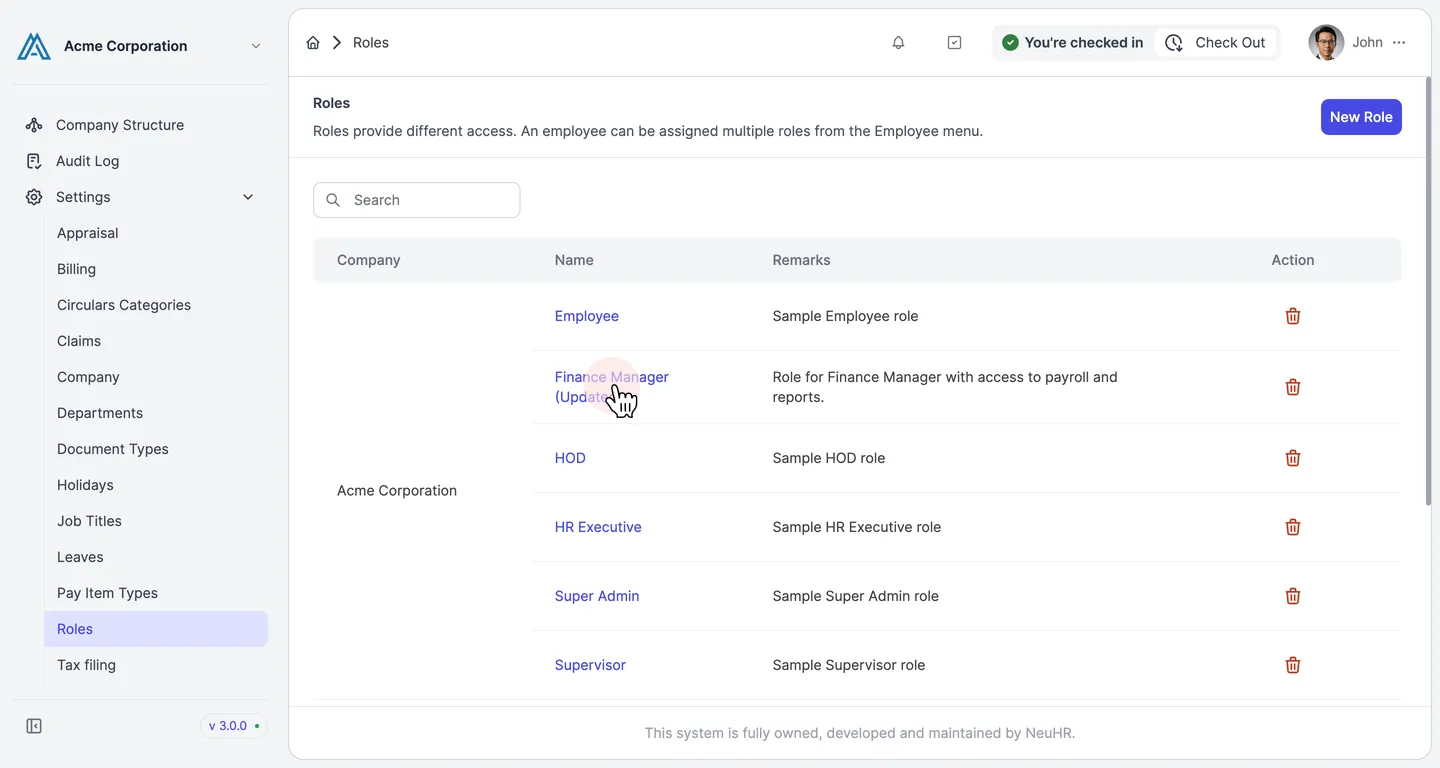
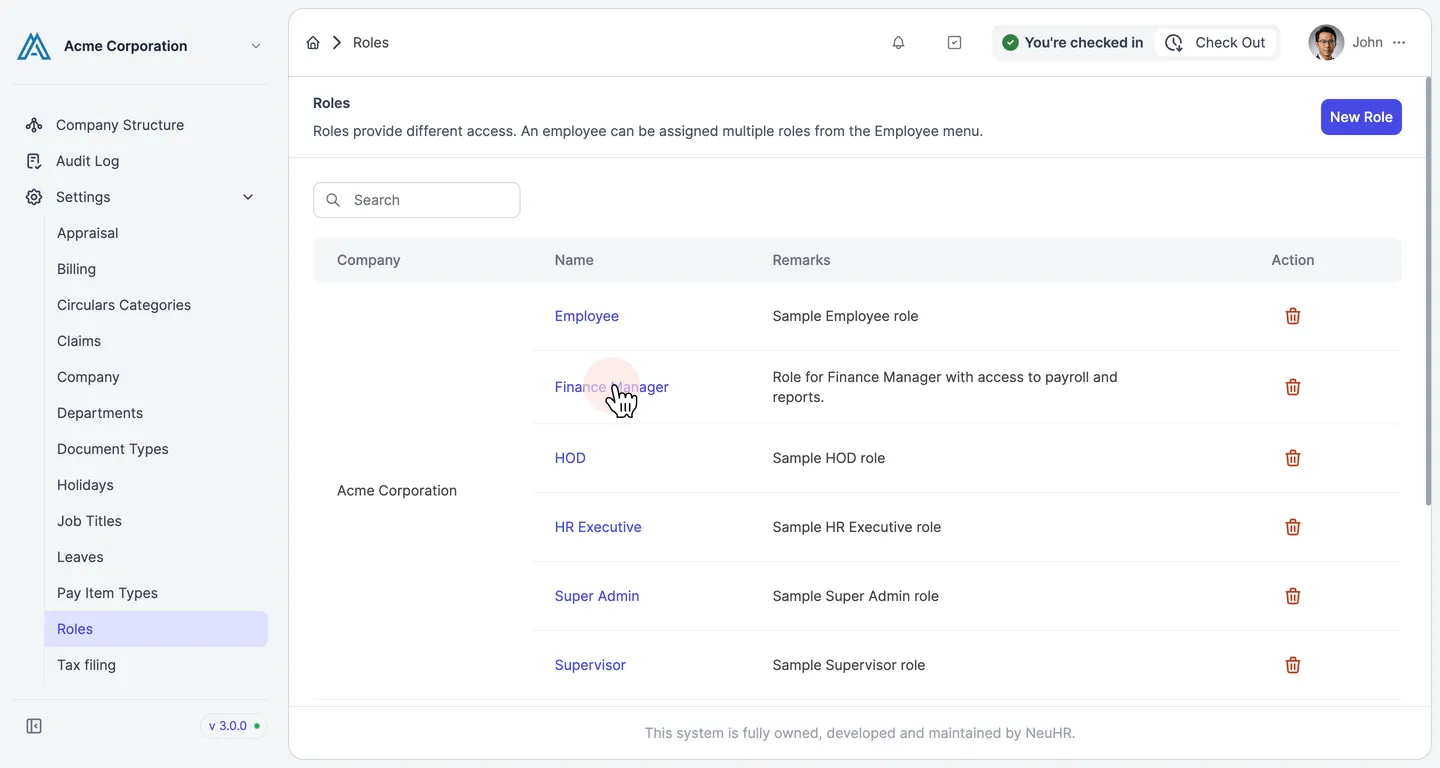
Navigate to Roles and click the role name
Section titled “Navigate to Roles and click the role name”In the left sidebar, go to Settings and click Roles. The Roles list page opens. Click the name of the role you want to edit.
-
Review the Update Role form
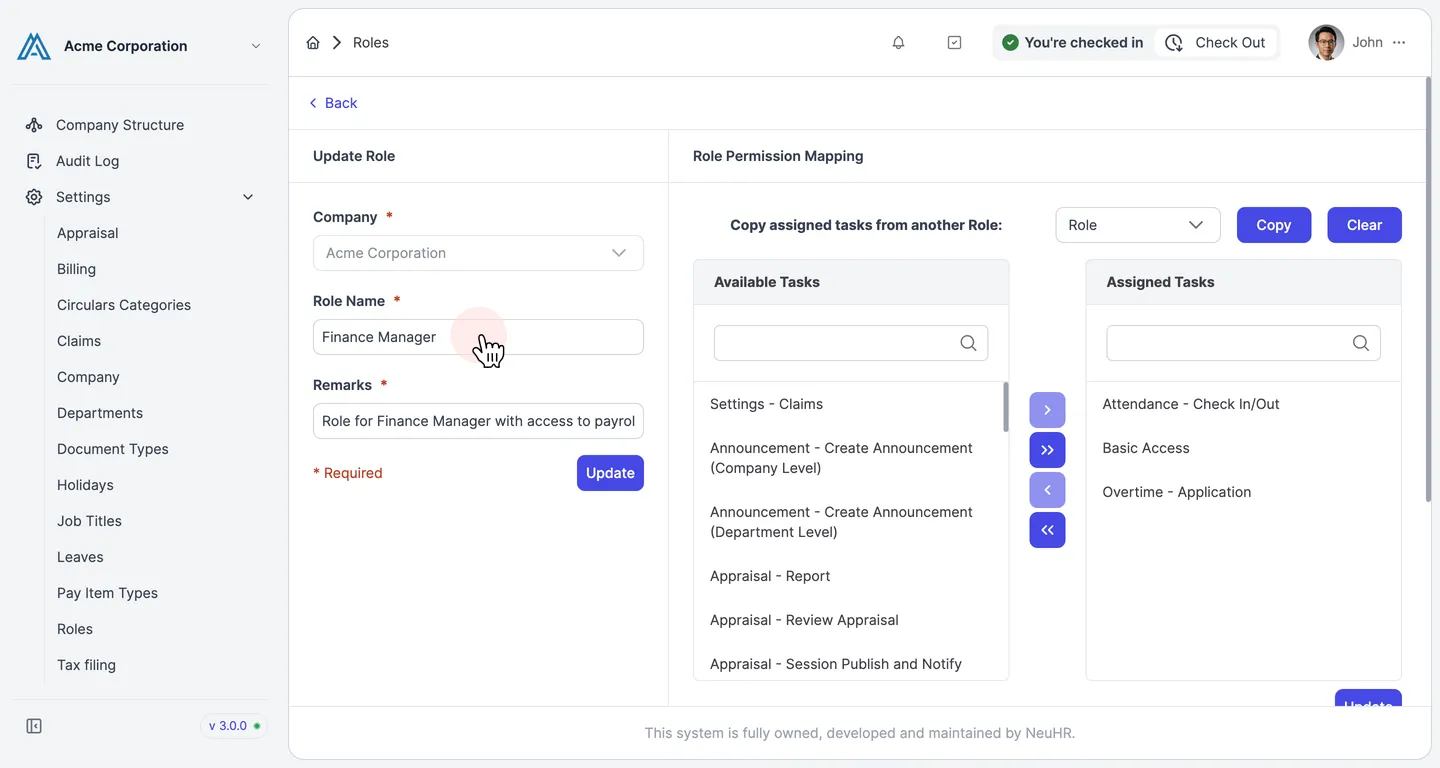
Section titled “Review the Update Role form”The Update Role form opens with the role’s current details pre-filled:
- Company — read-only, shows the company the role belongs to
- Role Name — the current name of the role
- Remarks — the current description of the role
The Role Permission Mapping section on the right lets you manage which tasks are assigned to this role.
-
Edit the fields and click Update
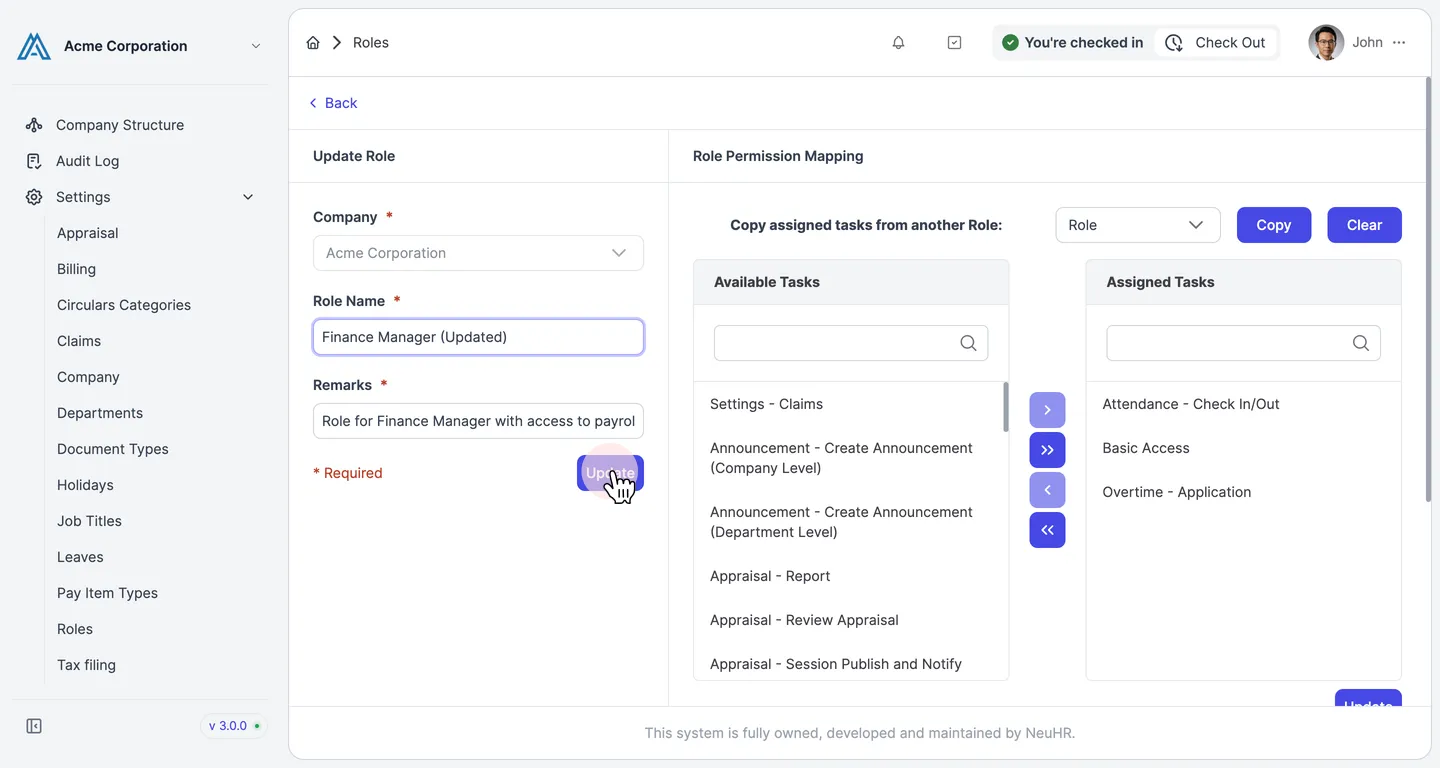
Section titled “Edit the fields and click Update”Make your changes to the Role Name or Remarks fields. When done, click the Update button.
-
Role updated successfully
Section titled “Role updated successfully”A success message confirms the role has been updated. The Roles list now reflects the new role name.