

How to Update Company Finance and Bank Info
This guide shows you how to update your company’s finance and banking information in NeuHR, including CPF submission details, IRAS tax references, and bank account details.
-
Navigate to Company Settings
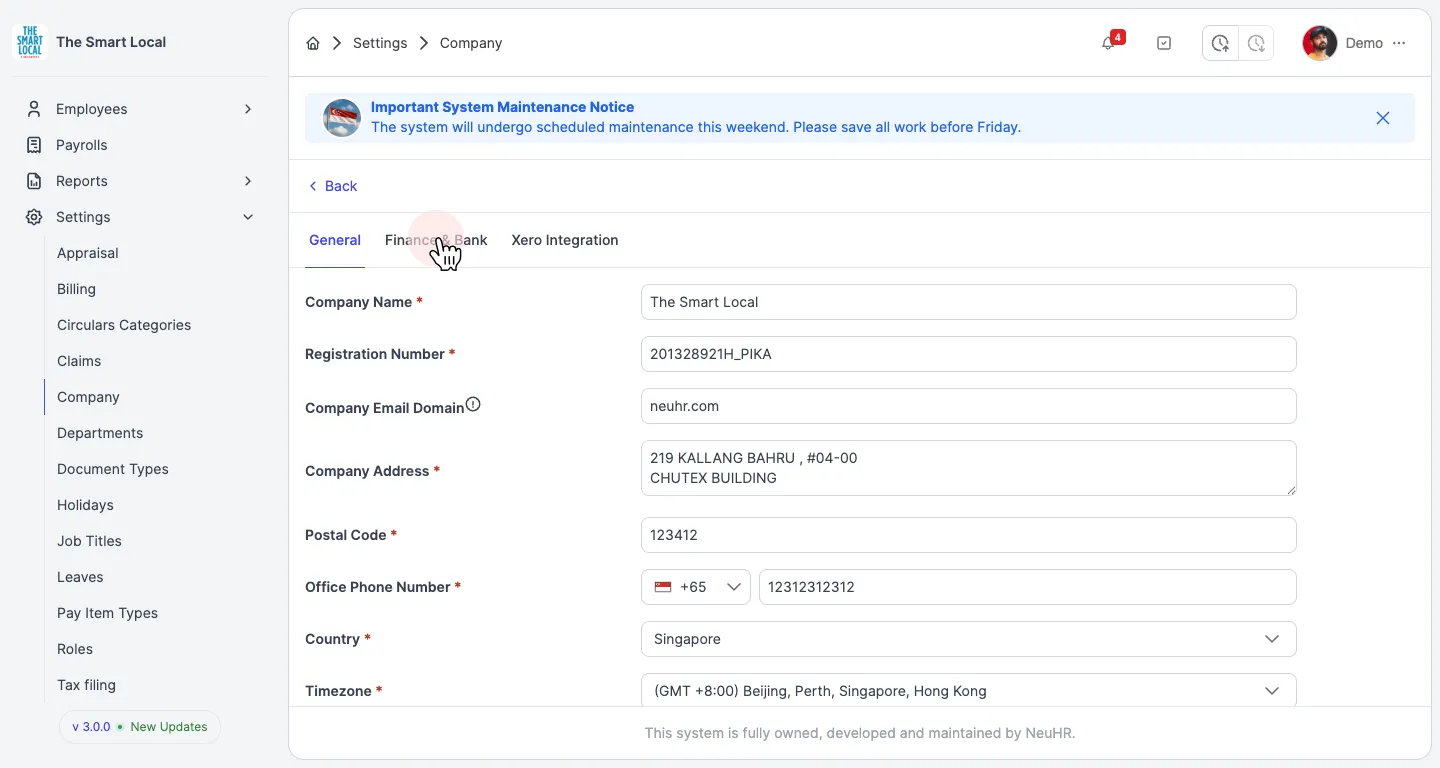
Section titled “Navigate to Company Settings”From the sidebar, click on Settings to expand the menu, then click on Company.
Click on your company name from the list to open the company details page.
-
Open Finance & Bank Tab
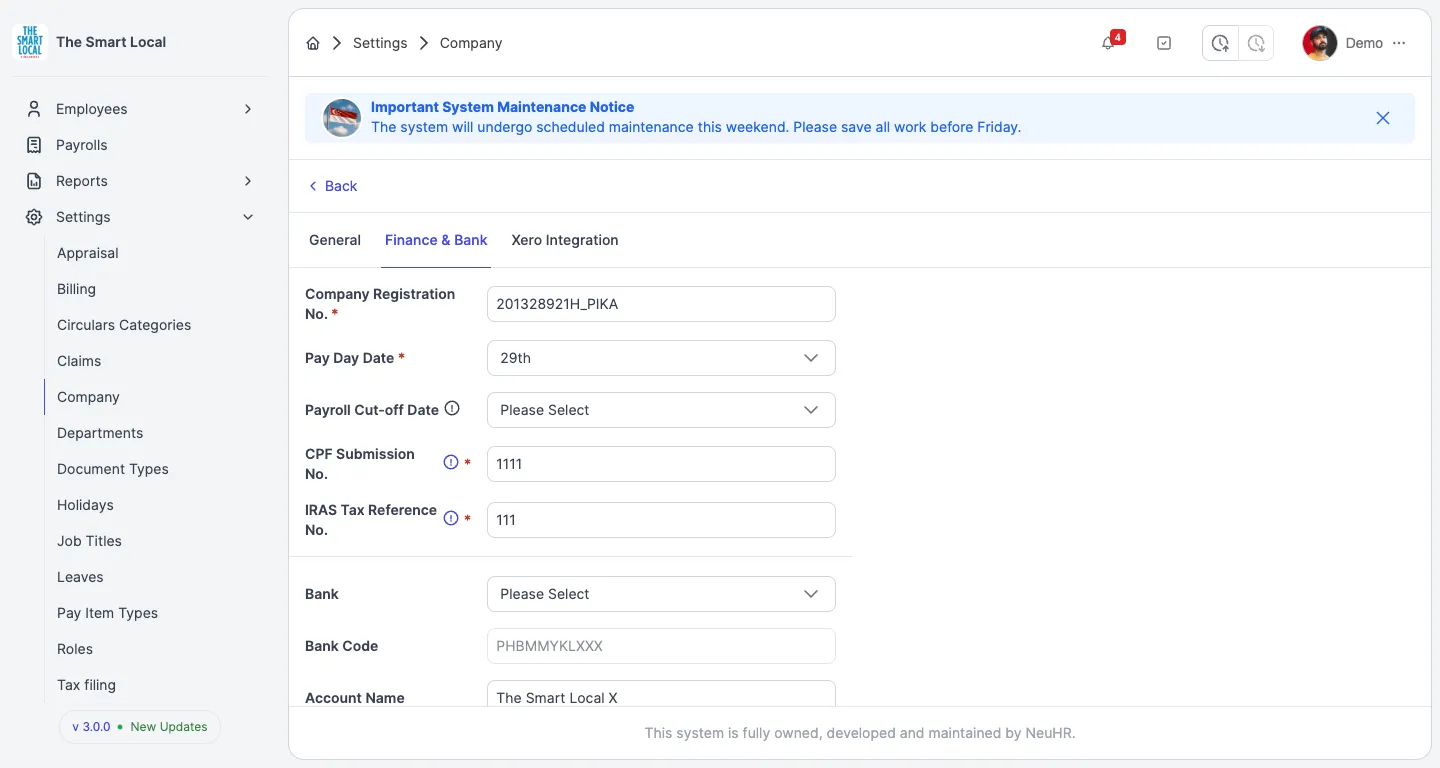
Section titled “Open Finance & Bank Tab”Once you’re on the Company page, click on the Finance & Bank tab to access the finance and banking information section.
-
Update Finance Information
Section titled “Update Finance Information”You can update the following fields in the Finance & Bank section:
- Company Registration No. * - Your company’s registration number
- Pay Day Date * - The day of the month when payroll is processed
- Payroll Cut-off Date - The deadline for payroll submissions
- CPF Submission No. * - Your company’s CPF submission number (format: xxxxxxxxxx-PTE-01)
- IRAS Tax Reference No. * - Your company’s IRAS tax reference number
All fields marked with an asterisk (*) are required.
-
Update Bank Information
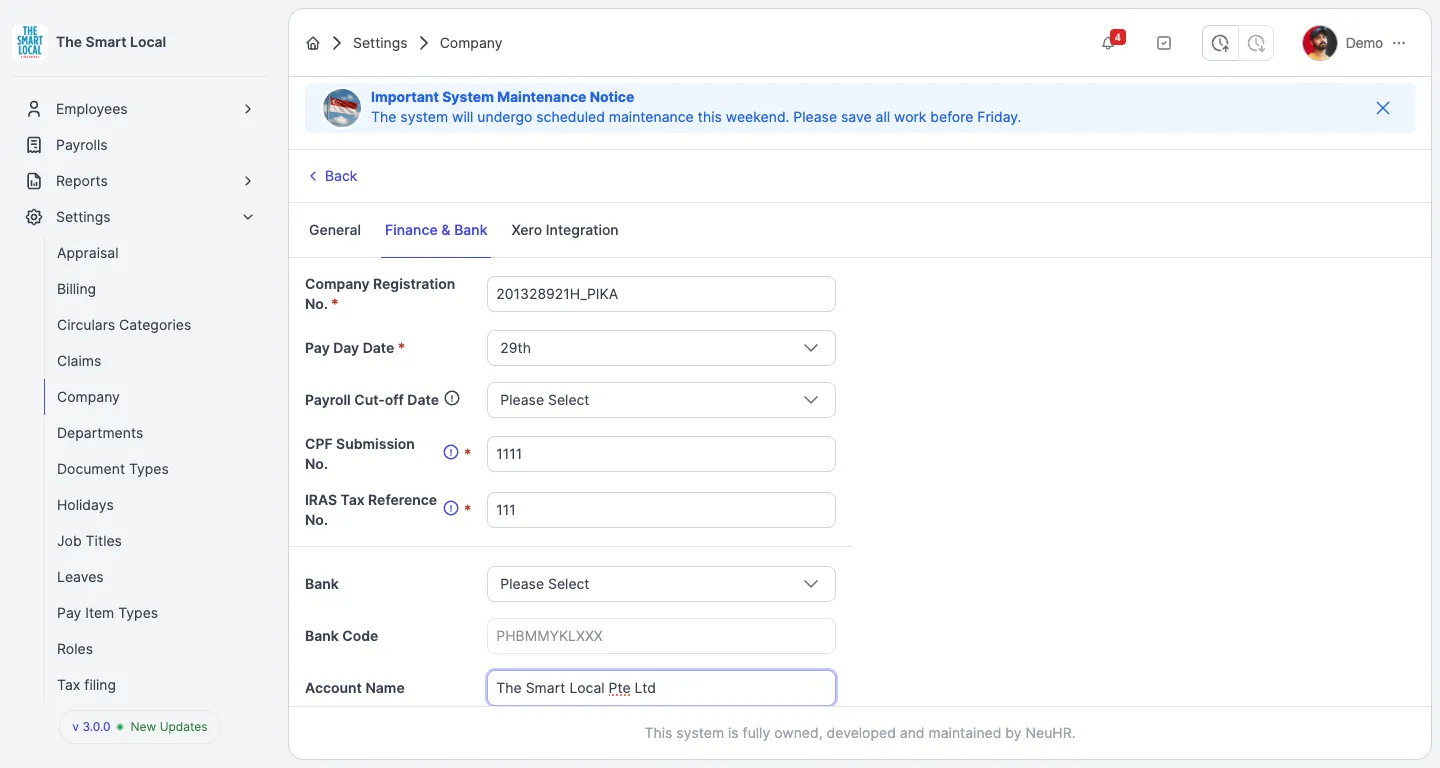
Section titled “Update Bank Information”Update your company’s bank account details:
- Bank - Select your bank from the dropdown
- Bank Code - Auto-populated based on selected bank
- Account Name - Name of the bank account holder
- Account Type - Type of bank account (e.g., Current, Savings)
- Account No. - Bank account number
Note: The Bank Code field is automatically populated when you select a bank from the dropdown.
-
Save Changes
Section titled “Save Changes”After updating all necessary information, click the Save button at the bottom of the page to save your changes.
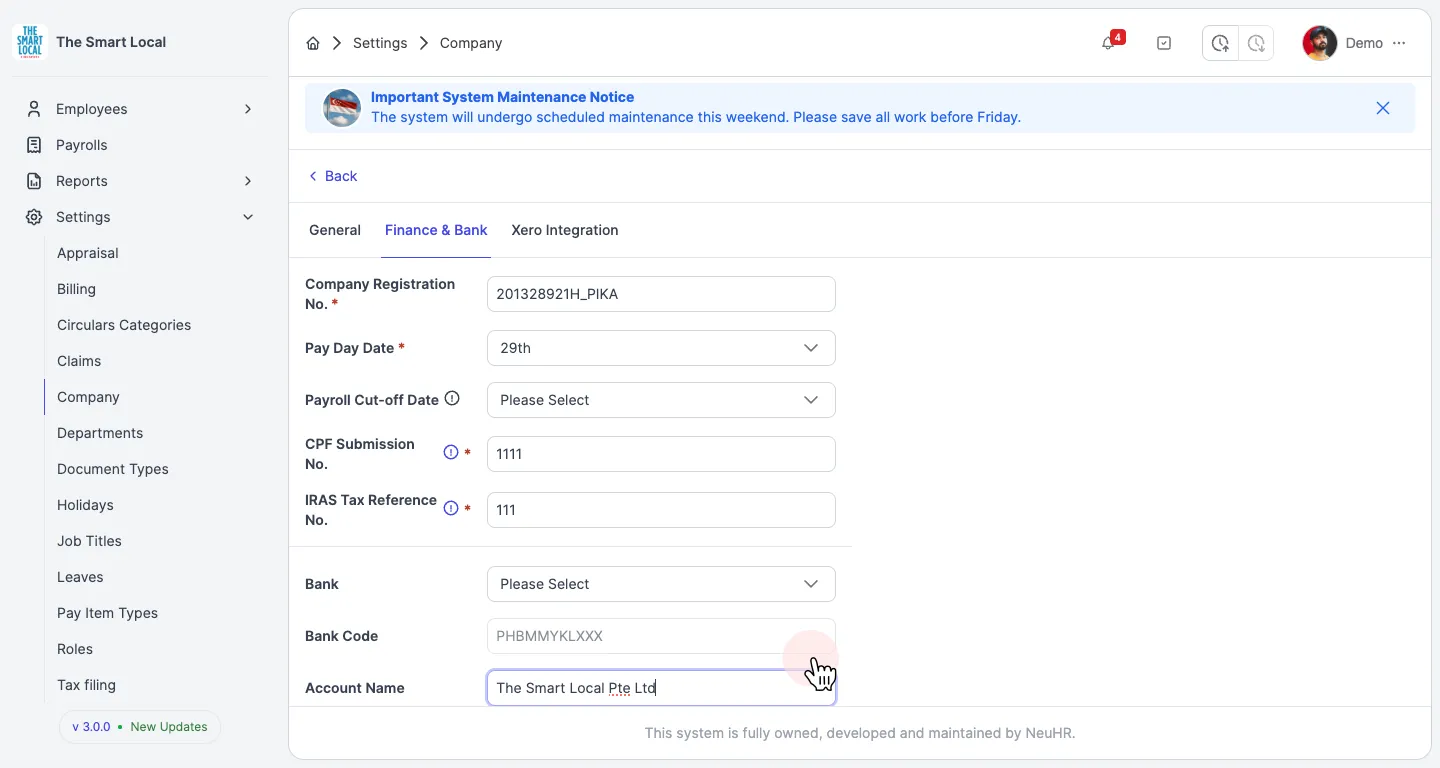
Your company’s finance and bank information has been successfully updated!