How to Update Employee Details
You can update an employee’s details at any time — including personal information, employment terms, payroll settings, and more. Changes take effect immediately after saving.
-
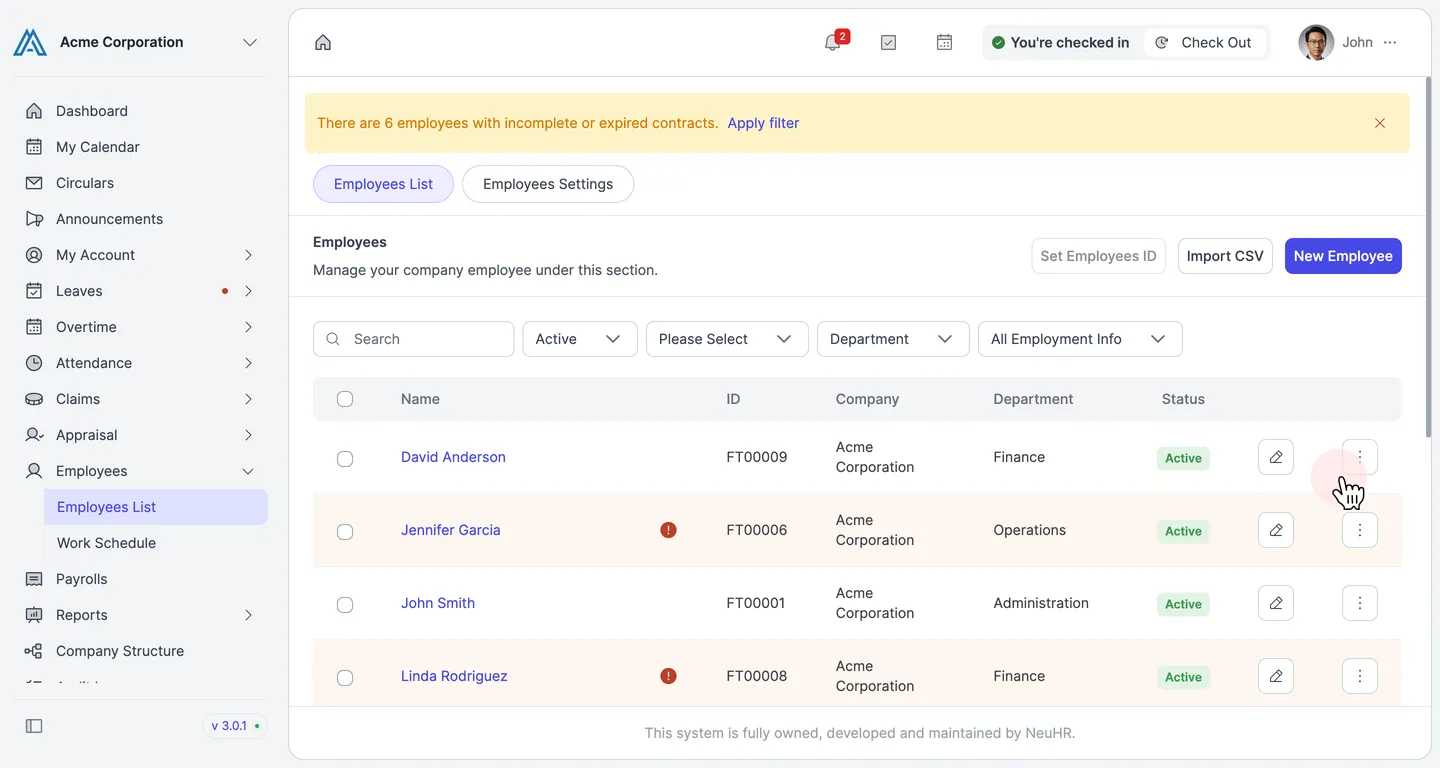
Find the employee and click the edit icon
Section titled “Find the employee and click the edit icon”In the left sidebar, click Employees, then select Employees List. Locate the employee you want to update. Click the pencil icon on the right side of their row to open the edit form.
-
The Update Employee form opens
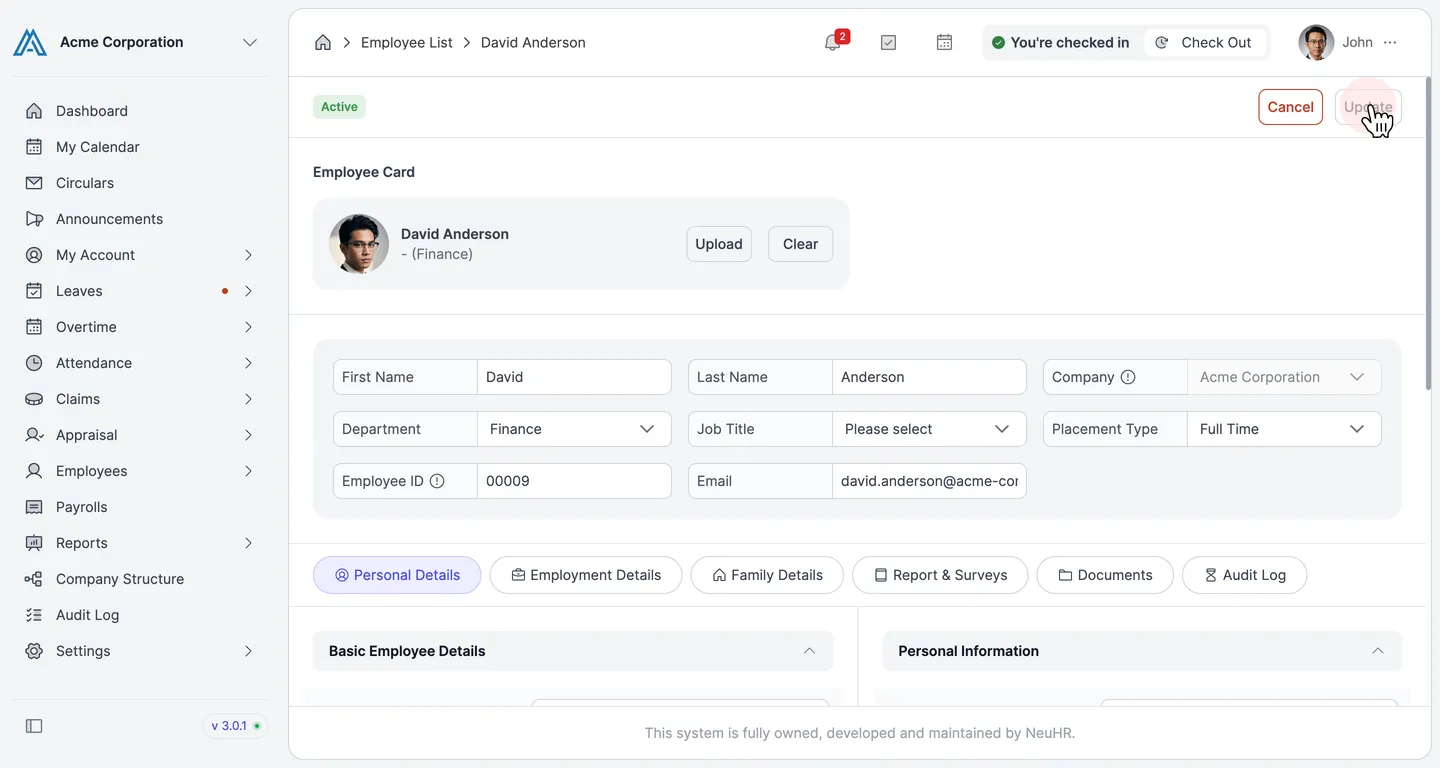
Section titled “The Update Employee form opens”The Update Employee form opens pre-filled with all of the employee’s current details. The employee’s profile photo, name, and department are shown in the Employee Card at the top.
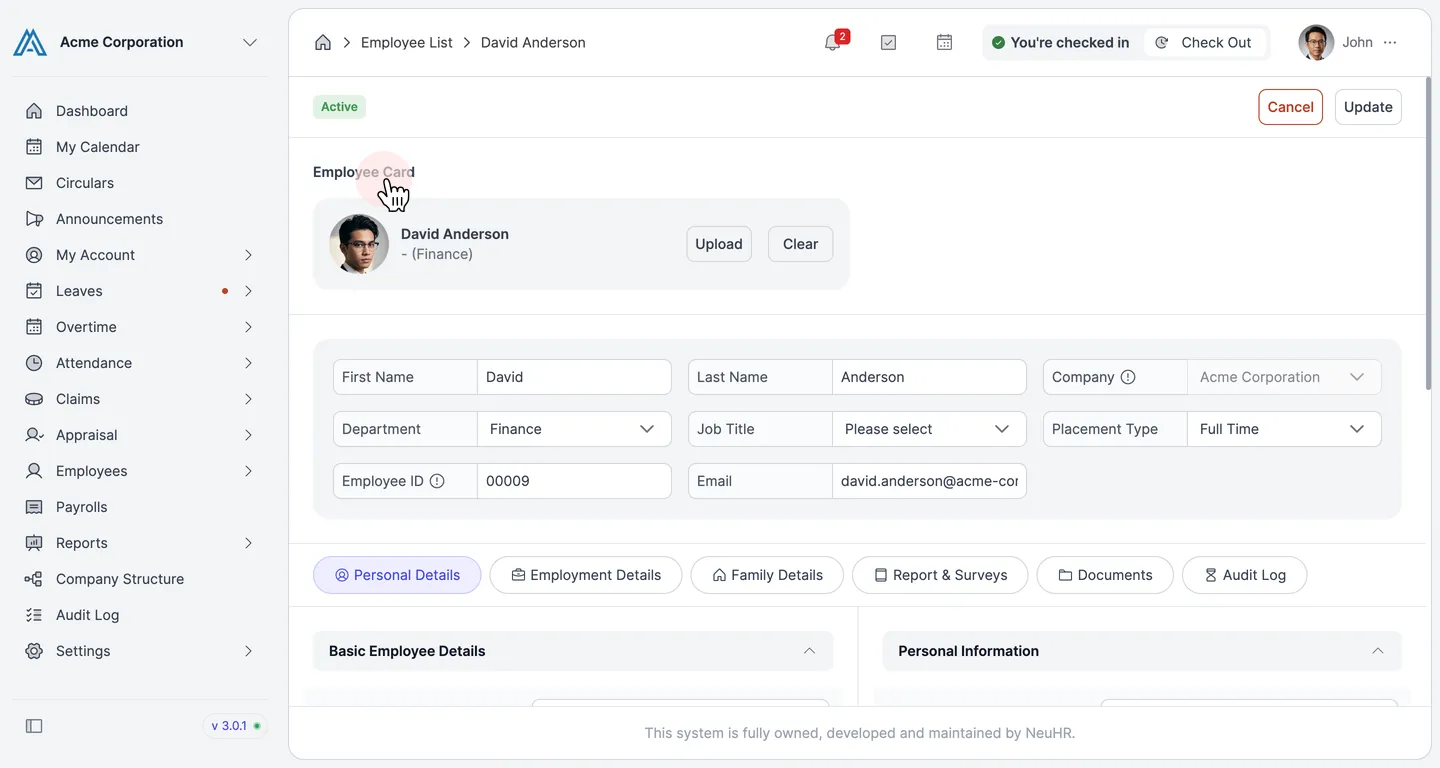
The form is divided into six tabs:
Tab Contents Personal DetailsName, NRIC/FIN/ID, contact information, and personal information Employment DetailsJob terms, payroll, benefits, and bank details Family DetailsMarital status, children, and emergency contacts Report & SurveysOED submission settings DocumentsUploaded documents linked to this employee Audit LogA history of all changes made to this employee’s record -
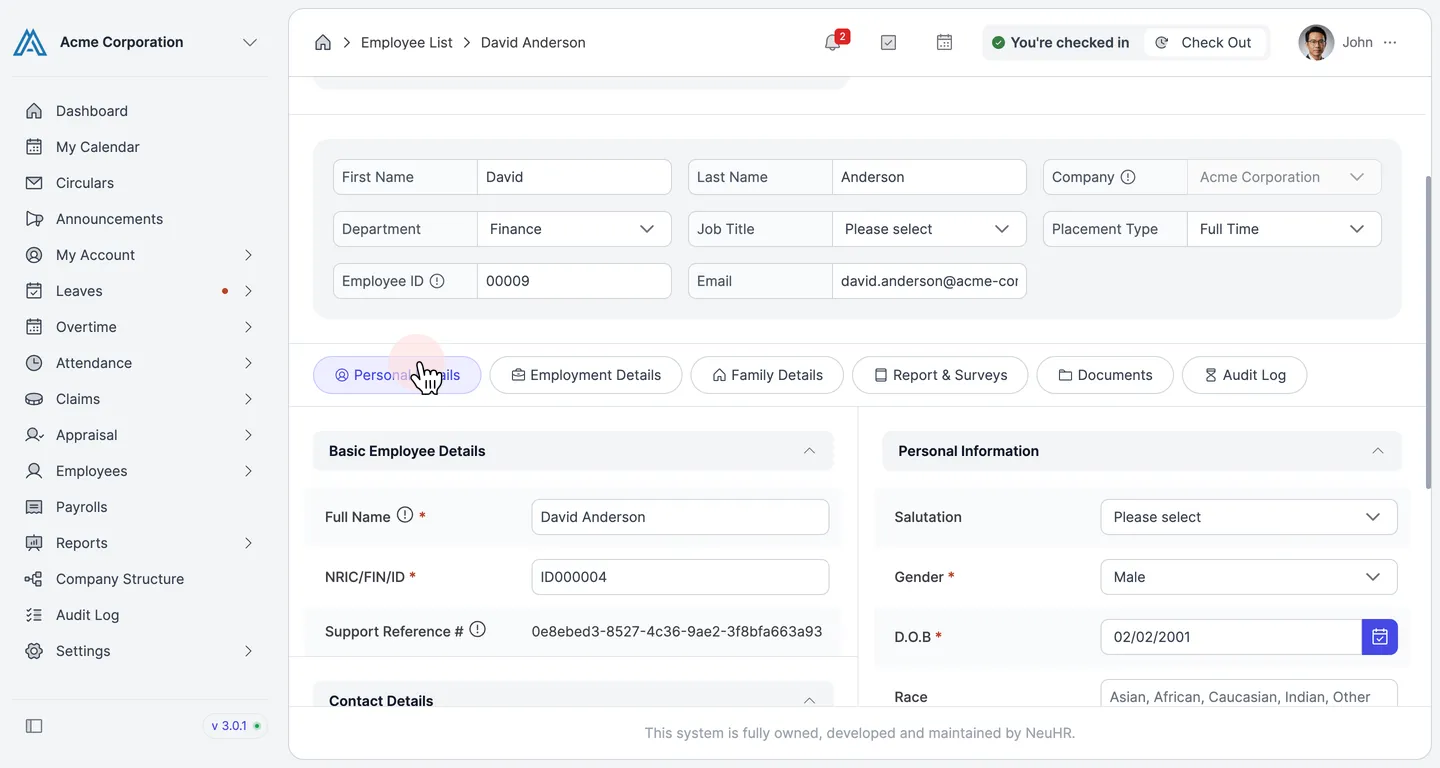
Navigate to the tab you want to update and make your changes
Section titled “Navigate to the tab you want to update and make your changes”Click on the relevant tab and update the fields as needed. All existing data is pre-filled so you only need to change the specific fields you want to update.
-
Click Update to save your changes
Section titled “Click Update to save your changes”Once you have made all required changes, click the Update button in the top-right corner to save.
-
Changes are saved
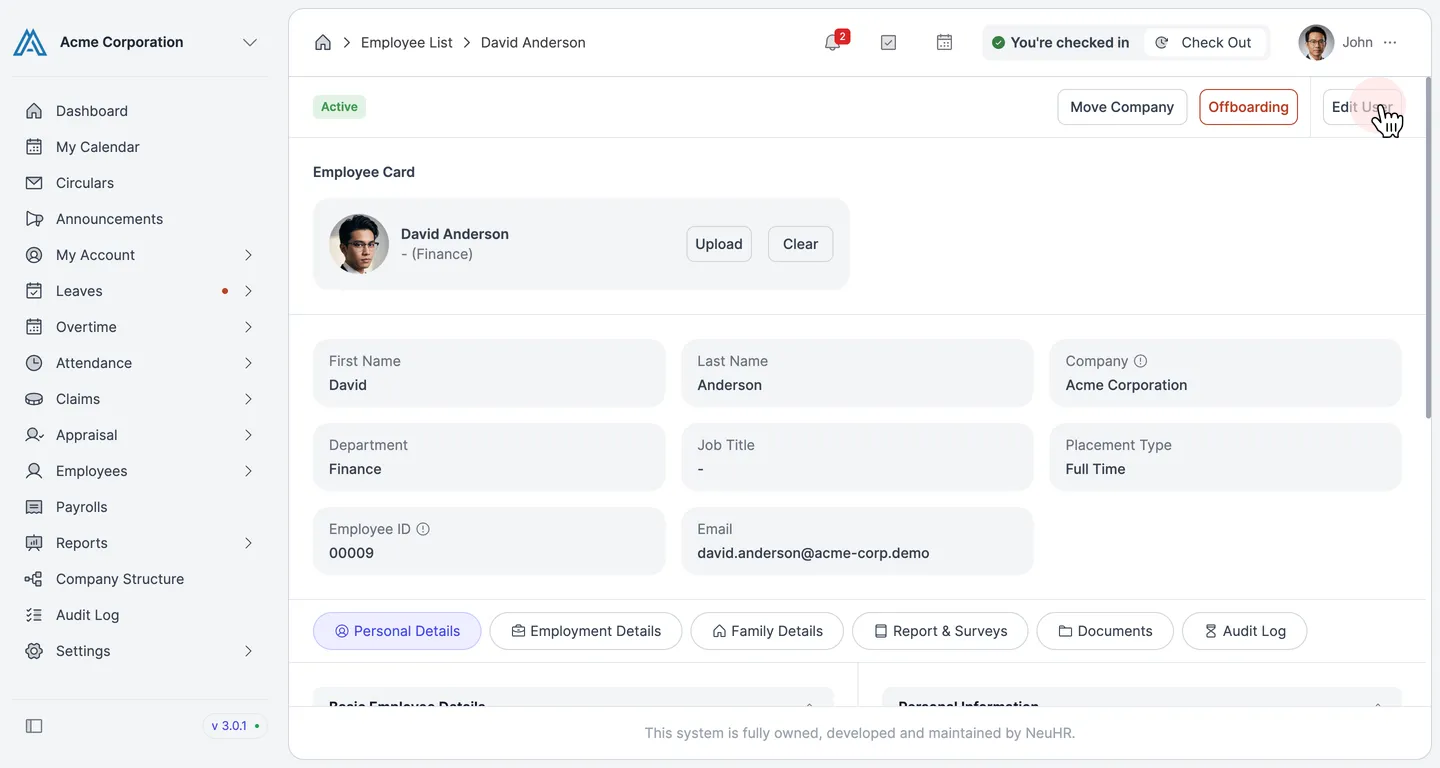
Section titled “Changes are saved”After saving, the page switches to view mode displaying the employee’s updated details. The Edit User, Move Company, and Offboarding buttons are shown at the top, confirming the record has been saved successfully.