

How to Create a Claim Category
This guide will show you how to create a new claim category in NeuHR. Claim categories are used to classify claims and operational cost categories such as Transport, Equipment, Office Rental, Utilities, and more.
Prerequisites
Section titled “Prerequisites”- You must have HR Executive or Super Admin role
- Access to the Settings menu
Step 1: Navigate to Claims Settings
Section titled “Step 1: Navigate to Claims Settings”From the main dashboard, click on Settings in the left sidebar, then click on Claims from the submenu.
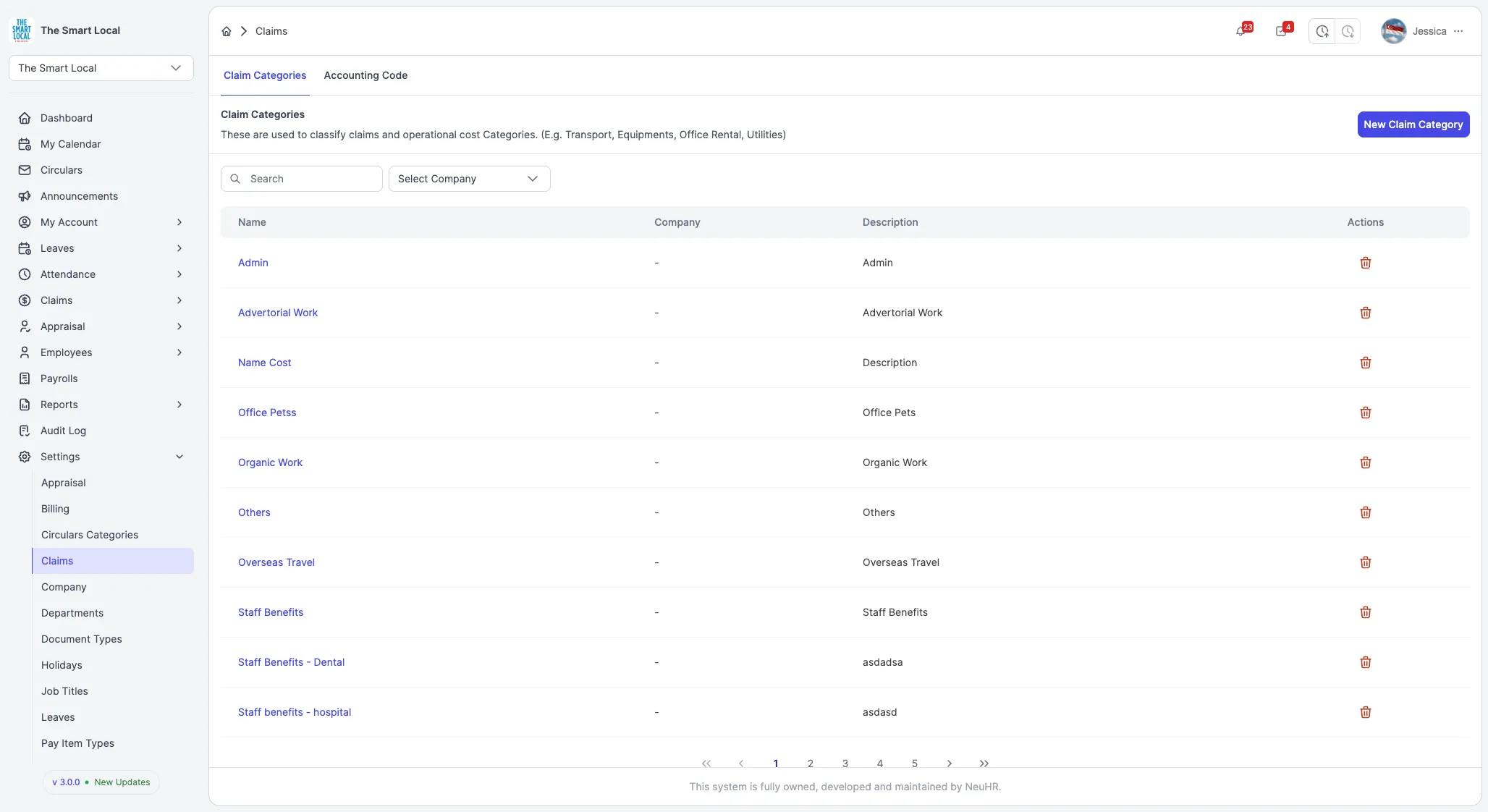
You’ll see the Claim Categories page, which displays all existing claim categories in your organization.
Step 2: Click New Claim Category Button
Section titled “Step 2: Click New Claim Category Button”On the Claim Categories page, click the New Claim Category button located in the top right area of the page.
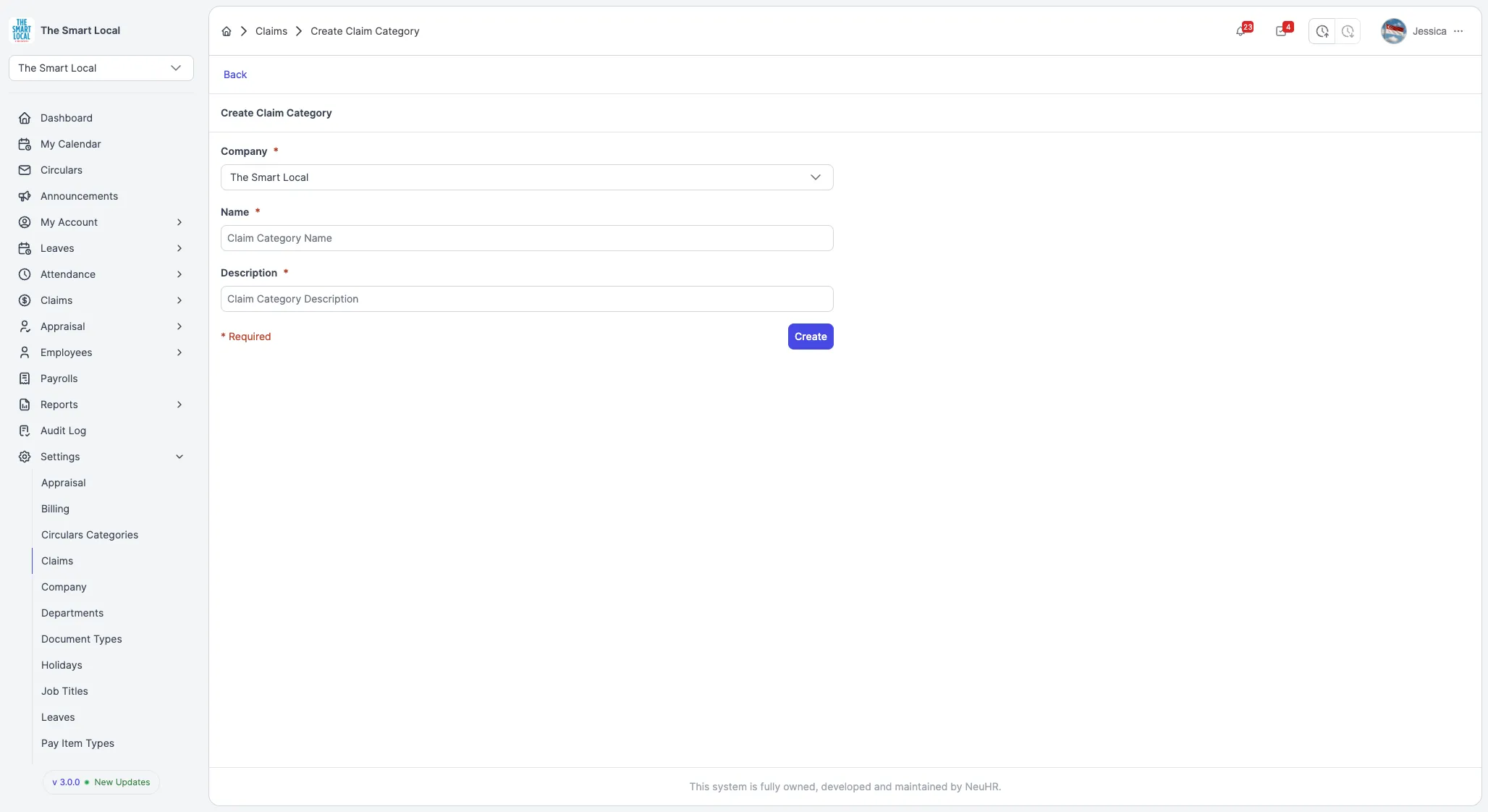
This will open the Create Claim Category form.
Step 3: Fill in Claim Category Details
Section titled “Step 3: Fill in Claim Category Details”Enter the following information in the form:
- Company: Select the company this claim category applies to (pre-selected with your current company)
- Name: Enter a clear, descriptive name for your claim category (required)
- Description: Provide a detailed description of what this category covers (required)
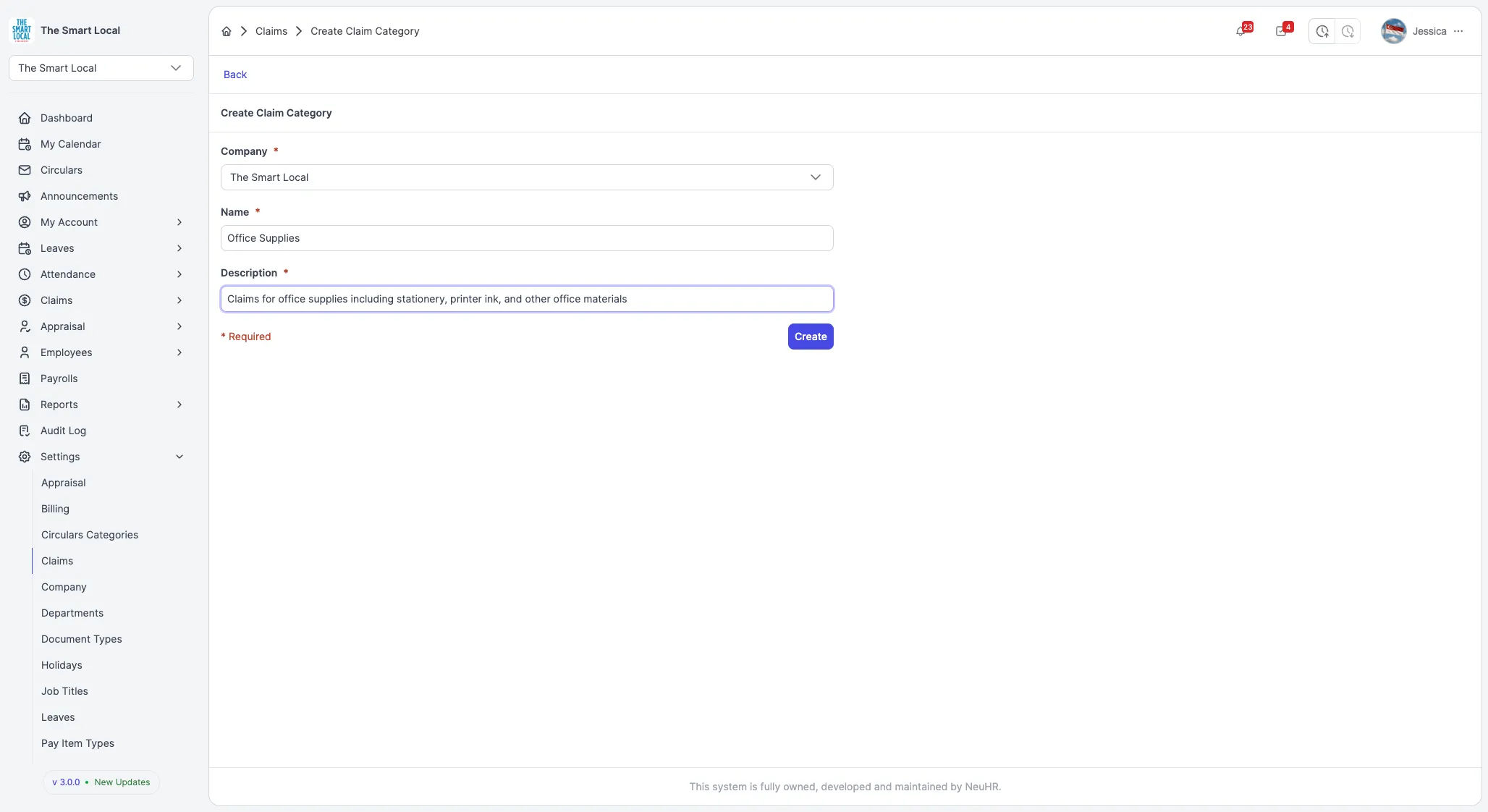
For example:
- Name: Office Supplies
- Description: Claims for office supplies including stationery, printer ink, and other office materials
Step 4: Create the Claim Category
Section titled “Step 4: Create the Claim Category”Once you’ve filled in all required fields, click the Create button to save your new claim category.
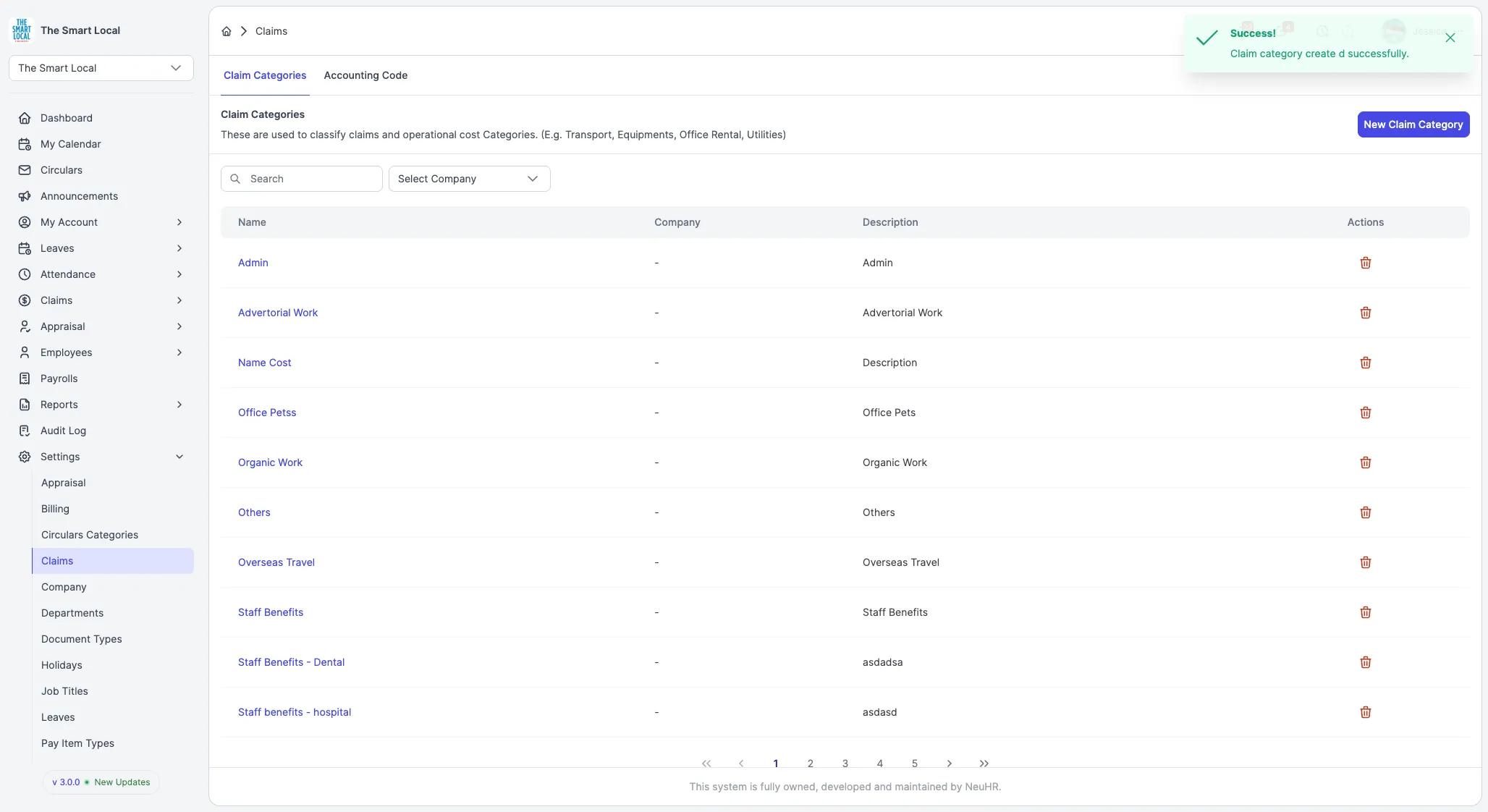
You’ll see a success message confirming that the claim category was created successfully. The system will automatically redirect you back to the Claim Categories page.
Step 5: Verify the New Category
Section titled “Step 5: Verify the New Category”Your newly created claim category will now appear in the Claim Categories list. You can use the search box to quickly find it.
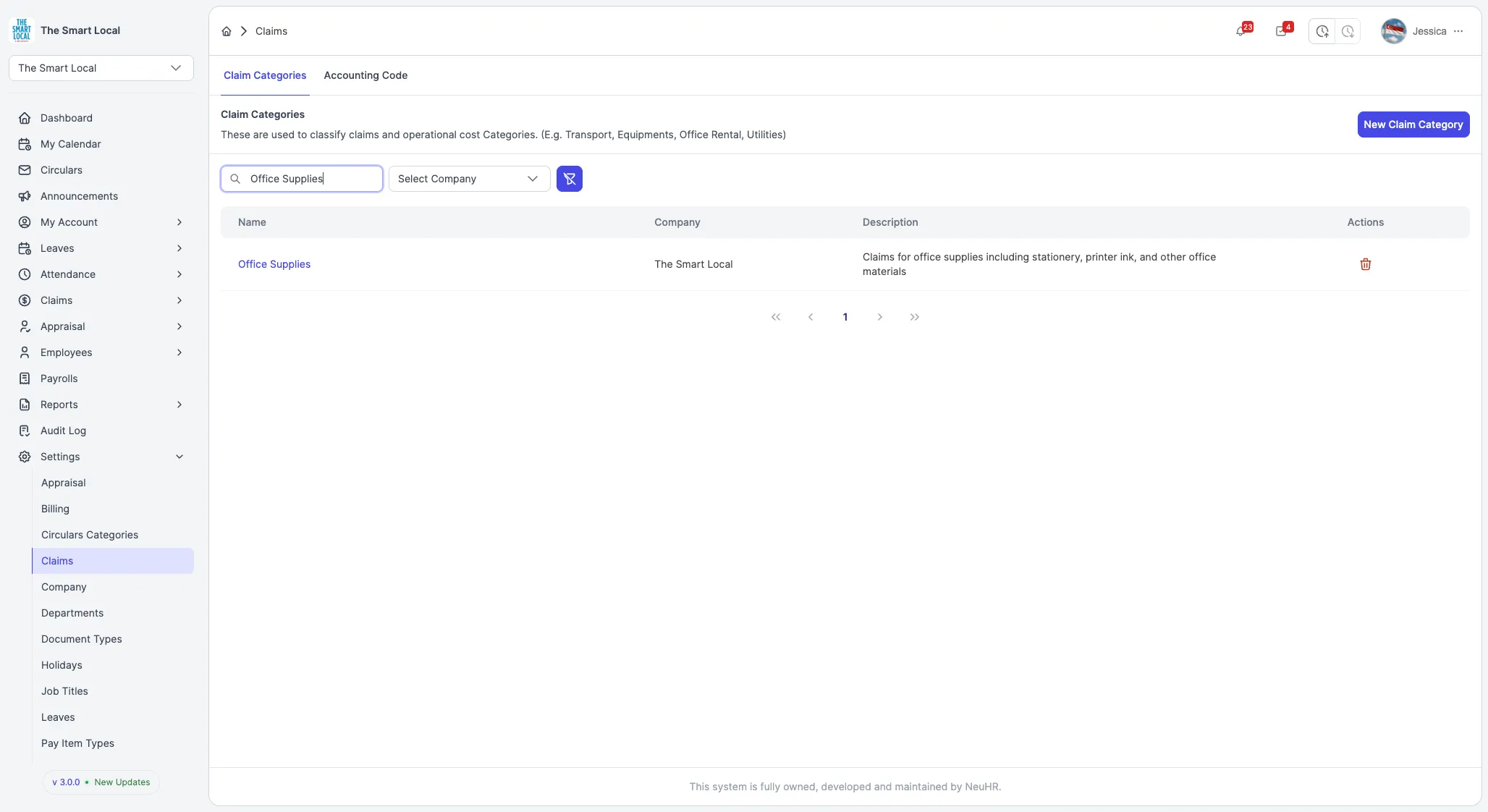
The category is now available for use when employees submit claims or when creating claim subcategories.