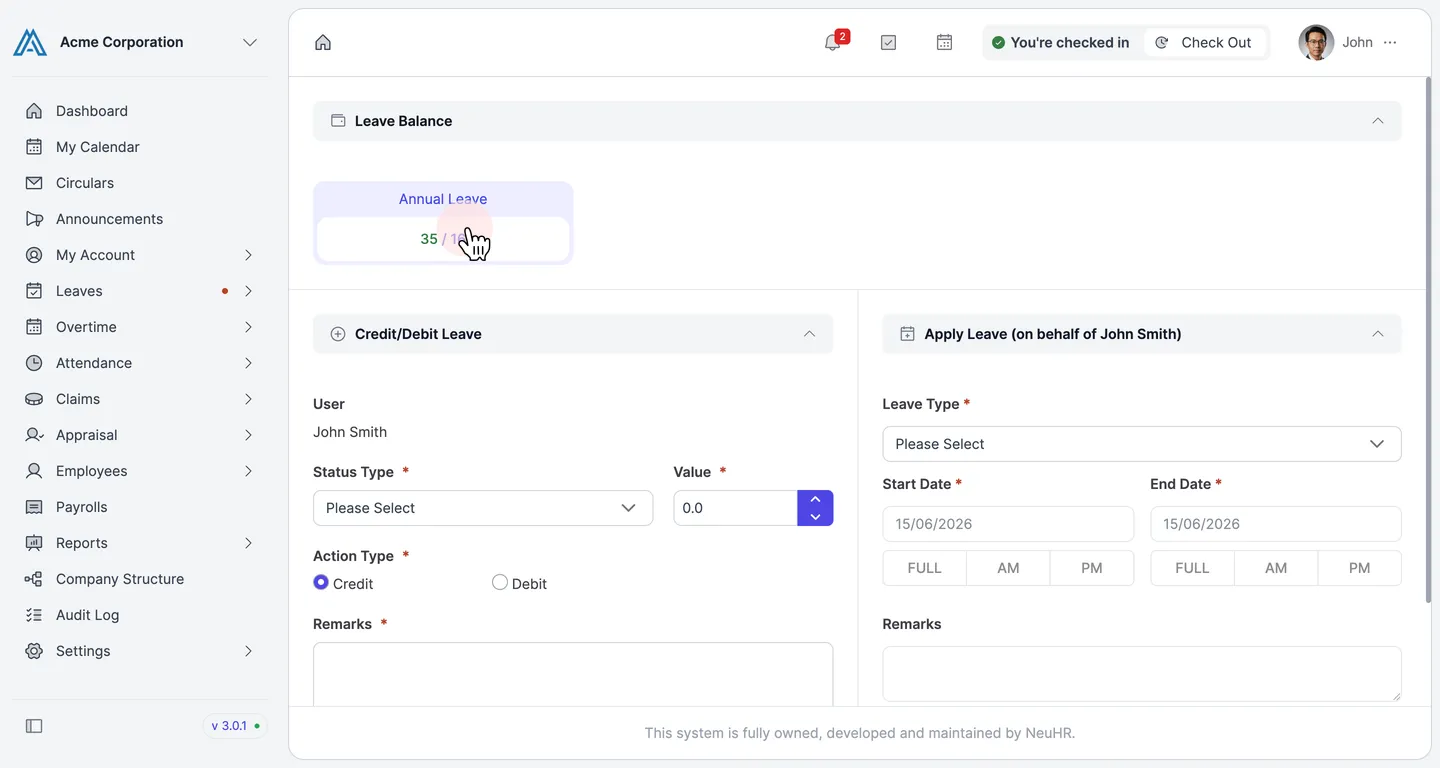
How to Credit/Debit Employee Leave Balance
Admins can manually adjust an employee’s leave balance by crediting (adding) or debiting (subtracting) days for a specific leave type. This is useful for one-off entitlement adjustments or corrections.
-
Go to the Employees List
Section titled “Go to the Employees List”In the sidebar, navigate to
Employees>Employees List.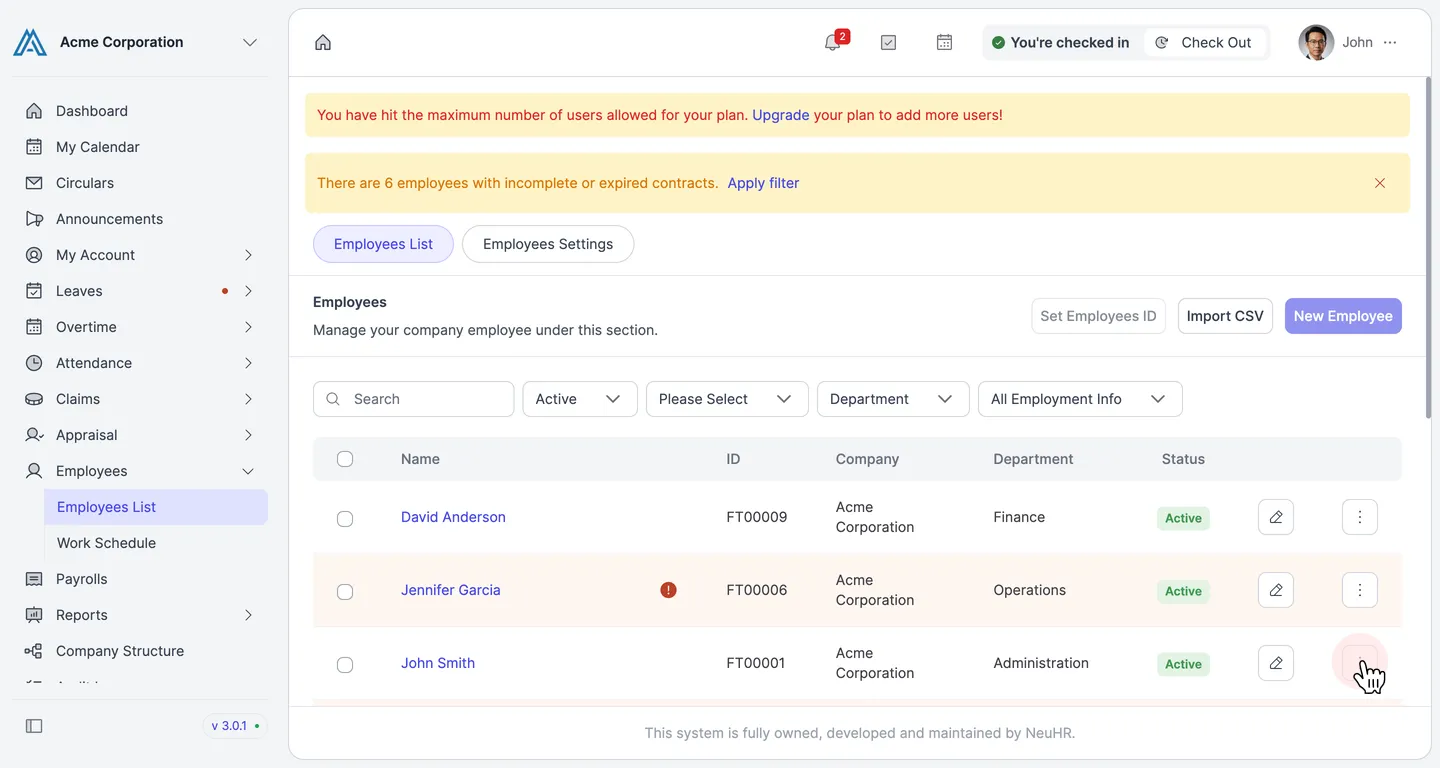
-
Open the more options menu for the employee
Section titled “Open the more options menu for the employee”On the employee’s row, click the
⋮(more options) button on the right side to open the action menu.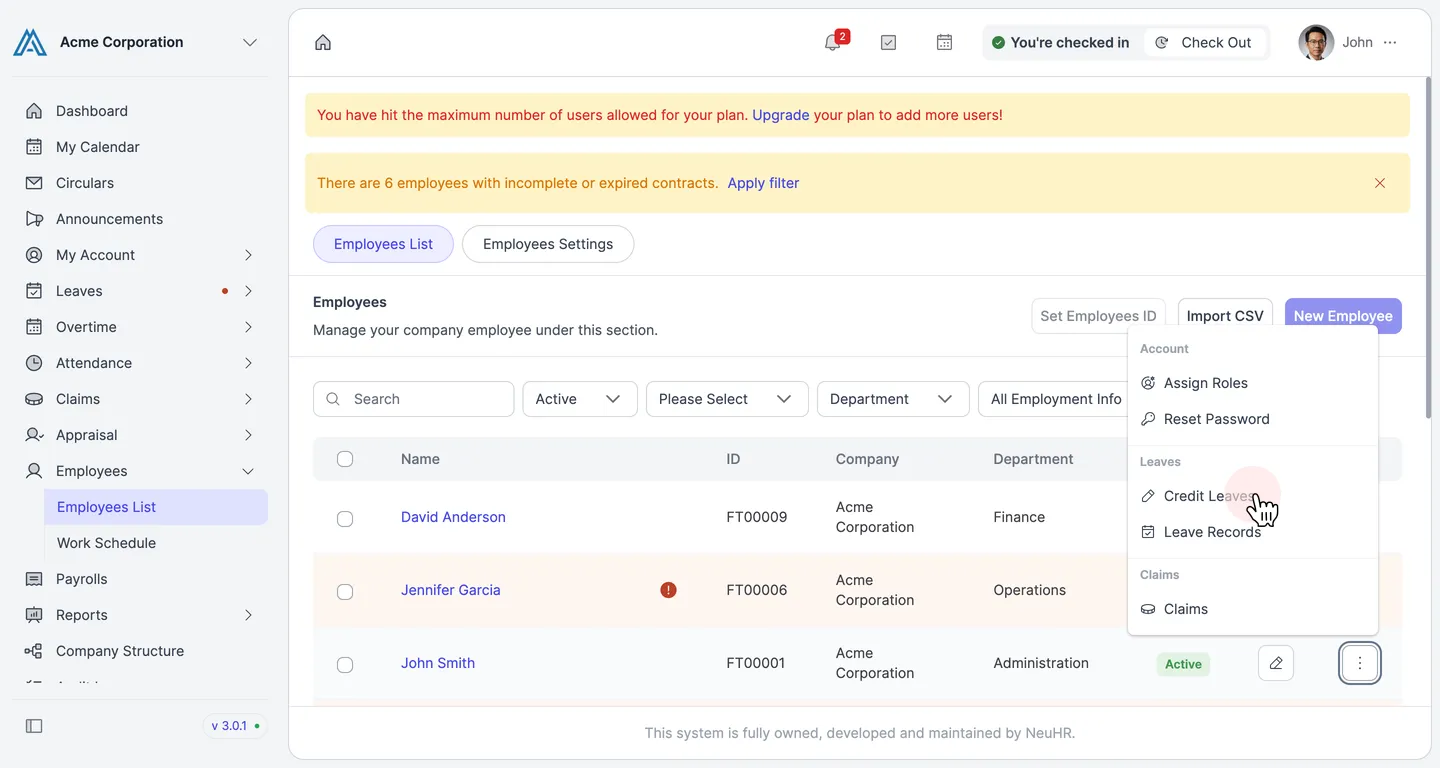
-
Click Credit Leaves
Section titled “Click Credit Leaves”In the dropdown, under the
Leavessection, click Credit Leaves. This opens the Leave Credit Status page for that employee.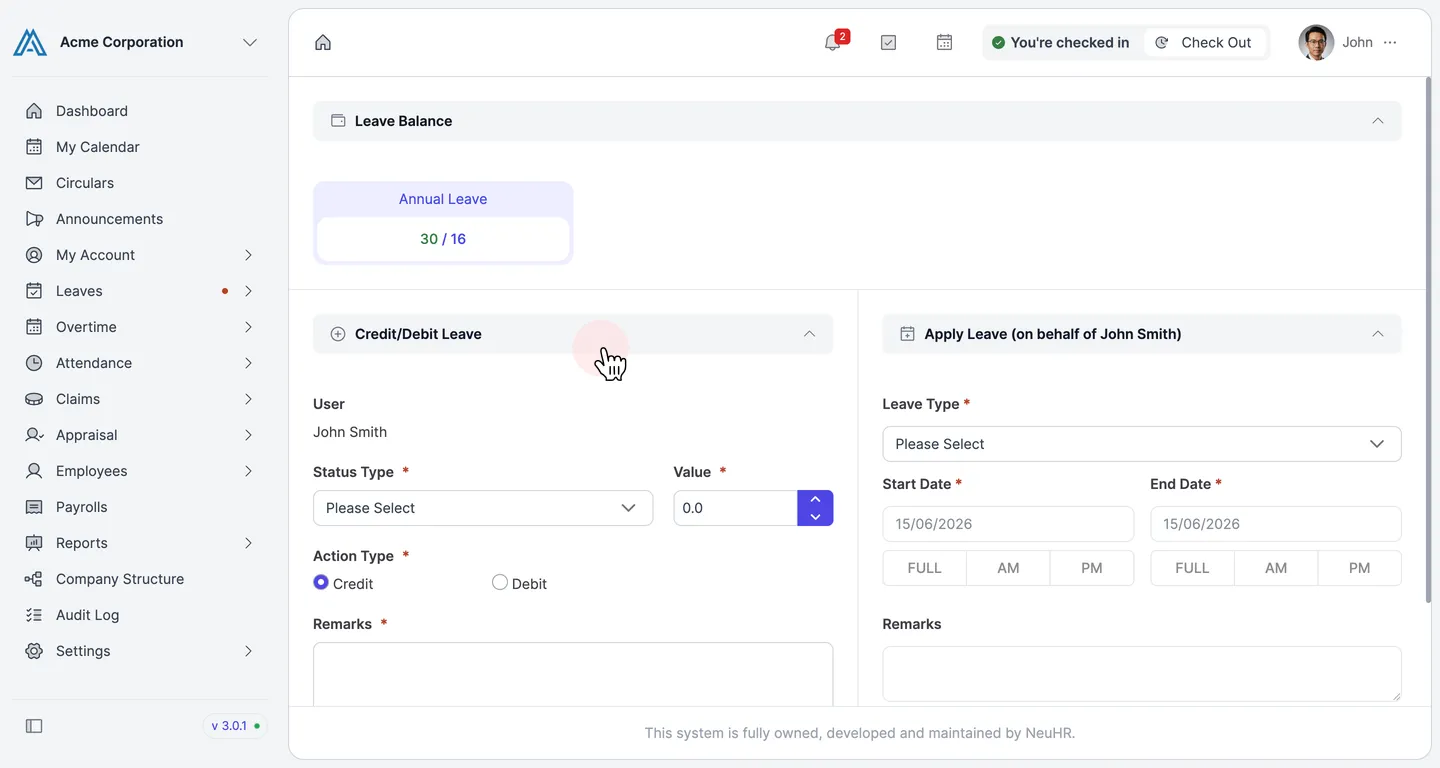
-
Select the leave type
Section titled “Select the leave type”In the
Credit/Debit Leaveform, click the Status Type dropdown and select the leave type you want to adjust (e.g., `Annual Leave`).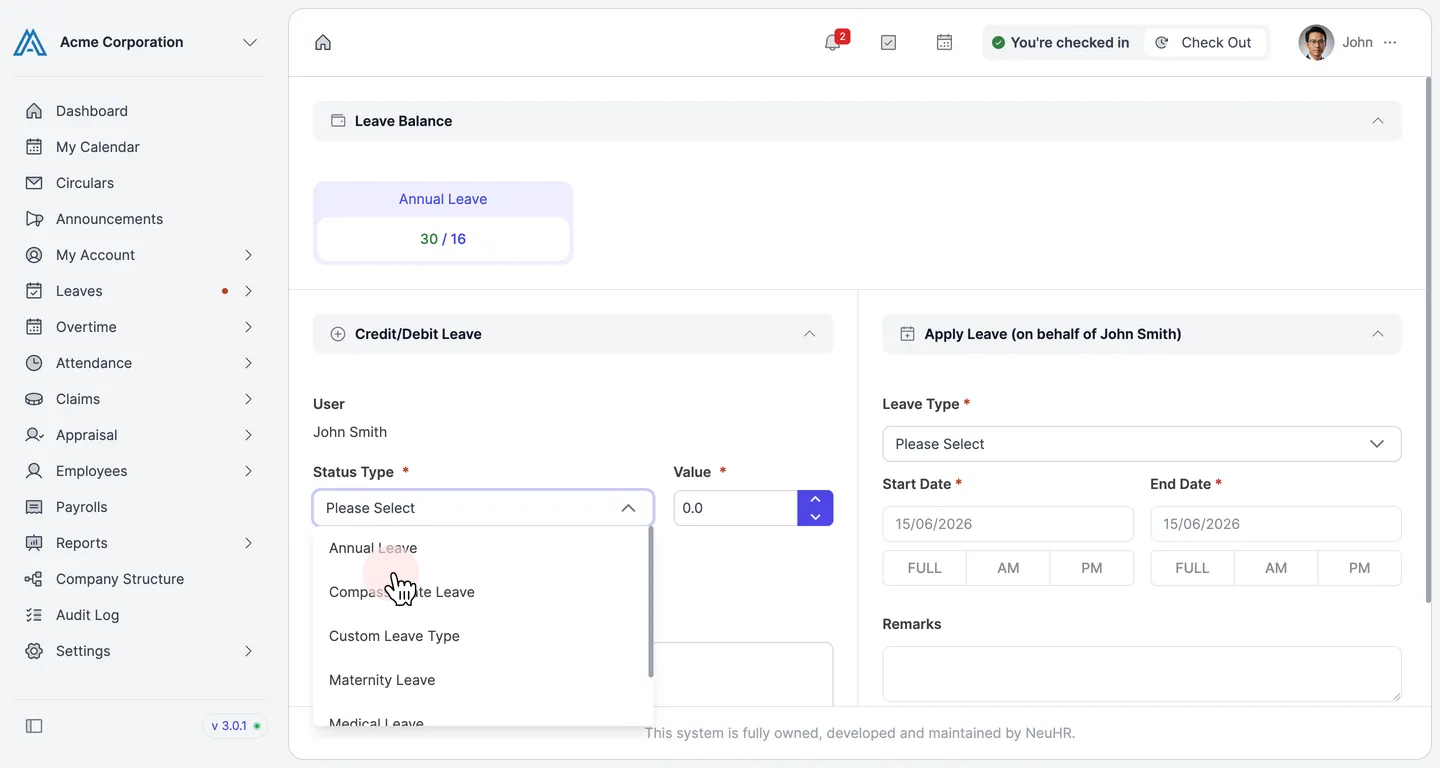
-
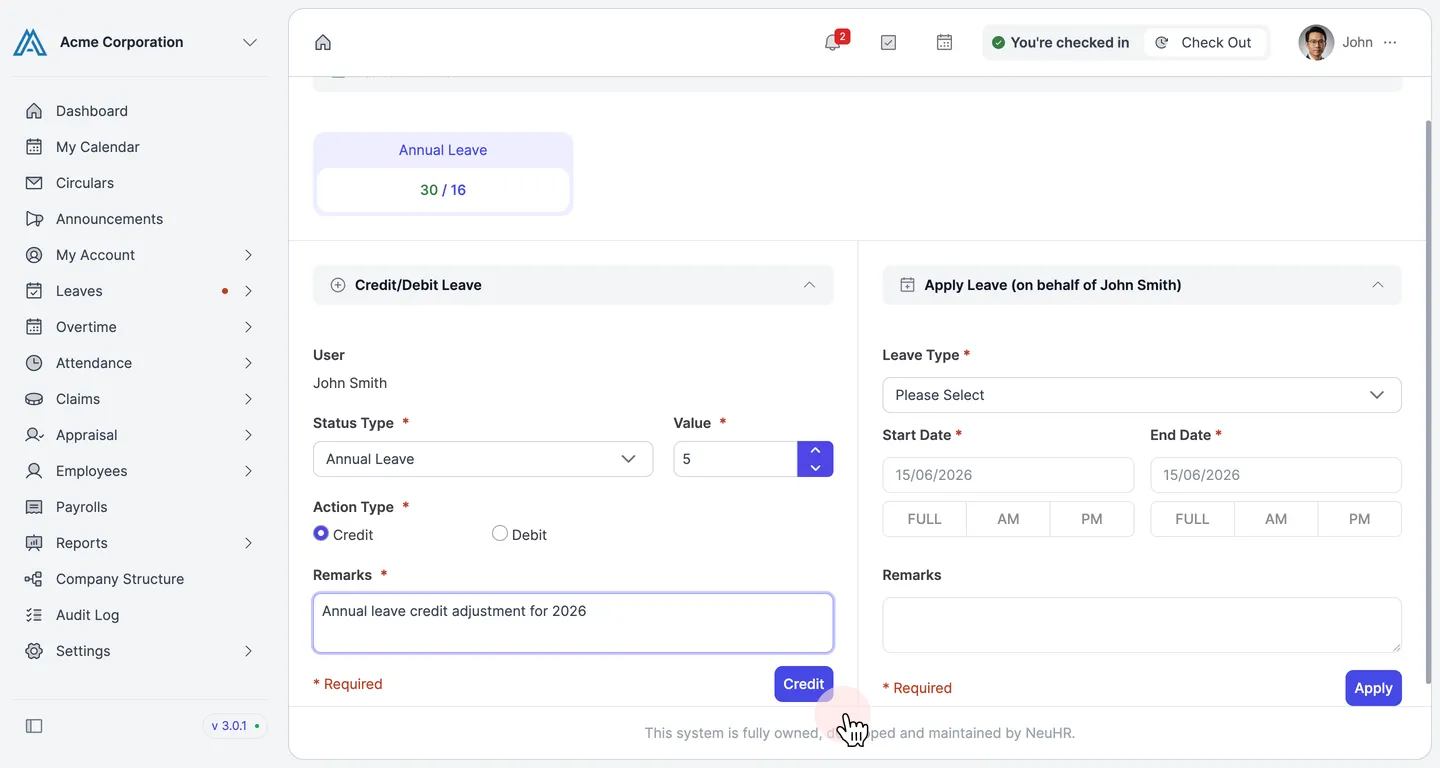
Fill in the form and click Credit or Debit
Section titled “Fill in the form and click Credit or Debit”Complete the remaining required fields:
- Value — Enter the number of days to credit or debit.
- Action Type — Select `Credit` to add days or `Debit` to subtract days.
- Remarks — Enter a reason or note for the adjustment (required).
Click the Credit (or Debit) button to submit.
-
Confirm the updated leave balance
Section titled “Confirm the updated leave balance”After submitting, the Leave Balance section refreshes to reflect the new balance. The form resets and is ready for another adjustment.