How to Upload/Edit Employee's Document
You can attach documents (such as employment contracts, certificates, or ID copies) directly to an employee’s profile. Each document has a type, a file, remarks, and a visibility setting.
Upload a Document
Section titled “Upload a Document”-
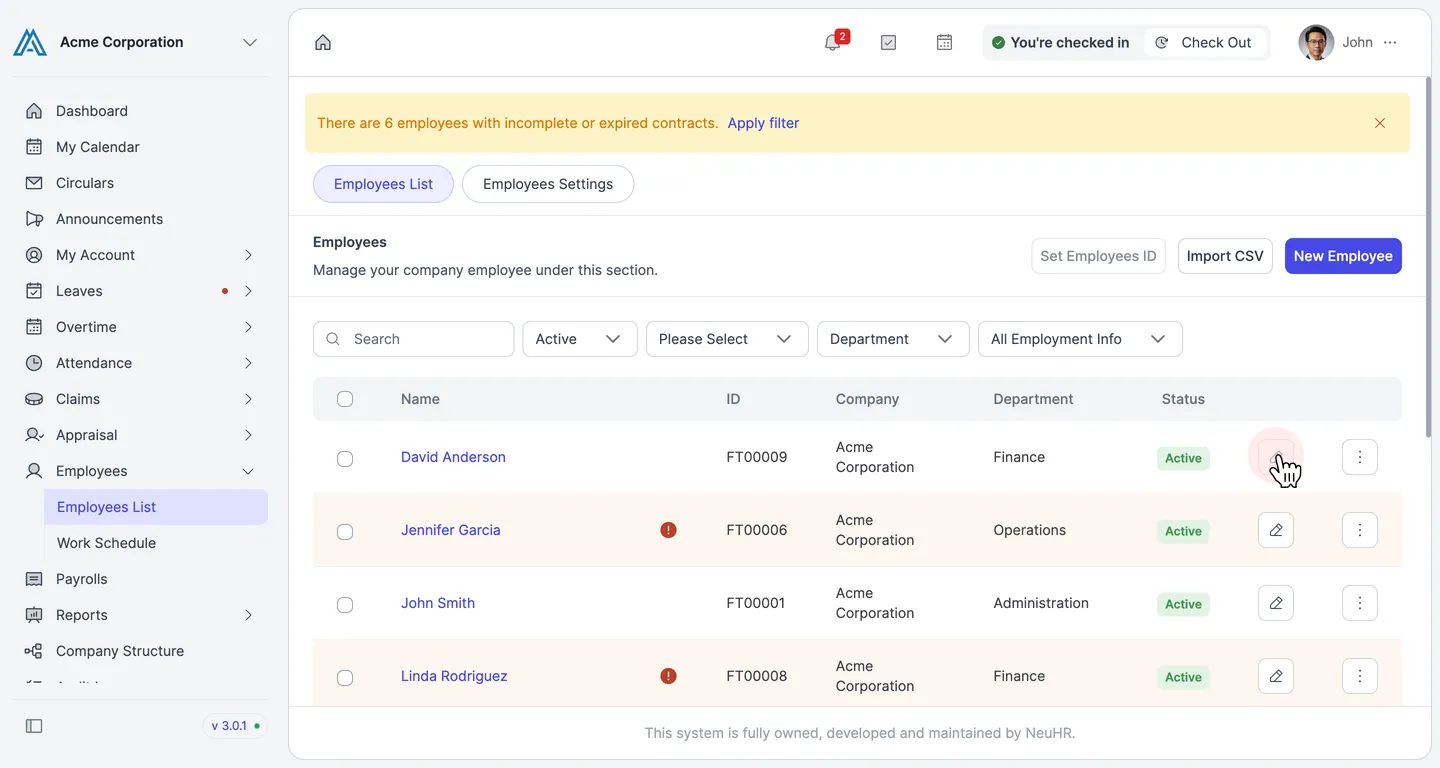
Open the employee’s edit form
Section titled “Open the employee’s edit form”In the left sidebar, click Employees, then select Employees List. Locate the employee, then click the pencil icon on the right side of their row to open the edit form.
-
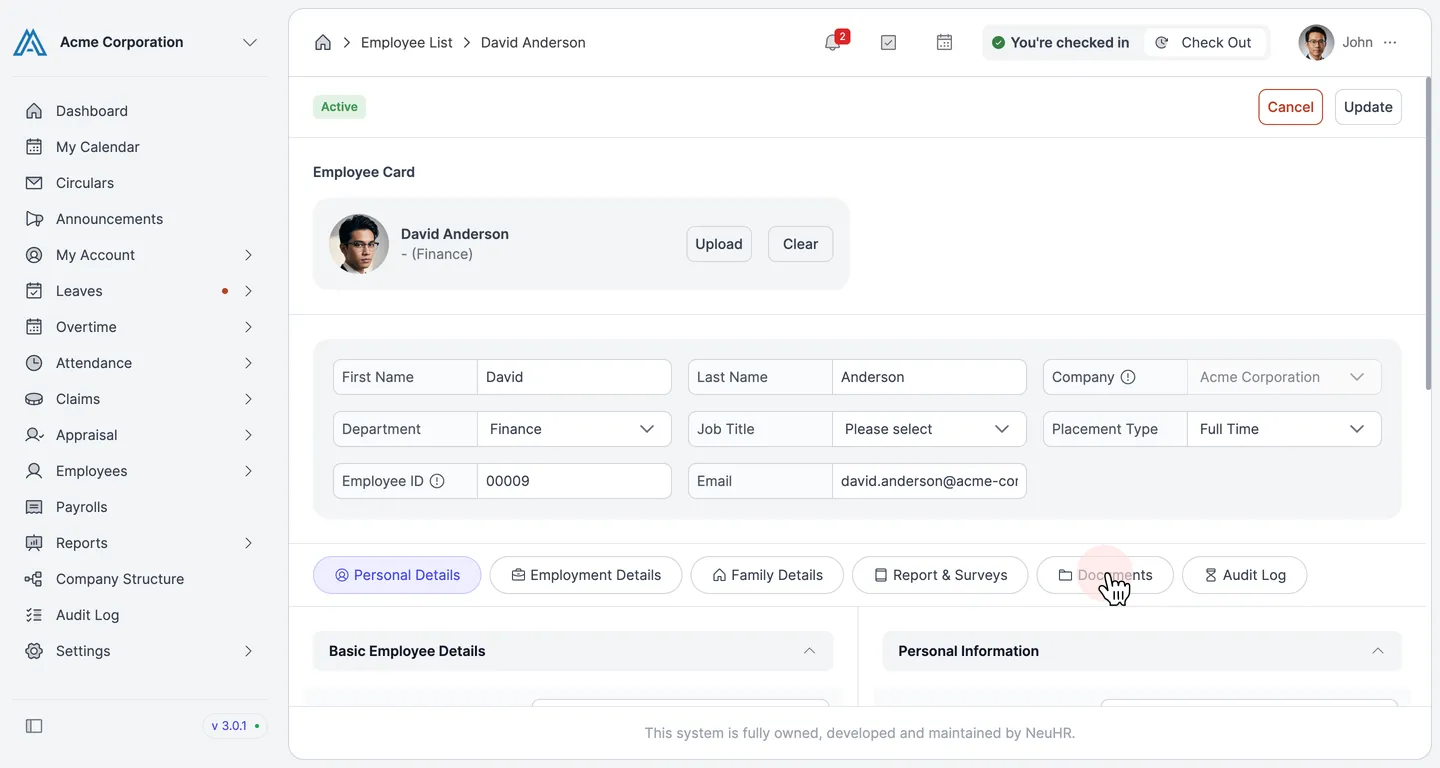
Click the Documents tab
Section titled “Click the Documents tab”In the edit form, click the Documents tab in the tab bar to switch to the documents section.
-
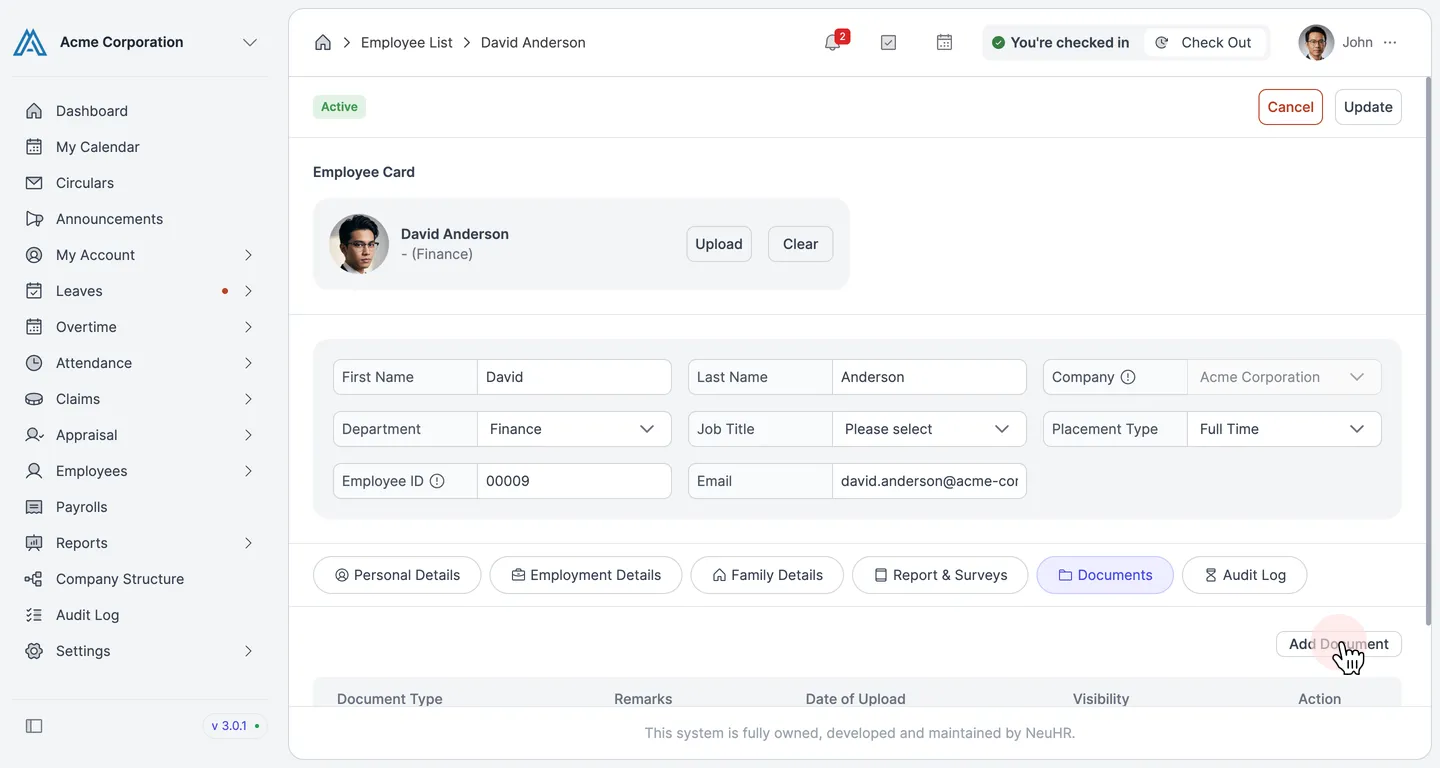
Click Add Document
Section titled “Click Add Document”The Documents tab shows a list of all documents linked to this employee. Click the Add Document button on the right to open the upload dialog.
-
Fill in the Add Document form
Section titled “Fill in the Add Document form”The Add Document dialog opens. Fill in all required fields (marked with
*):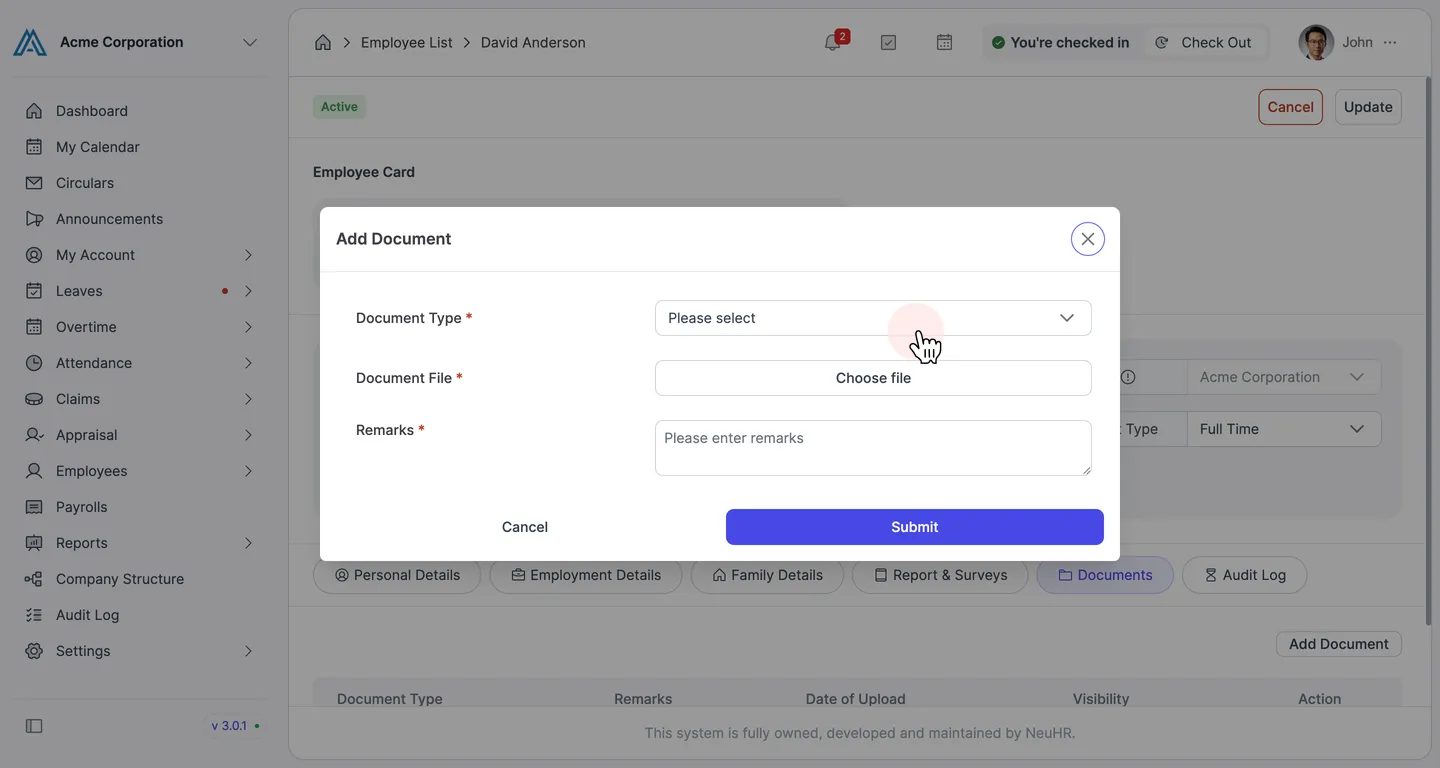
Field Description Document Type*Select the type of document from the dropdown (e.g. Employment Contract). Document types are configured in Settings → Document Types. Document File*Click Choose file to select the file from your device. Remarks*Enter a short description or note for this document. -
Click Submit
Section titled “Click Submit”Once all fields are filled in, click Submit to upload the document.
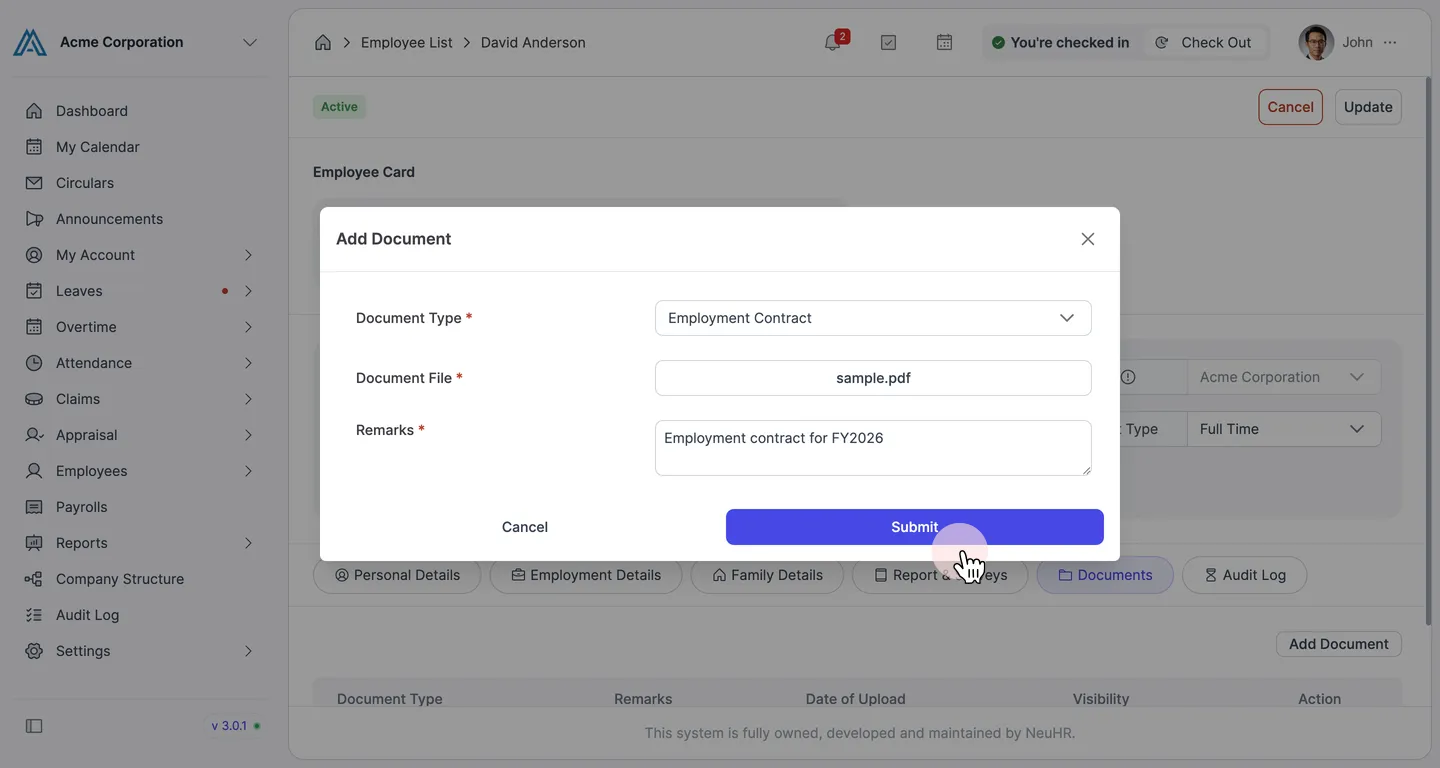
-
Document is added to the list
Section titled “Document is added to the list”The dialog closes and the new document appears in the Documents list, showing the document type, remarks, date of upload, and visibility setting.
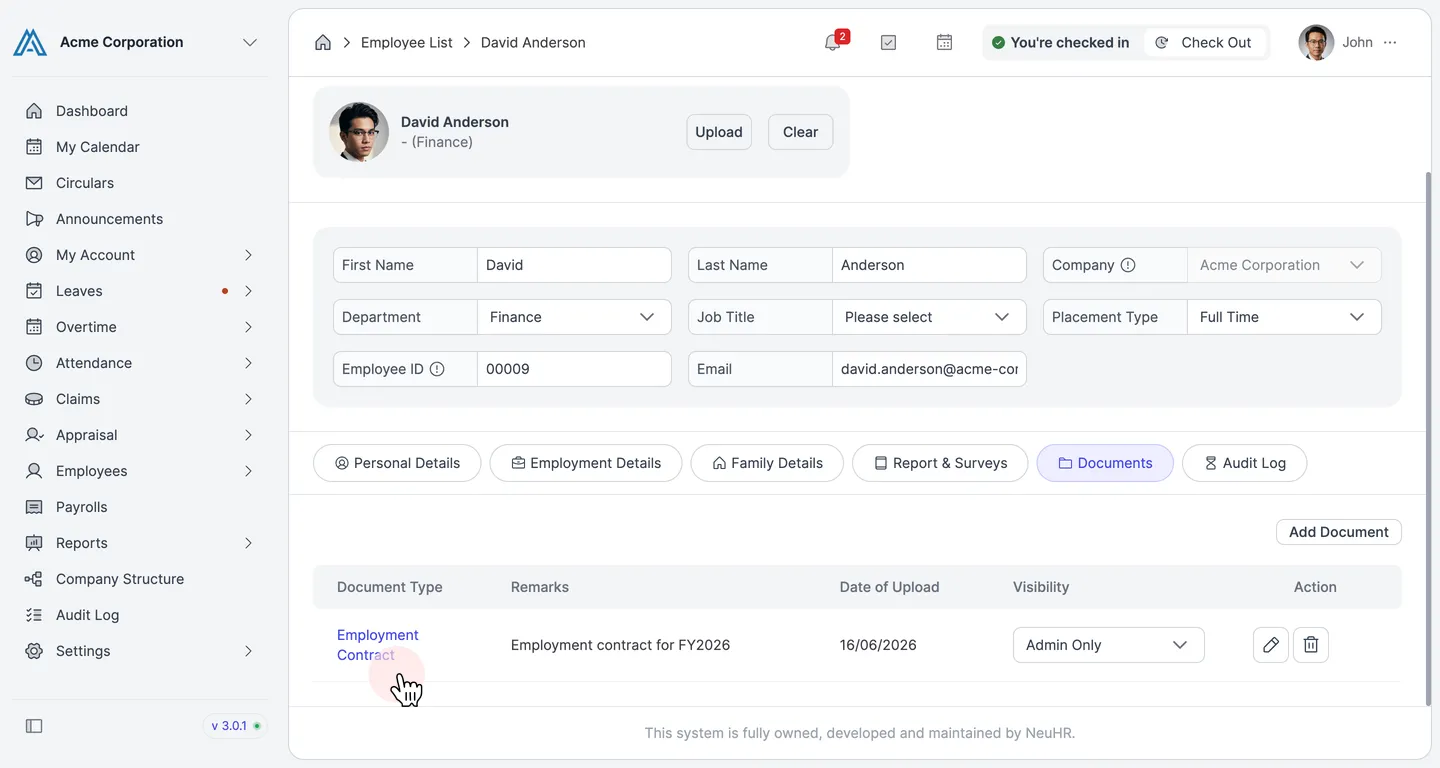
Edit a Document
Section titled “Edit a Document”-
Click the edit (pencil) icon on the document row
Section titled “Click the edit (pencil) icon on the document row”On the Documents tab, find the document you want to update. Click the pencil icon in the Action column of that row to open the edit dialog.
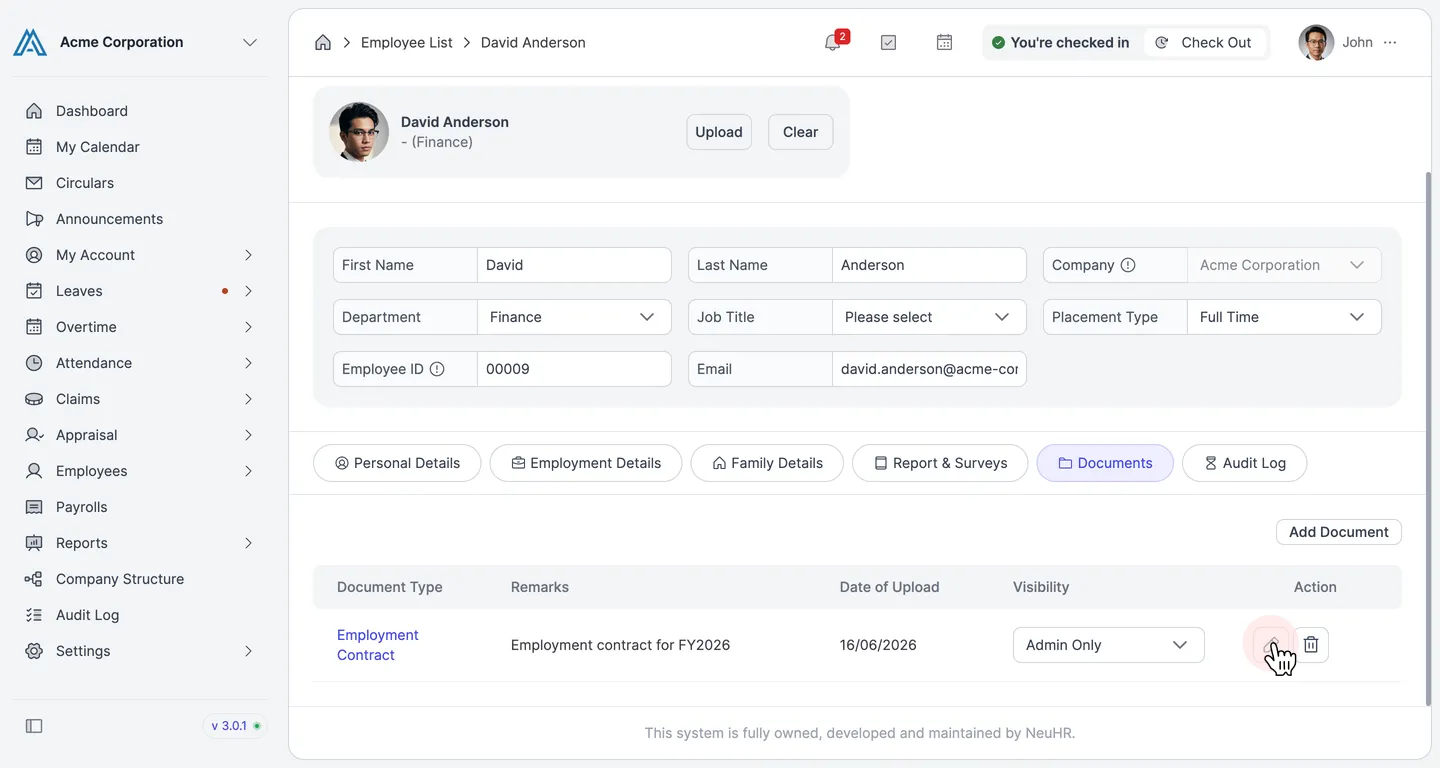
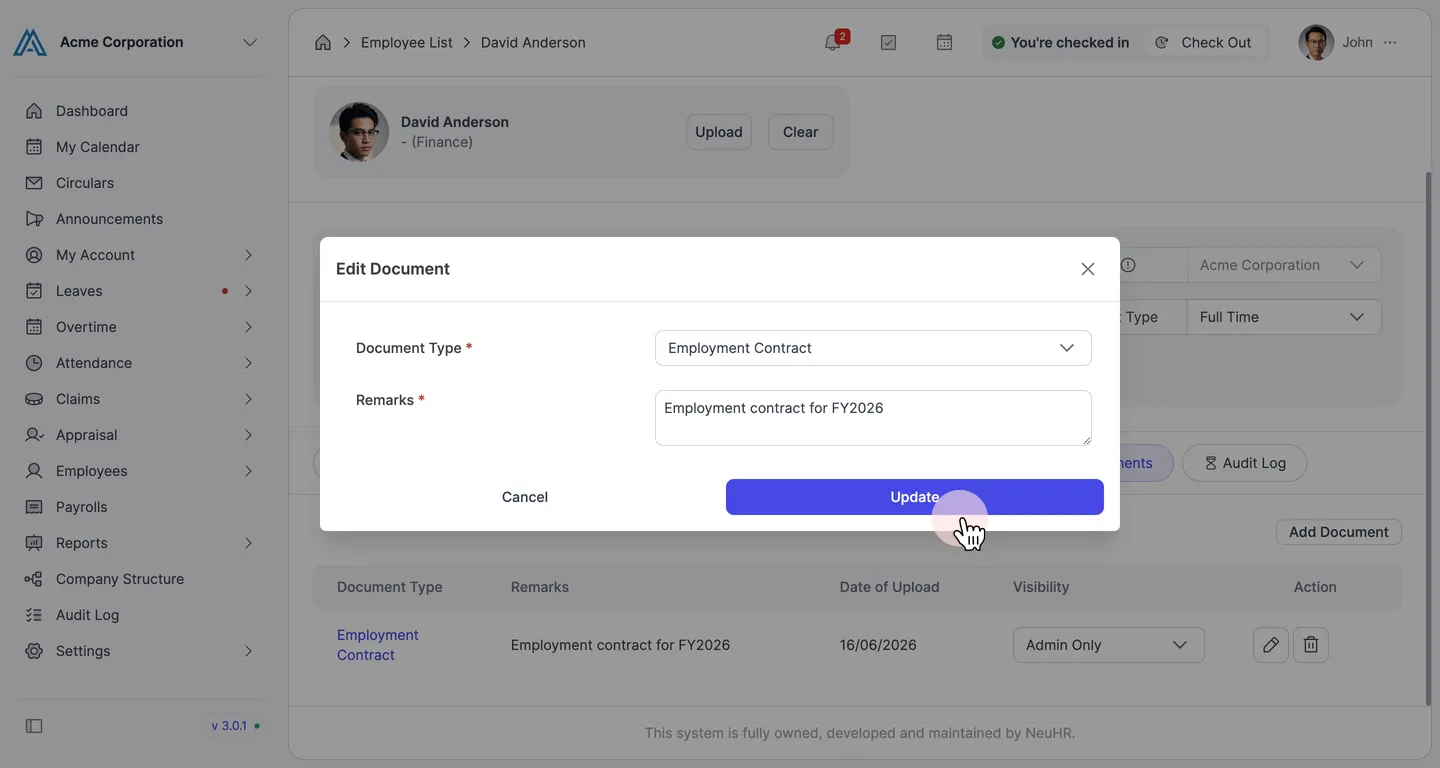
-
Update the fields and click Update
Section titled “Update the fields and click Update”The Edit Document dialog opens pre-filled with the existing document type and remarks. Update the Remarks field as needed, then click Update to save.