How to Check Employee Leave Balance
The Company Overview page gives admins a quick snapshot of every employee’s leave balance across all leave types. You can search by employee name, filter by company, and switch between a company-wide view or a department-grouped view.
-
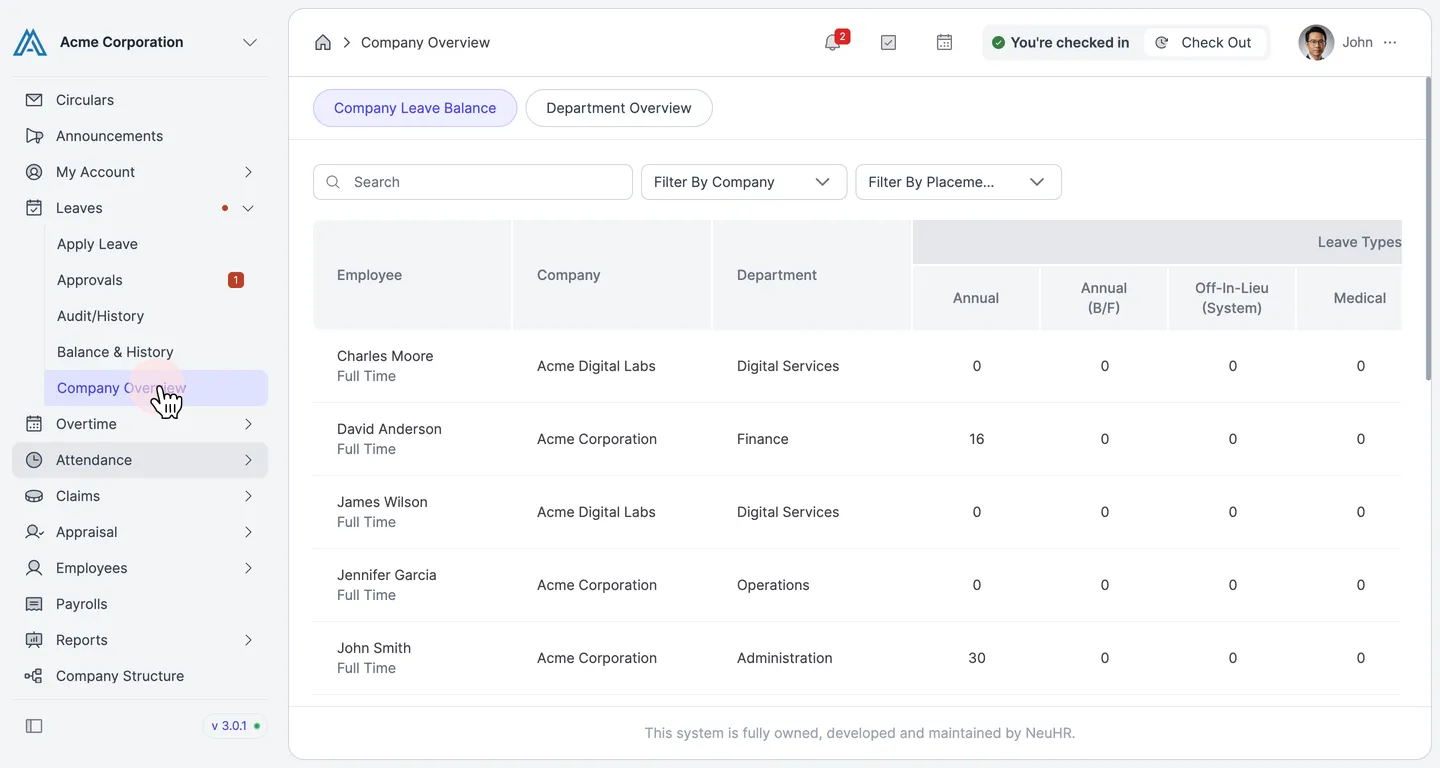
Navigate to Leaves > Company Overview
Section titled “Navigate to Leaves > Company Overview”In the left sidebar, click Leaves to expand the menu, then click Company Overview.
-
View the Company Leave Balance tab
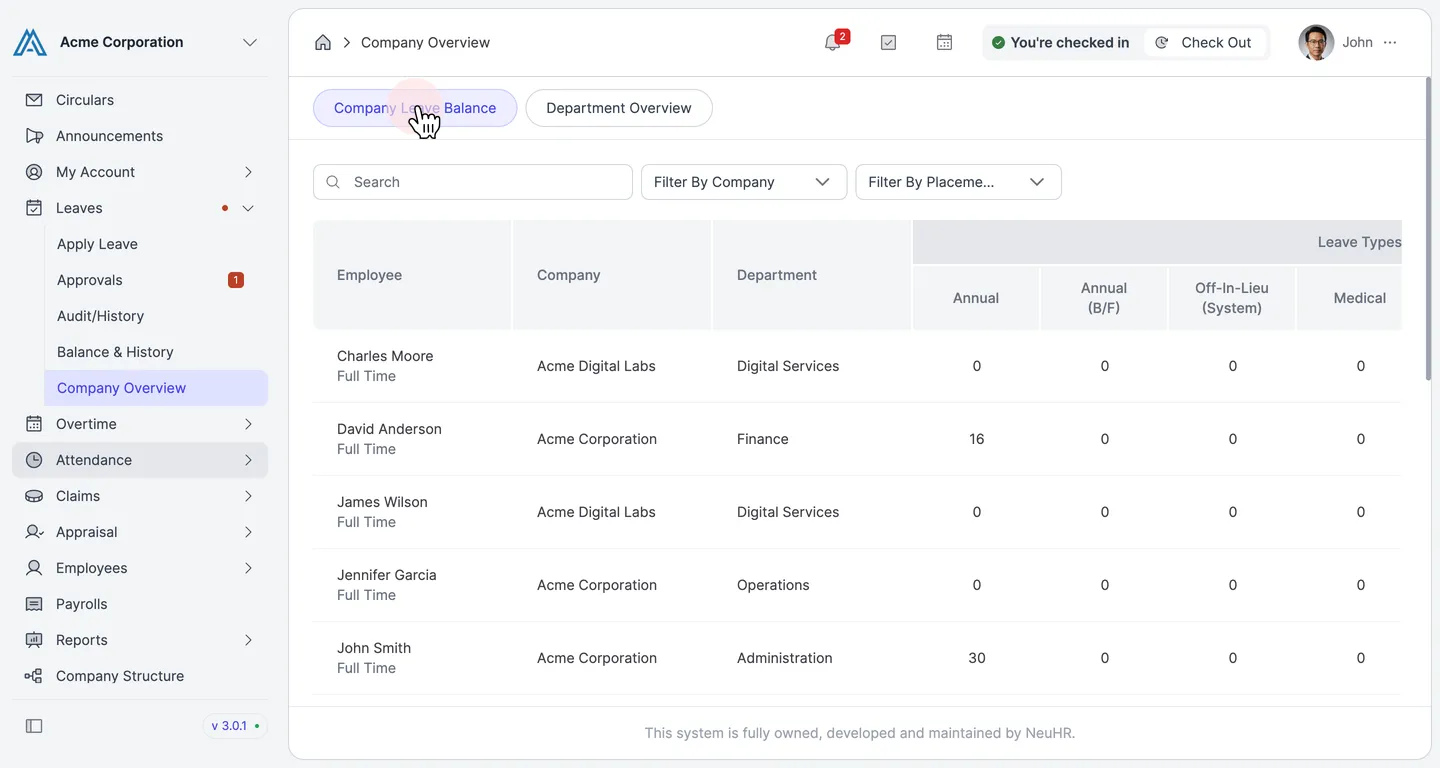
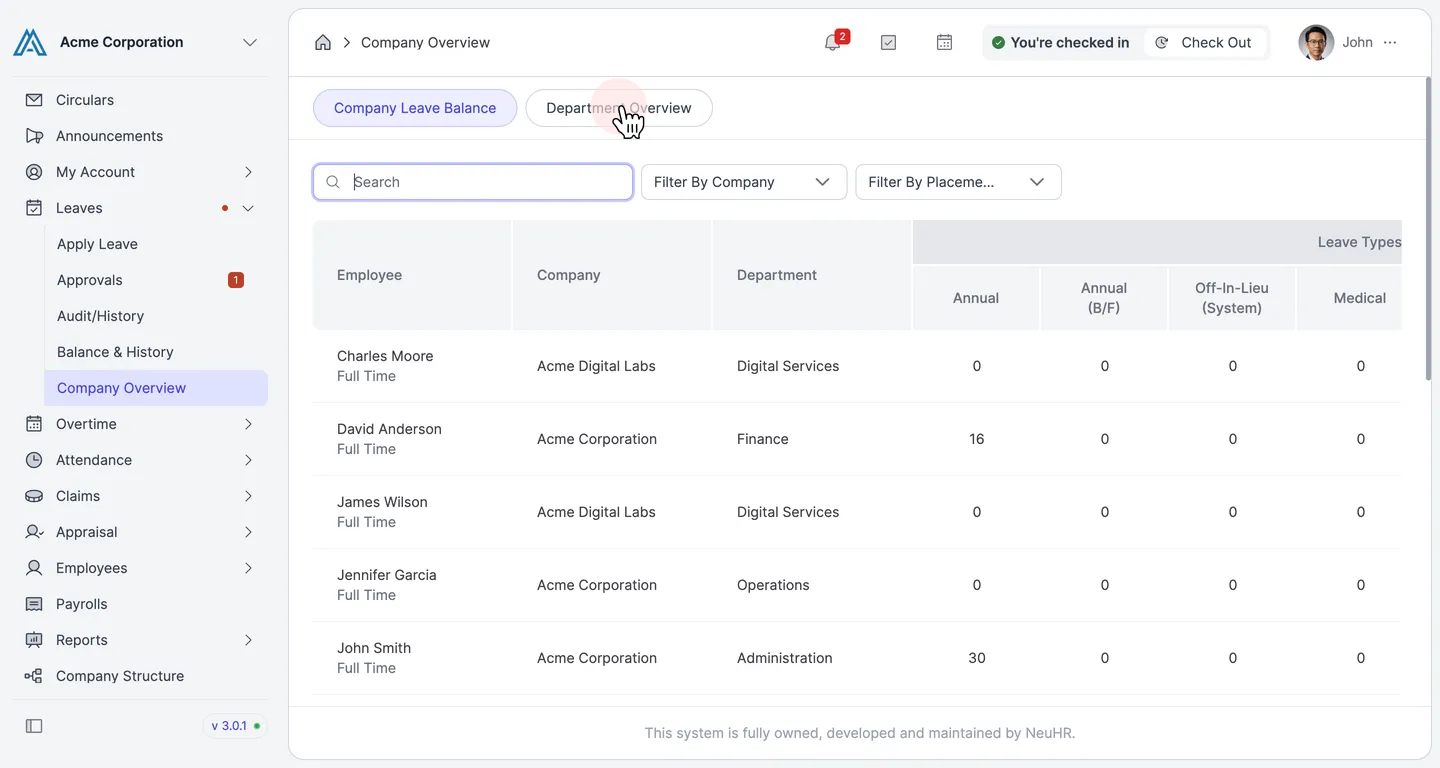
Section titled “View the Company Leave Balance tab”The page opens on the Company Leave Balance tab by default. The table shows all employees with their remaining leave balance for each leave type (Annual, Annual B/F, Off-In-Lieu, Medical, etc.).
-
Search for a specific employee
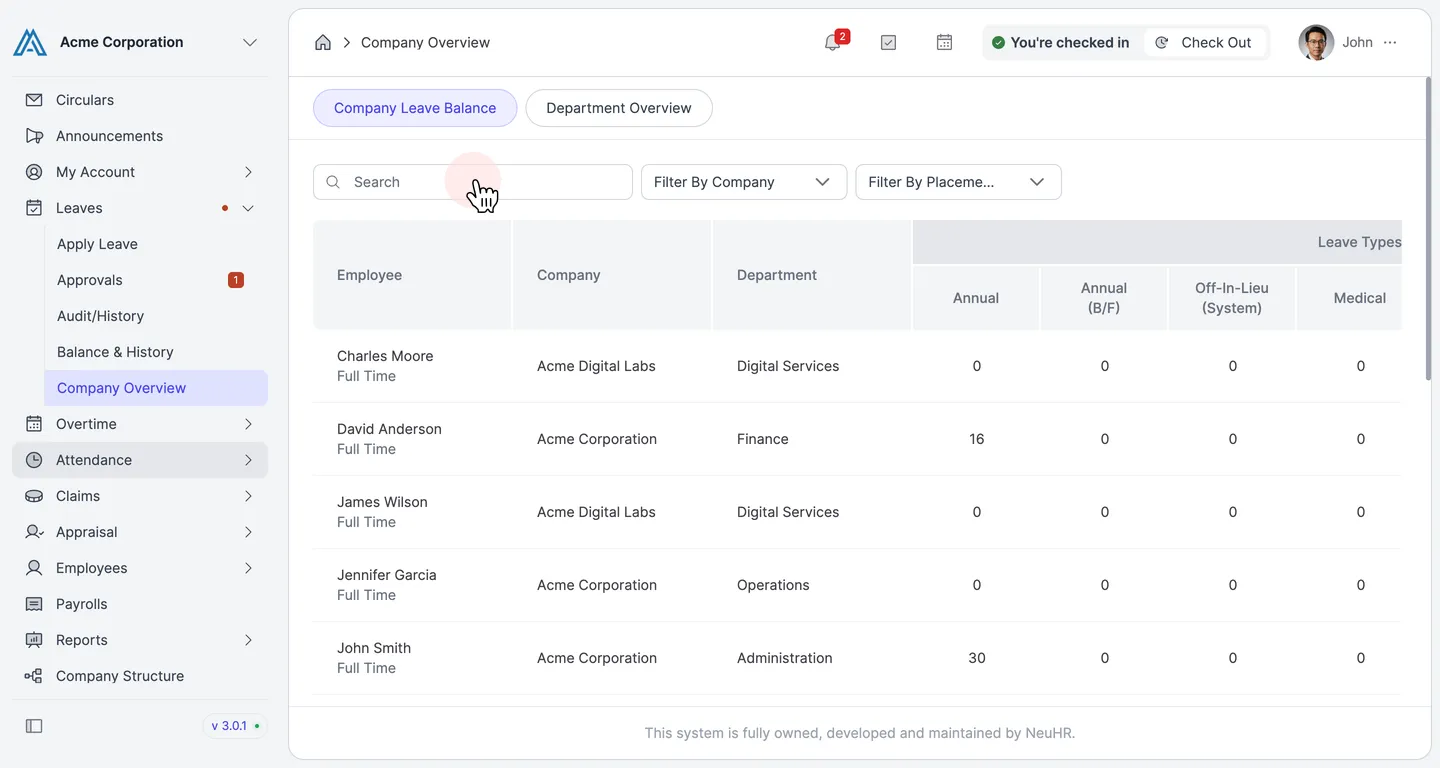
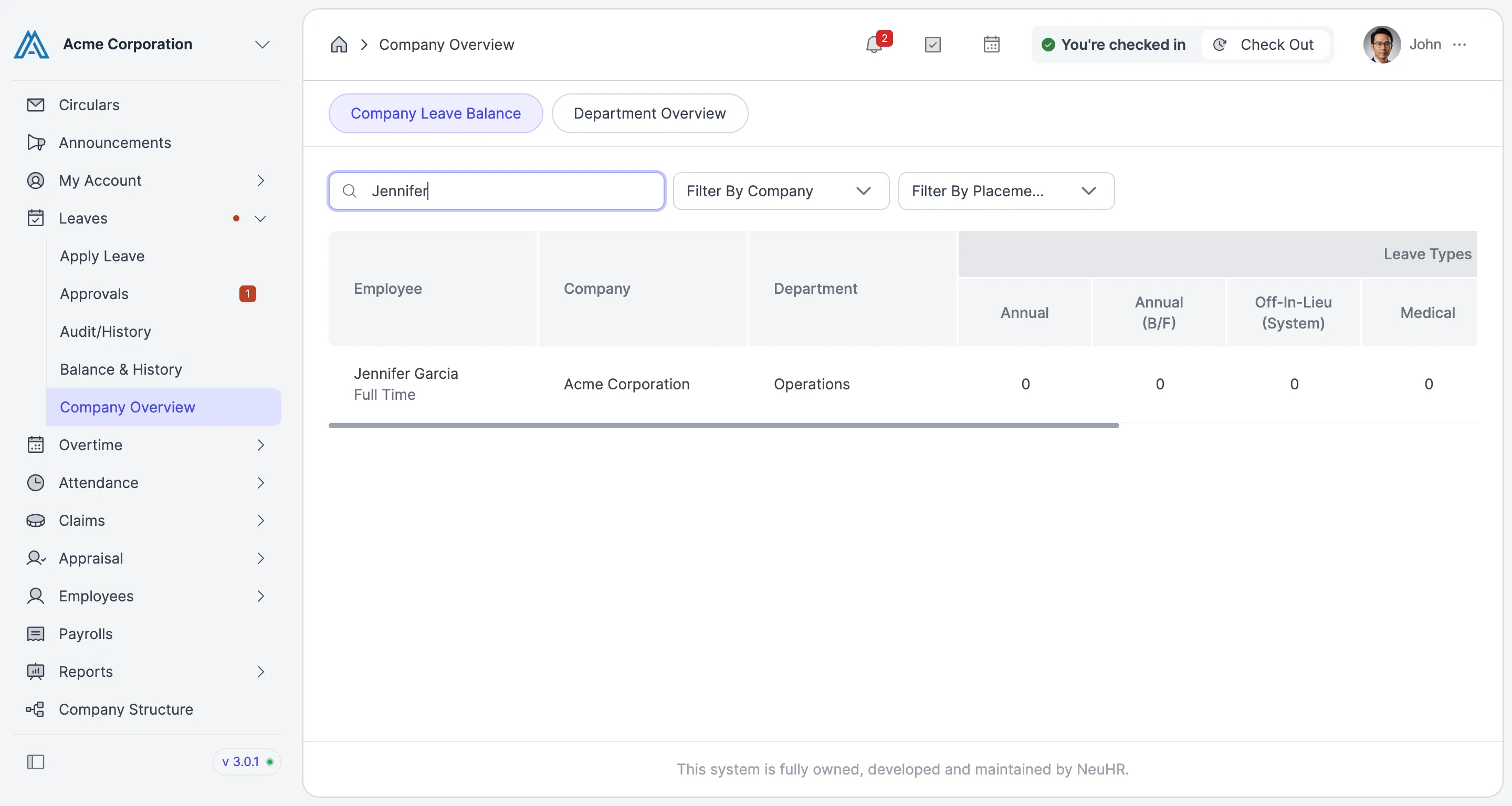
Section titled “Search for a specific employee”Use the Search box to filter the table by employee name. Type the employee’s name to narrow down the results.
-
Review the filtered results
Section titled “Review the filtered results”The table updates to show only the matching employee(s) and their leave balances across all leave types.
-
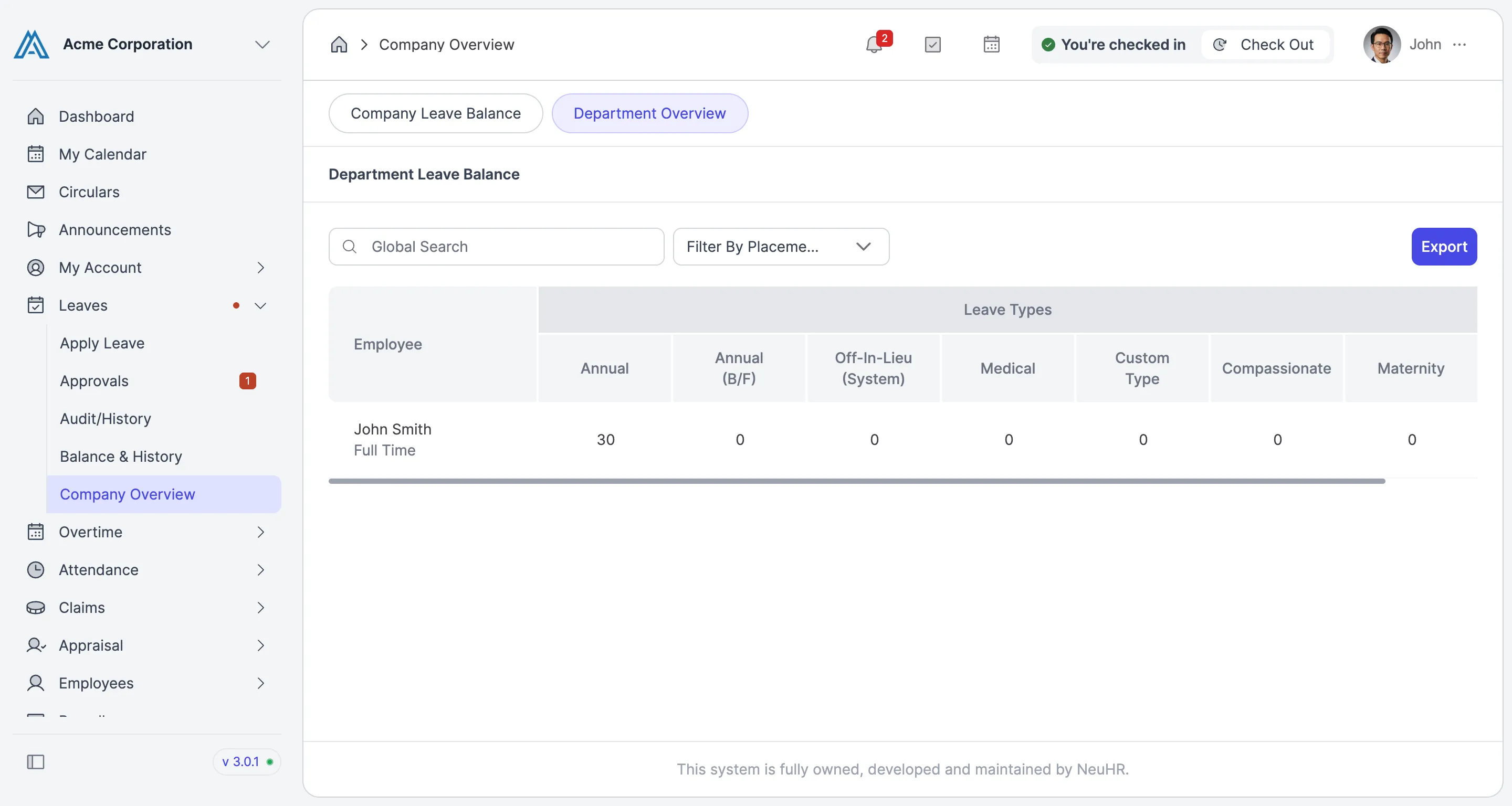
Switch to Department Overview
Section titled “Switch to Department Overview”To view leave balances grouped by department, click the Department Overview tab.
-
View the Department Leave Balance
Section titled “View the Department Leave Balance”The Department Leave Balance table shows employees organized by department, with leave balances and an Export button to download the data.