How to Generate PDF for Selected Processed Payslips in Payroll Month
This guide shows you how to select processed employee payslips and generate PDF files for distribution within an active payroll month.
-
Navigate to Payrolls
Section titled “Navigate to Payrolls”From the sidebar, click on
Payrollsto view all payroll periods.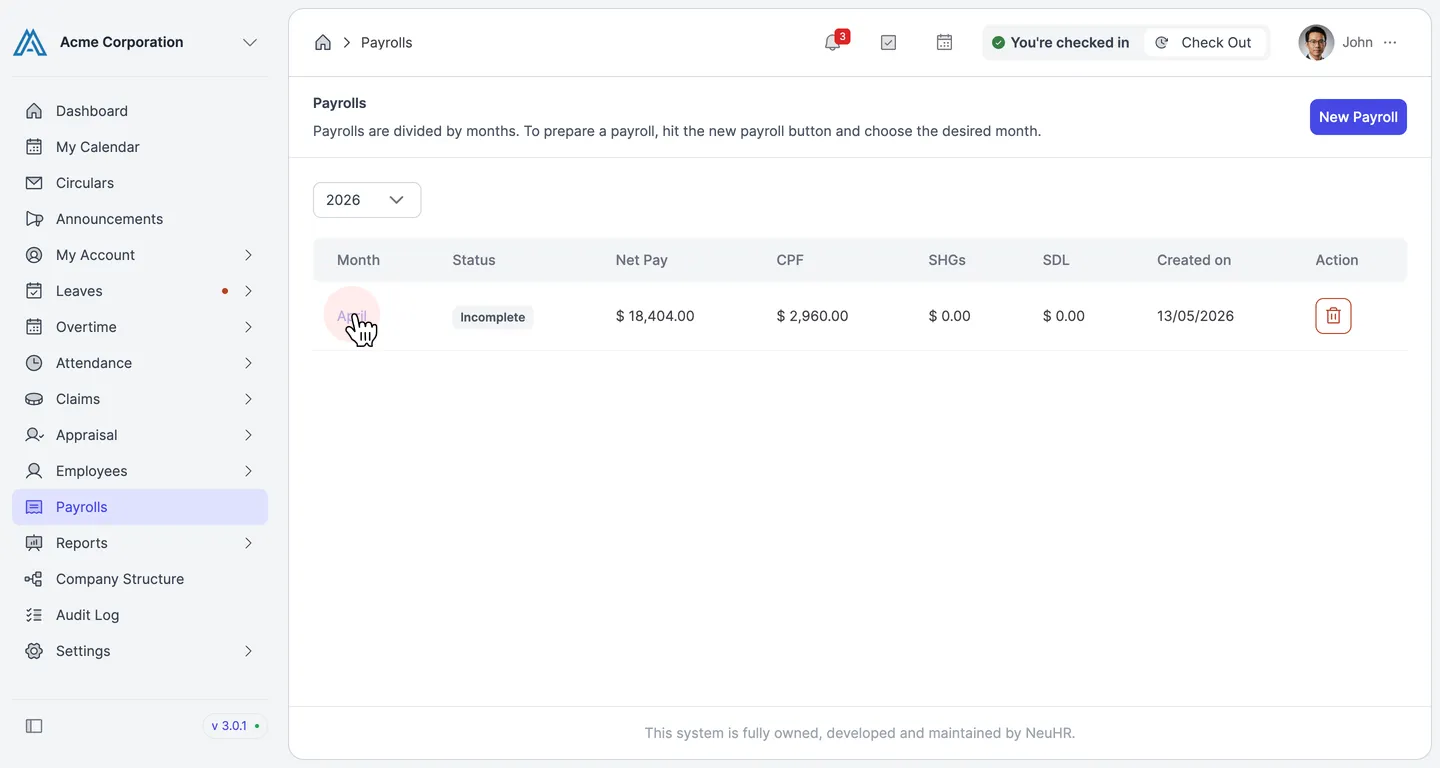
-
Select a Payroll Period
Section titled “Select a Payroll Period”Click on the payroll period you want to work with (e.g.,
April) to open the employee list for that payroll.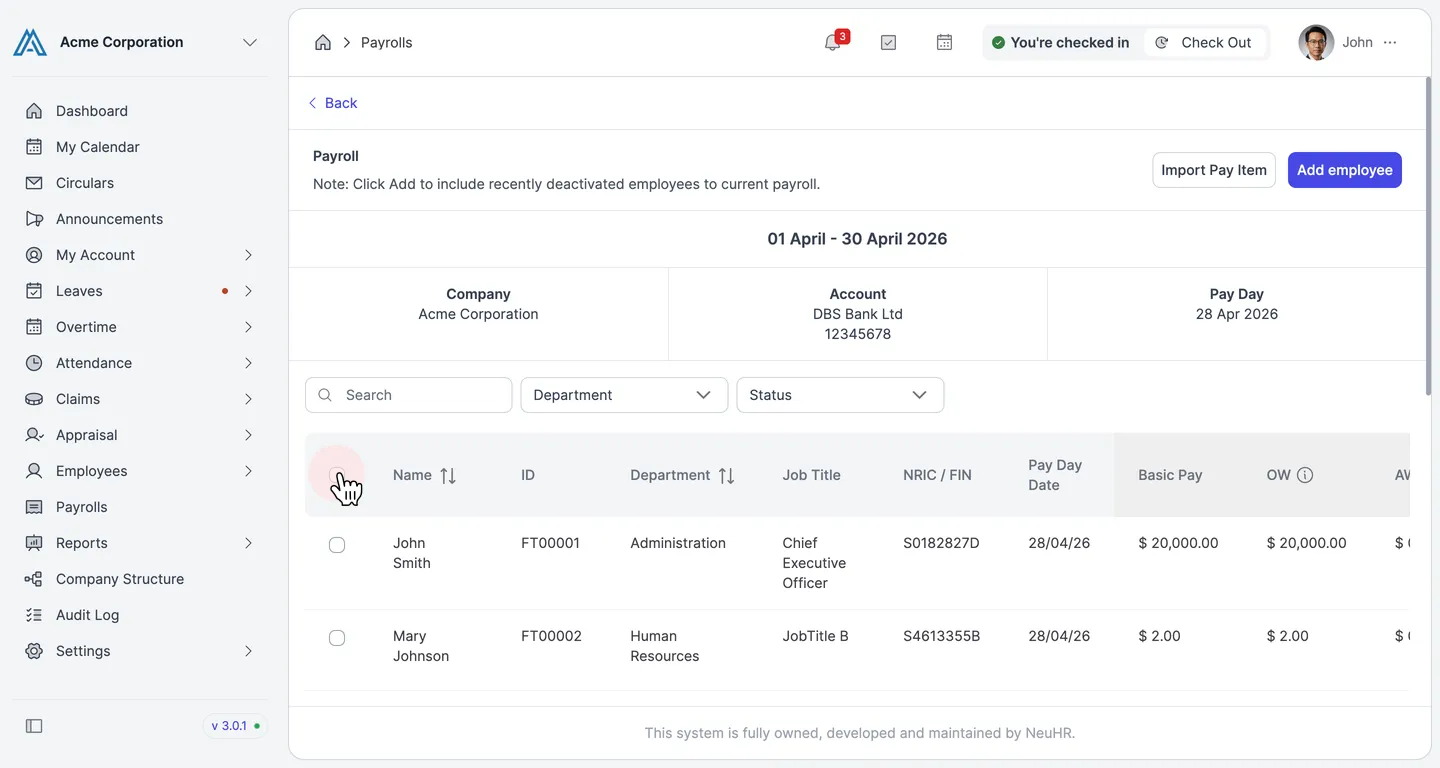
-
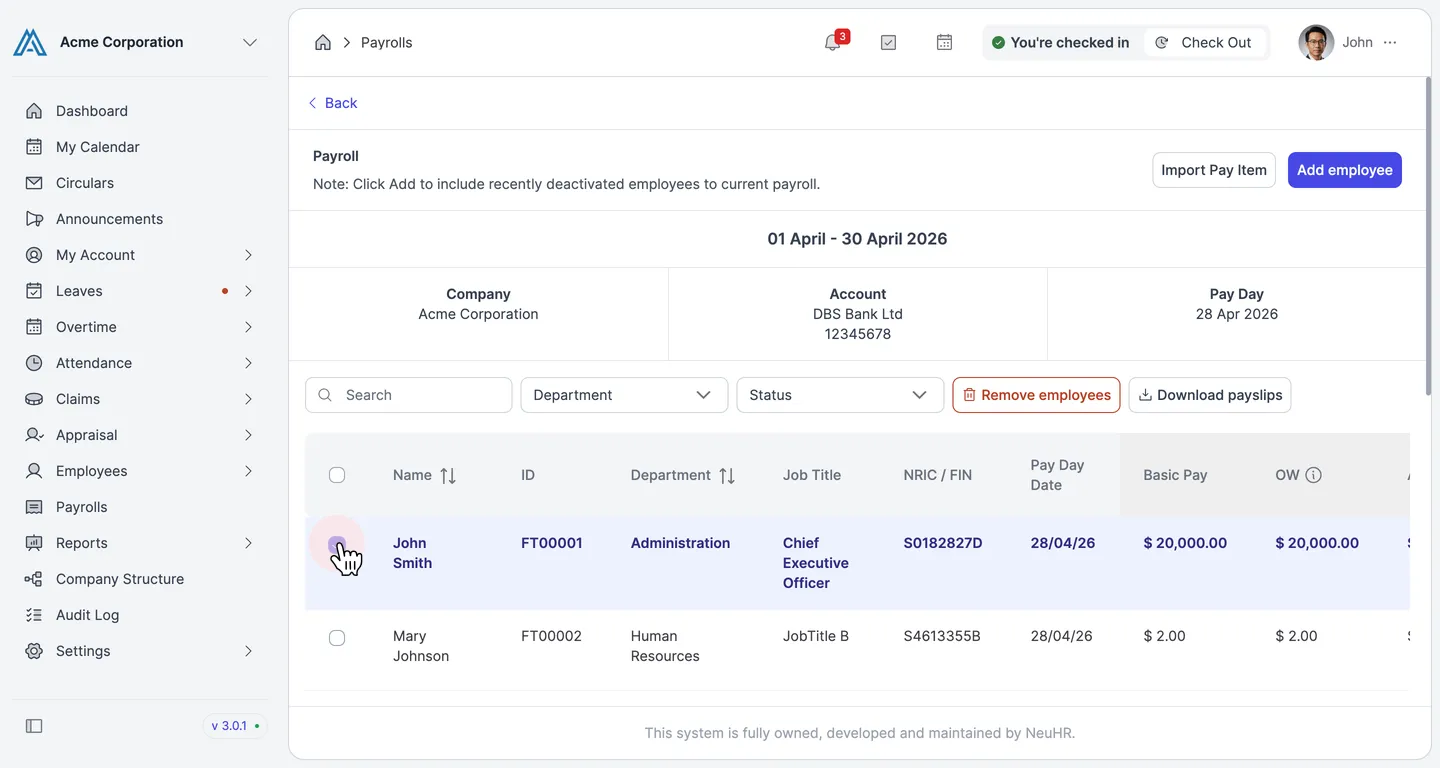
Select Employees
Section titled “Select Employees”Tick the checkbox next to each employee whose payslip PDF you want to generate. Selected employees will be highlighted in blue. The footer shows Payslips selected: N / Total confirming your selection.
To select all employees at once, click the checkbox in the table header row.
-
Click Generate PDF
Section titled “Click Generate PDF”Scroll down to the bottom of the employee list and click the
Generate PDFbutton.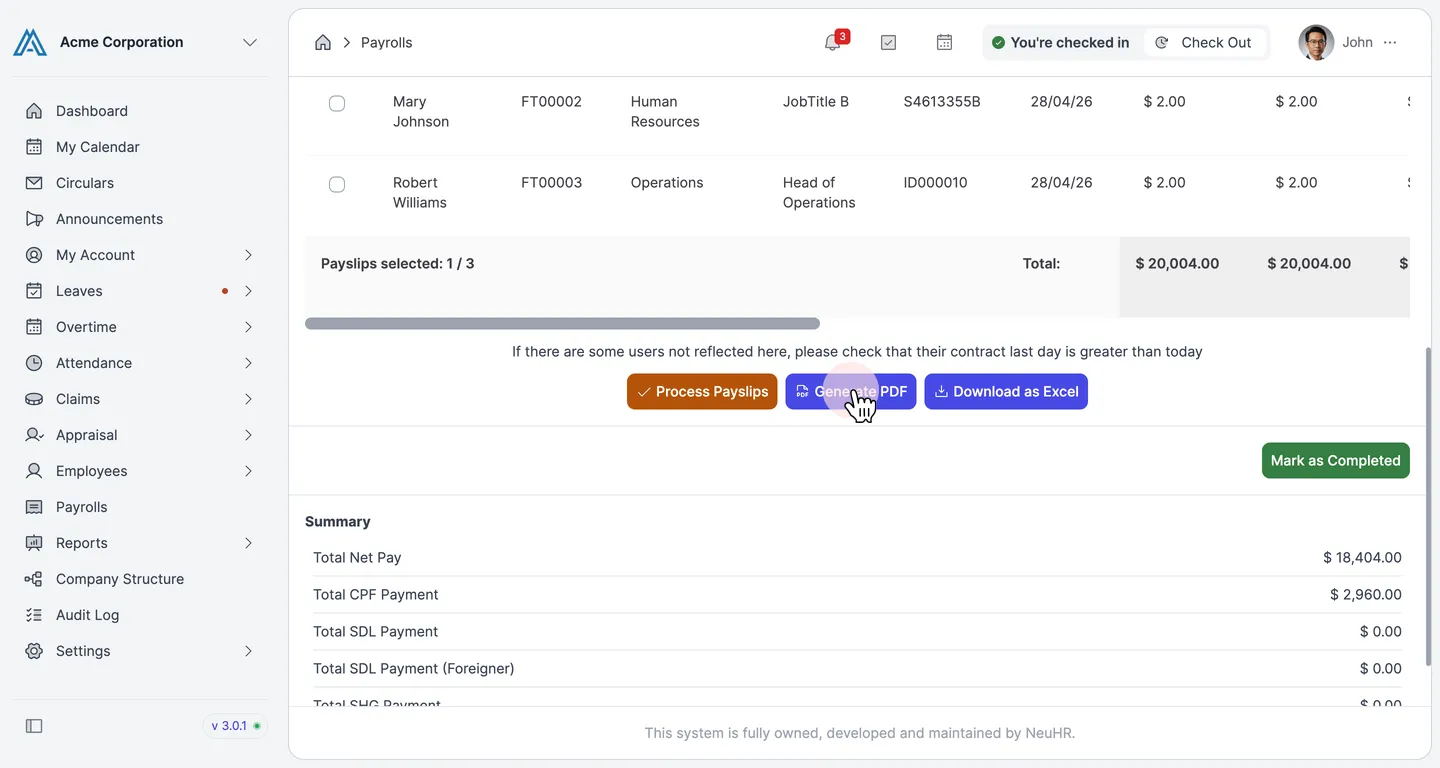
-
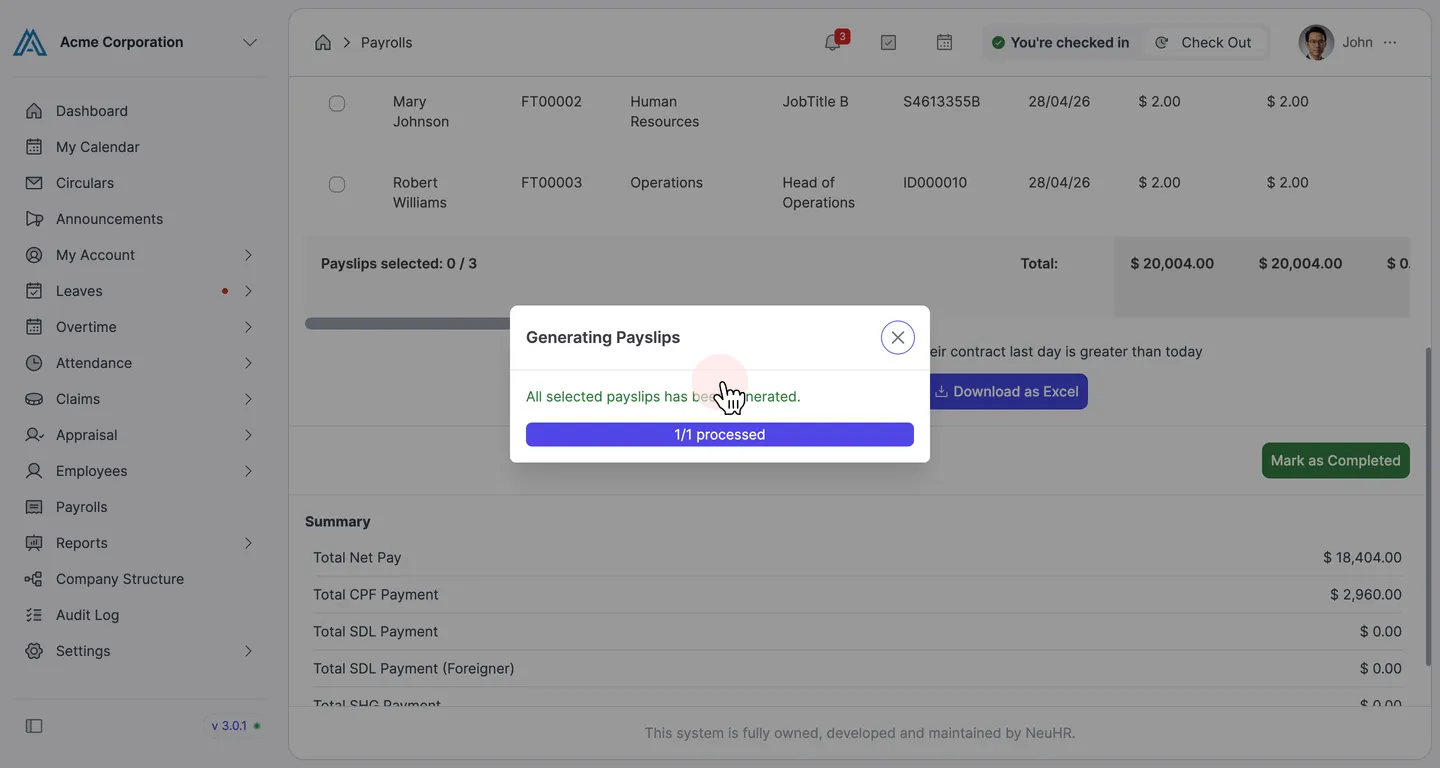
PDF Generation Complete
Section titled “PDF Generation Complete”A Generating Payslips dialog appears showing the progress. Once complete, the message All selected payslips has been generated. is displayed along with the count of processed payslips (e.g.,
1/1 processed).The generated PDFs are now available in the employee’s Staff Account — they are not downloaded automatically.
-
View the Payslip in Staff Account (Optional)
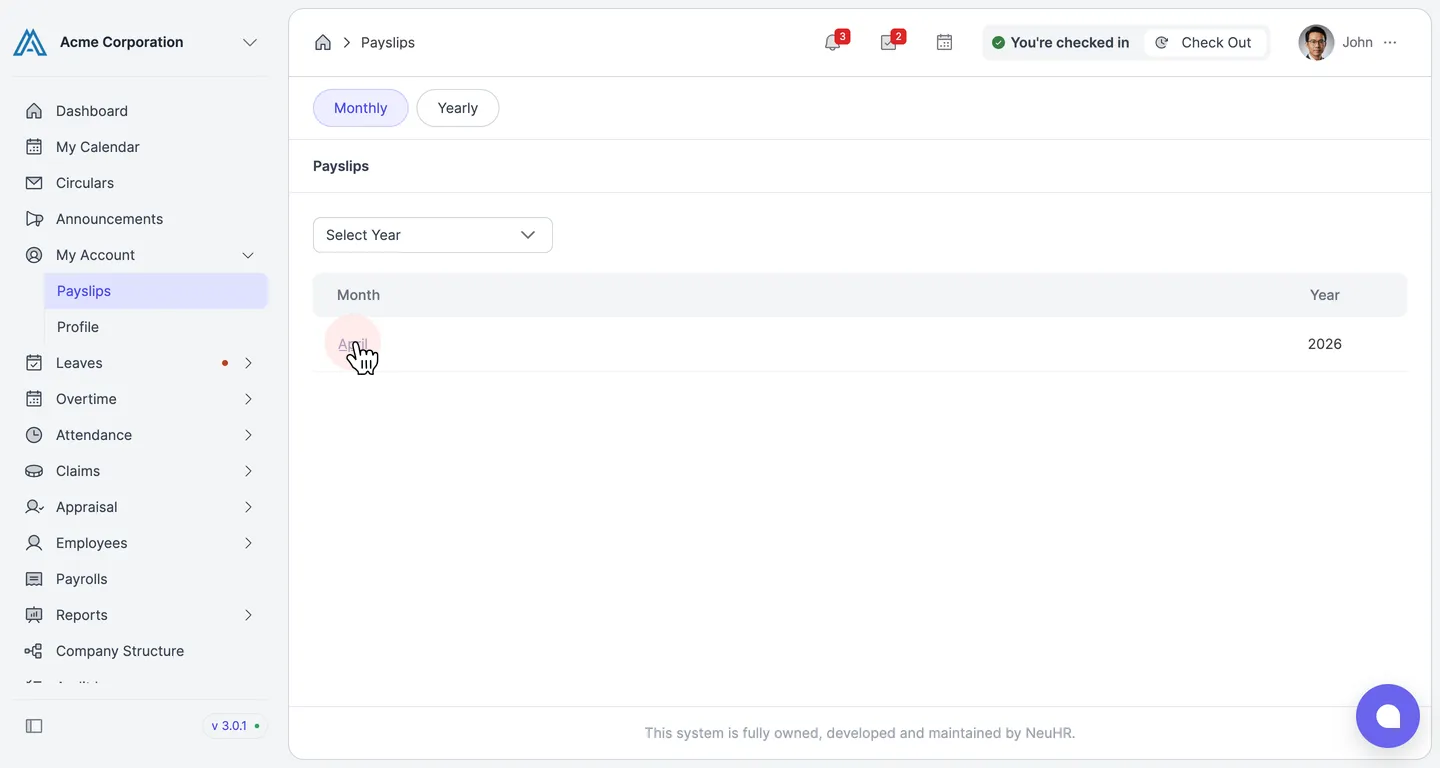
Section titled “View the Payslip in Staff Account (Optional)”Each employee can now access their payslip by navigating to My Account → Payslips. The generated month (e.g.,
April) will appear in the list. Clicking it opens the payslip PDF directly.As an admin, you can also view an individual employee’s PDF from the payroll month page using the PDF column, or save it as a backup.