How to Deactivate an Employee
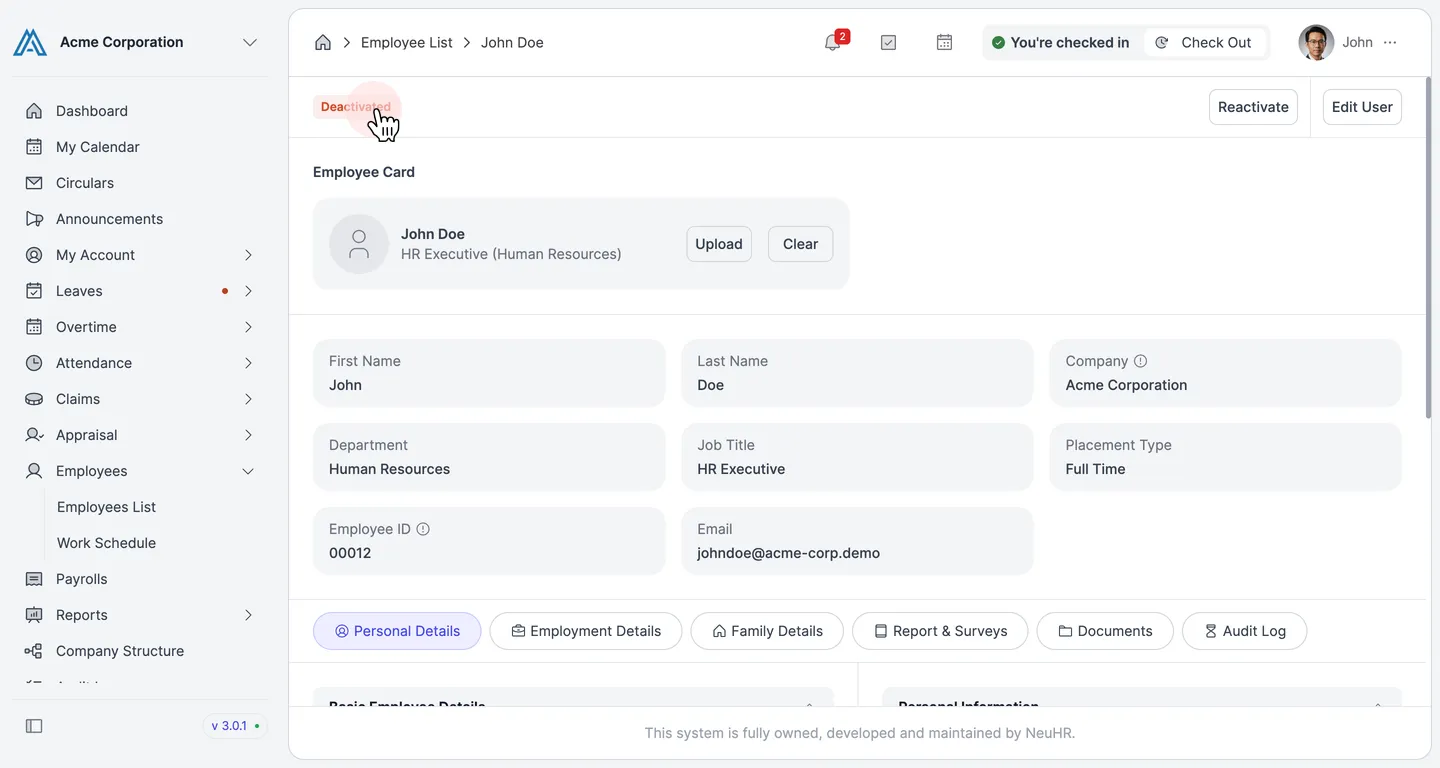
The Deactivate action is available for employees who are in Offboarding status. Once deactivated, the employee loses access to the system and their profile is marked as Deactivated.
-
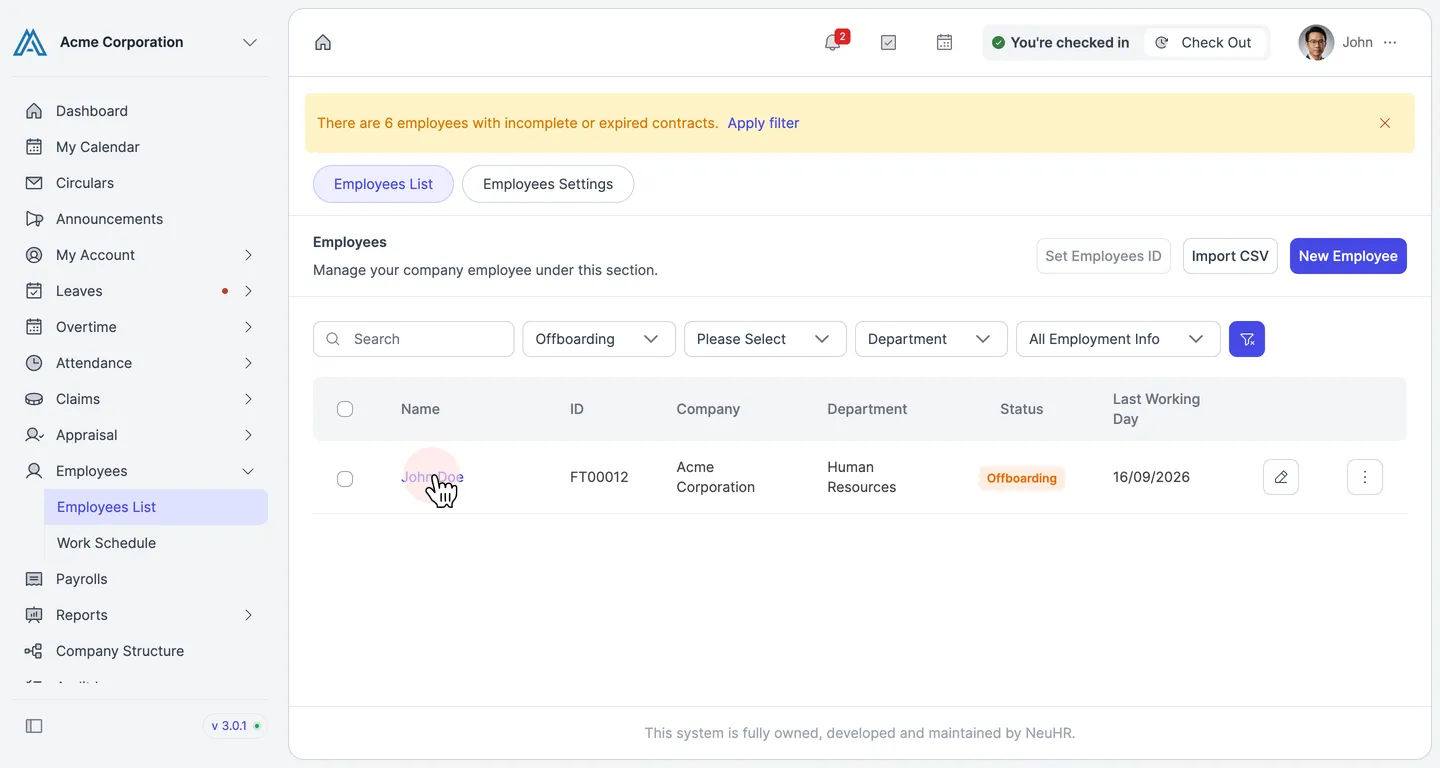
Open the Employees List and Filter by Offboarding
Section titled “Open the Employees List and Filter by Offboarding”From the sidebar, click Employees → Employees List. In the status filter, select Offboarding to view employees awaiting deactivation. Click the employee’s name to open their profile. In this example, we are deactivating John Doe.
-
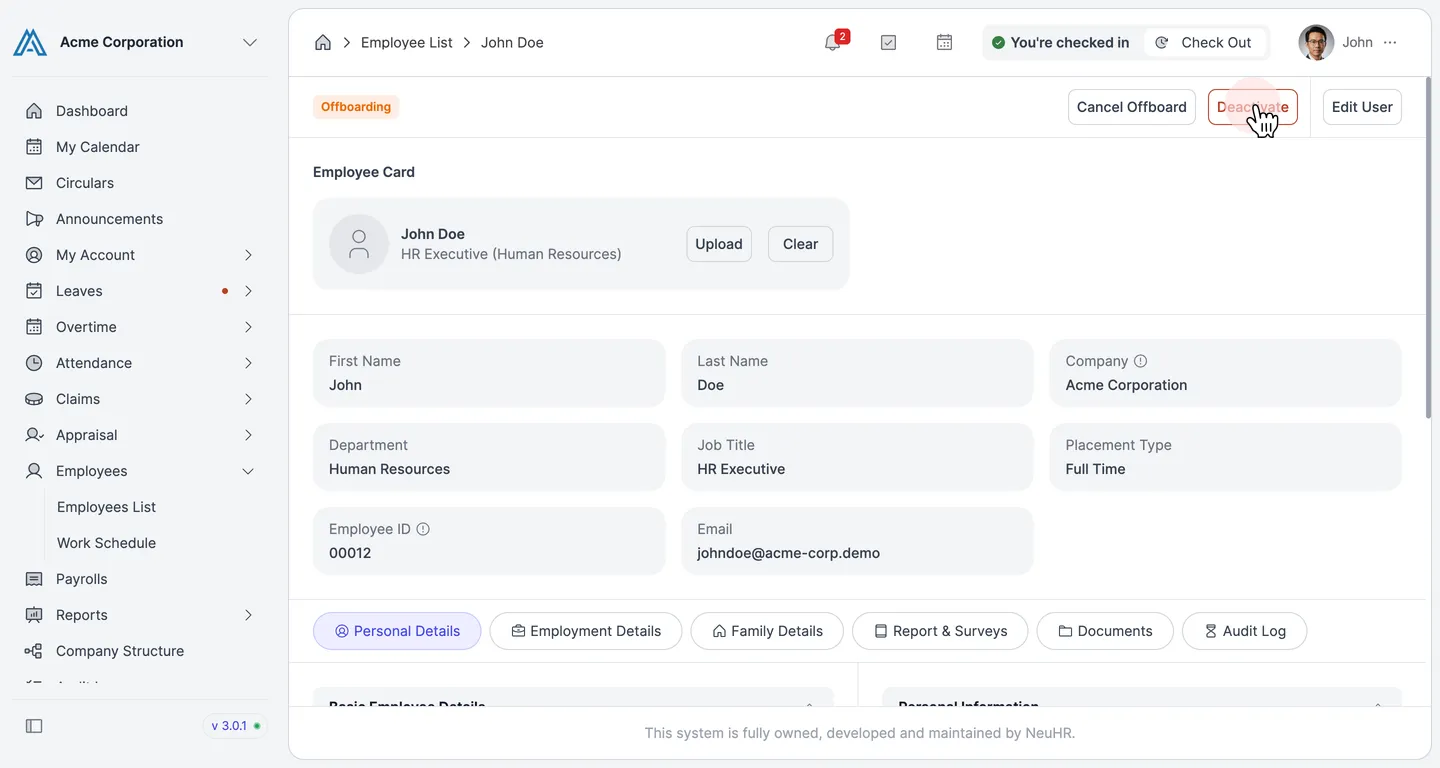
Click the Deactivate Button
Section titled “Click the Deactivate Button”On the employee’s profile page, the Offboarding status badge is shown at the top. Click the Deactivate button in the top-right corner.
-
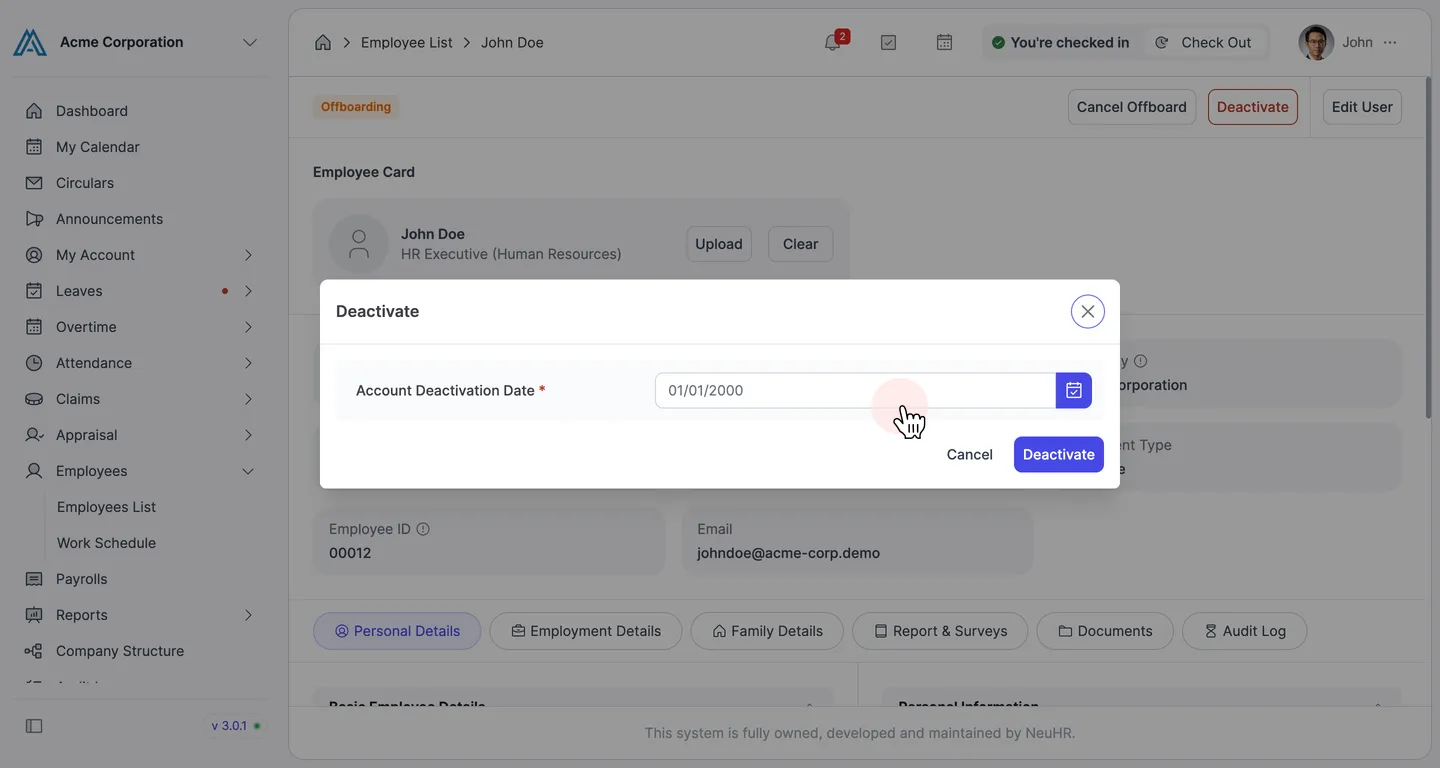
Set the Account Deactivation Date
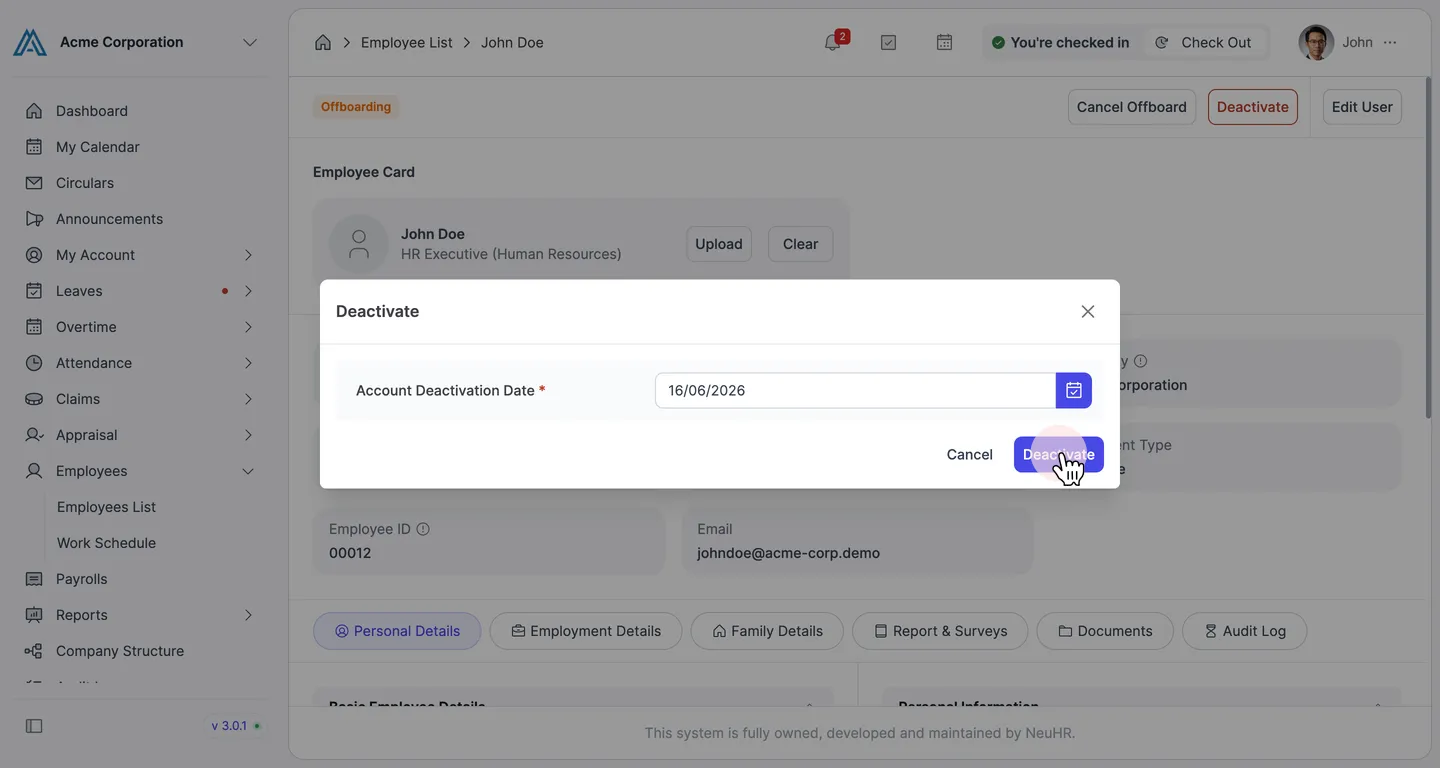
Section titled “Set the Account Deactivation Date”The Deactivate dialog opens with a single required field: Account Deactivation Date. Click the calendar icon or type a date to set when the account should be deactivated.
-
Confirm Deactivation
Section titled “Confirm Deactivation”After setting the deactivation date, click Deactivate to confirm.
-
Employee is Now Deactivated
Section titled “Employee is Now Deactivated”The employee’s status changes to Deactivated. A Reactivate button appears, allowing you to restore their access if needed.