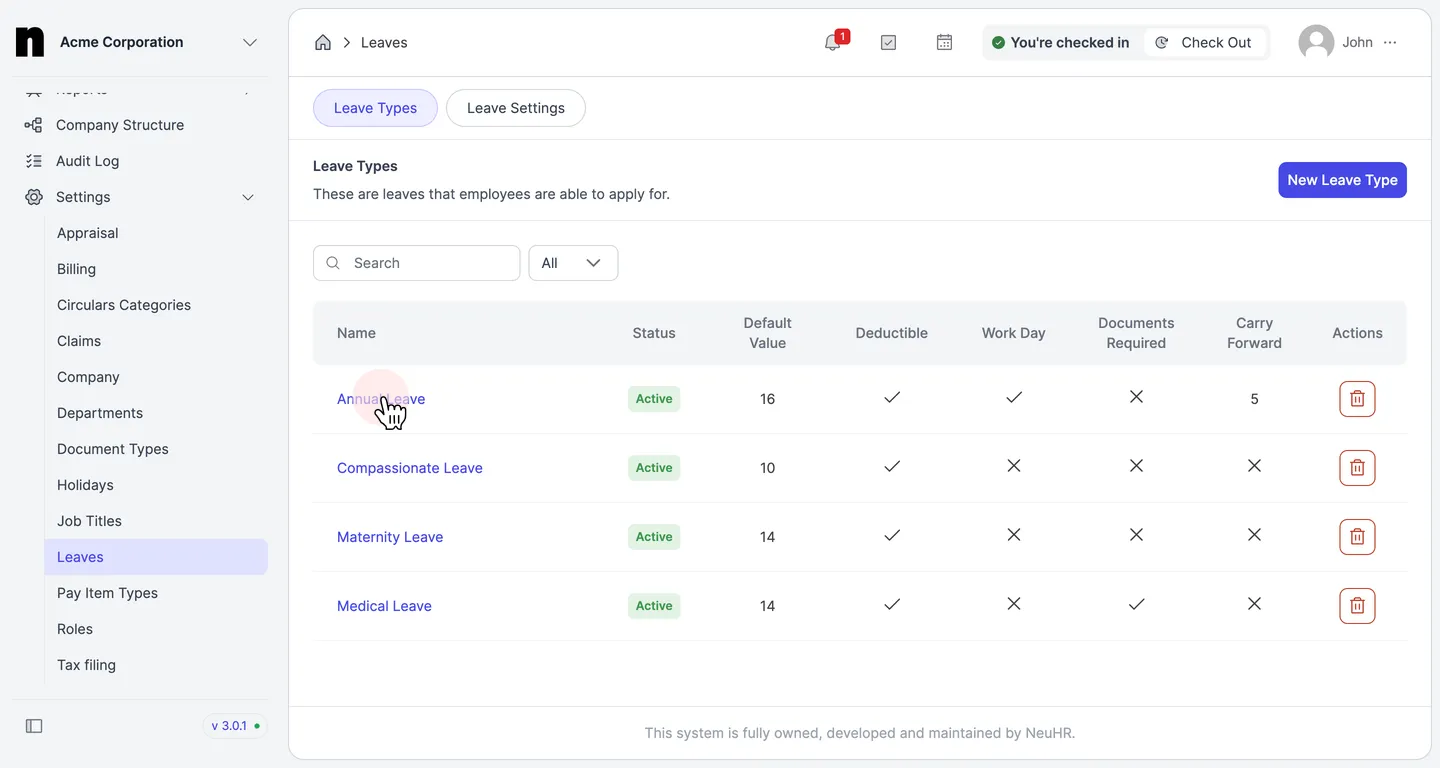
How to Update Leave Type
This guide shows you how to update an existing leave type in NeuHR.
-
Navigate to Leave Settings
Section titled “Navigate to Leave Settings”From the left sidebar, click on
Settingsto expand the menu, then click onLeaves.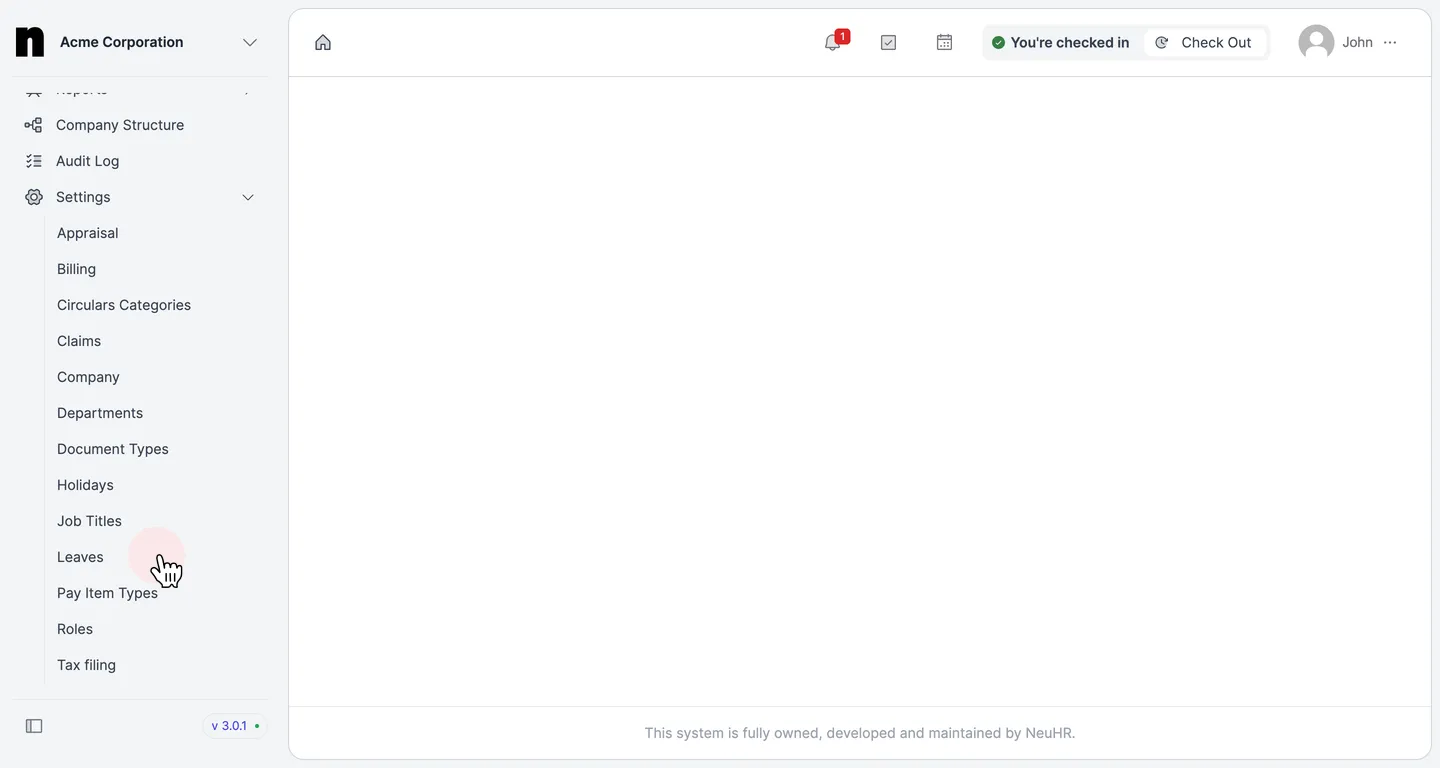
-
Select a Leave Type to Edit
Section titled “Select a Leave Type to Edit”On the
Leave Typespage, click on the name of the leave type you want to update (e.g.,Annual Leave).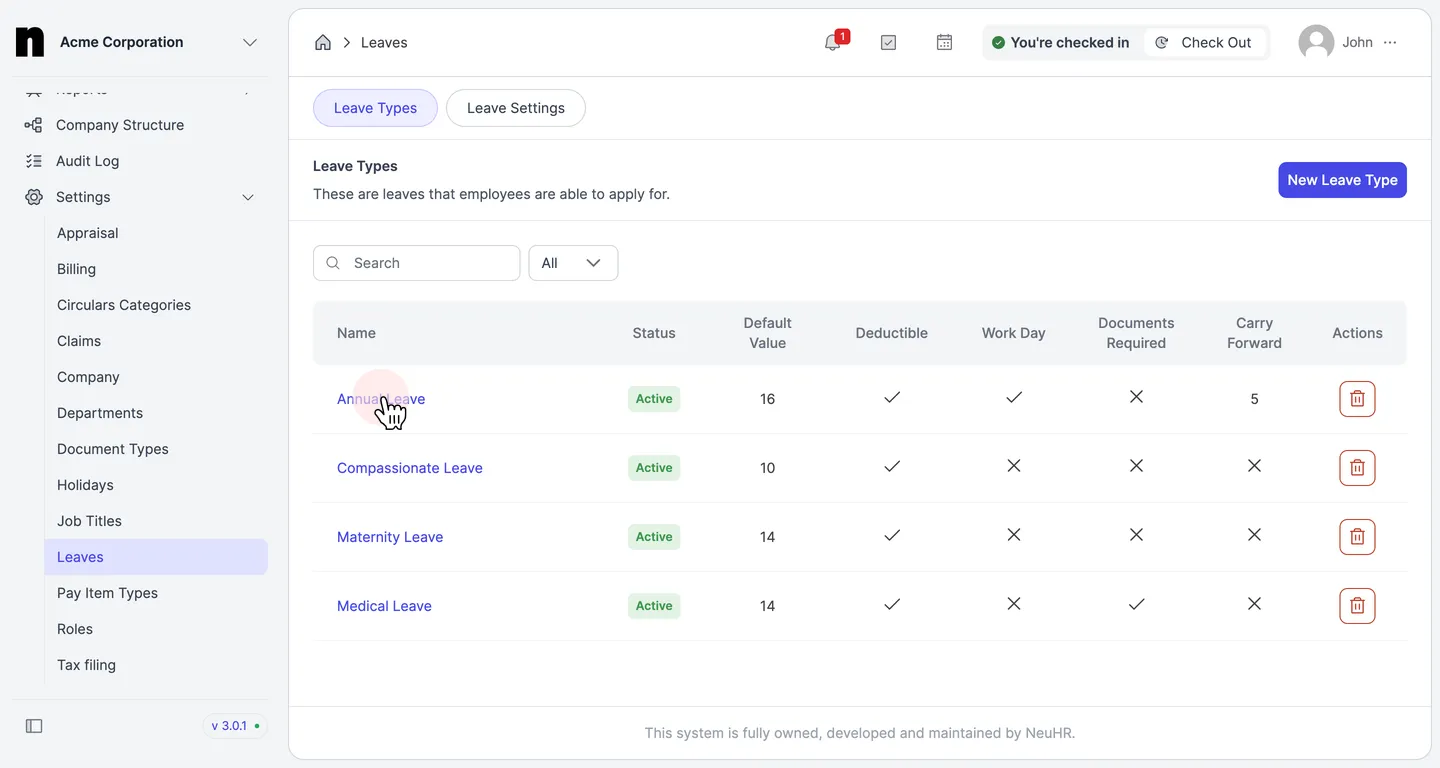
-
Review and Edit the Leave Type Details
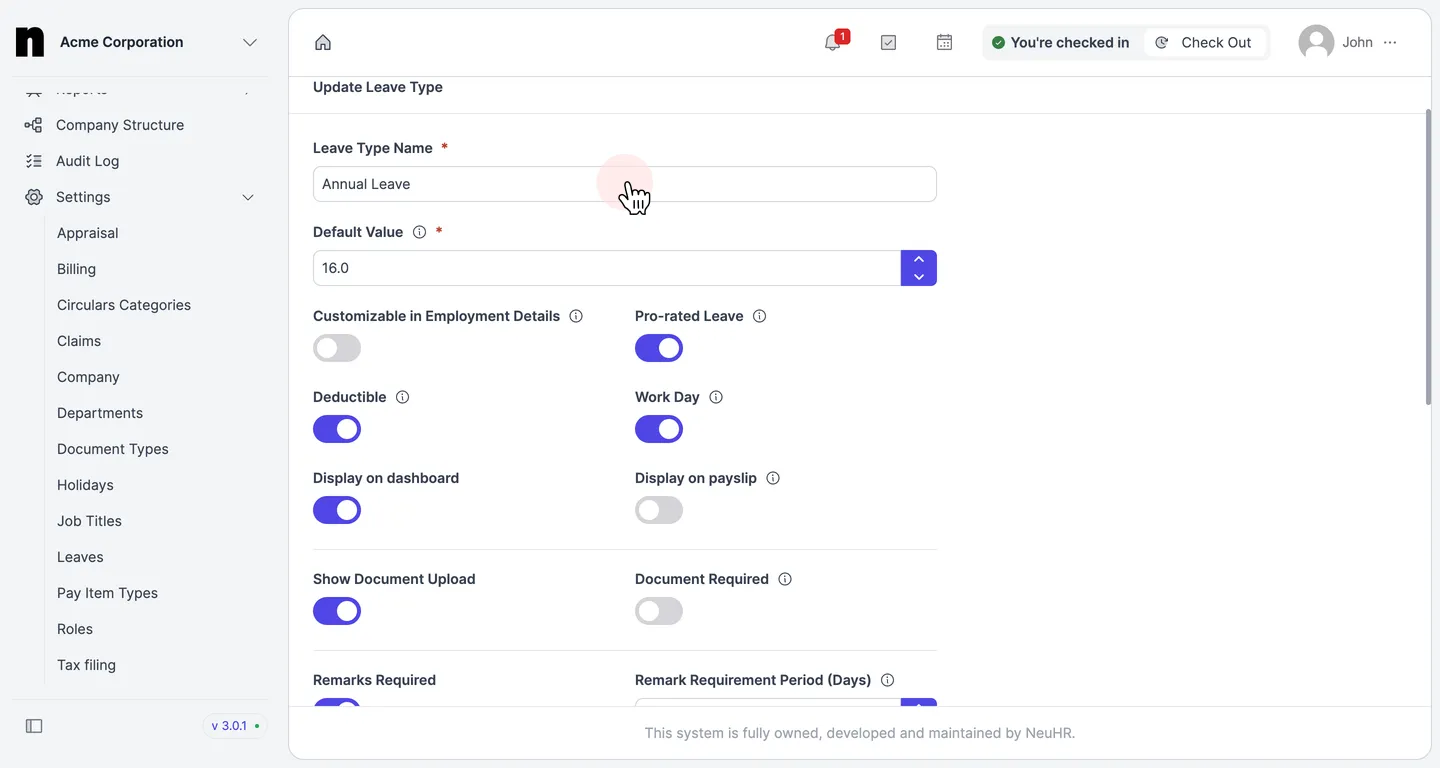
Section titled “Review and Edit the Leave Type Details”The
Update Leave Typeform opens with the current details pre-filled. Edit the fields you want to change:- Leave Type Name — the display name of the leave type
- Default Value — the default number of days allocated per year
- Customizable in Employment Details — toggle to allow per-employee customization
- Pro-rated Leave — toggle to enable pro-rating based on employment duration
- Deductible — toggle to deduct from the employee’s leave balance
- Work Day — toggle to count only working days (excluding weekends/holidays)
- Display on dashboard — toggle to show on the employee dashboard
- Display on payslip — toggle to display on employee payslips
- Show Document Upload — toggle to allow employees to attach supporting documents
- Document Required — toggle to make document upload mandatory
- Remarks Required — toggle to require a remark when applying
- Remark Requirement Period (Days) — number of days threshold that triggers the remark requirement
- Credit Leave Upon Join Date — toggle to credit leave on the employee’s join date
-
Save the Changes
Section titled “Save the Changes”After making your edits, scroll to the bottom of the form and click the
Updatebutton.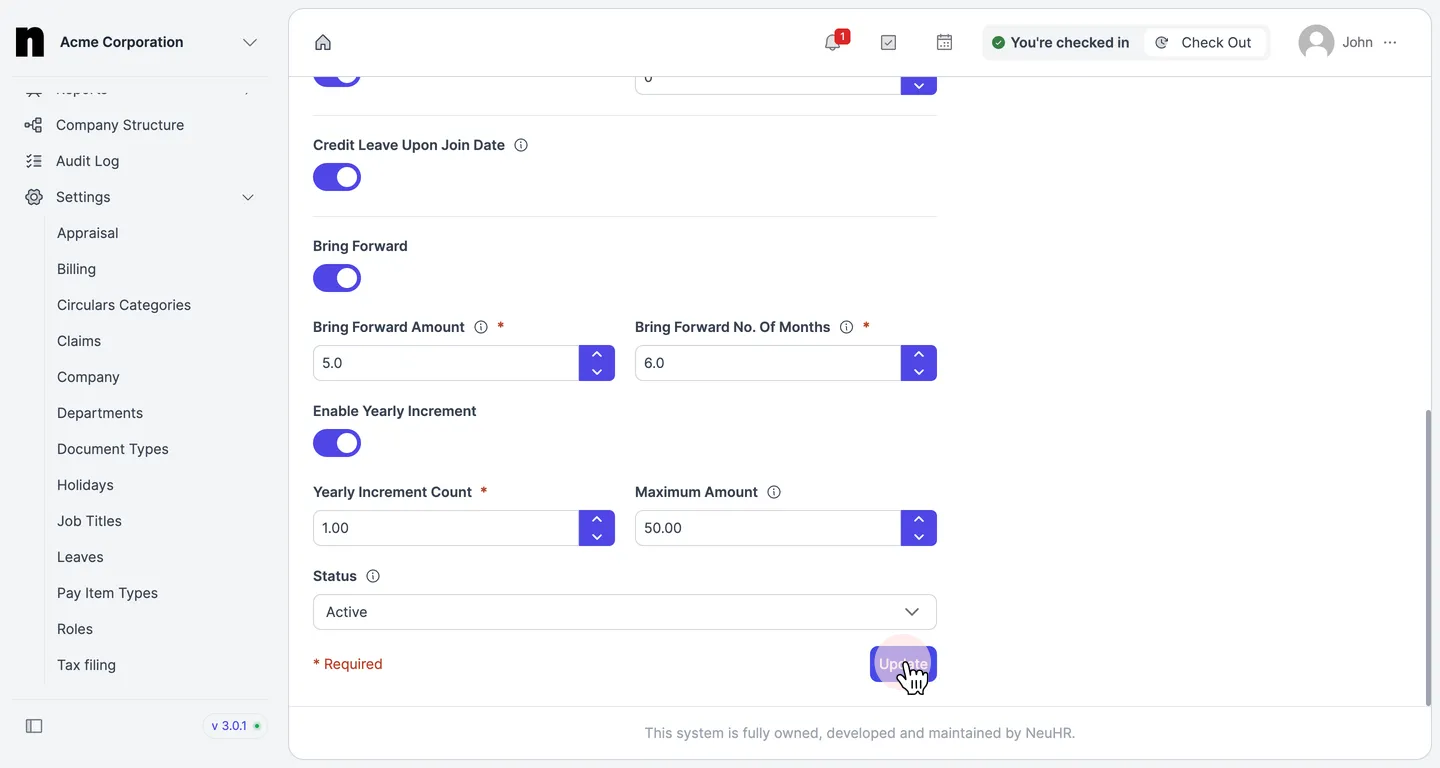
-
Confirm the Update
Section titled “Confirm the Update”You will be redirected to the
Leave Typespage. The updated leave type will appear in the list reflecting the new details.