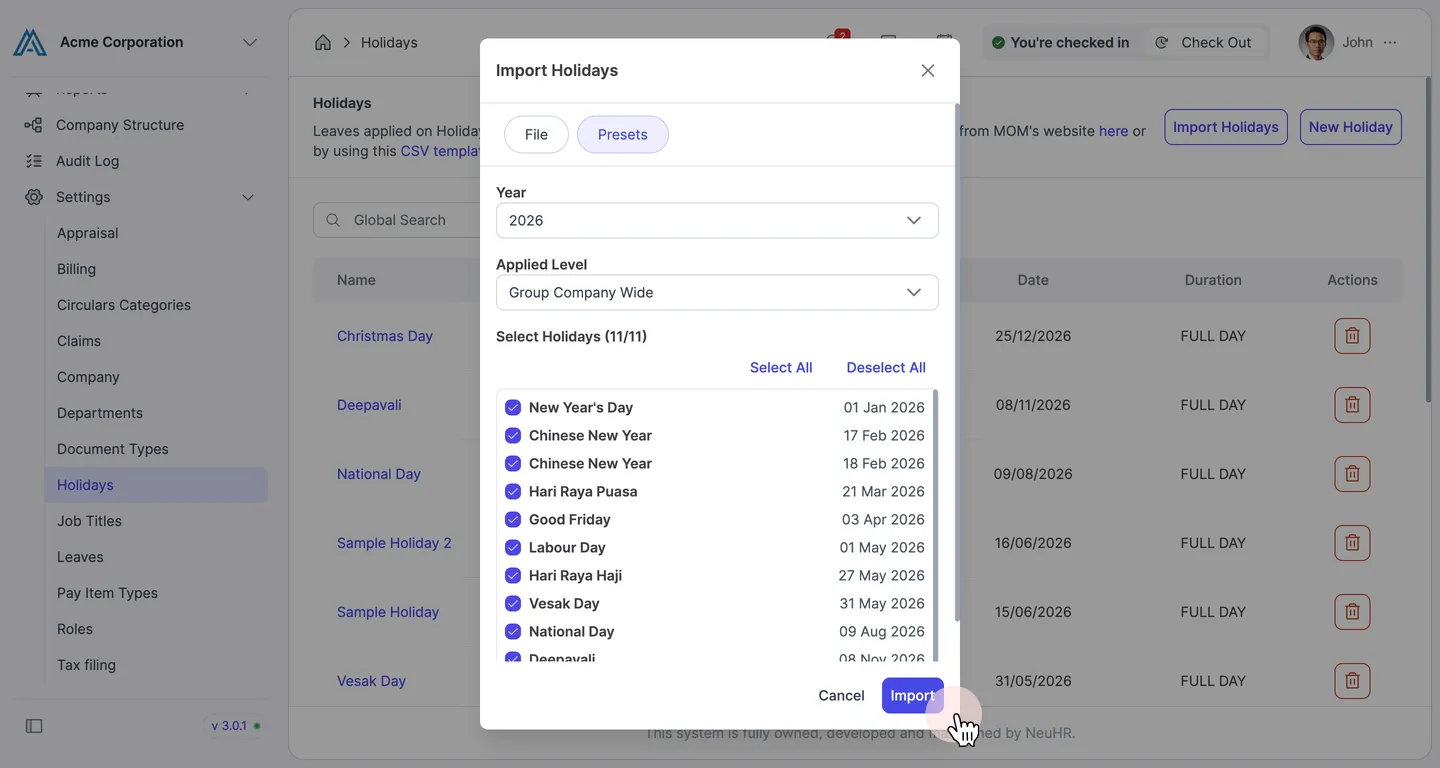
How to Bulk Create/Import Holidays
NeuHR lets you bulk import holidays in two ways: by uploading a CSV or ICS file, or by selecting from a built-in Presets list of public holidays. Both options are available through the Import Holidays button on the Holidays settings page.
Method 1: Import from a File
Section titled “Method 1: Import from a File”Use this method to import holidays from a CSV or ICS file. NeuHR provides a downloadable CSV template to help you format the file correctly. You can import the Holidays from MOM’s website or by using this CSV template.
-
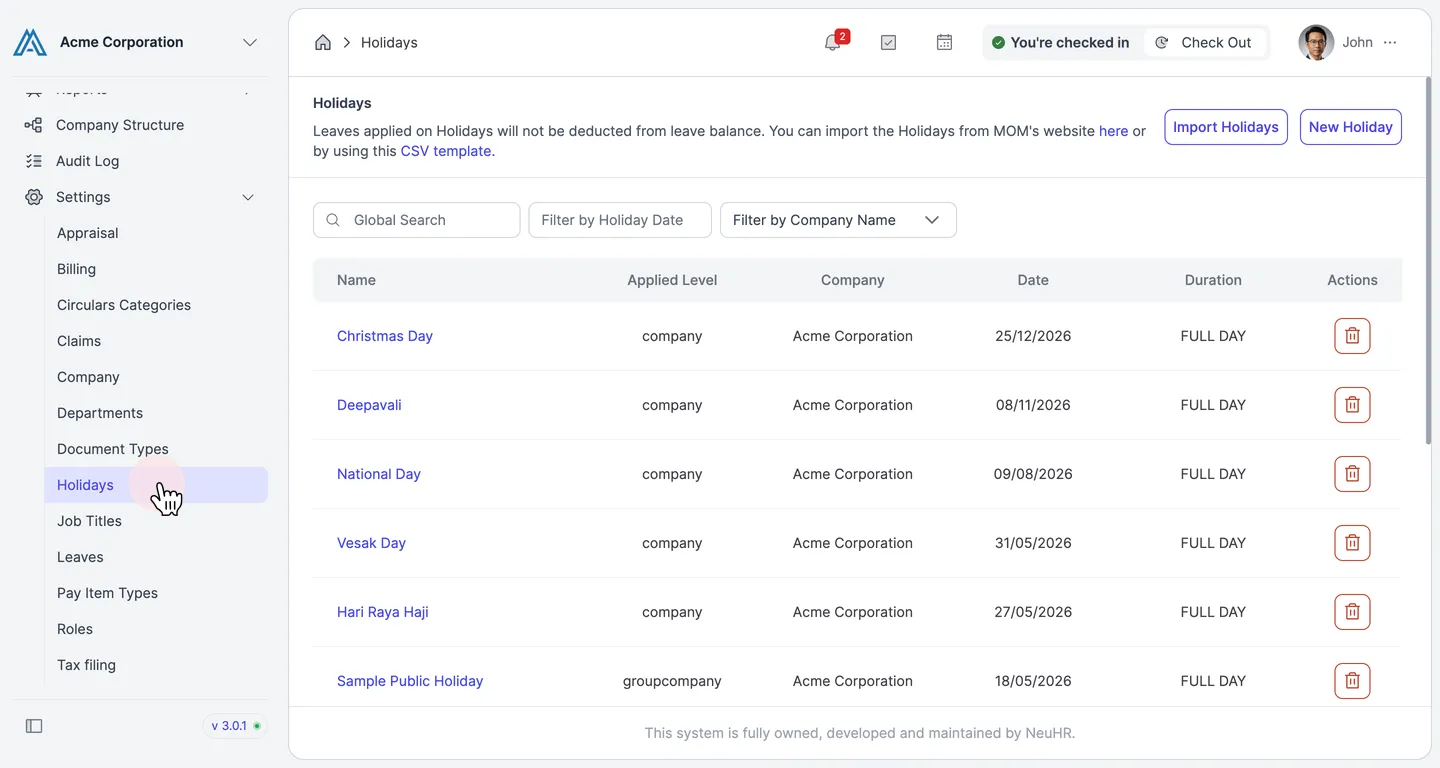
Navigate to Settings > Holidays
Section titled “Navigate to Settings > Holidays”In the left sidebar, go to Settings and click Holidays.
-
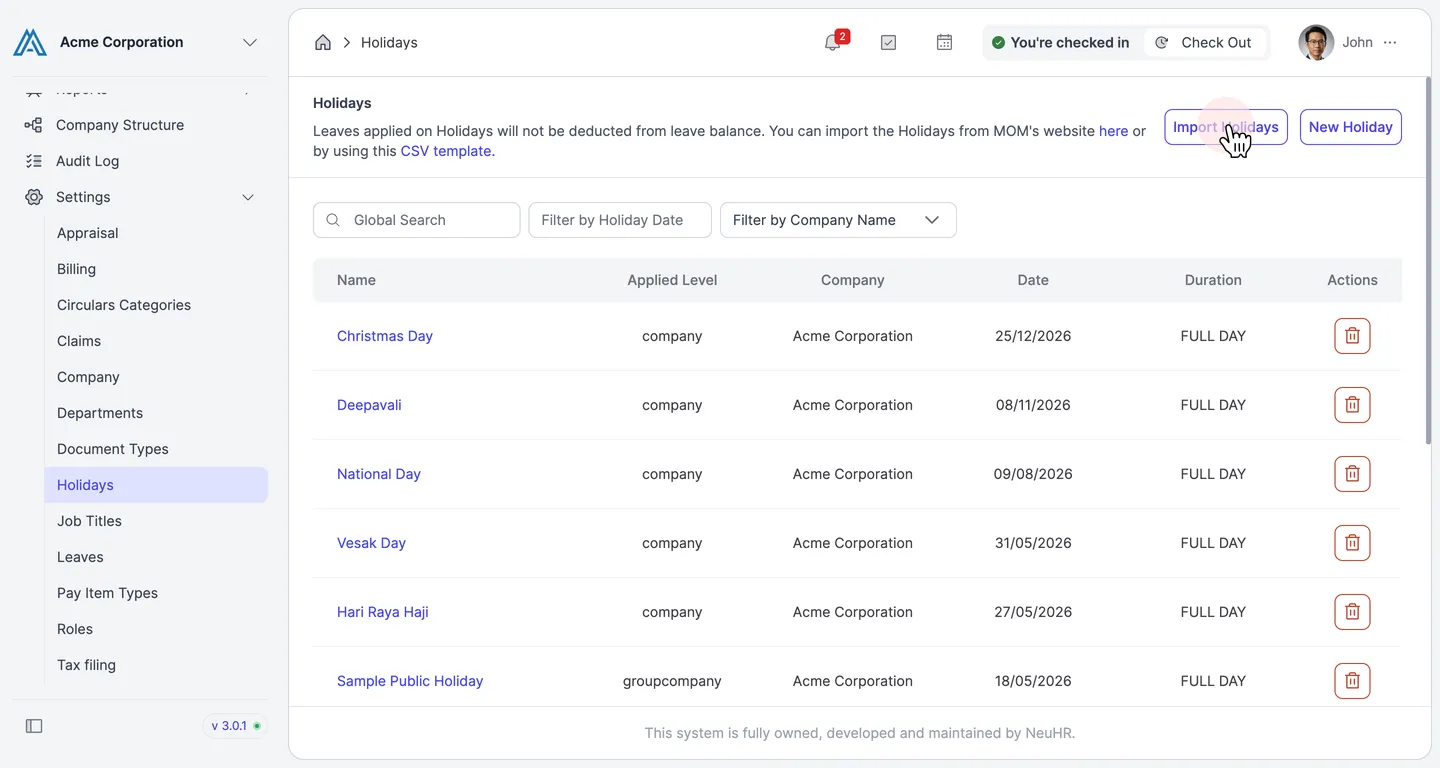
Click “Import Holidays”
Section titled “Click “Import Holidays””On the Holidays page, click the Import Holidays button in the top-right area.
-
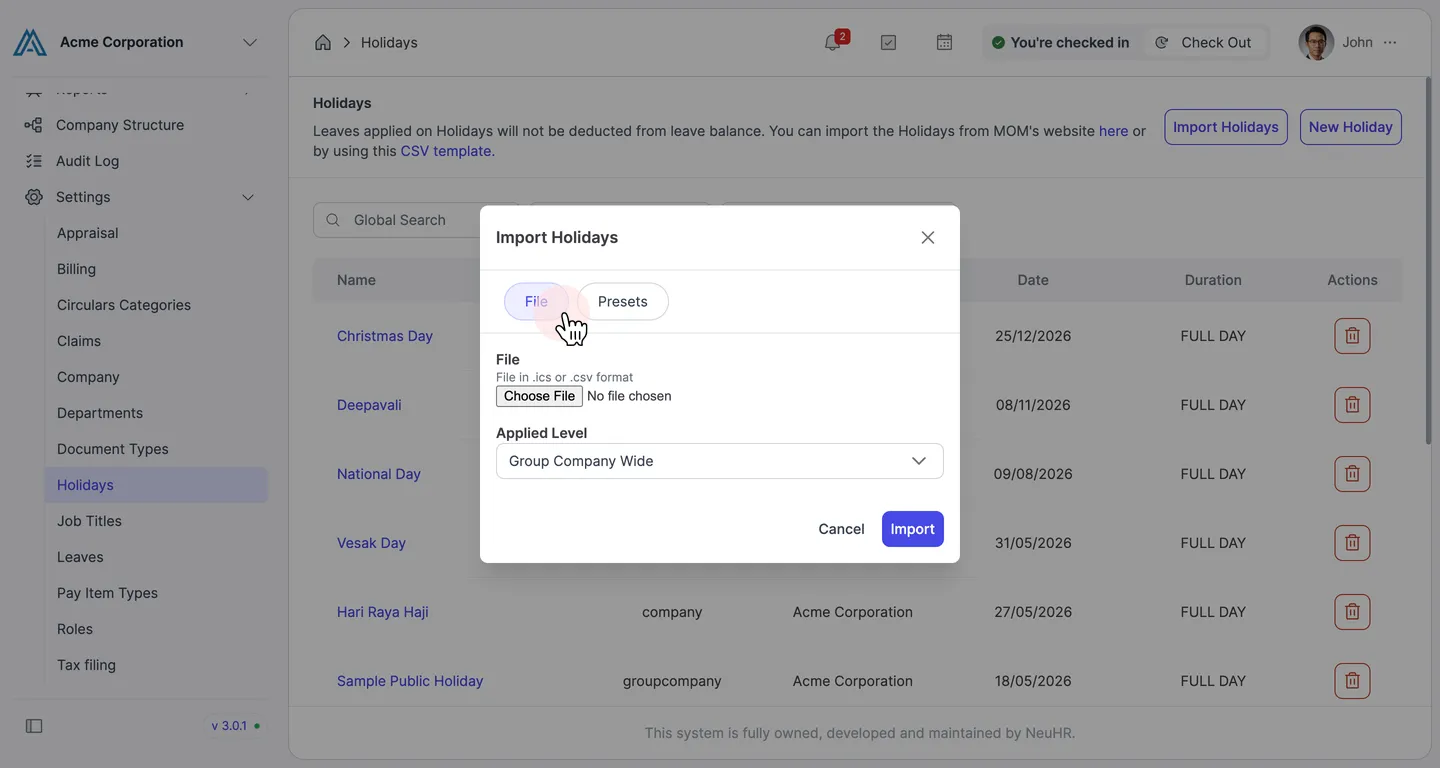
Select the “File” tab
Section titled “Select the “File” tab”In the Import Holidays dialog, make sure the File tab is selected.
-
Choose your CSV file
Section titled “Choose your CSV file”Click Choose File and select your
.csvor.icsfile.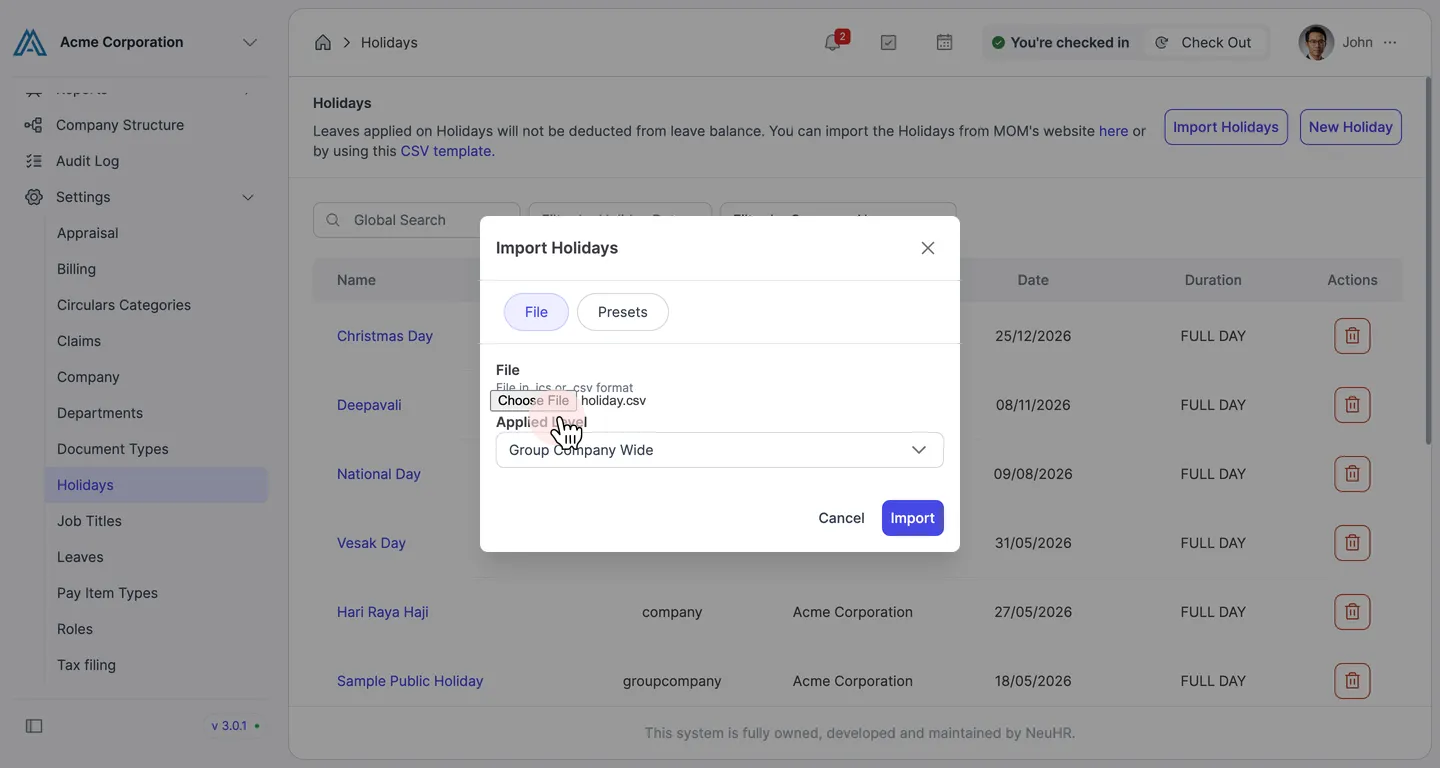
-
Set the Applied Level
Section titled “Set the Applied Level”Use the Applied Level dropdown to choose which level the holidays apply to (e.g.,
Group Company Wide,company, ordepartment).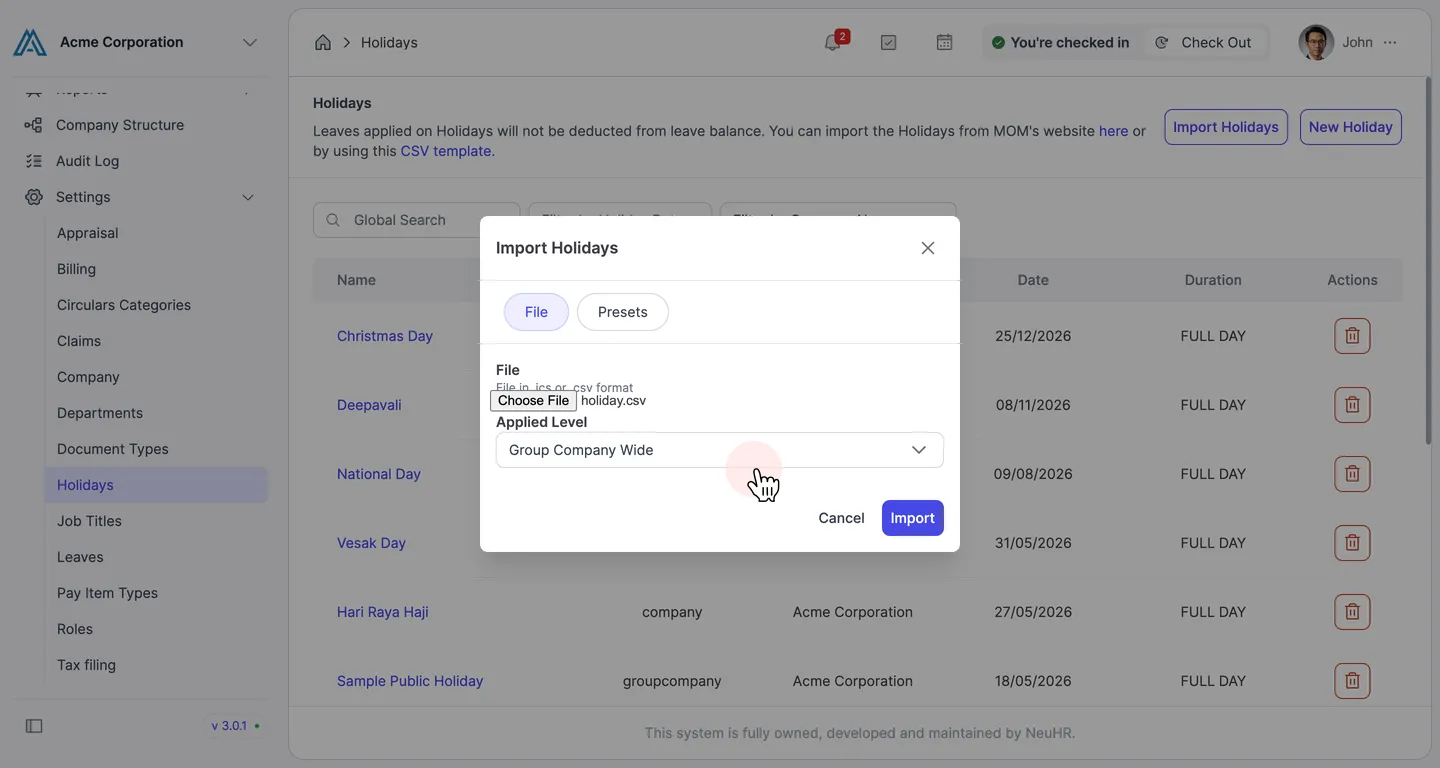
-
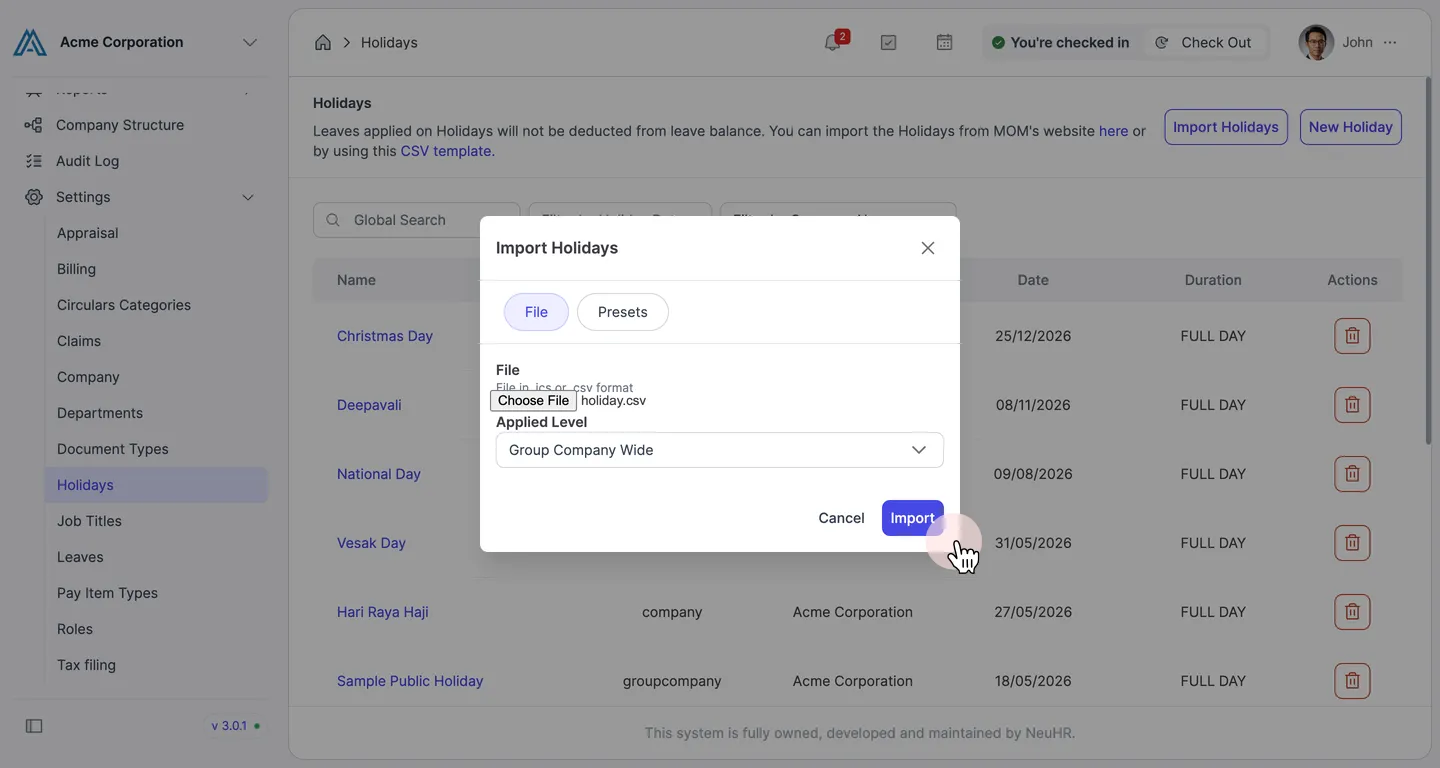
Click “Import”
Section titled “Click “Import””Click the Import button to start the import.
-
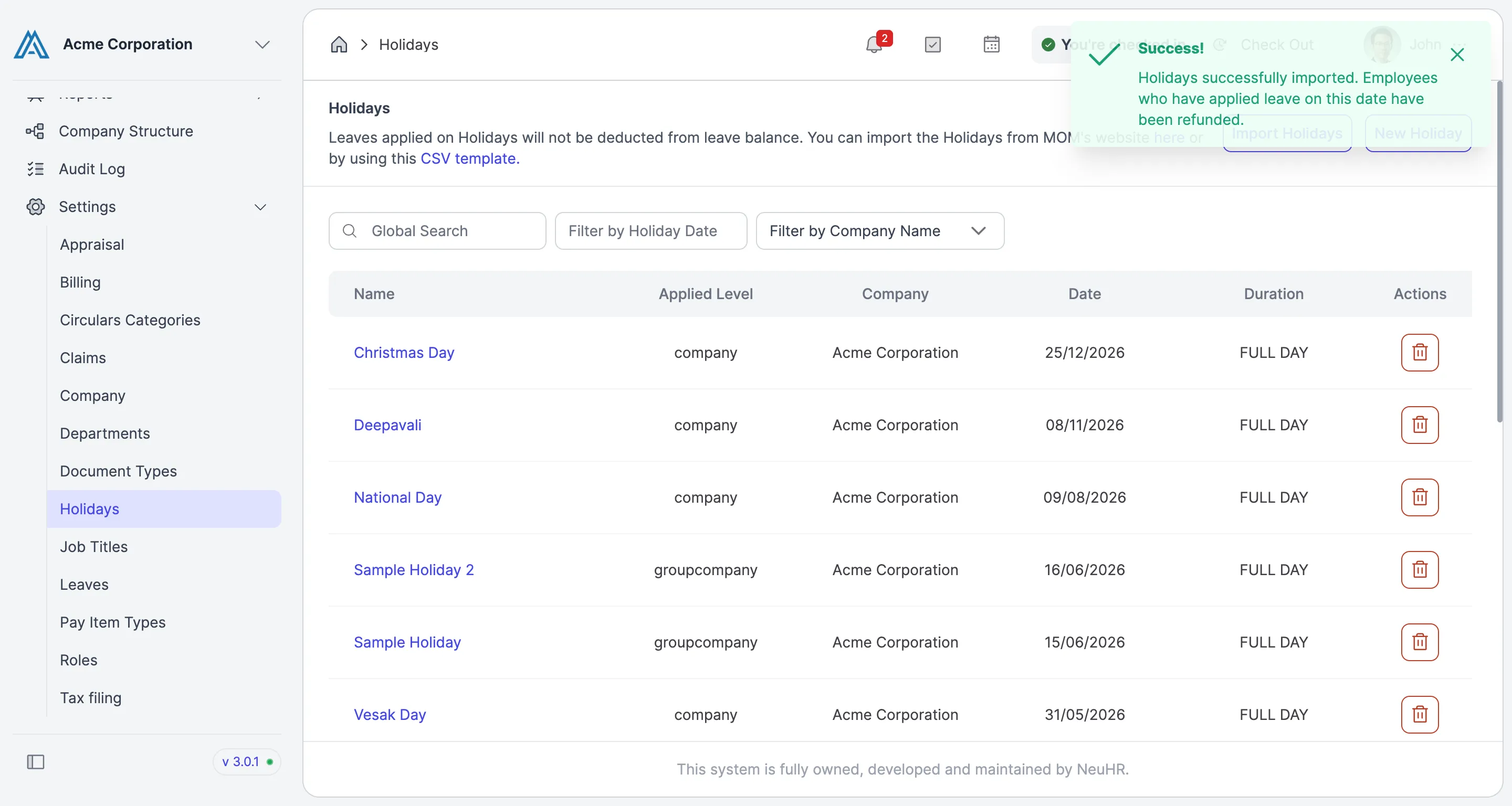
Import complete
Section titled “Import complete”A success notification confirms: “Holidays successfully imported.” The imported holidays now appear in the Holidays list.
Method 2: Import from Presets
Section titled “Method 2: Import from Presets”Use this method to quickly add a pre-built list of Singapore public holidays for a selected year.
-
Open the Import Holidays dialog
Section titled “Open the Import Holidays dialog”Follow steps 1–2 from Method 1 above (Settings > Holidays → click Import Holidays).
-
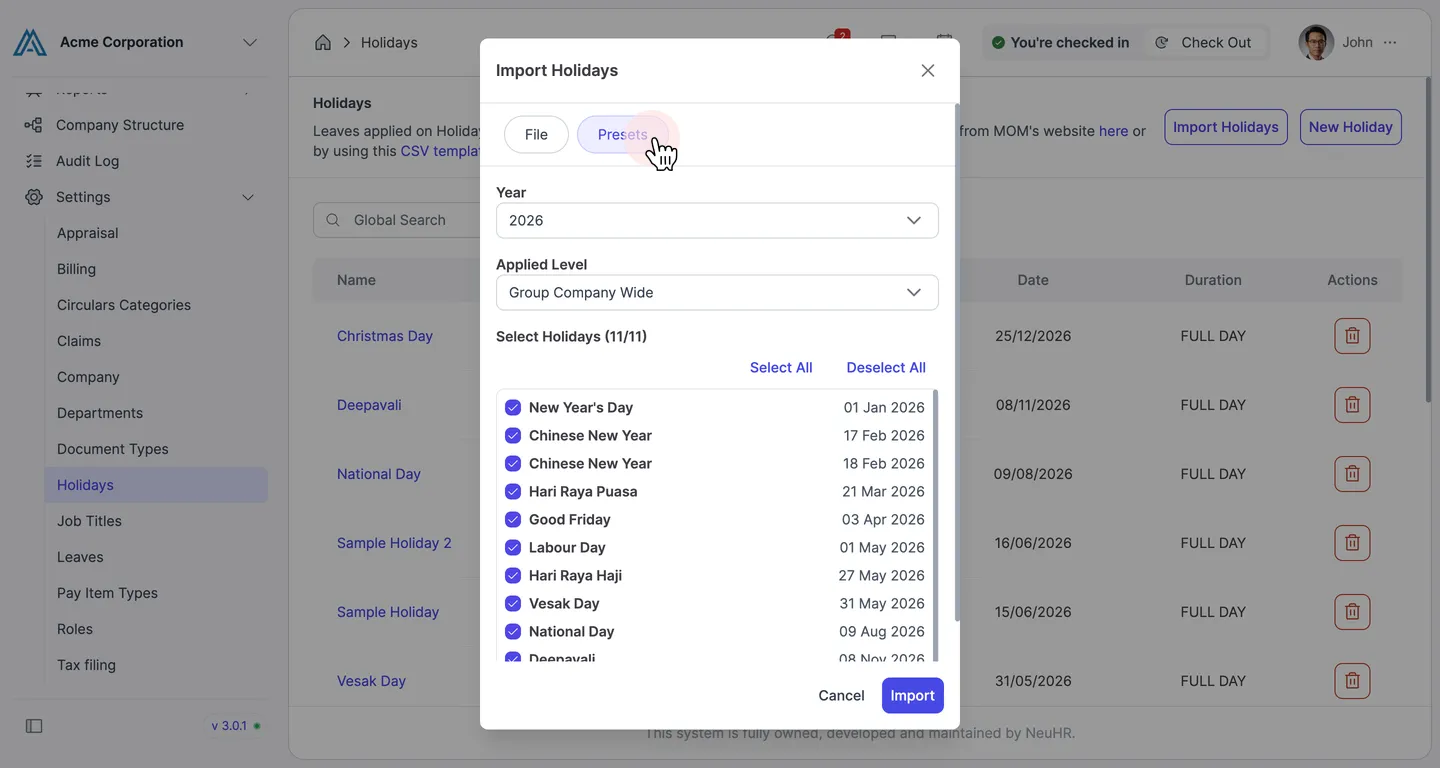
Select the “Presets” tab
Section titled “Select the “Presets” tab”In the Import Holidays dialog, click the Presets tab.
-
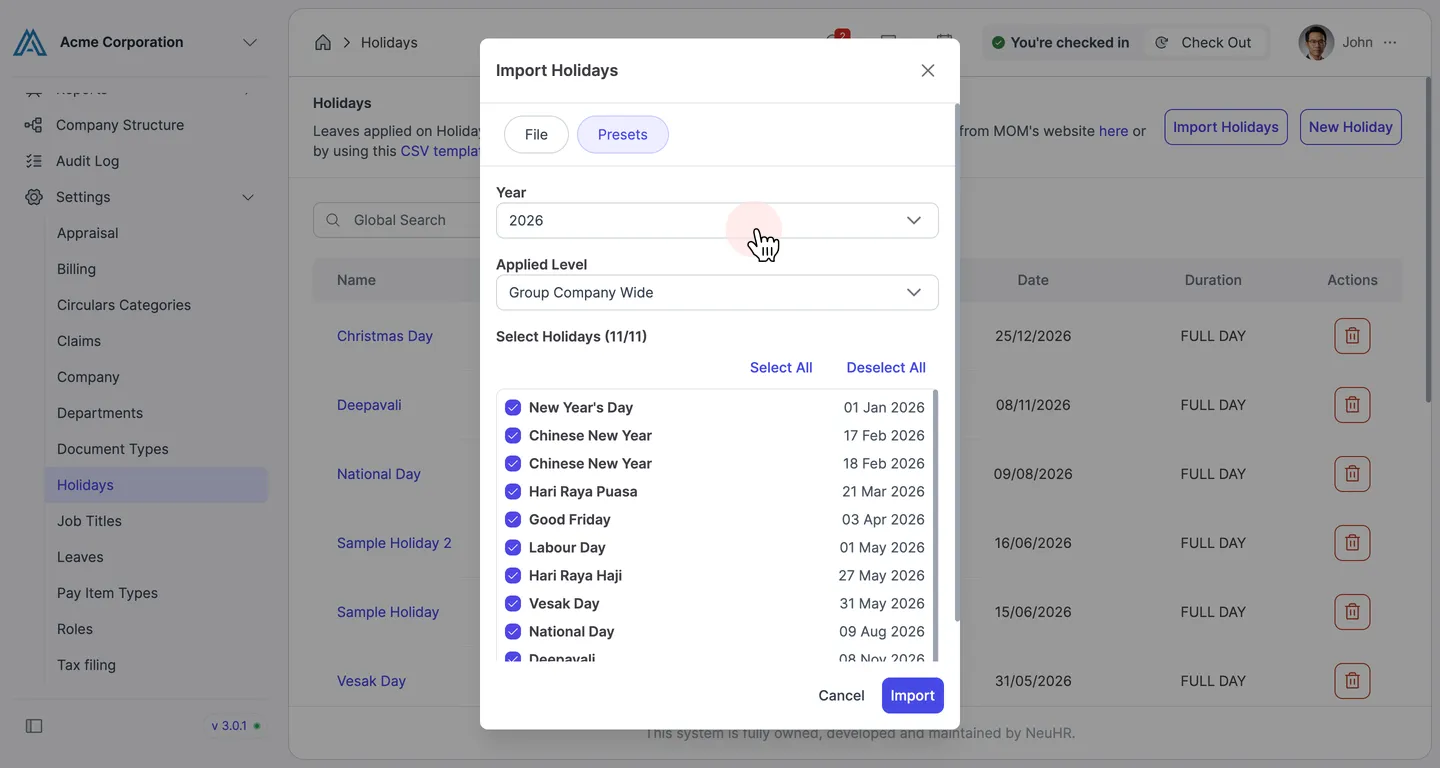
Select the year
Section titled “Select the year”Use the Year dropdown to choose the year for which you want to import public holidays.
-
Review and confirm holidays
Section titled “Review and confirm holidays”All public holidays for the selected year are pre-selected. Use Select All / Deselect All or uncheck individual holidays as needed. Then set the Applied Level and click Import.