How to Bulk Apply on Behalf of Employees
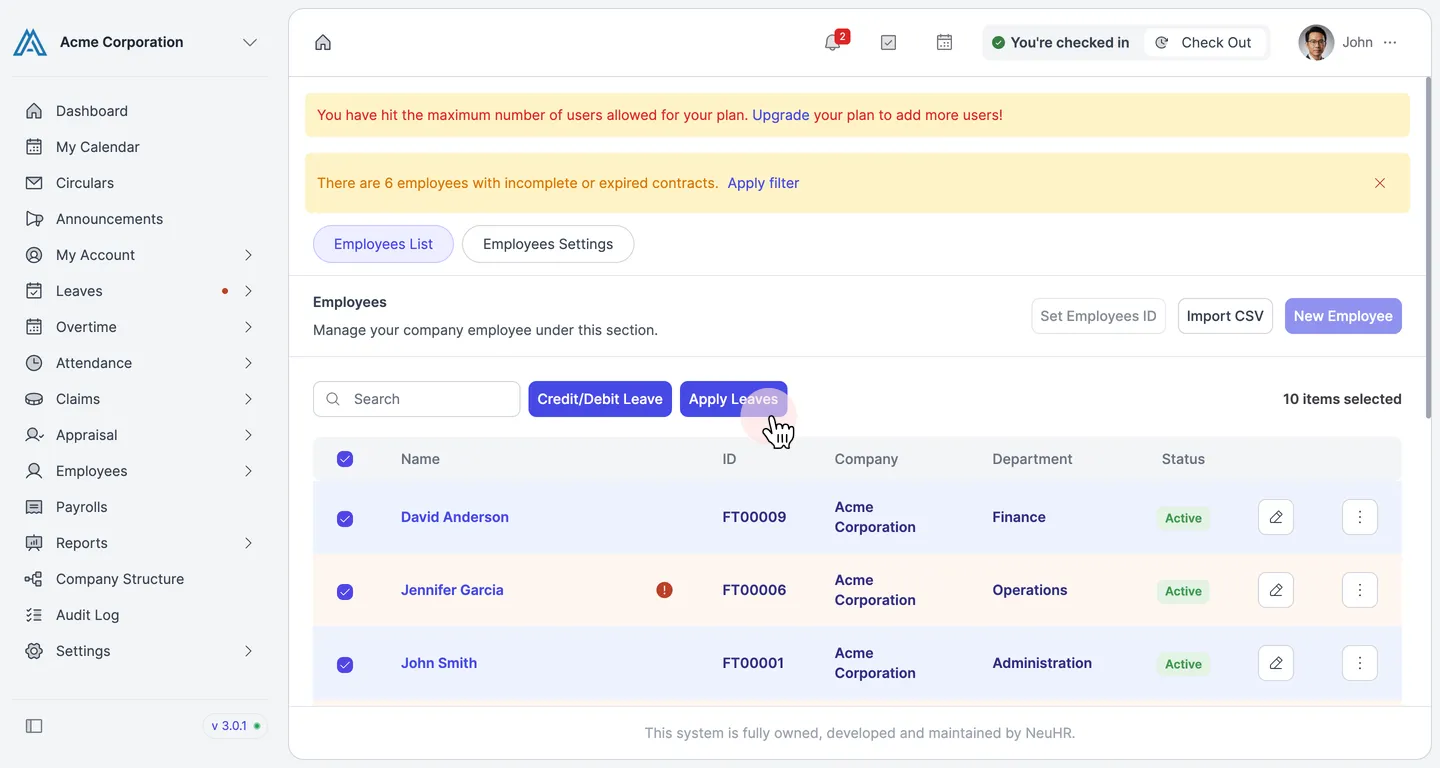
Admins can apply leave for multiple employees simultaneously using the bulk apply feature from the Employees List.
-
Go to the Employees List
Section titled “Go to the Employees List”Navigate to
Employees>Employees Listin the sidebar. Each employee row has a checkbox on the left.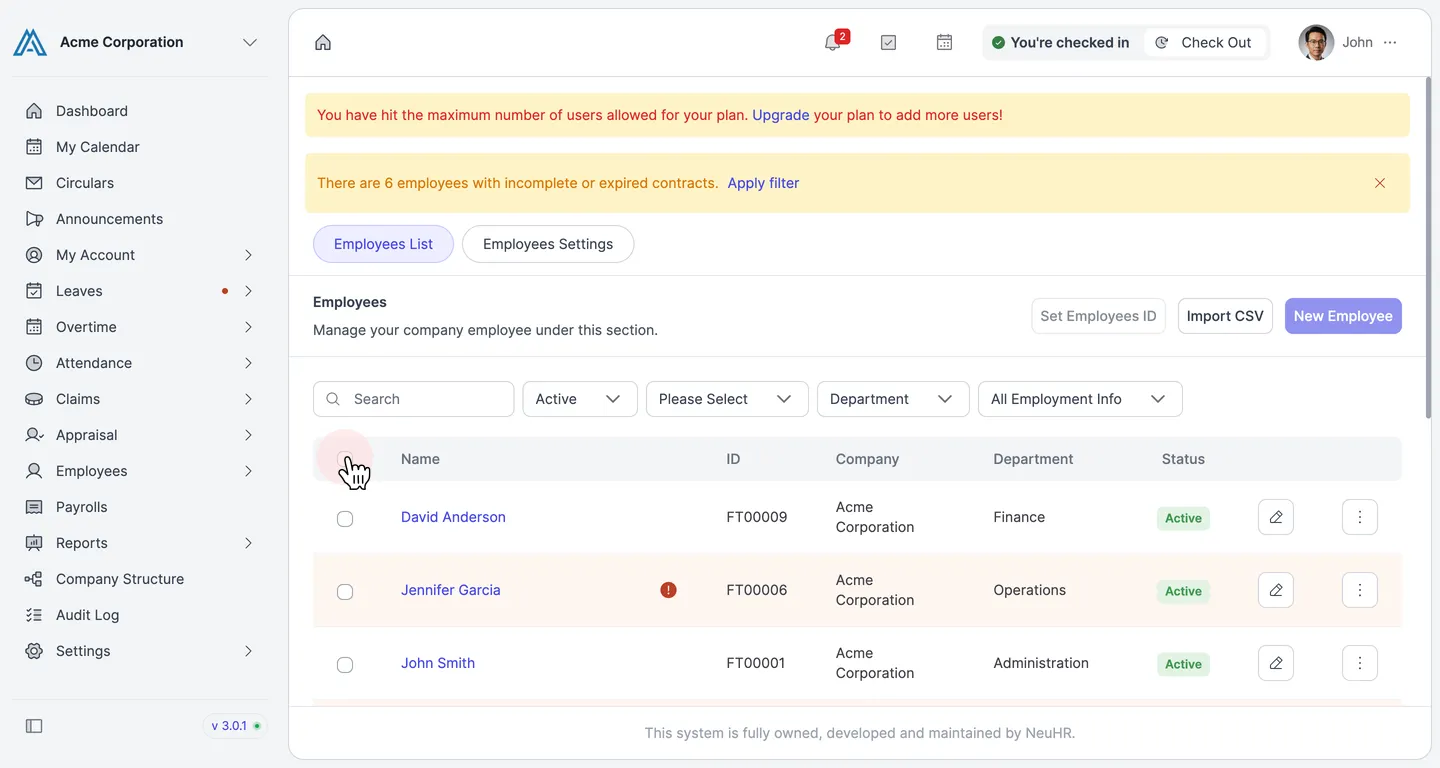
-
Select employees
Section titled “Select employees”Click the checkboxes to select the employees you want to apply leave for. You can also click the header checkbox to select all employees at once. The
Apply Leavesbutton will appear once at least one employee is selected.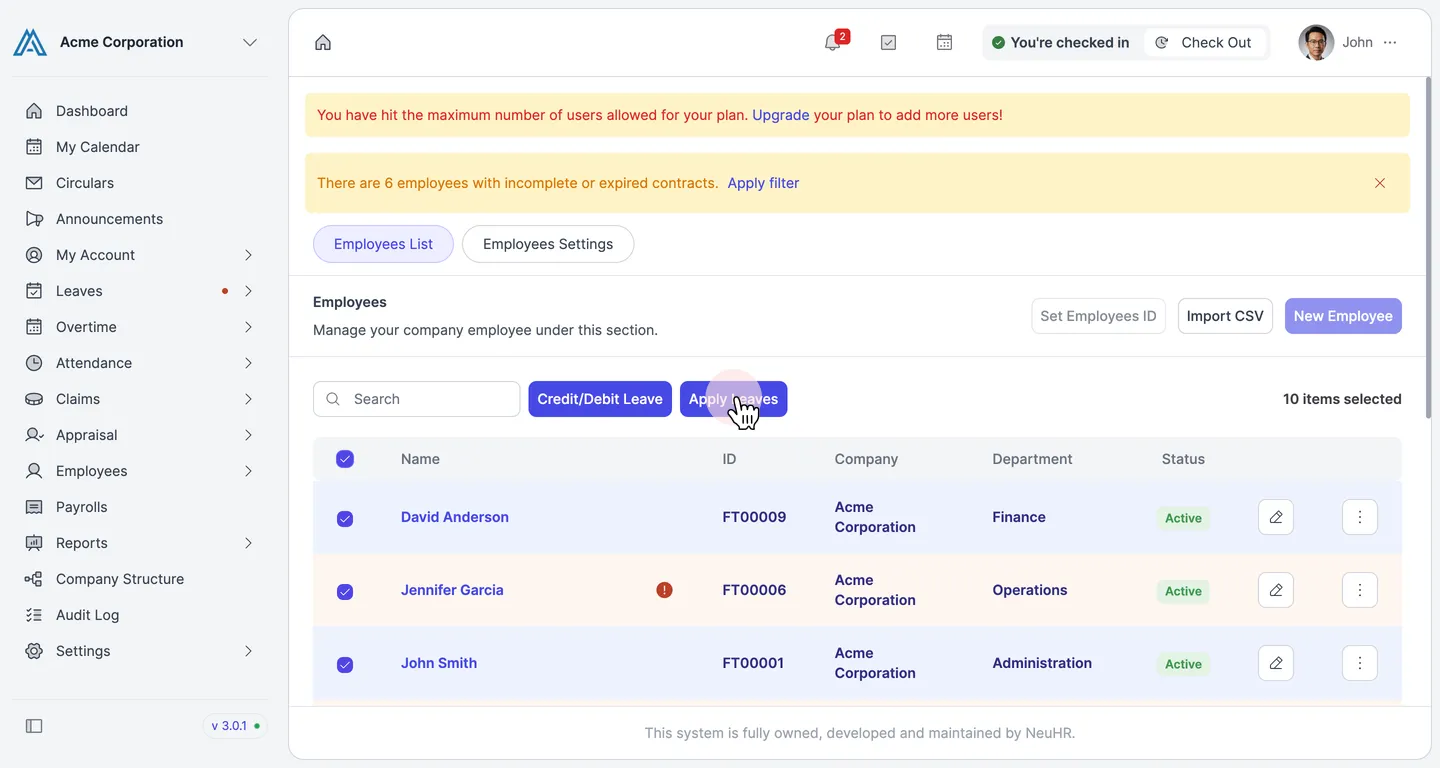
-
Click Apply Leaves
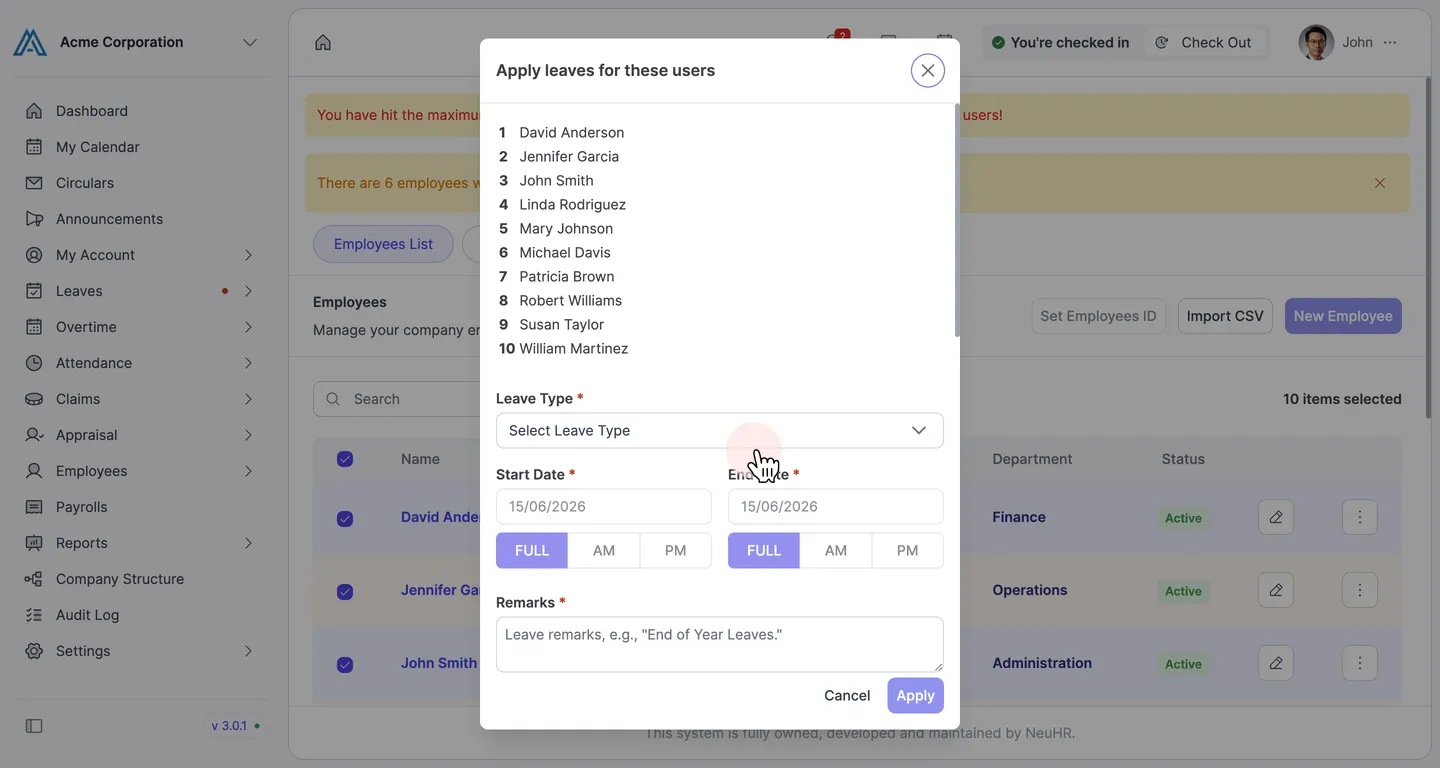
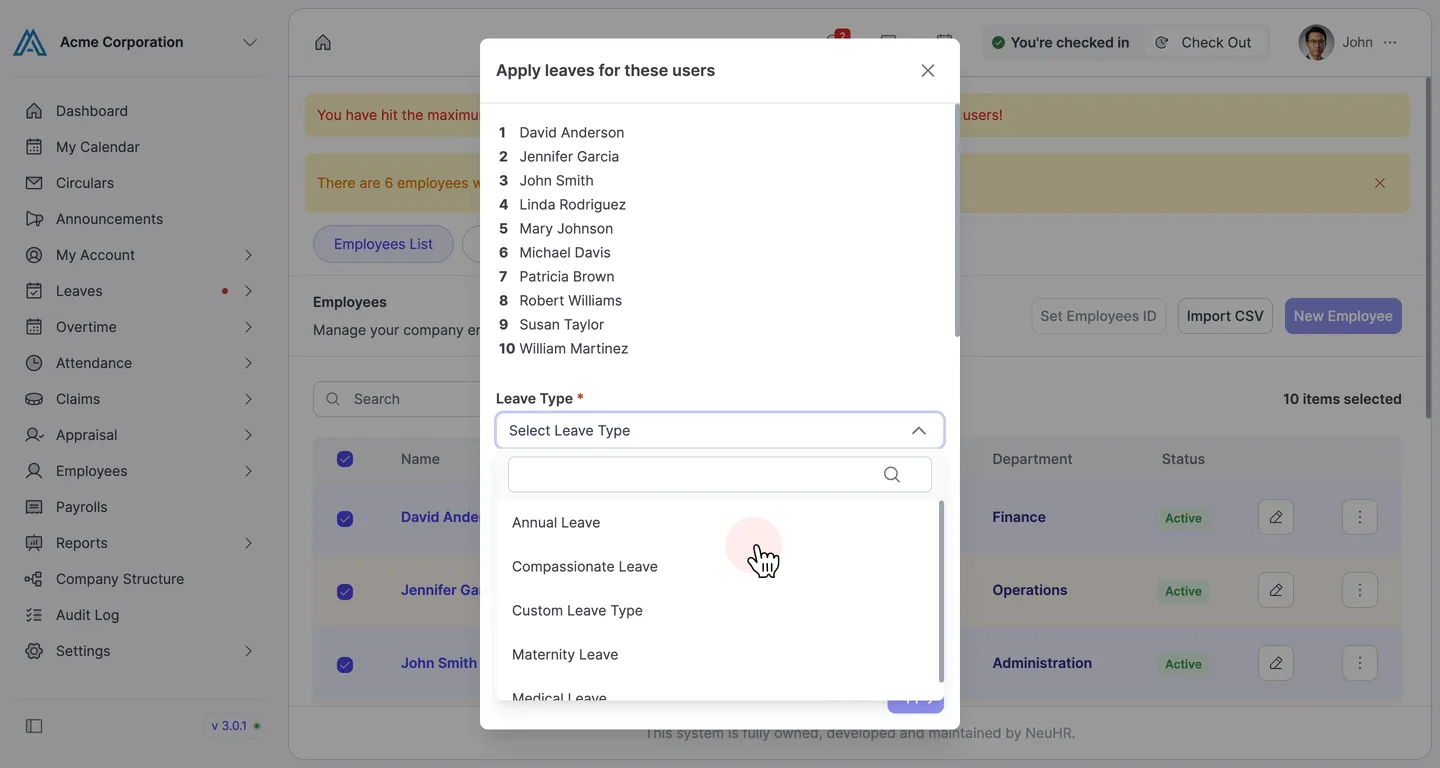
Section titled “Click Apply Leaves”Click the Apply Leaves button to open the bulk apply dialog. The dialog shows a numbered list of all selected employees.
-
Select the leave type
Section titled “Select the leave type”Click the Leave Type dropdown and select the leave type you want to apply for all selected employees.
-
Fill in the form and click Apply
Section titled “Fill in the form and click Apply”Set the
Start DateandEnd Date. ChooseFULL,AM, orPMfor the start date. Enter a reason in theRemarksfield (required), then click Apply.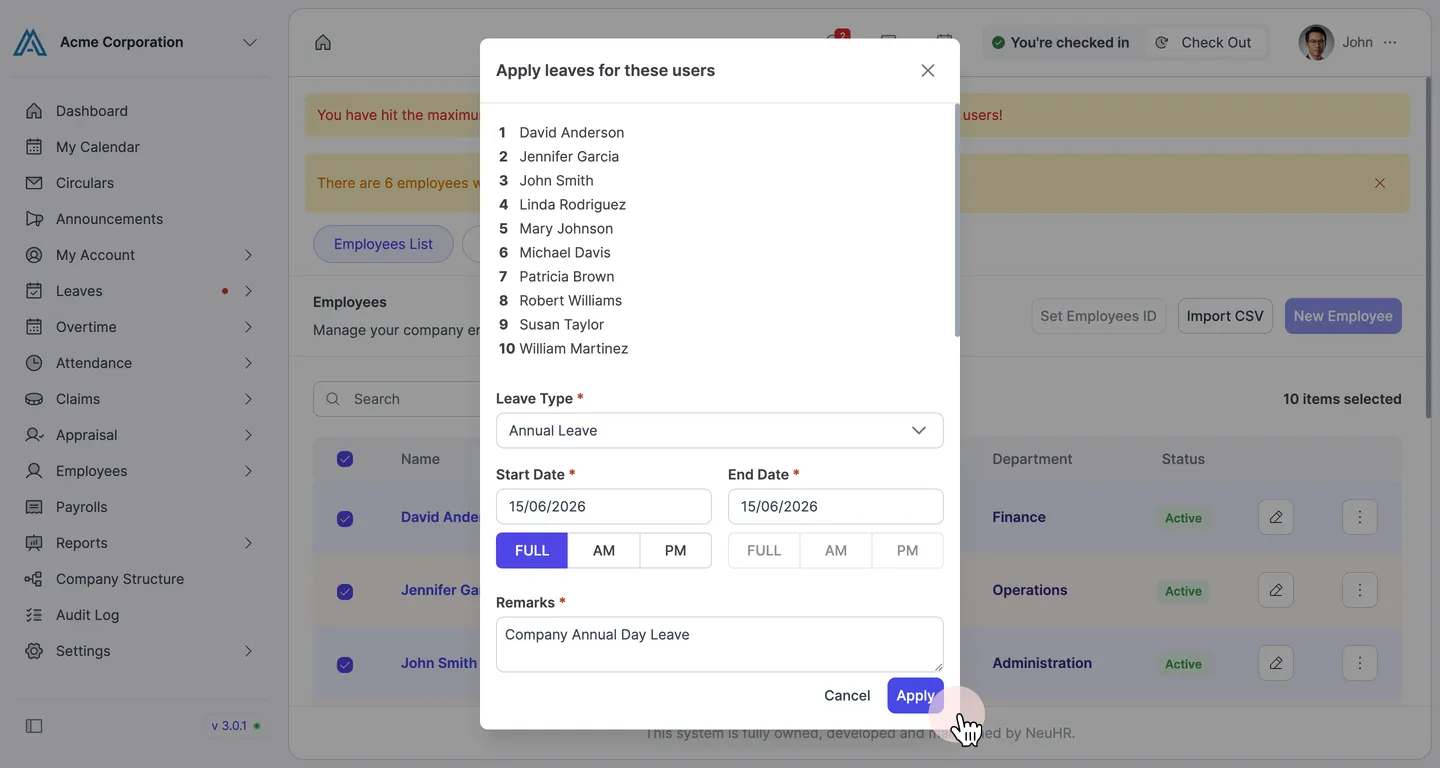
-
Confirm submission
Section titled “Confirm submission”The dialog closes and you return to the Employees List. The leave applications have been submitted for all selected employees.