

How to do Xero Integration (Manual Journals/Bills to Pay) with Processed Claims
This guide shows you how to submit processed claims to your Xero accounting software as either Bills to Pay or Manual Journals from the Accounting (Xero) tab in Approve Claims.
-
Navigate to Claims → Approve Claims
Section titled “Navigate to Claims → Approve Claims”From the sidebar, click
Claimsto expand the menu, then clickApprove Claims.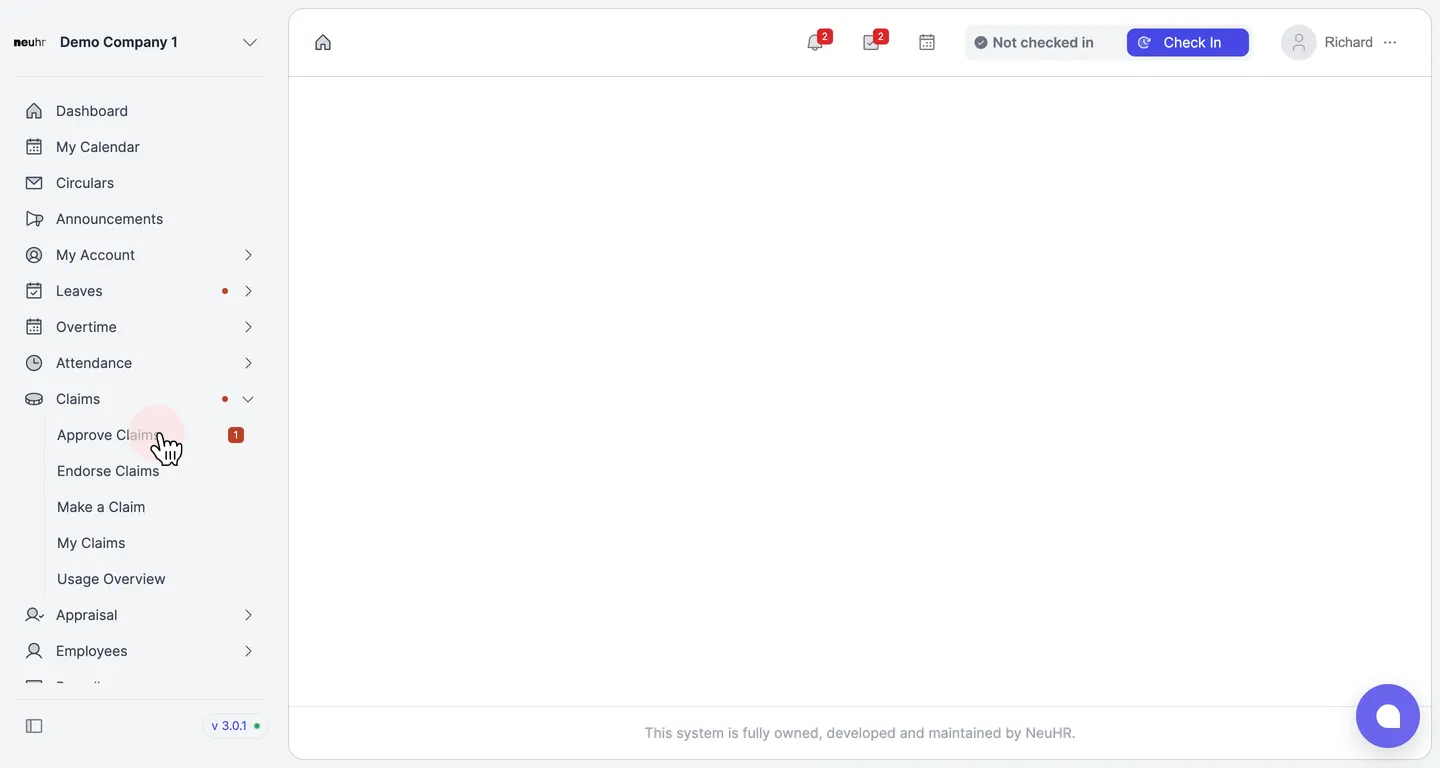
-
Click the Accounting (Xero) tab
Section titled “Click the Accounting (Xero) tab”On the Approve Claims page, click the
Accounting (Xero)tab.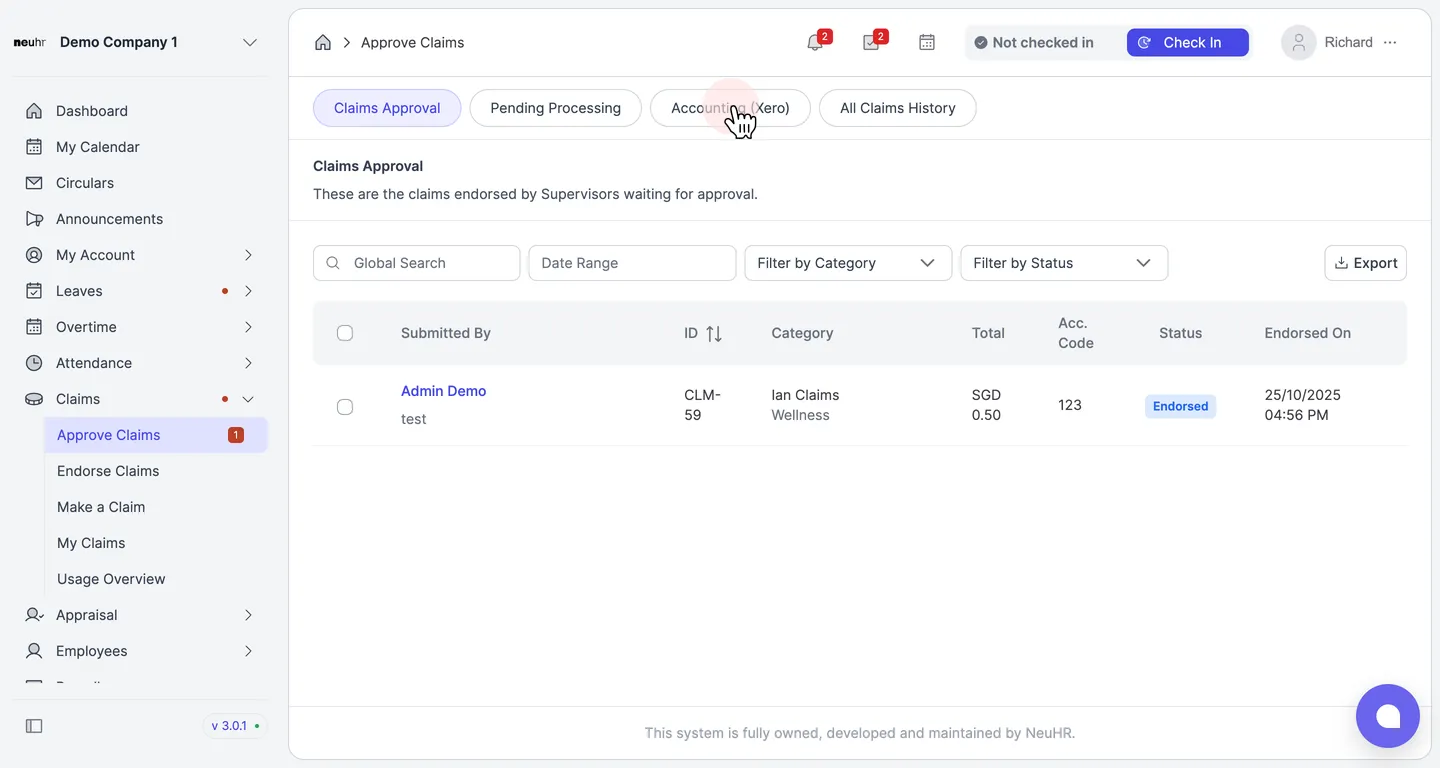
-
Select processed claims
Section titled “Select processed claims”Tick the checkbox next to each claim you want to submit to Xero. You can select one or more claims. The
Submit to Xerobutton becomes active once at least one claim is selected.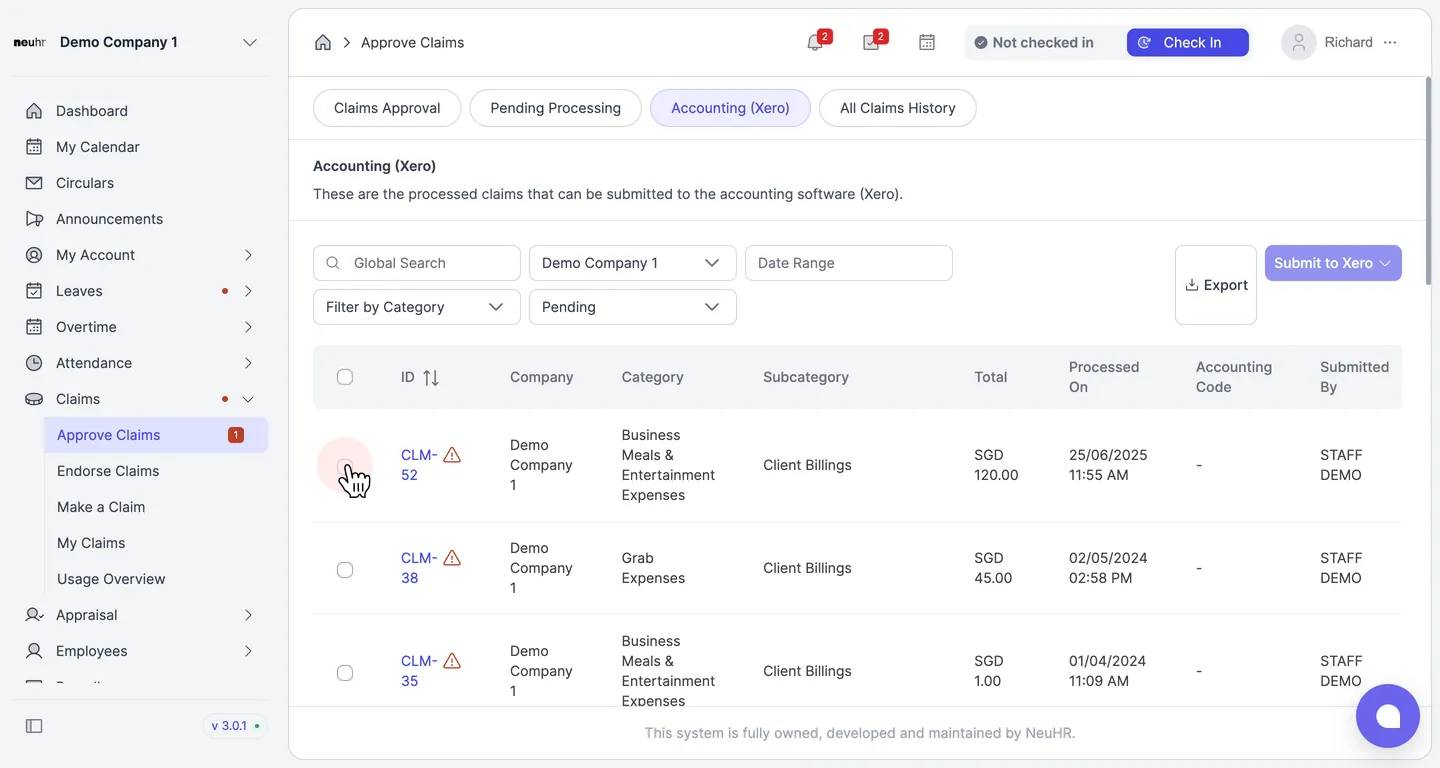
-
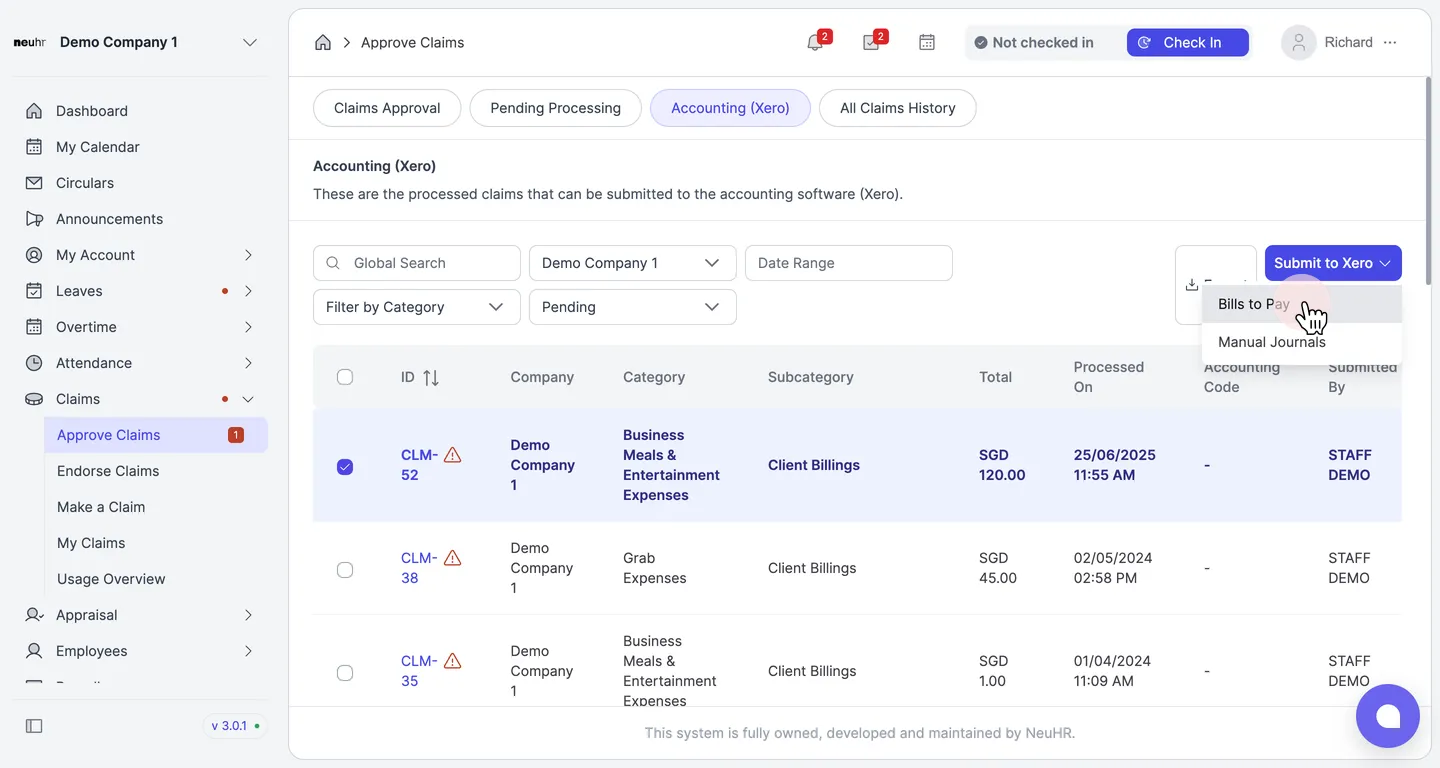
Click Submit to Xero
Section titled “Click Submit to Xero”Click the
Submit to Xerobutton to open the submission type dropdown.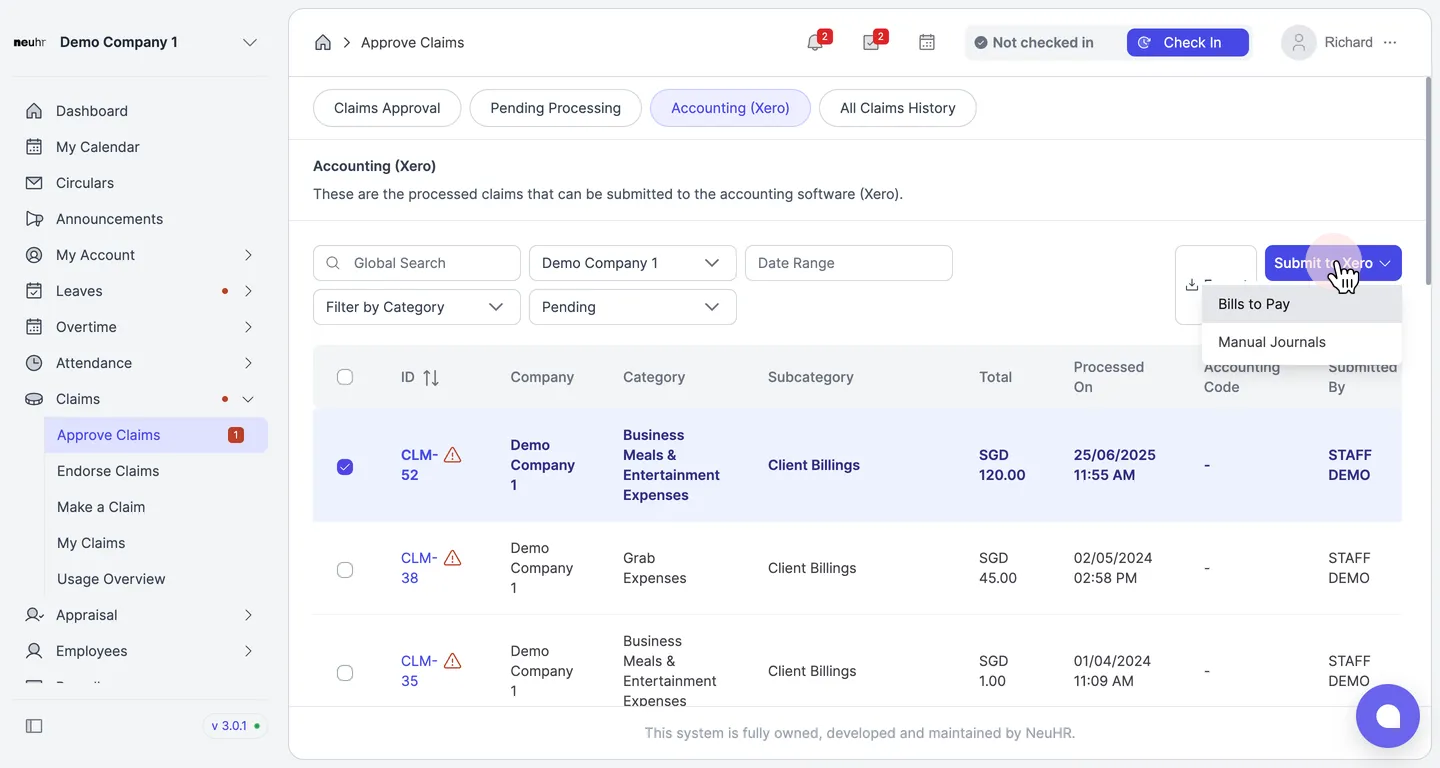
-
Choose Bills to Pay or Manual Journals
Section titled “Choose Bills to Pay or Manual Journals”Select either
Bills to PayorManual Journalsfrom the dropdown depending on how you want the claims recorded in Xero.- Bills to Pay — creates a bill in Xero for each selected claim
- Manual Journals — creates a manual journal entry in Xero for each selected claim
-
Select the currency
Section titled “Select the currency”In the Xero Integration - Bills to Pay (or Xero Integration - Manual Journals) dialog, click the
Select Currencydropdown and choose the currency for the submission. Only currencies supported by your connected Xero organisation are listed.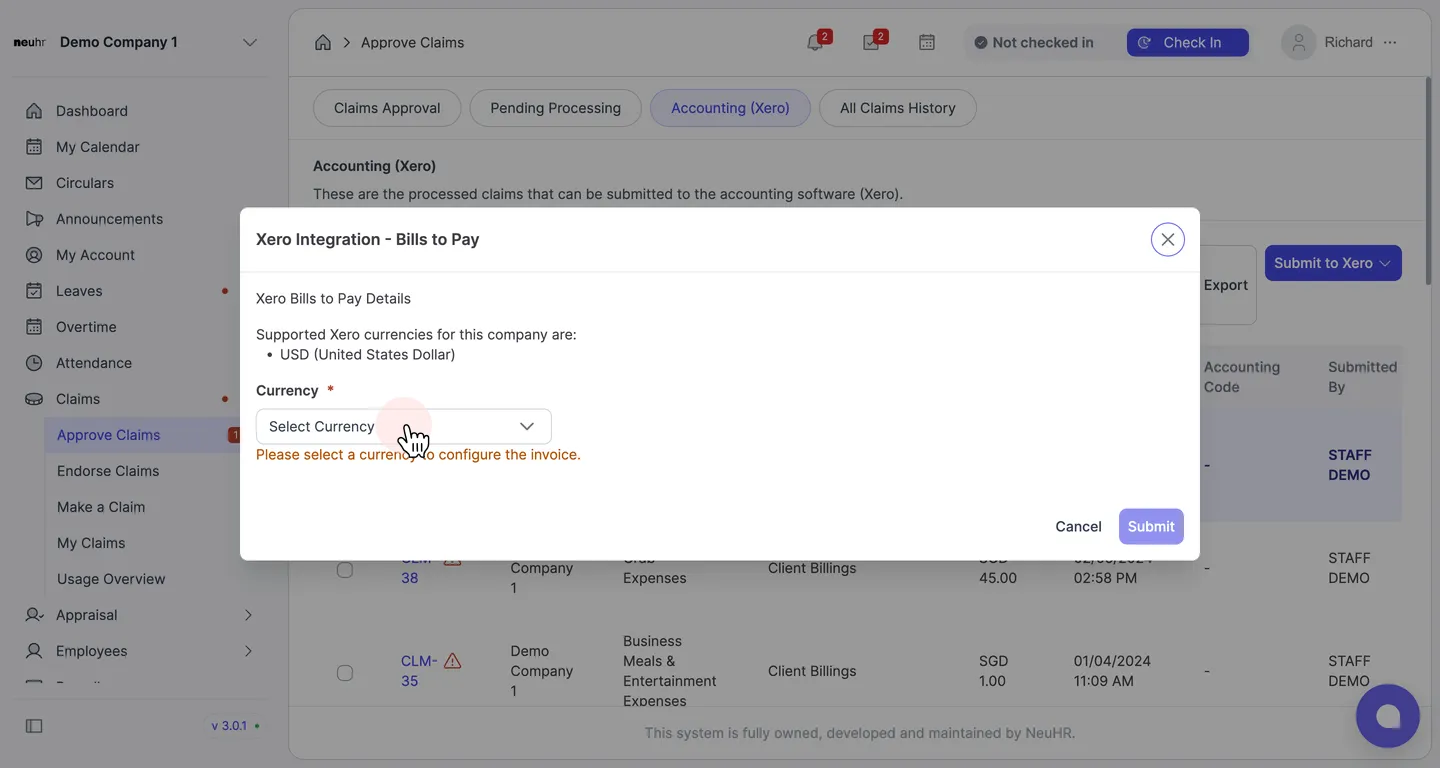
-
Review details and click Submit
Section titled “Review details and click Submit”After selecting the currency, the Date, Due Date, and Reference fields populate automatically. Review the details, then click
Submitto send the claims to Xero.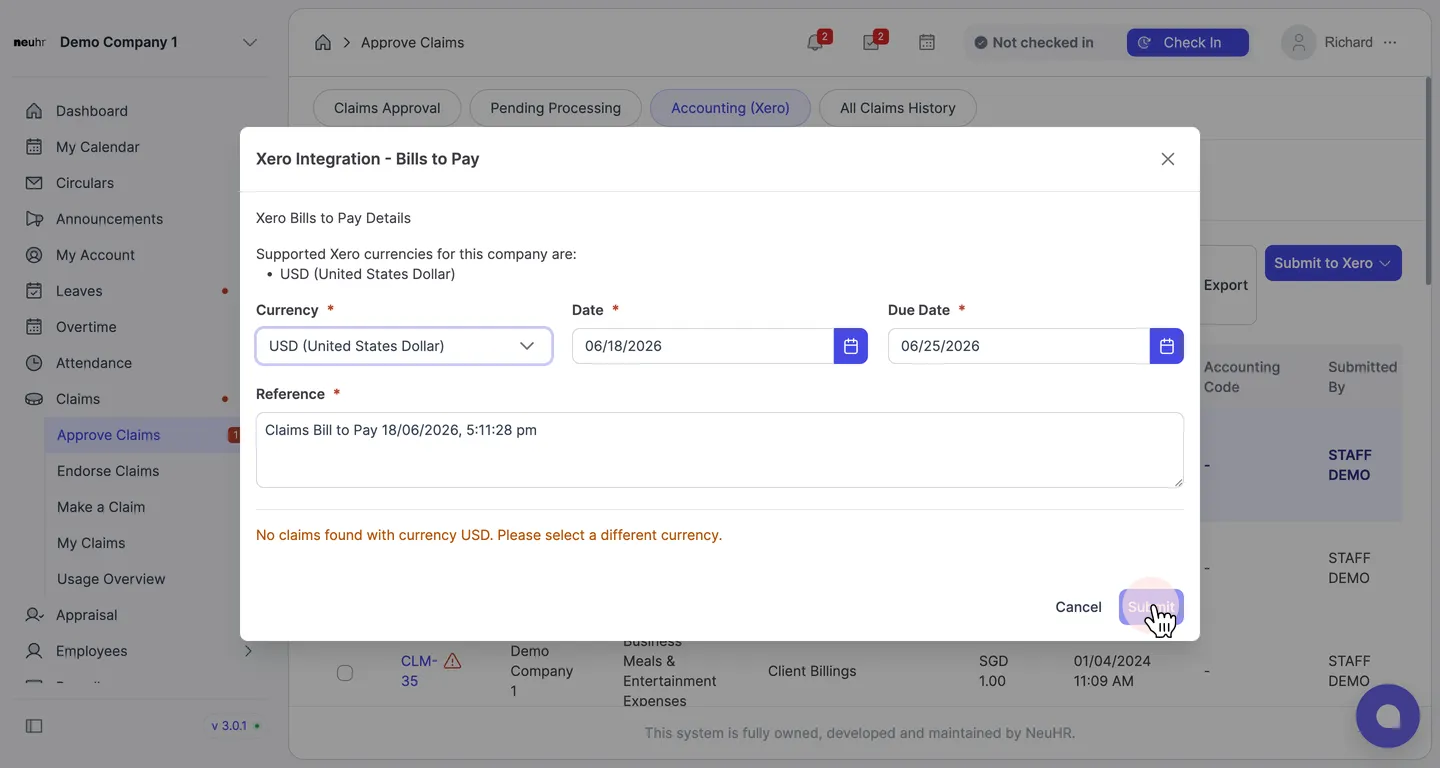
NeuHR will submit the selected claims to Xero. The Xero Submission status for each claim will update to reflect the submission.