How to Reset Leave Balance
This guide shows you how to turn on the Reset leaves automatically setting so employee leave balances reset on a scheduled date.
-
Go to Leaves → Leave Settings
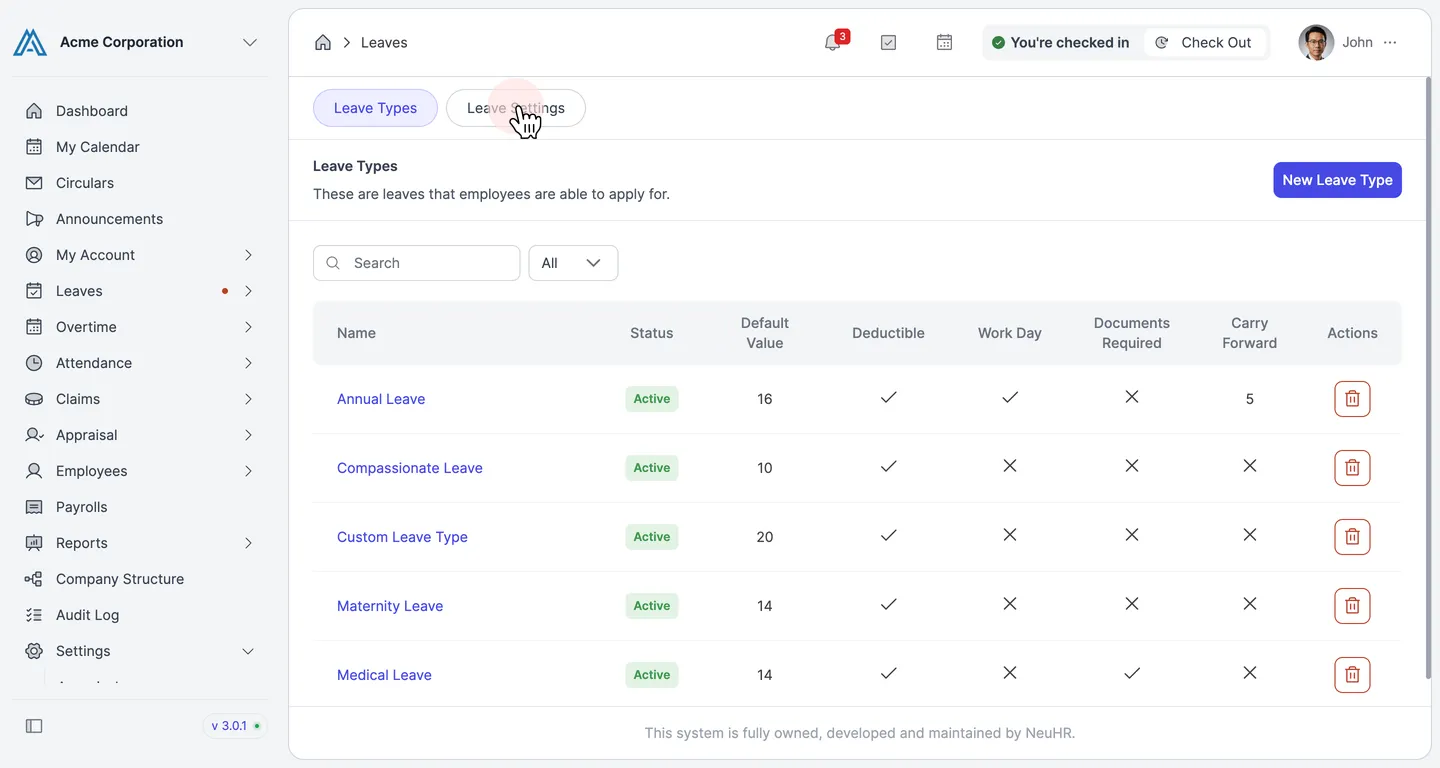
Section titled “Go to Leaves → Leave Settings”In the left sidebar, click Leaves to expand the menu, then click Leaves to open the Leaves management page. Click the Leave Settings tab at the top.
-
Enable Reset leaves automatically
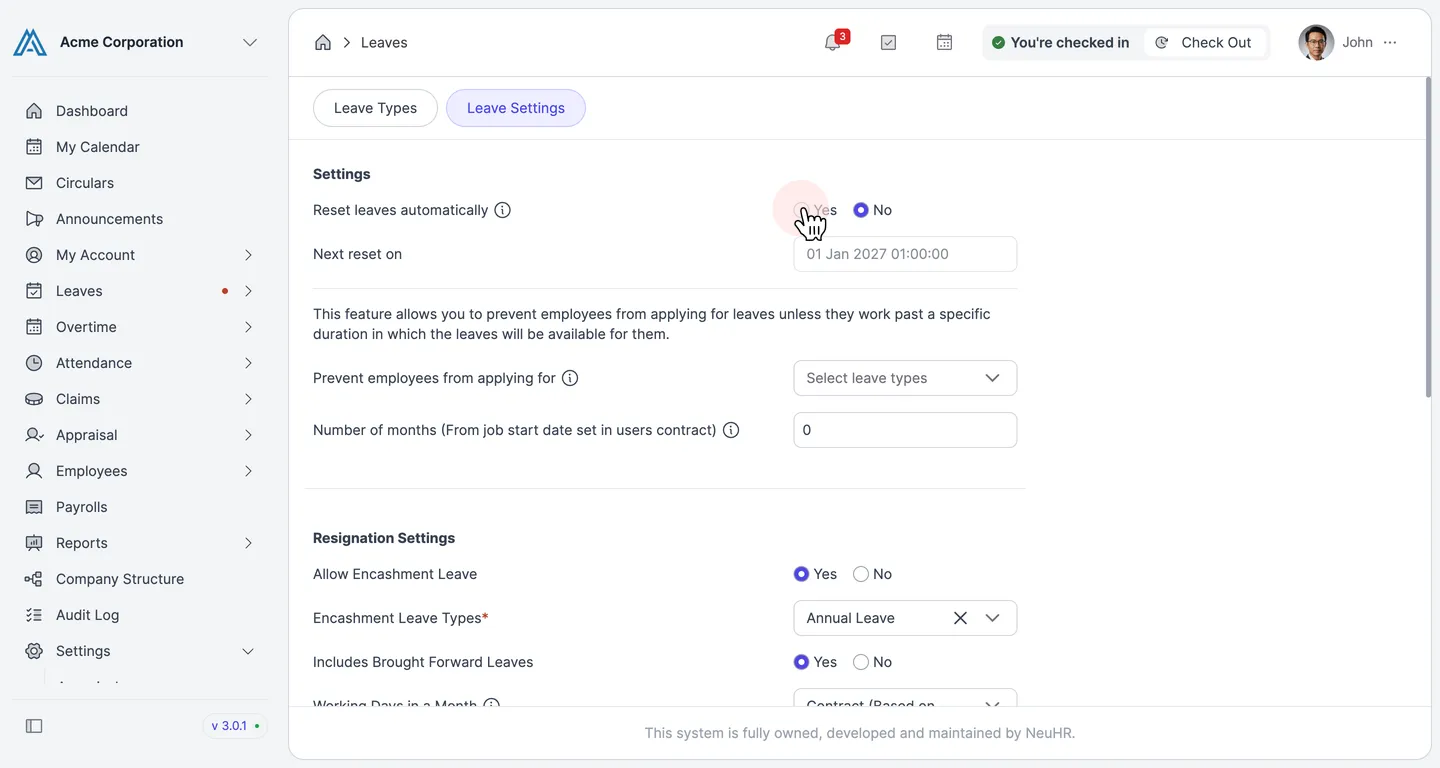
Section titled “Enable Reset leaves automatically”In the Settings section at the top of the page, find Reset leaves automatically and select Yes.
-
Set the Next reset on date
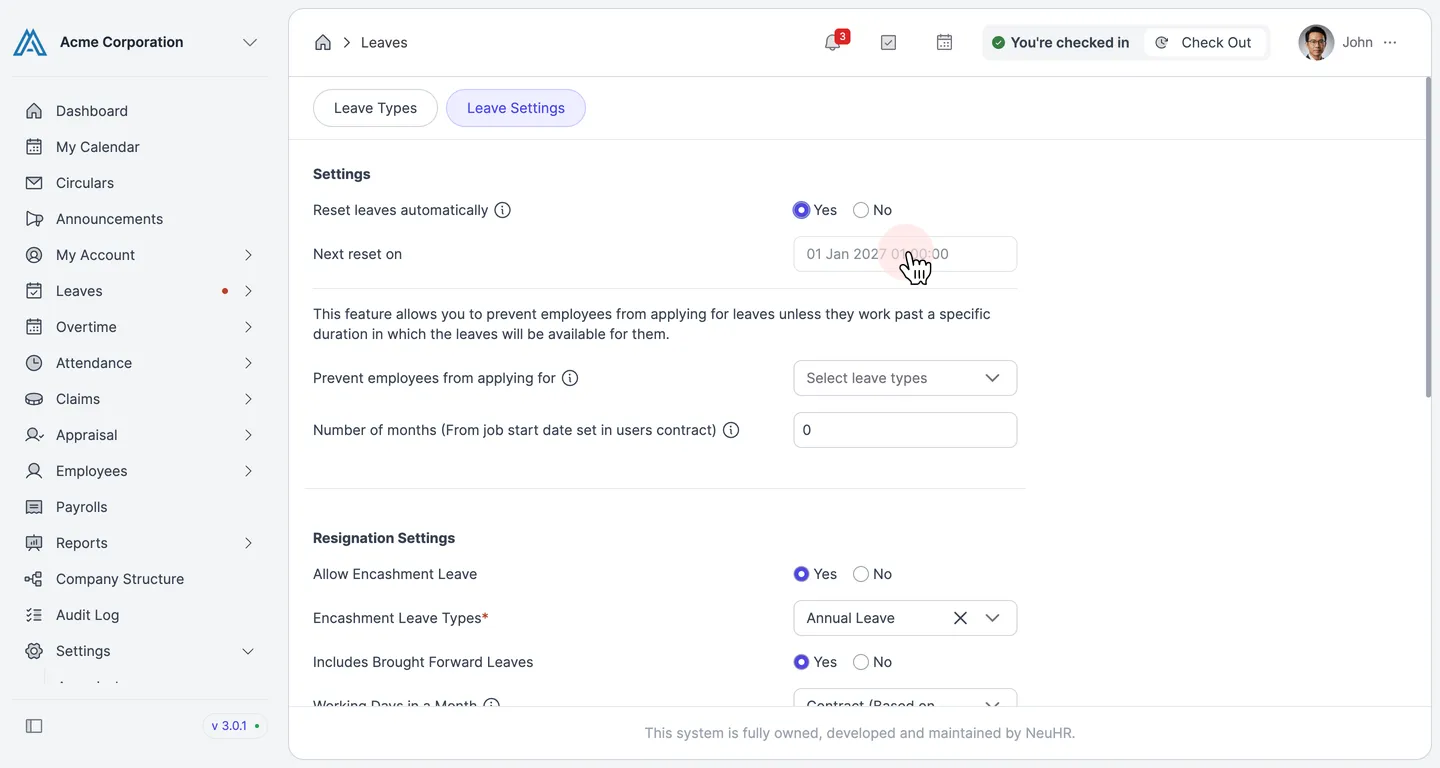
Section titled “Set the Next reset on date”Click the Next reset on field and select the date and time when you want the next leave balance reset to occur.
-
Save the settings
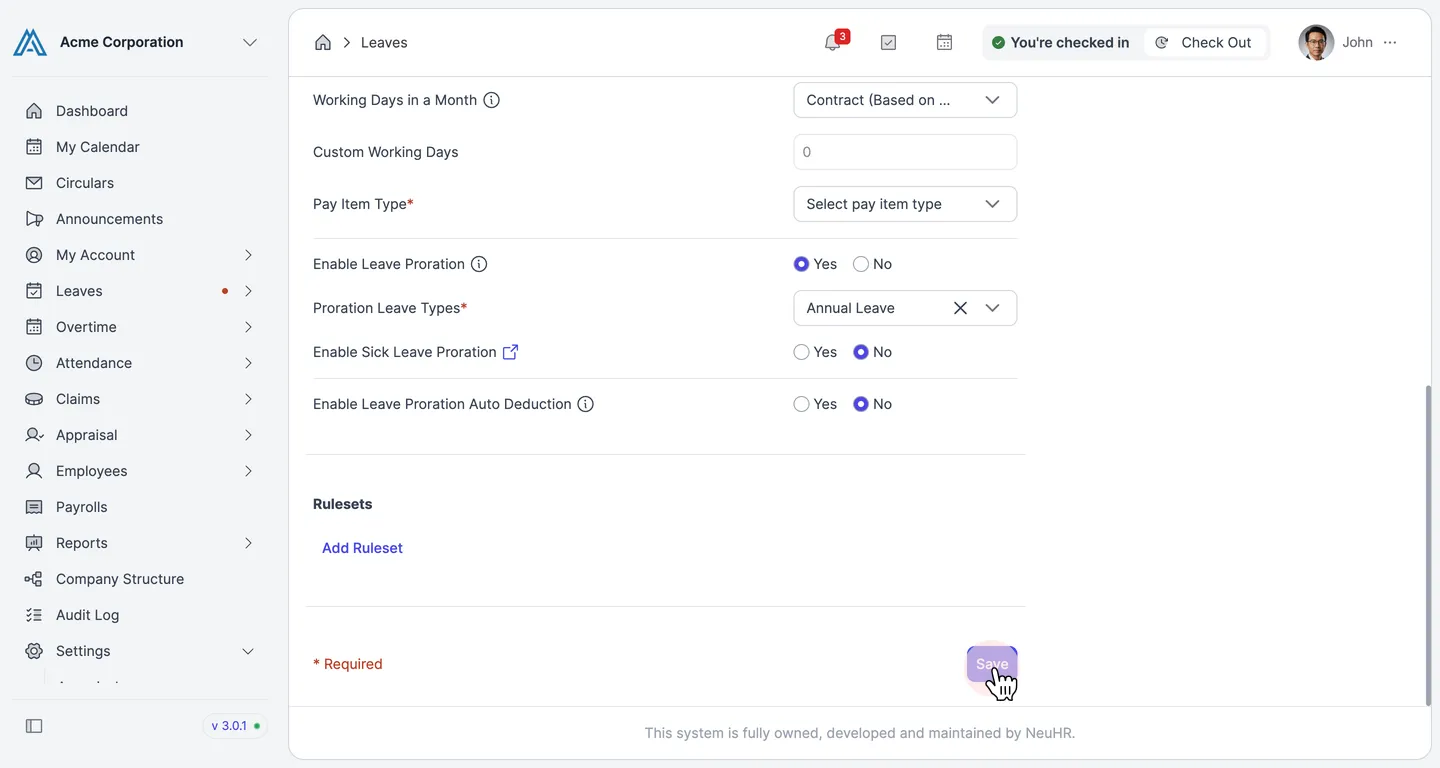
Section titled “Save the settings”Scroll to the bottom of the page and click Save to apply the changes.