How to Opt an Employee In or Out of SKBBK (Lindung24)
In NeuHR, an employee’s SKBBK (Lindung24) contribution is controlled by the Opt-In SKBBK setting on their Employment Details. NeuHR ticks this by default, so every employee is opted in automatically — in practice, HR admins mainly use this setting to opt an employee out. This guide shows HR and Payroll admins how to update the setting and confirm the result in payroll.
-
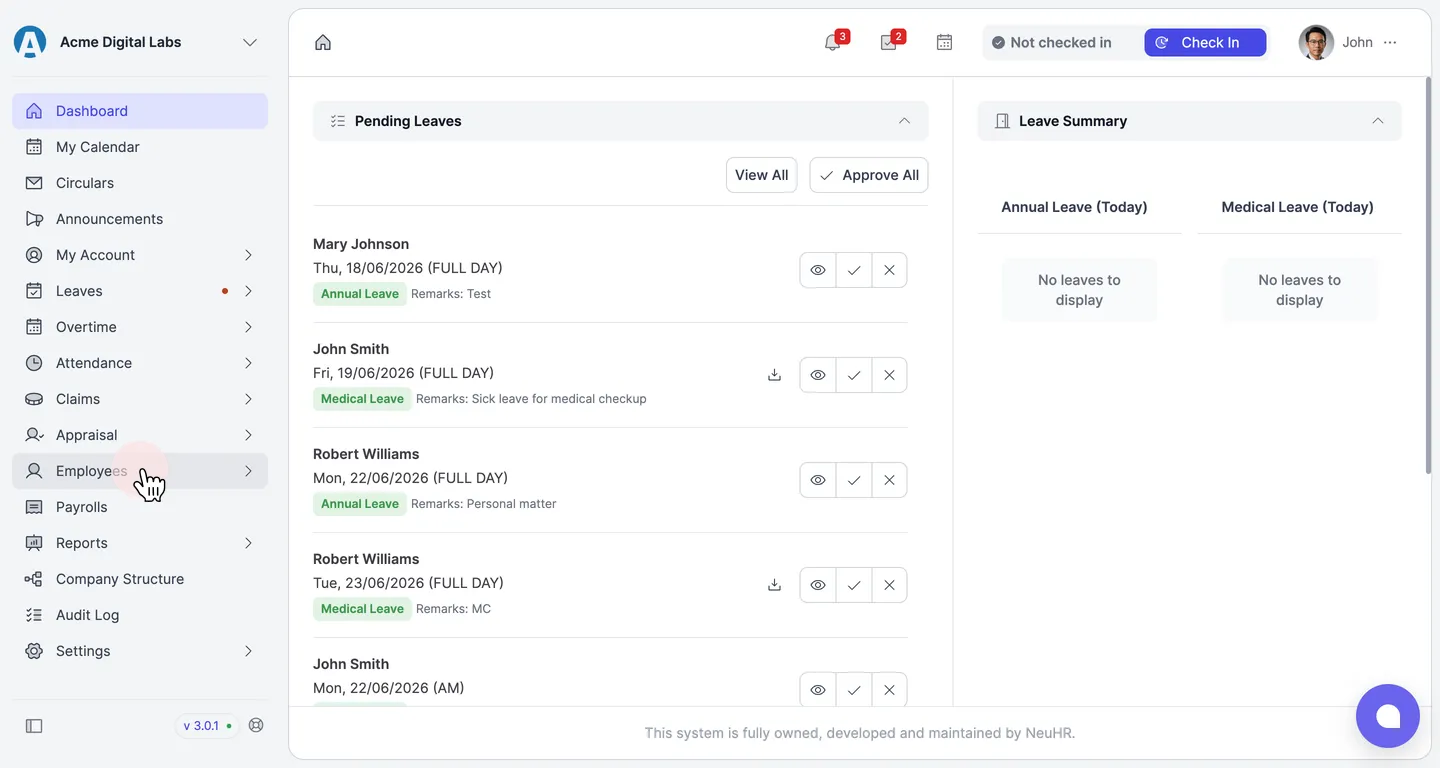
Open the Employees list
Section titled “Open the Employees list”From the left sidebar, click Employees, then select Employees List.
-
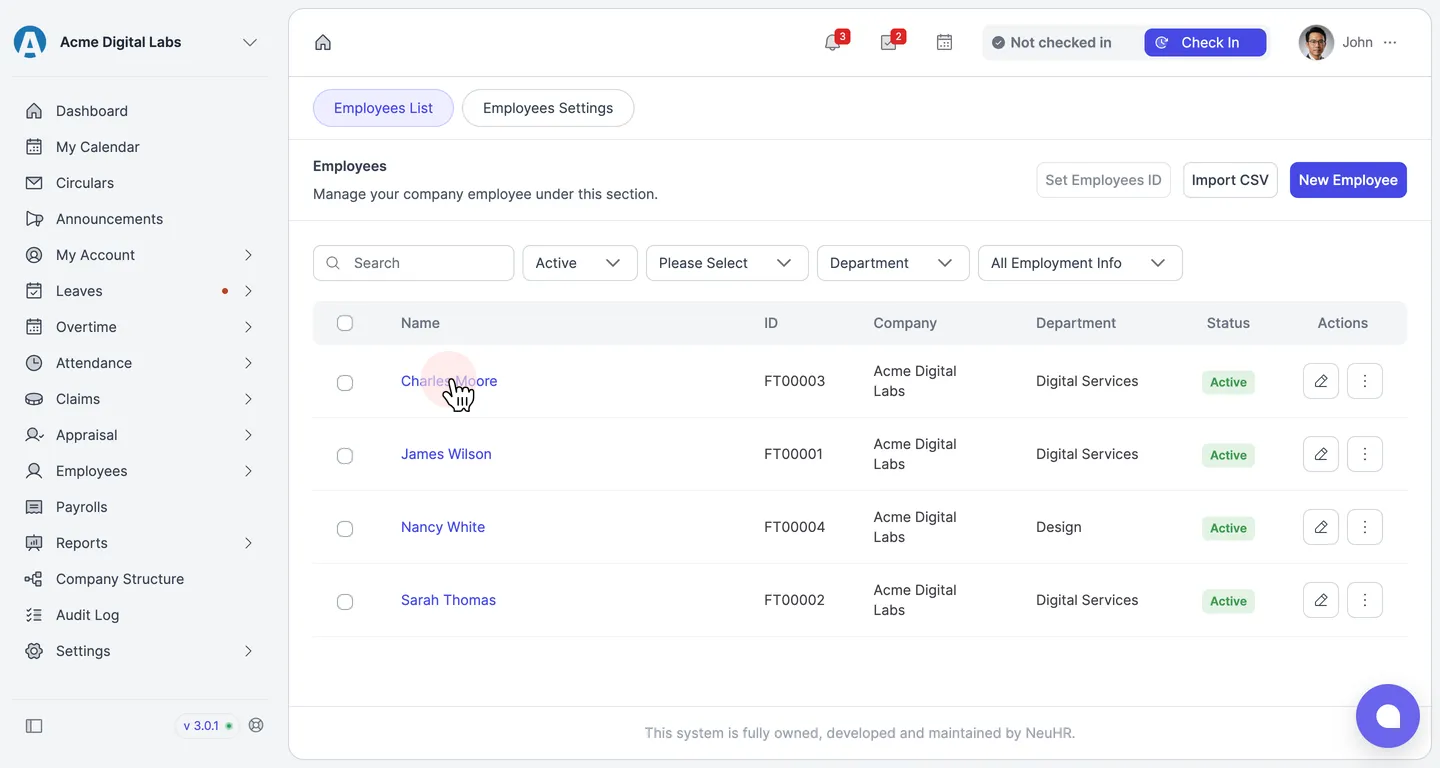
Select the employee
Section titled “Select the employee”In the employees table, click the employee’s name (for example, Charles Moore) to open their profile.
-
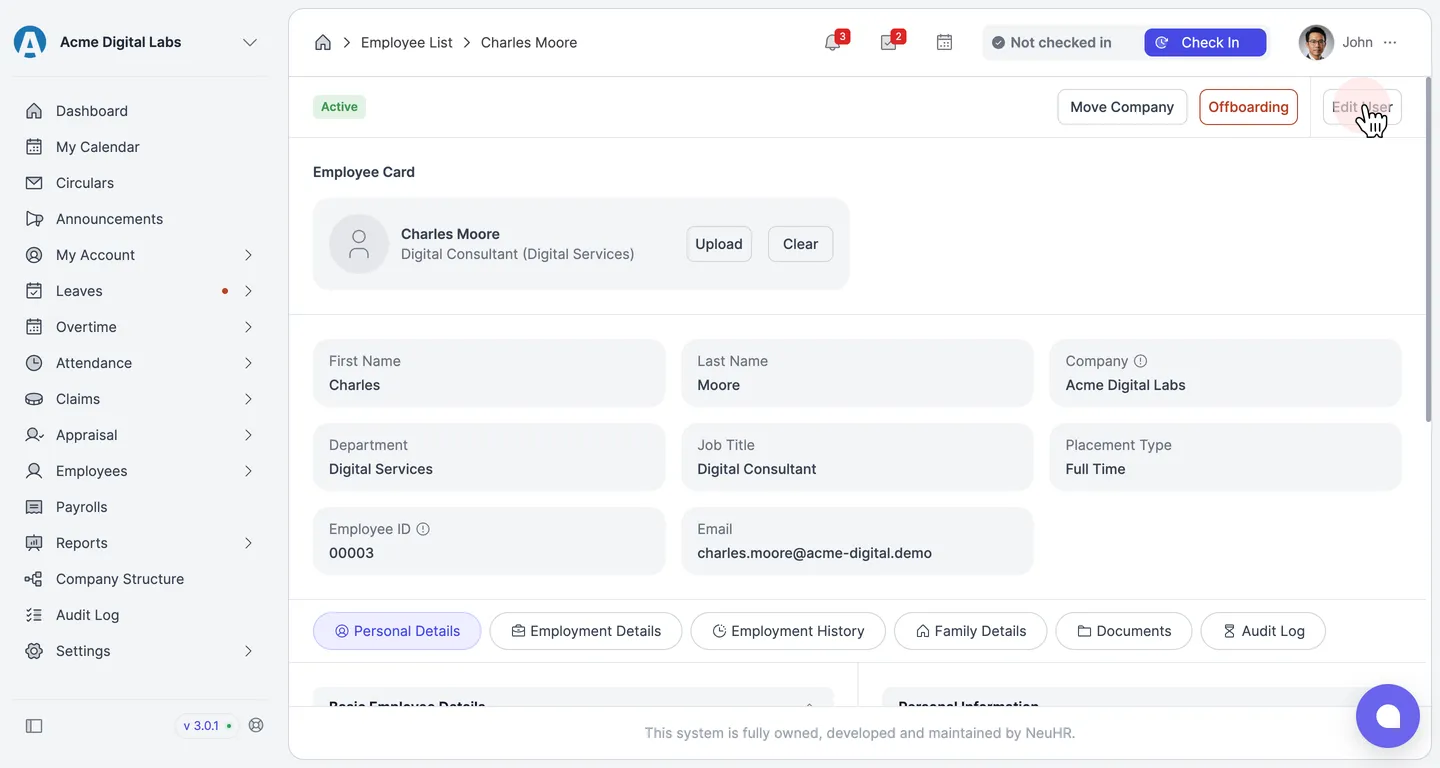
Click Edit User
Section titled “Click Edit User”On the employee profile, click Edit User in the top-right corner to enable editing.
-
Open Employment Details and find Opt-In SKBBK
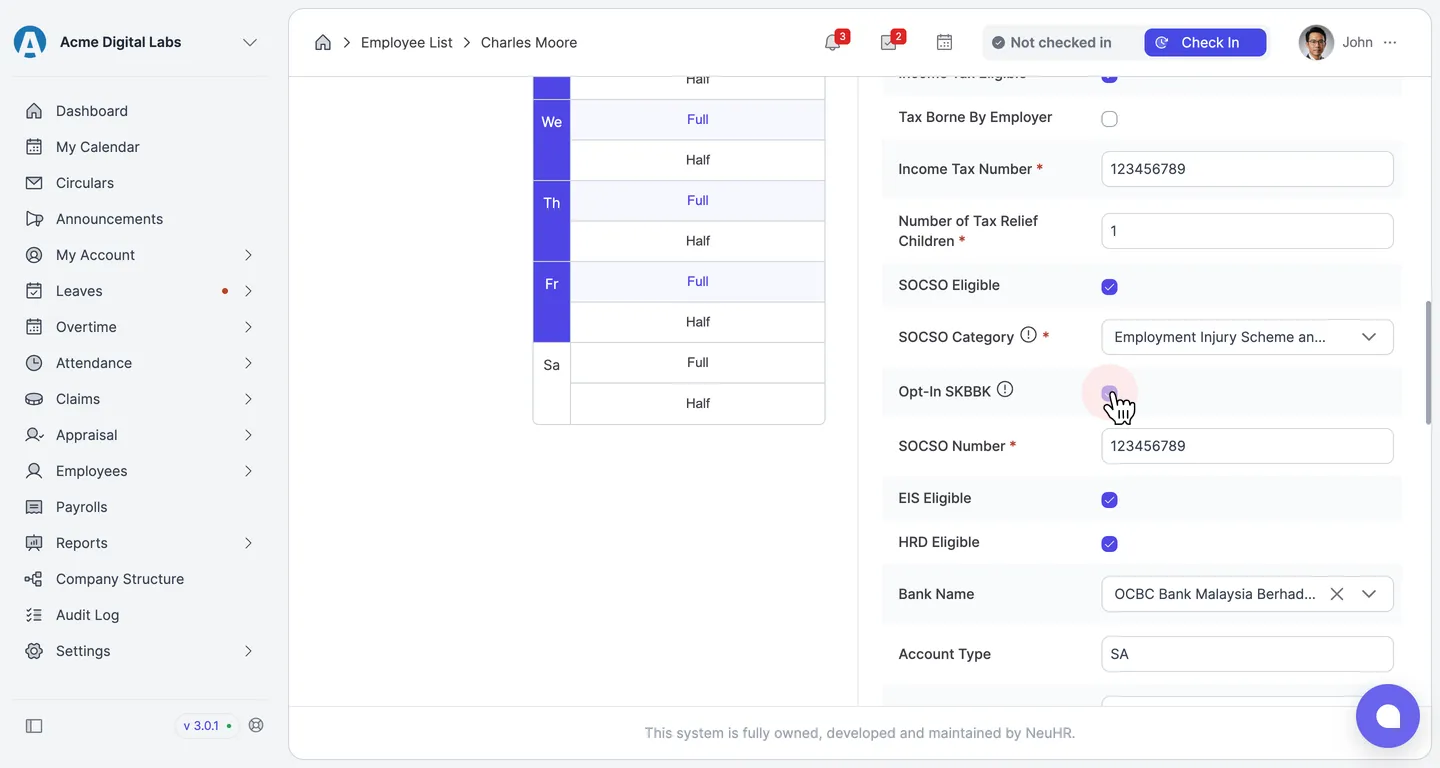
Section titled “Open Employment Details and find Opt-In SKBBK”Select the Employment Details tab, then scroll to the Payroll section. The Opt-In SKBBK checkbox is ticked by default, which means the employee is opted in and SKBBK is deducted.
To opt the employee out, untick Opt-In SKBBK.
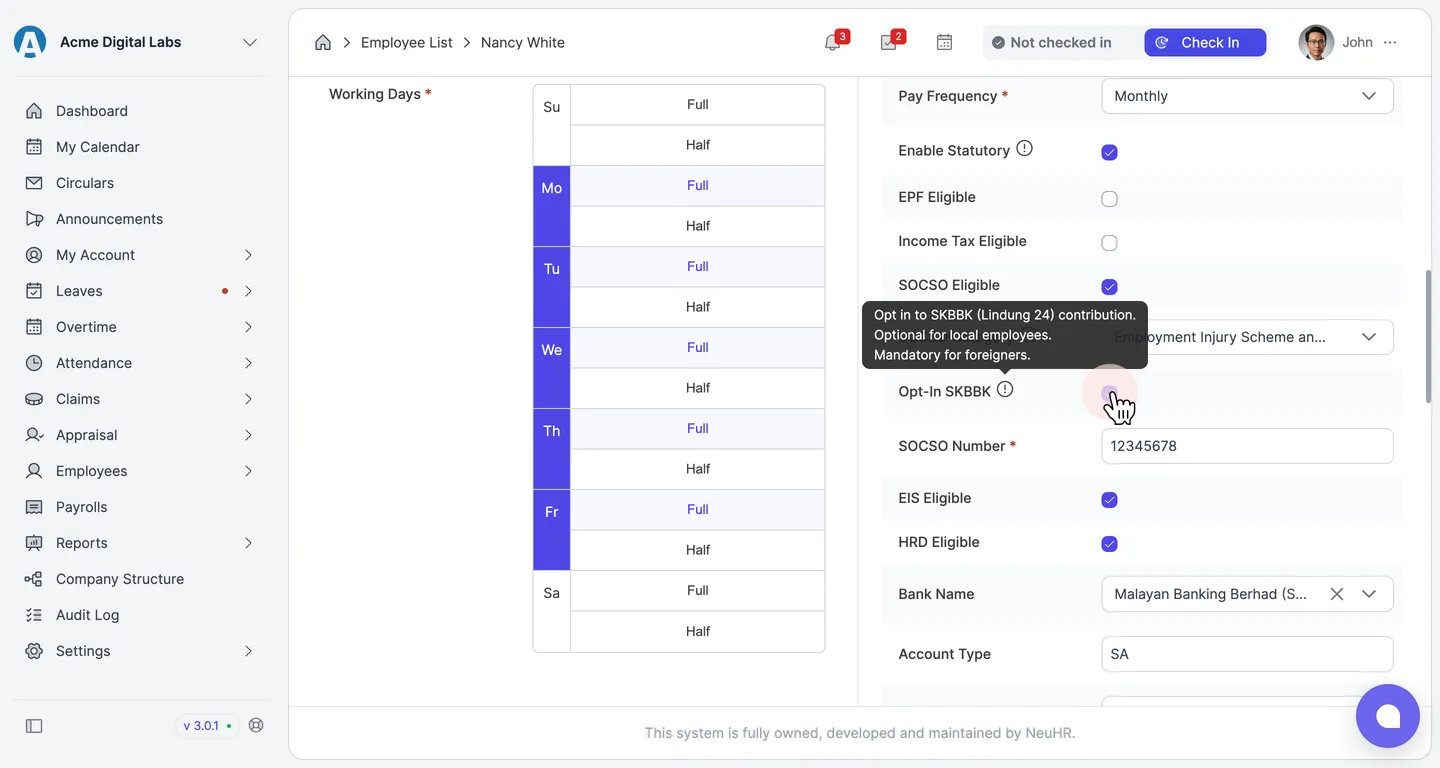
Hovering the info icon (ⓘ) beside Opt-In SKBBK confirms the rule: “Opt in to SKBBK (Lindung 24) contribution. Optional for local employees. Mandatory for foreigners.” For a foreign employee, the checkbox is disabled and remains ticked.
-
Save the change
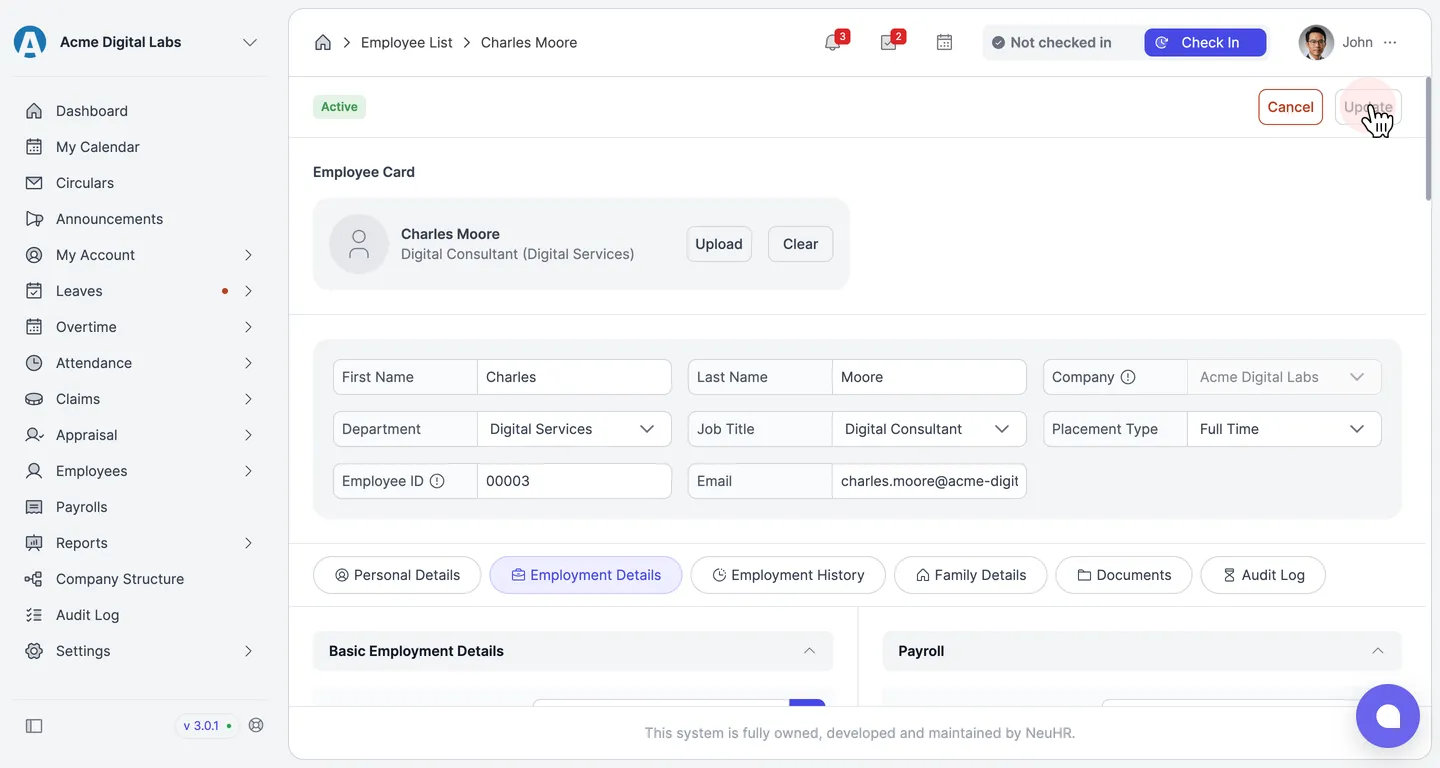
Section titled “Save the change”Click Update in the top-right corner. You’ll see the confirmation message Employee updated successfully.
-
Open the payroll month
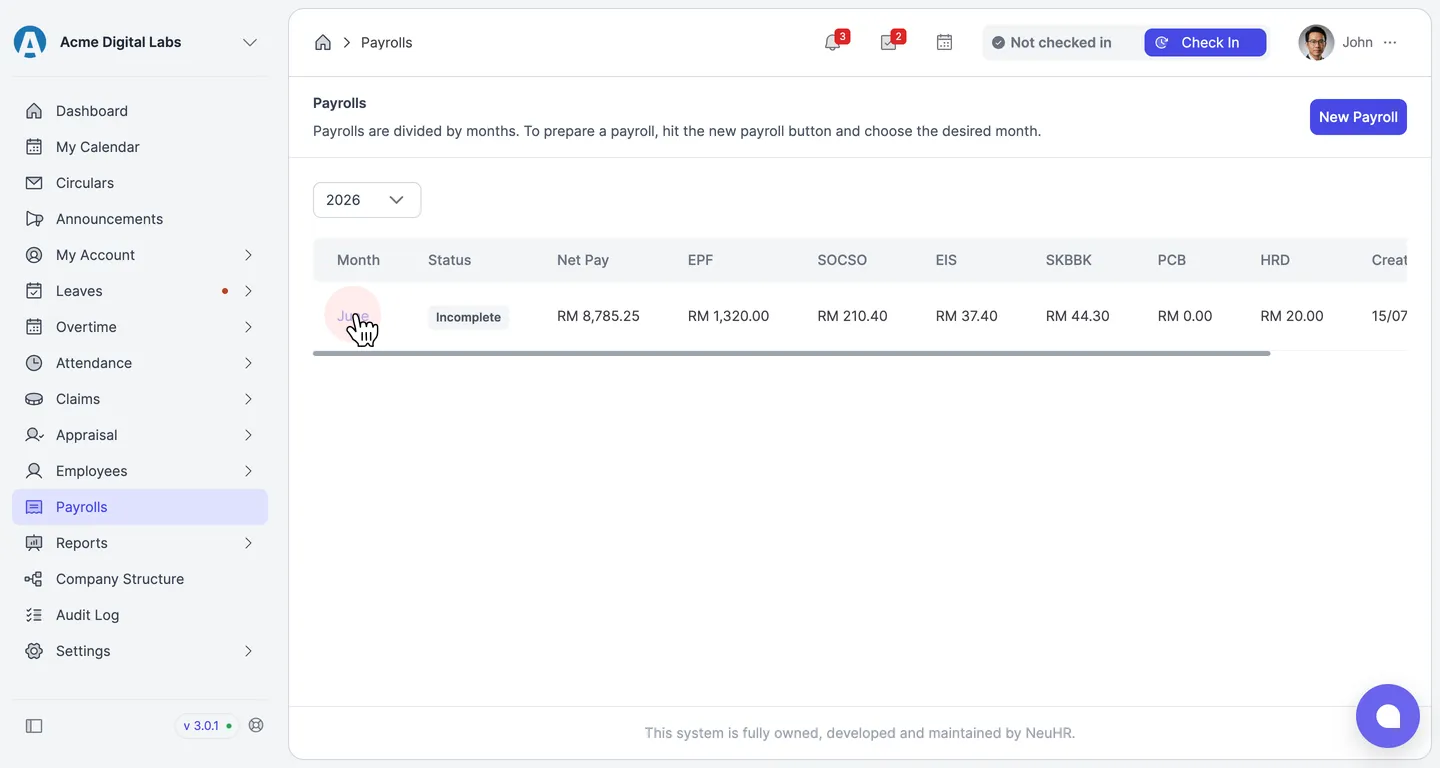
Section titled “Open the payroll month”From the left sidebar, click Payrolls, select the Payroll Year, then click the month (for example, June) to open the payroll.
-
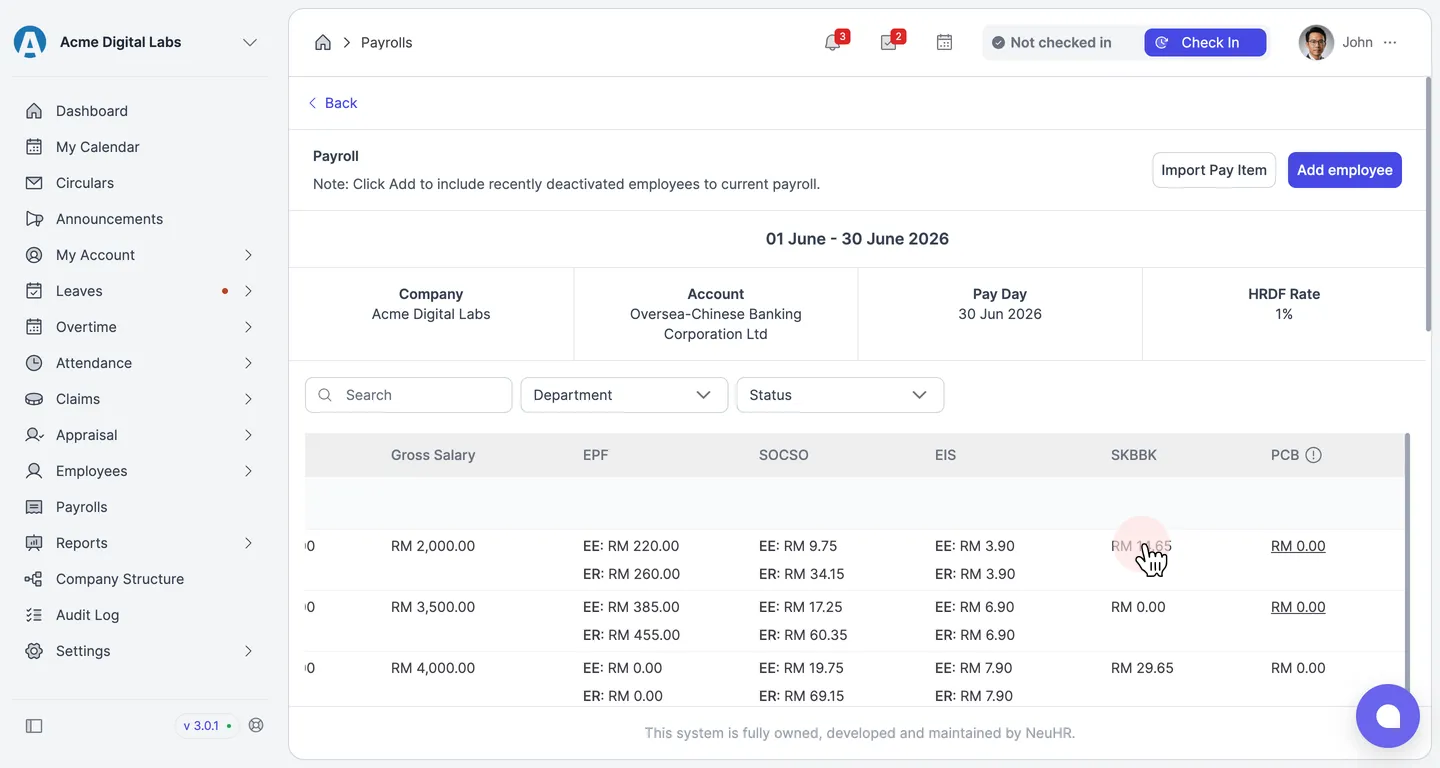
Check the SKBBK column
Section titled “Check the SKBBK column”In the payroll table, review the SKBBK column for the employee to confirm the contribution amount. In this example, the employee’s row is the first one in the list.