

Create a New Announcement
This guide shows you how to create a new announcement in NeuHR. You must have HR Executive or Super Admin role.
-
Navigate to Announcements Page
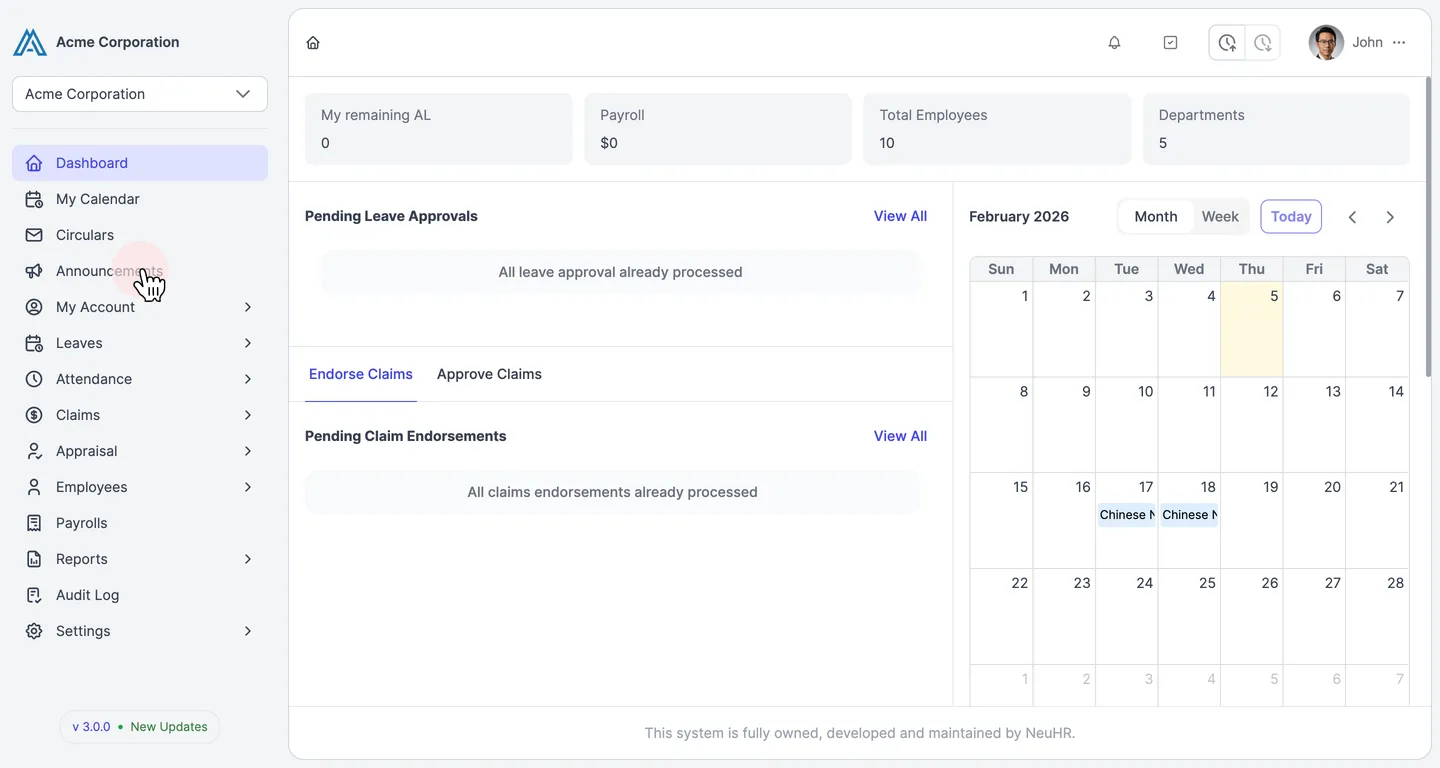
Section titled “Navigate to Announcements Page”From the main dashboard, click on the Announcements menu item in the left sidebar.
-
Click New Announcement Button
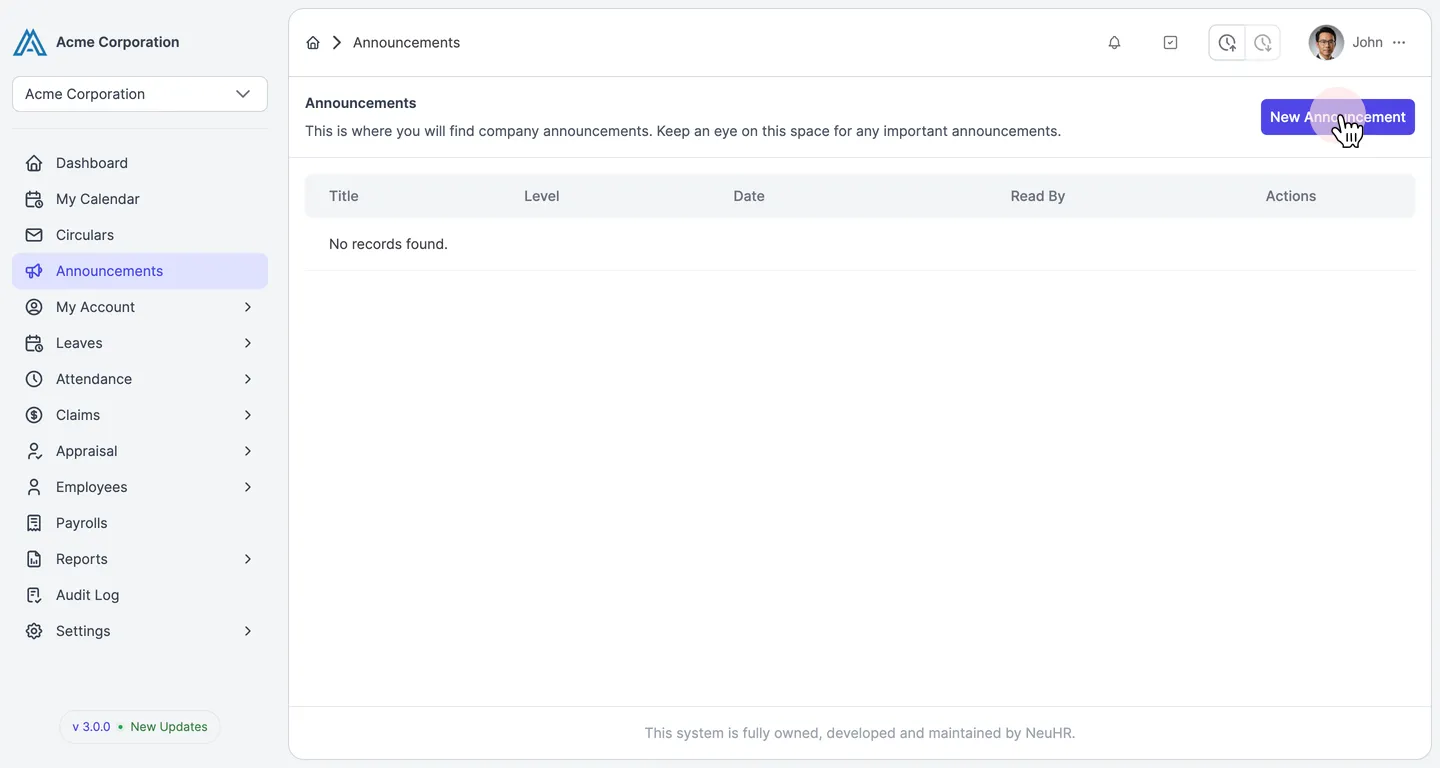
Section titled “Click New Announcement Button”On the Announcements page, click the New Announcement button located in the top right corner of the page.
-
Fill in Announcement Details
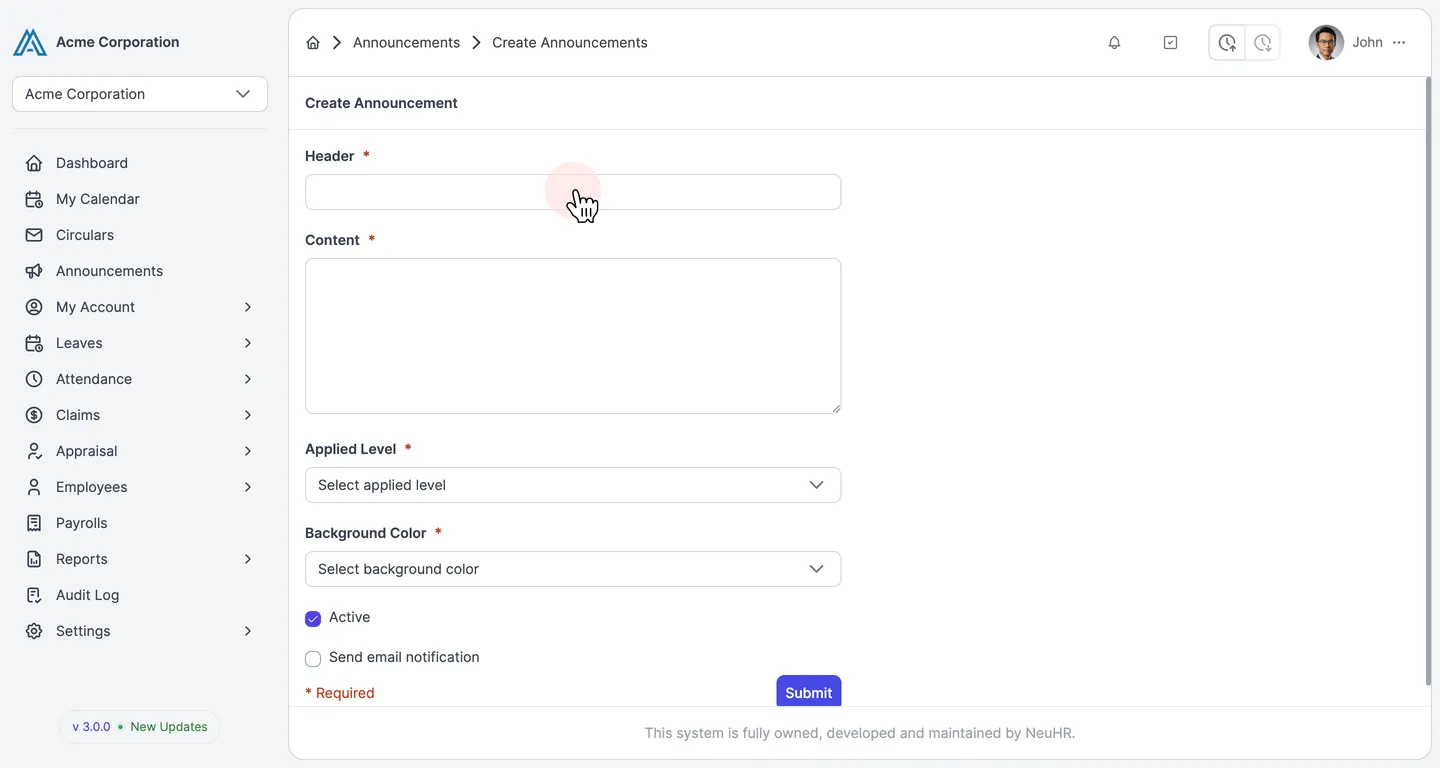
Section titled “Fill in Announcement Details”Enter the following information in the announcement form:
- Header: A clear, descriptive title for your announcement (required)
- Content: The announcement message content (required)
- Applied Level: Select the scope of your announcement (required)
- Company Wide: Visible to all employees in the company
- Department Wide: Visible to specific departments
- Background Color: Choose a color to highlight the announcement (required)
- Green: Standard information
- Blue: General announcements
- Yellow: Important notices
- Red: Urgent or critical announcements
- Active: Check to make the announcement immediately visible (checked by default)
- Send email notification: Check to send email notifications to recipients (optional)
-
Submit Announcement
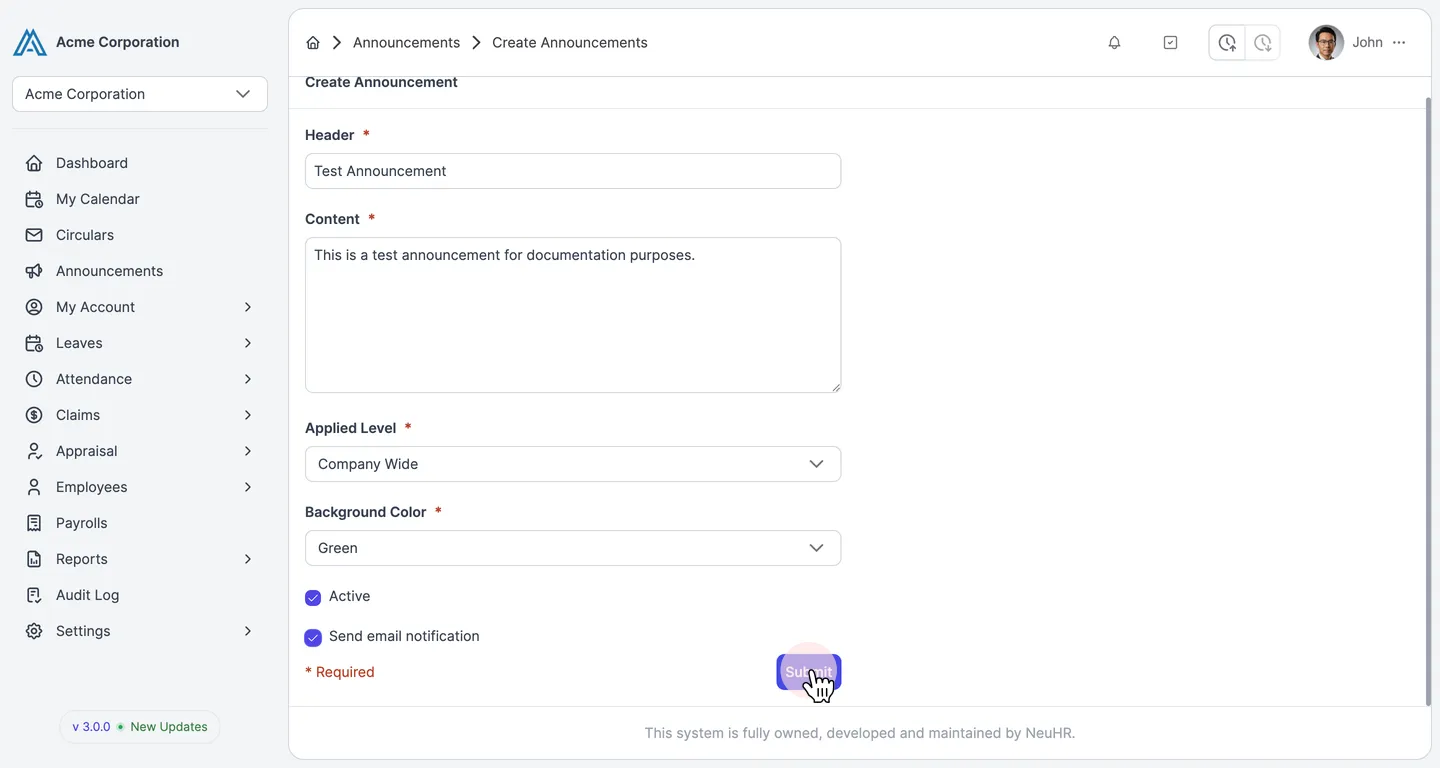
Section titled “Submit Announcement”Once you’ve reviewed all details, click the Submit button to publish your announcement.
-
View Confirmation
Section titled “View Confirmation”The system will redirect you back to the Announcements page and display a success message: “Announcement has been created”. A popup will show your newly created announcement.
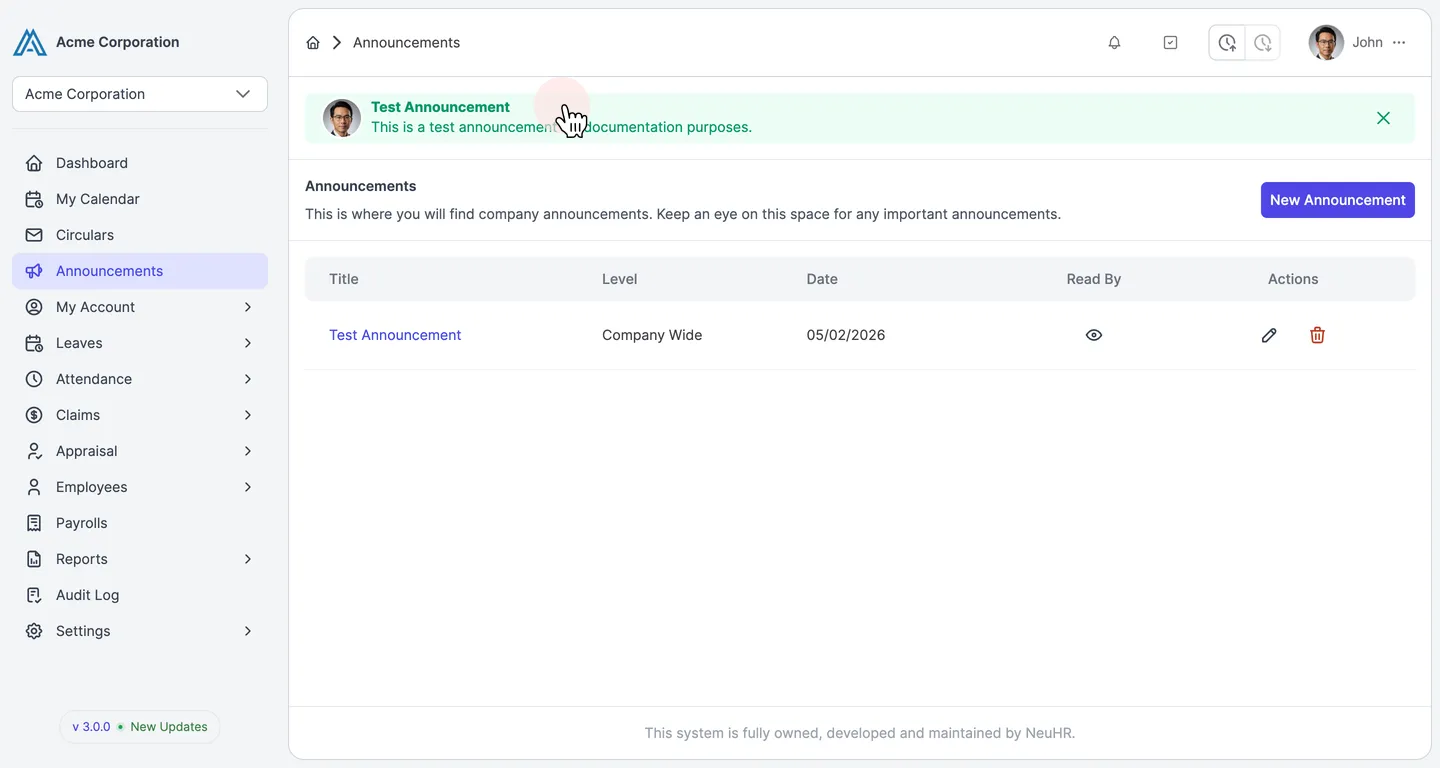
Your announcement is now published and will be visible to the selected audience. The announcement will also appear in the list showing the title, applied level, date, and read status.