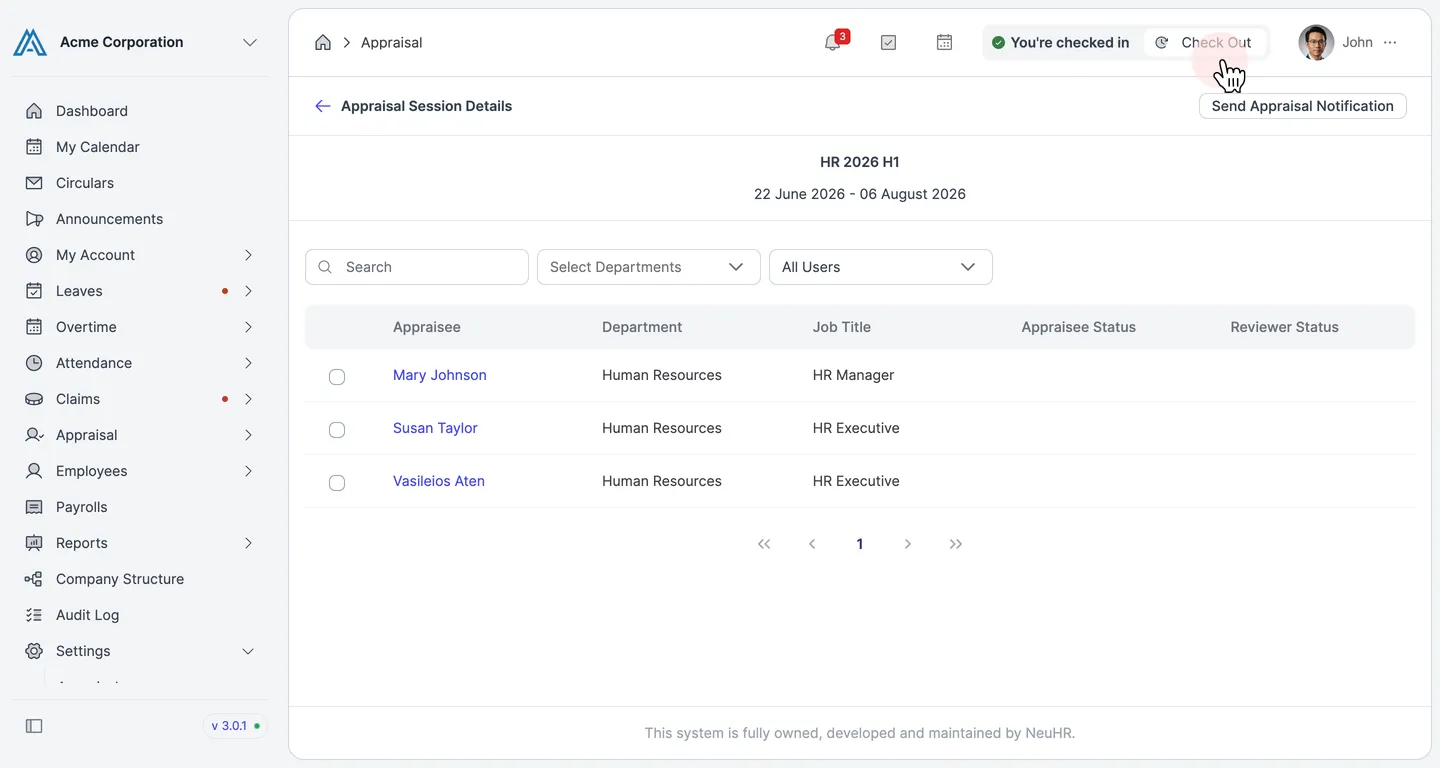
How to Manually Notify Employee for Appraisal Input
This guide shows you how to manually notify employees to submit their appraisal input in NeuHR. There are two ways to send notifications: notify all employees in a session at once, or select specific employees to notify individually.
Method 1: Notify All Employees
Section titled “Method 1: Notify All Employees”Use this method to send appraisal notifications to all employees in a session at once.
-
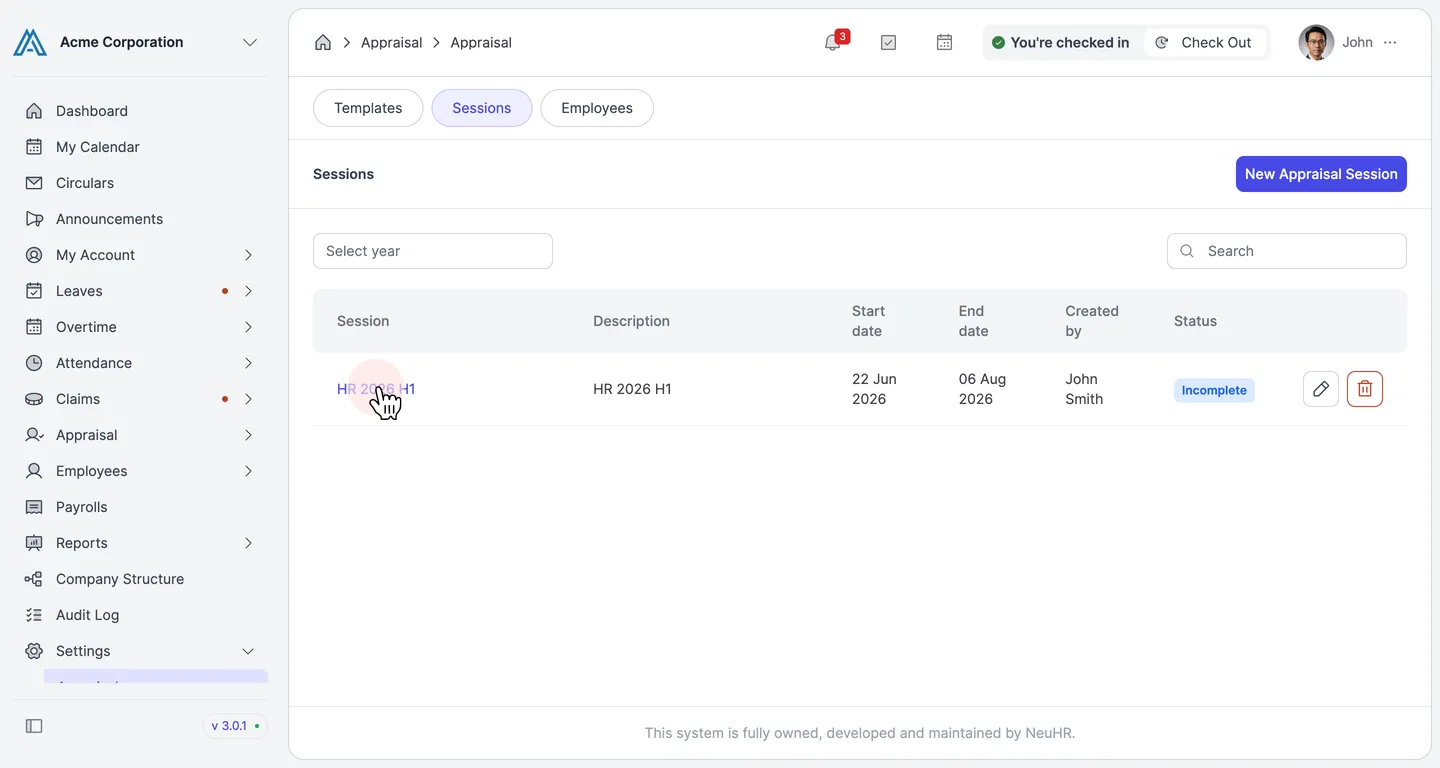
Navigate to Settings > Appraisal > Sessions
Section titled “Navigate to Settings > Appraisal > Sessions”From the sidebar, click
Settingsto expand the menu, then clickAppraisal. On the Appraisal page, click theSessionstab. -
Click the Session Name
Section titled “Click the Session Name”Click on the session name to open the Appraisal Session Details page.
-
Click Send Appraisal Notification
Section titled “Click Send Appraisal Notification”On the Appraisal Session Details page, click the
Send Appraisal Notificationbutton in the top right corner.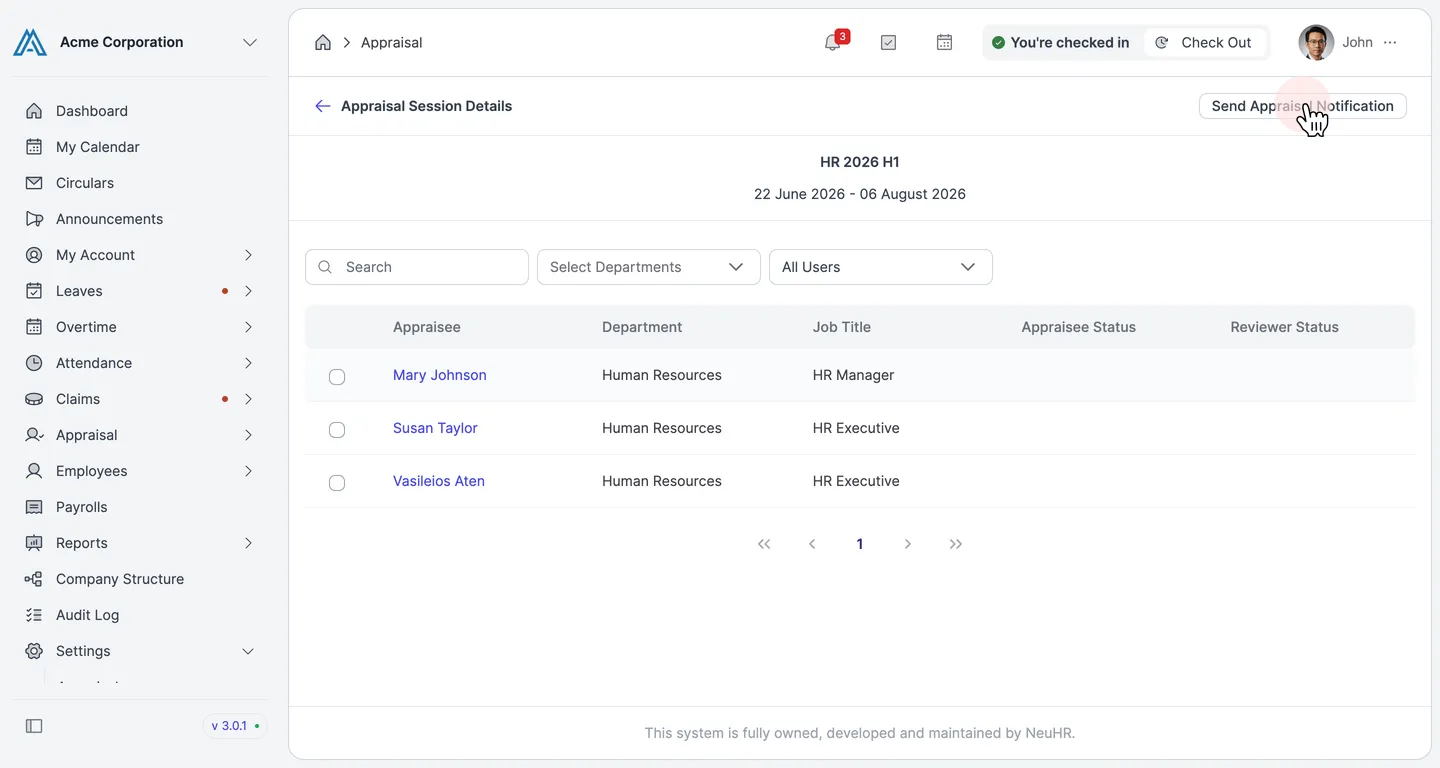
-
Confirm the Notification
Section titled “Confirm the Notification”A confirmation dialog appears with the message: “This notification will be sent to all employees in this session. Are you sure you want to proceed?” Click
Send Notificationto confirm.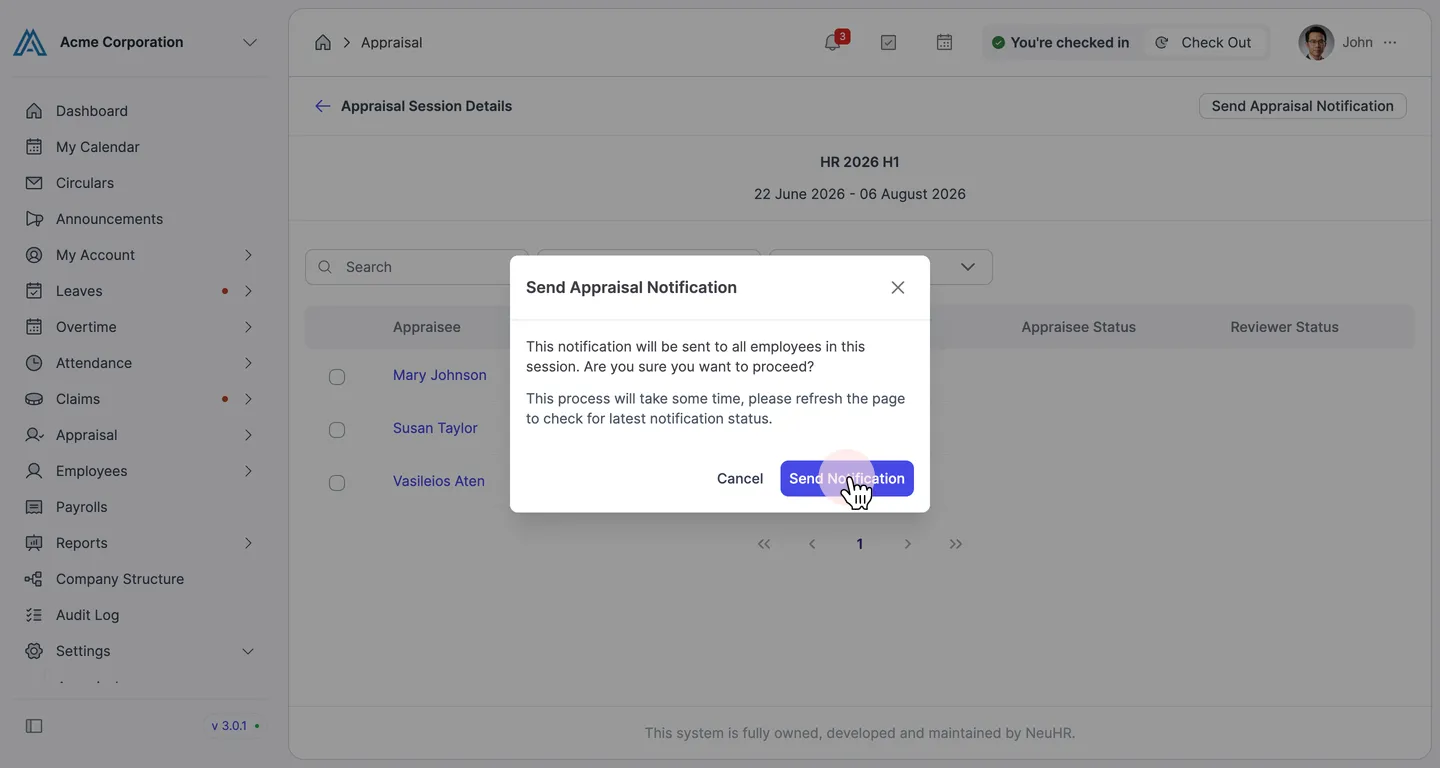
Method 2: Notify Selected Employees
Section titled “Method 2: Notify Selected Employees”Use this method to notify only specific employees in an appraisal session.
-
Navigate to the Session Details
Section titled “Navigate to the Session Details”Follow steps 1–2 from Method 1 above to open the Appraisal Session Details page.
-
Select Employees
Section titled “Select Employees”Check the checkbox next to each employee you want to notify. The
Notify Appraisalbutton appears in the top right corner once at least one employee is selected.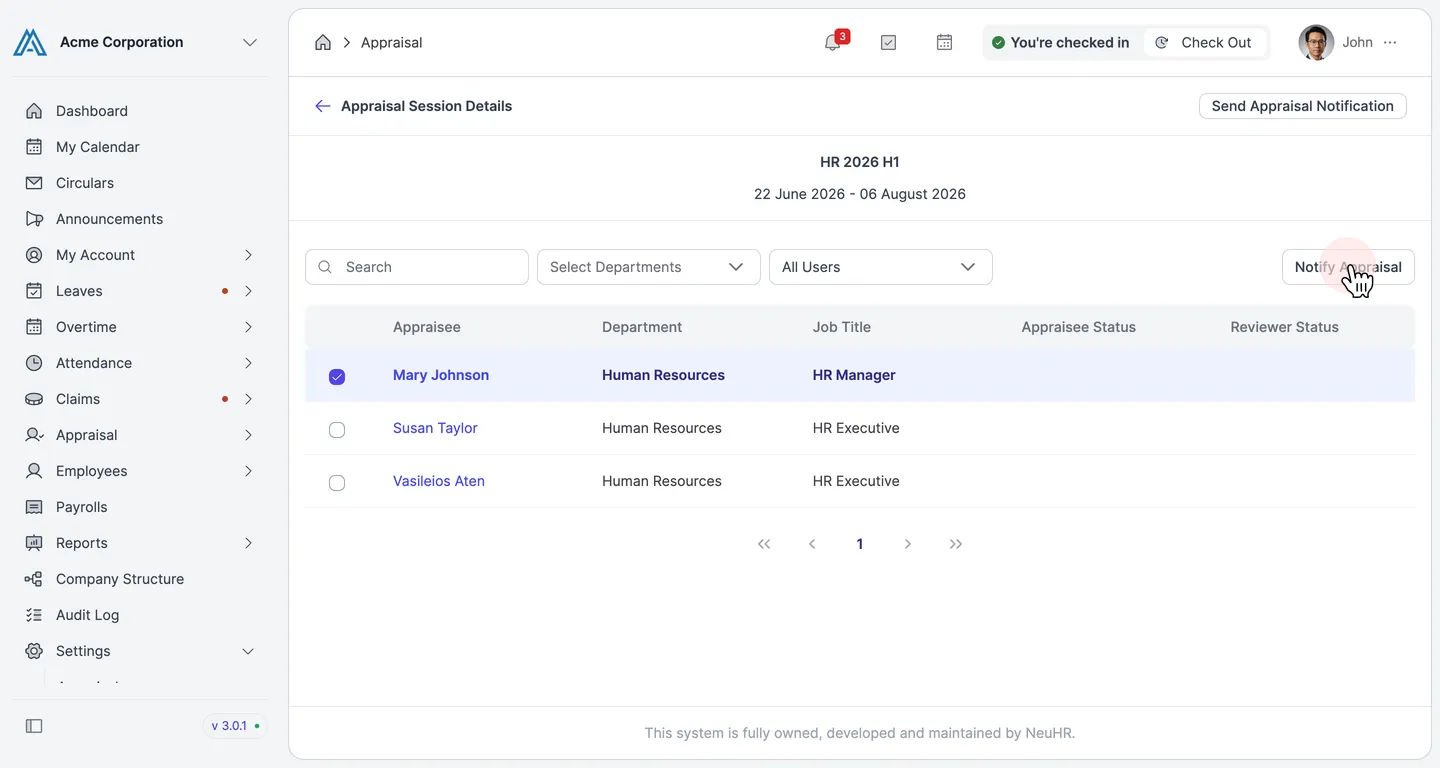
-
Click Notify Appraisal
Section titled “Click Notify Appraisal”Click the
Notify Appraisalbutton. The selected employees are notified immediately and a success message appears.