How to Create a New Department
This guide shows you how to create a new department in NeuHR.
-
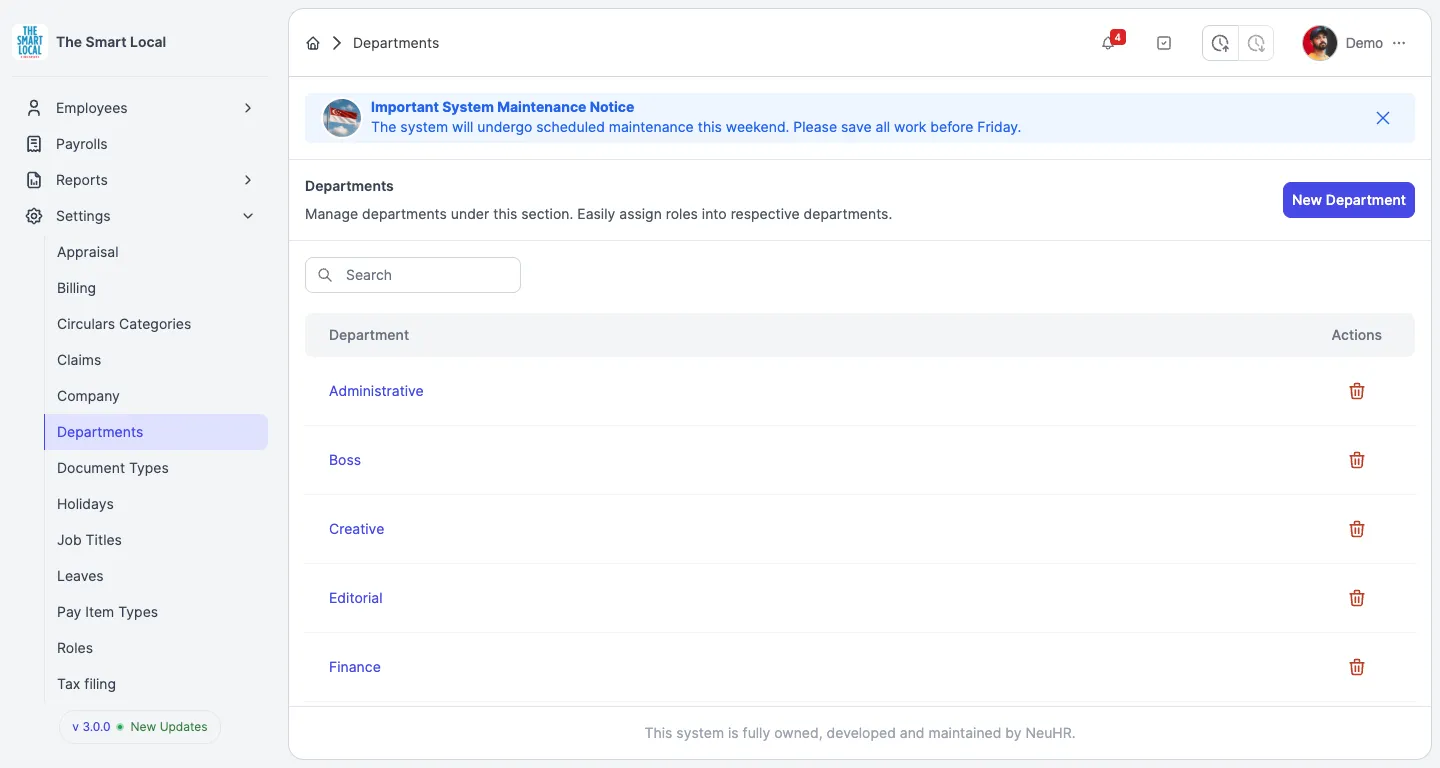
Navigate to Departments
Section titled “Navigate to Departments”From the sidebar, click on
Settingsto expand the menu, then click onDepartments. On the Departments page, click theNew Departmentbutton in the top right corner.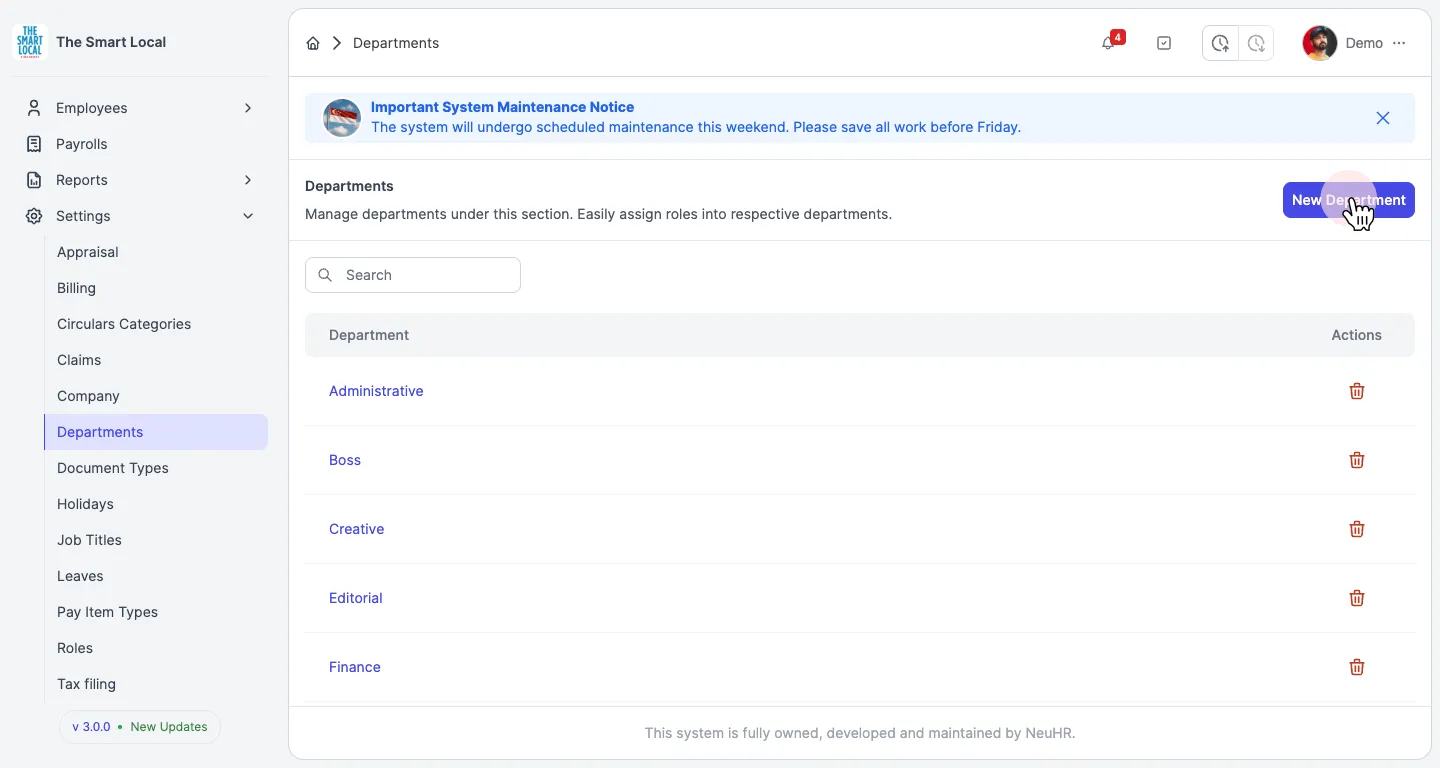
-
View the Create Department Form
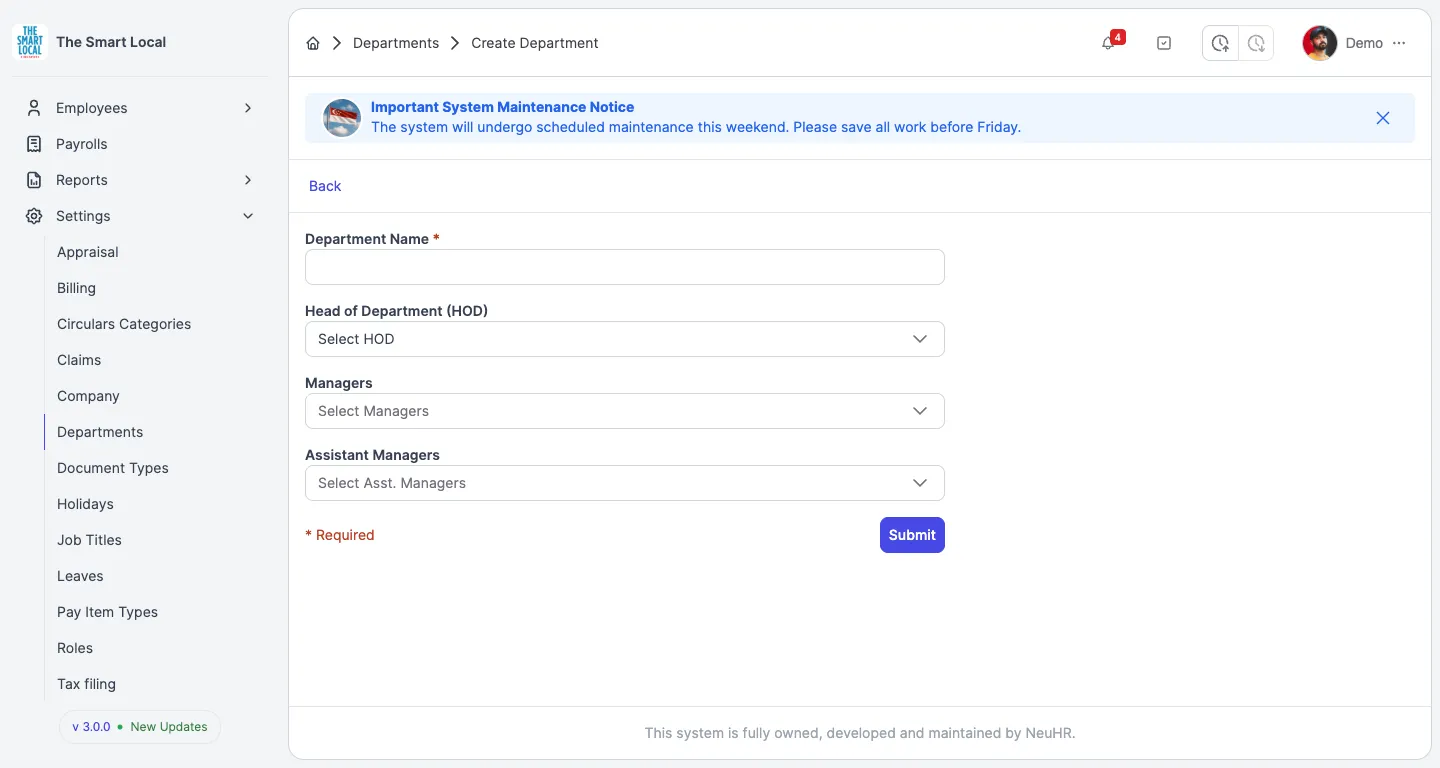
Section titled “View the Create Department Form”You’ll see the Create Department form with fields for department information.
-
Fill in Department Details
Section titled “Fill in Department Details”Enter the department information in the form:
Department Name: Enter the name of the new department (required)Head of Department (HOD): Select the department head from the dropdown (optional)Managers: Select managers for the department (optional)Assistant Managers: Select assistant managers for the department (optional)
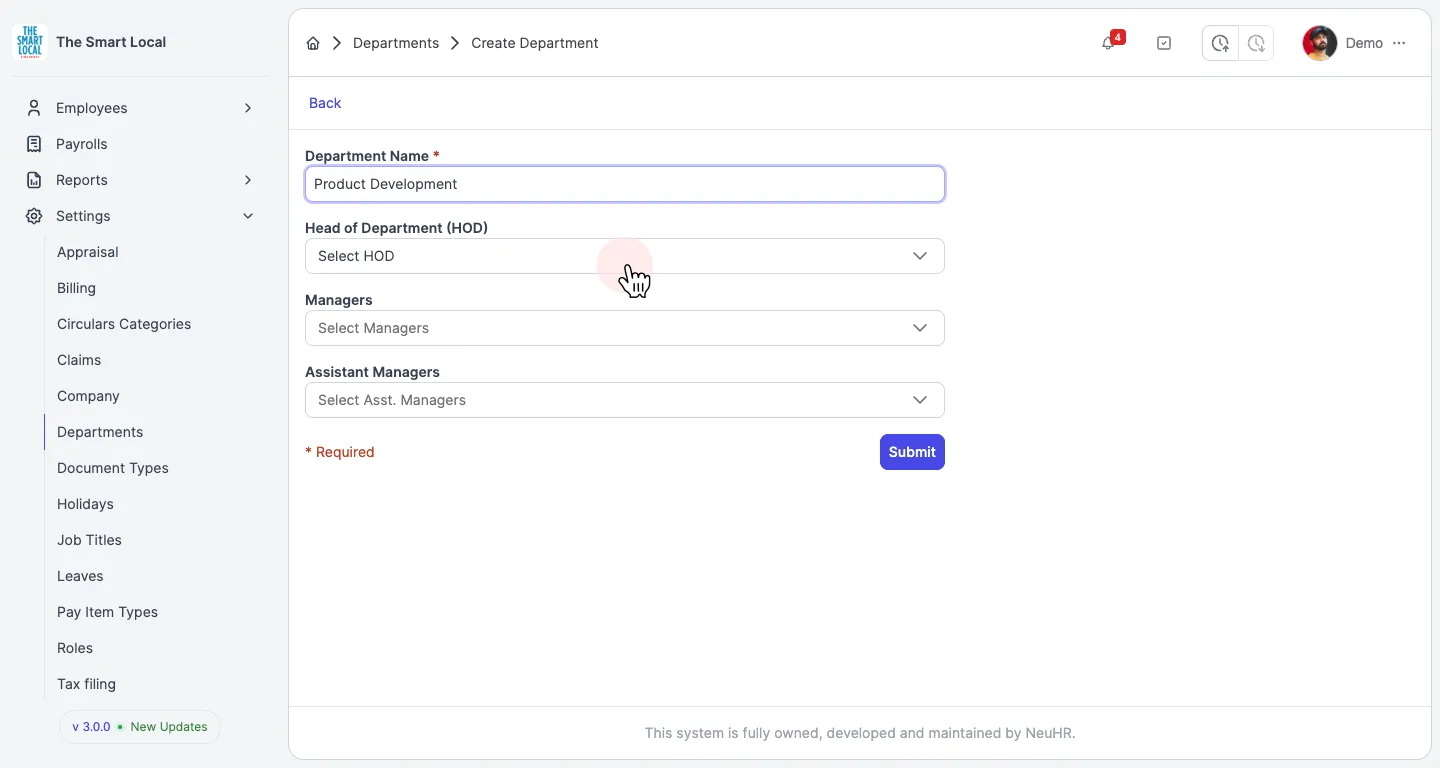
Click the
Submitbutton to create the department. -
Verify Department Creation
Section titled “Verify Department Creation”The system redirects you back to the Departments page. You’ll see a success message confirming that the department has been created, and the new department will appear in the list.