How to Update an Employee Payslip in Payroll Month
This guide shows you how to update an employee’s payslip within an active payroll month, including adding pay items and saving changes with remarks.
-
Navigate to Payrolls
Section titled “Navigate to Payrolls”From the sidebar, click on
Payrollsto view the list of all payroll periods.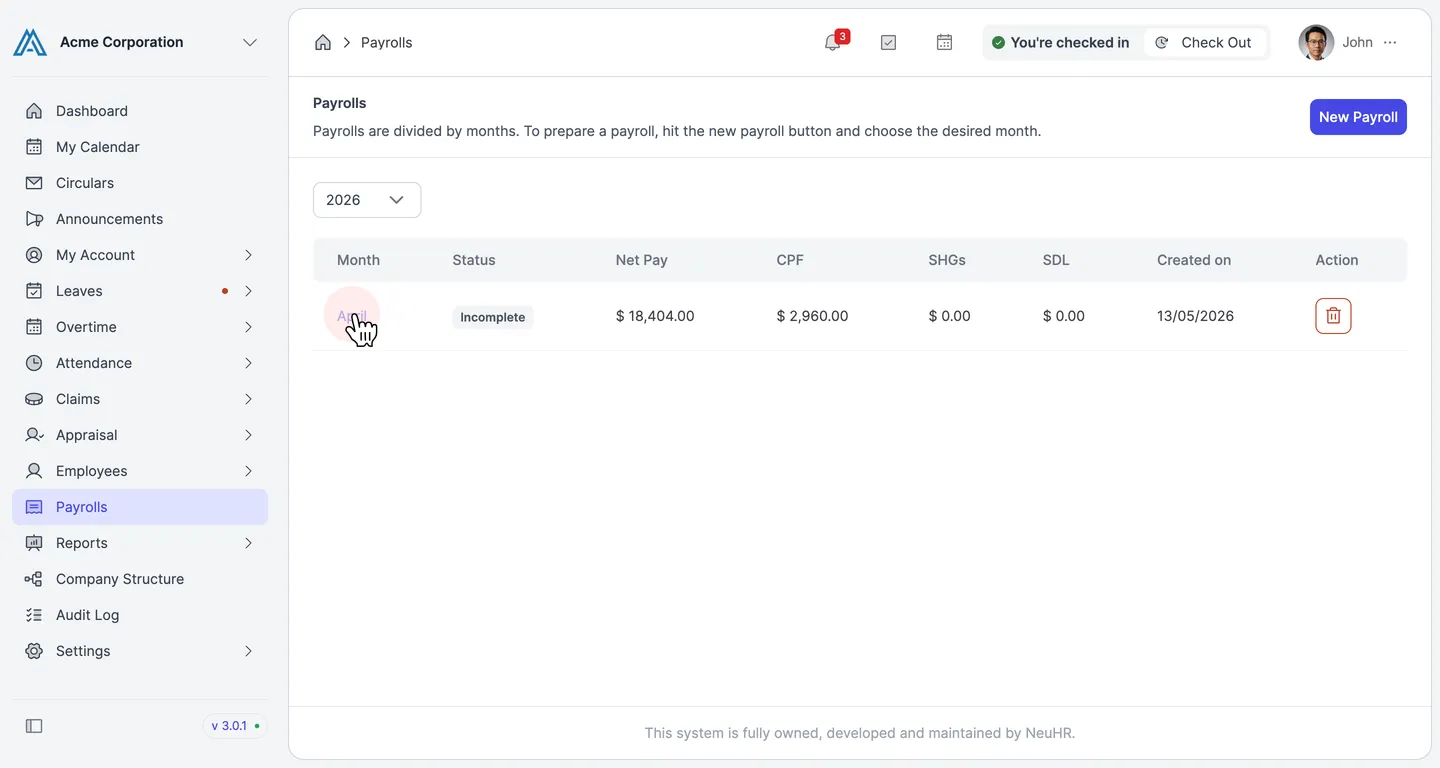
-
Select a Payroll Period
Section titled “Select a Payroll Period”Click on the payroll period you want to work with (e.g.,
April) to open the list of employees included in that payroll.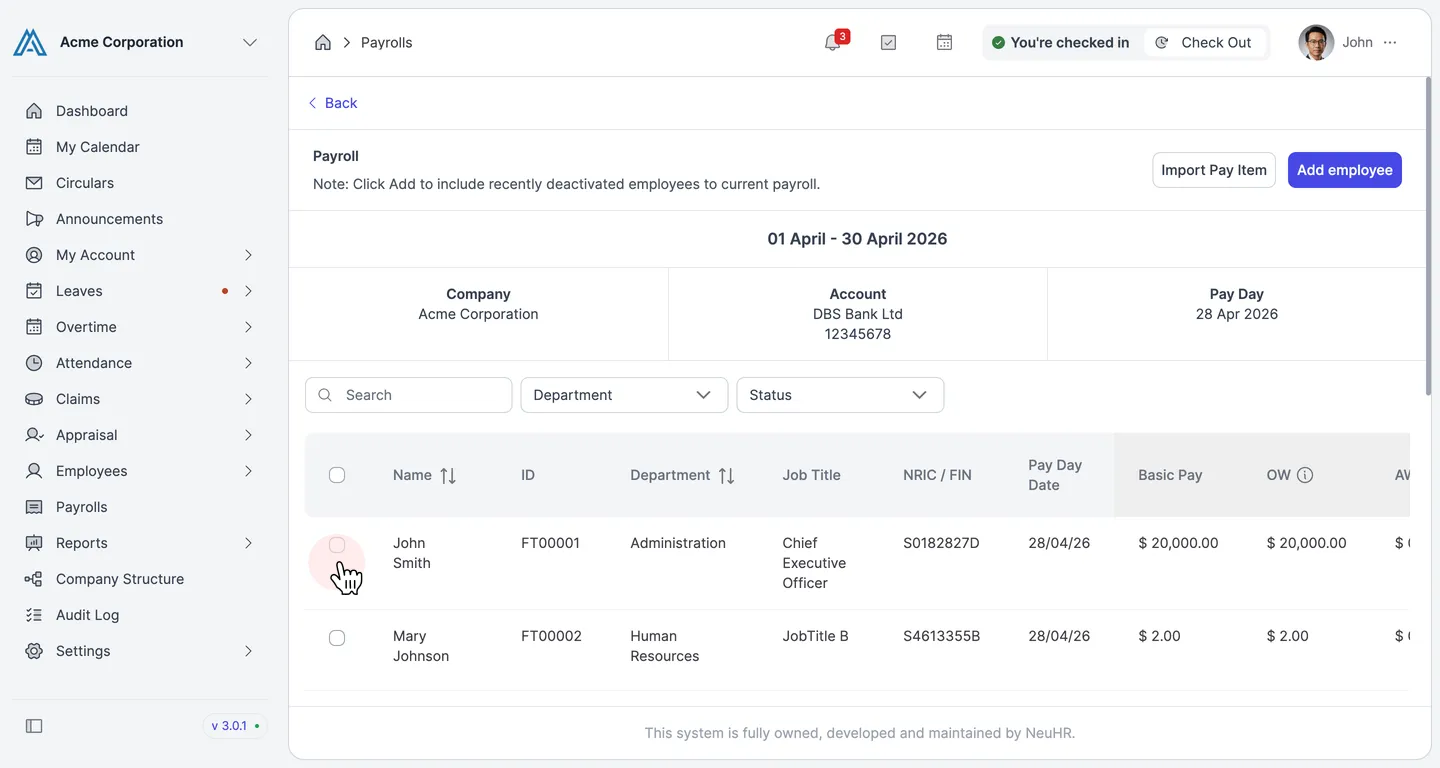
-
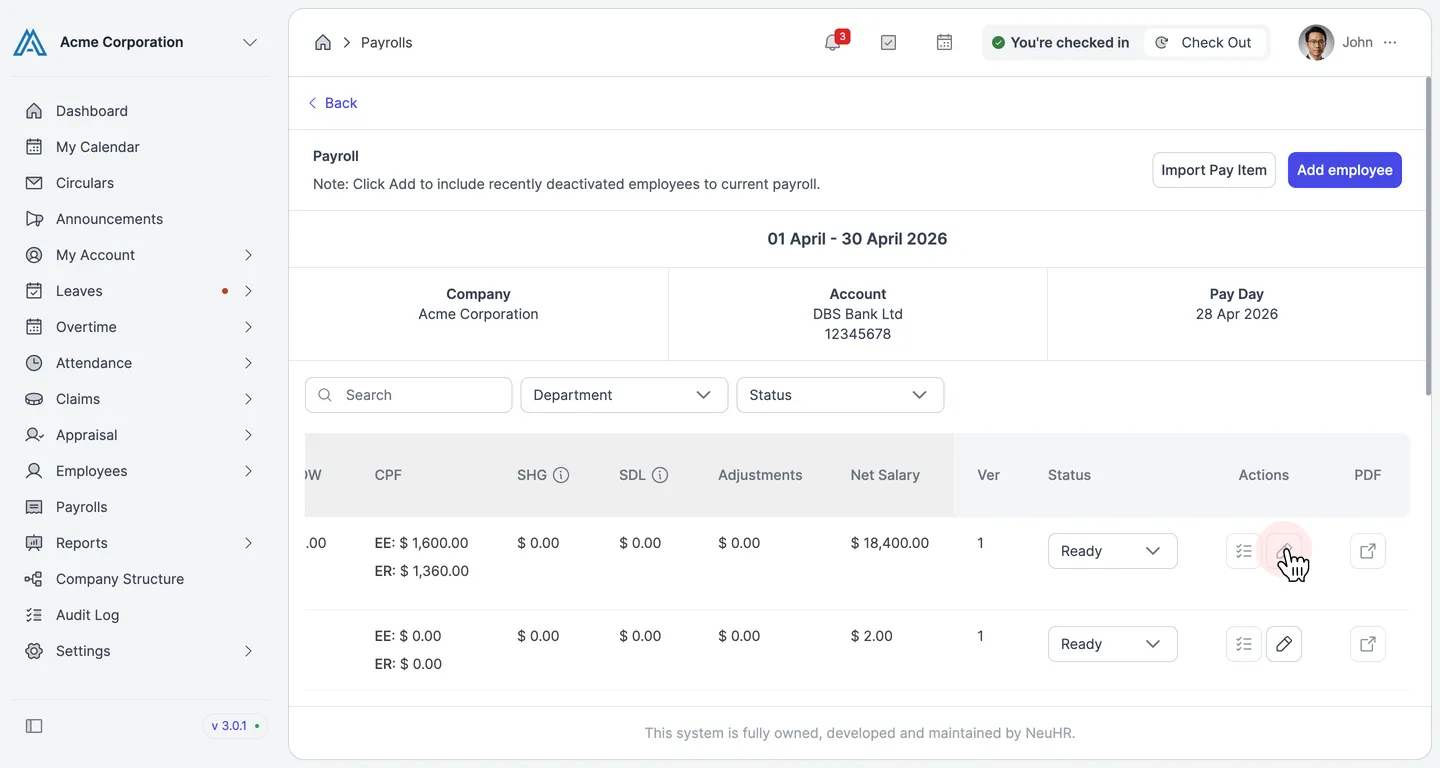
Scroll Right to Reveal the Edit Icon
Section titled “Scroll Right to Reveal the Edit Icon”Scroll the employee table to the right to reveal the Actions column. You will see a pencil icon for each employee row.
-
Click the Pencil Icon to Edit the Payslip
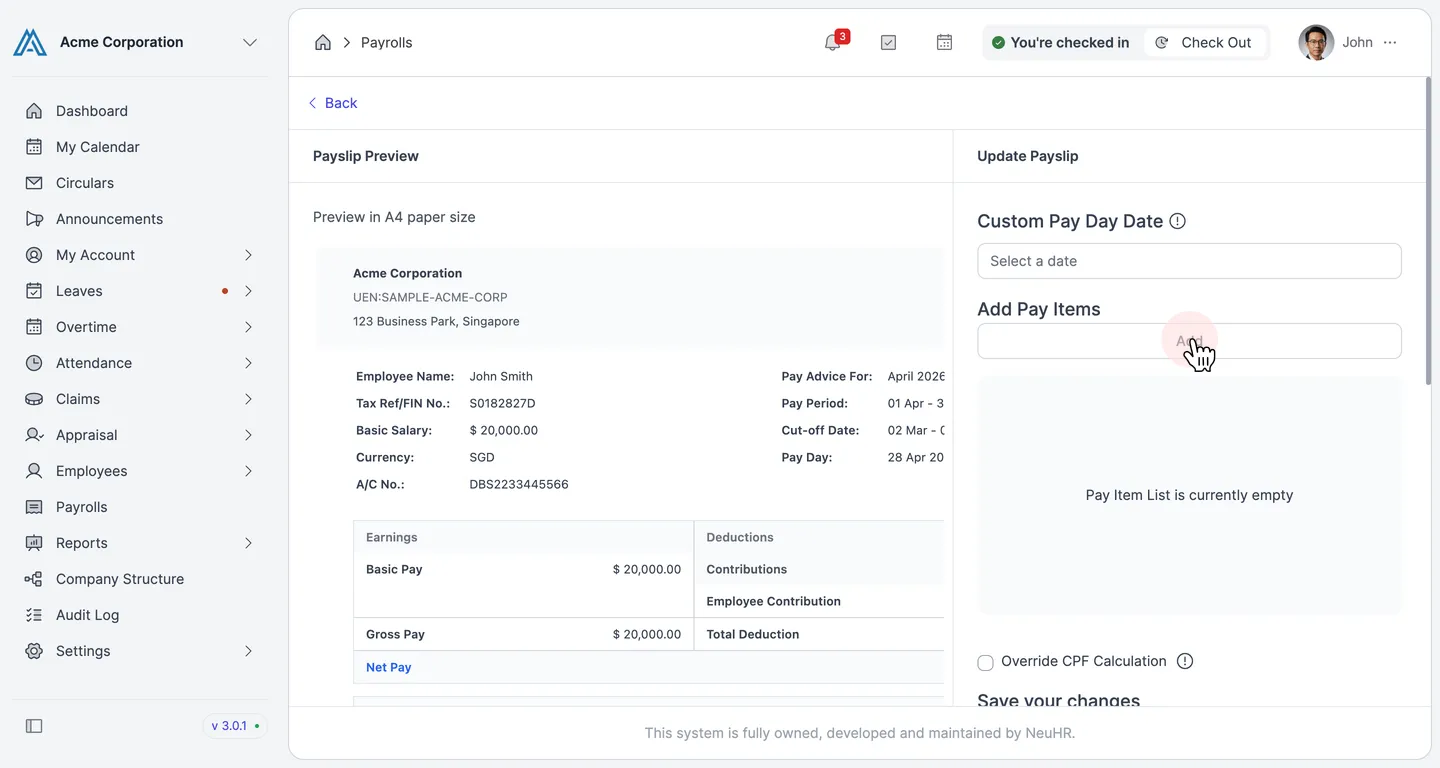
Section titled “Click the Pencil Icon to Edit the Payslip”Click the pencil icon next to the employee whose payslip you want to update. The payslip edit page opens, showing a Payslip Preview on the left and the Update Payslip panel on the right.
The Update Payslip panel includes:
- Custom Pay Day Date — override the default pay day date if needed
- Add Pay Items — add additional earnings or deduction items to the payslip
-
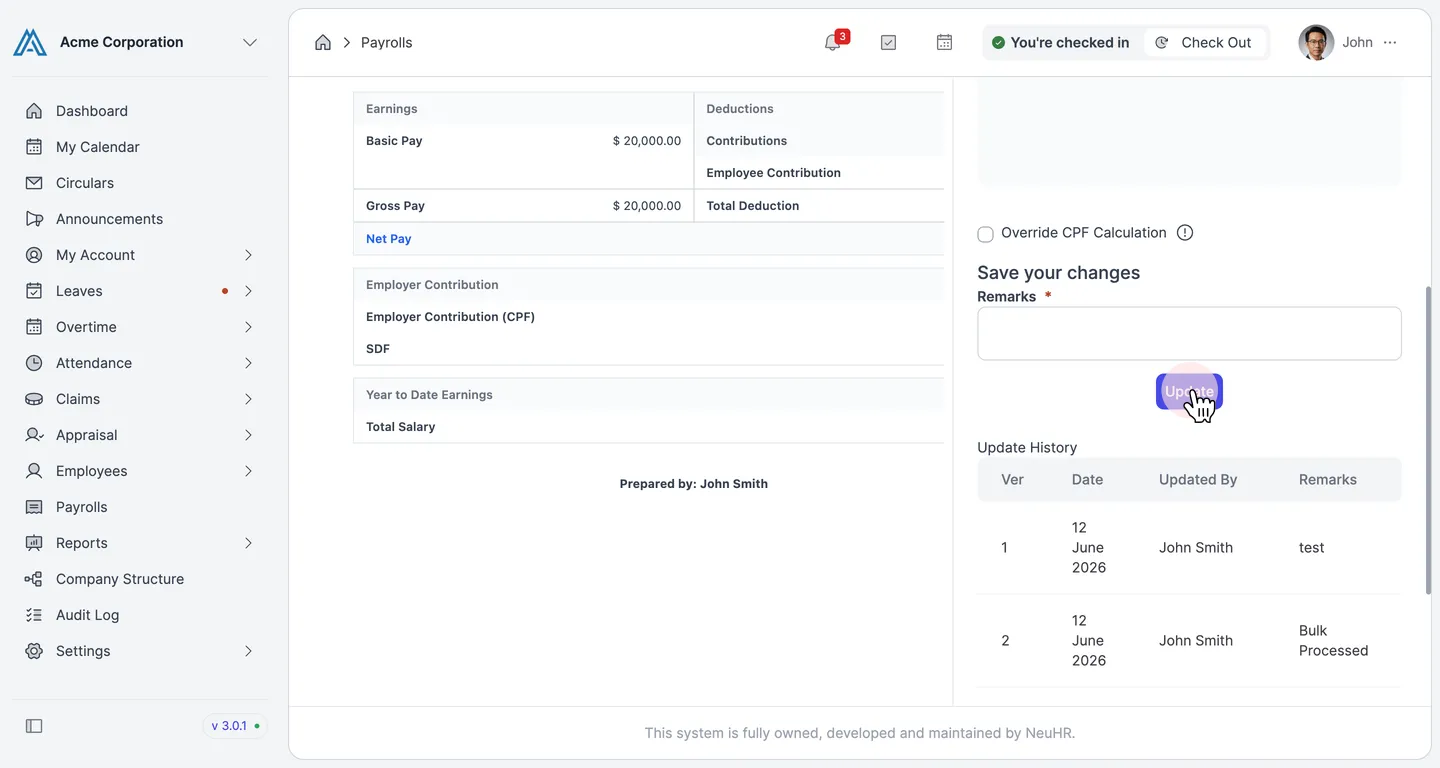
Enter Remarks and Click Update
Section titled “Enter Remarks and Click Update”Scroll down on the Update Payslip panel to find the Save your changes section. Enter a note in the Remarks field to describe the update, then click the
Updatebutton to save your changes.The Update History table below will record each update with the version number, date, editor name, and remarks.