How to Create a Claim Subcategory
This guide shows you how to create claim subcategories within existing Claim Categories in NeuHR. Subcategories allow you to organize claim types more granularly (e.g., “Medical Allowance” under “Staff Benefits”).
-
Navigate to Claim Categories
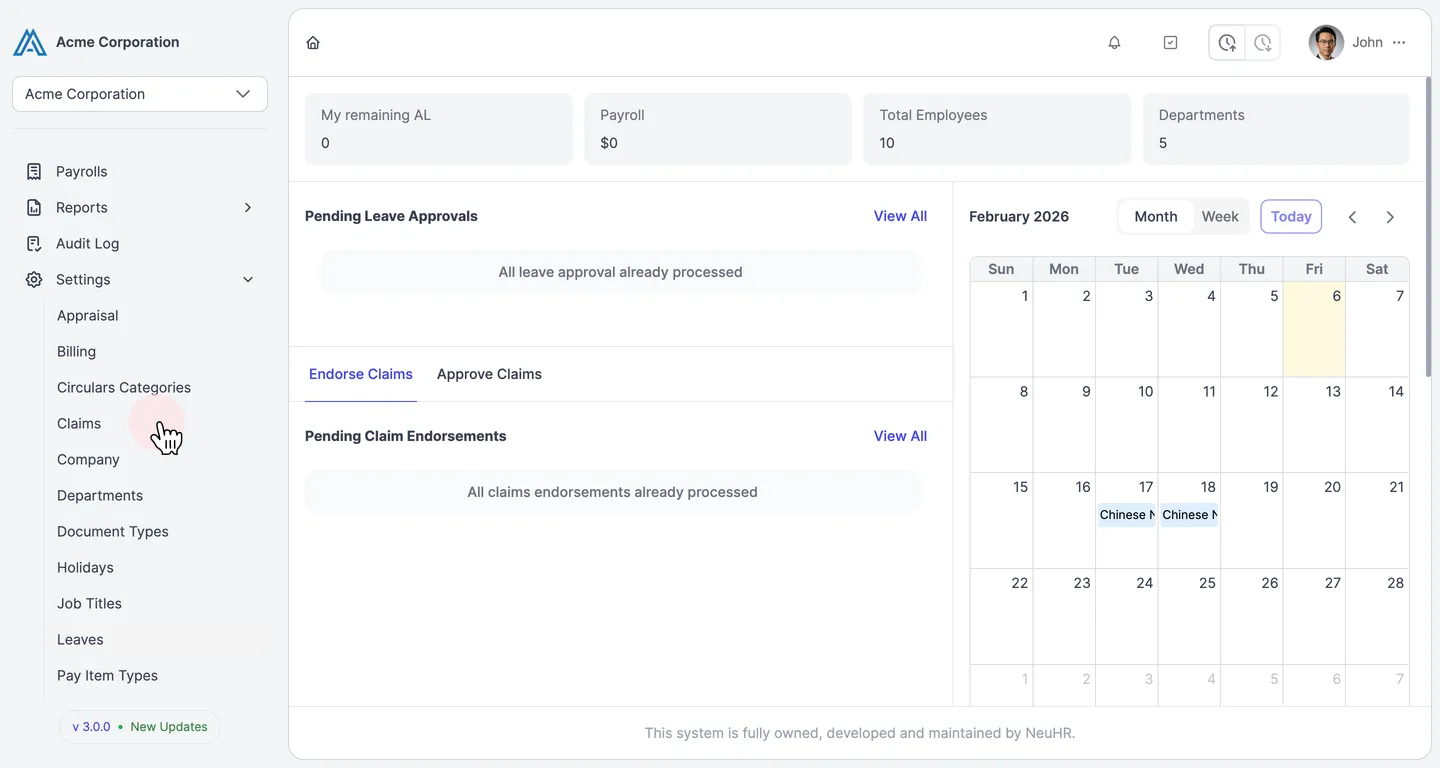
Section titled “Navigate to Claim Categories”From the sidebar, click on Settings to expand the menu, then click on Claims.
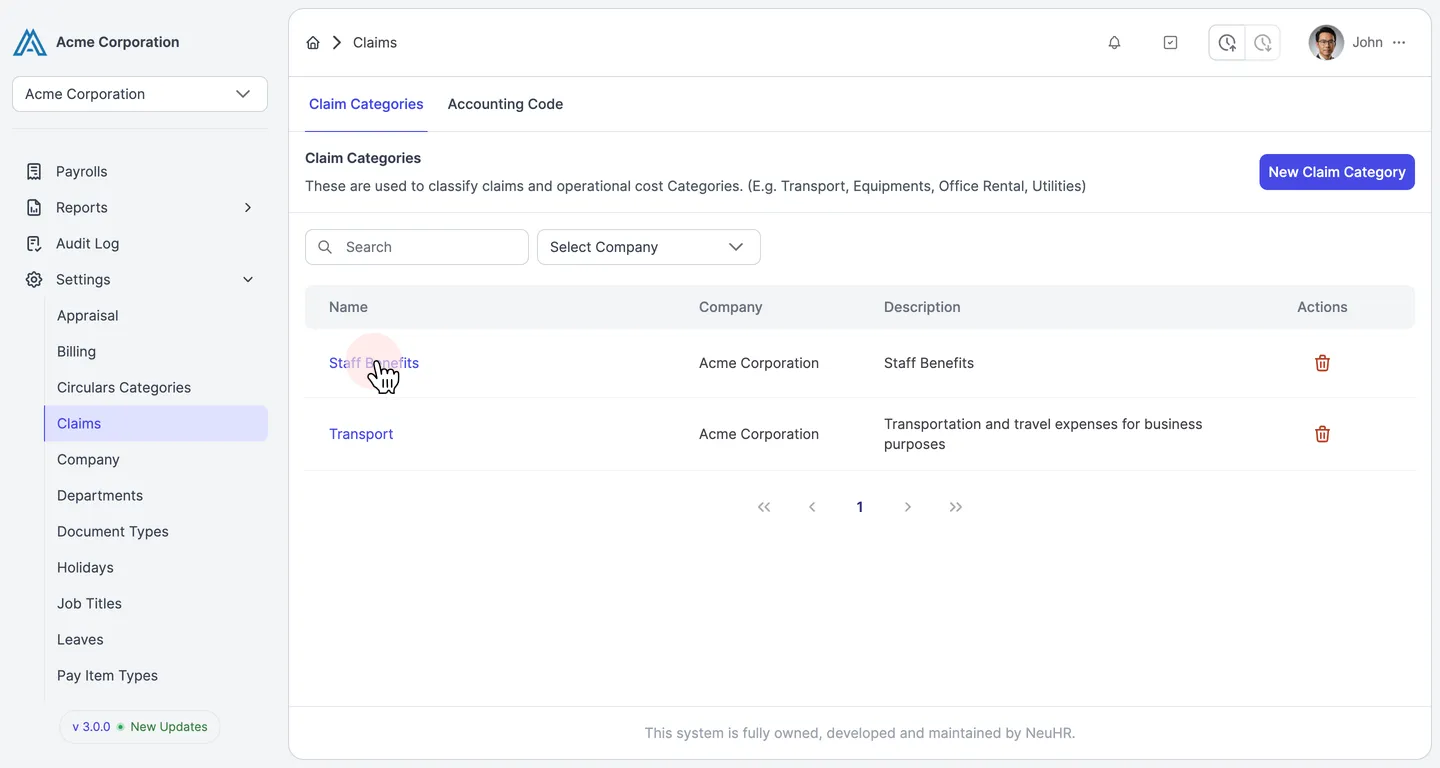
You’ll see the Claim Categories page listing all claim categories (e.g., “Staff Benefits”, “Transport”).
-
Open Claim Category Details
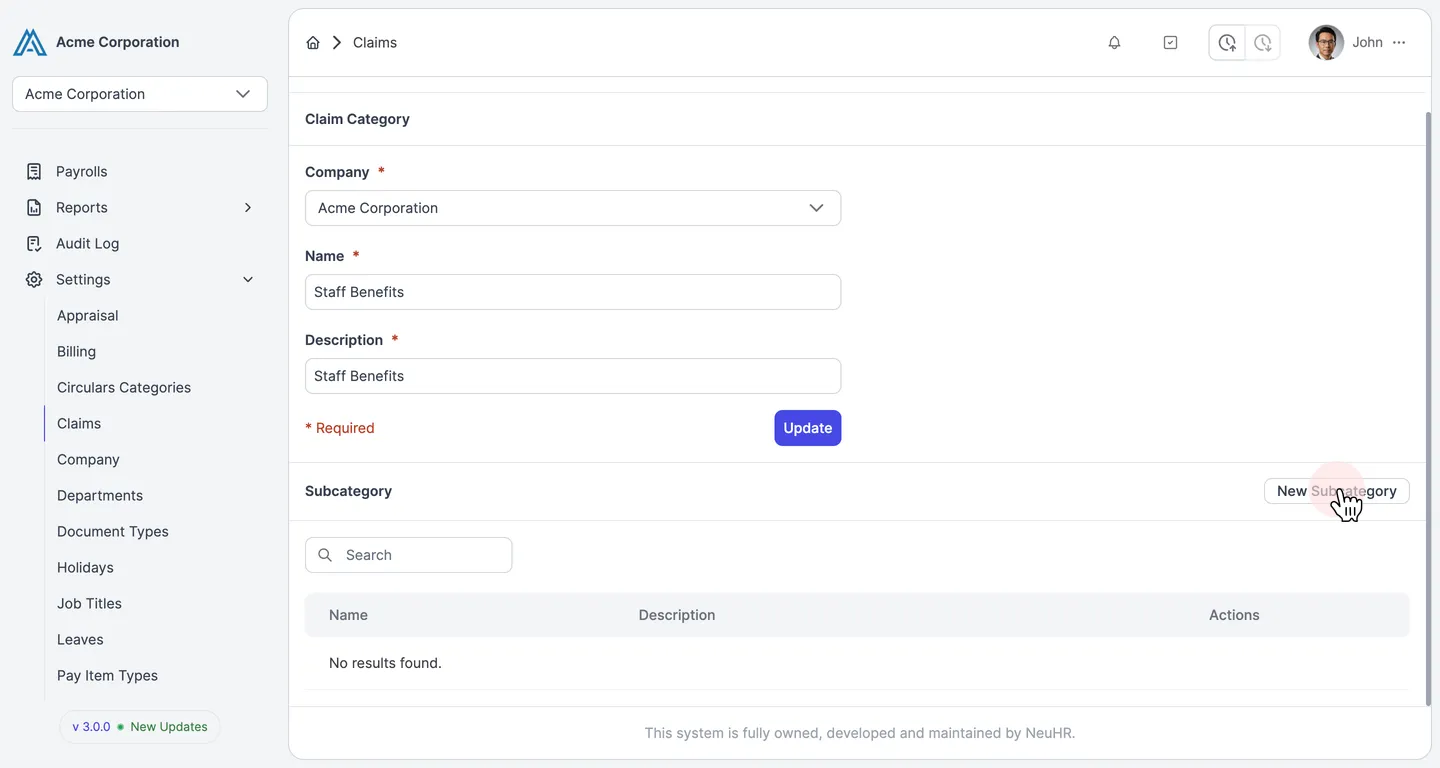
Section titled “Open Claim Category Details”Click on a Claim Category name (e.g., “Staff Benefits”) to view its details page.
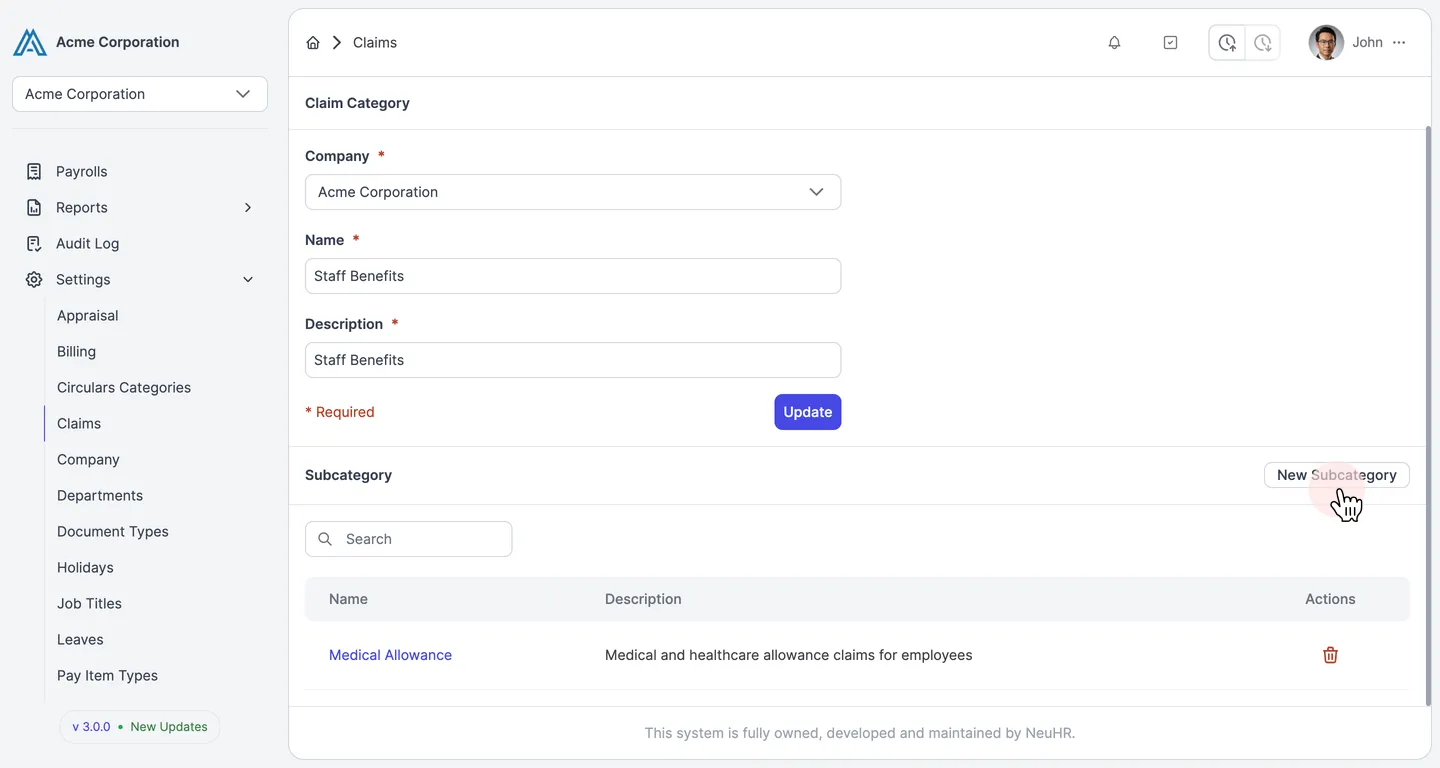
The page shows the category information and a Subcategory section at the bottom listing existing subcategories.
-
Click New Subcategory Button
Section titled “Click New Subcategory Button”In the Subcategory section, click the New Subcategory button in the top right corner.
-
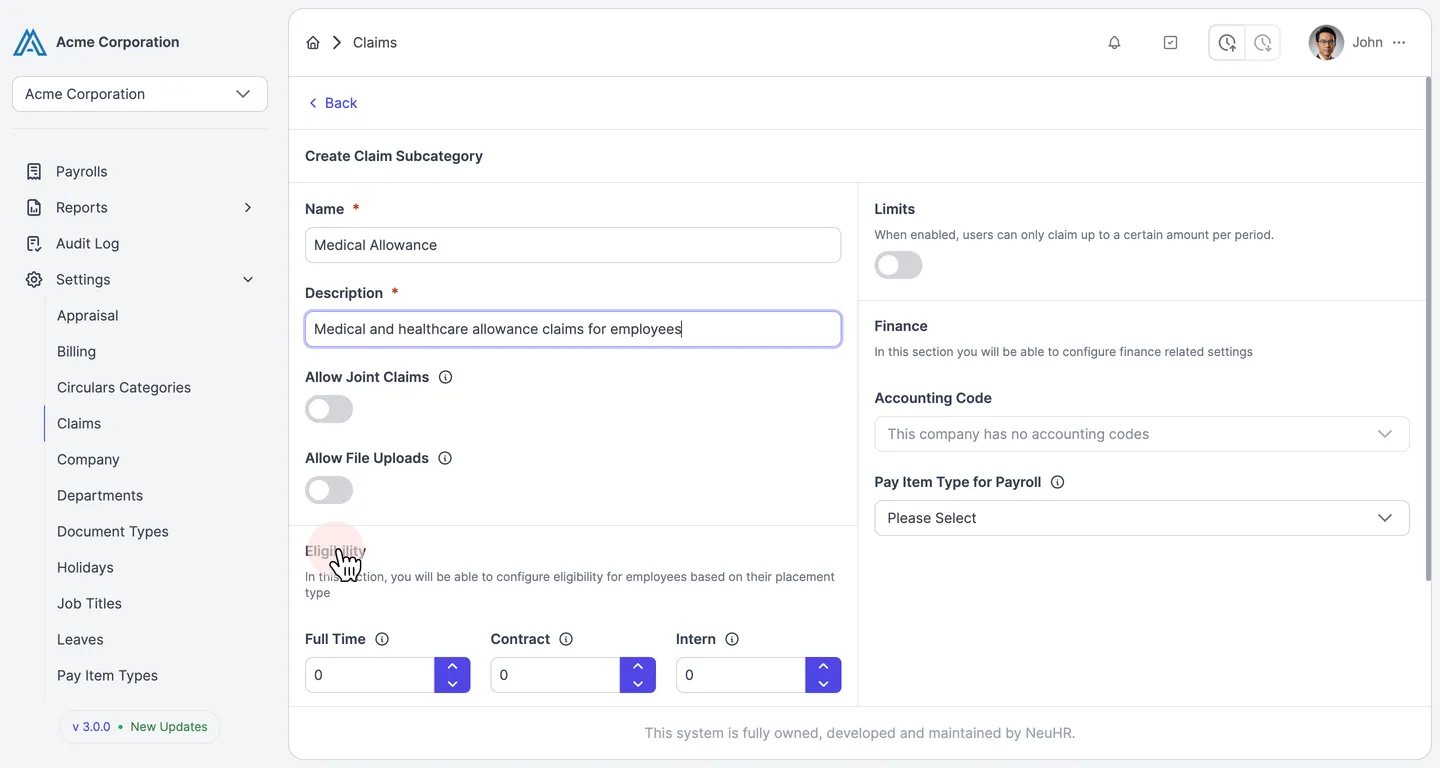
Enter Basic Information
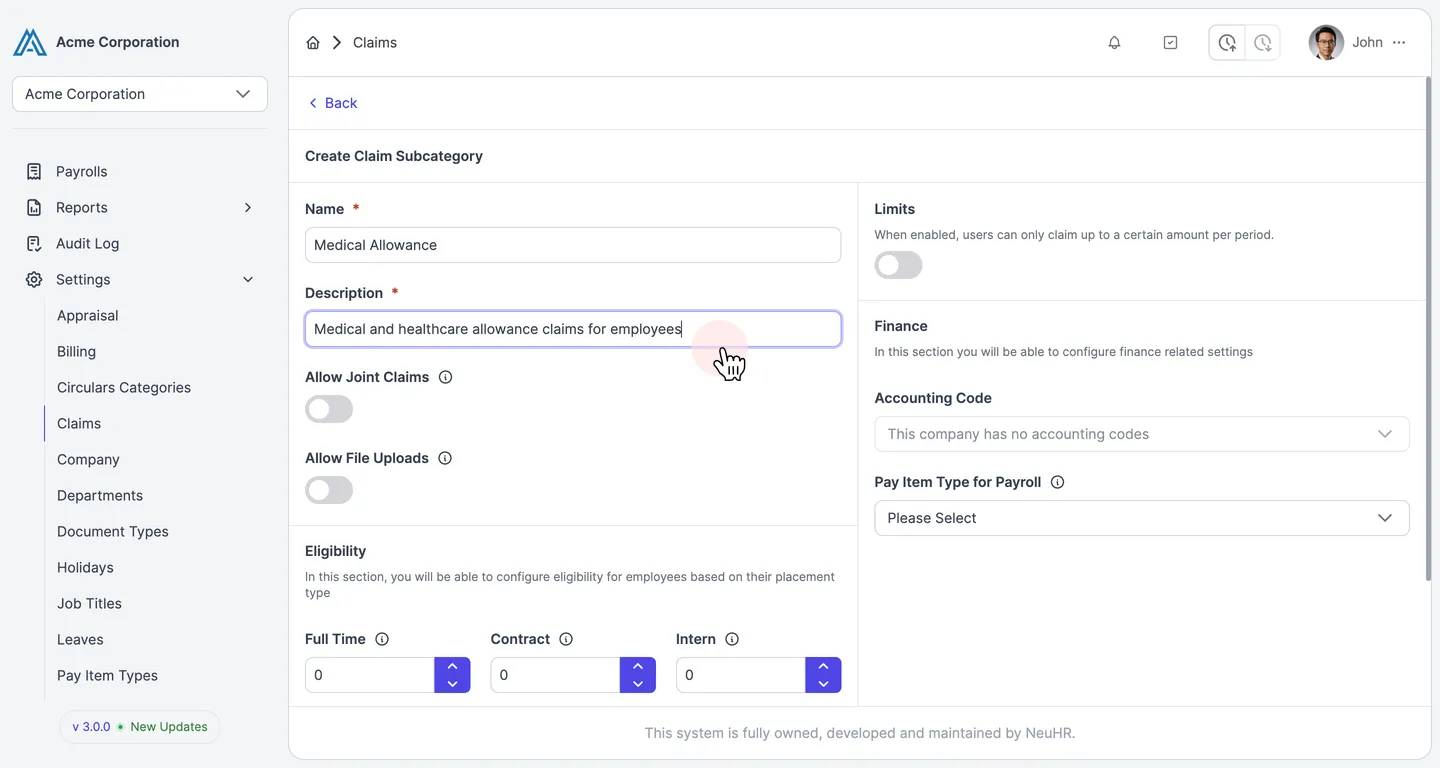
Section titled “Enter Basic Information”Fill in the required fields at the top of the form:
- Name: The subcategory name (e.g., “Medical Allowance”)
- Description: A clear description of what this subcategory covers
Both fields are required (marked with *).
-
Configure Subcategory Options
Section titled “Configure Subcategory Options”Set the toggles for additional functionality:
- Allow Joint Claims: Enable if multiple employees can submit claims together
- Allow File Uploads: Enable if employees need to upload supporting documents (e.g., receipts)
-
Set Eligibility Limits (Optional)
Section titled “Set Eligibility Limits (Optional)”In the Eligibility section, configure claim limits for each employment type:
- Full Time: Maximum number of claims allowed (0-120)
- Contract: Maximum number of claims allowed (0-120)
- Intern: Maximum number of claims allowed (0-120)
- Part Time: Maximum number of claims allowed (0-120)
- Freelancer: Maximum number of claims allowed (0-120)
Enter
0for no limit. -
Configure Finance Settings (Optional)
Section titled “Configure Finance Settings (Optional)”In the Finance section, set up accounting and payroll integration:
- Accounting Code: Select an accounting code for this subcategory (requires accounting codes to be configured)
- Pay Item Type for Payroll: Select the pay item type for payroll processing
These fields are optional and may show “Please Select” if no codes are configured.
When you’ve completed all configurations, click the Create button at the bottom of the form.
-
Verify Subcategory Creation
Section titled “Verify Subcategory Creation”After clicking Create, you’ll see a success message: “Claim Subcategory created successfully.”
The new subcategory now appears in the Subcategory list on the Claim Category detail page. You can see it listed with its name and description.