

How to Set Bring Forward Leave
This guide shows you how to enable the Bring Forward setting on a leave type, which allows employees to carry unused leave balances into the next leave cycle.
-
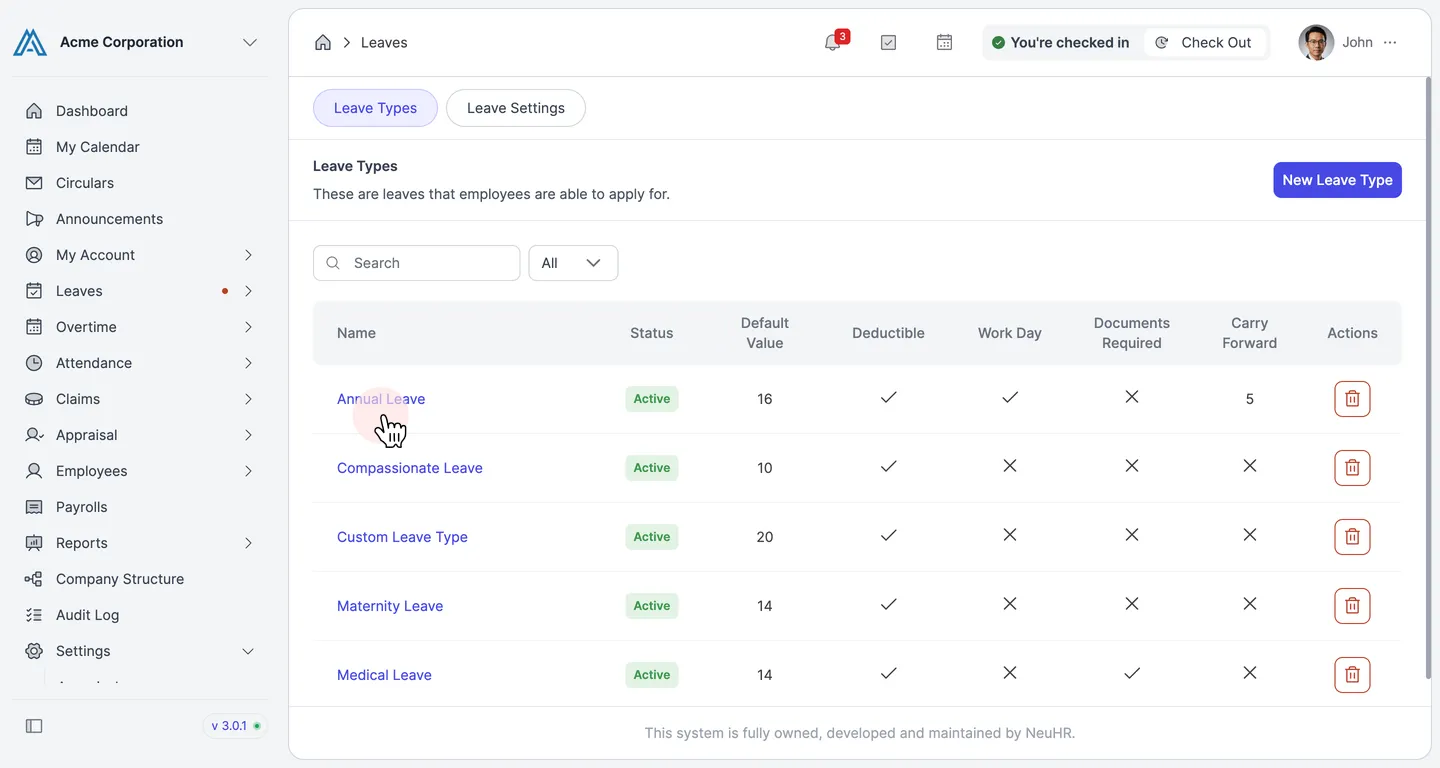
Open the leave type you want to configure
Section titled “Open the leave type you want to configure”In the left sidebar, expand Leaves (under Settings) and click on Leaves to open the Leaves page. The page opens on the Leave Types tab. Click the name of the leave type you want to configure — for example, Annual Leave.
-
Enable Bring Forward and set the amount
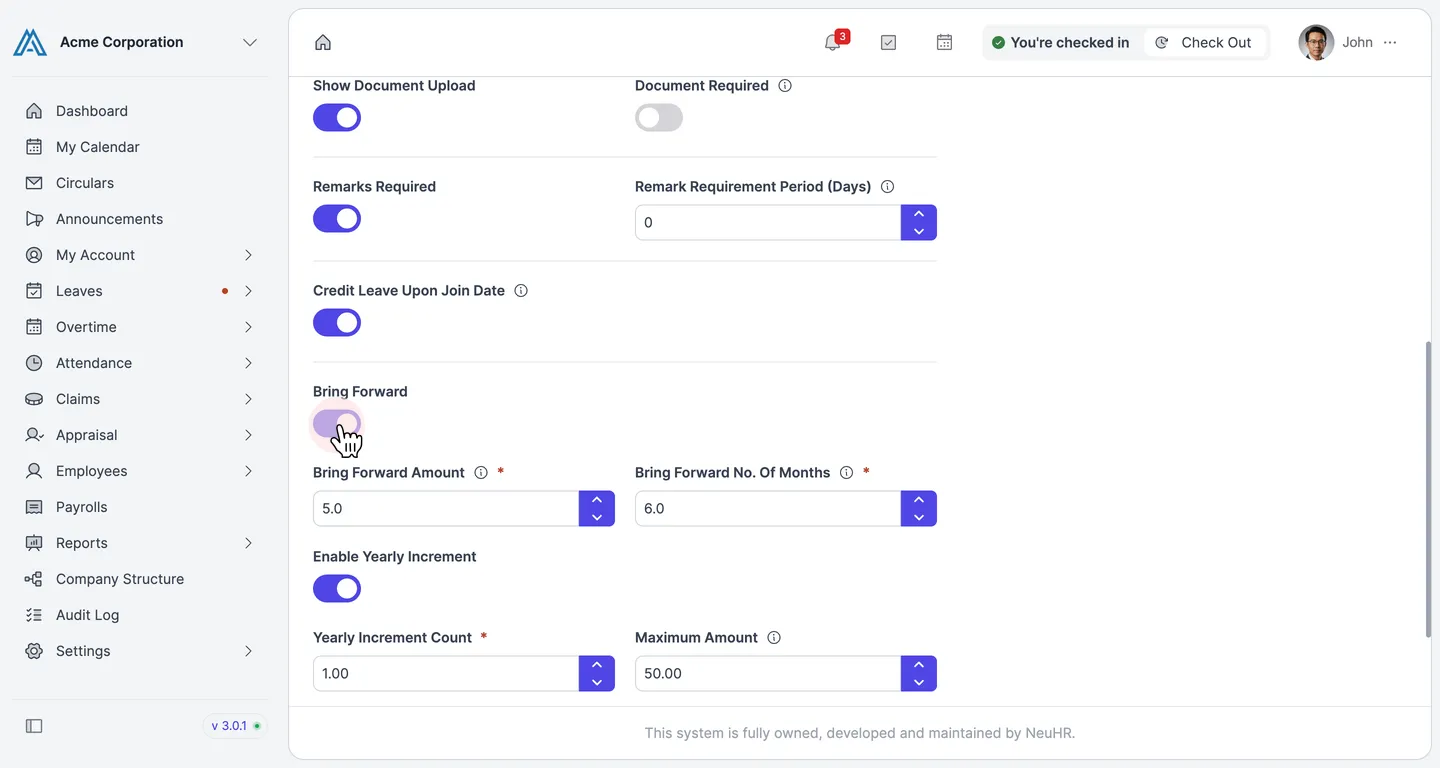
Section titled “Enable Bring Forward and set the amount”Scroll down to the Bring Forward section. Toggle Bring Forward on (blue). Two required fields appear:
- Bring Forward Amount — the maximum number of leave days that can be carried forward
- Bring Forward No. Of Months — the number of months (from the start of the new leave year) during which the employee can use the carried-forward balance
Enter your desired values in both fields.
-
Save the changes
Section titled “Save the changes”Scroll to the bottom of the form and click Update to save the bring-forward settings.
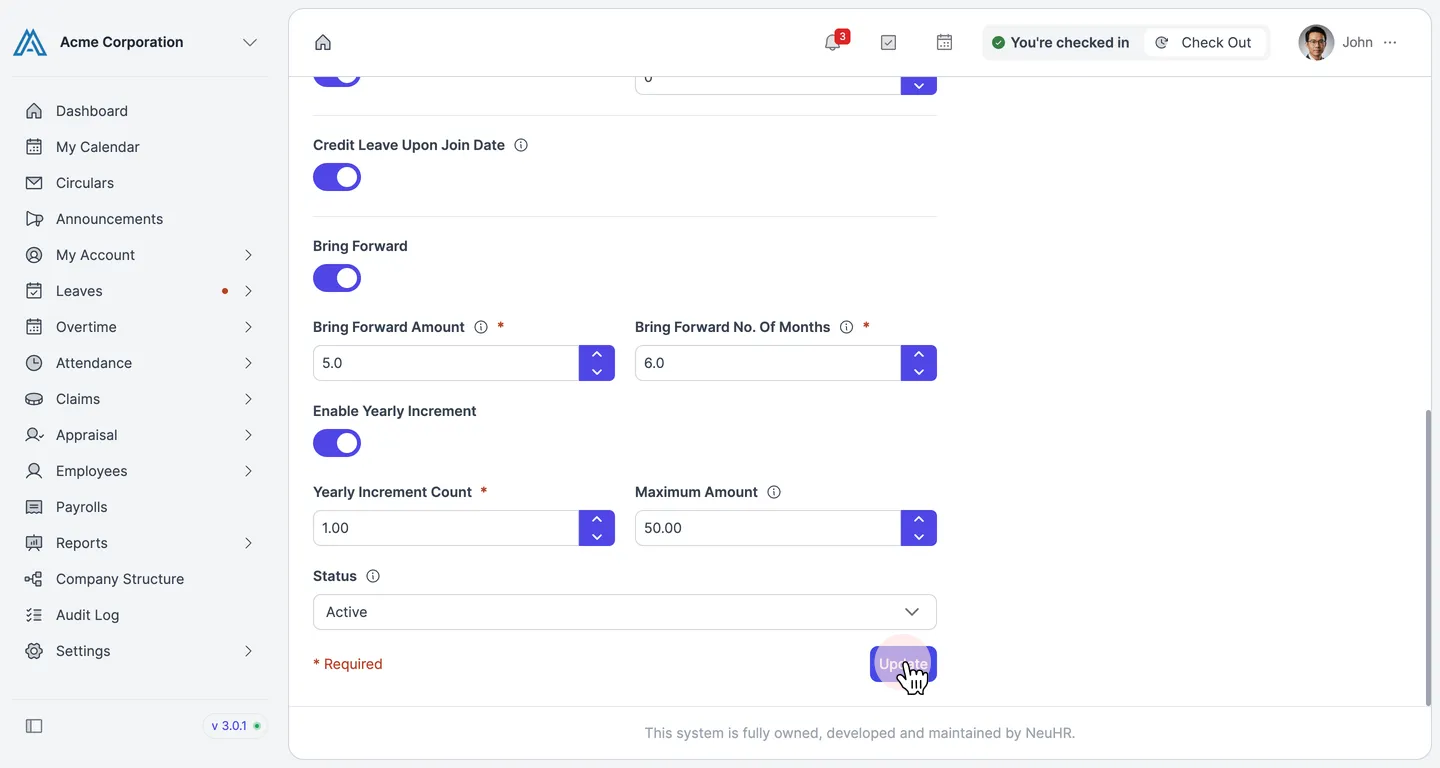
The Leave Types list will now show the updated carry-forward amount in the Carry Forward column.