How to Offboard an Employee
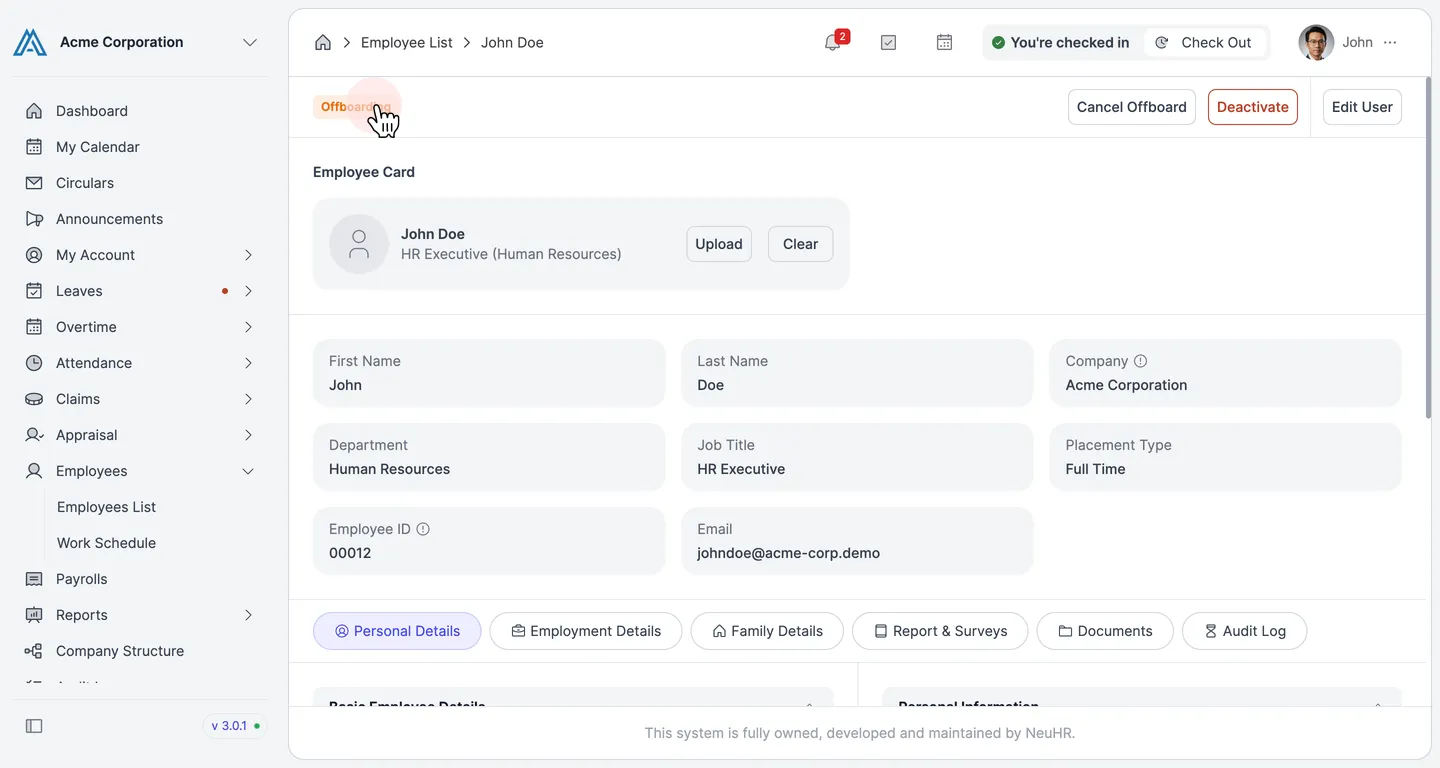
Use the Offboarding feature to formally begin the departure process for an employee. Once submitted, the employee’s status changes from Active to Offboarding until their last day of service.
-
Open the Employee’s Profile
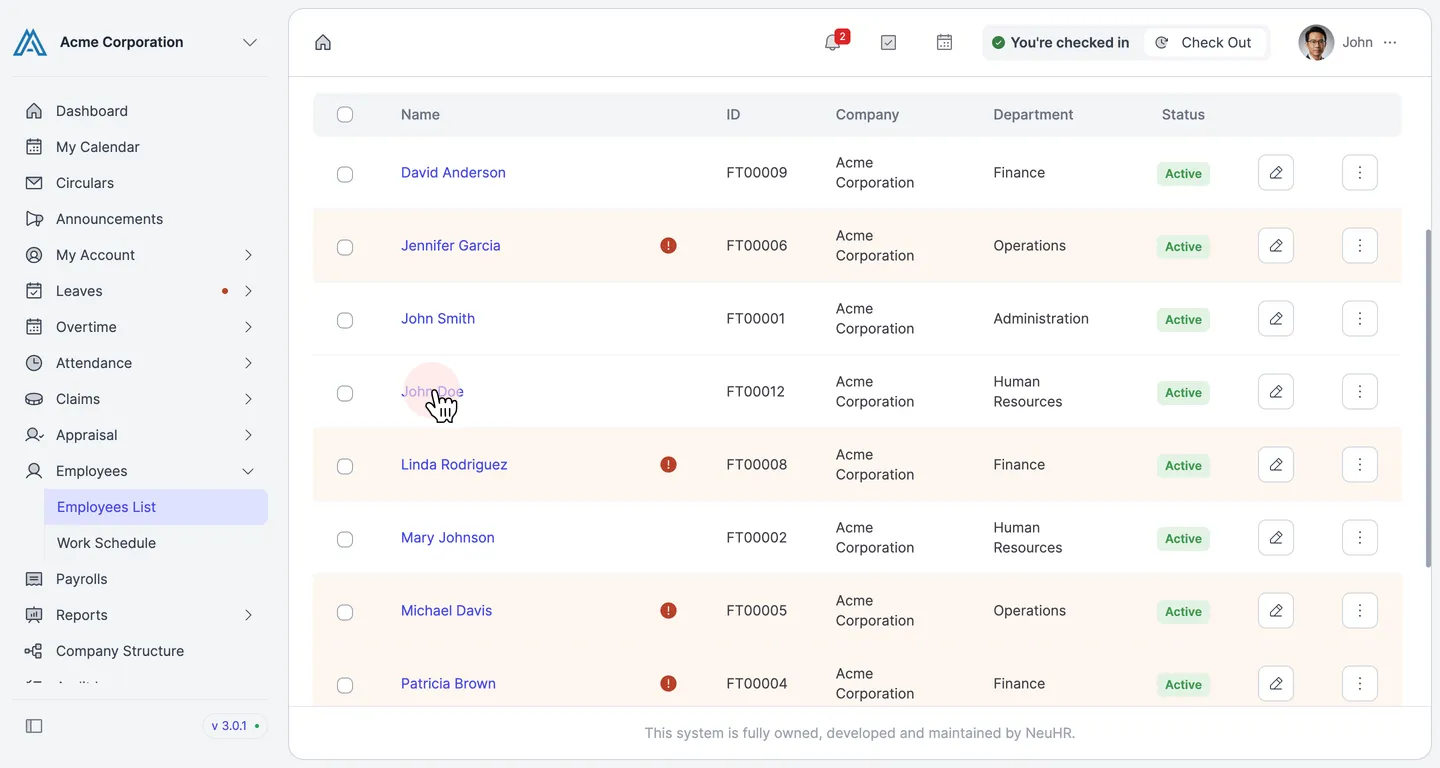
Section titled “Open the Employee’s Profile”From the Employees List, click the employee’s name to open their profile page. In this example, we are offboarding John Doe.
-
Click the Offboarding Button
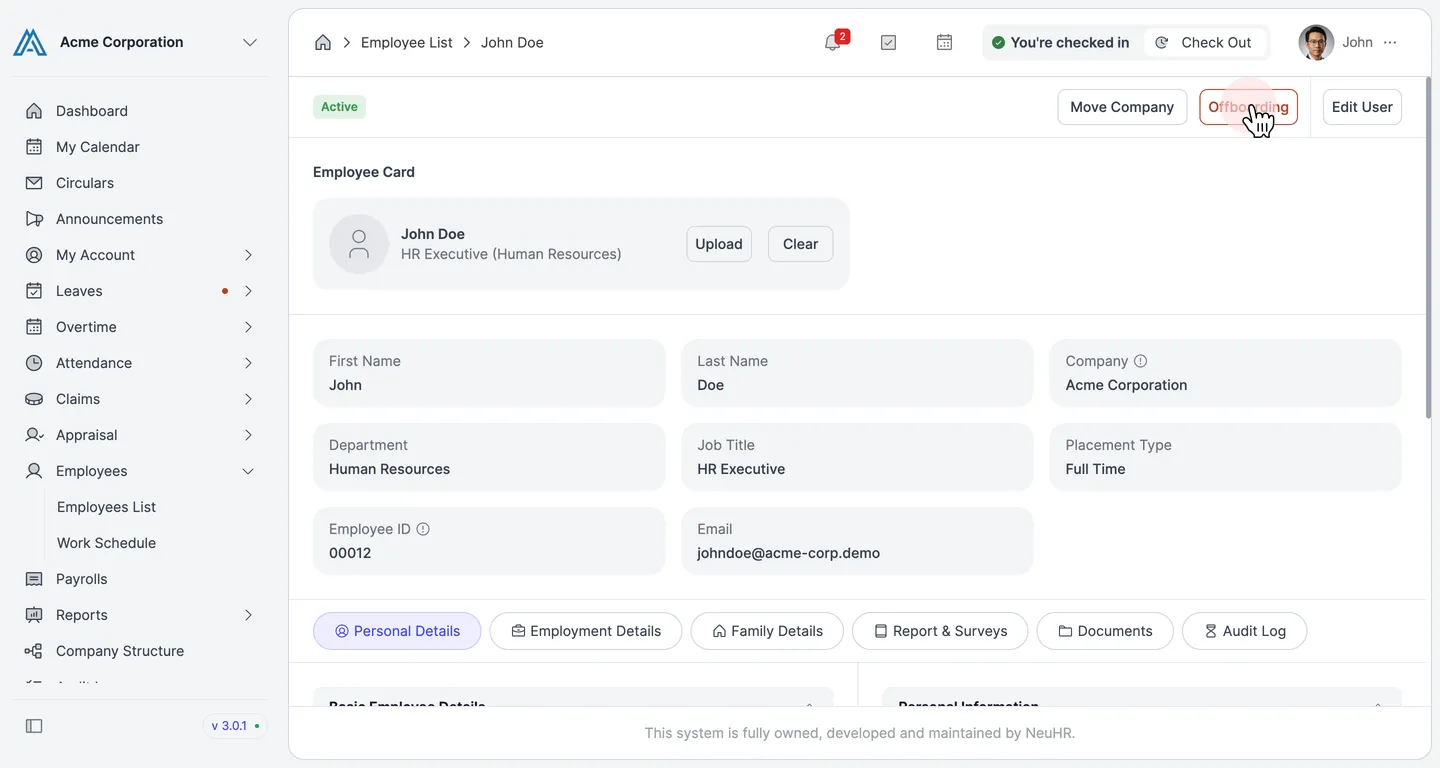
Section titled “Click the Offboarding Button”On the employee’s profile page, click the Offboarding button in the top-right corner of the page.
-
Review the Offboarding Form
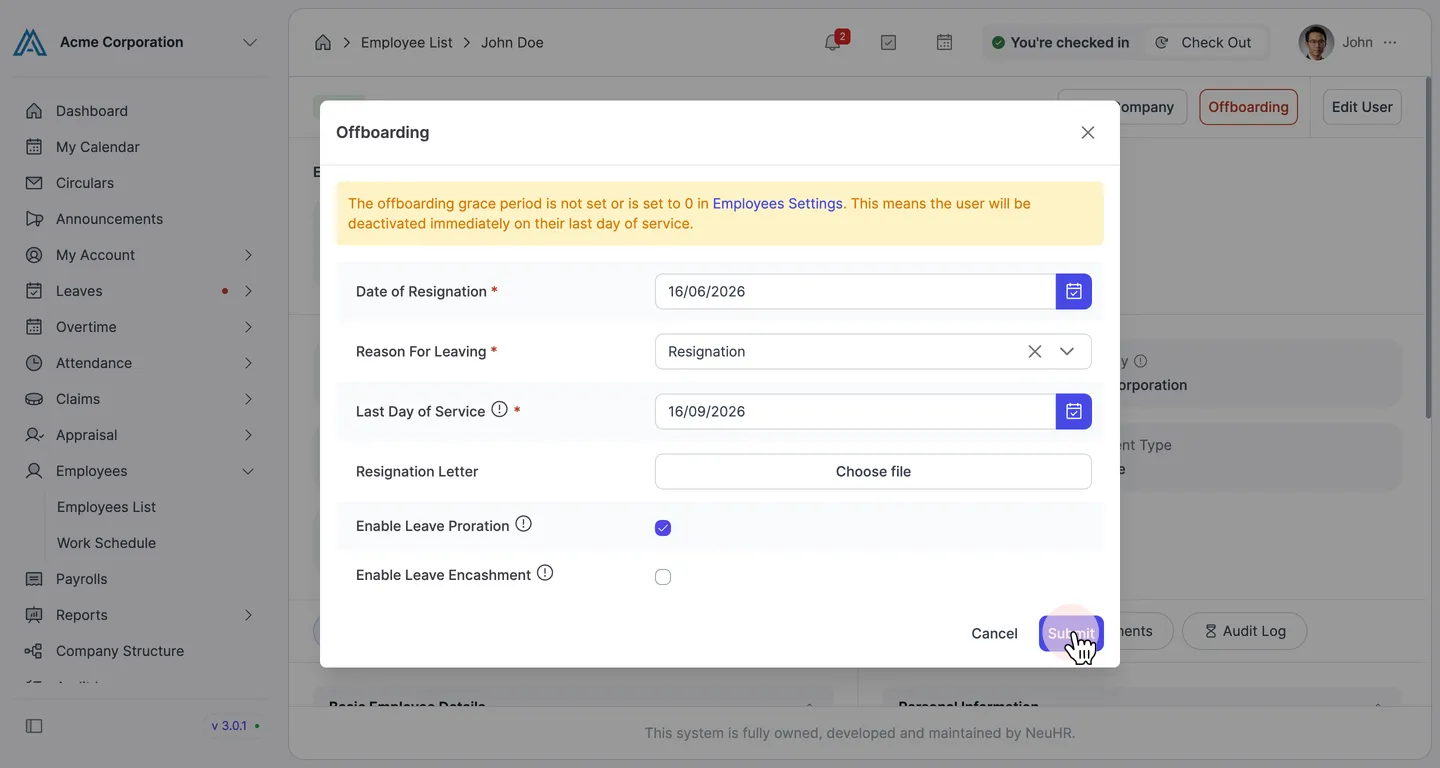
Section titled “Review the Offboarding Form”The Offboarding dialog opens. Fill in the following required fields:
Field Description Date of Resignation * The date the employee submitted their resignation Reason For Leaving * Select a reason from the dropdown (e.g. Resignation, Termination, End of Contract) Last Day of Service * The employee’s final working day Resignation Letter Optionally attach a resignation letter file Enable Leave Proration Pro-rate the employee’s remaining leave balance Enable Leave Encashment Pay out unused leave upon departure 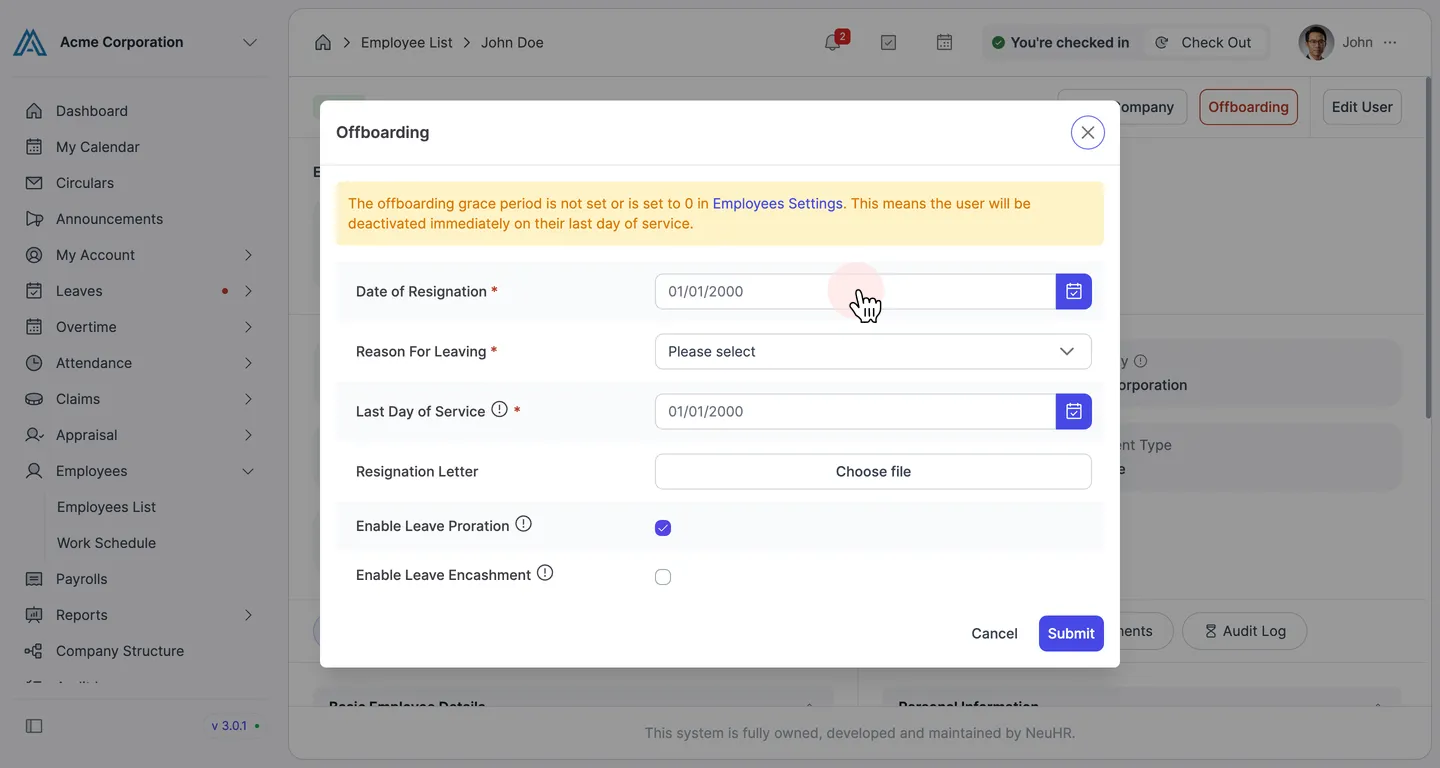
-
Submit the Offboarding Request
Section titled “Submit the Offboarding Request”After filling in all required fields, click Submit to initiate offboarding.
-
Offboarding Confirmed
Section titled “Offboarding Confirmed”The employee’s status badge changes to Offboarding, and new action buttons appear: Cancel Offboard (to reverse the offboarding) and Deactivate (to immediately deactivate the employee before the last day).