How to Create a New Quicklinks
This guide shows you how to create a Link type circular in NeuHR. Use this when you want to share an external URL — such as a company portal, policy page, or resource site — directly through the Circulars section. The link will open in the employee’s browser when clicked.
-
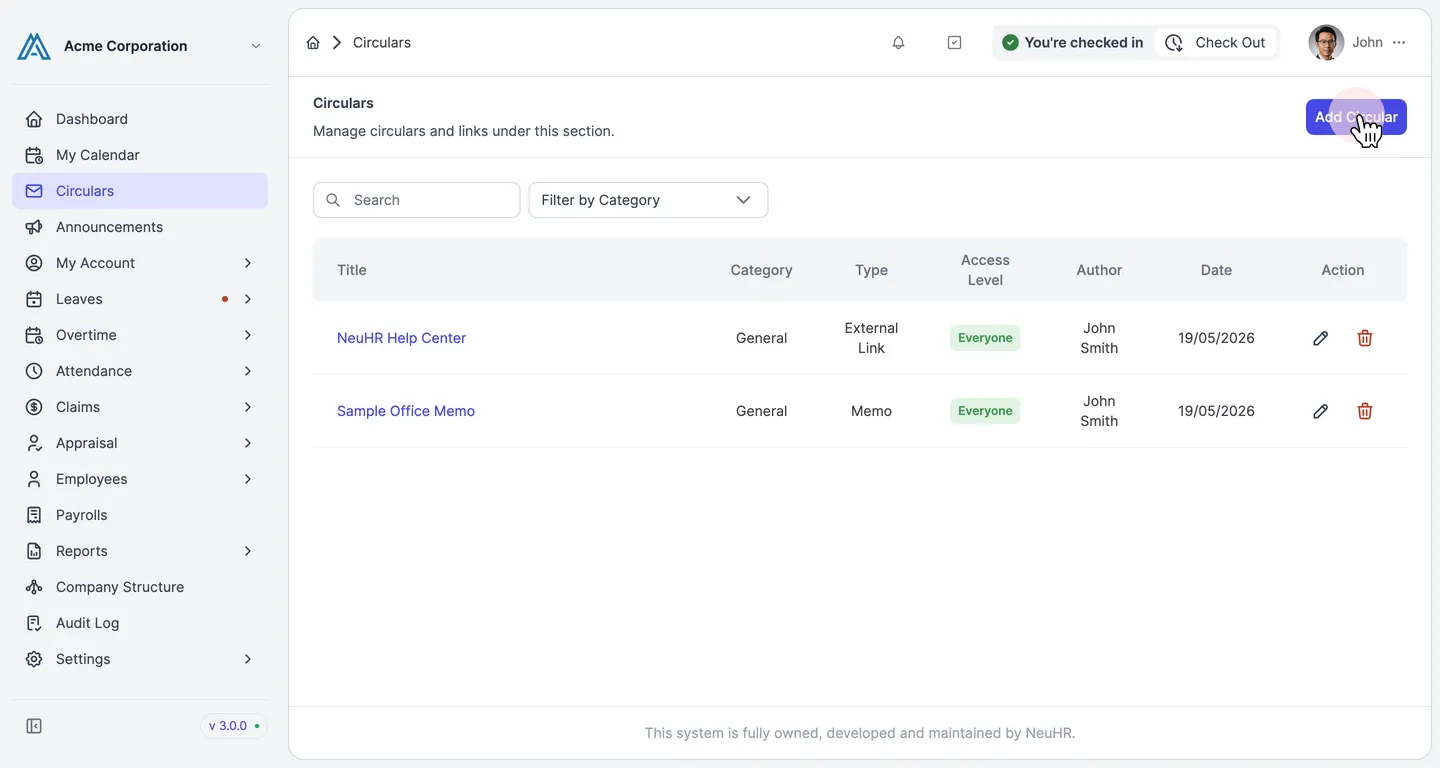
Navigate to Circulars and click Add Circular
Section titled “Navigate to Circulars and click Add Circular”From the sidebar, click Circulars. The Circulars page opens. Click the Add Circular button in the top-right corner.
-
Select Link as the Circular Type
Section titled “Select Link as the Circular Type”On the Create Circular form, click the Circular Type dropdown. Select Link from the list of options (
Document,Memo,Link).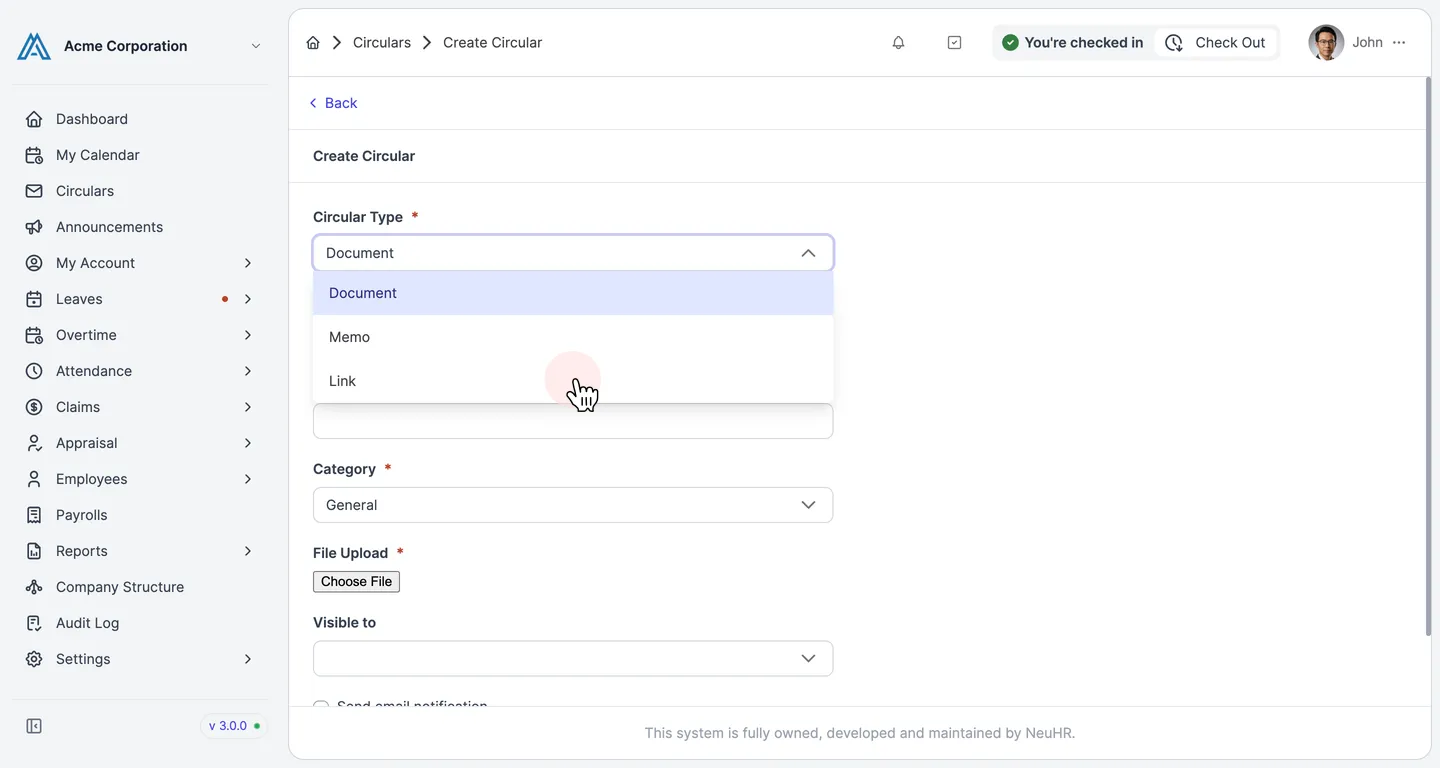
-
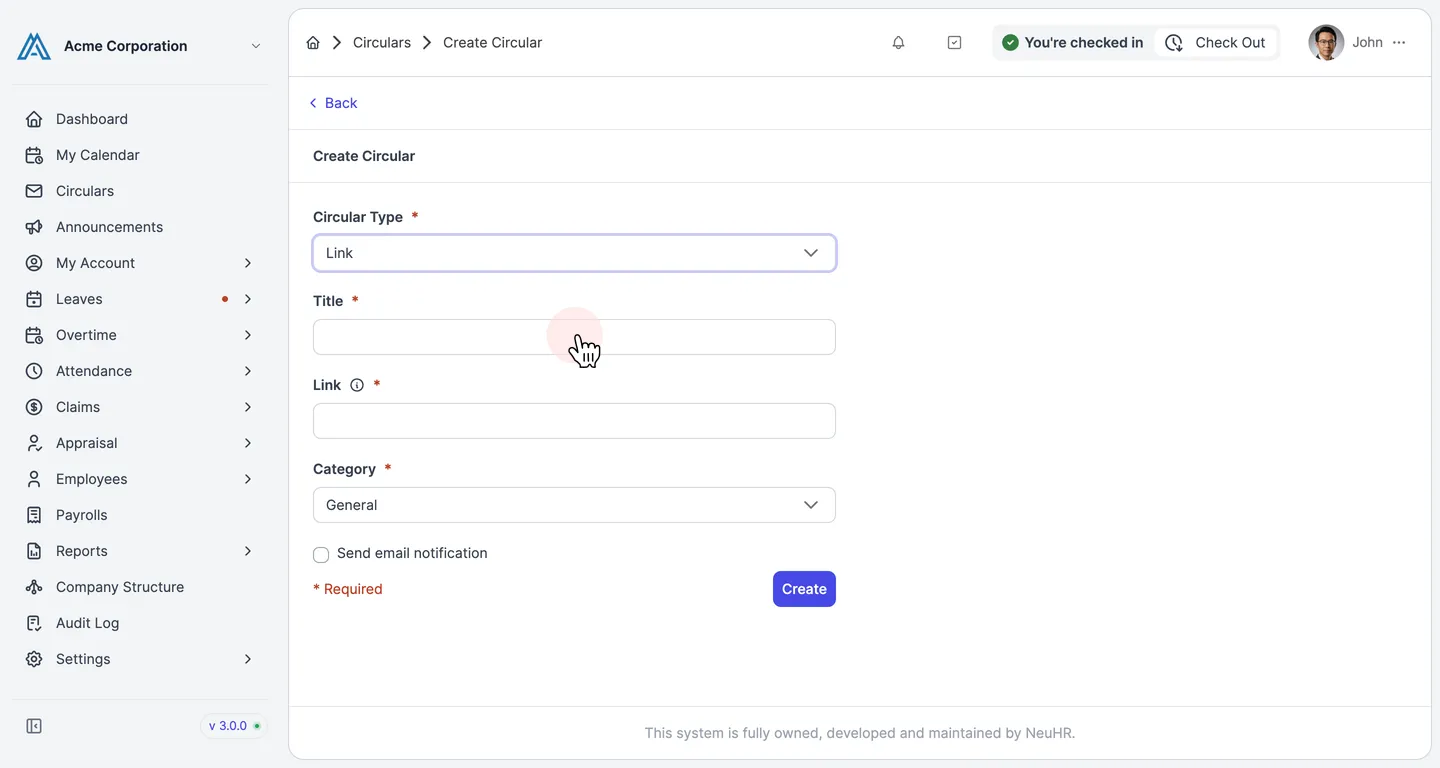
Review the Link form
Section titled “Review the Link form”After selecting
Link, the form updates to show a Link URL field instead of a file upload or text editor. The form includes:- Title — the display name for the link
- Link — the full URL (e.g.
https://example.com) - Category — select the appropriate category (defaults to
General) - Send email notification — optionally notify employees by email
-
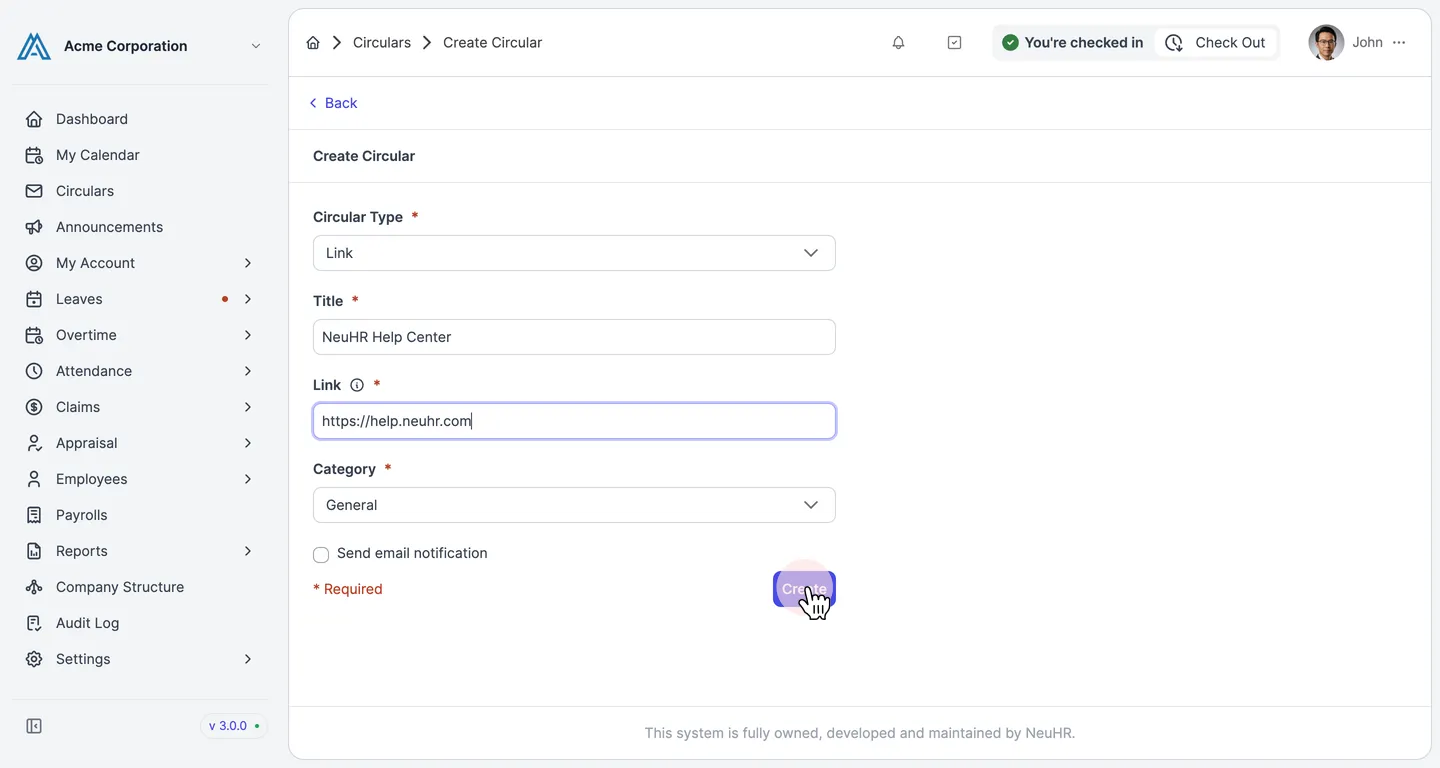
Fill in the link details and click Create
Section titled “Fill in the link details and click Create”Enter the Title and paste the full URL into the Link field. Select a Category if needed. When done, click the Create button.
-
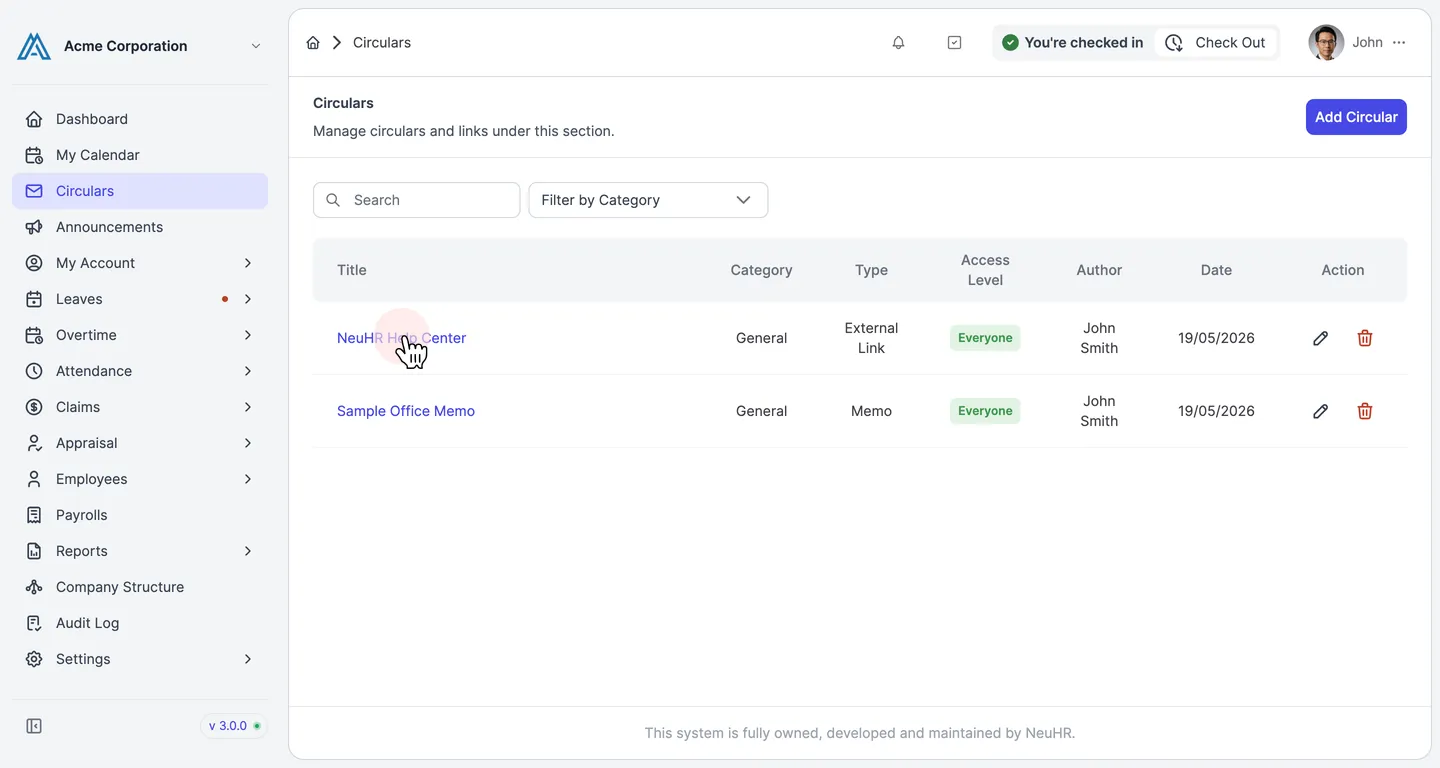
Link created successfully
Section titled “Link created successfully”You are redirected to the Circulars page. The new link appears in the list with its title, category, type External Link, and the date created. Clicking the title opens the URL in a new tab.