

How to Update My Password
This guide shows you how to update your account password in NeuHR.
-
Navigate to My Account
Section titled “Navigate to My Account”From the sidebar, click
My Accountto expand the menu, then clickProfile.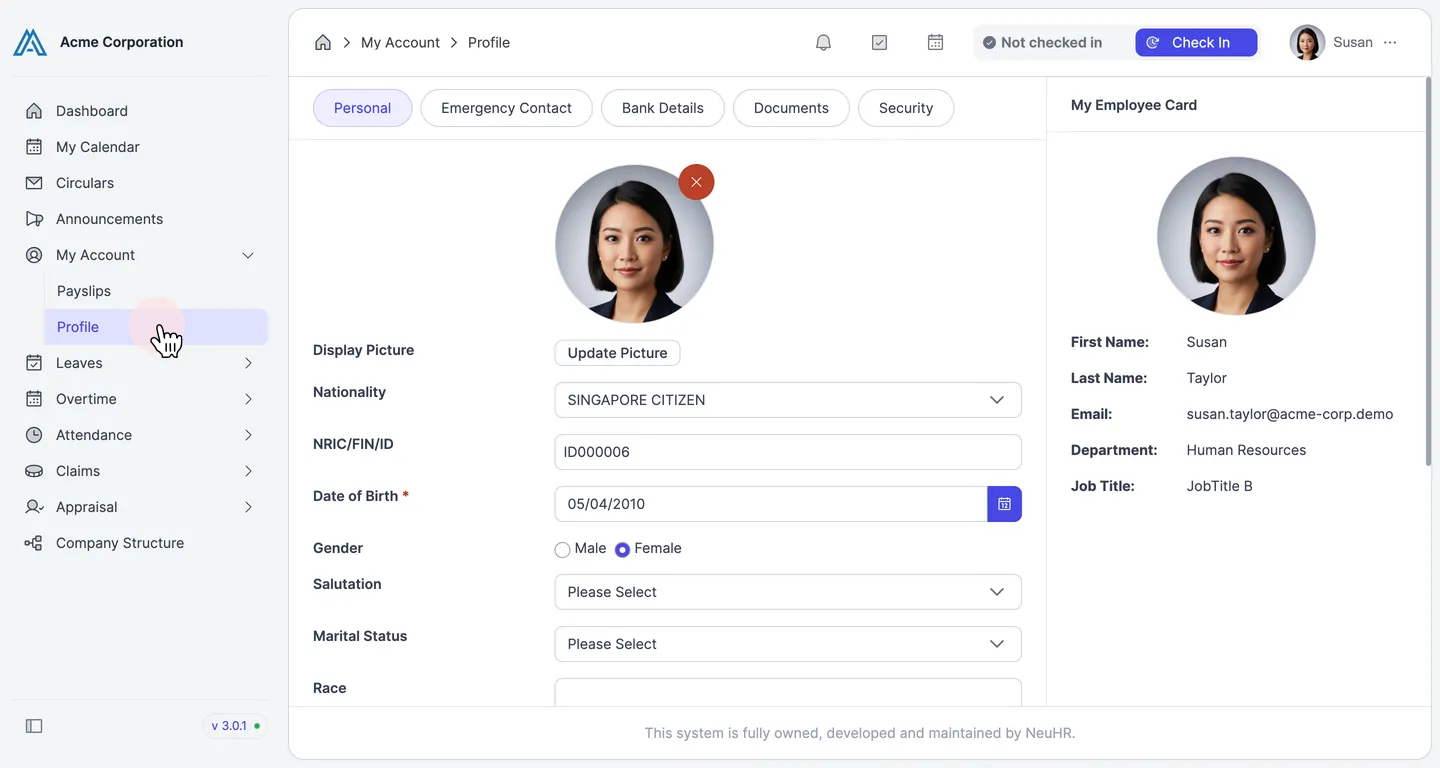
-
Click the Security Tab
Section titled “Click the Security Tab”On the Profile page, click the
Securitytab in the horizontal tab bar.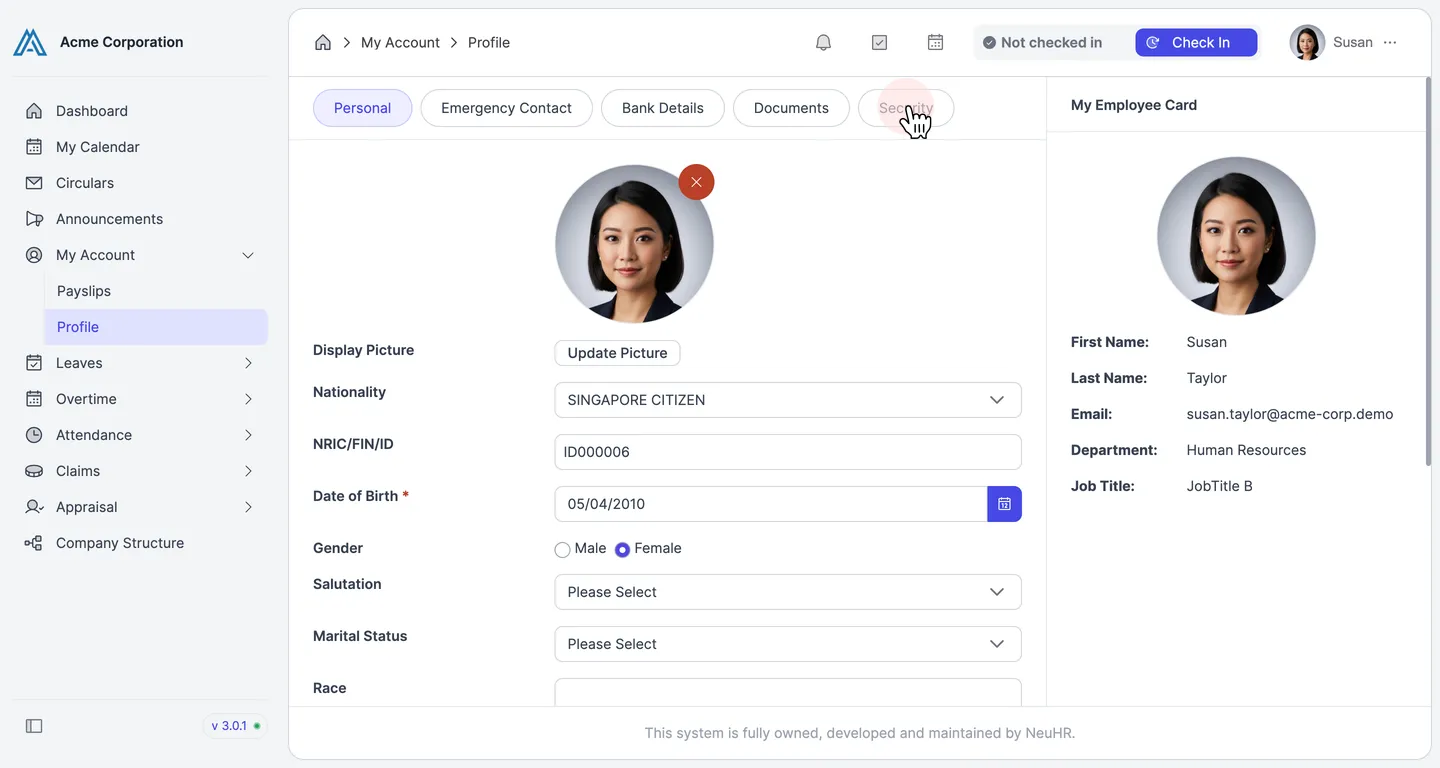
-
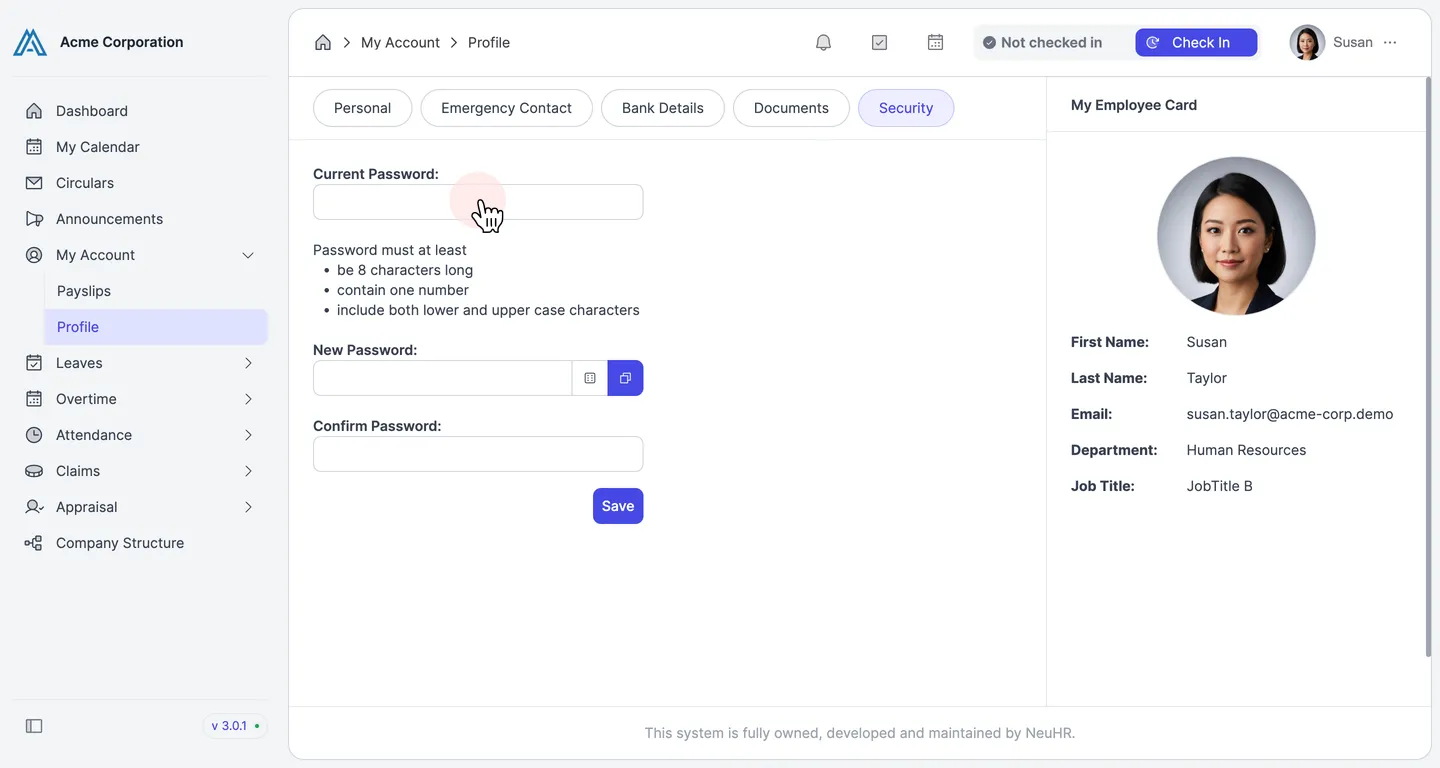
Fill In the Password Fields
Section titled “Fill In the Password Fields”Enter your passwords in the three fields:
Current Password: Your existing account passwordNew Password: Your desired new passwordConfirm Password: Re-enter your new password to confirm
Your new password must at least:
- be 8 characters long
- contain one number
- include both lower and upper case characters
-
Save Your Changes
Section titled “Save Your Changes”Click the
Savebutton to update your password.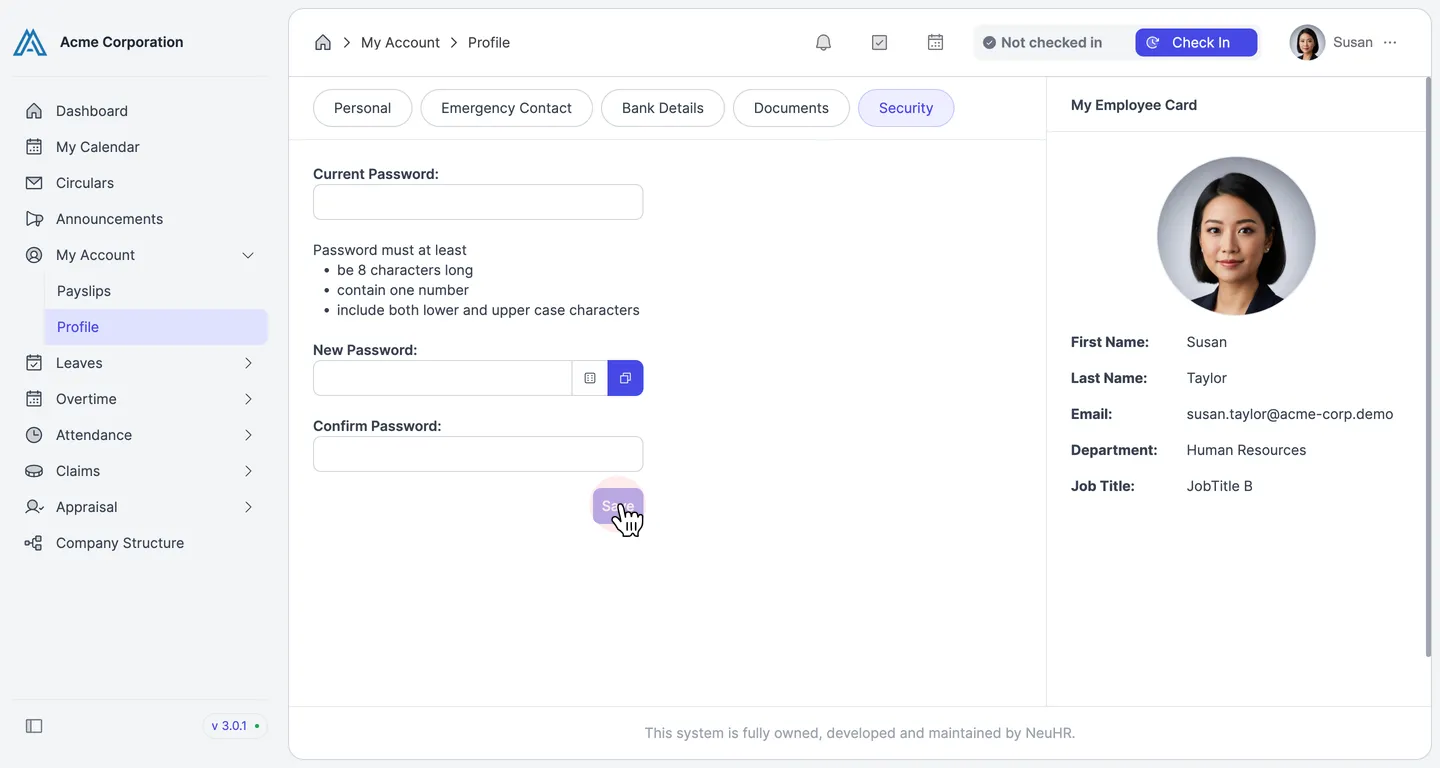
A success message confirms your password has been updated.