Guide on Using Dashboard for Overview
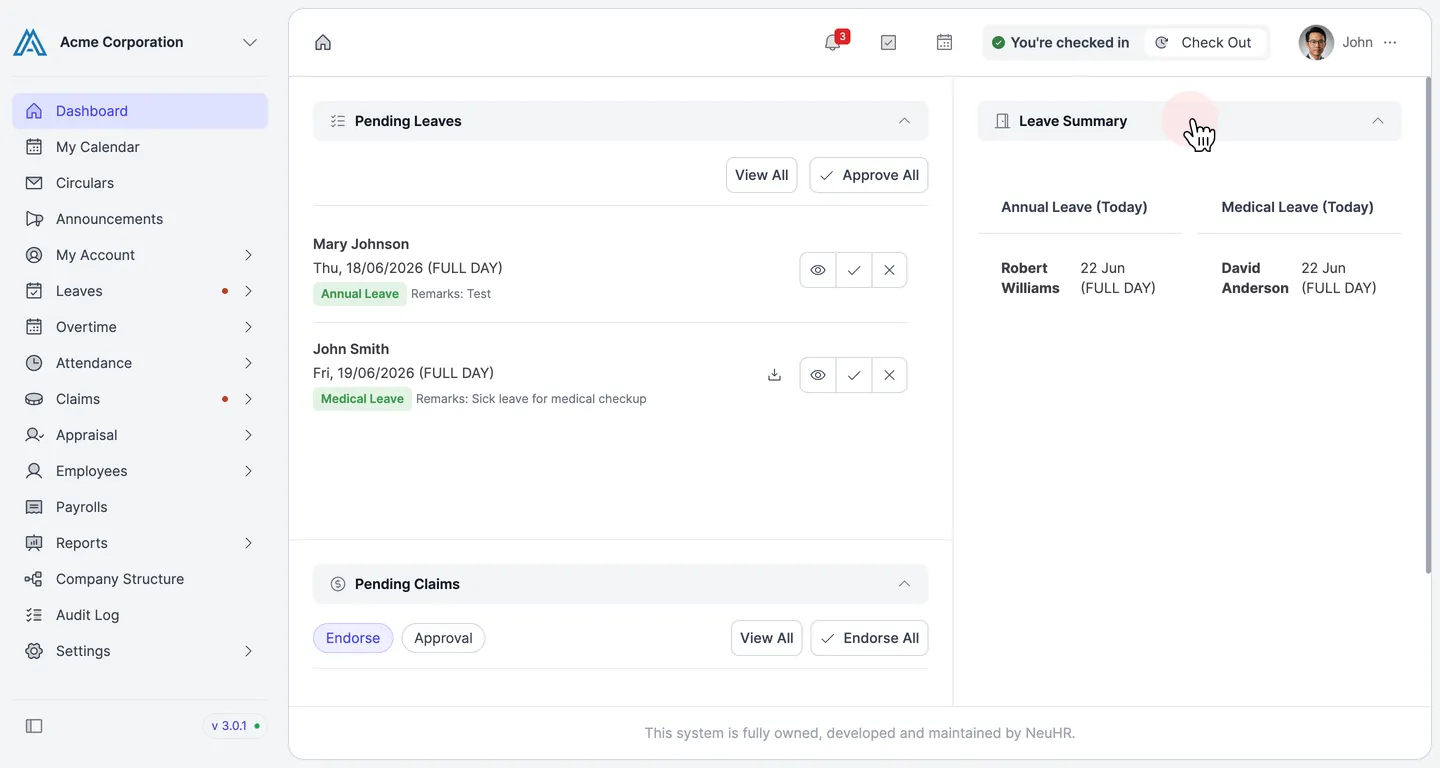
The Dashboard is your home screen in NeuHR. It gives you a quick overview of pending approvals and today’s attendance status.
-
Navigate to Dashboard
Section titled “Navigate to Dashboard”From the sidebar, click on
Dashboard. This takes you to your home screen where all key information is displayed.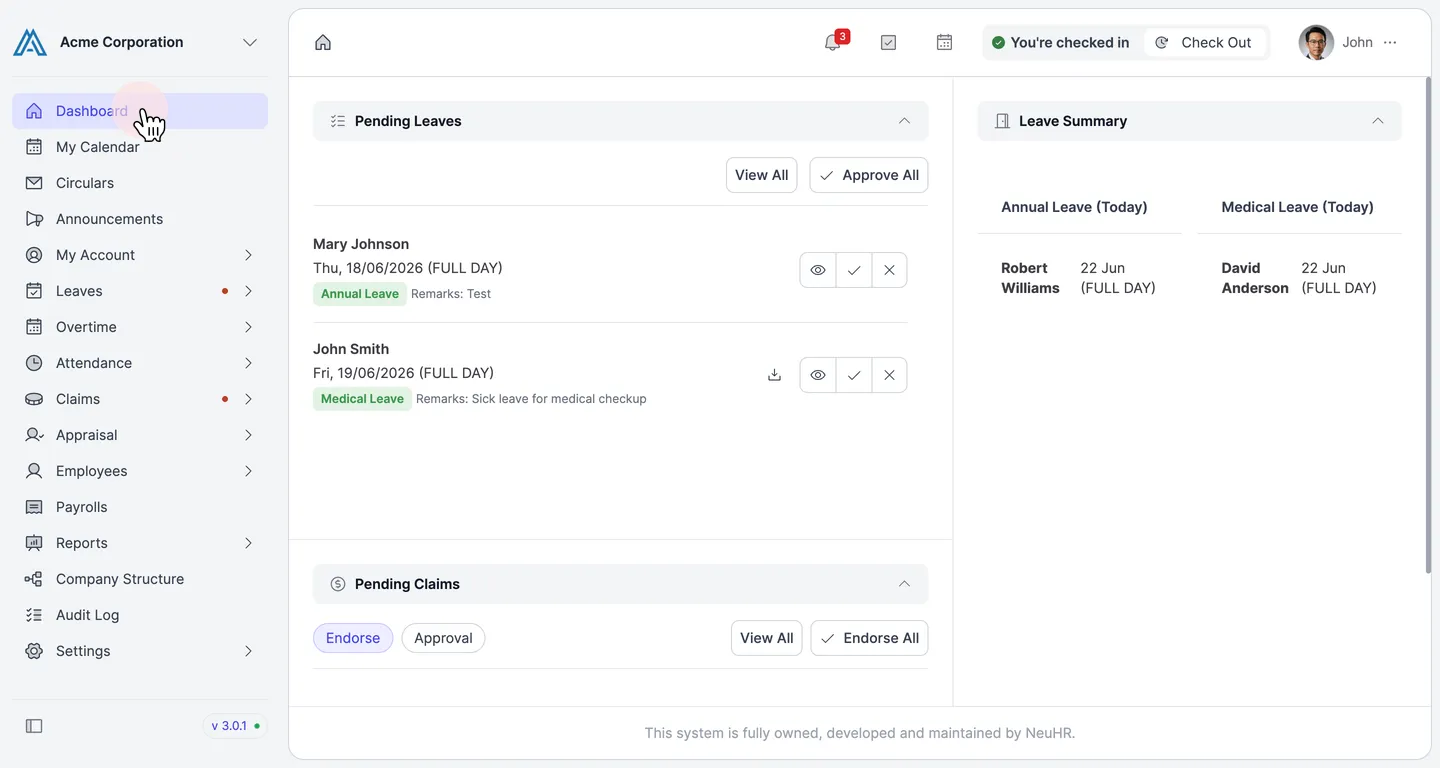
-
View the Top Navigation Bar
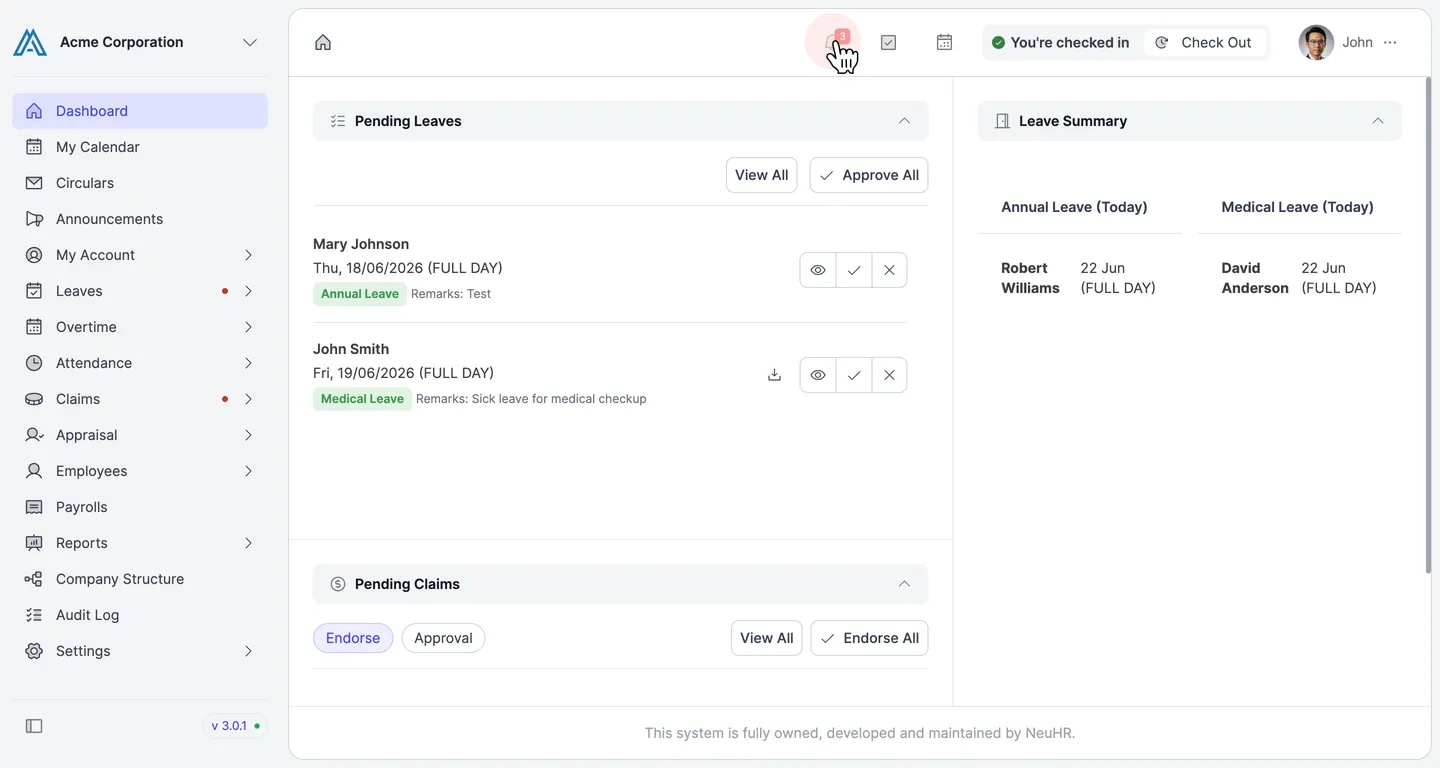
Section titled “View the Top Navigation Bar”The top bar shows quick-access tools:
- Notifications (bell icon with badge) — view system alerts and updates
- Tasks (checkmark icon) — view your pending tasks
- Calendar (calendar icon) — access your calendar
- You’re checked in / Check Out — shows your current attendance status. Click
Check Outwhen you are done for the day. - Profile (your name) — access your profile and account settings
-
Review Pending Leaves
Section titled “Review Pending Leaves”The
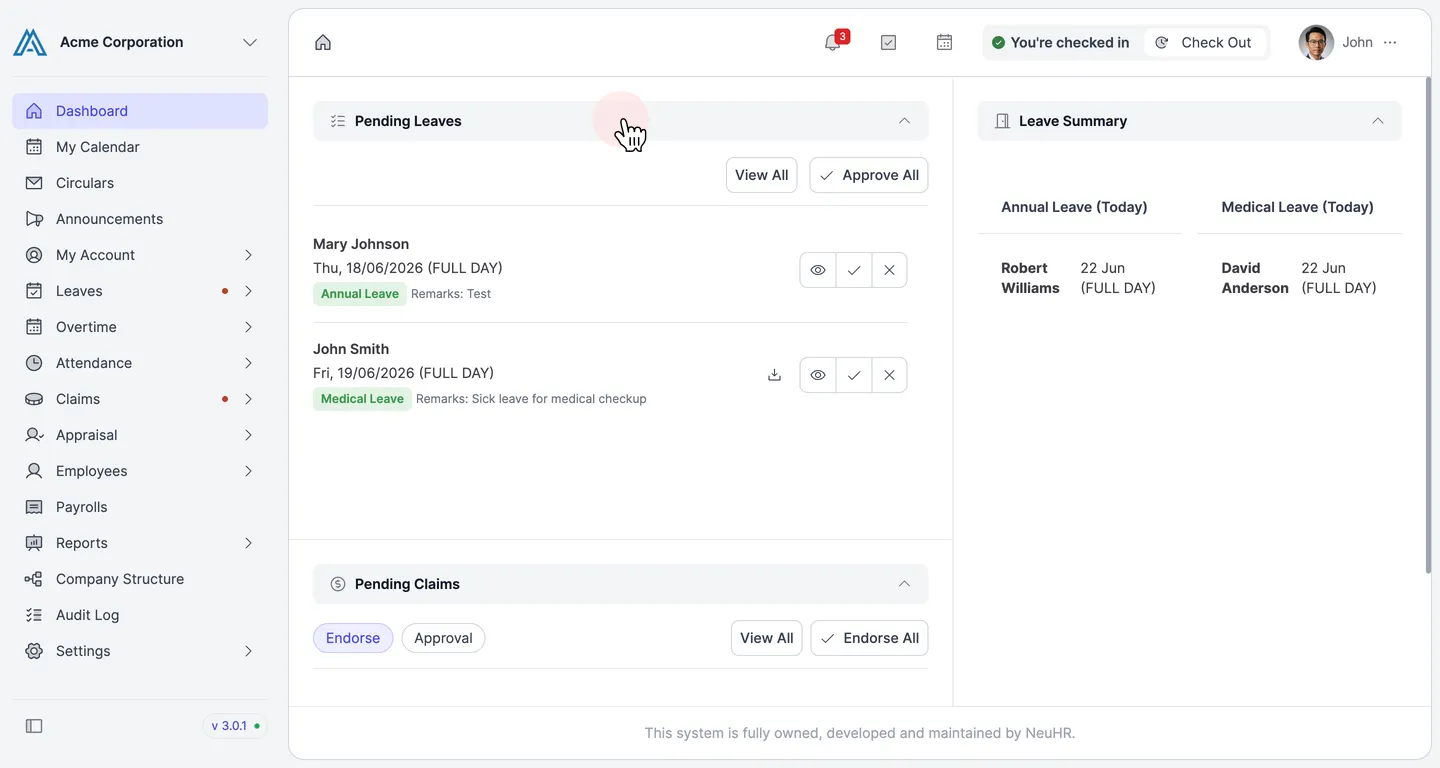
Pending Leavessection shows leave requests from your team members that require your action.- Click
View Allto see the full list of pending leave requests. - Click
Approve Allto approve all pending requests at once. - For each individual request, use the view (eye), approve (checkmark), or reject (X) icons to take action.
- Click
-
Review Pending Claims
Section titled “Review Pending Claims”The
Pending Claimssection shows expense claims awaiting your action. Use the tabs to switch between:- Endorse — claims you need to endorse before they proceed to approval
- Approval — claims ready for your final approval
Click
View Allto see the complete list, orEndorse Allto endorse all pending claims at once.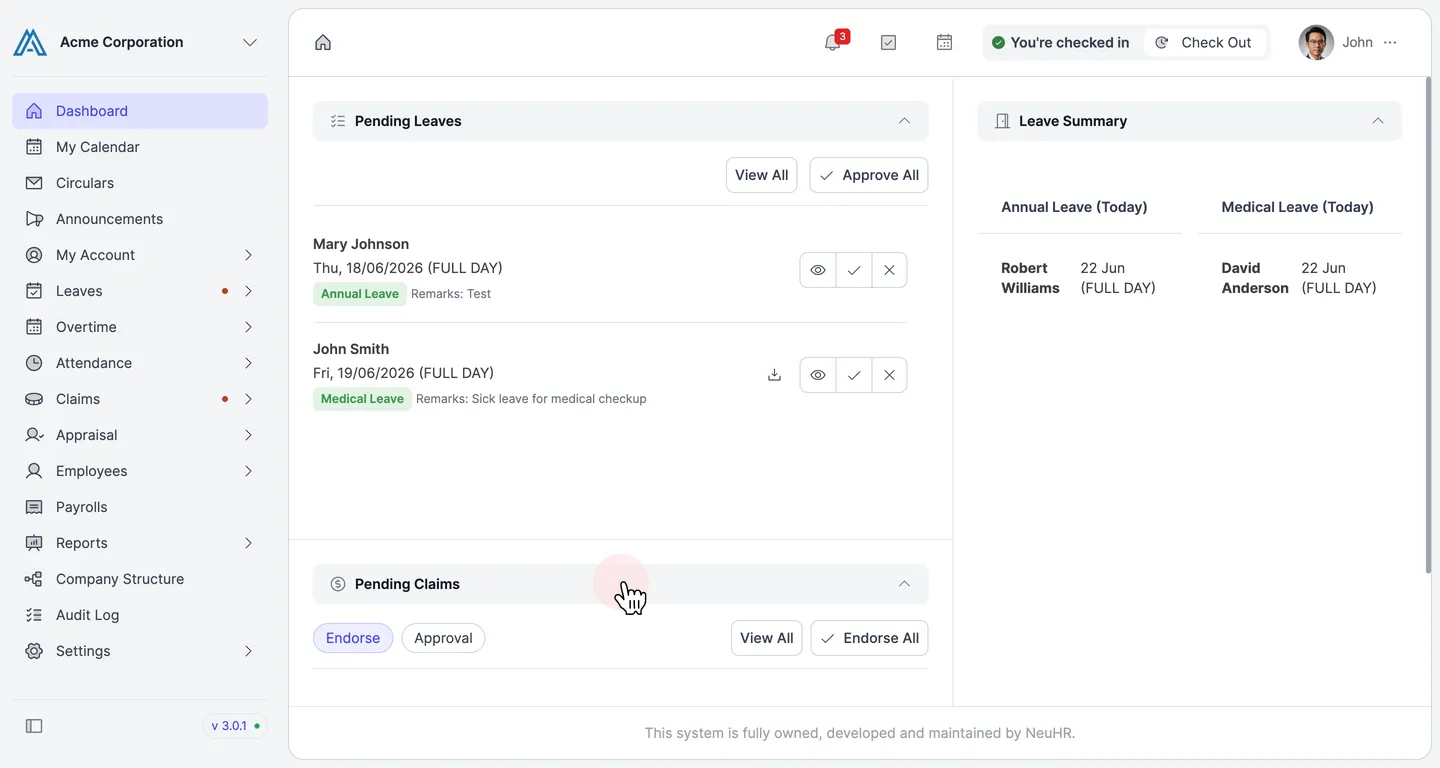
-
Check the Leave Summary
Section titled “Check the Leave Summary”The
Leave Summarysection on the right shows which employees are on leave today, organized by leave type (e.g.,Annual Leave (Today),Medical Leave (Today)).This gives you a quick view of team availability for the current day.