How to Update My Document
This guide shows you how to upload a document to your profile in NeuHR.
-
Navigate to Profile
Section titled “Navigate to Profile”From the sidebar, click
My Accountto expand the menu, then clickProfile. On the Profile page, click theDocumentstab.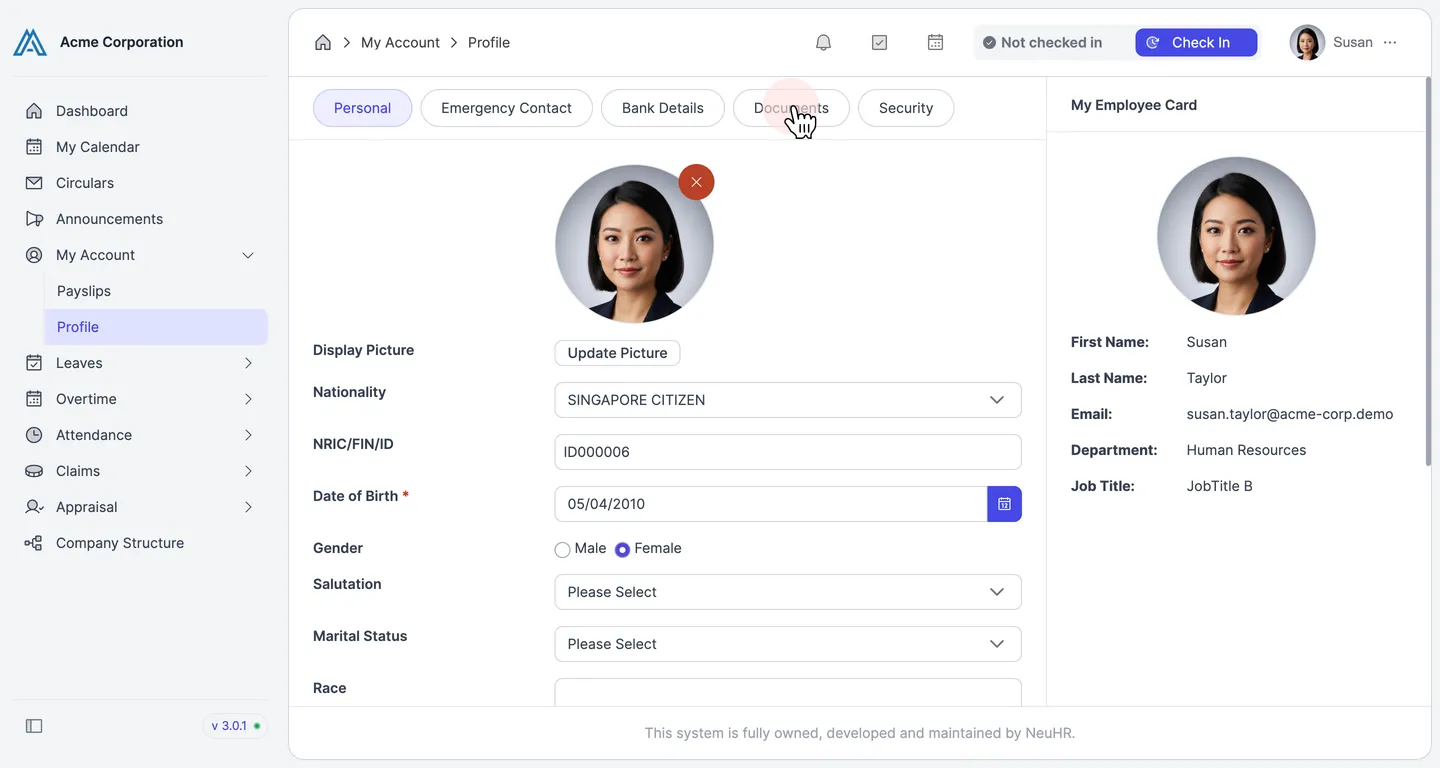
-
View the Documents Section
Section titled “View the Documents Section”The Documents section displays your uploaded documents at the top and an upload form below. Click the
Document Typedropdown to select the type of document you want to upload.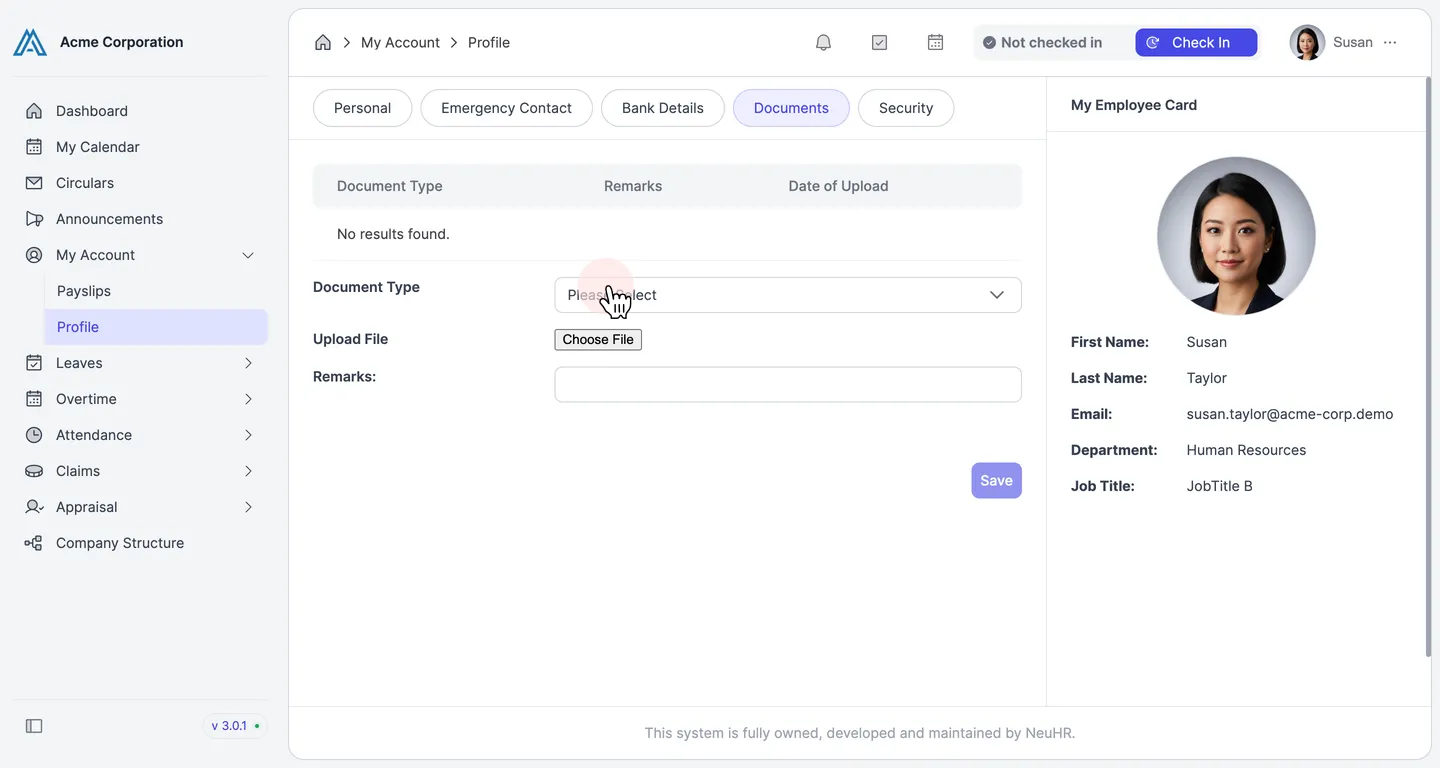
-
Select a Document Type
Section titled “Select a Document Type”Select the appropriate document type from the list. In this example, select
Employment Contract.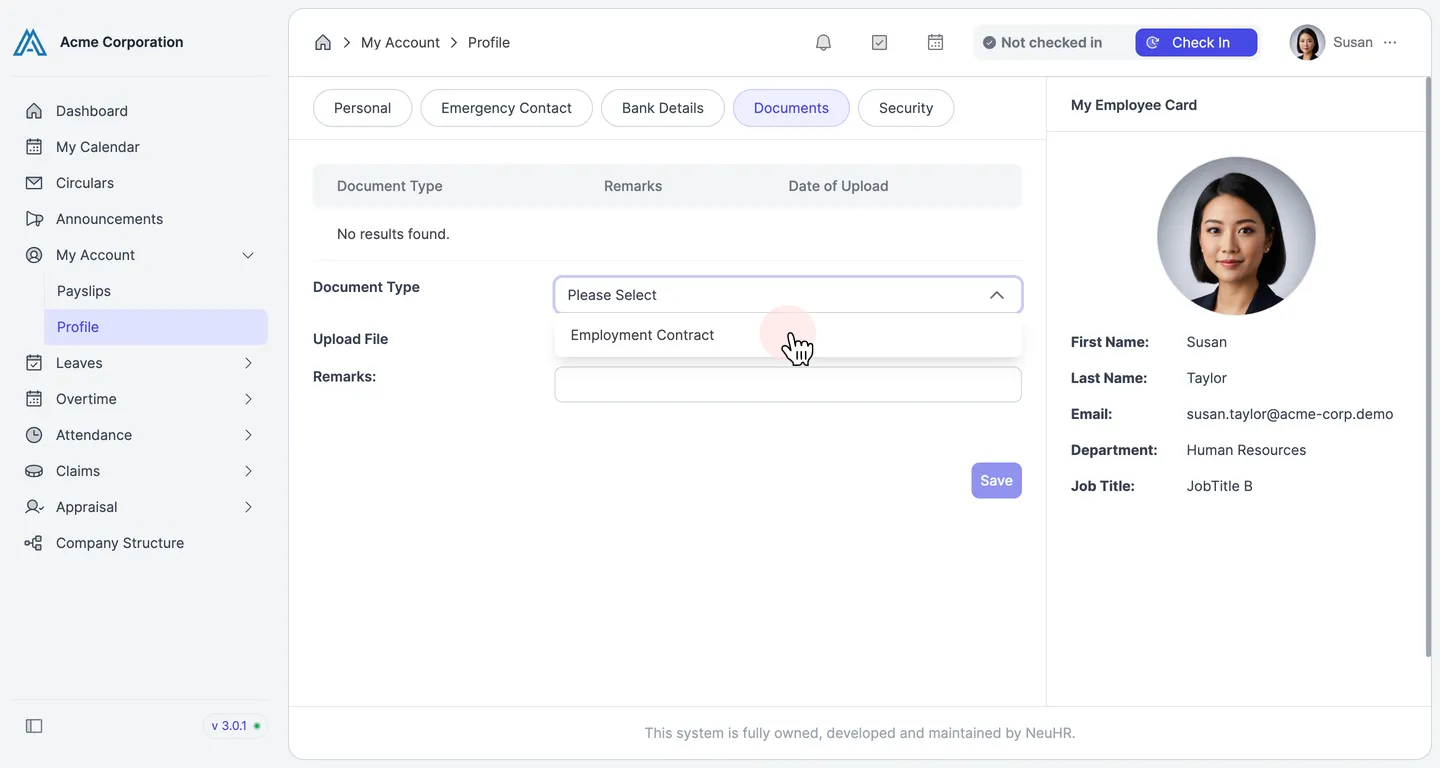
-
Choose Your File
Section titled “Choose Your File”Click the
Choose Filebutton and select the document file from your computer.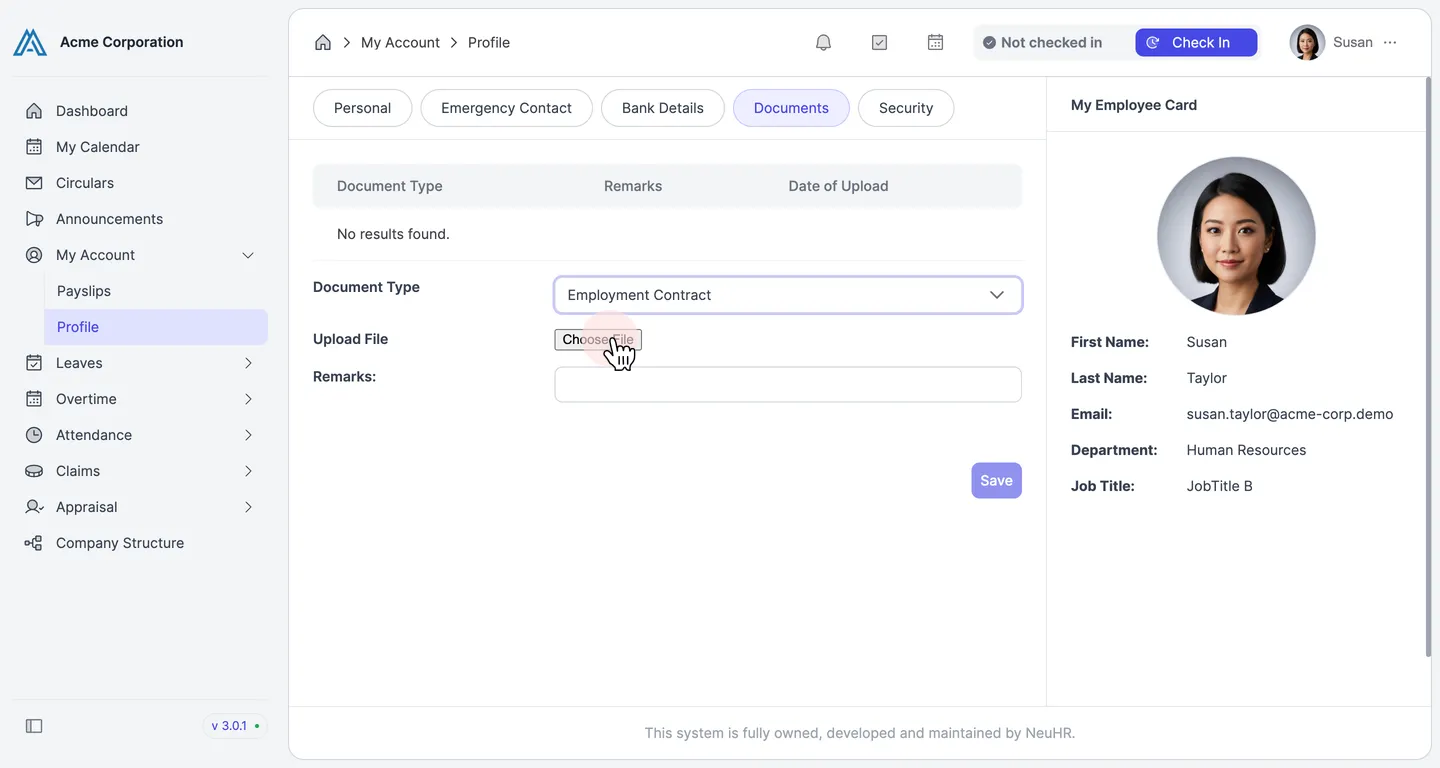
-
Save the Document
Section titled “Save the Document”Once a file is selected, it appears next to the
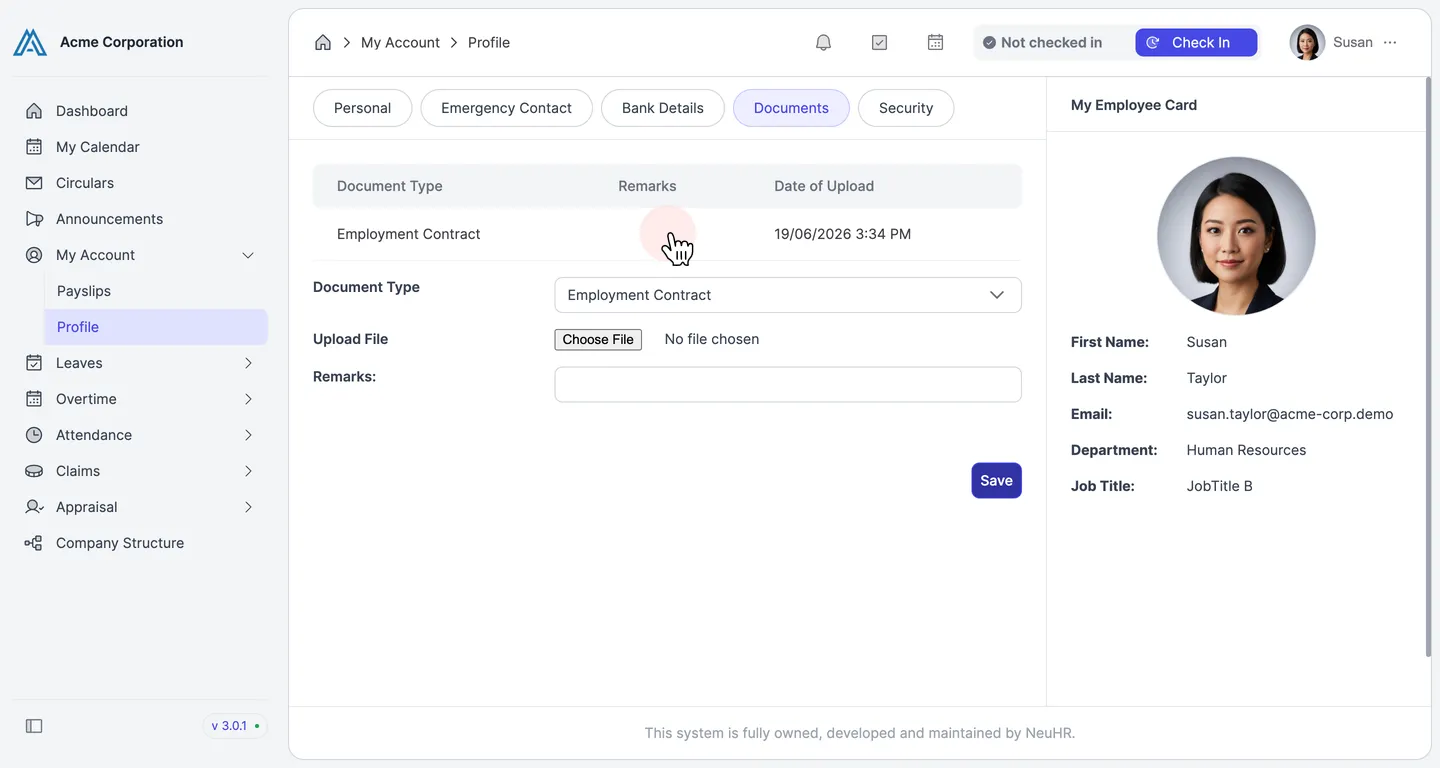
Choose Filebutton. Click theSavebutton to upload your document.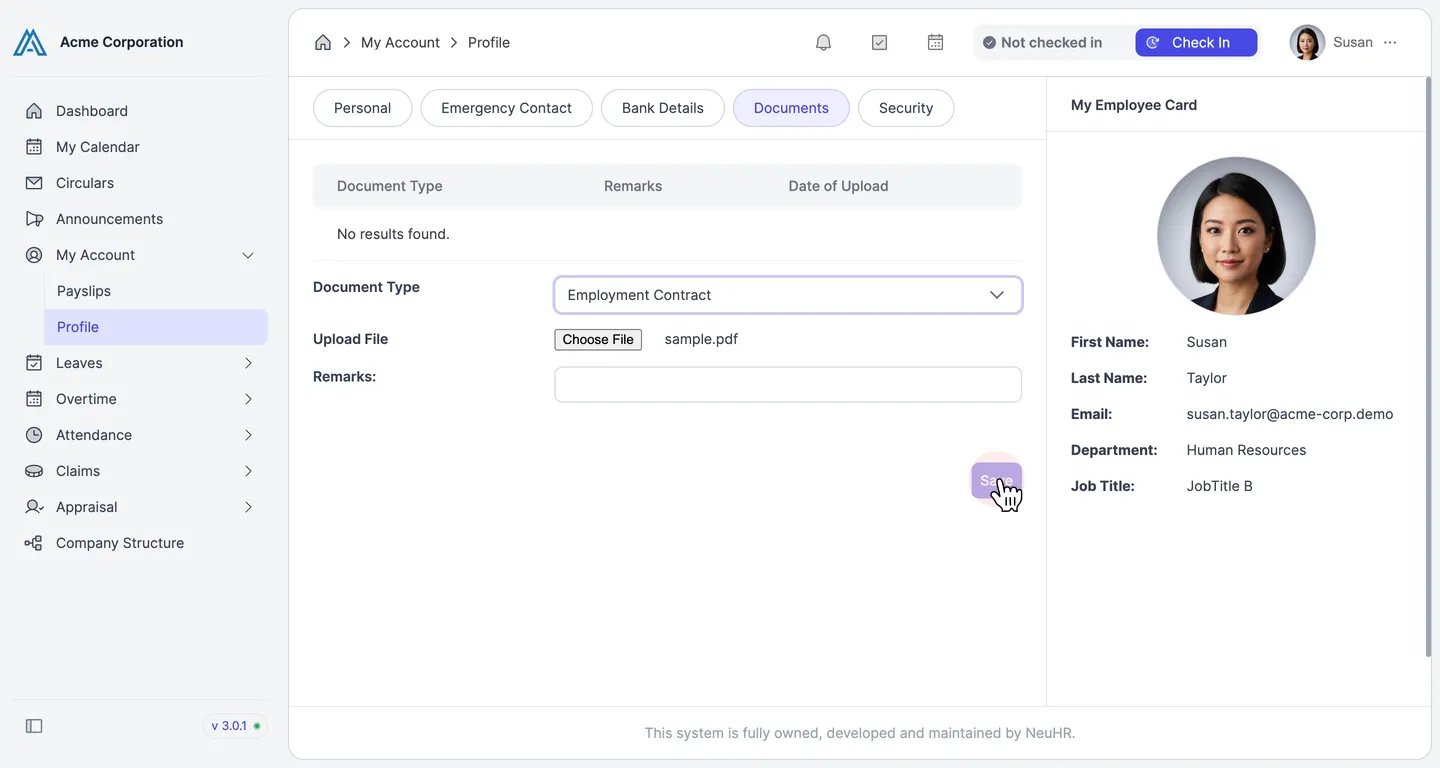
The document is saved and now appears in the documents list with the document type and date of upload.